
How to filter and sort issues

You have 200 open tickets in project WEB, and standup starts in ten minutes. Someone drops the question in chat: "what's assigned to me that's in progress and high priority?" You could scroll the board and count cards column by column. Or you open the list view and answer it in three clicks. When you filter issues by assignee, label, and status all at once, the URL you land on becomes the answer. Copy it, paste it back in chat, and your teammate sees the exact same list you're looking at.
That is what the list view is for. The board shows you flow. The list answers questions.
When the list view beats the board
The board is the right tool when you care about movement. Cards slide from Backlog to To Do to In Progress to In Review to Done, and you can see at a glance where things pile up. But the board is bad at cross-cutting questions. "Show me every high-priority bug across all five columns that nobody has picked up" is not a board question. It's a list question.
Open project WEB and switch to the List tab. You get a table of every open issue with a control strip across the top. On the left sit Views, Filter, Fields, and Group by. On the right, a live count of what's showing, Export CSV and Import CSV links, a Columns manager, and a density toggle. The table defaults to eight columns (Key, Type, Title, Status, Priority, Assignee, Labels, Updated) sorted by Updated, most recently touched issue on top.
That default is deliberate. When you land on the list cold, the freshest activity is at the top, so you see what moved since you last looked. Everything else in this tutorial is about bending that default to answer a specific question.
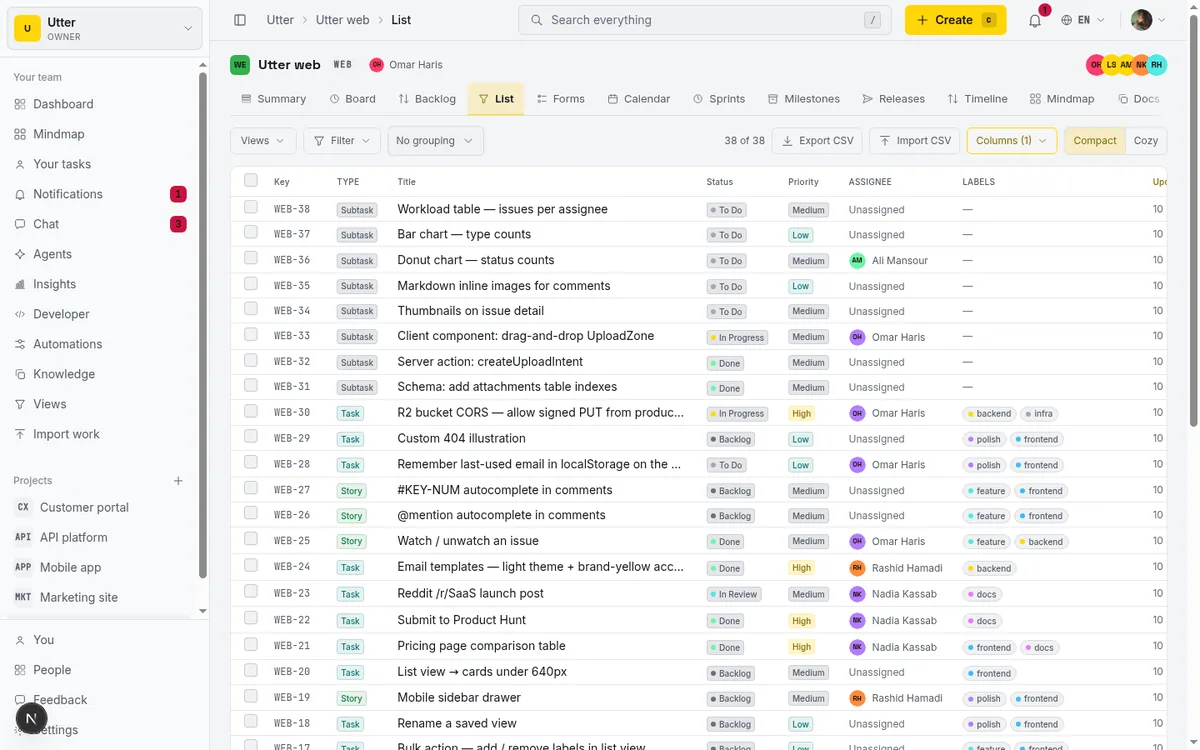
Before you touch anything, read what the table is already telling you. A ticket like "Timeline + Summary tab" sitting in In Progress with a High priority chip and your avatar in the Assignee column is exactly the row you're about to isolate from the other 199.
How to filter issues by assignee, label, and status
Here's the core move. To filter issues by assignee, label, and status together, click Filter. A facet row opens with the filters that apply to this project: Type, Priority, Status, Label, Assignee, and Due. Each one is its own popover.
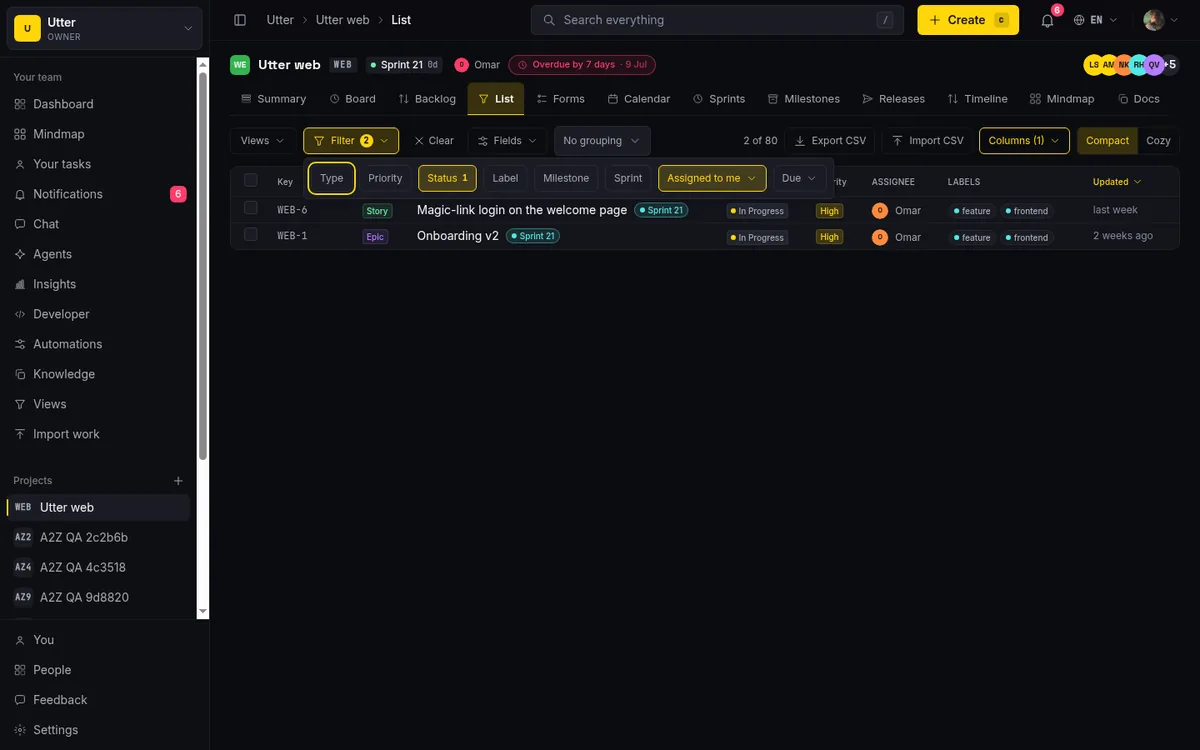
Take the three that matter most first, because they behave differently and the differences trip people up.
Status is multi-select. Click it and you get checkboxes for the fixed status categories: Backlog, To Do, In Progress, In Review, Done, and Cancelled. Check as many as you want. Checking In Progress and In Review means "show me anything in either of those," not "anything in both" (an issue can only be in one). That is any-of matching.
Hold onto one thing here: this filter works on the fixed status category, not on your project's custom board column names. Why that matters comes up in the grouping section.
Label is also multi-select, any-of. Check "frontend" and "regression" and you see issues carrying either label. One catch: the Label facet only appears if the project actually has labels. A brand-new project with none won't show it. That is not a bug, there is simply nothing to filter by yet.
Assignee is different. It is single-select, because "assigned to two specific people at once" is not a common question and the UI keeps it simple. Your options are Anyone (the default, no filter), Assigned to me, Unassigned, or a specific team member. The member list shows avatars, and your own name is marked with "(You)" so you don't have to hunt for yourself.
Now stack them. For "in progress, carrying the frontend label, assigned to me," you check In Progress under Status, check frontend under Label, and pick Assigned to me under Assignee. The rule for how these combine: filters are ANDed across facets and ORed within a facet. So (In Progress) AND (frontend) AND (me). Two labels checked would be (frontend OR regression) AND the rest. Use it twice and it becomes second nature.
The remaining facets follow the same pattern:
- Type filters by Epic, Story, Task, Bug, or Subtask (multi-select).
- Priority runs Critical, Highest, High, Medium, Low, Lowest (multi-select).
- Due is a single-select quick filter with Any due date, Overdue, Due this week, and No due date, which is the fastest way to find what's slipping.
Reading the filtered result and the shareable URL
Apply a filter and two things change in the control strip. The Filter button grows a small yellow badge counting how many filters are active, so you always know you're looking at a subset and not the whole project. And a Clear button appears next to it.
The more useful change is in the address bar. Every filter you set is written into the URL query string. Filter to In Progress, High priority, assigned to you, and the path becomes:
/w/utter/p/web/list?status=in_progress&priority=high&assignee=meThat URL is the whole point. It is not a fragile session thing that evaporates on refresh. Reload the page and you land right back on the same filtered list. Copy it, paste it into your standup channel, and whoever clicks it sees precisely what you saw. No "click Filter, then Status, then check In Progress, then..." instructions needed. The link is the instruction.
Here is the full vocabulary the list writes into the query string. Multi-value params take comma-separated lists; an omitted key means "any":
| Param | Values | Set by |
|---|---|---|
types |
epic,story,task,bug,subtask |
Type facet |
priority |
critical,highest,high,medium,low,lowest |
Priority facet |
status |
backlog,todo,in_progress,in_review,done,cancelled |
Status facet |
labels |
label ids | Label facet |
assignee |
me, unassigned, or u:<userId> |
Assignee facet |
due |
overdue, week, none |
Due facet |
sort + dir |
key,title,status,priority,updatedAt + asc/desc |
Column headers |
group |
epic, status, assignee |
Group by |
cols |
visible column list | Columns manager |
collapsed |
collapsed group ids | Group headers |
density |
compact, comfortable |
Density toggle |
cf.<fieldId> |
typed payload (see Fields pill) | Fields pill |
This is why I reach for the list to answer questions in chat. The answer and the proof are the same artifact.
Clear wipes all the facet filters at once and returns you to the full list. One exception: custom-field filters (set through the Fields pill, covered below) have their own Clear inside that panel, so the main Clear won't touch them. If your list still looks filtered after you hit Clear, check whether a Fields filter is hanging around.
Sorting by the columns that actually sort
Filtering narrows the rows. Sorting orders them. Grouping, next section, breaks the result into labeled sections. That is the whole pipeline, and the URL carries all of it:
flowchart LR
    A[All open issues] --> B[Filter narrows rows]
    B --> C[Sort orders rows]
    C --> D[Group adds sections]
    D --> E[URL carries the result]
Click a column header to sort by it, click the same header again to flip between ascending and descending, and a small chevron shows which way it points.
Here's the honest part, worth knowing before you go hunting for a sort that isn't there. Only five columns sort: Key, Title, Status, Priority, and Updated. The Type and Assignee headers are not clickable. There is also no multi-column sort. You cannot say "by priority, then by updated." One sort at a time. The default, if you never click anything, is Updated descending.
Why these five? Because sort here is server-side. When you click Priority, the server runs an actual ORDER BY and returns the rows in that order. That matters for a reason that isn't obvious until you hit it: sorting holds across pagination.
If the project is big enough that issues load in pages (the Load more button at the bottom), a server-side sort keeps the entire result set in correct global order. You won't get page one sorted and page two starting over. Sort by Priority descending on a 500-issue project and the single most critical ticket is genuinely at the top, not just the most critical of the first hundred that happened to load.
Contrast that with filtering, which (as the limits section explains) runs in memory over loaded rows. Sort is the part you can fully trust on a large project.
Grouping rows by epic, status, or assignee
Sorting orders a flat list. Grouping breaks it into labeled sections. The Group by select gives you four options: None (the default), Epic, Status, and Assignee.
Pick Assignee and the table splits into a section per person, each with a header showing a count ("Omar, 12"). Group headers collapse and expand, and here's a nice touch: the collapsed state lives in the URL like everything else, so if you collapse everyone except two people and share the link, the recipient opens it collapsed the same way.
The real power is pairing grouping with sort. Group by Assignee, then sort by Priority descending, and every person's most urgent work floats to the top of their section. That's a one-glance answer to "is anyone sitting on something critical" without opening a single ticket. As a URL:
/w/utter/p/web/list?group=assignee&sort=priority&dir=descNow the nuance you have to internalize, because it's the single most confusing thing about the list view. Grouping by Status is not the same as filtering by Status. When you group by Status, the sections are your project's specific custom board columns, the real names you gave them. When you filter by Status, you're filtering on the fixed underlying category (Backlog, To Do, In Progress, In Review, Done, Cancelled).
flowchart TD
    S[Issue status] --> C[Fixed category like In Progress]
    S --> K[Custom column like Building]
    C --> F[Status filter reads the category]
    K --> G[Group by Status reads the column]
If your WEB project renamed "In Progress" to "Building" and split "In Review" into "Code Review" and "QA," grouping shows those real names, but the filter still speaks in the fixed categories underneath. They are related but not identical. If you expect the filter dropdown to list your custom column names, you'll be briefly confused. It doesn't, by design.
Custom-field columns and the Fields pill
Two separate things share the word "fields," so let's keep them straight.
The Columns manager (the popover on the right of the strip) controls which columns show in the table. Optional columns include Labels (on by default), Reporter, Due Date, Estimate / Spent, Milestone, and Sprint, though Milestone and Sprint only appear as options when the project actually uses them. Below a divider in the same popover you'll find your project's custom fields, and toggling one adds it as a column.
Custom-field columns render kind-aware, meaning each field type displays sensibly rather than as raw text. A select field shows option chips. A checkbox shows a checkmark. A date shows a formatted date, a number shows the number, a URL shows a clickable host, and a user field shows an avatar. You are not stuck reading a raw JSON blob in a cell.
The Fields pill (over on the left, next to Filter) is the other thing. It filters by custom fields, and each field type gets an appropriate control:
- Text and URL fields: a "Contains…" match.
- Select and multi-select: any-of chips, same logic as labels.
- User fields: pick one or more members.
- Number fields: a Min and Max range.
- Date fields: a From and To range.
- Checkbox fields: Any, Checked, or Unchecked.
These filters ride the URL too, one cf.<fieldId> param per field with a small typed payload:
?cf.<fieldId>=o:design~qa            # select: any of these options
?cf.<fieldId>=t:checkout             # text: contains
?cf.<fieldId>=n:1..10                # number: min..max (either side open)
?cf.<fieldId>=d:2026-01-01..2026-02-01   # date: from..to
?cf.<fieldId>=b:1                    # checkbox: checked (b:0 = unchecked)
Like the Label facet, the Fields pill only shows up when the project has at least one filterable custom field. No custom fields, no pill.
One limit to file away now, because it surprises people later: custom-field filters are list-view-only. They do their job here and nowhere else. Switch to the board and they are gone. That is covered properly at the end, but it's worth flagging where you first meet the feature.
Saving a filter as a view (and what it does not save)
If you run the same filter every morning, save it. Open the Views popover and click Save current filter. You name it and choose one thing: Shared with the project (everyone on the project sees it) or uncheck that for personal (only you see it). If it's your first view, you'll meet the empty-state line "No saved views yet. Set up a filter, then save it." Once saved, views can be renamed and deleted by whoever created them, and the active view shows a checkmark when the current filter matches it.
Now the honest limit, and please read this before you rely on a saved view for something important. A saved view persists exactly five fields: types, priorities, statuses, labels, and assignee. That's it. Everything else falls back to defaults when you reopen it:
| Setting | Saved view | Shared URL |
|---|---|---|
| Type, priority, status, label, assignee filters | Yes | Yes |
| Milestone, sprint, release, due-date filters | No | Yes |
| Custom-field filters | No | Yes |
| Sort order and direction | No | Yes |
| Grouping and collapsed groups | No | Yes |
| Visible columns and density | No | Yes |
So if you carefully build a view that is grouped by assignee, sorted by priority, with a custom "story points" column showing, and save it, only the base filter survives. Reopen it and the grouping, sort, and column choices are back to defaults.
This isn't a flaw to work around so much as a fork in the road. If you want a repeatable filter you open often ("my open bugs"), save a view. If you want to hand someone the whole arrangement, sort and grouping and columns included, share the URL instead. The URL carries all of it. A saved view carries five fields. Pick the tool that matches what you actually need.
Bulk edits, inline editing, and CSV export
Everything so far is read-only. The list can also write, if you have the issue.edit_any permission (owners, admins, and members have it, viewers don't). If you're a viewer, you'll see the list but none of the editing controls below, which is working as intended.
Inline editing lets you change a row without opening the issue. Click a row's Status, Priority, Assignee, or Labels cell and a small popover opens to edit it in place. The change is optimistic. It updates instantly and reverts if the server rejects it. Great for triage: sweep down the list bumping priorities without a single page load.
Bulk editing handles many rows at once. Each row has a checkbox, plus a "Select all visible tasks" option. Check a batch and a sticky action bar appears with Set status, Set priority, Unassign, an AI batch triage action, and Archive. This is how you clear a backlog decision fast: select fifteen stale tasks, Archive, done.
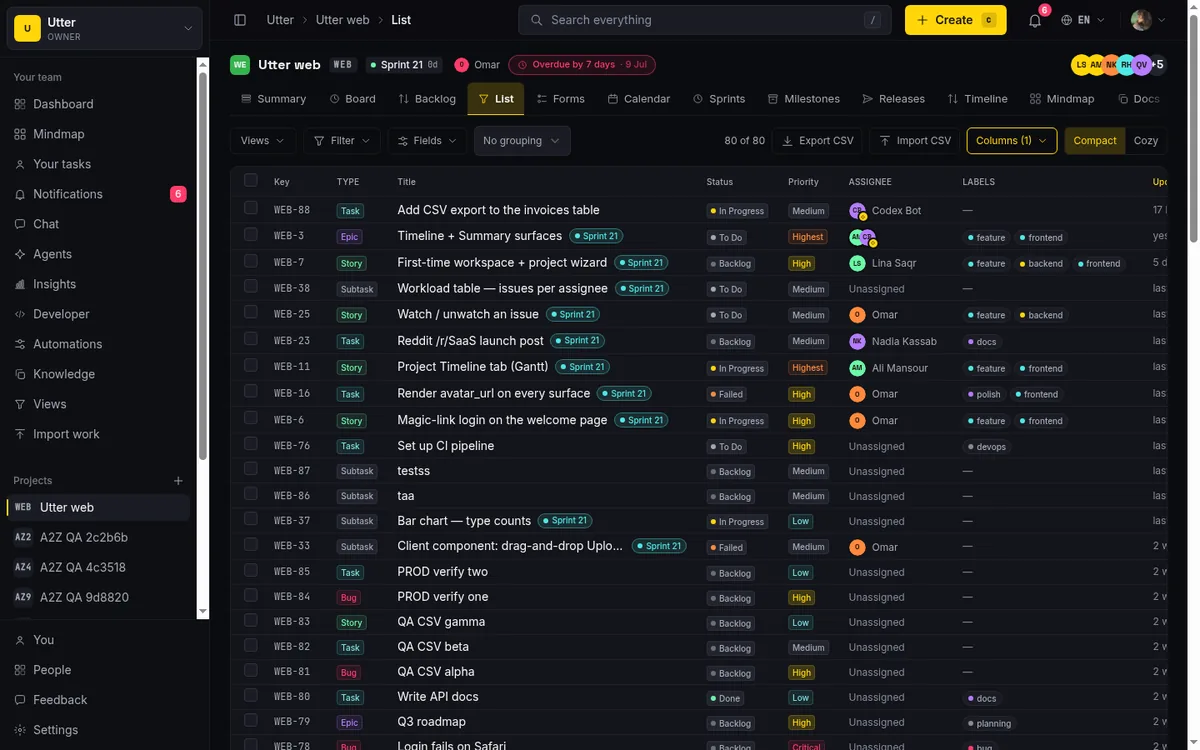
One editing limit: rows with multiple assignees show a read-only avatar stack in the list. You can't edit the full multi-assignee set inline. That's done on the issue detail page. Single-assignee rows edit inline fine.
Export CSV dumps the list to a file. Worth knowing exactly what you get, so you're not surprised. It excludes archived and soft-deleted issues, is capped at 5000 rows, comes ordered by issue number, and is a fixed column set (not your chosen visible columns). It is also rate-limited to 10 requests a minute per user, so you can't hammer it. Import CSV takes you the other way, to the importer, for bringing issues in.
Limits and gotchas worth knowing
Everything above works, but a few sharp edges are better learned here than discovered mid-standup.
Filtering is in-memory; sorting is server-side. This is the big one. Filters apply as a predicate over the rows already loaded in your browser, not as a fresh database query on every keystroke. On a very large project the count reads a capped "1000+" and your filter only sees the loaded rows until you press Load more to pull the next page. So on a huge project a filter can look like it's finding fewer matches than truly exist, because the unloaded rows haven't been checked yet. Sort, by contrast, is server-side and always reflects the complete set. Load more first, then filter, if you need certainty on a big project.
Some filters don't leave the list. Custom-field filters and the Release filter simply don't carry over to the board, backlog, timeline, or calendar tabs. This is intentional. Those views have their own filtering models. But if you filter by a custom field here and then click over to the board expecting the same subset, you'll get the full board. Not a bug.
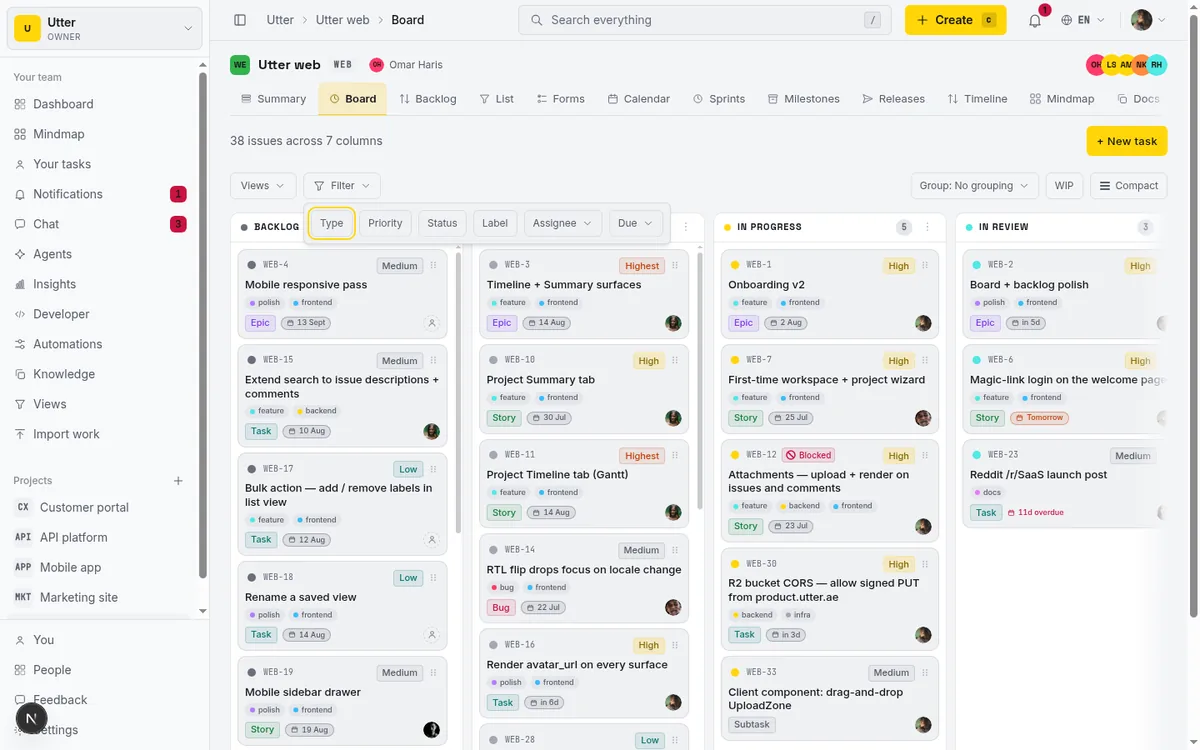
Facets only appear when they apply. The Label facet needs at least one label. The Milestone, Sprint, and Release facets (and the Milestone/Sprint columns) only show when the project has those things. The Fields pill needs a filterable custom field. If a facet you expect is missing, the usual reason is the underlying data doesn't exist yet.
Grouping and density are session state, not saved settings. Grouping and collapsed-group state live in the URL, not on the server, so they travel with the link but aren't a saved preference. Density defaults to your account-menu setting (Compact or Cozy) and can be overridden per-list with the toggle or a ?density= param, but that override is also just URL state.
Desktop table, mobile cards. Below the 1024px breakpoint the table becomes a card layout. Everything still works, but the sortable column headers and the wide column set are a desktop thing. For real filtering-and-sorting work, use a desktop-width window.
None of these are dealbreakers. They are the shape of the tool, and knowing them means you'll never be caught explaining why your shared link looks different on someone else's board.
Frequently asked questions
How do I filter issues by assignee, label, and status at the same time in Utter? Click Filter to open the facet row, then set three facets: check your status under Status, check your label(s) under Label, and pick a person (or "Assigned to me") under Assignee. The facets combine as AND, so you get issues matching all three at once. The result is written to the URL, so you can copy and share it.
Why does filtering by Status not match my custom board column names? Because the Status filter operates on the fixed status category (Backlog, To Do, In Progress, In Review, Done, Cancelled), not on your project's renamed columns. If you want to see your actual column names, use Group by → Status, which groups on the specific custom column. The filter and the grouping look at status through different lenses on purpose.
Which columns can I actually sort by in the list view? Five: Key, Title, Status, Priority, and Updated. Click a header to sort, click again to reverse it. The Type and Assignee headers aren't sortable, and there's no multi-column sort. The default is Updated, descending.
Does a saved view remember my sort order, grouping, and visible columns? No. A saved view persists only five filter fields (types, priorities, statuses, labels, assignee). It does not save sort, grouping, columns, density, or your milestone, sprint, release, due-date, or custom-field filters. For the full arrangement, share the URL instead, which carries all of it.
How do I share a filtered issue list with a teammate? Copy the URL. Every filter, sort, group, column choice, collapsed-group state, and density setting lives in the query string and round-trips on refresh. Paste the link and your teammate opens the exact same list. No saved view or setup instructions required.
Can I bulk-change the status or priority of several issues at once? Yes, if you have edit permission (owners, admins, members). Select rows with the checkboxes (or "Select all visible tasks"), then use the sticky action bar to Set status, Set priority, Unassign, run AI batch triage, or Archive. You can also click any single row's Status or Priority cell to edit it inline.
How do I show or filter by a custom field in the list? To show it as a column, open the Columns manager and toggle the field on (custom fields sit below a divider). To filter by it, use the separate Fields pill, which gives you a control matched to the field type (contains for text, chips for select, min/max for number, and so on). Both only appear when the project has custom fields.
Why do my custom-field and release filters disappear when I switch to the board? Because custom-field filters and the Release filter are list-view-only by design. The board, backlog, timeline, and calendar have their own filtering and intentionally don't inherit these. If you need that exact subset elsewhere, the list URL is the way to preserve it.
Keep going
Once you're comfortable slicing the backlog in the list, the natural next steps are learning how to use a kanban board for the flow side of the same issues, letting AI issue triage that assigns and prioritizes handle the first pass so your filters have less to sort through, and understanding what agentic project management means if you're building a workflow where humans and agents share the same list. Coming from another tool? Here's how the list view compares in our Utter vs Jira breakdown.
Open project WEB, click Filter, and answer that standup question before anyone finishes typing it.
Frequently asked questions
How do I filter issues by assignee, label, and status at the same time in Utter?
Click Filter to open the facet row, then set three facets: check your status under Status, check your label(s) under Label, and pick a person (or "Assigned to me") under Assignee. The facets combine as AND, so you get issues matching all three at once. The result is written to the URL, so you can copy and share it.
Why does filtering by Status not match my custom board column names?
Because the Status filter operates on the fixed status category (Backlog, To Do, In Progress, In Review, Done, Cancelled), not on your project's renamed columns. If you want to see your actual column names, use Group by → Status, which groups on the specific custom column. The filter and the grouping look at status through different lenses on purpose.
Which columns can I actually sort by in the list view?
Five: Key, Title, Status, Priority, and Updated. Click a header to sort, click again to reverse it. The Type and Assignee headers aren't sortable, and there's no multi-column sort. The default is Updated, descending.
Does a saved view remember my sort order, grouping, and visible columns?
No. A saved view persists only five filter fields (types, priorities, statuses, labels, assignee). It does not save sort, grouping, columns, density, or your milestone, sprint, release, due-date, or custom-field filters. For the full arrangement, share the URL instead, which carries all of it.
How do I share a filtered issue list with a teammate?
Copy the URL. Every filter, sort, group, column choice, collapsed-group state, and density setting lives in the query string and round-trips on refresh. Paste the link and your teammate opens the exact same list. No saved view or setup instructions required.
Can I bulk-change the status or priority of several issues at once?
Yes, if you have edit permission (owners, admins, members). Select rows with the checkboxes (or "Select all visible tasks"), then use the sticky action bar to Set status, Set priority, Unassign, run AI batch triage, or Archive. You can also click any single row's Status or Priority cell to edit it inline.
How do I show or filter by a custom field in the list?
To show it as a column, open the Columns manager and toggle the field on (custom fields sit below a divider). To filter by it, use the separate Fields pill, which gives you a control matched to the field type (contains for text, chips for select, min/max for number, and so on). Both only appear when the project has custom fields.
Why do my custom-field and release filters disappear when I switch to the board?
Because custom-field filters and the Release filter are list-view-only by design. The board, backlog, timeline, and calendar have their own filtering and intentionally don't inherit these. If you need that exact subset elsewhere, the list URL is the way to preserve it.
Related reading
How to bulk edit issues
How to bulk-edit issues from Utter's List view: multi-select, bulk status/priority, unassign, archive, and human-in-the-loop AI triage, plus the real limits.
July 15, 2026 · 14 min read
How to use a kanban board: a complete guide with a real example
Learn how to use a kanban board in Utter: read cards, drag tasks between columns, add and reorder custom columns, set WIP limits, filter, and save views.
July 15, 2026 · 20 min read
How to save and share views
Save any Utter filter as a named, reusable view: how to save, share vs keep personal, apply across board and list, plus the five facets a view actually stores.
July 15, 2026 · 15 min read
Project calendar view
Open Utter's Calendar tab to see project due dates on a month or week grid, drag deadlines to reschedule, edit status inline, and filter by assignee.
July 15, 2026 · 13 min read

How to search your workspace
Search issues across projects in Utter from one top-bar field: the / shortcut, live typeahead, WEB-12 key-jump, the full results page with Type/Status/Priority filters, and the real limits.
July 15, 2026 · 14 min read
How to prioritize your backlog
Prioritize a backlog in Utter: drag to rank, why rank differs from priority, inline-edit rows, move issues into sprints, and work a long list with keyset paging.
July 15, 2026 · 16 min read
How to read the project summary
Read the Utter project Summary tab like a pro: what every card shows, how each number is computed, what good looks like, and where the dashboard stops.
July 15, 2026 · 16 min read
Gantt chart with dependencies
Learn to plan on Utter's Timeline: read the Gantt, drag bars to reschedule, draw Blocks/Relates/Duplicates dependencies, schedule undated issues, and the real limits.
July 15, 2026 · 14 min read
How to use labels
Create, apply, and filter labels in Utter to organize and slice issues by theme, timing, or customer across the board, backlog, list, and timeline.
July 15, 2026 · 16 min read
How to use the mindmap
How to use Utter's project mind map view: open the radial tree, read the pills, expand and filter branches, group by Hierarchy/Status/People, and export a PNG.
July 15, 2026 · 14 min read
أضف تعليقًا
ابدأ النقاش.