
How to bulk edit issues
Forty tickets are still open at the end of the sprint. A dozen sit in the wrong column because nobody moved them when the work actually shipped. Three are assigned to a contractor who rolled off last week. If your plan is to open each ticket, change one field, save, go back, and open the next, you will burn twenty minutes and still miss a few. This is exactly the mess that bulk edit clears in one pass.
Here is how to bulk-edit issues in Utter, all of it, including the parts the bulk bar quietly refuses to do.
When bulk edit issues in project management actually pays off
Bulk edit exists for the moment the same change needs to land on many issues at once:
- Post-sprint cleanup, when a pile of shipped work never got moved.
- Re-triaging a batch of new bug reports after you filter them down.
- Mass-unassigning when someone leaves the team.
The bulk edit issues project management workflow in Utter lives entirely in the List view, and it is deliberately narrow. It does a handful of things well and refuses the rest, which beats a tool that pretends it can do everything and quietly gets it wrong.
Set two expectations before you touch anything. First, this is a List-view feature. The board and backlog have no bulk bar. Second, it is scoped to people who can edit any issue in the project, which in practice means owners and admins. If you are a plain member or a viewer, the bar simply will not appear, and that is by design. More on that at the end.
Selecting issues in the List view
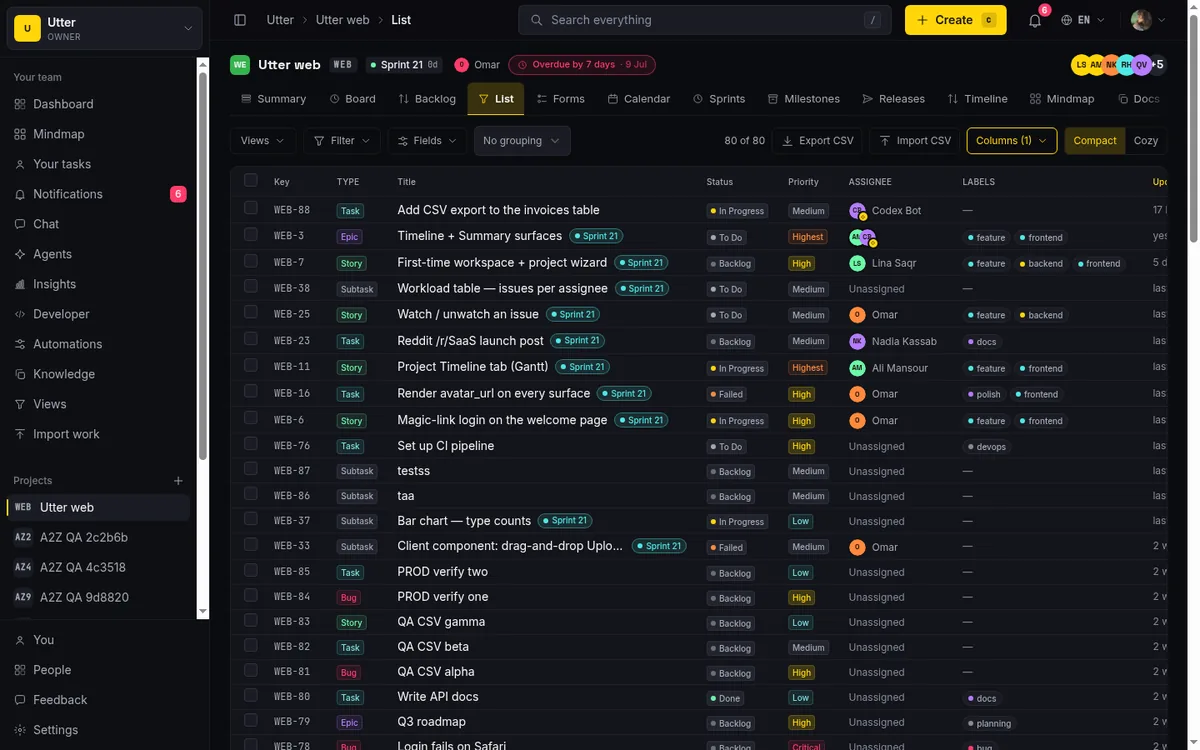
Open a project's List view and you will see a checkbox at the start of every row. Each one carries an aria-label like "Select task WEB-142", so it is clear which issue you are picking and screen readers announce it properly. That per-row checkbox is where every bulk action begins. Tick a row, and you have selected an issue.
At the top of the list, in the header, sits a second checkbox labeled "Select all visible tasks". Click it and every row currently on screen gets selected at once. Click it again to clear them. Watch the indeterminate state: when only some visible rows are ticked, the header checkbox shows a dash instead of a check, so at a glance you can tell "some selected" from "all selected". Small thing. Saves a squint.
Here is a concrete run. In the WEB project, filter the list down to In Progress. Now you are looking at just the work in flight. Tick a few rows, say "Timeline + Summary tab" and a couple of its neighbours, or hit "Select all visible tasks" if the whole column needs to move. Either way, something is about to appear at the top of the list.
How the selection count works, and why it can shrink
Read this part once and it saves you a "wait, where did those go" moment later.
Selection is scoped to visible rows only. It is not a saved list of issue IDs sitting somewhere. It is the set of rows you currently have on screen and ticked. So if you select ten issues, then change a filter or a sort that hides some of them, the hidden rows drop out of the effective selection. The "{n} selected" count updates to match, and every bulk action you run touches only the still-visible selected rows.
That sounds like a trap. It is actually a safety rail. You can never apply a bulk change to something you cannot see. What is on screen is what gets edited. If you selected twelve rows, then narrowed from In Progress to Done and the count fell to three, that is Utter telling you nine of your picks left the screen and will not be touched. Want them all? Widen the filter first, then select.
One more thing to know: selection is ephemeral. It lives in the browser as client state. It clears the moment a bulk apply succeeds, and it does not survive a page reload or navigating away and back. So do your selecting and your applying in one sitting. Reload halfway through and you start over.
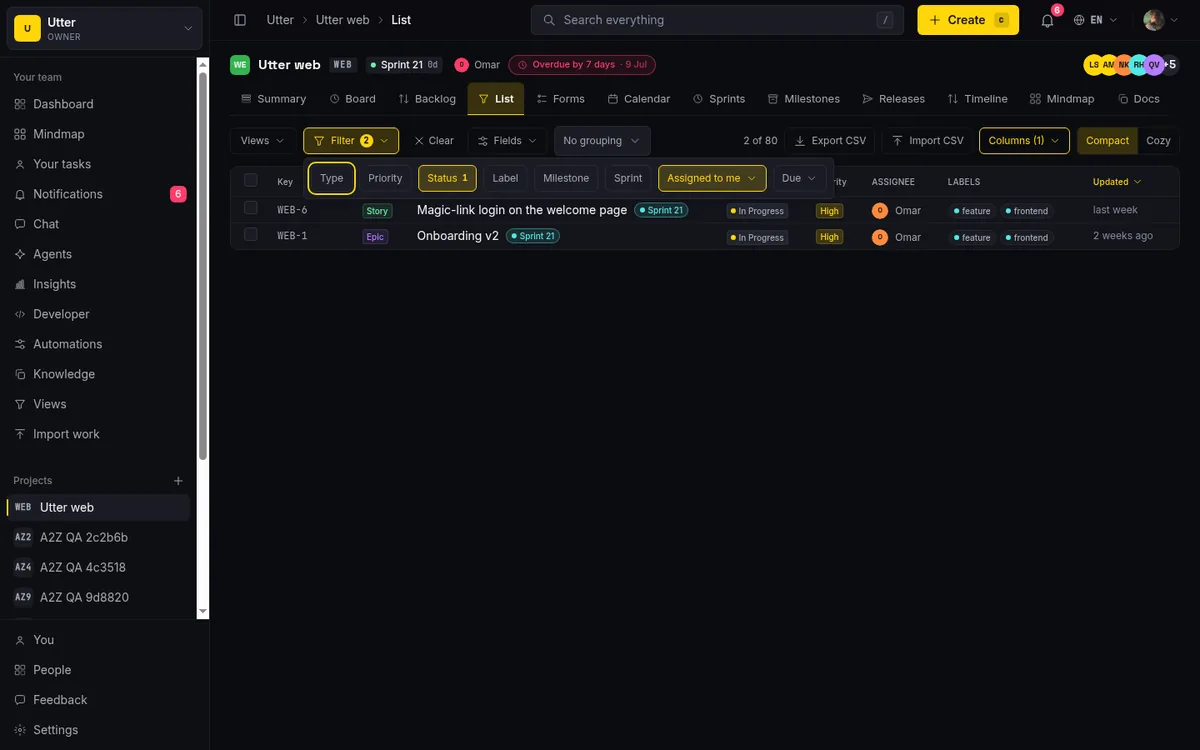
If your rows are not showing up the way you want before you select, that is a filtering and sorting problem, not a bulk problem. The filter and sort guide covers how to get the list down to exactly the rows you mean to act on, which is honestly half the battle with any bulk edit.
The bulk-action bar: status, priority, unassign, archive
The moment one visible row is selected, a sticky bar appears at the top of the list. It stays pinned as you scroll, so you never lose your controls while scanning a long list. (Again: it only shows for users allowed to bulk-edit. If you do not see it, jump to the last section.)
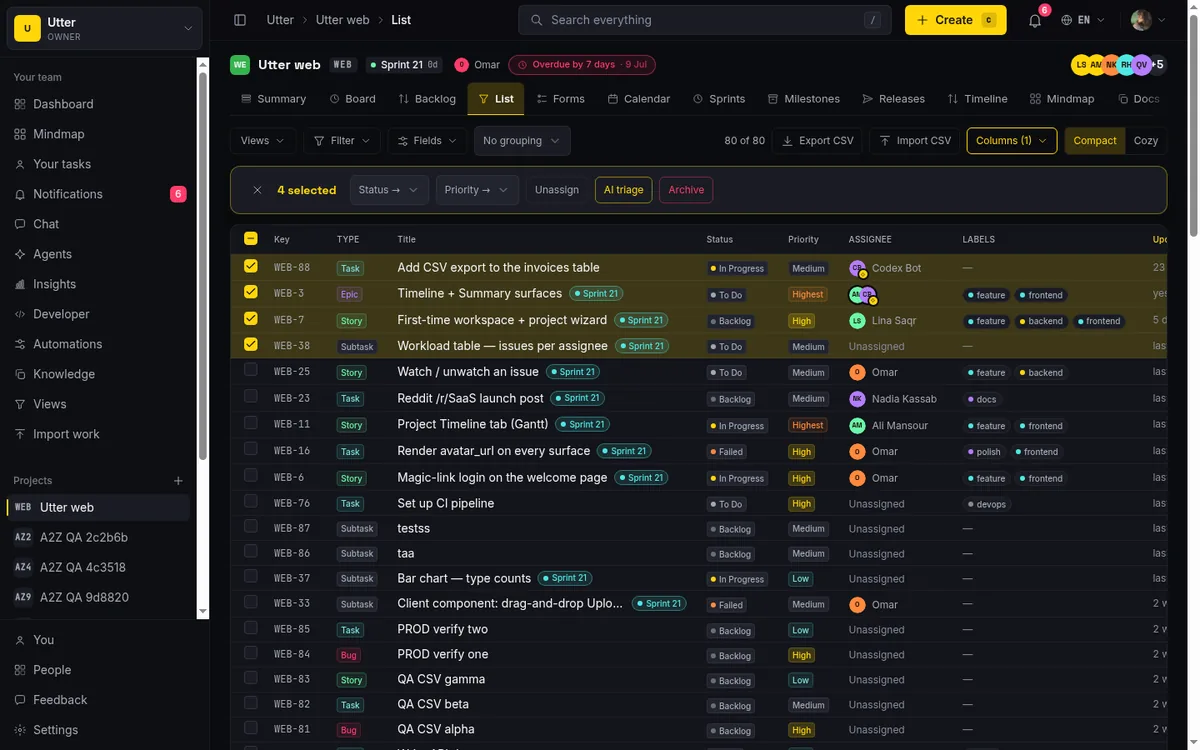
From left to right, the bar gives you:
- An X button, "Clear selection", to drop everything and start again.
- The "{n} selected" count, your live read on how many issues are in play.
- A "Status →" dropdown.
- A "Priority →" dropdown.
- Unassign, a single button.
- AI triage, which opens a review modal.
- Archive, which opens a confirm dialog.
What each control does:
| Control | What it applies to every selected issue |
|---|---|
| Status → | One of the seven status categories: Backlog, Todo, In progress, In review, Done, Failed, Cancelled |
| Priority → | One of the six priorities: Lowest, Low, Medium, High, Highest, Critical |
| Unassign | Clears the assignee, including the full multi-assignee set, not just the primary. An issue with three people on it comes back empty |
| AI triage | Opens the suggestions modal; nothing changes until you apply (covered below) |
| Archive | Asks for confirmation, then hides the issues from working views |
That is the entire manual bulk surface. Four kinds of change: status, priority, unassign, archive. It is worth memorising that short list, because the things it leaves out (bulk-set assignee, bulk labels, bulk sprint) are what trip people up, and I will be straight about each of them near the end.
Bulk-updating status and priority
This is the workhorse. Say you selected eight In Progress tickets that actually shipped last Thursday and just never got moved. Open "Status →", pick Done, and all eight move together.
Under the hood this runs through a single server action, bulkUpdateIssues, which writes the whole selection in one go. Its full input shape is small, and it explains most of what the bar can and cannot do:
// What bulkUpdateIssues accepts, straight from its validation schema
{
  workspaceSlug: string,
  projectSlug: string,
  issueIds: string[],   // 1 to 200 per call, the hard cap
  status?: "backlog" | "todo" | "in_progress" | "in_review"
         | "done" | "failed" | "cancelled",
  priority?: "lowest" | "low" | "medium" | "high"
           | "highest" | "critical",
  assigneeId?: string | null,  // the bar only ever sends null
  archive?: boolean
}
What good looks like: a toast reading "{n} tasks updated." (or "1 task updated." for a single one), and the rows reflecting their new status. A couple of things happen correctly that you would otherwise have to think about. The status_id is kept consistent with the category you chose, so the specific board column matches the status you set. And resolvedAt is stamped when you move issues into a resolved category like Done, or cleared when you move them back out, so your reports and cycle-time numbers stay honest.
Now the rule that changes how you should think about a bulk status move: it is all-or-nothing under your project's workflow. If your project has transition rules (say, you cannot jump straight from Backlog to Done), and even one selected issue sits in a status the target transition is not allowed from, the entire batch is rejected with a message. Nothing gets half-applied.
sequenceDiagram
    participant You
    participant List as List view
    participant Server as bulkUpdateIssues
    You->>List: pick Done in the Status dropdown
    List->>Server: issue ids plus target status
    Server->>Server: access and permission checks
    Server->>Server: workflow check on every issue
    alt any issue blocked
        Server-->>List: whole batch rejected with a message
    else all transitions allowed
        Server->>Server: one write for the whole batch
        Server-->>List: toast, n tasks updated
        Server->>Server: activity, automations, webhooks, notifications
    end
This is intentional. A partial bulk update where some issues moved and some silently did not would be worse than a clean rejection you can see and fix. The move is: narrow your selection to issues that can legally make the jump, or make the intermediate move first.
The change is also tenant-scoped and permission-checked server-side. The action calls requireProjectAccess, requires the issue.edit_any permission, and confirms every submitted issue ID actually belongs to this project before it writes anything, so a stray cross-project ID cannot sneak through.
After the write commits, the same fan-out you would get from a single-issue edit runs for every issue in the batch: activity rows are recorded, automations fire (issue.status_changed, priority_changed, assigned, unassigned), webhooks go out, and notifications reach assignees, reporters, and watchers. If an issue's assignee is an agent, it gets the delegation trigger too. All of that is best-effort and fire-and-forget, so the bulk update itself still succeeds even if a downstream notification hiccups.
AI triage on a selection: suggested priority and labels
Sometimes you do not know what status or priority a pile of issues should carry. Forty new bug reports just landed from a form, all sitting at Medium with no labels. That is where AI triage earns its place.
Select the issues, then click "AI triage" in the bulk bar. Instead of changing anything, it opens the "AI triage suggestions" modal. While it works, you see "Reading the selected issues…". Then it fills in one row per issue: the issue key, its title, a PriorityBadge showing the suggested priority, chips for suggested labels, and a short reason explaining why the model suggested what it did.
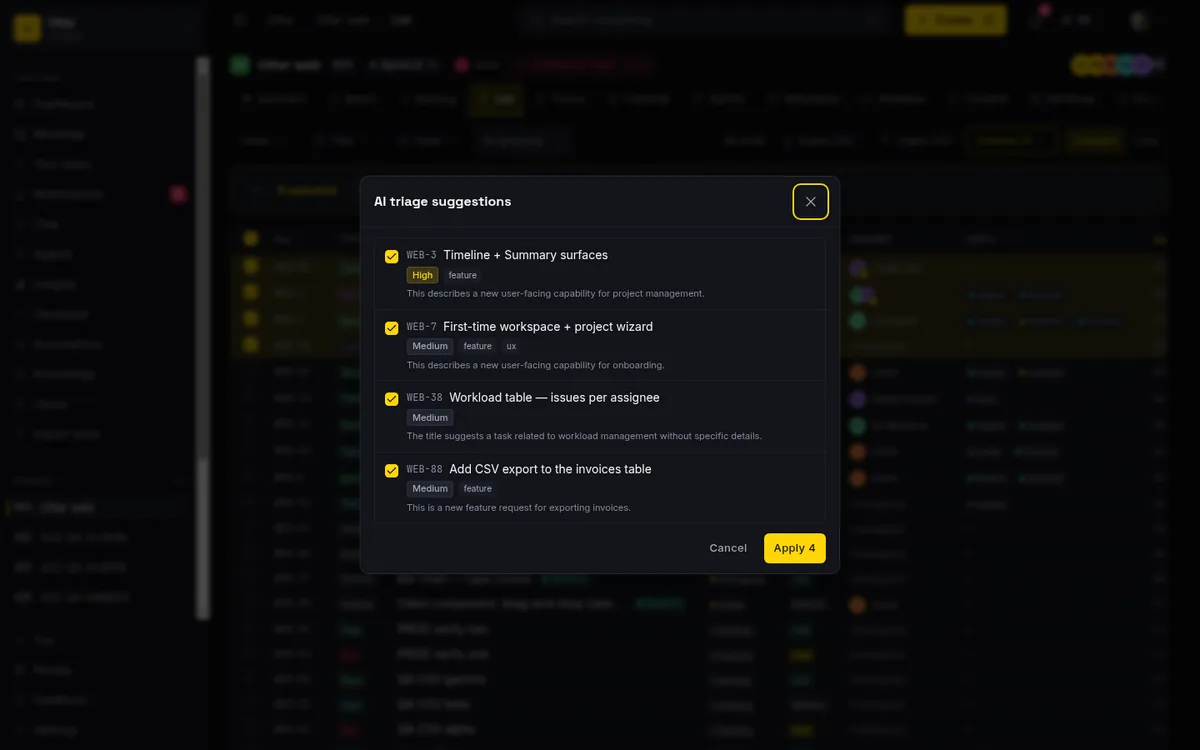
Every row's checkbox is checked by default. That is the design choice that matters. Nothing is applied yet. You read down the list, and any suggestion you disagree with, you uncheck. The "Apply {n}" button at the bottom updates live to reflect how many rows are still checked, so you always know exactly what is about to change. Apply, and only the rows you kept get updated. The model proposes, you dispose, and nothing touches your issues until you say so.
flowchart TD
    A[Select issues in the list] --> B[Click AI triage]
    B --> C[Model reads the selection]
    C --> D[Modal shows one row per issue with a reason]
    D --> E{Review each row}
    E -->|agree| F[Leave it checked]
    E -->|disagree| G[Uncheck it]
    F --> H[Apply]
    G --> H
    H --> I[Priority set via bulk update]
    H --> J[Existing labels set per issue]
Be clear-eyed about what it suggests. AI triage covers priority and labels only. It never suggests or changes status, and it never touches the assignee. If you were hoping it would auto-route work to people, that is not this feature. And on labels there is a real constraint: a suggested label only gets applied if it maps to a label that already exists in your project. The model does not invent new labels on the fly. If a row has no applicable suggested labels, applying it just sets the priority and moves on.
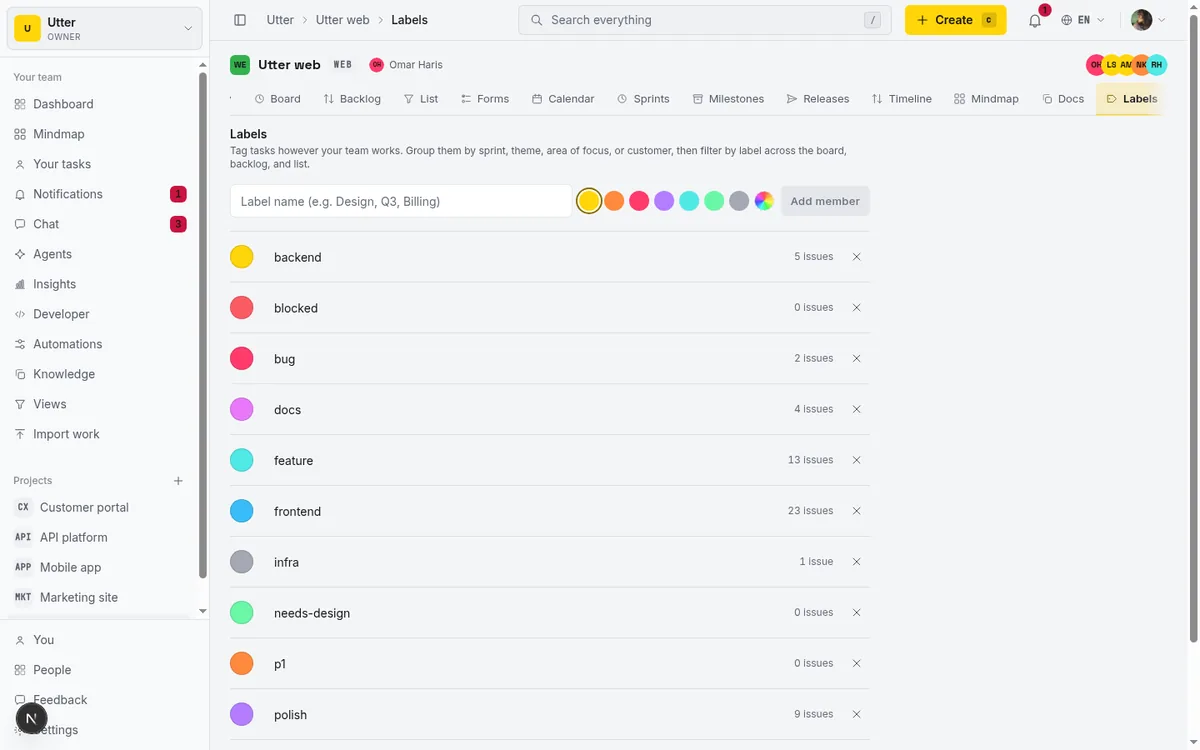
For the deeper version of how the triage model reasons, the AI issue triage post goes into it. And to get real value from label suggestions you need a sane label set in the first place, which the labels guide covers.
The limits of AI triage: batch size, rate limit, availability
Better you know these upfront than hit them mid-triage and wonder what broke.
| Limit | Value |
|---|---|
| Issues per triage run | 15 (extras beyond 15 are simply not triaged) |
| Batch triage runs | 4 per minute per user |
| Single-issue triage | 10 per minute per user (separate budget) |
Select twenty and click AI triage, and only the first fifteen get triaged. There is no partial-credit warning that makes twenty work; the cap is the cap. Hit the rate ceiling and you see "Too many triage runs. Wait a moment and try again." Wait a beat, then go again.
It needs AI enabled for your workspace. If it is off or unreachable, you see "AI is currently unavailable." instead of an empty modal, so you are not left guessing. And when the model runs but chokes on a particular issue, that row is silently dropped from the suggestions rather than showing you a broken half-suggestion. If a run comes back with nothing usable, you get "No suggestions for the selected issues."
On Apply, the kept rows are handled efficiently: issues are grouped by their suggested priority into bulkUpdateIssues calls (so all the "make this High" rows go in one write), and each row's suggested labels are set per issue via setIssueLabels. You see a confirmation like "Triaged {n} issues." when it lands.
Here is why the 15-issue cap and the human review step are features, not obstacles to route around. Triage is a judgement call, and judgement does not scale to a hundred rows of skim-and-trust. Fifteen is about how many suggestions a person can actually read, reason attached, and decide on honestly. A tool that let you auto-apply AI priority to five hundred issues in one click would just be a fast way to make five hundred wrong calls. The cap keeps you in the loop, where you belong.
Bulk archiving and restoring tasks
Sometimes the right move for a stale batch is not to change its status. It is to get it out of the way entirely. That is what Archive is for.
Select the issues, click "Archive" in the bulk bar, and you get a styled confirm dialog before anything happens: "Archive {n} tasks?" (or "Archive 1 task?" for a single one). The dialog spells out what archiving does: "Archived issues are hidden from the board, backlog, and list. You can restore them at any time." Confirm, and they vanish from your working views.
The reason archive is the safe way to clear a batch is right there in that note. It is reversible. Archived issues are not deleted. They are hidden, and you can restore them whenever you need. So when you are staring at a stack of old tickets that are not really Cancelled and not really Done, just no longer relevant, archiving is the honest move. You are not lying about their status by forcing them into Done, and you are not destroying the record.
When should you archive versus change status? If an issue reached a real outcome, set its status (Done, Cancelled, Failed) so your reports reflect what actually happened. If it is just clutter you want out of sight without pretending it resolved, archive it. And because restore is always there, archiving is the low-stakes choice when you are unsure. You can undo it.
What the bulk bar cannot do, and where to go instead
Time to be straight about the edges, because knowing them saves you from hunting for buttons that are not there.
No bulk-set assignee. The bar has Unassign, and that is all. You can clear the assignee on a whole selection in one click, but there is no "assign all these to Sara" control. Look back at the bulkUpdateIssues shape above: it accepts an assigneeId (which can be null), but the bar only exposes the clearing direction. If you need to reassign a batch to a specific person, that is not what bulk edit does today.
No bulk labels via the bar. There is no "add label X to all selected" button. Labels reach a batch of issues in exactly two ways: through the AI triage flow (which applies suggested, already-existing labels on Apply), or the inline per-row label editor where you set labels on one issue at a time. The manual bulk bar does not touch labels.
No bulk sprint at all. There is no bulk control for moving a selection into or out of a sprint. None.
So what do you do for a one-off, single-issue change? You do not need the bulk machinery. Inline single-cell editing sits right alongside it: click a status, priority, or assignee cell directly in the list and edit just that one issue. It applies optimistically through updateOneIssue, and it runs the same tenant guard and workflow enforcement as the bulk path, so you get the same safety on a one-cell edit. That is your tool for "just fix this one row", and it coexists happily with selecting a batch for everything else.
Last, the permission point, since it decides whether you even see any of this. The bulk-action bar is gated on the issue.edit_any permission. Per Utter's role matrix that is owners and admins. Plain members and viewers do not get the bar at all. If you are a member wondering where your bulk controls went, that is why: your role can edit issues assigned to you and do plenty else, but bulk-editing any issue in the project is an owner/admin capability. Do not go telling your whole team they can bulk-edit; most of them cannot, and that is a deliberate guard on a powerful tool.
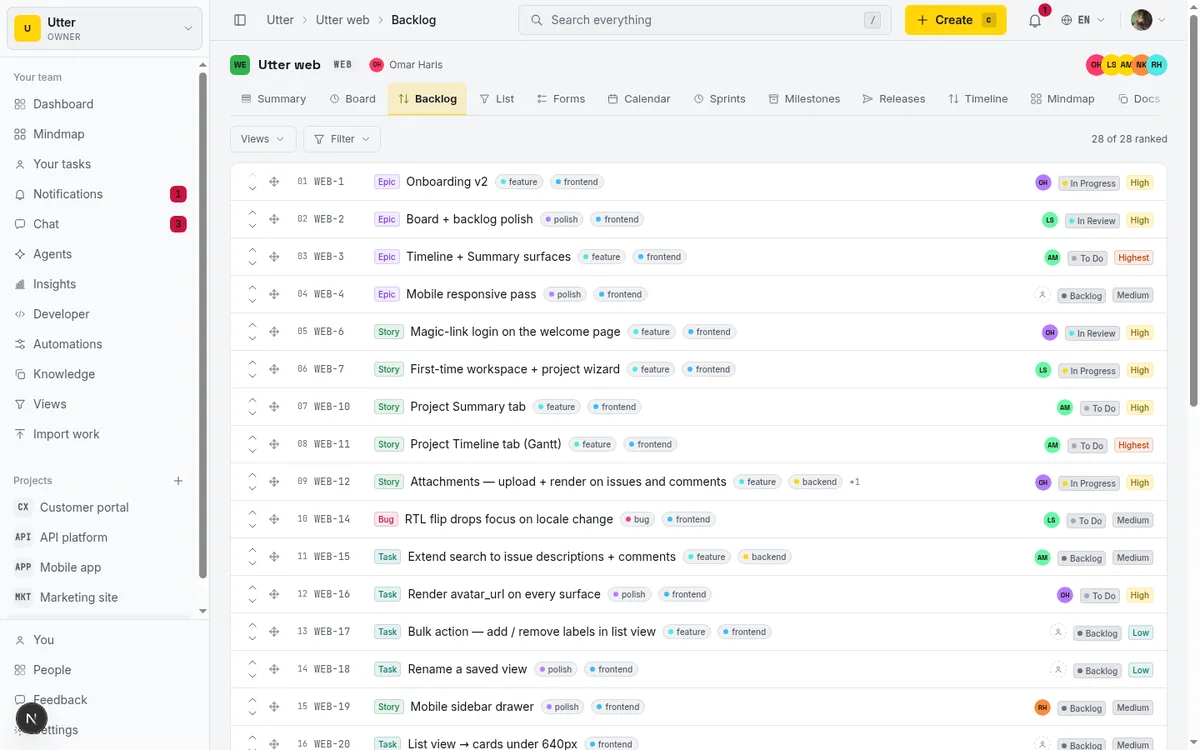
If your actual goal is getting an unruly backlog into shape rather than mass-editing fields, the backlog prioritization guide is the better starting point. Bulk edit is the cleanup tool you reach for once you know what you want each batch to become.
Next time forty tickets are sitting in the wrong place at the end of a sprint, open the List view, filter down to the mess, select the rows, and clear it in one pass.
Frequently asked questions
How do I bulk-edit issues in Utter?
Open a project's List view, tick the checkbox on each issue you want (or use the header "Select all visible tasks"), and a sticky bulk-action bar appears at the top. From there you can set status, set priority, unassign, run AI triage, or archive the whole selection at once.
Why did my selection count drop after I changed a filter?
Selection is scoped to visible rows only. If a filter or sort hides a row you had ticked, it drops out of the effective selection and the "{n} selected" count updates to match. Bulk actions only ever touch rows still on screen, so widen your filter first if you want everything included.
Can I bulk-assign issues to a specific person?
No. The bar only has an Unassign button, which clears the assignee (and the full multi-assignee set) on all selected issues. There is no control to assign a whole batch to one person. For that you set the assignee cell inline, one issue at a time.
Does AI triage change issues automatically?
No. It opens a suggestions modal with a proposed priority and labels per issue, each row checked by default. Nothing is applied until you click "Apply {n}", and you can uncheck any row you disagree with first. It suggests priority and labels only, never status or assignee.
How many issues can I triage or bulk-update at once?
AI triage is capped at 15 issues per run and rate-limited to four runs per minute per user; selecting more than 15 only triages the first fifteen. Manual bulk updates (status, priority, unassign, archive) are capped at 200 issue IDs per call.
What happens to bulk-archived issues, and can I get them back?
Archiving hides issues from the board, backlog, and list without deleting them. The confirm dialog says as much, and you can restore archived issues at any time, so it is the reversible way to clear clutter that is not really Done or Cancelled.
Why can't I see the bulk-action bar?
The bar is gated on the issue.edit_any permission, which in Utter's role matrix means owners and admins. Plain members and viewers do not see it. That is intentional, not a bug.
Why was my whole bulk status change rejected?
Bulk status moves are all-or-nothing under your project's workflow rules. If even one selected issue sits in a status the target transition is not allowed from, the entire batch is rejected with a message rather than applying partially. Narrow the selection to issues that can legally make the jump, or make the intermediate move first.
Related reading

How to filter and sort issues
Filter issues by assignee, label, and status in Utter's list view, then sort, group, save a view, and share the exact filtered list as a URL.
July 15, 2026 · 16 min read
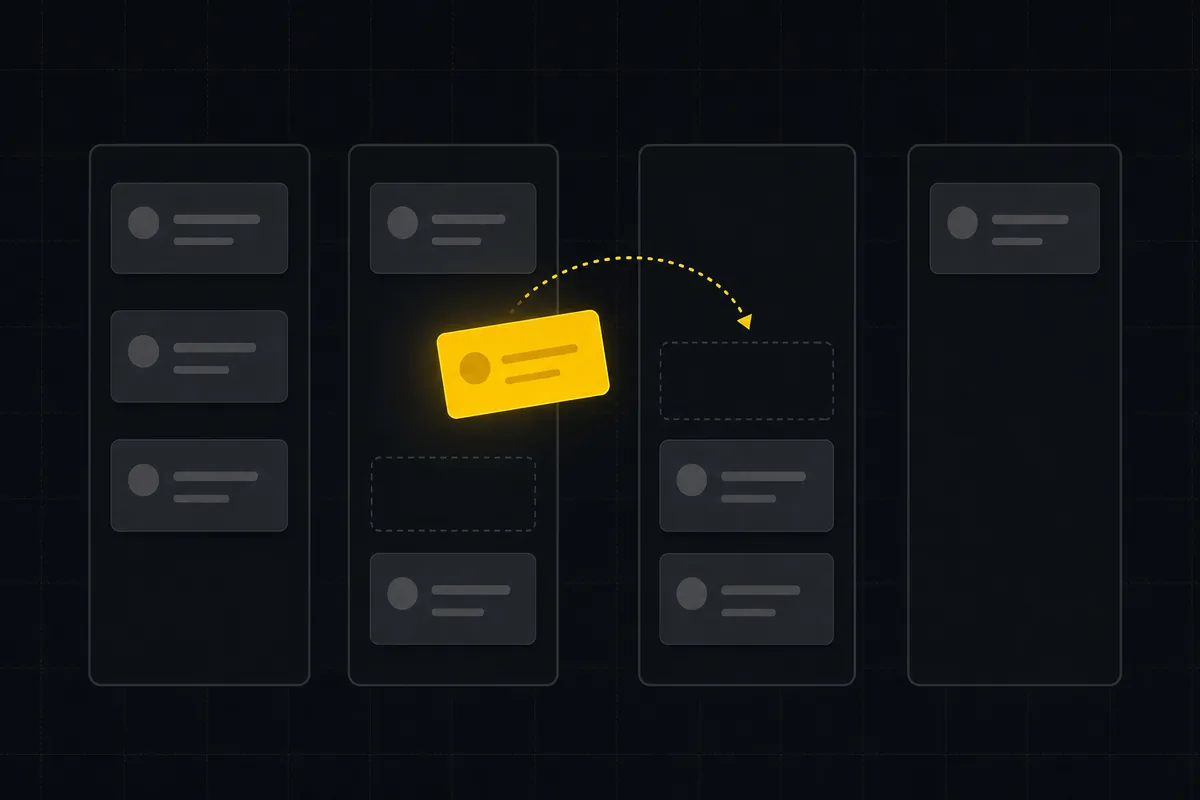
How to use a kanban board: a complete guide with a real example
Learn how to use a kanban board in Utter: read cards, drag tasks between columns, add and reorder custom columns, set WIP limits, filter, and save views.
July 15, 2026 · 20 min read

How to search your workspace
Search issues across projects in Utter from one top-bar field: the / shortcut, live typeahead, WEB-12 key-jump, the full results page with Type/Status/Priority filters, and the real limits.
July 15, 2026 · 14 min read

Keyboard shortcuts in utter
Every keyboard shortcut in Utter: the ? overlay, command palette, quick create, g-chords, and a/s/p/l/m field pickers, where each fires, and how to learn them.
July 15, 2026 · 15 min read
How to read the project summary
Read the Utter project Summary tab like a pro: what every card shows, how each number is computed, what good looks like, and where the dashboard stops.
July 15, 2026 · 16 min read
How to organize work with epics and subtasks
Learn Utter's epics, stories, tasks, subtasks hierarchy: group work under an epic, break issues into subtasks, read the progress bar, and the rules it enforces.
July 15, 2026 · 17 min read
How to track time on issues
How to track time on issues in Utter: set estimates and spent hours, read the budget bar, set completion, and roll it all up on the project summary.
July 15, 2026 · 14 min read
Auto-triage new issues with AI: a setup that actually assigns, labels, and prioritizes
How to set up AI issue triage automation that classifies severity, labels, and routes new bugs and requests, with an honest line on what to let AI decide.
May 27, 2026 · 8 min read
How to run a sprint
Learn how to run a sprint in Utter: plan from the backlog, start and complete a sprint, carry over incomplete issues, and read the burndown and velocity.
July 15, 2026 · 13 min read

How to create an issue
Learn how to create an issue in Utter three ways, pick the right type, fill the dialog, roll up to an epic, and make subtasks. With the real limits named.
July 15, 2026 · 16 min read
Add a comment
Start the conversation.