
How to run a sprint
You have a backlog full of tickets and no clear answer to the one question that matters on Monday morning: what are we actually shipping in the next two weeks? That is the gap a sprint fills. It takes the pile and turns it into a committed, time-boxed set of work with a name, a deadline, and a goal. Knowing how to run a sprint is mostly discipline, not tooling, but the tool still has to stay out of your way. This is the mechanics: how to plan and run a sprint in Utter, from an empty Sprints table to reading the burndown after it closes.
I'll use the demo project the whole way through. It's keyed WEB, with the board columns Backlog, To Do, In Progress, In Review, and Done. Where a real ticket makes a point land, I'll name one, like "Timeline + Summary tab."
What a sprint is in Utter (and what it isn't)
A sprint in Utter is a per-project, time-boxed container for issues. Each issue carries a sprint_id, and that link is scoped to a single project. There's no workspace-level sprint and no cross-project sprint. Run three projects and each one has its own sprints, its own active sprint, its own burndown. That's deliberate. A sprint is how one team commits to a slice of work, and a team lives inside a project.
Don't confuse a sprint with a Milestone. Milestones are a separate feature for longer-horizon delivery markers. A sprint is the short, repeating cadence. Picture a named box with three optional but useful things attached: a start date, an end date, and a goal. At most one of those boxes is "active" per project at any moment. That single-active rule is the spine of the whole feature, so hold onto it.
The lifecycle is small enough to fit in one picture:
stateDiagram-v2
    [*] --> Planned: New sprint
    Planned --> Active: Start
    Active --> Planned: another sprint starts
    Active --> Completed: Complete
    Completed --> [*]
One thing to settle before you touch anything: permissions. Creating, starting, completing, editing, and deleting a sprint all require the project.edit_settings permission, which in practice means owner or admin. A plain member or a guest can still assign their own issues to a sprint (that's just issue.edit_own), but the New sprint, Start, Complete, Edit, and Delete controls are hidden from them completely.
So don't promise your team that anyone can start a sprint. They can't. That's usually the right call, since sprint boundaries are a lead's decision, but it surprises people who go looking for a button that was never rendered for them.
If you want the argument for lightweight sprints before you set one up, run sprints without the ceremony makes it. This guide is the how.
How to create a sprint
Open the project's Sprints tab at /w/[ws]/p/[project]/sprints. On the demo that's the WEB project's Sprints page. You land on a table of the project's sprints. Each row carries a name, a status pill, start and end date cells, and a small progress meter that fills as the sprint's issues reach Done. On a fresh project the table is empty and waiting.
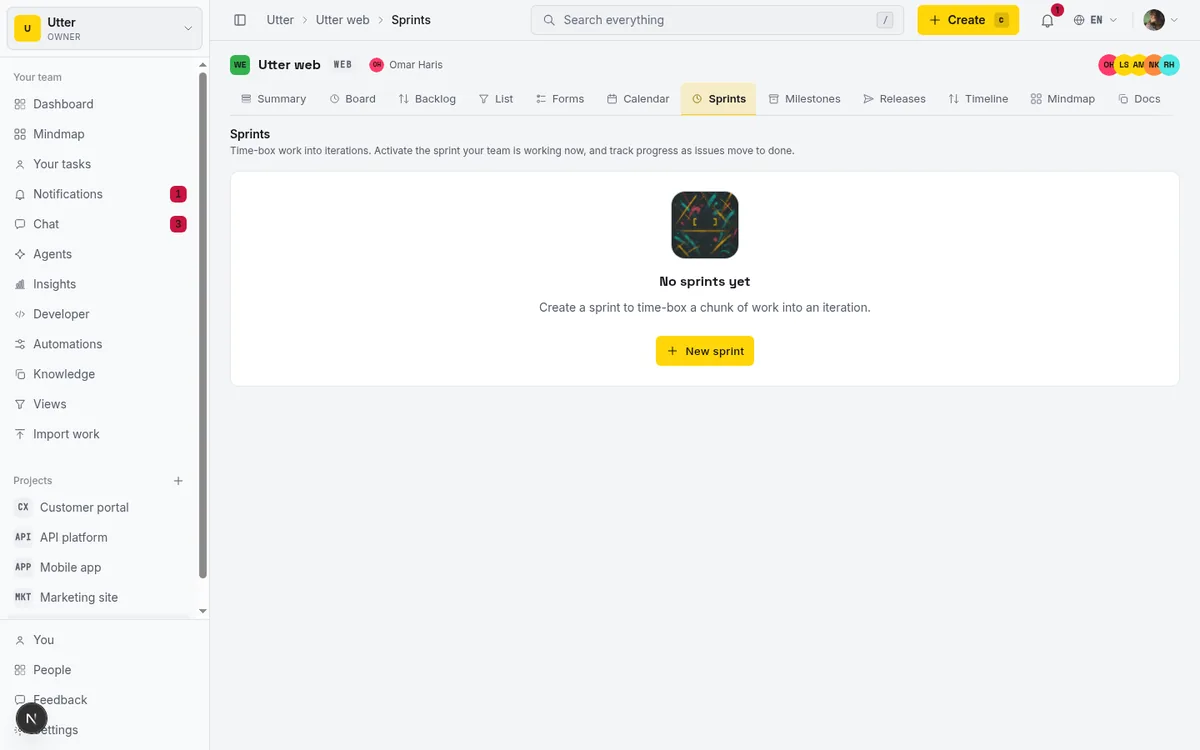
Click New sprint. A modal opens with a handful of fields, and it's worth knowing which ones earn their keep.
- Name is required, capped at 120 characters. The placeholder suggests "e.g. Sprint 12," and numbered sprints are genuinely fine. "Sprint 12" tells everyone where you are in the cadence without pretending to be clever. Themed names work too, but consistency beats poetry here.
- Status is a combobox with Planned, Active, and Completed. Leave it on Planned when you're setting up ahead of time. You'll flip it to Active later with a proper Start action, which does more than change this pill, so prefer that path over setting Active by hand.
- Start date and End date are date pickers, cross-validated so the start can't land after the end. Both are optional, and this is the field most people underthink. Skip the end date and you lose the days-left and overdue indicators everywhere they show up. A sprint with no end date is just a bucket. Set the dates.
- Goal is a Markdown textarea, up to 10,000 characters, prompting "What does this sprint aim to deliver?" Write one sentence. "Ship the timeline and summary tabs to beta" focuses a standup better than a bulleted list of fifteen tickets ever will. The tickets are the how. The goal is the why.
Confirm with Add sprint and the row appears. Later you can edit any sprint through the row's "..." menu and Edit sprint, which reopens the same modal (you confirm with Save changes that time). You can also inline-edit the status pill and the dates right in the table cells without opening the modal, which is faster for a quick date nudge. And you can reorder sprints by dragging the move handle or using the up and down chevrons; the order is stored as a LexoRank via the reorder action, so it stays put.
How to run a sprint planning session from the backlog
Here's the planning path I actually reach for, because it keeps prioritization visual. Open the Backlog at /w/[ws]/p/[project]/backlog. Your planned and active sprints render as collapsible drop-zone sections stacked above the unsorted Backlog list. Each section shows its date range, its issue count, and a Start sprint or Complete button depending on its state.
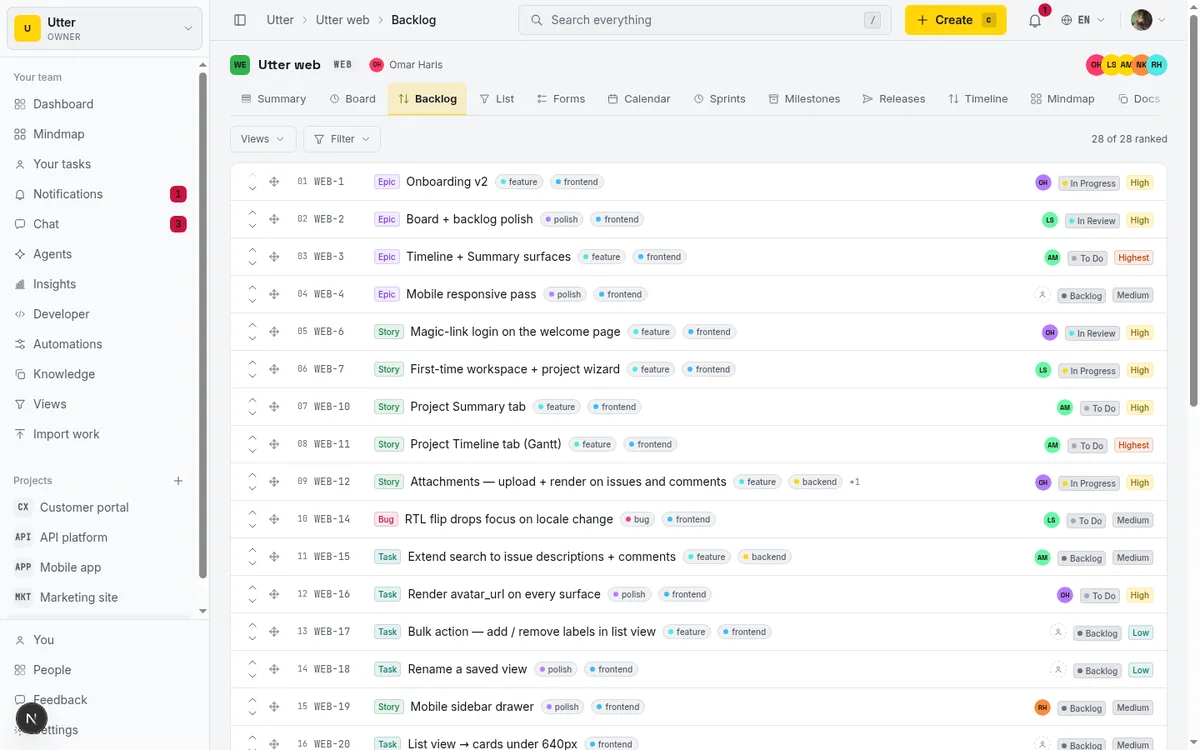
Now you plan by dragging. Grab an issue like "Timeline + Summary tab" from the unsorted Backlog and drop it into a sprint section. That assigns it. Drag an issue from one sprint section to another to move it between sprints. Drag it back down to the Backlog to unschedule it. The sections light up as valid drop targets while you drag ("Release to add to this sprint"), so there's no guessing where a card will land.
Not a fan of dragging? Every backlog row also has a sprint picker (the "Move to sprint" control), and the issue detail page has a sprint field in its right rail. Same result, different door. Take whichever keeps you moving.
One precise limit to internalize: only planned and active sprints appear as drop-target sections here. Completed sprints don't. And an issue that still points at a completed sprint shows up down in the unsorted Backlog, not attached to anything you can see. That's by design, but it can read like the issue "escaped" if you're not expecting it.
For the prioritization judgment that should come before all this dragging, how to prioritize your backlog is the companion piece. And if you're wondering where AI genuinely helps with sprint planning and where it doesn't, AI sprint planning: what works is worth a read before you lean on any of it.
How to add issues from the Sprints page instead
Sometimes you already know the exact set of tickets you want, and you're not sitting in the backlog. There's a faster path. On the Sprints page, open a sprint row's "..." menu and choose Add issues. A picker opens, titled "Add issues to '{name}'."
This picker searches open, unscheduled backlog issues by title or by issue number. Type "timeline" or type "142," both hit. Check as many as you want, then bulk-assign them all with the Add {n} button. It's the quickest way to load a sprint with a known list.
Be honest with yourself about its one real constraint, because it will bite otherwise. The picker (backed by searchAssignableIssues) only surfaces issues where sprint_id is null and the status isn't done or cancelled, within the current project. In plain terms: it will never show you an issue that's already sitting on another sprint. So if a ticket you expected is missing, the usual reason is that it's already committed to a different sprint. That's not a bug. It's the tool refusing to let you double-book work.
So when do you use this versus the backlog drag? Use Add issues when you have a mental list and want it loaded fast. Use the backlog when you're still deciding what makes the cut and want everything in priority order in front of you while you drag. Different moments, both valid.
How to start a sprint
A planned sprint does nothing until you start it. Two places to do that.
From the Sprints page, click the row's Start button. A confirm dialog appears, titled "Start sprint?", that explains it will make the sprint active and stamp the start date. Confirm with Start sprint.
From the Backlog, the sprint section header has its own Start sprint button (visible only with project.edit_settings), which calls the start action directly without the extra dialog.
Either way the mechanics are identical and worth understanding. Starting flips the sprint to Active. If it had no start date yet, the start stamps to now. It does not touch any other sprint. A project can run several active sprints at once, so two squads sharing a project each keep their own running sprint.
So there's no error if you start a second sprint, and the first keeps running. That silence is convenient most of the time and occasionally a trap if you meant to replace the first instead of adding to it, which is why it's on the mistakes list at the end.
Notifications on start are off by default, so starting a sprint doesn't ping your team.
Working the board during an active sprint
Once a sprint is active the board changes to reflect it, and this is where the day-to-day of running a sprint actually happens.
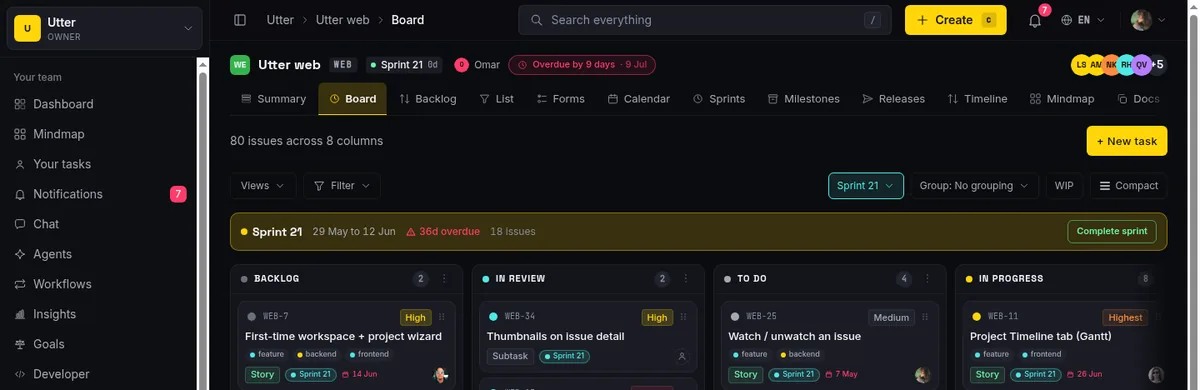
At the top of the board sits the active-sprint banner: a yellow dot, the sprint name, the date range, a live indicator reading "{n}d left" or "Ends today" or "{n}d overdue" off the end date, the issue count, and a Complete sprint action for anyone with project.edit_settings. That banner is your at-a-glance truth. When it says "2d overdue," everyone standing at the board knows it without anyone having to say it out loud.
The board toolbar has a scope switcher dropdown. It lets you view All issues, Backlog only, or any specific sprint (each tagged with an ACTIVE or DONE badge). The chosen scope is held in the URL as ?scope=, so you can bookmark or share a board pre-filtered to exactly one sprint. The List view accepts a ?sprint= param for the same trick:
# Board scoped to one sprint (the scope switcher writes this)
/w/acme/p/web/board?scope=<sprint-id>

# Board showing backlog-only or everything
/w/acme/p/web/board?scope=backlog
/w/acme/p/web/board?scope=all

# List view filtered to one sprint
/w/acme/p/web/list?sprint=<sprint-id>
Every board card and every backlog row also carries a small cyan sprint chip showing which sprint it belongs to, so even in the "All issues" view you can tell committed work from loose work at a glance.
And across every tab in the project, not just the board, the project identity bar shows an active-sprint pill: the sprint name plus its days-left, linking back to the board. So even while you're deep in the List view or an issue detail, you always know which sprint is live and how much runway is left.
Here's a misconception worth correcting precisely, because it trips people up. The board defaults to the active sprint's scope only when that sprint actually holds at least one issue. An active sprint with nothing in it falls back to "All issues." So if you start an empty sprint and wonder why the board didn't switch to it, that's why. Put an issue in it and the default kicks in.
If you want the broader philosophy of working a board column by column, how to use a Kanban board covers it.
How to complete a sprint and carry over incomplete work
Sprints end. The interesting question is what happens to the tickets you didn't finish, and Utter makes you answer it deliberately instead of guessing on your behalf.
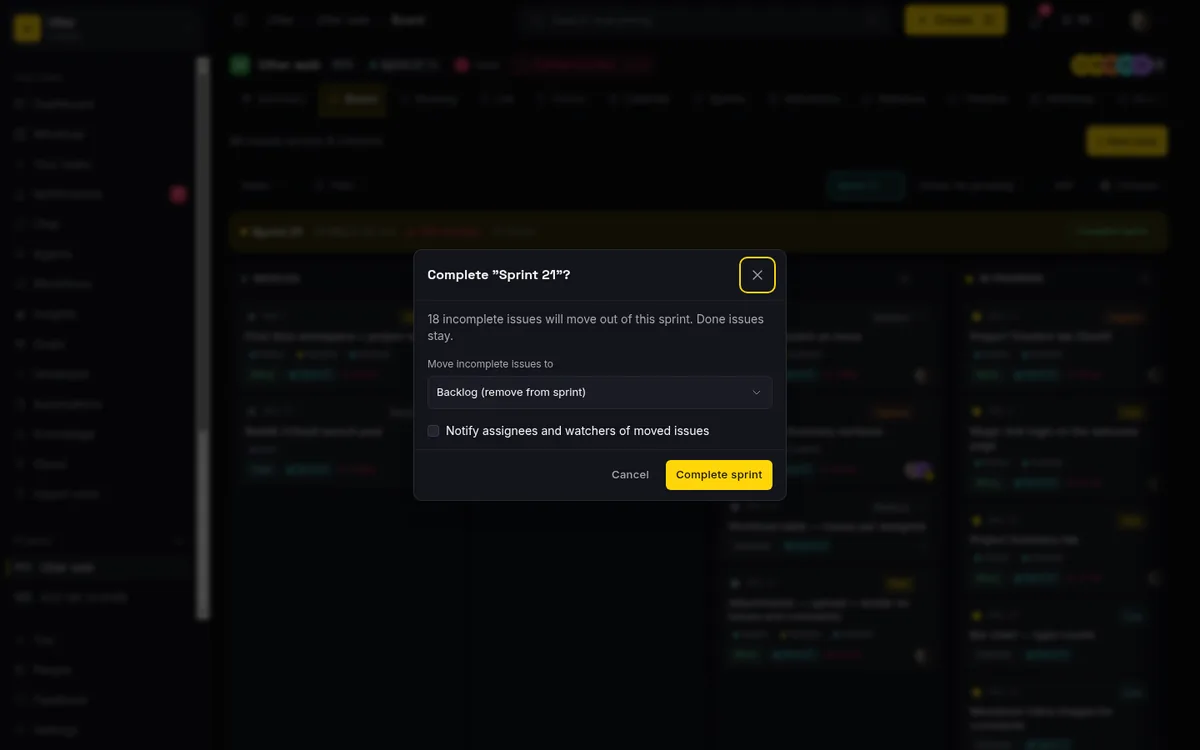
You can complete a sprint from three places: the board banner's Complete sprint action, the backlog section header, or the Sprints page row's Complete button. All three open the same dialog, titled "Complete '{name}'?"
The dialog does three things:
- It reports how many incomplete issues will move out of the sprint.
- It offers a Move incomplete issues to target, which is either another sprint or Backlog (remove from sprint).
- It gives you an optional Notify assignees and watchers of moved issues checkbox, off by default, which reuses the generic status-changed notification kind. There's no separate "your sprint moved" notification type, so don't go hunting for one.
Now the carry-over rule, stated exactly, because this is the question everyone asks. Only incomplete issues move. Those are the ones whose status is backlog, todo, in_progress, in_review, or failed. Done and cancelled issues stay on the completed sprint on purpose.
flowchart TD
    A[Complete sprint] --> B{Issue status}
    B -->|done or cancelled| C[Stays on completed sprint]
    B -->|anything else| D{Move incomplete issues to}
    D -->|another sprint| E[Carried over]
    D -->|backlog| F[Back to unscheduled]
That's the right behavior: the completed sprint is a record of what that team actually finished, and stripping the done work out of it would erase the history you want to look back on. A finished sprint keeps its trophies and hands off only the loose ends.
Pick your target, confirm, and a toast tells you what happened: "{n} issue(s) carried over" if you moved them to another sprint, or "returned to the backlog" if you dropped them to unscheduled. That's the honest answer to "what happens to my unfinished tickets": nothing lost, nothing deleted, and you chose where it went.
Reading the burndown, current-sprint card, and velocity
The reporting payoff doesn't live on the Sprints page, and there's no dedicated sprint-detail page. It lives on the project Summary page at /w/[ws]/p/[project]/summary. Three things there tell you how the sprint is really going.
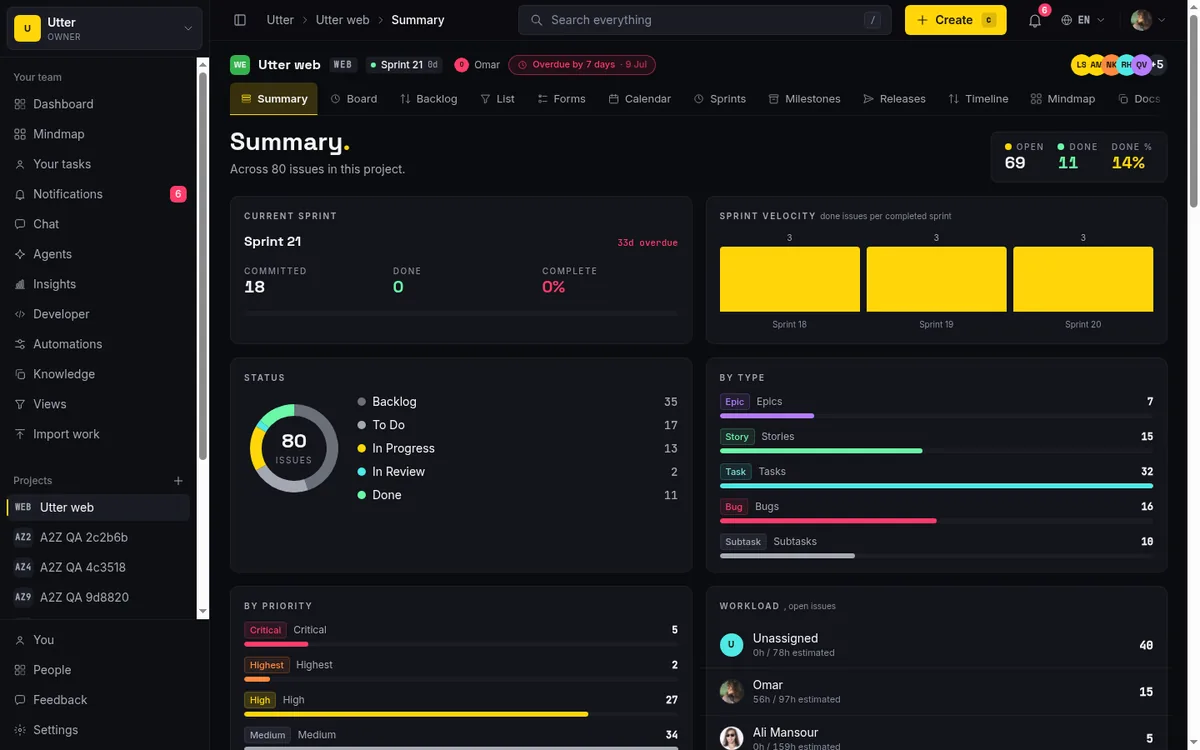
The Current sprint card shows Committed, Done, and Complete %. Committed is how many issues are in the sprint, Done is how many crossed the line, and the percentage is the ratio. Read it as a commitment tracker, not a productivity score.
The Sprint velocity bar chart shows done issues per completed sprint across your last six sprints. This is the number that tells you what your team can realistically take on next time. If your last four sprints delivered 14, 16, 12, and 15 issues, committing to 30 next round is fiction, and the chart says so without you having to argue it.
The Sprint burndown is a hand-drawn SVG (no chart library) that plots the ideal line against remaining work, replaying the sprint's status-change history day by day. Ideal is the straight line from "everything remaining" down to zero across your dates. Remaining is the real path. When the real line sits above ideal, you're behind. When it hugs or dips below, you're on track.
Be clear-eyed about what this reporting does and doesn't do:
- It shows the active sprint, or if none is active, the most-recent completed sprint. It never shows a planned or future sprint, because there's no history to replay yet.
- If nothing qualifies, it renders "Start a sprint to see a burndown." For a very short sprint it shows "Not enough days in this sprint to chart a burndown yet."
- By default a project estimates in time, so committed and velocity read as issue counts. Switch the project to story points in its settings and they read in points instead.
- Time-tracking fields (estimate and spent minutes) do exist on issues, but they're a separate system and they don't feed the burndown or velocity.
If your team thinks in points, that's a real difference to weigh, and it's worth deciding together whether counting issues is close enough for you. For a lot of teams it honestly is.
Common mistakes and the limits worth knowing
A short field guide to the things that surprise people, pulled straight from how the feature actually behaves.
- Only owners and admins can start, complete, edit, or delete a sprint. Members and guests can assign their own issues to a sprint but never see the control buttons. Don't tell your team "anyone can start a sprint," because they'll go looking for a button that isn't there.
- Parallel sprints, if you want them. A project can run several active sprints at once, so squads sharing a project each keep their own. Starting a new sprint no longer pauses the old one back to Planned. No warning, no error. If you meant to run two in parallel, you can't, and the old sprint just stopped being active without saying a word.
- Dates are optional, but skipping the end date costs you. No end date means no days-left, no "Ends today," no overdue badge, and the identity-bar pill shows no day count. If you want the deadline pressure that makes a sprint a sprint, set the end date.
- Deleting a sprint does not delete its issues. Delete soft-deletes the sprint and nulls out
sprint_idon every issue it held, sending them back to the backlog. The tickets are safe. Note too that the Delete option is hidden for completed sprints in the row menu, so you can't accidentally erase a finished sprint's record. - The Add-issues picker hides issues already on another sprint. If a ticket you want is missing, it's almost always already committed elsewhere. Unschedule it there first, or move it via the backlog drag between sections.
- Estimate in time or story points. Set the project's estimation unit; velocity and burndown follow it. If your estimation practice depends on points, know that going in.
That's the whole loop: create, plan, start, work, complete, review. Open the Sprints tab on your project and create your first sprint.
Frequently asked questions
Who can start or complete a sprint in Utter?
Only users with the project.edit_settings permission, which means owner and admin roles. Members and guests can assign their own issues to a sprint, but the New sprint, Start, Complete, Edit, and Delete controls are hidden from them.
Can a project have more than one active sprint at the same time?
Yes. A project can run several active sprints at once. Starting a new sprint flips it to active without touching the others, so squads sharing a project each keep their own. There's no demotion and no warning, so if you meant to replace the current sprint rather than add to it, complete it first.
What happens to unfinished issues when I complete a sprint?
Only incomplete issues (status backlog, todo, in_progress, in_review, or failed) move. When you complete the sprint you pick a target in the dialog: another sprint, or the backlog. Done and cancelled issues stay on the completed sprint so its record stays accurate.
How do I add issues to a sprint from the backlog?
Open the Backlog page. Planned and active sprints appear as drop-zone sections above the unsorted Backlog. Drag an issue into a sprint section to assign it, drag between sections to move it, or drag it back to the Backlog to unschedule. You can also use the per-row sprint picker instead of dragging.
Why aren't some issues showing up in the "Add issues" picker?
That picker only surfaces open, unscheduled issues (sprint_id is null, status not done or cancelled) in the current project. It will never show an issue already assigned to another sprint. If a ticket is missing, it's most likely already on a different sprint.
Where is the sprint burndown chart, and does it use story points?
The burndown lives on the project Summary page, not on the Sprints page. It shows the active sprint, or if none is active, the most-recent completed sprint. Whether it counts issues or story points follows the project's estimation unit: switch a project to points and burndown and velocity read in points, otherwise they read as issue counts.
What happens if I delete a sprint? Do the issues get deleted too?
No. Deleting a sprint soft-deletes the sprint itself and clears the sprint_id on its issues, which sends them back to the backlog. The issues are not deleted. The Delete option is hidden for completed sprints.
Do I have to set start and end dates on a sprint?
No, both dates are optional. But a sprint with no end date shows no days-left or overdue indicator anywhere, and the active-sprint pill shows no day count. If you want the deadline signals, set an end date.
Related reading
How to plan releases and milestones
Plan software releases and milestones in Utter: create releases and milestones, attach issues, read the progress meter, draft AI release notes, and set permissions.
July 15, 2026 · 14 min read
How to run sprints without drowning in ceremony
A lightweight sprint process for small teams: what to keep, what to cut, and how to get the value of planning and review without the meeting tax.
July 12, 2026 · 5 min read
Story points or hours, and parallel sprints when squads share a project
Utter now estimates in story points or hours per project (Fibonacci scale, points-based velocity) and runs parallel sprints when squads share a project. Both opt-in, on every plan.
July 17, 2026 · 7 min read
AI sprint planning: what actually works in 2026
Where AI genuinely helps plan a sprint, drafting, sizing, capacity checks, and where letting it decide is a mistake. A working setup, honestly described.
July 15, 2026 · 5 min read
Project calendar view
Open Utter's Calendar tab to see project due dates on a month or week grid, drag deadlines to reschedule, edit status inline, and filter by assignee.
July 15, 2026 · 13 min read
Project reports and insights
Read Utter's project reports and dashboards: Summary KPIs, sprint burndown, cycle time, throughput, workload, and workspace Insights, with the honest limits on each.
July 15, 2026 · 16 min read
How to read the project summary
Read the Utter project Summary tab like a pro: what every card shows, how each number is computed, what good looks like, and where the dashboard stops.
July 15, 2026 · 16 min read
How to use a kanban board: a complete guide with a real example
Learn how to use a kanban board in Utter: read cards, drag tasks between columns, add and reorder custom columns, set WIP limits, filter, and save views.
July 15, 2026 · 20 min read
How to bulk edit issues
How to bulk-edit issues from Utter's List view: multi-select, bulk status/priority, unassign, archive, and human-in-the-loop AI triage, plus the real limits.
July 15, 2026 · 14 min read
How to track time on issues
How to track time on issues in Utter: set estimates and spent hours, read the budget bar, set completion, and roll it all up on the project summary.
July 15, 2026 · 14 min read
Add a comment
Start the conversation.