
Keyboard shortcuts in utter

You know the shortcut exists. You have seen the little c keycap on the Create button. And you still watched your own hand slide off the keyboard, find the mouse, aim at search, click a project, click a card. That reflex is a tax you pay all day, and most people never stop paying it.
Project management keyboard shortcuts are how you stop. Utter ships a fixed set: a help overlay, a command palette that jumps you anywhere, a key to create the next issue, chords to move around a project, and single keys to edit an issue's fields without leaving the home row. This guide walks through all of them, tells you exactly where each one fires and where it goes quiet, and gives you an order to learn them so you actually remember them by next week instead of forgetting the whole wall of keys by lunch.
One thing up front. These shortcuts are fixed in code. There is no settings screen to rebind keys, no Vim mode to switch on, no per-user toggle to flip. That reads like a limitation and it is the opposite. Because they never change, the payoff is pure muscle memory: learn them once and they work the same in every workspace, on every machine you sign into.
Why project management keyboard shortcuts save real time
The cost is sneakier than it looks. Every time you move your hand to the mouse, aim at a target, click, and come back, you burn a second or two. Worse, you break your train of thought. Do that fifty times a day (open a ticket, change its status, create the next task, jump to the backlog, hunt for a bug someone mentioned in standup) and you have spent a real slice of your day just steering a pointer.
Good project management keyboard shortcuts collapse that whole loop into a keystroke. Your hands stay on the keyboard. Your eyes stop hunting for buttons. You stay in the thought you were having.
Utter covers the three things you do most inside a project: navigation (getting to a view or another issue), creation (starting the next ticket), and the common issue edits (status, assignee, priority, labels, milestone). It deliberately does not try to make every action keyboard-driven. That restraint is the point. A small fixed set is a set you can actually memorize.
Press ? to see every shortcut Utter ships
Start here. Anywhere inside a workspace, press ? (that is Shift and the / key together) and Utter opens the Keyboard shortcuts help overlay. This is the source of truth. If a shortcut is in this overlay, it is real and current. If it is not, do not trust a blog post over the product, including this one.
The overlay lists three groups:
- General (5 rows): Open command palette, Focus search, Create issue, Toggle sidebar, Show this help.
- Navigation (3 rows): Go to board, Go to backlog, Go to list.
- Issue (5 rows, under the heading "When viewing an issue"): Assign issue, Set status, Set priority, Edit labels, Set milestone.
Press ? again or hit Esc to close it.
Open it while you are on the WEB board specifically. The board lives inside a project route, which means the Navigation chords and quick create are all live behind the overlay, so what you read matches what you can do without moving. Open the same overlay on your dashboard and some of those rows would be inert right then, which makes the list quietly misleading about where you are standing.
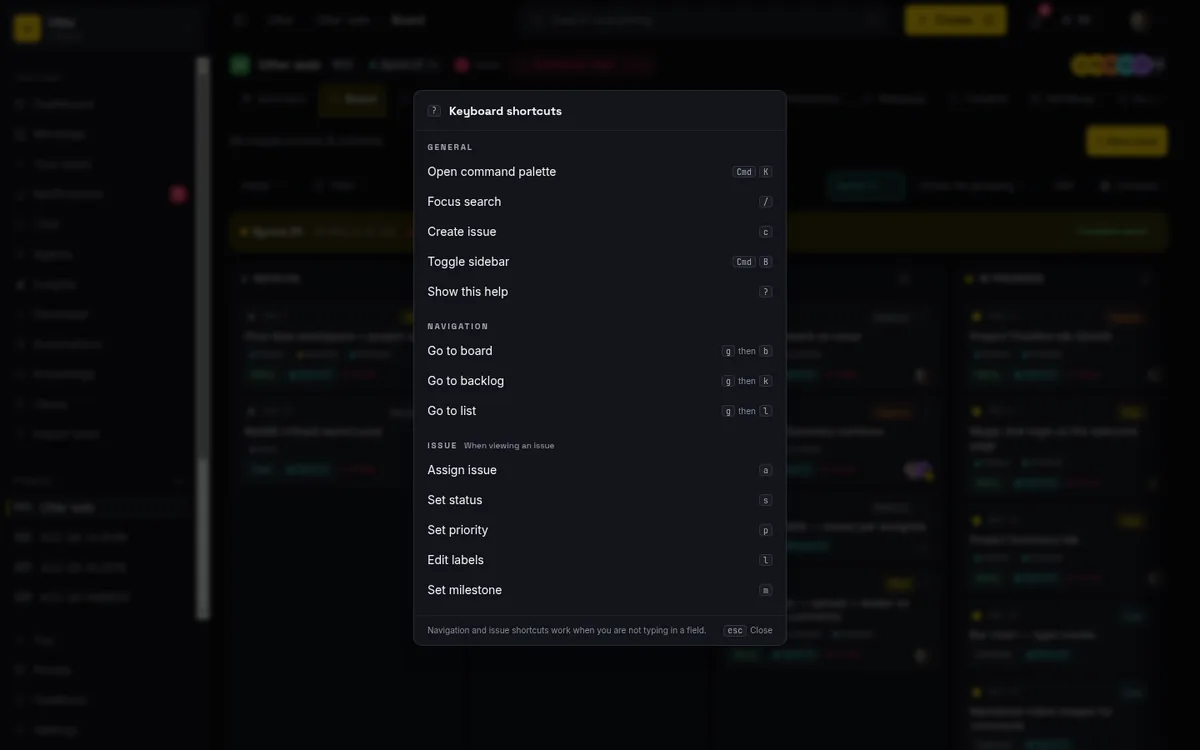
Here is the same set in one table you can keep open while you learn:
| Keys | What it does | Where it works |
|---|---|---|
? |
Open the shortcuts overlay | Anywhere in a workspace |
Cmd/Ctrl+K |
Open the command palette | Anywhere in a workspace |
/ |
Focus the topbar search | Anywhere you are not typing |
c |
Open the New issue dialog | Anywhere, if you can create issues |
Cmd/Ctrl+B |
Toggle the sidebar (bold inside the editor) | Everywhere; the editor wins while typing |
g then b |
Go to Board | Inside a project route |
g then k |
Go to Backlog | Inside a project route |
g then l |
Go to List | Inside a project route |
a / s / p / l / m |
Open the assignee, status, priority, labels, or milestone picker | Issue detail page only |
Esc |
Close the open overlay or popover | Everywhere |
Now an honest caveat, because it saves you confusion later. The overlay is the canonical list of the General, Navigation, and Issue shortcuts, but it does not document everything Utter responds to. The markdown editor's bold, italic, and link shortcuts are not in it. Neither is the arrow-key navigation inside the command palette and the search box. Those are real; they just get discovered in context rather than announced here. I will cover them below so you are not left guessing.
And note the line the overlay itself puts at the bottom: navigation and issue shortcuts work when you are not typing in a field. Hold that thought. It explains almost everything about when a key does nothing.
Open the command palette with Cmd/Ctrl+K
If you learn one shortcut, make it this one. Press Cmd+K on a Mac, or Ctrl+K on Windows and Linux, and the command palette opens.
It does two jobs at once. It searches your issues live (through Typesense, so results land fast even in a big project), and it jumps you to any major section of the workspace: Dashboard, Your tasks, Notifications, Knowledge, Members, Settings, and any project's board. It also exposes two actions right in the list, Create issue and Go to settings. Part search box, part teleporter.
Driving it never touches the mouse. The footer spells it out: Up and Down arrows move the highlight, Enter selects the highlighted row, Esc closes. The list loops, so pressing Up from the top row wraps to the bottom.
Here is a concrete run. You are somewhere in the WEB project and you want the ticket about the Timeline and Summary tab. Hit Cmd+K, type Timeline, watch the issue surface under Search issues, press Enter, and you are on the "Timeline + Summary tab" ticket. No mouse. You never even had to remember its issue key.
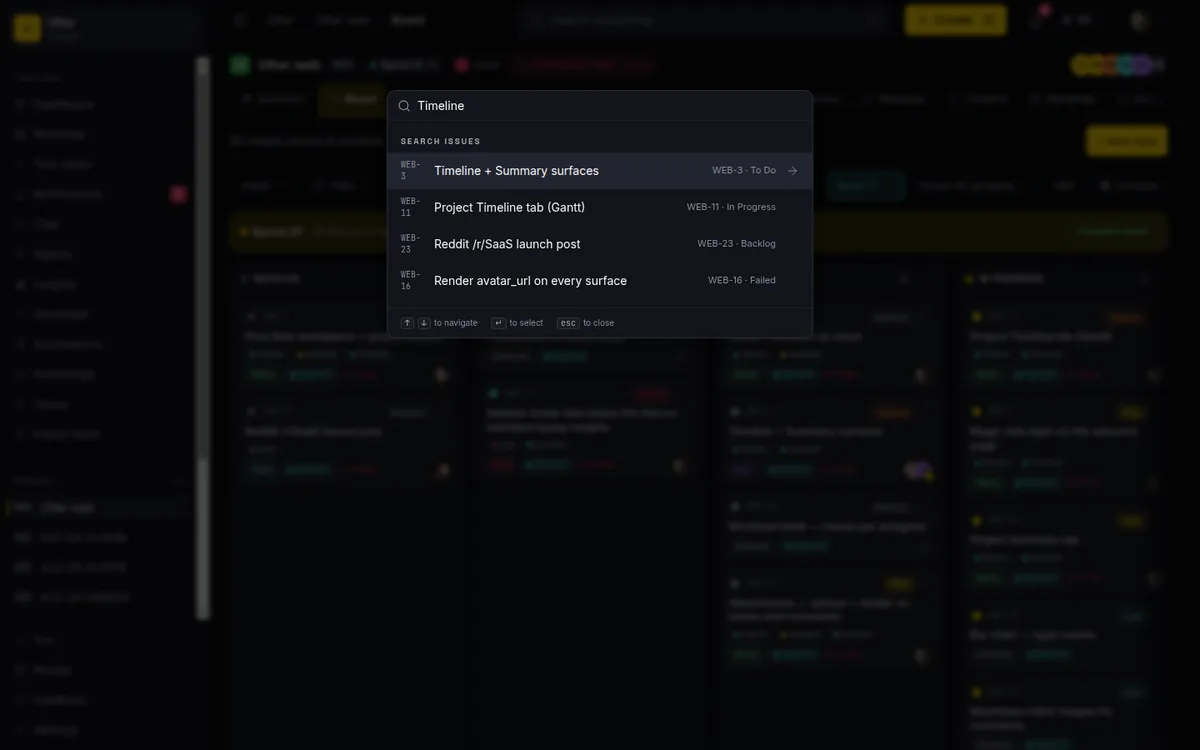
The palette groups its results so you always know what you are looking at: Navigate (the sections), Search issues (live matches), and Actions (Create issue, Go to settings). The placeholder text tells the whole story: "Search issues, jump to a section, run an action...". When you are not sure where something lives, the palette is the safe default. It is the closest thing Utter has to a universal "go" key. For how the underlying search behaves, see how to search your workspace.
Focus search with / and open a hit with Enter
The palette is not the only way to find things. Press / on its own (just the slash), from anywhere you are not currently typing, and Utter drops your cursor straight into the topbar search input. No clicking into the box first.
So when do you reach for / over Cmd+K? Simplest split I have: the palette is for "take me somewhere or run something," plain search is for "find this thing." The typeahead is tuned for finding content, surfacing issues first, then docs, then feedback. Move through the rows with Down and Up, press Enter to open whatever is highlighted.
There is a small, genuinely useful detail in how Enter behaves when nothing is highlighted. Type a query and hit Enter without picking a row, and Utter takes you to the full results page. But if what you typed is an exact issue key, it jumps you straight to that ticket instead. Type WEB-42, press Enter, land on WEB-42. No result list to scroll. That is the fastest way to open a ticket you already know the key for.
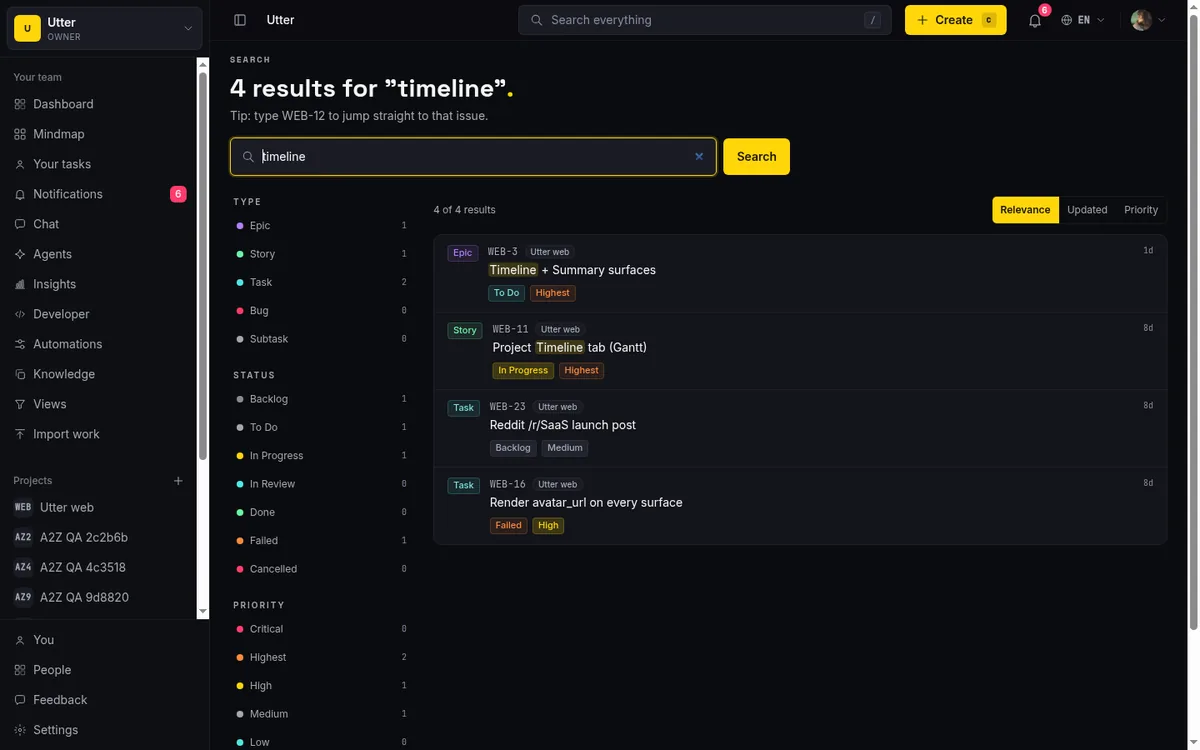
Esc closes the search popover, the same as everywhere else in the product.
In practice most people settle into Cmd+K for jumping and running actions, and / for a fast find-by-title-or-key. Both become muscle memory inside a week, and you stop consciously choosing between them.
Create the next issue with c
You just triaged one bug and three more are already forming in your head. Do not reach for the mouse. Press c.
From any non-input element in the workspace, c opens the New issue dialog. Utter calls it Quick create. It reads the active project straight out of the URL, so if you are on the WEB board, it pre-selects WEB. No project dropdown to fight. The topbar Create button even carries a c keycap so the shortcut stays discoverable when you forget it.
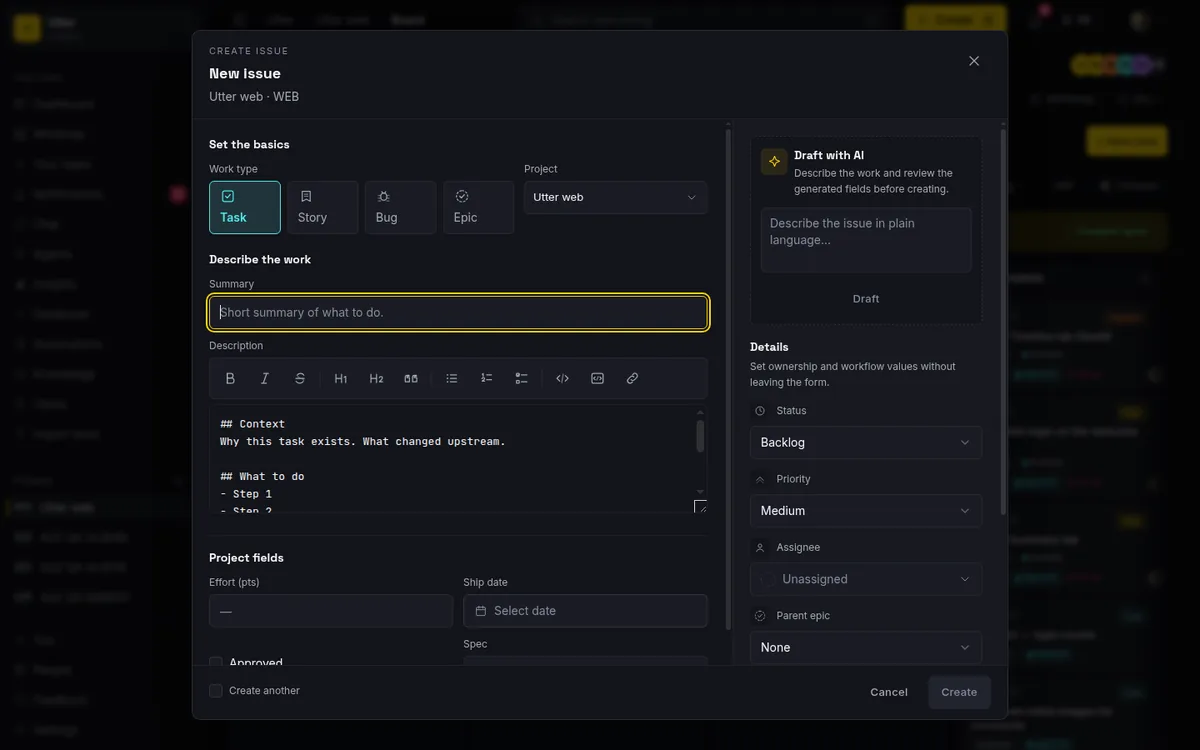
Here is the honest limit. c only exists if you have permission to create issues. Utter checks whether you can create, and a viewer who cannot make tickets has no c shortcut wired and no Create button either. That is correct, not a bug. If you are a viewer and c does nothing, that is exactly why.
A real flow. You are on the WEB board and you notice the empty-state copy on the Backlog column reads wrong. Press c, the New issue dialog opens already set to WEB, type "Fix empty-state copy on Backlog column", set whatever fields you need, submit. The dialog closes, you are back on the board, you keep moving. Capturing the next piece of work cost one keystroke instead of a trip across the screen. For the full walkthrough of the create dialog and everything it sets, see how to create an issue.
Jump to Board, Backlog, or List with g then a letter
This is where it starts to feel fast. Utter has three navigation chords on the classic "g then a letter" pattern:
gthenbgoes to the current project's Board.gthenkgoes to the Backlog.gthenlgoes to the List view.
The mechanics matter, so let me be exact. You press g, release it, then press the second key within about 1.2 seconds. Miss that window and the chord times out and does nothing. This is not a held combo like Ctrl+B. It is two taps in sequence.
stateDiagram-v2
    [*] --> Idle
    Idle --> Armed: press g
    Armed --> Board: b within 1.2s
    Armed --> Backlog: k within 1.2s
    Armed --> List: l within 1.2s
    Armed --> Idle: timeout or any other key
The other thing to know: these chords only work inside a project route, a URL under /w/<workspace>/p/<project>/.... On the dashboard, on notifications, in workspace settings, pressing g then b does nothing, because there is no current project to move around inside. That is intentional. The chords are scoped to the one place they make sense.
An example. You are reading WEB-42, deep in the comment thread, and you want to see where it sits on the board. Tap g then b. Now you are on the board looking at the In Progress column with the card in context. Then g then k to check the backlog, g then l to open the filterable list. You bounce between a project's three main views and your hand never finds the mouse. Once you are in the List or Backlog you will usually want to narrow things down, which is covered in how to filter and sort issues.
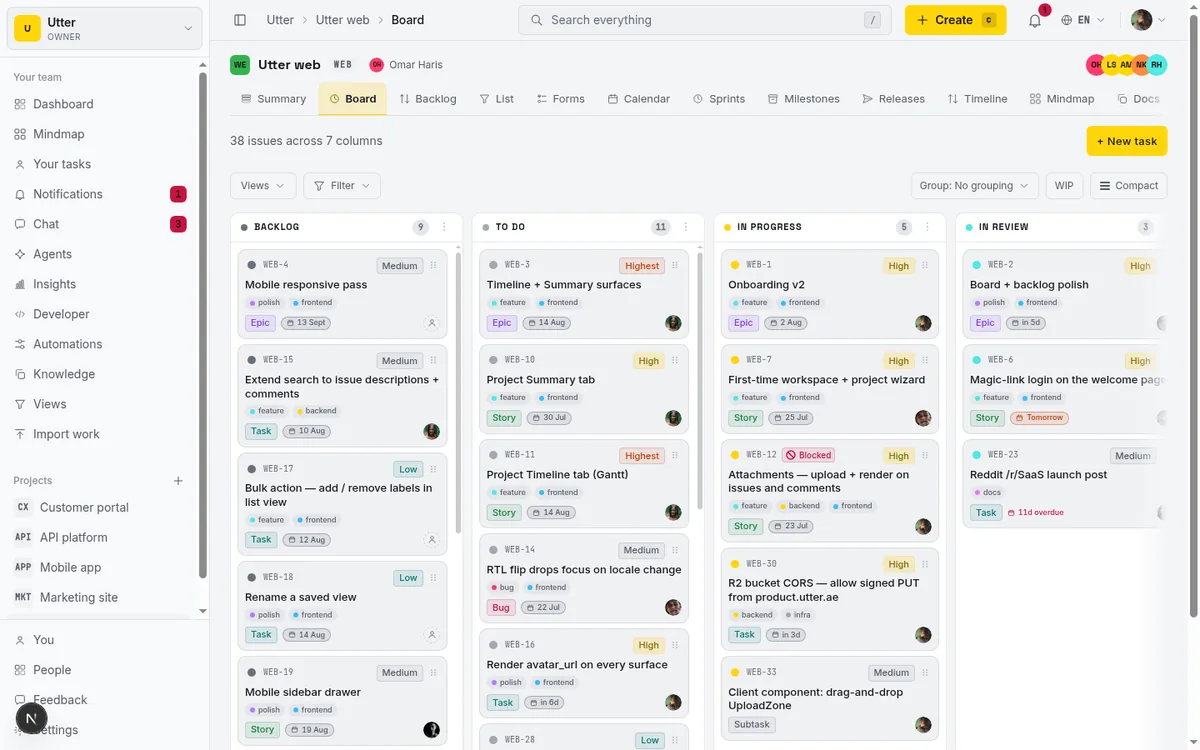
While we are on navigation, one more. Cmd+B (Mac) or Ctrl+B (Windows and Linux) toggles the sidebar. Collapse it for a wider board, expand it when you need the nav. And yes, the same combination means bold inside the markdown editor. That is not a conflict. It is one guarded handler: the sidebar toggle bails the moment your focus is inside an input, textarea, or contenteditable, so while you are typing in the editor Cmd/Ctrl+B is bold, and everywhere else it toggles the sidebar. You never have to think about which one you are getting.
Edit an issue without the mouse: a, s, p, l, m
Open any issue's detail page and five single keys turn into field editors:
aopens the Assignee picker.sopens the Status picker.popens the Priority picker.lopens the Labels picker.mopens the Milestone picker.
Under the hood each key just clicks that field's trigger on the page. The mapping is five lines of the actual source, along with the chord window from the last section:
// KeyboardShortcuts.tsx, verbatim
const CHORD_MS = 1200;

const ISSUE_FIELD_KEYS: Record<string, string> = {
  a: "assignee",
  s: "status",
  p: "priority",
  l: "labels",
  m: "milestone",
};
Worth understanding, because it tells you precisely when a key works and when it will not. If the field is not rendered, the key has nothing to click, so it is inert. No error, no flash, nothing.
Walk a real edit. You have finished reviewing a WEB ticket and it is ready to hand off. Press s, pick "In Review" from the status picker, it moves. Press a, choose the teammate who owns the next step. Press p and bump it up because it is blocking a release. Three field changes, no mouse, maybe four seconds.
Now the limits, because knowing them keeps you from filing a bug that is not one:
- These keys only do something on the issue detail page. They are inert on the board, the list, and everywhere else. There is no way to open these pickers from a board card.
m(milestone) only works when the issue actually has milestones available. The milestone picker renders only when there is at least one milestone to pick, so on a project with none,mdoes nothing.- The pickers respect disabled fields. If you do not have permission to edit a field, its trigger is disabled, and the shortcut will not open a picker you cannot use.
And to be clear about what does not exist: there is no j/k arrow navigation between cards on the board or in the list. Utter does not ship Vim-style card hopping. The only single-letter issue shortcuts are these five field pickers, and only on the detail page. If you were about to go looking for a way to j/k down a column, save yourself the search. It is not here.
The editor shortcuts the overlay leaves out
The ? overlay is honest but incomplete, and the biggest thing it omits is the markdown editor. When you are writing an issue description or a comment, you get the formatting keys you would expect:
Cmd/Ctrl+Bfor bold.Cmd/Ctrl+Ifor italic.Cmd/Ctrl+Kto insert a link.
Each wraps your current selection, so highlight a phrase, press Cmd+B, and it is bold in place. The editor's toolbar buttons show the same hints (like "(Ctrl/Cmd+B)"), so you can relearn them by hovering when you forget.
The autocomplete inside the editor has its own keys. When you type @ to mention someone or # to reference an issue, a dropdown appears. Use the arrow keys to move through it, Enter or Tab to select the highlighted suggestion, Esc to close it without picking anything.
One interaction trips people up, so call it out. In the comment composer, Enter sends the comment and Shift+Enter inserts a newline. But while the @ or # autocomplete dropdown is open, Enter selects the highlighted suggestion instead of sending.
So if you are mid-mention and hit Enter expecting to fire off the comment, you will instead lock in the person you were mentioning, which is almost always what you actually wanted. Close the dropdown and Enter goes back to sending.
Two clarifications so your mental model is right. This is a markdown editor (it renders through marked and DOMPurify), not a rich WYSIWYG surface. You are writing markdown, and these shortcuts insert markdown syntax around your selection. And because it is a real editor field, this is exactly where the sidebar's Cmd/Ctrl+B steps aside and lets bold win. That is the guarded handler from the last section doing its job.
Where shortcuts do not fire, and why that is deliberate
Let me state the guardrails plainly, because once you know them you will never mistake correct behavior for a bug.
The single-key shortcuts (?, /, c, the g-chords, and a/s/p/l/m) will not fire in three situations:
- While you are typing in a field. If focus is in an input, textarea, select, or any contenteditable element, single keys are ignored. This is the whole reason
cdoes not create an issue when you type the letter c in a comment, and why/does not steal your slash mid-sentence. The shortcuts stay out of your way while you write. - While a modifier is held. If Cmd, Ctrl, or Alt is down, the single-key handlers stand down. So
Cmd+Kreaches the palette and is never misread as a barek. - While a modal dialog is open. When a dialog is up, the single keys hold off so they do not interfere with it.
Every key press runs the same checks in the same order before anything happens:
flowchart TD
    K[Key pressed] --> M{Modifier held?}
    M -- yes --> X[Ignored]
    M -- no --> T{Typing in a field?}
    T -- yes --> X
    T -- no --> D{Dialog open?}
    D -- yes --> X
    D -- no --> F[Shortcut fires]
None of that is accidental. It is the design that makes single-key shortcuts safe to have at all. Without those guards, every letter you typed would risk triggering something across the app. The typing check is small enough to quote in full:
function isTypingTarget(el: EventTarget | null): boolean {
  const t = el as HTMLElement | null;
  if (!t || !t.tagName) return false;
  return (
    t.tagName === "INPUT" ||
    t.tagName === "TEXTAREA" ||
    t.tagName === "SELECT" ||
    t.isContentEditable === true
  );
}
Two more boundaries worth naming. Shortcuts are workspace-scoped: the overlay, palette, search, quick create, and every key handler are mounted in the workspace topbar, so they simply do not exist on public, marketing, or login pages. And there is no remapping. No way to rebind a key, no preference to disable shortcuts, no Vim mode. Fixed in code, identical for everyone.
If you were hoping to remap keys to your own layout, that is the real gap, and I would rather you hear it here than go digging through settings for a screen that does not exist. The tradeoff is consistency. Because nobody can change them, the keys you learn here are the keys on every Utter workspace you will ever open.
A practical order to learn them
Trying to cram all of these at once is how you end up remembering none of them. Here is a sequence that sticks, because each stage pays off before you add the next.
Week one: ?, Cmd/Ctrl+K, and c. Learn ? first so you always have the map. Then the command palette, because it replaces the most mouse trips of any single key: navigation and search folded into one keystroke. Then c, so capturing the next issue costs nothing. These three alone change how the day feels.
Week two: / and the g-chords. Once you are living inside a specific project, add / for quick find-by-title-or-key, and g b / g k / g l to move between that project's Board, Backlog, and List. The chords only work inside a project route, so week two, when you are spending real time in one project, is exactly when they click. (Pair them with how to filter and sort issues so your List and Backlog show only what you care about.)
After that, the a/s/p/l/m pickers, for when you are deep in an issue editing fields all day. Save the editor keys (Cmd/Ctrl+B/I/K and the autocomplete arrows) for last. They only matter while you are writing, and the toolbar hints teach them to you as you go.
The goal is not to know every key by Friday. It is to replace one mouse reflex at a time until reaching for the pointer feels like the slow path, because by then it will be.
Open Utter, press ?, and pick one to drill today.
Frequently asked questions
What are the keyboard shortcuts in Utter and where do I see them?
Press ? (Shift and /) anywhere inside a workspace to open the Keyboard shortcuts help overlay. It lists three groups: General (command palette, search, create issue, toggle sidebar, help), Navigation (go to board, backlog, list), and Issue field pickers. Press ? again or Esc to close it.
How do I open the command palette in Utter?
Press Cmd+K on macOS or Ctrl+K on Windows and Linux. The palette searches your issues live and jumps you to any section (Dashboard, Your tasks, Notifications, Knowledge, Members, Settings, any project board), plus the Create issue and Go to settings actions. Use the arrow keys to move, Enter to select, Esc to close.
What is the difference between / and Cmd+K?
/ focuses the topbar search box and is tuned for finding content (issues first, then docs, then feedback). Cmd/Ctrl+K opens the command palette, which both searches issues and jumps you to sections or runs actions. Use / to find a thing, and the palette to go somewhere or run something.
How do I quickly create an issue with the keyboard?
Press c from anywhere you are not typing. It opens the New issue (Quick create) dialog and pre-selects the project from your current URL. The c shortcut and the topbar Create button only appear if you have permission to create issues, so viewers without that permission will not have it.
How do the g b, g k, and g l navigation chords work?
Press g, release it, then press the second key within about 1.2 seconds: g then b goes to the Board, g then k to the Backlog, g then l to the List. They only work when you are already inside a project route (/w/<workspace>/p/<project>/...); on the dashboard or settings they do nothing.
Which keys edit an issue's fields, and where do they work?
On an issue's detail page: a opens Assignee, s Status, p Priority, l Labels, and m Milestone. They only fire on the detail page where that field is rendered and you have permission to edit it. m works only when the issue has at least one milestone available.
Can I remap or customize Utter's keyboard shortcuts?
No. Shortcuts are fixed in code with no rebinding, no preference to disable them, and no Vim mode. The tradeoff is consistency: the keys you learn work the same in every workspace and on every machine.
Why do my single-key shortcuts sometimes do nothing?
The single-key shortcuts (?, /, c, the g-chords, a/s/p/l/m) are ignored while you are typing in an input, textarea, or contenteditable, while a modifier key (Cmd/Ctrl/Alt) is held, and while a modal dialog is open. They are also workspace-only, so they do not exist on public, marketing, or login pages.
Related reading
How to search your workspace
Search issues across projects in Utter from one top-bar field: the / shortcut, live typeahead, WEB-12 key-jump, the full results page with Type/Status/Priority filters, and the real limits.
July 15, 2026 · 14 min read
How to use the rest api
Get an Utter API key and use the project management REST API to list, create, and update issues safely, with scopes, idempotency keys, and rate limits explained.
July 15, 2026 · 16 min read
How to use a kanban board: a complete guide with a real example
Learn how to use a kanban board in Utter: read cards, drag tasks between columns, add and reorder custom columns, set WIP limits, filter, and save views.
July 15, 2026 · 20 min read
How to use the ai assistant
How to run your board with Utter's AI assistant: ask grounded questions, create and triage issues from a sentence, and approve every change before it lands.
July 15, 2026 · 14 min read
How to create an issue
Learn how to create an issue in Utter three ways, pick the right type, fill the dialog, roll up to an epic, and make subtasks. With the real limits named.
July 15, 2026 · 16 min read
How to set up automations
Set up project management automation rules in Utter: the when/if/then model, six triggers, conditions, nine actions, run history, plan caps, and real limits.
July 15, 2026 · 18 min read
How to use the mindmap
How to use Utter's project mind map view: open the radial tree, read the pills, expand and filter branches, group by Hierarchy/Status/People, and export a PNG.
July 15, 2026 · 14 min read

How to use team chat
A practical guide to team chat in a project management tool: channels, DMs, threads, @mentions, file attachments, and the honest limits, all next to your issues.
July 15, 2026 · 16 min read
How to manage roles and permissions
Learn how project management roles and permissions work in Utter: the five roles, inviting with the right access, scoped projects, and who pays for a seat.
July 15, 2026 · 18 min read
How to manage your notification preferences
Manage project management notifications in Utter: read the Email vs In-app matrix, cut noise without going dark, watch issues, and control the weekly digest.
July 15, 2026 · 14 min read
Add a comment
Start the conversation.