
How to use the rest api
You wired an agent up to your board and now you need it to read and write issues without anyone clicking anything. Which means: get a key, hit the project management REST API the right way, and not paste a token into a repo or double-create tickets on the first flaky retry.
This is the whole path in Utter. Open the Developer console, mint a scoped key, copy it the one time you can, prove it works with a single call, then list, create, and update issues in a real project. Plus the parts most docs skip: making writes safe to retry, reading the rate-limit headers before you hit a wall, and the honest limits (frozen scopes, opaque 401s, an SDK that is not on npm yet). The demo throughout is the workspace utter and its project WEB, whose board columns are Backlog, To Do, In Progress, In Review, Done.
Why a project management REST API beats clicking around
There is a point where the UI stops being the fastest way to move work. An agent watching a repo wants to open a bug the second CI fails. A nightly script needs to sync tickets from an external system onto the board. A form submission should file a task on its own. All of those want the same thing: a stable, scriptable way to read and write issues. That is what a project management REST API gives you, and Utter's is plain HTTP with a bearer token.
Learn the shape once. The base URL is https://utter.ae/api, and every path is nested under /v1/workspaces/{slug}/.... There is no top-level /v1/issues. An issue lives inside a project, which lives inside a workspace, and the URL says so:
GET /v1/workspaces/utter/projects/WEB/issues
Host: utter.ae
Authorization: Bearer utp_live_a1b2...
Auth is a bearer token on every request. That is the whole model.
REST is not the only way to talk to Utter. There is an MCP server too, which fits better when an LLM agent is doing tool-calling and you want it to discover operations instead of hard-coding URLs. If you are choosing between the two, MCP or REST API for your agent walks the tradeoff, and why Utter has an MCP server covers why both ship. This post is the REST path. You own the HTTP calls, which is what you want for scripts, cron jobs, and syncing external systems.
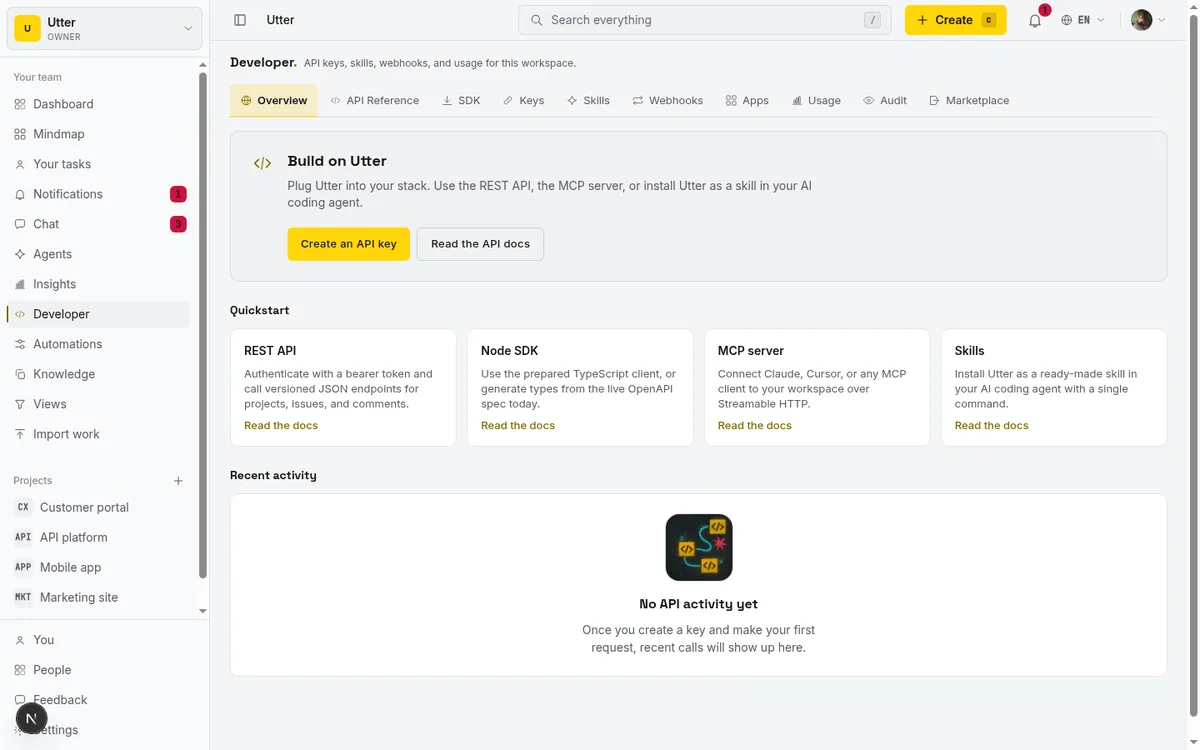
Open the Developer console (and why it is under Knowledge)
Everything key-related starts in the Developer console. The link sits in the workspace sidebar, labelled Developer, and it lands you on /w/{workspace}/knowledge/developer. For the demo that is /w/utter/knowledge/developer.
Note the path, because it trips people up. The console lives under the Knowledge section, so the URL is /w/utter/knowledge/developer, not /w/utter/developer (that one does not resolve). And /developer with no /w/{workspace} prefix is a different thing entirely: the public marketing page. If the console does not look like what you expected, check which of those three URLs you actually opened.
There is a permission gate here, and it is worth stating plainly. The console needs workspace.edit_settings, which means owner or admin. A member or a viewer will not see the Developer link at all, and hitting the URL directly bounces them to the workspace home. So when a teammate says "I can't find it," the first question is their role, not their bookmarks.
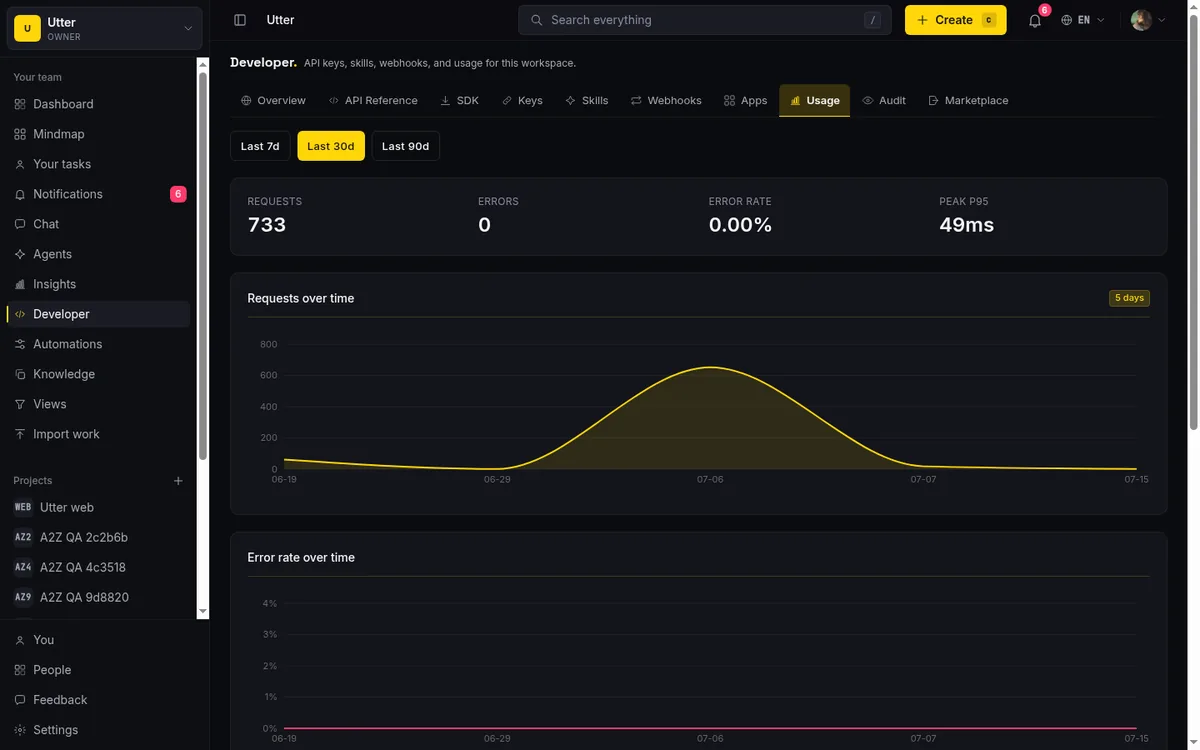
Across the top runs the tab strip: Overview, API Reference, SDK, Keys, Skills, Webhooks, Apps, Usage, Audit, Marketplace. These are instant client-side tabs, not page loads, and each deep-links with a query param. ?tab=keys drops you on the Keys tab, ?tab=api-reference on the reference. Handy for a bookmark, or for pointing a colleague at the exact spot.
Create an API key scoped to least privilege
Go to the Keys tab. If this workspace has never had a key, you get an empty table with the columns you will grow into (Name, Prefix, Scopes, Projects, Rate limit, Last used, Created, Status) and a New API key button.
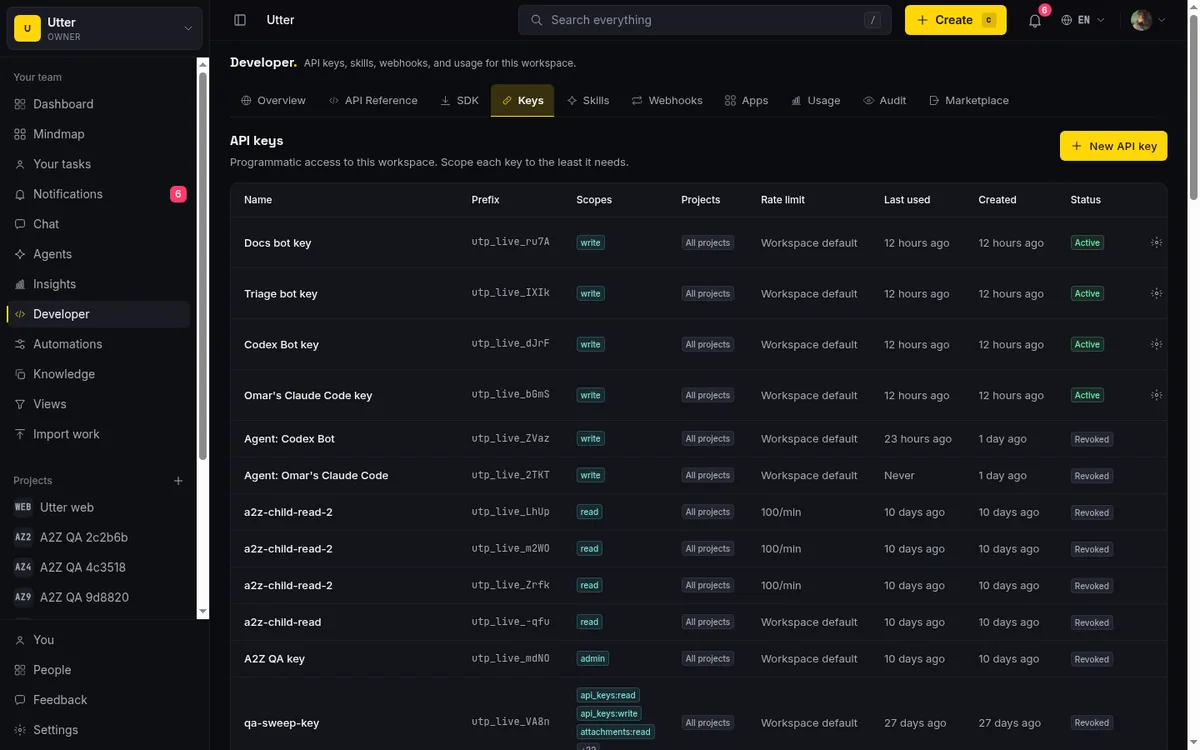
Click New API key and the create modal opens. Four things to set. The middle two are where you either do this well or regret it in three months.
Name. Give it something that tells future-you what it is for. "CI issue bot" beats "key1". When six keys sit in that table, the name is the only thing you have to reason about, so make it carry its weight.
Scopes. This is the checkbox list, and the console states the model right there: "Broad scopes (read, write, admin) include all specific scopes. Use specific scopes for least-privilege access." So you can grab the coarse read or write, or pick granular ones like issues:read, issues:write, projects:read.
For a bot that reads the board and files tickets, the right answer is issues:read plus issues:write. Nothing more. If it never touches project settings or members or webhooks, it should not be able to.
One design choice to know: the coarse write scope holds back the admin-only scopes. Things like workspaces:write, api_keys:*, webhooks:*, members:write, projects:admin, forms:write, and automations:write are not included. Those need either the admin scope or the explicit granular scope. So write is genuinely a "can edit the work, cannot reconfigure the workspace" tier, which is usually exactly what you want for automation.
Project access. Two radio options: "All workspace projects" or "Selected projects only". For a key that only ever touches WEB, pick Selected projects only and check WEB. Now if the key leaks, the blast radius is one project instead of the whole workspace.
Expires at (optional). Set it. A key that dies in 90 days is a key you cannot forget about forever. For a one-off migration script, set it to next week.
Here is the rule that makes scoping matter: scopes and the project allow-list are frozen at creation. Once the key exists you can edit its name, its rate-limit override, and its expiry. That is all. You cannot add a scope or add a project later. If the bot's job grows, you mint a new key with the wider scope and retire the old one. That is not an annoyance, it is the point. A key's authority is fixed the moment it is born, so nobody can quietly widen it.
When the modal looks right, click Create key.
Copy the key once, because you never see it again
Submitting does not drop you back to the table. It opens the reveal modal, titled Save your API key, and this is the only moment the plaintext key ever exists on screen.
The modal says it flat out: "This is the only time you will see this key." Utter keeps only a SHA-256 hash. There is no "show key" button anywhere in the product, no support path to recover it. Close this without copying and the key is gone; you make a new one.
So copy it now and put it where a secret belongs. A secrets manager. A CI secret. An environment variable in your deploy config. Not a code comment, not a Slack message to yourself, not committed to a repo. The whole reason the product refuses to show it twice is to push you toward treating it like the credential it is.
The modal will not let you leave until you tick I saved this key somewhere safe. and click Done. That checkbox is friction on purpose, a last chance to actually paste it somewhere before it disappears for good.
Workspace keys carry the prefix utp_live_, so a real one reads like utp_live_a1b2.... Recognize that prefix in logs and config: it tells you at a glance this is a workspace-scoped key, as opposed to a personal token, which we get to at the end.
Authenticate and confirm your key with GET /v1/me
Now you have a key. Every request carries it as a bearer token in the Authorization header, against the base URL https://utter.ae/api.
Your very first call should be GET /v1/me. It needs no scope beyond a valid key, and it returns the key's own identity: keyId, name, workspaceSlug, scopes, and expiresAt. It is the cheapest possible way to confirm the token is wired up right before you go near issues.
curl https://utter.ae/api/v1/me \
  -H "Authorization: Bearer utp_live_a1b2..."
A good response:
{
  "keyId": "key_9f2c...",
  "name": "CI issue bot",
  "workspaceSlug": "utter",
  "scopes": ["issues:read", "issues:write"],
  "expiresAt": "2026-10-15T00:00:00Z"
}
Make /v1/me your sanity check, and here is why it matters more than usual. Every authentication failure in Utter collapses to one opaque 401 with an identical message: "Invalid or missing API key." That one line covers all of these:
- missing Authorization header
- malformed token
- unknown key
- revoked key
- expired key
The API will not tell you which one it is. That is a deliberate security choice (it does not leak whether a given key exists), but it means you cannot debug auth by reading the error. So when something 401s, work it like this instead:
flowchart TD
    A[A request returns 401] --> B[Call GET /v1/me with the same token]
    B --> C{Does /v1/me succeed}
    C -->|Yes| D[Token is fine, check scope and path]
    C -->|No| E[Token problem, fix or mint the key]
If /v1/me works and a real endpoint 401s, your token is fine and you are looking at a scope or path problem, not an auth problem.
One more thing the response quietly tells you. Scopes are intersected with the creator's live workspace role at call time. If an admin created a key with admin-tier scopes and later gets demoted to member, the key loses that tier automatically. The key can never grant more than the person behind it currently has. So a key's real power is "what it was scoped for" AND "what its creator can still do today", whichever is narrower.
List and read issues in project WEB
With issues:read on the key, you can read the board. The endpoint is GET /v1/workspaces/utter/projects/WEB/issues, and it takes a stack of query filters that map to what you actually search for:
?status=by column or category?type=(task, bug, story, epic, subtask)?priority=?assignee=, which accepts auser_id, anemail, or the literalme?reporter=?label=?milestone=?sprint=?parent=, a parent issue key, ornonefor top-level only?q=, free-text search
They compose. Say you want every bug in the In Progress column assigned to the key's own identity:
curl "https://utter.ae/api/v1/workspaces/utter/projects/WEB/issues?type=bug&status=In+Progress&assignee=me" \
  -H "Authorization: Bearer utp_live_a1b2..."
Or you are hunting a specific ticket by words in its title. To find the "Timeline + Summary tab" story on the WEB board:
curl "https://utter.ae/api/v1/workspaces/utter/projects/WEB/issues?q=Timeline+Summary" \
  -H "Authorization: Bearer utp_live_a1b2..."
The list is cursor-paginated, keyset on createdAt, id descending, so it stays fast on a large board instead of slowing down page by page. The response carries pagination.next_cursor. When it is non-null, pass it back as the cursor on your next request to walk the next page. When it comes back null, you have read everything.
One honesty note on ?q=. Free-text search routes through Typesense and only Typesense. There is no SQL LIKE fallback. That is good for speed (a text scan across millions of issues is exactly the query that used to take a minute), but it has a consequence: if the search index is down, ?q= returns empty instead of falling back to a slow scan. Empty results from a text query are not proof the ticket does not exist. They can also mean search is temporarily unavailable. The structured filters (status, type, assignee, and the rest) do not depend on Typesense, so they keep working regardless.
Create and update issues over the API
Reading is half the job. To write, the key needs issues:write.
Creating an issue is a POST to the same collection: POST /v1/workspaces/utter/projects/WEB/issues. The body takes { type, title, description_md?, status?, priority?, assignee?, labels?, parent?, due_at?, estimate_minutes? } and a good create returns 201 with the new issue, including its freshly assigned key like WEB-142.
Here is the worked example. File a task called "Timeline + Summary tab" and drop it straight into the To Do column.
curl -X POST "https://utter.ae/api/v1/workspaces/utter/projects/WEB/issues" \
  -H "Authorization: Bearer utp_live_a1b2..." \
  -H "Content-Type: application/json" \
  -d '{
    "type": "task",
    "title": "Timeline + Summary tab",
    "description_md": "Add the combined Timeline and Summary view to the project shell.",
    "status": "To Do",
    "priority": "medium"
  }'
const res = await fetch(
"https://utter.ae/api/v1/workspaces/utter/projects/WEB/issues",
{
method: "POST",
headers: {
Authorization: "Bearer utp_live_a1b2...",
"Content-Type": "application/json",
},
body: JSON.stringify({
type: "task",
title: "Timeline + Summary tab",
description_md:
"Add the combined Timeline and Summary view to the project shell.",
status: "To Do",
priority: "medium",
}),
}
);
const issue = await res.json(); // 201, includes the new key like WEB-142import requests
res = requests.post(
"https://utter.ae/api/v1/workspaces/utter/projects/WEB/issues",
headers={"Authorization": "Bearer utp_live_a1b2..."},
json={
"type": "task",
"title": "Timeline + Summary tab",
"description_md": "Add the combined Timeline and Summary view to the project shell.",
"status": "To Do",
"priority": "medium",
},
)
issue = res.json() # 201, includes the new key like WEB-142Updating is a PATCH to the individual issue: PATCH /v1/workspaces/utter/projects/WEB/issues/WEB-142. It is a sparse merge, and that is the part to internalize. You send only the fields you are changing, and everything you omit stays exactly as it was. To bump that ticket to high priority and hand it to someone, you send those two fields and nothing else:
curl -X PATCH "https://utter.ae/api/v1/workspaces/utter/projects/WEB/issues/WEB-142" \
  -H "Authorization: Bearer utp_live_a1b2..." \
  -H "Content-Type: application/json" \
  -d '{ "priority": "high", "assignee": "[email protected]" }'
No re-sending the title or description. Sparse PATCH means you never blank a field just because you left it out.
A few more operations round out the surface:
GET .../issues/WEB-142fetches a single issue. Archived issues still resolve on read, so a link to an old ticket does not 404.DELETE .../issues/WEB-142is a soft archive, not a hard delete. It setsarchived_atand fires anissue.archivedwebhook. The issue is recoverable, and restore is a separate endpoint (delete and restore are intentionally not the same call).POST .../issues/WEB-142/transitionis the dedicated way to move status through the workflow, cleaner than a raw status PATCH when the project has transition rules.
And for bulk import, POST .../issues/bulk exists. It returns a 207-style multi-status envelope, so a batch with three valid rows and one malformed one does not fail wholesale. You get a per-item result and retry only the rows that failed.
Make writes safe: idempotency keys and rate limits
Two headers separate a toy script from something you would trust in production. Both matter more the moment an agent, not a human, is driving the calls.
The first is Idempotency-Key. Put it on any mutating request (POST, PUT, PATCH, DELETE) and if that exact request gets retried with the same key, Utter returns the original result instead of performing the write again. This is the fix for the classic double-create. Your agent POSTs a new issue, the network hiccups before the response comes back, the agent retries, and without idempotency you now own two identical "Timeline + Summary tab" tickets. With an idempotency key, the retry returns the first issue, not a second one.
sequenceDiagram
    participant A as Agent
    participant U as Utter API
    A->>U: POST issue with Idempotency Key
    U->>U: creates WEB 142
    U--xA: response lost in transit
    A->>U: retry, same Idempotency Key
    U-->>A: 201 with the original WEB 142
curl -X POST "https://utter.ae/api/v1/workspaces/utter/projects/WEB/issues" \
-H "Authorization: Bearer utp_live_a1b2..." \
-H "Content-Type: application/json" \
-H "Idempotency-Key: web-timeline-tab-2026-07-15" \
-d '{ "type": "task", "title": "Timeline + Summary tab", "status": "To Do" }'Use a key that is stable for the logical operation. If it represents "the task for this CI run" or "this row from the import," derive the idempotency key from that identity so a retry of the same logical action reuses it. Flaky networks and eager agent retry loops are exactly the conditions this exists for.
The second is rate limiting. Every response carries three headers: X-RateLimit-Limit, X-RateLimit-Remaining, and X-RateLimit-Reset (a unix-seconds timestamp for when the window resets). The default budget is 600 requests per minute unless a per-key override is set, and that override can be anything from 1 to 100,000. Read X-RateLimit-Remaining and slow down as it approaches zero instead of hammering until you get cut off.
If you do blow past the limit you get a 429, and the response includes a Retry-After header telling you how many seconds to wait. Well-behaved clients honor it. The pattern is simple: on a 429, sleep for Retry-After seconds, then retry, ideally with the idempotency key still attached so the retry stays safe.
If you are wiring this into an autonomous agent that loops on the board, the retry-and-backoff discipline is most of the game. Let AI agents run your board over the REST API goes deeper on the pattern.
Browse the full spec and generate a typed client
You do not have to memorize any of these endpoints. The API Reference tab embeds the live docs, generated straight from the OpenAPI spec at /api/v1/openapi.json, so it never drifts from what the server actually does. Two buttons on it: Raw OpenAPI to grab the spec itself, and Open in new tab to pop the reference full-screen.
The reference at /api/v1/reference is public and needs no auth, so you can browse every v1 endpoint and its request and response shapes before you have even created a key. It is a fine place to start reading.
Now the honest part about tooling. The first-party @utter/sdk-node package is marked Coming soon. It is not on npm today. So do not go looking for npm install @utter/sdk-node; it will not resolve. What you can do right now is generate a typed TypeScript client from the OpenAPI spec with a tool like openapi-typescript:
npx openapi-typescript https://utter.ae/api/v1/openapi.json -o src/utter-api.d.tsThat gives you typed request and response shapes for every endpoint, which is most of what an SDK buys you, and it stays in sync because it is generated from the same spec the server publishes.
The Webhooks tab is the push counterpart to all this polling. Instead of asking "any new issues?" on a loop, you register an https-only endpoint, pick your event types, and Utter POSTs to you when something happens: issue.created, issue.updated, issue.archived, the comment.* events, and more.
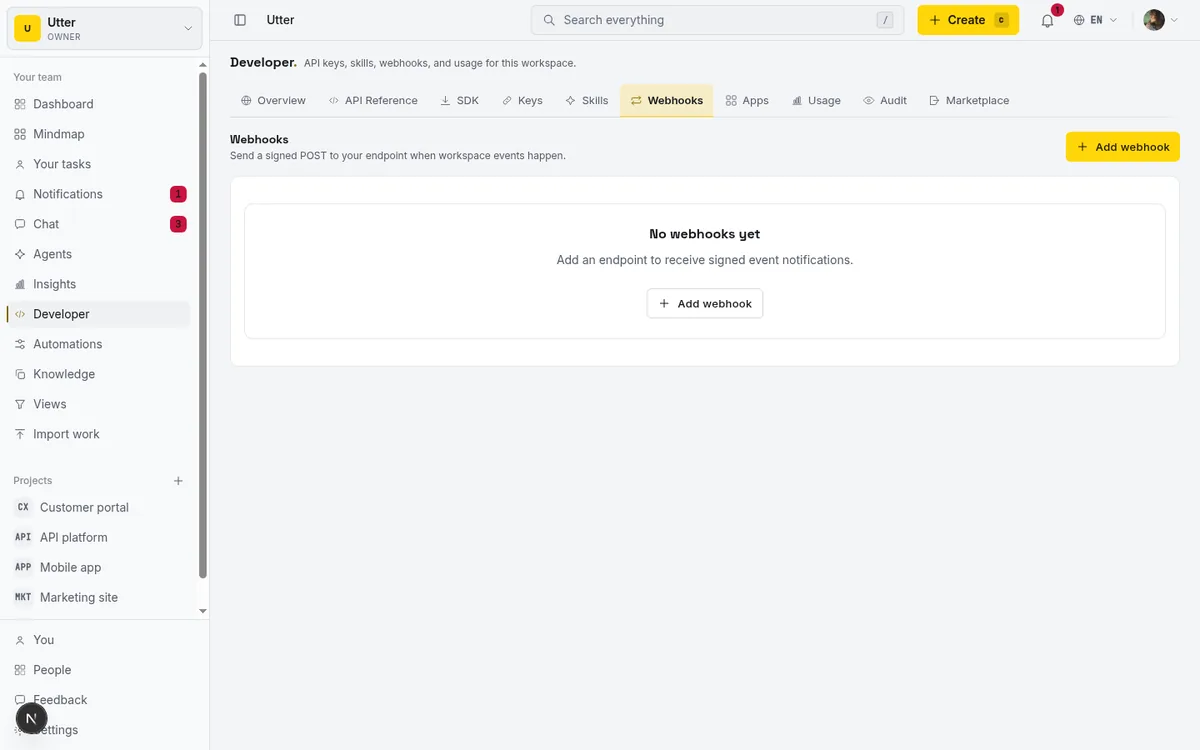
Each delivery is signed Stripe-style with an X-Utter-Signature: t=<unix>, v1=<hmac_hex> header so you can verify it really came from Utter, and the signing secret is shown once at creation (same copy-it-now rule as keys). For anything close to real-time, webhooks beat polling on both latency and rate-limit budget.
Personal access tokens, revocation, and the limits worth knowing
Workspace keys are the right tool for a bot that belongs to one workspace. But sometimes you are a human writing a script that touches several of your own workspaces, and minting a separate key in each one is tedious. That is what personal access tokens are for.
PATs live at /me/tokens, linked from the Keys tab as Manage tokens. A PAT works across all your workspaces, carries the prefix utt_live_ (note utt_, not the workspace key's utp_), and inherits your membership in each workspace you belong to. There is no project allow-list on a PAT (it is workspace-wide by nature) and it uses the global default rate limit. You can hold up to 25 active tokens.
So the choice comes down to this:
| Workspace key | Personal access token | |
|---|---|---|
| Prefix | utp_live_ |
utt_live_ |
| Reach | one workspace | every workspace you belong to |
| Scopes | frozen at creation | follows your live membership |
| Project allow-list | optional, frozen at creation | none |
| Rate limit | 600/min default, per-key override | global default |
| Best for | a bot or CI automation | your own cross-workspace scripts |
For a CI bot, use a workspace key. For your personal migration script that hops between two workspaces you own, use a PAT.
Revoking is immediate and permanent. Hit Revoke key on any key and it stops working right away; there is no undo. The revocation is soft in the database (it records revoked_at and a reason for the audit trail) but for your purposes the key is dead the instant you click. This is your kill switch if a key leaks.
A few last honest limits to carry with you:
- Scopes and projects are immutable. Changing a key's privileges means creating a new key. Only name, rate-limit, and expiry are editable after creation.
- Copy-once is real. The plaintext key appears exactly once, at creation. Only a hash is stored. Plan for it.
- 401s are opaque. Every auth failure returns the same "Invalid or missing API key." message. Use
/v1/meto diagnose, not the error text. - The
utp_test_prefix is reserved but not live. There is no sandbox key mode today. Do not build around one. - Usage and Audit tabs are best-effort. That data (including the Overview's recent-activity feed) lives in ClickHouse. If it is unreachable in your environment, those tabs render an empty state, so they can lag or look blank. Do not read a blank Usage tab as proof nothing happened.
If you want the bigger picture of connecting an agent end to end, not just the HTTP calls but the setup around them, how to connect an AI agent covers it.
That is the full loop: scope a key, copy it once, confirm it with /v1/me, then read and write issues safely with idempotency keys and an eye on the rate-limit headers. Open the Developer console under /w/{workspace}/knowledge/developer and create your first key when you are ready to wire it up.
Frequently asked questions
What is the base URL for the Utter project management REST API?
https://utter.ae/api. Every REST path is nested under /v1/workspaces/{slug}/...; there is no top-level /v1/issues. Issues live at /v1/workspaces/{slug}/projects/{key}/issues. The one exception that needs no workspace in the path is GET /v1/me.
How do I create an Utter API key and what scopes should I choose?
Open the Developer console at /w/{workspace}/knowledge/developer, go to the Keys tab, and click New API key. Set a name, pick scopes, choose project access, and optionally an expiry. For an issue bot, choose the least-privilege set: issues:read plus issues:write, restricted to the one project it needs. Broad read/write/admin scopes include all the specific ones, so only reach for those when you genuinely need them.
Can I see my API key again after I create it?
No. The plaintext key is shown exactly once, in the reveal modal at creation. Utter stores only a SHA-256 hash, so it cannot be displayed again. Copy it immediately into a secrets manager or environment variable. If you lose it, revoke it and create a new one.
How do I authenticate a request to the Utter REST API?
Send an HTTP bearer token: Authorization: Bearer utp_live_... on every request, against the base URL https://utter.ae/api. Confirm the token works with GET /v1/me, which returns the key's id, name, workspace slug, scopes, and expiry and needs no scope beyond a valid key.
How do I list or create issues in a project over the API?
List with GET /v1/workspaces/{slug}/projects/{key}/issues (requires issues:read), using filters like ?status=, ?type=, ?priority=, ?assignee=me, and ?q= for free-text. Create with POST to the same path (requires issues:write) sending { type, title, ... }, which returns 201. Update with a sparse PATCH .../issues/{KEY-N} where you send only the fields you are changing.
What is Utter's default API rate limit and how do I handle a 429?
The default is 600 requests per minute, unless a per-key override (anywhere from 1 to 100,000) is set. Every response includes X-RateLimit-Limit, X-RateLimit-Remaining, and X-RateLimit-Reset (unix seconds). On a 429, read the Retry-After header, wait that many seconds, then retry, ideally with the same idempotency key so the retry stays safe.
Can I change a key's scopes or projects after creating it?
No. Scopes and the project allow-list are frozen at creation. You can edit only the name, the rate-limit override, and the expiry. To change what a key can access, mint a new key with the scopes you want and revoke the old one.
What is the difference between a workspace API key and a personal access token (PAT)?
A workspace key (prefix utp_live_) belongs to one workspace, has fixed scopes, and can be restricted to selected projects. A PAT (prefix utt_live_, managed at /me/tokens) works across all your workspaces, inherits your membership, has no project allow-list, and uses the global default rate limit. You can hold up to 25 active PATs. Use a workspace key for a scoped automation, a PAT for your own cross-workspace scripts.
Is there an official Utter Node SDK on npm?
Not yet. The first-party @utter/sdk-node package is marked Coming soon and is not published. Today you generate a typed TypeScript client from the live OpenAPI spec (/api/v1/openapi.json) with a tool like openapi-typescript. The API Reference tab and the public reference at /api/v1/reference document every endpoint.
Related reading
Let AI agents run your board over the REST API: authentication, scopes, and safe writes
A developer guide to giving an AI agent a scoped Utter API key so it can move cards and file issues without a big blast radius.
June 26, 2026 · 7 min read
How to track api usage and audit logs
Track API key usage and read the audit log in Utter: Usage tab charts, the Audit lifecycle log, per-key rate limits, and what each surface will not tell you.
July 15, 2026 · 15 min read
How to use AI agents in Utter: connect them, assign work, and follow their sessions
A start-to-finish walkthrough: connect an agent, scope its key, assign it issues, and watch its sessions, without giving up control of the board.
July 15, 2026 · 11 min read
How to use webhooks
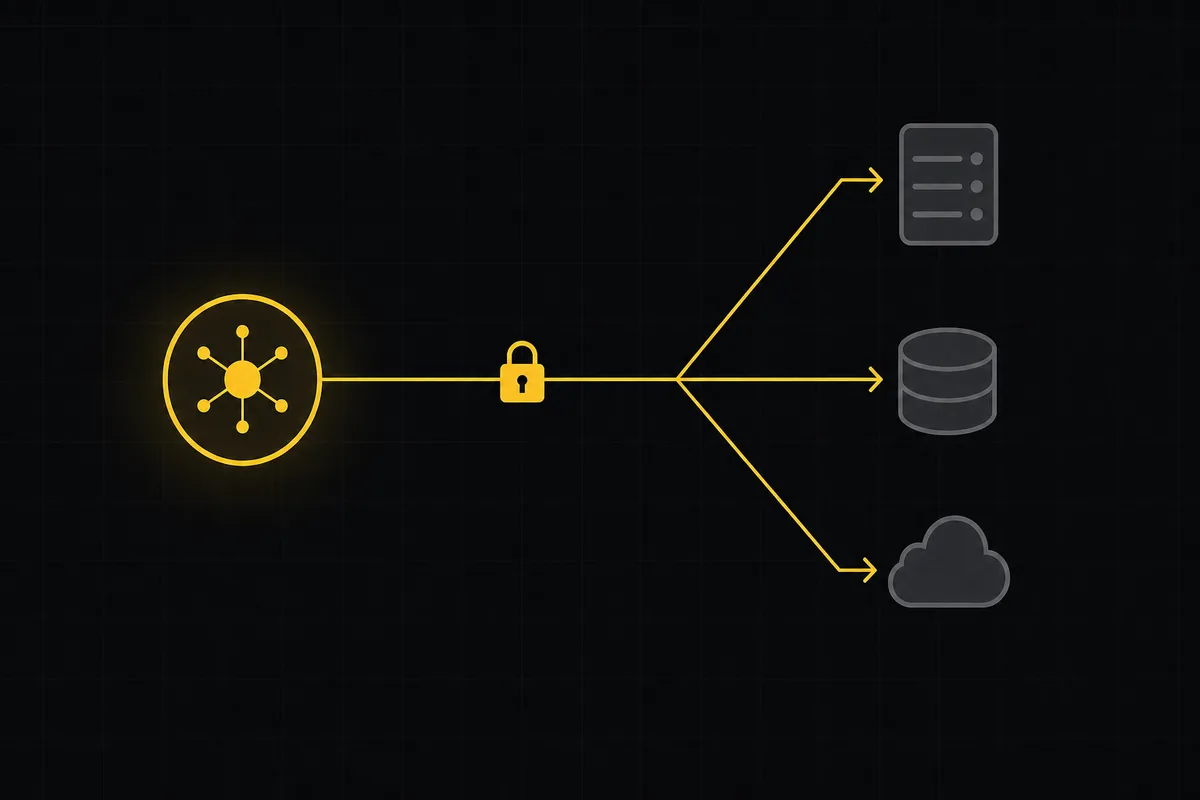
Set up outbound webhooks in Utter: create one, verify the HMAC signature (sha256-of-secret gotcha), handle at-most-once delivery, and pipe board events to Slack.
July 15, 2026 · 16 min read
Onboard an AI agent like a new hire: identity, access, and a first task
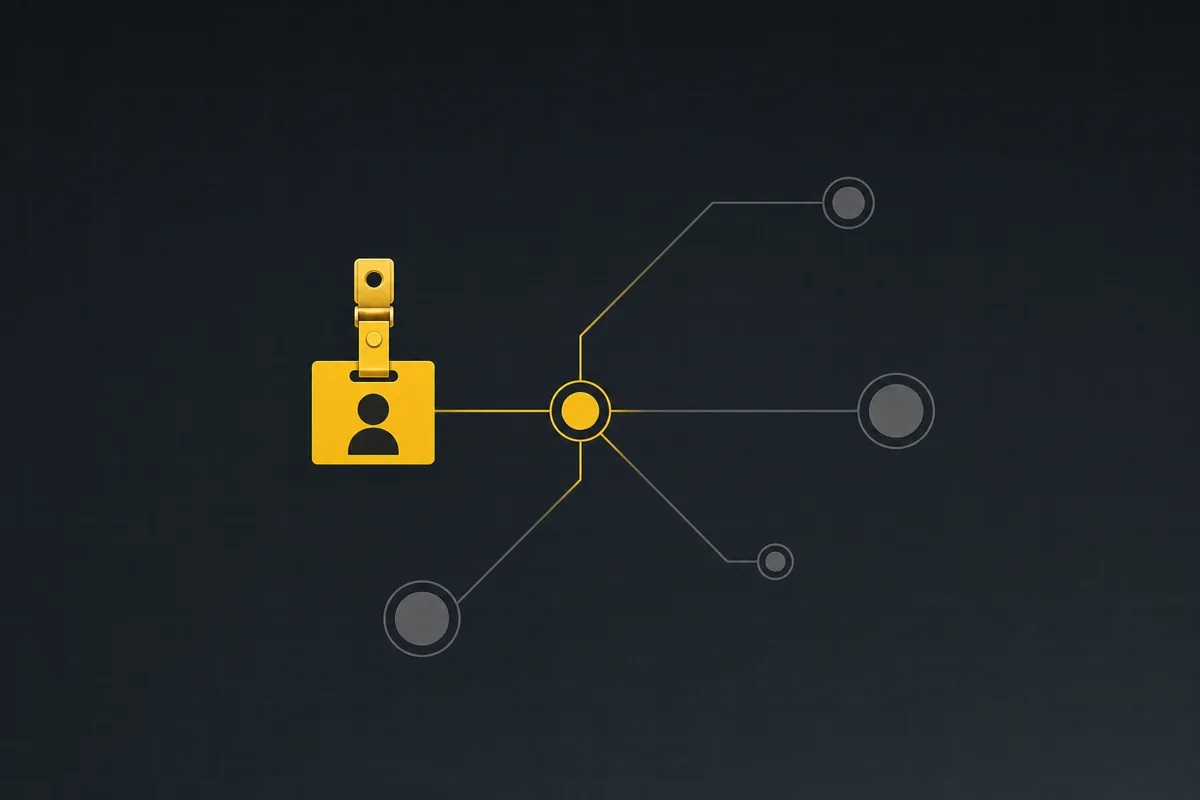
You already know how to bring on a new hire. Do the same for an AI agent: give it an identity, scoped access, one small task, a review, and an offboarding path.
July 15, 2026 · 8 min read
What you can run in Utter without extra tools
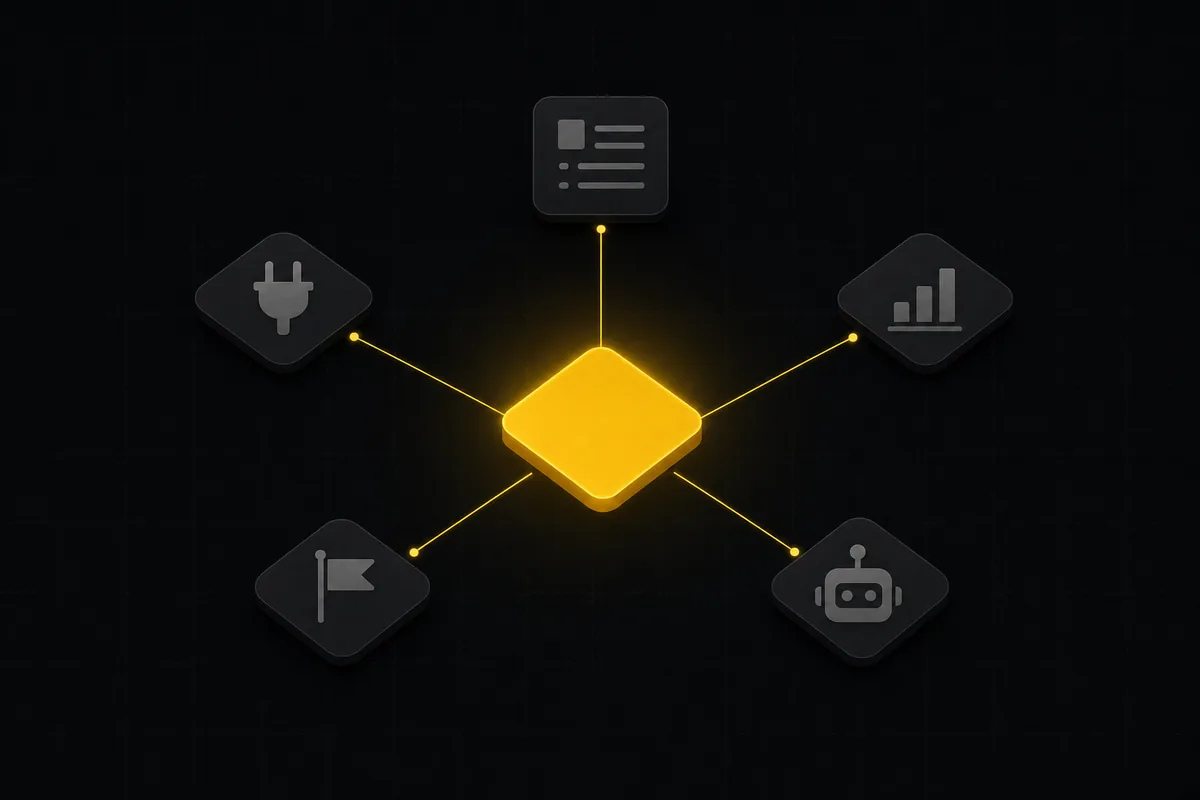
A straight, capability-forward tour of the jobs Utter covers in its core, from a light help desk to integrations, estimation, and roadmaps, and when to pair a dedicated tool.
July 16, 2026 · 8 min read

How to manage roles and permissions
Learn how project management roles and permissions work in Utter: the five roles, inviting with the right access, scoped projects, and who pays for a seat.
July 15, 2026 · 18 min read
Utter integrations: the marketplace, OAuth apps, and the API-first model
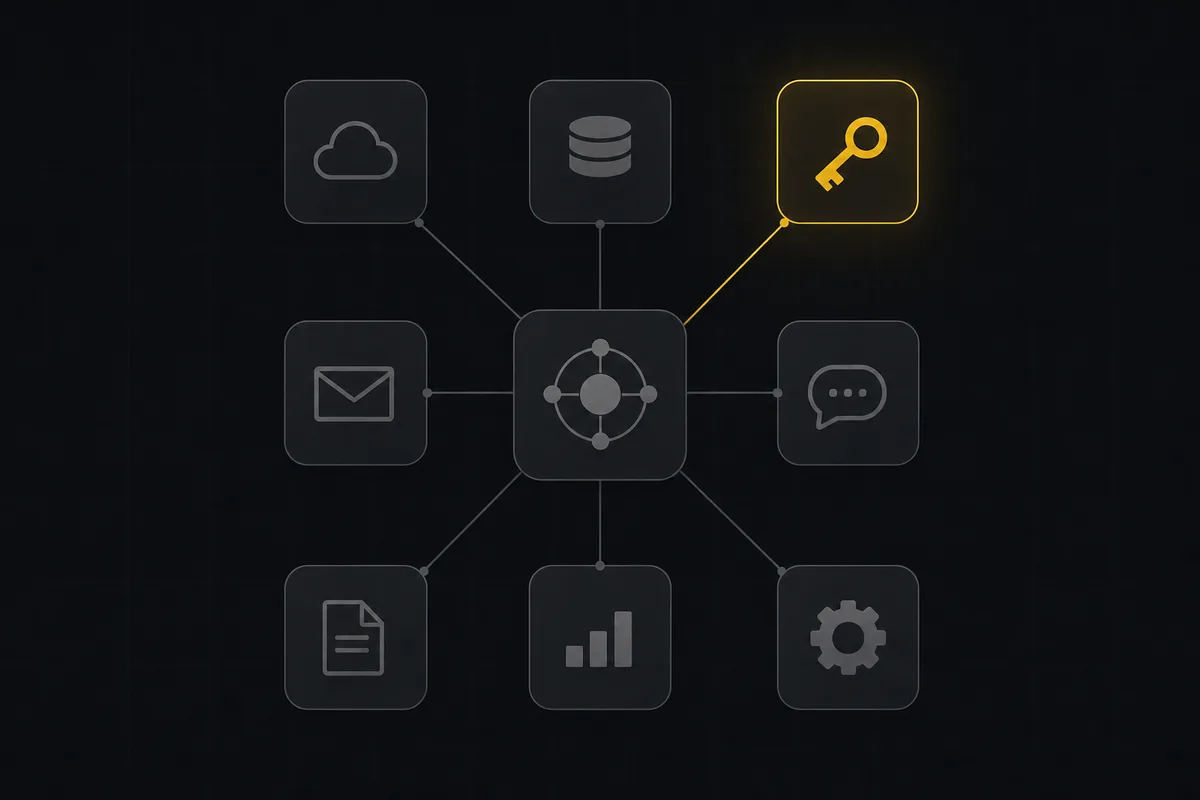
Utter integrations explained: the 12-card marketplace, signed webhooks, scoped API keys, a first-party MCP server, and OAuth apps, plus what is missing and why.
July 16, 2026 · 13 min read

Keyboard shortcuts in utter
Every keyboard shortcut in Utter: the ? overlay, command palette, quick create, g-chords, and a/s/p/l/m field pickers, where each fires, and how to learn them.
July 15, 2026 · 15 min read

Why we gave Utter an MCP server, and what it changes
What the Model Context Protocol is in plain terms, why a project tracker is a good fit for it, and how an agent picks up your workspace without any glue code.
July 11, 2026 · 5 min read
Add a comment
Start the conversation.