
How to manage your notification preferences
You got assigned three tickets this morning. Then twelve emails arrived about them, one comment at a time, and by lunch you'd stopped opening any of them. That's one failure mode. The other is muting so hard that the one ping that actually mattered slid past you unseen. Both come from the same root: you never told the tool what you care about.
Learning to manage project management notifications in Utter is not about hunting for a master mute button. There isn't one, and that's deliberate. What you get instead is a grid. A handful of event types down one side, two ways to be reached across the top, a checkbox in every cell that applies. Once the grid makes sense, you can make your inbox quiet without going blind, and you can make sure the work you own always finds you.
Here's what you'll be able to do by the end:
- Open your notification preferences and read the Email versus In-app matrix correctly, including why the Weekly digest row has no in-app cell.
- Decide, event by event, which of the nine notification kinds reach you by email, in-app, both, or neither.
- Save the whole matrix as one batch and confirm it actually stuck.
- Use "Status changes I follow" together with watching an issue to track work you don't own.
- Understand the real walls: no global mute, no per-project overrides, and how the weekly digest and its one-click unsubscribe behave.
Why your notifications feel loud
Utter reaches you through exactly two channels. Email, and the in-app bell in the top bar. That's the entire list. No push, no SMS, no Slack relay, no desktop toasts. Every notification you will ever get lands on one or both of those two.
Against those two channels sit nine event kinds. Four are the ones you'll actually think about day to day: Assigned to me, Mentioned me, Replies to my comments, and Status changes I follow. Those four are the spine of issue tracking. The other five (Invite accepted, Weekly digest, and three chat kinds) fire less often, but they live on the same grid and follow the same rules.
The mental shift that makes this easy: it's a matrix, not a switch. You're never turning notifications "on" or "off" in the abstract. You're deciding, per event, whether it emails you, pings the bell, does both, or does nothing. A reply to your comment might be worth an email. A status change on an issue you're only half-watching might be worth a quiet bell notification you'll catch next time you're in the app. That distinction is the whole game.
One thing to know before you touch anything. These preferences are per-user and global. They apply to you, across every workspace and every project you belong to. There is no per-project version of this screen. Set it once, it's set everywhere.
Open your notification preferences
Go to your profile page and find the Notifications section. Scroll to the card titled Notification preferences, subtitle "Choose how we notify you for each event type." That card is the entire control surface. Everything you tune lives there.
The layout is a grid. Down the left, nine event rows. Across the top, two column headers: Email and In-app. Wherever a channel applies to an event, there's a checkbox. Checked means you get it on that channel. Unchecked means you don't.
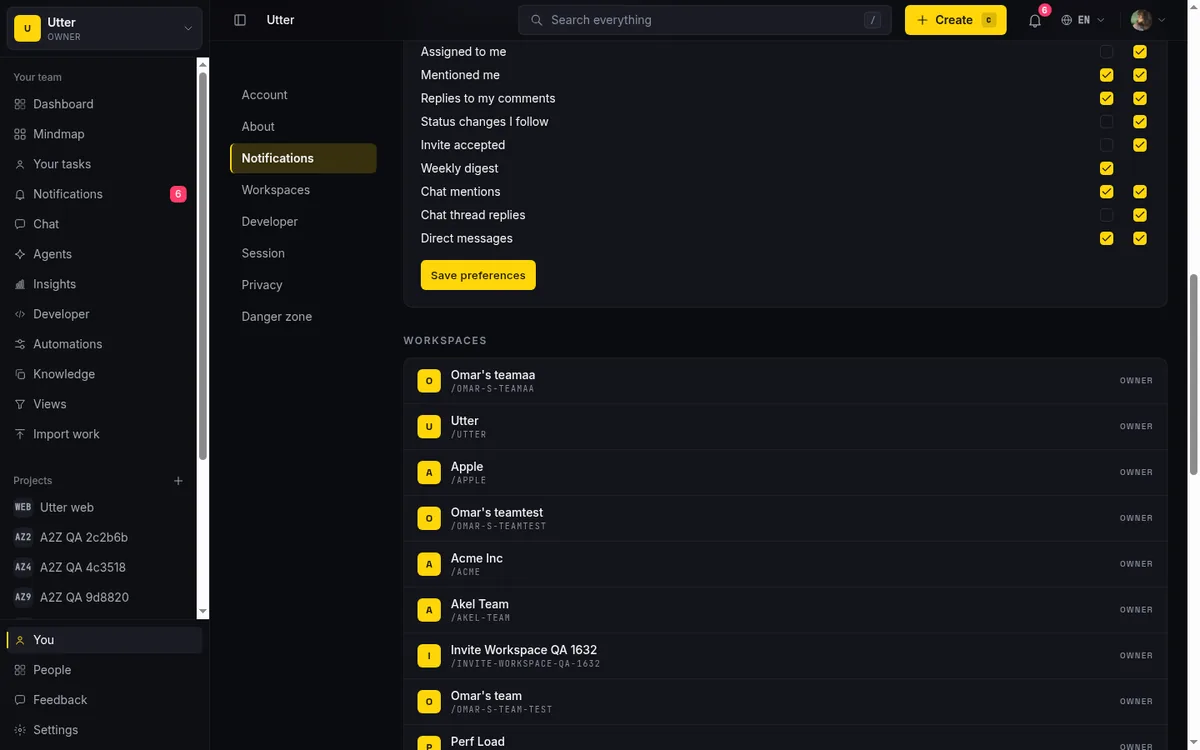
Scan down and one row looks off. Weekly digest has a checkbox under Email, but its In-app cell is blank. That's not a rendering bug. The weekly digest is an email-only thing, a summary that goes out on a schedule, so there's no in-app version of it to toggle. The empty cell is telling you the truth: nothing to check there. Don't go looking for an in-app digest. It doesn't exist, by design.
Read the grid before you change anything. Notice which boxes are already ticked. Those are your current effective settings, and knowing where you're starting from makes every later decision easier.
What each of the nine event types means
Toggling a row you don't understand is exactly how people accidentally silence the one alert they needed. So here's what each event fires on.
Assigned to me. Someone assigns an issue to you. The "you now own this" ping. If you keep nothing else loud, keep this one.
Mentioned me. Someone writes @you in a comment. A specific person wants your eyes on a specific thread. Direct, targeted, usually worth an email.
Replies to my comments. You commented on WEB-42, someone replied under it. This keeps you in a conversation you started without having to reopen the issue to check.
Status changes I follow. This is the row for the status-changed event, and it's the one people misread most. It does not mean "every status change in the project." It means status moves on issues you follow: issues you're assigned to, issues you reported, or issues you've explicitly watched. Someone drags your "Timeline + Summary tab" ticket from In Progress to In Review, and this is the event that tells you.
Invite accepted. You invited someone to a workspace and they accepted. Worth knowing: this fires only to the person who sent the invite. Nobody else gets pinged when a new member joins.
Weekly digest. The scheduled summary email. More on what's actually in it near the end.
The last three, Chat mentions, Chat thread replies, and Direct messages, belong to team chat rather than issue tracking. If your workspace uses Utter's built-in chat, these decide whether a chat mention, a reply in a chat thread, or a DM reaches you. If you don't use chat much, they'll rarely fire. They sit on this same grid for convenience, but file them mentally under a different feature. There's more on the chat side in how to use team chat, and a deeper look at issue notifications in notifications and watching issues.
The defaults, and why they're set the way they are
Utter doesn't ship with everything on or everything off. It ships with an opinion, and the opinion is worth understanding before you override it.
The actual shipped defaults:
| Event | In-app | |
|---|---|---|
| Assigned to me | On | On |
| Mentioned me | On | On |
| Replies to my comments | On | On |
| Status changes I follow | Off | On |
| Invite accepted | Off | On |
| Weekly digest | On | Not available |
| Chat mentions | On | On |
| Chat thread replies | Off | On |
| Direct messages | On | On |
Every applicable kind is in-app on out of the box. The bell catches everything.
The logic is simple once you see it. Things aimed straight at you (an assignment, an @mention, a reply to your own comment, a DM) email you, because those are the moments where a missed notification actually costs you something. Ambient things (a status moving, an invite being accepted, a reply buried in a chat thread) stay in the bell, where you'll notice them when you're already in the app, without cluttering your inbox.
So the default posture is: your inbox is reserved for direct, must-not-miss signals. The bell is the catch-all for everything else. That's a sane starting point for most people, which is why you might not need to change much at all.
One caveat that trips people up. These defaults hold only until the first time you save. The moment you click Save preferences, the stored matrix becomes authoritative, and any kind you didn't explicitly set falls back to its default behind the scenes. In practice: don't half-set the grid and assume the rest stays "default forever." Set what you care about, save, and treat what's on screen as the source of truth.
Turn off email notifications without going dark
This is the request I hear most. "I want to turn off email notifications but I don't want to miss anything." That's exactly what the two-channel split is for.
The move is to uncheck Email on your noisy rows while leaving In-app checked. You're not muting those events. You're relocating them from your inbox to your bell, where they pile up quietly until you glance over.
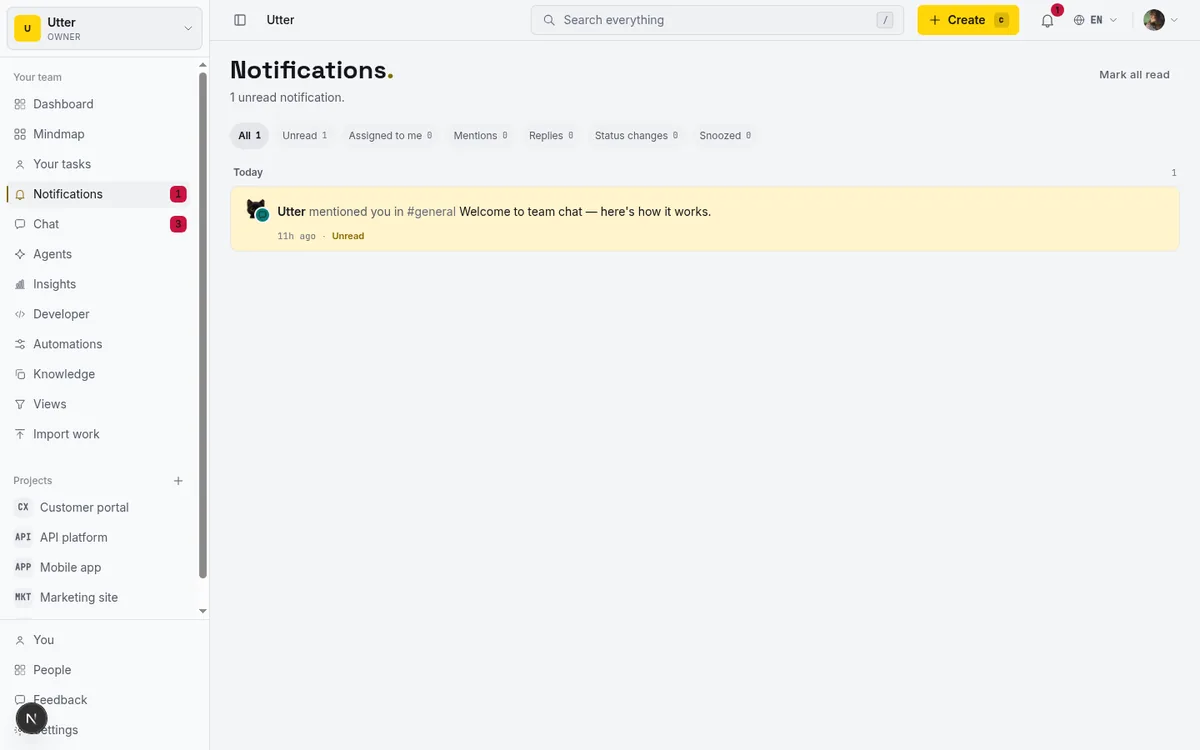
Concretely. Say you're following the "Timeline + Summary tab" ticket in the WEB project along with a dozen others, and every time one of them shifts columns you get an email. That's your Status changes I follow row lighting up your inbox. Uncheck its Email box. Leave In-app checked. Now those moves show up in the bell, you catch them next time you open Utter, and your inbox goes quiet. Do the same to Replies to my comments if comment threads are what's burying you.
The way to reason about it: email is for what you cannot afford to see late. In-app is for what you'll notice anyway next time you're working. Most status churn belongs in the second bucket. Direct assignments and mentions usually belong in the first.
Once that split is in your head, tuning the grid stops being guesswork. For each row you just ask: "if I only saw this the next time I opened the app, would that be too late?" If no, drop it to in-app only.
Save your changes and confirm they stuck
Here's the part that catches people. Nothing on this grid saves as you click. Checking and unchecking boxes only changes the pending state on screen. The real save is one batch, one button.
So flip every box you want changed first. All of them. Then click Save preferences. While it works the button reads Saving…, and when it lands you get a toast: Notification preferences saved. That toast is your proof the whole matrix was written.
Navigate away before clicking Save and your edits are gone. They don't persist as drafts. This is genuinely the number one way people believe they changed their notifications and then keep getting the same emails: they toggled, got distracted, and left without saving. So build the habit. Tune the entire grid to what you want, save once, watch for the toast. If you didn't see "Notification preferences saved," it didn't save.
Watch an issue to follow status changes you don't own
The Status changes I follow row only earns its keep if you know how to add issues to the "follow" set. You're on it automatically for issues you're assigned to or that you reported. But what about a ticket you don't own and just want to keep an eye on?
That's what watching is for. Open any WEB task from the board (click into it from any column, Backlog through Done) and look near the top of the issue detail page. There's a Watch control. Turn it on, and you're added to that issue's watcher set.
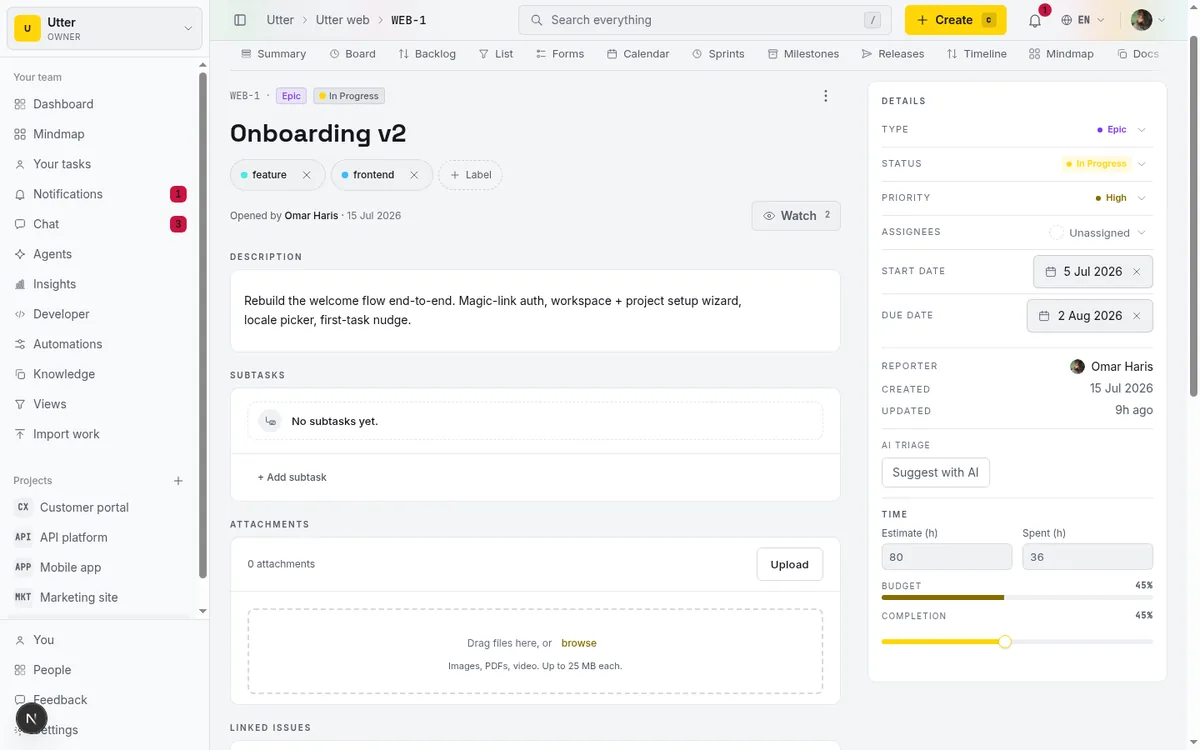
Here's how it wires together. When an issue's status changes, Utter builds the recipient list from three sources: the reporter, the assignee, and anyone explicitly watching. Then it filters every one of those people through their own notification preferences.
flowchart TD
    S[Status change on an issue] --> R[Reporter]
    S --> A[Assignee]
    S --> W[Watchers]
    R --> P{Their own prefs}
    A --> P
    W --> P
    P -->|Email box checked| E[Email]
    P -->|In app box checked| B[Bell]
    P -->|Neither| N[Nothing]
So watching the "Timeline + Summary tab" ticket puts you on the list, and whether you actually hear about it depends on your Status changes I follow settings.
This is the honest limit worth stating plainly. Watching does not create its own separate toggle. It doesn't override your preferences. It only adds you to the pool that gets filtered through the status-changed prefs you already set. Remember the default there: in-app on, email off. So if you watch an issue expecting an email when it moves, you won't get one until you also check the Email box on Status changes I follow.
Watching gets you into the room. Your preferences decide whether the door to your inbox is open. If you're setting up a fresh issue and want the watcher mechanics from the ground up, how to create an issue covers where these controls live, and notifications and watching issues goes deeper on the fan-out.
Watching from a script
The same watch toggle exists on the public API, which matters if a bot or an agent manages your follow set for you. Watching over the API is self-only: it subscribes the key's own user, never anyone else. The call is idempotent, so re-watching an issue you already follow is harmless.
curl -X POST \
  https://utter.ae/api/v1/workspaces/utter/projects/WEB/issues/WEB-42/watchers \
  -H "Authorization: Bearer utp_live_a1b2..."
const res = await fetch(
"https://utter.ae/api/v1/workspaces/utter/projects/WEB/issues/WEB-42/watchers",
{ method: "POST", headers: { Authorization: "Bearer utp_live_a1b2..." } },
);
const { data } = await res.json(); // { user: { id, email, name }, created_at }import requests
r = requests.post(
"https://utter.ae/api/v1/workspaces/utter/projects/WEB/issues/WEB-42/watchers",
headers={"Authorization": "Bearer utp_live_a1b2..."},
)
print(r.status_code) # 201 first time, 200 if already watchingYou can read your bell from a script too. A key with the notifications:read scope can list its own user's notifications for the workspace (only its own, never another member's):
curl "https://utter.ae/api/v1/workspaces/utter/notifications?limit=20" \
  -H "Authorization: Bearer utp_live_a1b2..."
{
"data": [
{
"id": "0198c1f2-7b3e-7c11-a2d4-9e8f01234567",
"kind": "status_changed",
"read": false,
"created_at": "2026-07-16T09:12:00.000Z",
"issue_key": "WEB-42",
"issue_title": "Timeline + Summary tab",
"project_slug": "web",
"actor_name": "Omar Haris",
"actor_email": "[email protected]"
}
],
"pagination": { "next_cursor": null }
}If you never touch the API, skip this and nothing changes. The web app is the full experience.
The weekly digest and one-click unsubscribe
The weekly digest is a single email on a Monday sweep. It's a snapshot, not a firehose, and it's easy to over-imagine what it holds, so here's the real contents.
It lists your open assigned tasks, the tasks you have due this week, and a count of how many you closed in the past week. That's the shape: what's on your plate, what's due soon, what you cleared. It only includes issues assigned to you, in projects you can see (visible, non-archived, non-deleted, and for scoped projects only ones you're an explicit member of). It's capped at 20 open issues. It is not a full activity feed and it will not show you everything moving around the workspace. If you want a richer written summary, that's a different tool: see let AI write your weekly project update.
The digest is gated by one thing only: the Weekly digest email preference. Checked, you get it. Unchecked, you don't. No in-app version, remember. That cell is blank.
The unsubscribe is the nice touch. The digest email carries a proper one-click unsubscribe in its header (the RFC 8058 kind your mail client can honor without opening a browser). Clicking it flips exactly one preference: your Weekly digest email, off. It touches nothing else. Your assignment emails, your mentions, your bell notifications, all left alone.
sequenceDiagram
    participant M as Mail client
    participant U as Utter
    M->>U: POST /api/unsubscribe with signed token
    U->>U: Verify the token
    U->>U: Turn off Weekly digest email only
    U-->>M: 200 OK
And when you come back to your profile afterward, you'll see a small confirmation banner in the Notifications section telling you the unsubscribe went through (it arrives as an ?unsubscribed=1 marker on the URL, anchored to the Notifications section; a failure shows the matching failed marker instead). So you can quiet the digest straight from your inbox, in one click, without any worry that you've accidentally muted something that matters.
Limits worth knowing before you tune anything
I'd rather you know where the walls are than spend ten minutes hunting for a button that was never built. Here's the honest boundary of what this screen can and can't do.
No global mute, no per-channel master toggle. There is no single switch that turns everything off, and no "all email off" or "all in-app off" shortcut. Every combination is an individual checkbox. Want your whole inbox quiet? You uncheck the Email column row by row. A few clicks, not one.
Two channels only. Email and in-app. No push, no SMS, no Slack integration, no desktop notifications. If you were hoping to route Utter alerts into Slack, that's not here.
Preferences are global, not per-project. This is the big one. Your settings apply to you across every workspace and project. You cannot say "email me for WEB but not for MOBILE." One matrix, everywhere. If there's a project you'd like to hear less from specifically, your lever is per-issue: stop watching its issues, and lean on the fact that you'll naturally only get assignment and mention notifications for work that actually involves you.
You never get notified about your own actions. Self-action suppression is built in. Move your own ticket, comment on your own issue, and you won't ping yourself, whatever the grid says. It's not a setting, it's just how it works, and it's why your notifications aren't a mirror of everything you personally do.
On local or dev setups with no email configured, mail is logged, not sent. If you're testing Utter on a machine with no SMTP, the app writes what it would have emailed to the logs instead of delivering it. So don't judge your email preferences by a dev instance. On a properly configured deployment the mail really goes out.
Once you know those boundaries, the grid stops feeling limited and starts feeling honest. It does one job, deciding which events reach you on which of two channels, it does it globally, and it doesn't pretend to be a routing engine it isn't.
That's the whole system. Two channels, nine events, one save button, and a watch control that feeds the row people always misjudge. Open your profile, read the grid you already have, decide which rows belong in your inbox versus your bell, save once, confirm the toast. Ten minutes now buys you a much quieter, much more trustworthy stream for months.
Open your profile's Notifications section and tune the grid to match how you actually work.
Frequently asked questions
How do I manage project management notifications in Utter?
Open your profile page, go to the Notifications section, and find the Notification preferences card. It's a matrix of nine event types (rows) against two channels (columns: Email and In-app). Tick the cells you want, then click Save preferences to write the whole matrix at once.
How do I turn off email notifications without missing anything?
Uncheck the Email box on your noisy rows but leave In-app checked. Those events then show up only in the bell, so your inbox goes quiet while nothing is actually muted. Save once and wait for the "Notification preferences saved." toast.
Why does the Weekly digest row have no In-app checkbox?
The weekly digest is email-only by design. It's a scheduled summary email with no in-app equivalent, so its In-app cell is intentionally blank rather than an unchecked box. There is nothing to toggle there.
Do I have to save each toggle, or does it save automatically?
Nothing saves as you click. Toggling only changes the pending state on screen. You must click Save preferences to write every change as one batch, and you'll see a "Notification preferences saved." toast confirm it. Leave the page first and your edits are lost.
How does watching an issue relate to status change notifications?
Watching adds you to an issue's watcher set. When its status changes, Utter notifies the reporter, the assignee, and all watchers, then filters each person through their own prefs. Since the Status changes I follow default is in-app on and email off, you won't get an email about a watched issue unless you also check that row's Email box.
Can I set different notification preferences per project?
No. Preferences are per-user and global across every workspace and project you belong to. There is no per-project or per-workspace override. Your per-project lever is per-issue: stop watching issues you don't want to hear about.
Will I get notified about my own actions?
No. Self-action suppression is built in, so moving your own ticket or commenting on your own issue never pings you, regardless of your preference settings.
What's actually in the weekly digest email?
Your open assigned tasks, the tasks you have due this week, and a count of how many you closed in the past week. It only covers issues assigned to you in projects you can see, capped at 20 open issues, and it's gated solely by the Weekly digest email preference. The digest email also has a one-click unsubscribe that turns off only that preference.
Related reading
Notifications and watching issues
Set up Utter notifications and watch issues: the four events that notify you, who gets pinged, inbox triage, snooze and archive, and email vs in-app.
July 15, 2026 · 16 min read
How to use team chat
A practical guide to team chat in a project management tool: channels, DMs, threads, @mentions, file attachments, and the honest limits, all next to your issues.
July 15, 2026 · 16 min read
Stop chasing status updates: let AI write the weekly project digest
How to automate a weekly status report with AI that reads what actually moved and what stalled, instead of a dumb scheduled dump of ticket counts.
June 1, 2026 · 7 min read
How to track and vote on feedback
A hands-on tour of Utter's product feedback board and roadmap: post ideas, vote, and read the Tracking board and Changelog as a live public roadmap.
July 15, 2026 · 17 min read
Keyboard shortcuts in utter
Every keyboard shortcut in Utter: the ? overlay, command palette, quick create, g-chords, and a/s/p/l/m field pickers, where each fires, and how to learn them.
July 15, 2026 · 15 min read
How to use a kanban board: a complete guide with a real example
Learn how to use a kanban board in Utter: read cards, drag tasks between columns, add and reorder custom columns, set WIP limits, filter, and save views.
July 15, 2026 · 20 min read
Project reports and insights
Read Utter's project reports and dashboards: Summary KPIs, sprint burndown, cycle time, throughput, workload, and workspace Insights, with the honest limits on each.
July 15, 2026 · 16 min read
How to manage roles and permissions
Learn how project management roles and permissions work in Utter: the five roles, inviting with the right access, scoped projects, and who pays for a seat.
July 15, 2026 · 18 min read
How to set up automations
Set up project management automation rules in Utter: the when/if/then model, six triggers, conditions, nine actions, run history, plan caps, and real limits.
July 15, 2026 · 18 min read
How to read the project summary
Read the Utter project Summary tab like a pro: what every card shows, how each number is computed, what good looks like, and where the dashboard stops.
July 15, 2026 · 16 min read
Add a comment
Start the conversation.