
Notifications and watching issues
You got pulled into the WEB project three weeks ago. You fixed your part, moved on, went heads-down on something else. Now someone is asking why you never responded to a status change on "Timeline + Summary tab," and you have no idea what they mean, because you never saw it. That gap is exactly what project management notifications and watching are built to close. Work moves in tickets you are not staring at. You need a dependable signal for the handful of events that concern you, and a way to keep the other ninety-nine out of your face.
Utter splits this into two halves that work together. There is the Notifications inbox, which collects every signal meant for you in one place. And there is watching, which decides which issues generate those signals to begin with. Learn both and you stop finding out about your own work too late.
One honest thing up front, because it changes how you should use the whole system: the inbox is a pull system, not a live push feed for humans. The bell badge refreshes when you navigate, not the instant something happens. So this is a place you check, like email. Not a firehose that interrupts you. That framing matters, and it comes back more than once below.
Why project management notifications and watching matter
The demo project throughout this guide is WEB, with the standard columns Backlog, To Do, In Progress, In Review, and Done. Picture a ticket called "Timeline + Summary tab" sitting in In Progress. Someone finishes their part and drags it to In Review. That single move is the kind of event that should reach the people who care about it and stay invisible to everyone else. Get that split right and the rest falls into place.
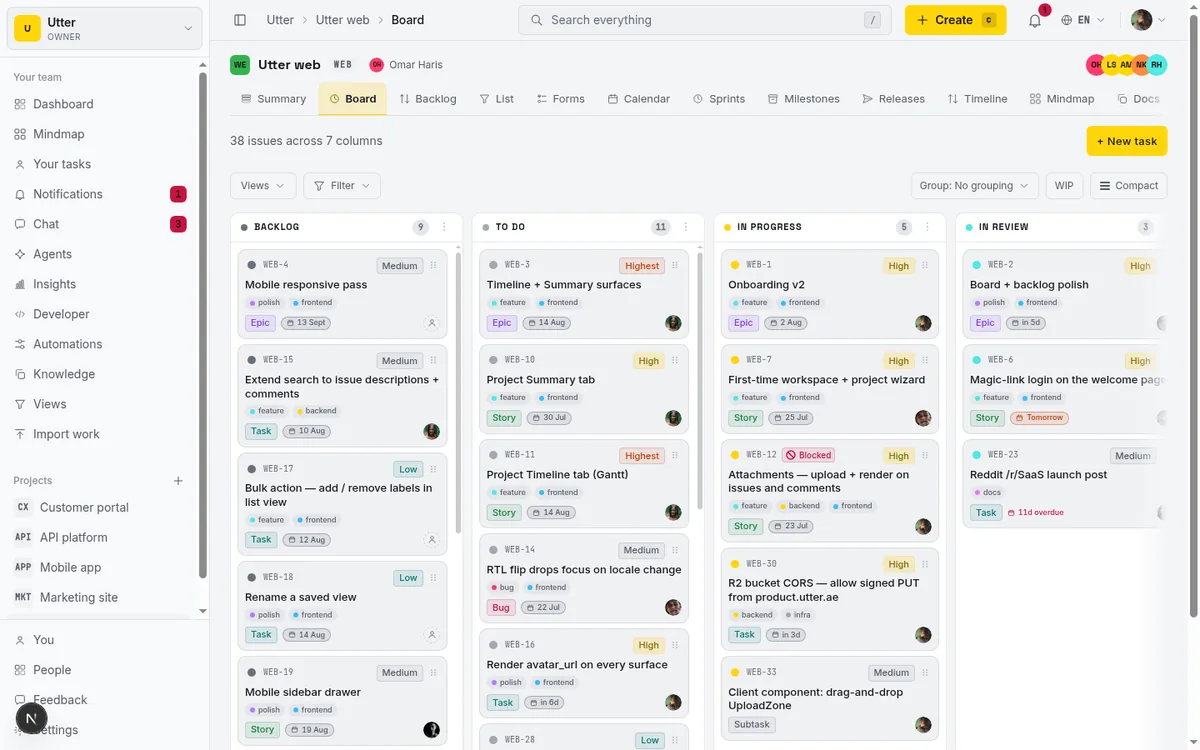
Here is the mental model. The Notifications inbox is the destination. It is where assignments, mentions, comment replies, and status changes land for you. Watching is one of the ways an issue decides to send you those signals. Some issues send you signals automatically because of your relationship to them: you are the reporter, or you are the assignee. Others only reach you if you opt in by watching. Knowing which is which is what separates "I am on top of my work" from "why is my inbox screaming about tickets I do not own."
Set expectations honestly. Utter's notifications are deliberately narrow. Four issue events notify you, not forty. No notification for every field edit, no ping when a label changes. That restraint is the point. It means when something does land in your inbox, it is worth reading. If you came from a tool that notified you about everything and trained you to ignore all of it, this is the opposite bet.
Where notifications live: the bell badge and the inbox
Look at the top bar of any workspace. There is a bell icon, and when you have unread notifications a small pink badge sits on it with the count. It caps at "99+" so a wildly overdue inbox does not stretch the layout, and the whole thing links straight to your inbox. If a number is sitting there, you have unseen signals waiting.
Clicking the bell takes you to the inbox at /w/<ws>/me/notifications, which lives inside the workspace shell. If you ever land on the bare /me/notifications, that is a redirect that drops you into your most-recent workspace so the inbox renders with the sidebar and everything around it. Bookmark the workspace-scoped URL if you bookmark anything.
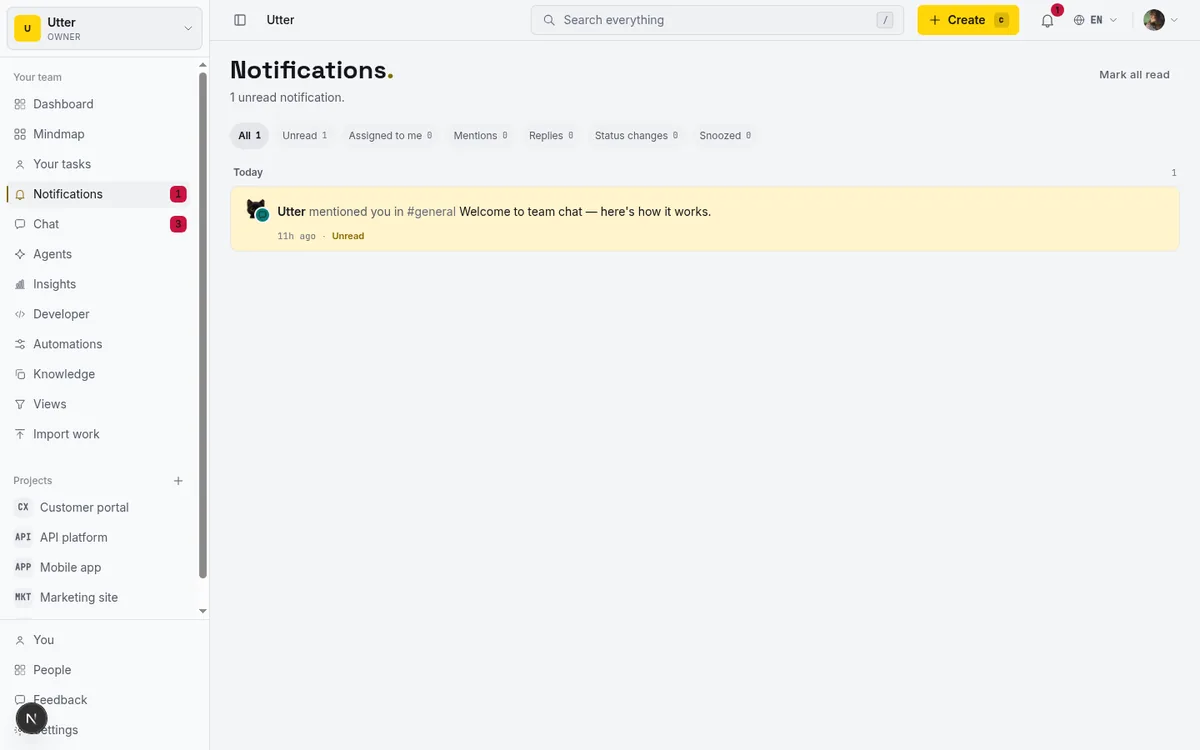
The page opens with a plain "Notifications." heading and a one-line summary underneath. When you have unread items it reads something like "3 unread notifications." When you have cleared everything it switches to "You are all caught up." Below that sits the list. If your inbox is genuinely empty you see "Inbox zero." If a filter you picked has nothing in it, you see "Nothing to show." (or "Nothing snoozed." under the Snoozed view).
Remember the pull-not-push point here. The badge is server-rendered, meaning the count you see was computed when the page loaded. It refreshes when you navigate around the app or the route revalidates, not the second a teammate acts. Do not sit staring at the bell waiting for it to tick up. Check it when you move between screens, the same rhythm you would use for email.
The four issue events that actually notify you
This is the part worth memorizing, because it is where most tools quietly mislead you and Utter does not. Exactly four issue-anchored events generate a notification:
- assigned ("assigned you to") when someone puts your name on an issue as assignee.
- mentioned ("mentioned you on") when someone writes
@youin a comment. - comment_reply ("replied to your comment on") when someone replies to a comment you wrote.
- status_changed ("changed the status of") when an issue you are connected to moves columns.
That is the complete list for issues. There is no "label changed" notification. No "due date changed," no "priority changed," no "attachment added." Status change is the only field-change signal in the whole system. If someone bumps "Timeline + Summary tab" from Low to High priority, nobody gets pinged. If they move it from In Progress to In Review, the right people do. Know that boundary and you will never wait for a notification that was never coming.
A few honest mechanics inside those four. Self-actions never notify you. If you are the one who moved the ticket or wrote the comment, you are excluded from your own signal, because you already know. Mentions are de-duplicated, so a single comment that mentions you does not fire twice. And if you already got the mention email for a comment, Utter pulls you out of the comment_reply fan-out for that same comment so you are not double-notified about one event.
The inbox is not only issues, either. The same list carries non-issue notifications: someone accepting your workspace invite ("accepted your invite"), an import finishing ("finished an import in"), and team chat activity (chat mentions, thread replies, direct messages). If you work with agents, agent sessions that need your input or have finished land here too. One inbox, several sources, all in the same day-bucketed stream.
Concretely: when a teammate drags "Timeline + Summary tab" to In Review, Utter fires a status_changed notification to everyone connected to that issue (who, exactly, comes in a moment) and skips the person who did the dragging. That is the event doing its job.
Triage your inbox: read, archive, snooze
An inbox is only useful if you can clear it. Hover over any notification row, or focus it with the keyboard, and a small set of actions appears on the right. There are three:
- Mark as read (the check icon) marks that one item read and leaves it in the list, greyed from its unread highlight.
- Archive files the item away and marks it read at the same time, so it is the one-tap "I have handled this, get it out of here" move.
- Snooze until tomorrow pulls the item out of your main inbox and reschedules it to reappear the next morning at 9:00am. Snoozed items do not vanish; they move under the Snoozed filter, and you can bring one back early with Unsnooze.
Every row moves through the same small set of states:
stateDiagram-v2
    [*] --> Unread
    Unread --> Read: mark as read or open
    Unread --> Archived: archive
    Unread --> Snoozed: snooze until tomorrow
    Snoozed --> Unread: 9am next morning or unsnooze
    Read --> Archived: archive
Be aware of the one real limit here. "Snooze until tomorrow" is the only snooze option in the UI. There is no custom picker for "snooze three days" or "snooze until Monday." Under the hood the system will accept snooze targets up to 30 days out and refuses dates in the past, but the button only offers you tomorrow. So snooze is a "not today, deal with it in the morning" tool, nothing more granular.
Clicking the row itself (the body, not the actions) jumps you straight to whatever it references: the issue by its KEY-NUM like WEB-14, a doc, or a chat message, and it marks that row read on the way. That is usually how you process the ones that need action. Open, do the thing, done.
Here is the practitioner call on snooze versus archive. Archive is for "handled, or genuinely do not care." Snooze is for "this is real work I cannot do right now." Do not snooze things you are never going to action; that is just deferring a decision you already made. And do not archive something you actually need to come back to, because archived items leave your working view. When in doubt on a ticket you own, snooze it to tomorrow and let future-you triage with fresh eyes.
Filter chips, day buckets, and working to inbox zero
Above the list is a strip of filter chips, each with a live count so you can see where the volume is: All, Unread, Assigned to me, Mentions, Replies, Status changes, and Snoozed. Tap one to narrow the list to just that kind. If Unread reads (12) and Assigned to me reads (3), you already know most of your noise is mentions and status churn, and the three assignments are the part that actually needs you.
The list is grouped into day buckets: Today, Yesterday, This week, and Earlier. That grouping does quiet work. It lets you tell "this is all from this morning" apart from "this has been rotting since last week," which changes how urgently you treat it.
When you have unread items, a Mark all read button appears (it only shows when your unread count is above zero). One scoping detail matters: opened inside a workspace, it clears only that workspace's visible unread, not every workspace you belong to. So if you are in three workspaces, "Mark all read" in WEB does not touch the other two. That is usually what you want, but know it so you do not assume a global sweep happened.
For history, use Load older at the bottom. It pages back through your notifications with keyset pagination, so no rows get skipped or repeated, and Back to newest returns you to the top. Page far enough and you hit "You have reached the end of your history."
One honest caveat on those chip counts: they use a 90-day recency window. Notifications older than 90 days are not counted in the badges. In practice this never bites you, because a three-month-old unread notification is not something you are acting on, but it is why the numbers reflect recent activity rather than all-time.
My routine for a busy inbox: start on Unread to see only what you have not looked at, skim top to bottom, and open or archive as you go. Then switch to Assigned to me and make sure nothing in there is a surprise, because those are commitments with your name on them. Everything else, mentions and status changes, is context. Useful to see, rarely urgent. Two chips, five minutes, inbox handled. If you are new to creating the work these notifications track, how to create an issue covers the other side.
How to watch an issue for updates
Now the second half: deciding which issues talk to you at all. Open an issue, say WEB-1. In the detail header, next to the comment count pill, there is a Watch button with an eye icon.
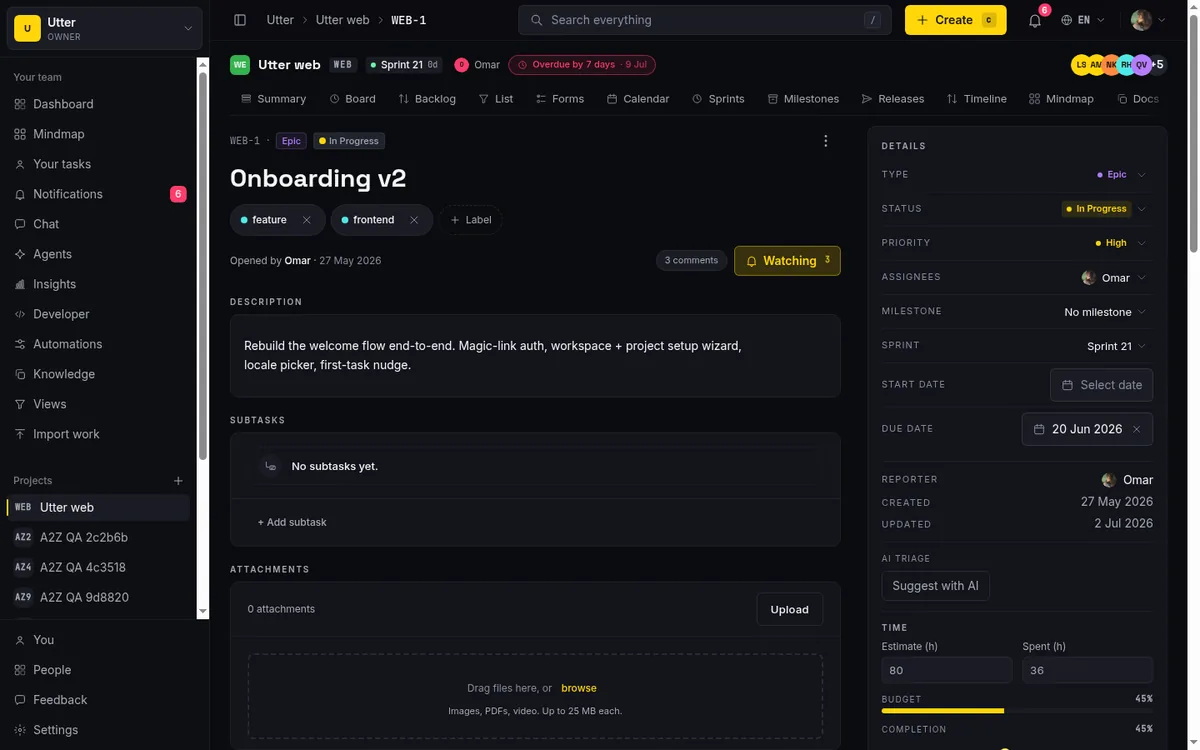
Press it. The button flips to Watching with a bell icon, the live watcher count next to it ticks up, and a toast confirms: "You will get notified about changes to this task." You are now subscribed. Press it again and it flips back to Watch with the toast "You stopped watching this task." That is the whole control. One button, on and off.
What does watching actually buy you? It opts you into the status_changed and comment_reply fan-out for that specific issue, even when you are not the assignee or the reporter. So if "Timeline + Summary tab" is a ticket you do not own but genuinely need to track (maybe it blocks your work, maybe you are the one who will QA it), watching it means every status move and every comment reply reaches your inbox without you having to remember to go check the ticket. You have turned a ticket you would otherwise poll into one that pings you.
This is the tool for the handful of issues you care about but are not assigned. Use it deliberately. Watching everything recreates the noise problem you were trying to escape. Watch the three or four tickets that would actually ruin your week if they moved without you, and stop there.
Who gets notified without pressing Watch
Watching is opt-in, but plenty of people get notified about an issue without ever touching that button, because of who they are to the issue. These are the implicit watchers, and they are always subscribed:
- The reporter (whoever created the issue) always receives status_changed and comment_reply fan-out.
- The current assignee always receives status_changed and comment_reply fan-out, and separately gets the "assigned you to" notification the moment they are assigned.
So if you created WEB-1 or you are the one it is assigned to, you are already covered. You do not need to press Watch. Moving the ticket or replying to comments on it will reach you automatically.
There is also a targeted one that reaches you regardless of watching. A comment_reply finds you whenever someone replies to a comment you wrote, even on an issue you never watched and do not own. Reply to a thread once and you will hear about the response to that thread.
Put together, the fan-out for a status change looks like this:
flowchart TD
    A[Issue moves column] --> B{Are you the one who moved it}
    B -->|Yes| C[No notification, you already know]
    B -->|No| D{Reporter, assignee, or watcher}
    D -->|Yes| E[status_changed lands in your inbox]
    D -->|No| F[Silence]
Now the limits, because this is where people overestimate the system. There is no auto-watch-on-comment. Commenting on an issue does not subscribe you to it. There is no auto-watch-on-mention either. A mention is a single notification, not a standing subscription. Someone @-mentions you on "Timeline + Summary tab," you get pinged once, and that is the end of it. The next time the ticket moves, silence, unless you are the reporter, the assignee, or you pressed Watch.
The practical takeaway is one sentence. If you commented on an issue and you want to keep hearing about it, press Watch. Do not assume that leaving a comment or catching a mention quietly signed you up, because it did not. This is the single most common wrong assumption people bring in, so make it a habit: chime in, then watch. (If your team lives in team chat next to your issues, the same one-time-versus-subscription distinction applies to chat mentions.)
Watching and the inbox over the REST API
Everything above has an API twin, which matters once a script or an agent is part of the team. Watching is a self-subscribe: POST /v1/workspaces/{slug}/projects/{key}/issues/{issueKey}/watchers subscribes the calling token's own user to that issue. It only needs the issues:read scope (subscribing yourself is a read-level grant, not a write on someone else's behalf), and it is idempotent: the first call returns 201, calling it again returns 200 with the same watcher row.
To watch WEB-1 in the demo workspace:
curl -X POST "https://utter.ae/api/v1/workspaces/utter/projects/WEB/issues/WEB-1/watchers" \
  -H "Authorization: Bearer utp_live_a1b2..."
const res = await fetch(
"https://utter.ae/api/v1/workspaces/utter/projects/WEB/issues/WEB-1/watchers",
{
method: "POST",
headers: { Authorization: "Bearer utp_live_a1b2..." },
}
);
const watcher = await res.json(); // 201 first time, 200 if already watchingimport requests
res = requests.post(
"https://utter.ae/api/v1/workspaces/utter/projects/WEB/issues/WEB-1/watchers",
headers={"Authorization": "Bearer utp_live_a1b2..."},
)
watcher = res.json() # 201 first time, 200 if already watchingA GET on the same path lists an issue's watchers, and DELETE .../watchers/{userId} unsubscribes, with the same self-only rule: the userId must be the token's own user, so a key cannot unsubscribe anyone else. The inbox is readable too. GET /v1/workspaces/{slug}/notifications (scope notifications:read) returns your notifications in this workspace, each row carrying kind, read, created_at, and the issue key and title it points at. And POST /v1/workspaces/{slug}/notifications/mark-all-read (scope notifications:write) clears your unread in that workspace and returns the count of rows it touched. If you are new to keys and scopes, how to use the REST API covers minting a token.
Set your notification preferences (email vs in-app)
By default the inbox handles in-app, but you also get email for the events that matter, and you control all of it in one place. Go to Profile, then the Notifications section, and find the "Notification preferences" card. Under the heading "Choose how we notify you for each event type." is a two-column matrix: Email on one side, In-app on the other, with a checkbox for each event type down the rows.
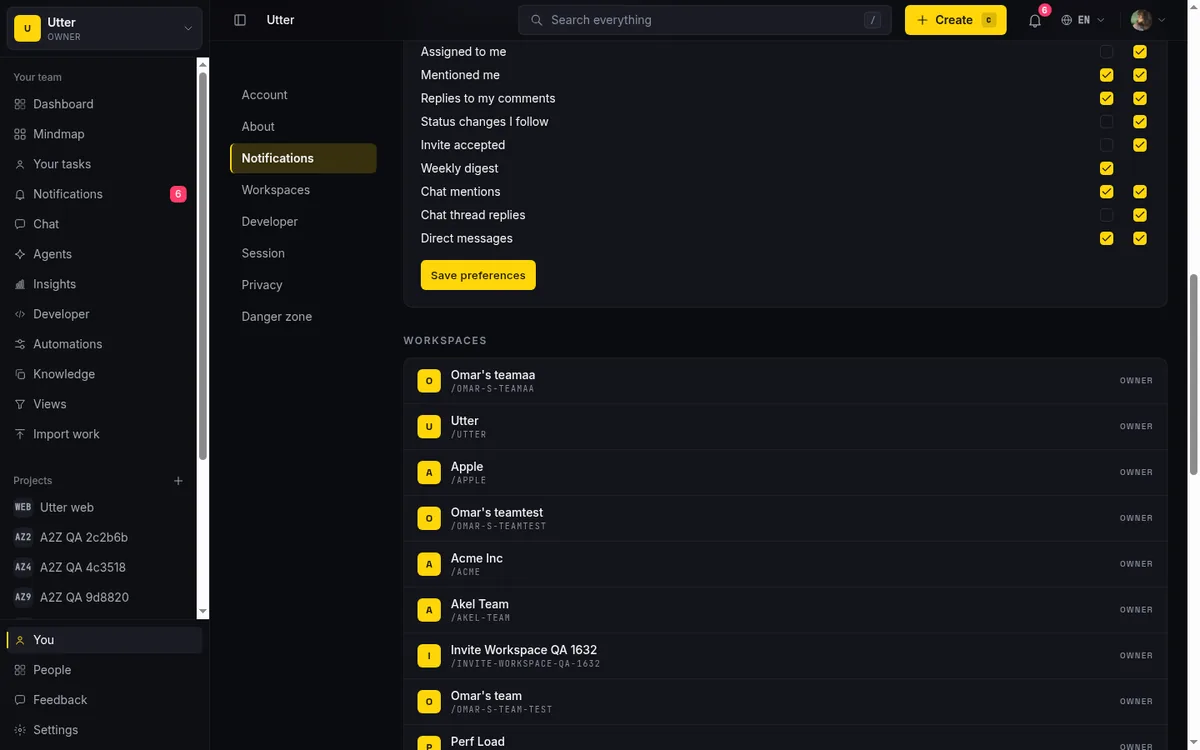
The rows are: Assigned to me, Mentioned me, Replies to my comments, Status changes I follow, Invite accepted, Weekly digest, Chat mentions, Chat thread replies, and Direct messages. Tick or untick each channel per event, then press Save preferences. You get a "Notification preferences saved." confirmation.
The defaults are set sensibly, and it is worth knowing them so you tune rather than fight them. Assigned, mentioned, and comment_reply have email on by default, because those are the events where someone is directly waiting on you. Status changes have email off by default, with in-app left on, because a moving ticket is context, not a summons, and nobody wants an email every time a board shuffles. So if you want status-change emails, you have to turn them on yourself. Do not assume they are arriving.
Weekly digest is email-only; there is no in-app version, since a digest is inherently a periodic email. It rolls up what happened so you get the shape of the week without living in the inbox. If you would rather that summary write itself, let AI write your weekly project update covers the automated version.
Two honest notes. Email only actually sends when the instance has SMTP configured and your preference allows it; if email is not set up on your deployment, in-app is what you get regardless of the checkboxes. And these preferences are yours, per person, so setting status-change email off for yourself changes nothing for your teammates.
My advice: leave assigned and mentioned on email (those are the "someone needs me" signals worth an interruption), keep status changes in-app only unless you are the kind of person who lives in email, and let the weekly digest carry the rest. Set it once, deliberately, and you will trust every email that arrives because you chose to receive it.
Limits and mistakes to avoid
Let me put every honest limit in one place so nothing surprises you later.
The bell is not real-time for humans. No live push, no SSE or polling that ticks the badge up the instant something happens. It is server-rendered and refreshes on navigation. Treat it like email you check, not a live feed. Do not build a habit that assumes instant delivery. (Agents have a separate live stream; people do not.)
Only four issue events notify you. Assigned, mentioned, comment_reply, status_changed. No label, due-date, priority, or attachment notifications. Status change is the only field-change signal. If you need to know the moment a priority flips, you will have to look, not wait.
Status-change emails are off unless you opt in. In-app is on by default; email is not. Flip it on in preferences if you want it.
Snooze is one-tap-tomorrow only. No custom durations in the UI. It is a "deal with it in the morning" button, nothing finer.
Chip counts use a 90-day window. Anything older than three months is not counted in the badges. Fine in practice, worth knowing.
Mark all read is workspace-scoped. It clears the workspace you are in, not all of them. Multi-workspace people, take note.
Duplicate notifications bump, they do not stack. If an identical unread notification would fire again, Utter moves the existing one to the top instead of piling up two rows. Your inbox stays clean instead of showing the same thing five times.
References link within the current project only. A #KEY-NUM in a comment auto-links to the current project's slug; cross-project reference rendering is not wired up yet, so do not rely on a reference to a ticket in another project resolving into a link.
The mistakes to avoid all come from one root: assuming the system is louder and more automatic than it is. It will not watch issues for you. It will not email you about status unless you asked. It will not ping you about a field edit that is not a status move. So do the two deliberate things it rewards. Set your channels on purpose in preferences, and press Watch on the small set of issues you truly own or depend on. Get those two right and the inbox becomes a signal you trust instead of noise you learned to ignore.
The fastest way to feel this working is to open the issues you actually care about and watch them, then spend two minutes setting your notification preferences the way you would want them. If you are still getting your team into the workspace, start with how to invite team members.
Frequently asked questions
How do I manage notifications and watch issues in Utter?
Two controls. The Notifications inbox at /w/<ws>/me/notifications collects assignments, mentions, comment replies, and status changes, and you triage them with filter chips plus per-row read, archive, and snooze actions. The Watch button in an issue's detail header subscribes you to that issue's status changes and comment replies even when you are not the assignee or reporter.
What events actually trigger a notification?
Four issue events: assigned, mentioned (@you in a comment), comment_reply (a reply to your comment), and status_changed (the issue moves columns). Status change is the only field-change signal. There is no notification for label, due-date, priority, or attachment edits.
Do I get notified about an issue if I only commented or was mentioned?
No. There is no auto-watch on comment or mention. A mention pings you once and stops. To keep hearing about an issue you commented on, press Watch. The exception is comment_reply, which reaches you whenever someone replies to a comment you wrote, even without watching.
Who is notified when a ticket changes status without pressing Watch?
The reporter (whoever created the issue) and the current assignee are implicit watchers and always receive status_changed and comment_reply fan-out. The person who made the change is never notified about their own action.
Are notifications real-time?
Not for people. The bell badge is server-rendered and refreshes when you navigate or the route revalidates, not the instant something happens. Treat the inbox like email you check, not a live push feed.
Why am I not getting status-change emails?
Status-change email is off by default; in-app stays on. Open Profile, then the Notifications section, and tick the Email box for "Status changes I follow" in the preferences matrix, then Save preferences. Email also only sends if your deployment has SMTP configured.
Can I snooze a notification for more than a day?
The UI only offers "Snooze until tomorrow," which reschedules the item to the next morning at 9:00am. There is no custom snooze picker, so treat snooze as a one-day deferral, not a flexible reminder.
Does Mark all read clear every workspace?
No. When you use Mark all read inside a workspace, it clears only that workspace's visible unread. If you belong to several workspaces, you need to clear each one separately.
Related reading
How to manage your notification preferences
Manage project management notifications in Utter: read the Email vs In-app matrix, cut noise without going dark, watch issues, and control the weekly digest.
July 15, 2026 · 14 min read
Project reports and insights
Read Utter's project reports and dashboards: Summary KPIs, sprint burndown, cycle time, throughput, workload, and workspace Insights, with the honest limits on each.
July 15, 2026 · 16 min read
How to use team chat
A practical guide to team chat in a project management tool: channels, DMs, threads, @mentions, file attachments, and the honest limits, all next to your issues.
July 15, 2026 · 16 min read
How to read the project summary
Read the Utter project Summary tab like a pro: what every card shows, how each number is computed, what good looks like, and where the dashboard stops.
July 15, 2026 · 16 min read
How to use a kanban board: a complete guide with a real example
Learn how to use a kanban board in Utter: read cards, drag tasks between columns, add and reorder custom columns, set WIP limits, filter, and save views.
July 15, 2026 · 20 min read
How to track and vote on feedback
A hands-on tour of Utter's product feedback board and roadmap: post ideas, vote, and read the Tracking board and Changelog as a live public roadmap.
July 15, 2026 · 17 min read
How to search your workspace
Search issues across projects in Utter from one top-bar field: the / shortcut, live typeahead, WEB-12 key-jump, the full results page with Type/Status/Priority filters, and the real limits.
July 15, 2026 · 14 min read
How to create your first workspace
Getting started with a project management tool: sign in with a magic link (no password), create your first workspace and slug, and set a permanent project key.
July 15, 2026 · 15 min read
Stop chasing status updates: let AI write the weekly project digest
How to automate a weekly status report with AI that reads what actually moved and what stalled, instead of a dumb scheduled dump of ticket counts.
June 1, 2026 · 7 min read
How to use webhooks
Set up outbound webhooks in Utter: create one, verify the HMAC signature (sha256-of-secret gotcha), handle at-most-once delivery, and pipe board events to Slack.
July 15, 2026 · 16 min read
Add a comment
Start the conversation.