
How to write project docs
You wrote the spec in a comment. Someone rewrote it in a Slack thread. Now nobody knows which one is true. That is the tax you pay for having no home for your docs: the design decision lives in a comment on WEB-142, the API contract got pasted into a channel that scrolled away three days ago, and when a new engineer asks "where's the release runbook," the honest answer is "check four places, then ask me."
A real project documentation knowledge base ends that. Utter gives your specs, notes, and runbooks a home right next to the issues they describe, in the same tool, so the source of truth stops moving. This tutorial walks through building an actual project documentation knowledge base in Utter: where the two doc spaces live, how to structure pages into a tree, how autosave and version history really behave, how docs and issues link both ways, and the honest limits, including exactly what the AI does and does not do with your pages.
Why a knowledge base beats scattered comments and Slack threads
Issue comments are good for one thing: a running conversation about one ticket. They are a terrible place to store a spec, because of how comments behave:
- They sort by time, not by topic.
- You cannot nest them.
- There is no version history to walk back through.
- A spec inside WEB-142's thread is invisible to anyone working on WEB-158 who needs the same information.
Slack is worse. It is a river, and your architecture decision floated past last Tuesday.
A knowledge base fixes the storage problem. Utter's docs are a Notion-style block editor sitting on a page tree you can nest. You write in blocks (headings, lists, tables, code), pages autosave as you type, each save snapshots a version you can restore, and every page carries its own threaded comment thread. It is a real wiki surface, not a notes field bolted onto the side of the app.
What matters most is where it lives. Your docs sit in the same workspace as your projects, your board, and your issues. A doc can reference an issue and an issue can reference a doc, so the spec and the work that implements it are one click apart instead of one tool apart. That is the whole pitch. Stop context-switching between a wiki and a tracker that have never heard of each other.
Workspace Knowledge vs project Docs: which one to use
Utter has two doc spaces, and the difference is scope, not features. Same editor. Same page tree, same autosave, same versions, same comments. The only thing that changes is who can see the pages and where they hang.
flowchart TD
    A[New page to write] --> B{Useful to someone outside this project?}
    B -->|Yes| C[Workspace Knowledge]
    B -->|No| D[Project Docs]
    C --> E[Every workspace member can read it]
    D --> F[Follows the project's access rules]
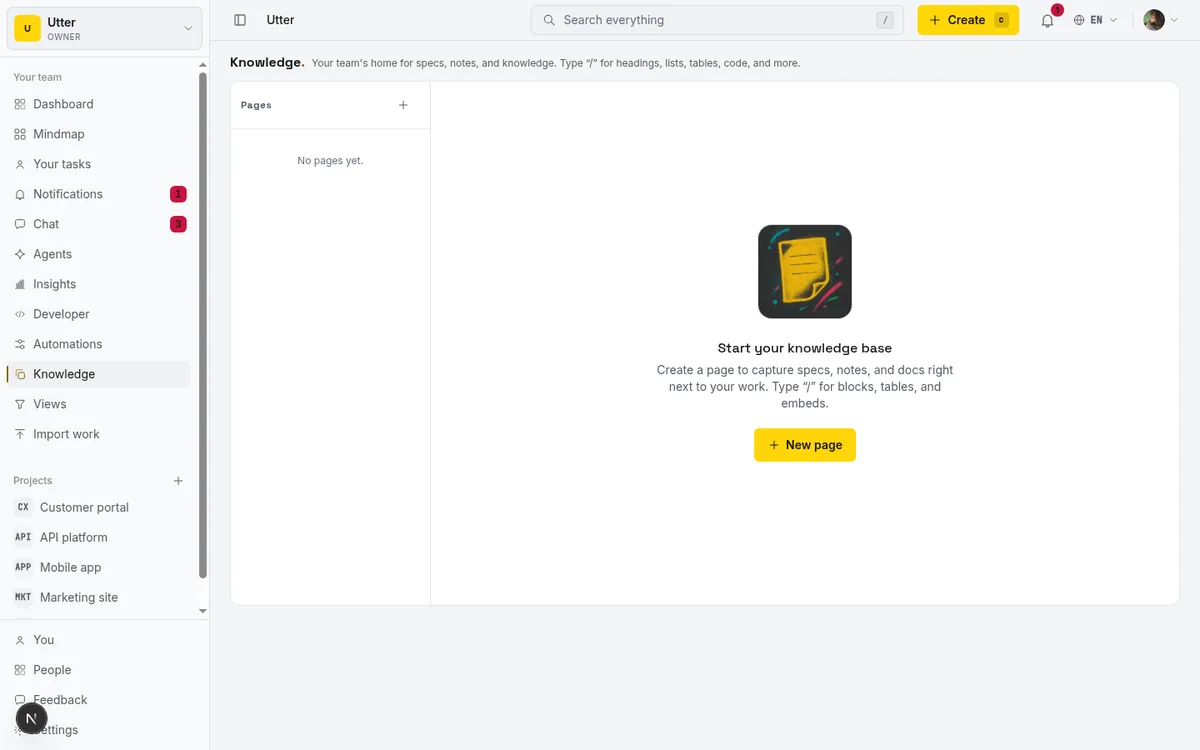
Workspace Knowledge lives at /w/[workspace]/knowledge. Its pages have no project attached, so any member of the workspace can reach them. The header reads "Knowledge," with a subtitle about being your team's home for specs, notes, and knowledge. This is where cross-team, cross-project material belongs: your engineering onboarding guide, your code-review conventions, your incident-response playbook, the glossary every team argues about.
Per-project Docs live under /w/[workspace]/p/[project]/docs. Same editor, but every page is scoped to that project, and the subtitle tells you which one ("Documentation for WEB"). This is the home for material that only makes sense inside one project. For WEB, that means the API reference, the deploy runbook, the sprint retro notes, the design spec for the "Timeline + Summary tab" feature.
Here is the rule of thumb worth memorizing. If a page would help someone who has never touched this project, it goes in Knowledge. If it only means something to people already working in the project, it goes in that project's Docs. Onboarding and standards live in Knowledge. A project's own runbooks and specs live in its Docs.
Scope has one consequence you should not miss. A doc in a scoped project inherits that project's access rules. If a project is restricted to explicit members, its docs are only visible and mentionable to those members. Workspace Knowledge has no such gate; every workspace member can read it. So if a spec is sensitive and should reach a subset of people, put it in a scoped project's Docs, not in Knowledge.
Create your first page
Open either doc space and click "New page." That button calls createDoc, which appends a fresh page at the end of the current sibling list (ranked with LexoRank so ordering stays stable), titles it "Untitled," and indexes it for search right away. There is no draft-then-publish step. The page exists and is findable the moment you create it.
Now name it. The title field shows "Untitled" as a placeholder. The name you pick is the single most important organizing decision you will make on this page, because it is what shows in the tree and what people scan for. "WEB API reference" tells everyone what they are looking at. "Untitled," or worse, "notes," tells them nothing and quietly rots. Rename before you write the body. Every time.
Give the page an emoji while you are there. The "Page icon" control sets one next to the title, and "Reset to default" clears it back. Sounds cosmetic. It is not. Once your tree holds fifteen pages, a column of distinct icons is how your eye finds the runbook versus the retro versus the spec in half a second. A wall of identical default icons is just a wall.
Land in an empty space and you get a prompt sized to your access:
- "Start your knowledge base" or "No pages yet," with body copy about creating a page to capture specs and notes right next to your work.
- A read-only variant if that is all you have: "You have read-only access to these pages."
- "Pick a page" when the scope has pages but you have not opened one yet.
Write with the block editor and slash commands
The editor is BlockNote, block-based. When a page body is empty, the placeholder reads "Start writing, or press / for commands." That slash is the whole editor in one keystroke.
Type / anywhere and a menu opens with the block types: headings, bullet lists, numbered lists, check lists, tables, code blocks, images, and the rest of BlockNote's default set. You never hunt through a toolbar. You type, and when you need structure, you slash.
Here is what that looks like on a real ticket. Say you are writing the spec for the "Timeline + Summary tab" work on WEB:
- Start with a heading for "Acceptance criteria," slash into a check list, and write each criterion as a checkbox ("Summary tab renders burndown," "Timeline supports drag-to-reschedule," "RTL mirrors the Gantt").
- Drop a heading for "API shape," slash into a code block, and paste the response JSON so nobody has to reverse-engineer it from the network tab.
Ten minutes of writing, and the next person who touches that feature reads the intent instead of guessing at it.
Images go inline too. Paste or insert one and it uploads through a presigned R2 PUT, then serves back through the docs image proxy. Two honest constraints. Only PNG, JPEG, GIF, and WebP are accepted; SVG and HTML are rejected because they are an XSS risk. And image bytes count against your workspace storage cap and hit the per-plan per-file limit, so on the Free plan a single image cannot exceed 1 MB.
The page body itself is capped at 10 MB of block JSON, which is enormous for text but worth knowing if you are tempted to paste a hundred screenshots into one page. Do not. Split it into sub-pages, which is the next section.
Start from a template instead of a blank page
A blank page is a small tax every time. You retype the same headings, you forget a section, and three people's meeting notes end up structured three different ways. Templates fix that.
On a brand-new empty page, a "Start from a template" gallery appears above the editor with six options:
- Blank page
- Meeting notes
- RFC
- Status update
- Retrospective
- Decision log
Pick one and it seeds a predefined structure of headings, lists, and checklists, localized to your language, so a retro always has the same sections and a decision log always captures the same fields. The value is not the typing you save. It is that everyone's retros look alike, so anyone can read any retro without relearning the layout.
One caveat about how this works. The gallery only shows on a fresh, empty page. Type a single character and it is gone. So the flow is: create the page first, then pick the template before you write anything. If you meant to use the RFC template and started typing, the fastest fix is a new page and pick it there.
Organize pages into a tree: nest, reorder, re-parent
A flat list of forty pages is not a knowledge base. It is a junk drawer. The tree is what turns a pile of pages into something navigable, and Utter gives you real nesting.
Every page can hold sub-pages. To create a child, use "Add sub-page" (or "Add sub-page under WEB runbooks" when you act from a specific page's menu). It calls the same createDoc with a parentId, so the new page hangs under its parent. The left panel renders the whole hierarchy with Expand and Collapse toggles, and your collapse state persists in local storage per scope, so the tree stays how you left it between visits.
You rearrange by dragging. Grab a page in the tree and drop it to reorder it among its siblings, or to re-parent it under a different page. The server recomputes the page's rank from the live siblings at drop time, so ordering stays consistent even if someone else moved things while you were dragging. It also refuses to build an impossible tree:
- Drop a page onto itself and you get "A page cannot be its own parent."
- Drop a parent into one of its own descendants and you get "Cannot move a page into its own sub-page."
Those guards mean you cannot accidentally create a loop.
Here is a structure that works for WEB. Make a parent called "WEB runbooks," then nest "Deploy," "Rollback," and "Incident" under it. Make another parent, "WEB specs," with a child per feature. Now the tree tells a story at a glance, and someone hunting the rollback steps expands one node instead of scrolling past thirty root-level pages. The thing to avoid is dumping everything at the root. A shallow, grouped tree is scannable. A flat one is not, no matter how good the titles are.
Autosave, version history, and restoring a page
You never press save. The editor does it for you, debounced, so it batches your keystrokes instead of hammering the server on every character. The toolbar tells you where you stand with "Saving...," "Saved," or "Save failed," so you are never guessing whether your last paragraph made it.
The numbers behind that:
| What | Behavior |
|---|---|
| Body save | 800ms after you stop typing (block JSON plus a Markdown mirror) |
| Title save | 700ms after you stop typing |
| Version snapshot | On every successful body save |
| Versions shown in the panel | 30 most recent |
| Versions retained per doc | 50, older ones pruned |
There is a safety net under that. A save-beacon flushes any pending change when you close the tab, so a fast navigation away does not eat your last edit. And if a save was genuinely interrupted, the next time you open the page you get an "Unsaved changes restored." prompt with "Restore" and "Dismiss," to recover the in-flight edit or throw it away.
Every successful body save also snapshots a version. Open the "Version history" panel and you see the recent versions, each labeled with who made it and when ("by Omar Haris"), each with a "Restore" button that reverts the page's title and body to that snapshot. This is your undo for content. Overwrote a section you needed? Restore the version from before you did.
Be honest with yourself about the shape of this, though. Versions are automatic, created on save; you cannot manually name a checkpoint "before the big rewrite." The panel shows the 30 most recent, and only 50 are retained per doc before older ones get pruned, so this is a rolling recent history, not a permanent archive of every state the page has ever been in.
And critically, this is single-user debounced autosave, not Google-Docs-style live co-editing. No live cursors, no presence, no two people typing in the same paragraph at once. If two people edit the same page in the same window, they will overwrite each other. Coordinate, or split the work into separate sub-pages.
Link docs to issues (and issues to docs)
A doc nobody can connect back to the work is just a nicer Slack thread. The point of keeping docs in Utter is that they wire into your issues both directions.
Each page has its own threaded comment panel, the "Comments" section. You reply and nest, edit your own comments ("Edit," "Save," "Cancel"), and delete them. The comment box does real work: the placeholder reads "Write a comment. Use @ to mention, # to reference an issue," and it means it. Type @ and you get a member-mention autocomplete; mentioning someone notifies them, and it respects scoped-project visibility, so you cannot mention someone into a project they cannot see. Type # and you get the issue-reference autocomplete, so a comment on the API spec can point straight at the ticket implementing it. One limit worth stating plainly: viewers cannot comment. Read-only means read-only.
From the other direction, you can reference a doc from any prose in the product, an issue description or an issue comment, using the #d: token. The markdown editor offers a #d: autocomplete trigger; pick a doc and it inserts a reference that renders as a named doc-ref chip, so the ticket links back to its spec. If you keep your project conversations in team chat next to your issues, those references keep the whole trail connected.
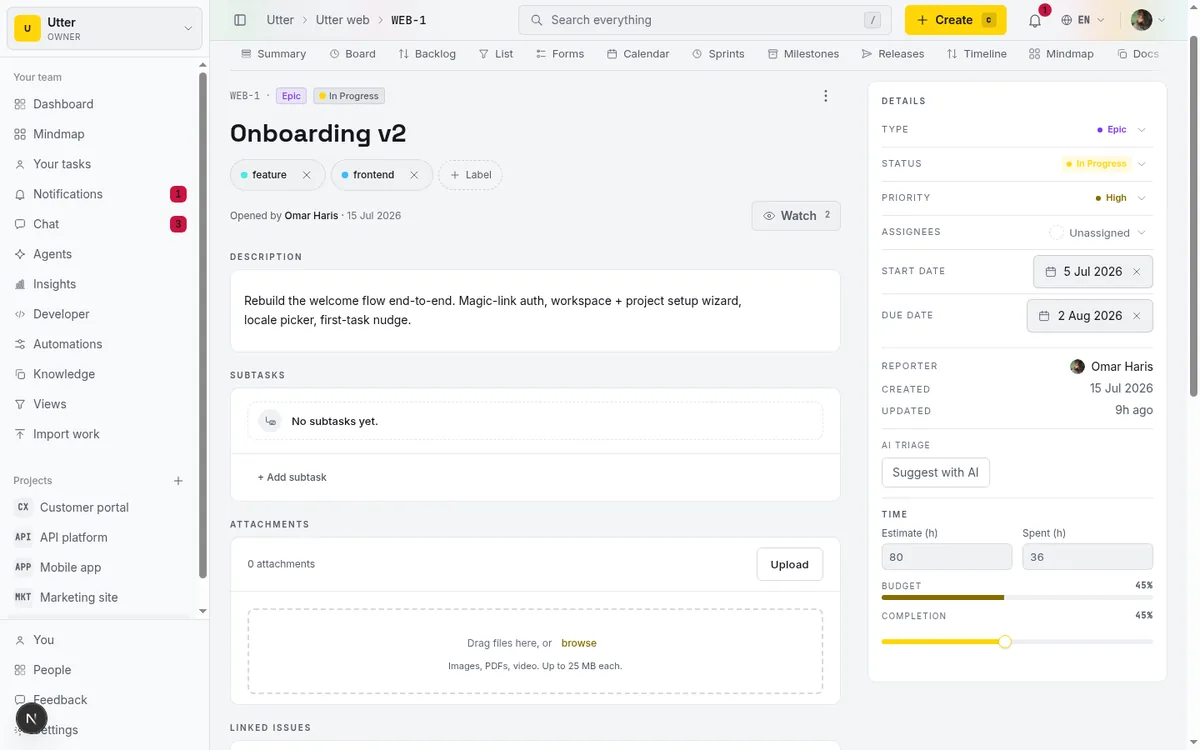
The honest caveat: doc references use a UUID token under the hood (#d:<uuid>), not a friendly key like the #KEY-NUM you get for issues. You insert them by autocomplete rather than typing a memorable code, and if the referenced doc is deleted, the reference renders as a greyed-out placeholder instead of a live link. A doc-ref points at a specific page reliably while that page exists, but it is not a human-readable citation you would paste into an email.
Share, export, and deep-link a page
Sometimes the doc lives in Utter but the person who needs it is in an email, a ticket in another tool, or a meeting invite. Utter gives you a few ways to get a page out or point someone at it.
Open the "Page actions" menu and you get three moves:
- "Copy link" produces a deep link of the form
?doc=<id>and confirms with a "Link copied to clipboard." toast. That link is genuinely deep: open it and the docs view auto-selects that exact page and expands its ancestors in the tree, so someone lands on the page you meant, in context, not at the root. - "Download Markdown" pulls the page down as a
.mdfile. - "Export PDF" opens a client-side print window, which means you need to allow pop-ups; if they are blocked, you see "Allow pop-ups to export a PDF."
Docs also show up in global workspace search. Both the title and the Markdown body are indexed on every save, and a search result links straight to the page. So "where's that thing about the rollback steps" is a search away, not a tree-spelunking expedition.
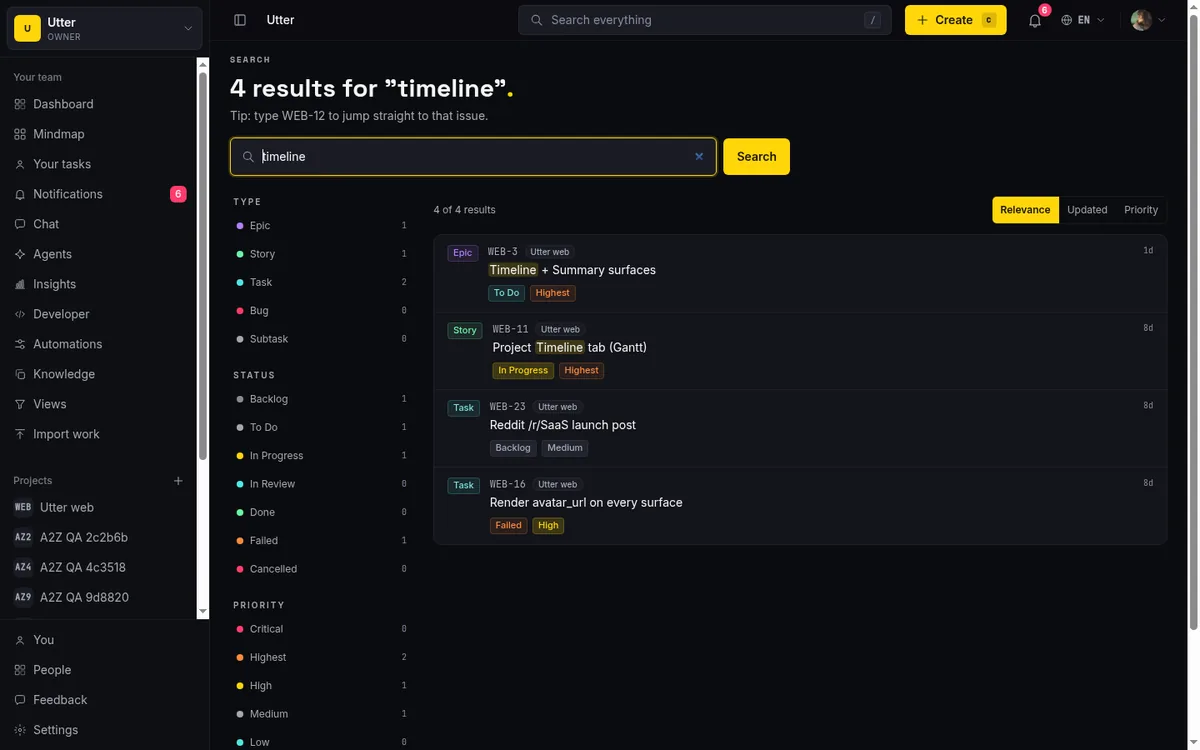
The limit to know: search is role-gated. A workspace member who is not an owner or admin does not see issues or docs in the global search results. Search is there, but it is scoped by role, so do not assume a page is findable-by-search for everyone just because it is findable for you.
Ground AI agents on your docs (and the limits to know)
This is where being honest matters most, because it is the easiest place to oversell.
Here is the true picture. The in-product AI chat does not automatically read your Knowledge or Docs pages. There is no document retrieval wired into the assistant. Ask the chat a question and it is not silently searching your docs and citing them back to you. Do not build a workflow that assumes it does.
What does happen is that external agents can ground themselves on your docs by reading them through the v1 REST API with an API key. That is a real, supported path:
sequenceDiagram
    participant Agent
    participant API as Utter v1 API
    Agent->>API: GET docs list with API key
    API-->>Agent: page ids and titles
    Agent->>API: GET export for one doc, format md
    API-->>Agent: Markdown body
    Agent->>Agent: Use the pages as context
An agent starts by listing the docs it can see. Workspace-level Knowledge by default, or one project's docs with the project filter:
# List the WEB project's docs (drop ?project= for workspace Knowledge)
curl -H "Authorization: Bearer utp_live_YOUR_KEY" \
  "https://utter.ae/api/v1/workspaces/acme/docs?project=WEB"
From there it can GET an individual doc, its versions, and its comments. To pull the actual content in a form a model can read, it hits the export endpoint and gets Markdown back:
curl -H "Authorization: Bearer utp_live_YOUR_KEY" \
  "https://utter.ae/api/v1/workspaces/acme/docs/DOC_ID/export?format=md"
const res = await fetch(
"https://utter.ae/api/v1/workspaces/acme/docs/DOC_ID/export?format=md",
{ headers: { Authorization: "Bearer utp_live_YOUR_KEY" } },
);
const markdown = await res.text();import requests
res = requests.get(
"https://utter.ae/api/v1/workspaces/acme/docs/DOC_ID/export",
params={"format": "md"},
headers={"Authorization": "Bearer utp_live_YOUR_KEY"},
)
markdown = res.textThat is how you point an agent at your knowledge base: it reads the pages over the API and uses them as context. If you are wiring this up, the deeper mechanics are in give your AI agent a knowledge base, and the broader model is in what agentic project management actually means.
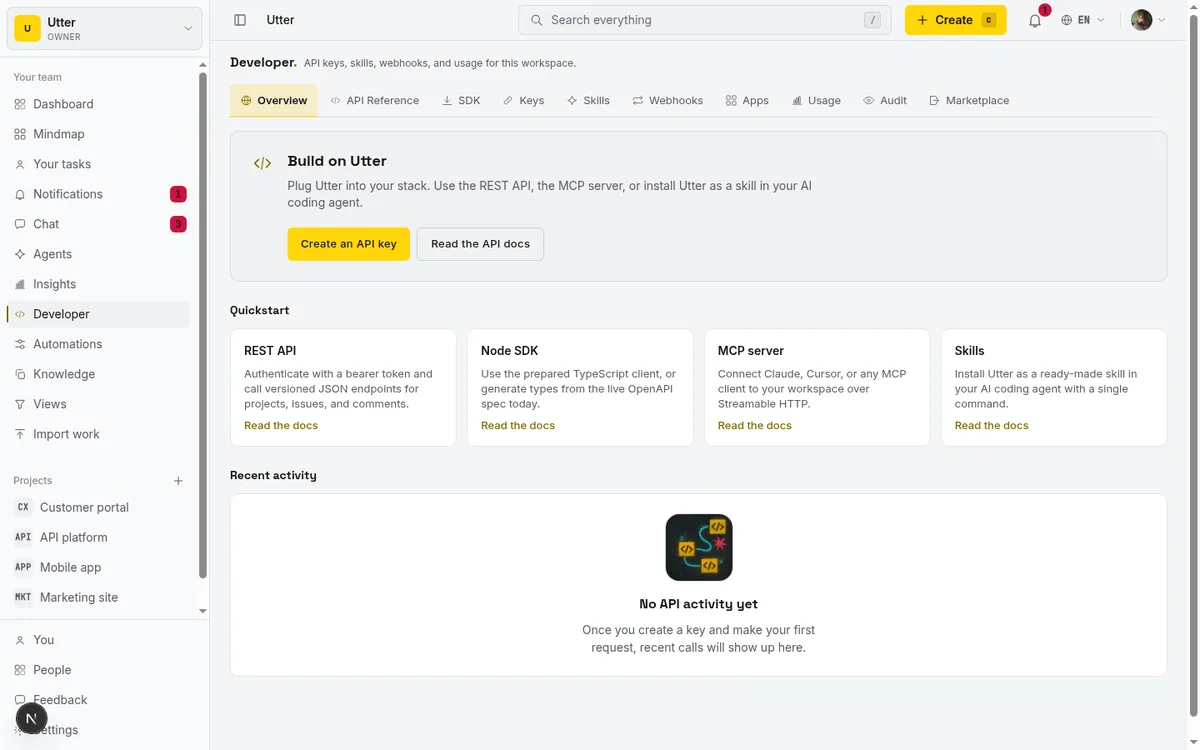
Two API caveats. The export supports md and html only; ask for format=pdf and you get a 400 with "PDF export is not available yet," so the PDF path exists only in the UI's print-window flow, not the API. And permissions carry through the API exactly as they do in the UI.
On permissions generally: owners, admins, and members can create, edit, move, and delete pages and can snapshot and restore versions. Viewers are read-only. Deletion is the one to respect. Deleting a page soft-deletes it and every sub-page under it, and the confirm dialog says so plainly: "This deletes the page and every sub-page under it. This cannot be undone." Unlike version restore, there is no in-UI undo button for a deleted page. It is a soft delete under the hood and follows the same retention as other content, but from where you sit in the product, treat "Delete page" as final. Move things you are unsure about into an "Archive" parent instead of deleting a subtree you might want back.
Give your project docs one home, name the pages so they scan, nest them into a shallow tree, and link them to the issues they describe. That is the whole discipline, and Utter is built to hold it. Open your project's Docs tab and write the first page you have been meaning to write down.
Frequently asked questions
Should I use workspace Knowledge or a project's Docs?
Use workspace Knowledge for anything cross-project (onboarding, code-review conventions, incident playbooks) since every workspace member can read it. Use a project's Docs for material that only makes sense inside that project, like its API reference or deploy runbook. They are the same editor; scope is the only difference.
Does Utter's AI chat read my docs automatically?
No. The in-product AI chat has no document retrieval, so it does not silently search or cite your Knowledge and Docs pages. External agents can ground on your docs, but only by reading them through the v1 REST API with an API key and the export endpoint.
Can two people edit the same doc at once?
Not safely. Saving is single-user debounced autosave (body at 800ms, title at 700ms), not live co-editing. There are no cursors or presence, and two people in the same page will overwrite each other. Split the work into separate sub-pages instead.
How does version history and restore work?
Every successful body save snapshots a version automatically. The Version history panel shows the 30 most recent, each with who made it and a Restore button that reverts title and body. Only 50 are retained per doc before older ones are pruned, and you cannot manually name a checkpoint.
How do I link a doc to an issue?
In a doc comment, type # to reference an issue by its key. From an issue description or comment, type #d: to open the doc-reference autocomplete, which inserts a named doc-ref chip. That gives you a two-way link between the spec and the work.
What happens when I delete a page?
Deleting a page soft-deletes it and every sub-page under it, and the confirm dialog warns that it cannot be undone. Unlike version restore, there is no in-UI button to recover a deleted page, so move uncertain content into an Archive parent instead of deleting a subtree.
Can I export a doc to PDF or Markdown?
Yes. The Page actions menu offers Download Markdown (a .md file) and Export PDF, which opens a client-side print window and needs pop-ups allowed. Note the v1 API export only supports md and html; asking it for PDF returns a 400.
Why can't a teammate find a doc in search?
Global search is role-gated. A workspace member who is not an owner or admin does not see docs or issues in search results, even though titles and bodies are indexed on every save. Do not assume a page is findable-by-search for everyone just because it is for you.
Related reading
Give your AI agent a knowledge base: connect your docs so it answers from your project, not the internet
How to give an AI agent access to your company docs, so it grounds answers in your workspace instead of guessing, using RAG exposed through MCP.
June 5, 2026 · 8 min read
How to use the rest api
Get an Utter API key and use the project management REST API to list, create, and update issues safely, with scopes, idempotency keys, and rate limits explained.
July 15, 2026 · 16 min read
How to manage roles and permissions
Learn how project management roles and permissions work in Utter: the five roles, inviting with the right access, scoped projects, and who pays for a seat.
July 15, 2026 · 18 min read
How to search your workspace
Search issues across projects in Utter from one top-bar field: the / shortcut, live typeahead, WEB-12 key-jump, the full results page with Type/Status/Priority filters, and the real limits.
July 15, 2026 · 14 min read

Keep team chat next to your issues, not in another app
The case for project management with built-in chat: why splitting discussion from the tracker loses the thread, and how linking chat to issues fixes it.
July 9, 2026 · 6 min read
How to use webhooks
Set up outbound webhooks in Utter: create one, verify the HMAC signature (sha256-of-secret gotcha), handle at-most-once delivery, and pipe board events to Slack.
July 15, 2026 · 16 min read
How to restrict project access
Restrict project access to specific members in Utter: flip the scoped toggle, add the right people, and understand what the project role does not do.
July 15, 2026 · 14 min read
How to use team chat
A practical guide to team chat in a project management tool: channels, DMs, threads, @mentions, file attachments, and the honest limits, all next to your issues.
July 15, 2026 · 16 min read
Let AI agents run your board over the REST API: authentication, scopes, and safe writes
A developer guide to giving an AI agent a scoped Utter API key so it can move cards and file issues without a big blast radius.
June 26, 2026 · 7 min read
Who decides what: setting decision rights between your team and your AI agents
A simple rule for AI governance: reversible, low-stakes moves are the agent's to make; irreversible or high-stakes ones need a human. How to draw the line.
July 15, 2026 · 7 min read
أضف تعليقًا
ابدأ النقاش.