
How to restrict project access
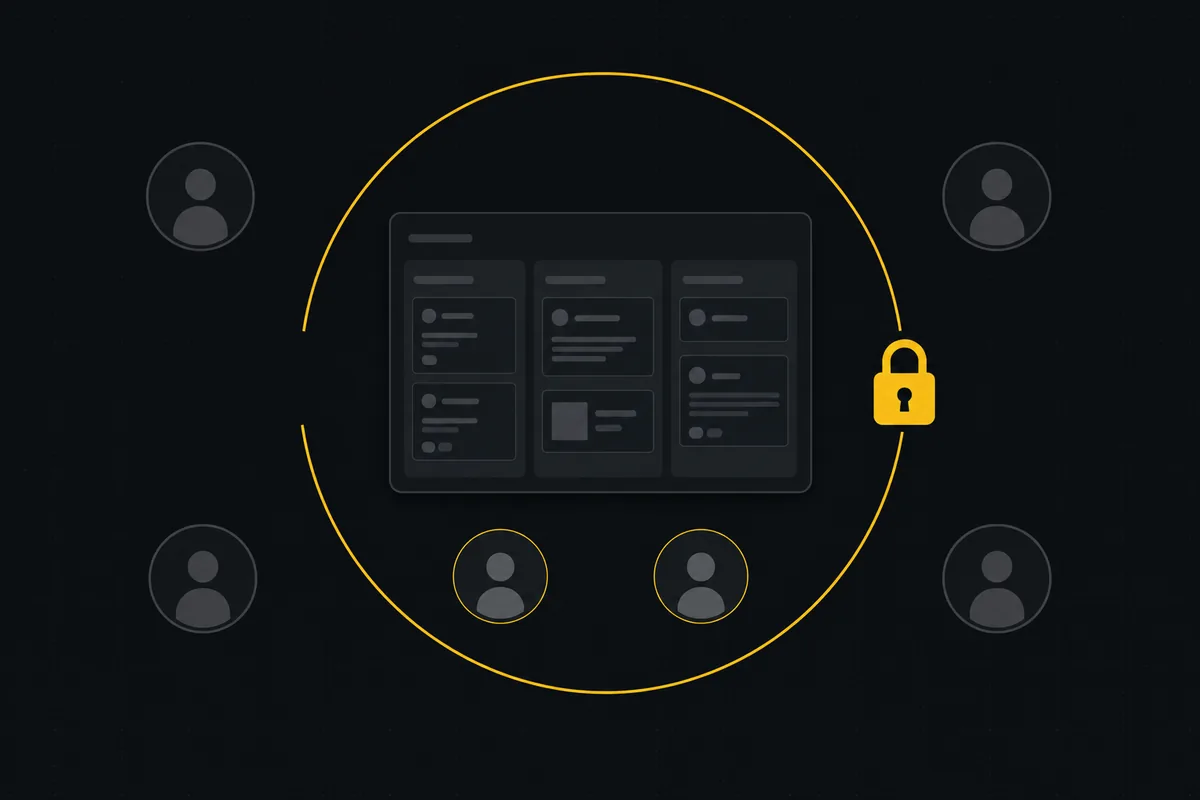
You built the project in the open. Then you notice that three of its issues name a client you have not announced yet, and the whole workspace can read them. Anyone on your team can open that project, see the ticket titles, read the comments, and work out exactly who you are about to sign. That is the kind of thing you want to fix in thirty seconds, not after a security review.
Utter lets you restrict project access to specific members. You flip one switch on the project, add the handful of people who should see it, and the project disappears for everyone else. This walks through how to do that, who can still reach a restricted project after you lock it, and what the feature deliberately does not do, so you never lean on it for the wrong thing.
One note on the default first. Out of the box, every non-guest member of your workspace can see every project. That is on purpose. In our demo workspace the project WEB is open to the whole team, so anyone can open its board, read the "Timeline + Summary tab" ticket, and page through the backlog. Scoping is how you switch that off for one project without touching anything else.
When you actually need to restrict who can see a project
Most projects should stay open. That openness is the whole reason a shared workspace works: people wander into a project, notice something they can help with, and pitch in. So treat restriction as the exception, not a habit. Here are the times it earns its place.
- An unannounced client. You are three weeks from launch and the tickets are thick with the client's name, their revenue figures, screenshots of a site that is not live yet. You cannot un-name them in forty issues, so you hide the project instead.
- A sensitive internal effort. An HR investigation, restructuring, an acquisition, anything with legal weight. The people running it need a real project with a board, comments, and history. Nobody else should even know it is there.
- A quiet bet you are not ready to defend. The half-formed idea that dies the moment it collects hallway opinions. Keep it in a corner until it can stand up on its own.
- Contractors and narrow collaborators. A freelancer who should see the single project they were hired for and nothing else about how your company runs.
In each of these you are doing the same one thing: turning a project from "visible to the whole workspace" into "visible to a named list." That is what scoping means here.
It is a visibility gate, not encryption. The data is not encrypted and the project is not in a vault. It simply stops appearing for people who are not on the list, and they hit a dead end if they go looking. Hold that model and the rest of this makes sense.
How to restrict project access to specific members
Here is the core move. Open the project you want to lock down (WEB, in our examples), go to its Settings, and open the Access tab. It sits alongside General, Board statuses, Integrations, and the Danger zone.
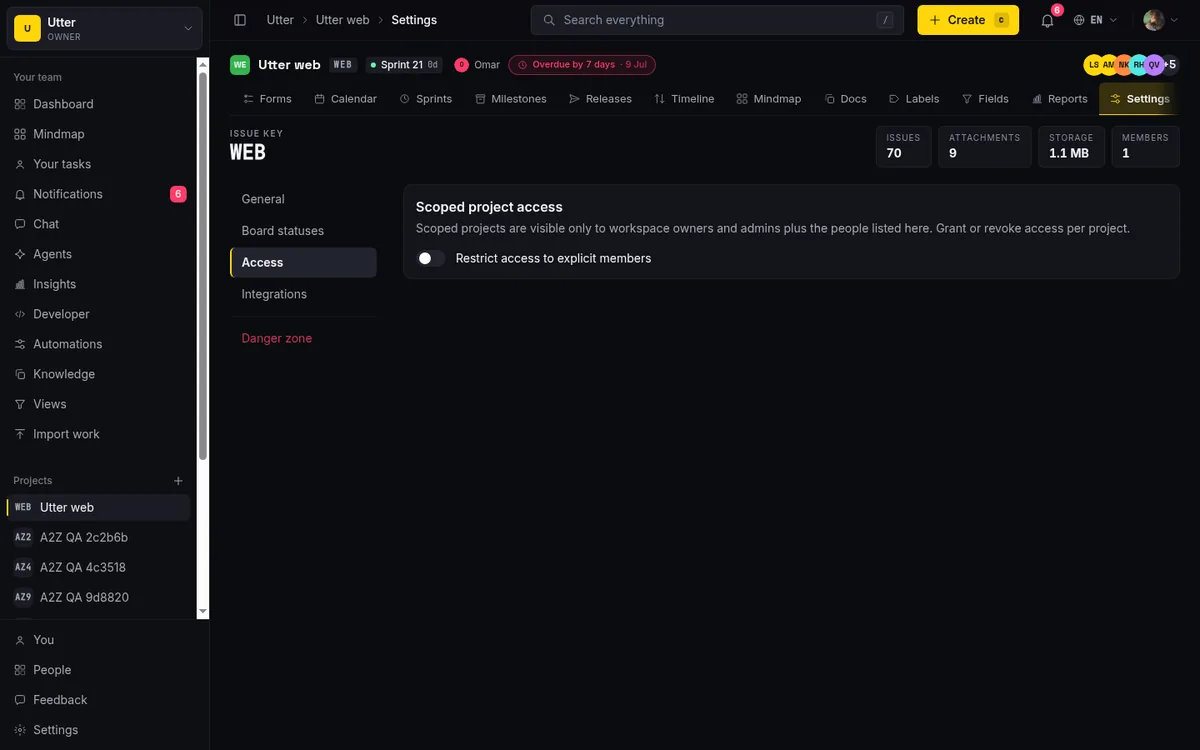
You will see a card headed "Scoped project access." The subtitle states the rule you are about to switch on: "Scoped projects are visible only to workspace owners and admins plus the people listed here. Grant or revoke access per project." Under it is the toggle: Restrict access to explicit members. It starts off, because the project starts open.
Flip it on. Two things happen:
- A toast reads "Project access is now restricted." That confirmation matters, because the on-screen change is quiet and you want to know the write landed. Under the hood this sets
scoped = 1on the project through thesetScopedModeaction. - The project drops out of sight for everyone who is not an owner, an admin, or an explicit member. It leaves their sidebar project nav. It is gone from the
/w/utter/projectslist. It stops showing in workspace views, in insights, and in the mindmap. For those people the project no longer exists.
The second one is the part people underrate.
One thing to know before you reach for that switch: only workspace owners and admins even see the Access tab. It is gated behind the project.edit_settings permission. A regular member or a viewer who opens project settings finds no Access tab at all and cannot restrict anything. So if you read a guide that says "anyone can make a project private," it is wrong for Utter. This is an owner and admin action by design. For the full map of who holds which permission, the roles and permissions guide has it.
What happens the moment you flip the switch
Now the part that catches people, and the reason this post exists.
Turning scoping on adds nobody to the project. Not the project lead. Not the engineers who have lived in it for months. Not even you, the person who just flipped the switch. The member list starts empty.
You keep access only because you are an owner or admin, and owners and admins always have access regardless of that list. That short-circuit is the single reason you did not just lock yourself out of your own project. If a plain member could somehow flip this switch (they cannot, but follow the logic), they would lose access to the project they were standing in the instant they did.
So right after you turn scoping on, the member area shows this: "No explicit members yet. Owners and admins always have access." That empty state is real and reachable, and it is exactly what you will be looking at if you stop here. A scoped project with nobody added is an owner-and-admin-only project. Everyone else, including the people carrying the work, now sees a workspace where that project quietly vanished.
The practical rule: do not flip the switch and walk away. Flip it, then add your people immediately. Treat the toggle and the first grants as one motion. If you get pulled away between them, nothing breaks, the project is just invisible to your team until you come back and finish.
Adding the people who should have access
With scoping on, the Access tab grows a grant row. This is where you build the list. There are three controls:
- A searchable picker labeled "Select a teammate…": click it, type a name or email, and it narrows the workspace roster to the person you want.
- A "Project role" dropdown offering Admin, Member, or Viewer.
- An "Add member" button.
Pick a teammate, pick a role, click Add member. You get "Project member added." and the count at the top ticks up: "1 with access," then "2 with access," and so on. That count is your quick read on how exposed the project is.
Concrete version, using WEB. Say two engineers should keep working the "Timeline + Summary tab" ticket while the rest of the workspace stays out. Open the picker, find the first engineer, leave the role on Member, click Add member. Count reads "1 with access." Do it again for the second. Count reads "2 with access." Done. Those two can now open WEB, see the board, and read and comment on the ticket. Everyone else in the workspace no longer sees WEB anywhere.
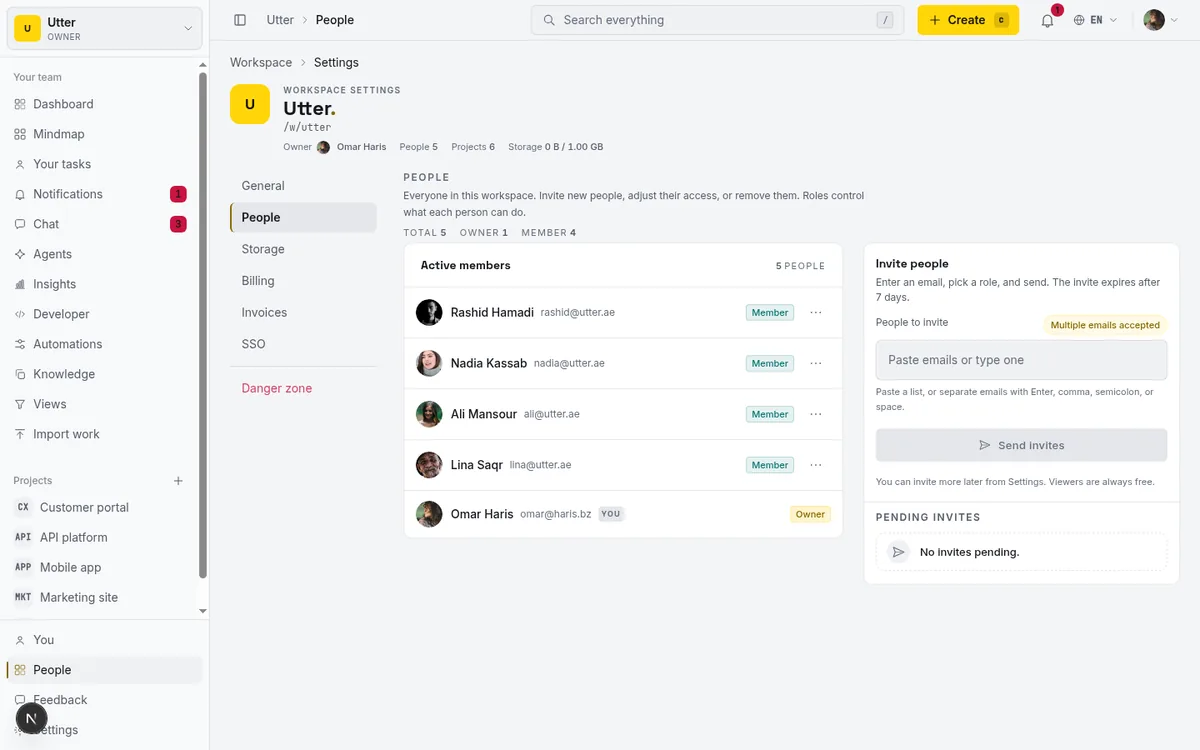
One constraint to name up front: you can only add people who are already in the workspace. The picker is a roster, not an invite form. If the person you need is not in the workspace yet, invite them first, then come back and add them to the project. The guide to inviting team members covers that half.
What the project role does (and the trap it sets)
This is the single most important thing to understand about the feature, and it is the thing almost everyone gets wrong.
The role you pick when adding someone, Admin or Member or Viewer, is stored and displayed. That is all it does. It shows on their row so you can see at a glance how you filed them. It does not control what they can do inside the project.
Let me be blunt about the trap, because it is easy to fall into. Adding someone as "Viewer" does not make the project read-only for them. It does not stop them editing issues, dragging cards, or leaving comments. The access check, requireProjectAccess, asks exactly one question: does a membership row exist for this person on this project? Yes or no. It never reads the role on that row. If the row is there, they are in. What they can actually do once they are in comes entirely from their workspace role, not this project role.
So a person who is a workspace Member, added to your scoped project as a project "Viewer," still edits and comments like a Member, because their workspace role is Member. The "Viewer" label on their row changed nothing about their power. It is a note to yourself, not a permission.
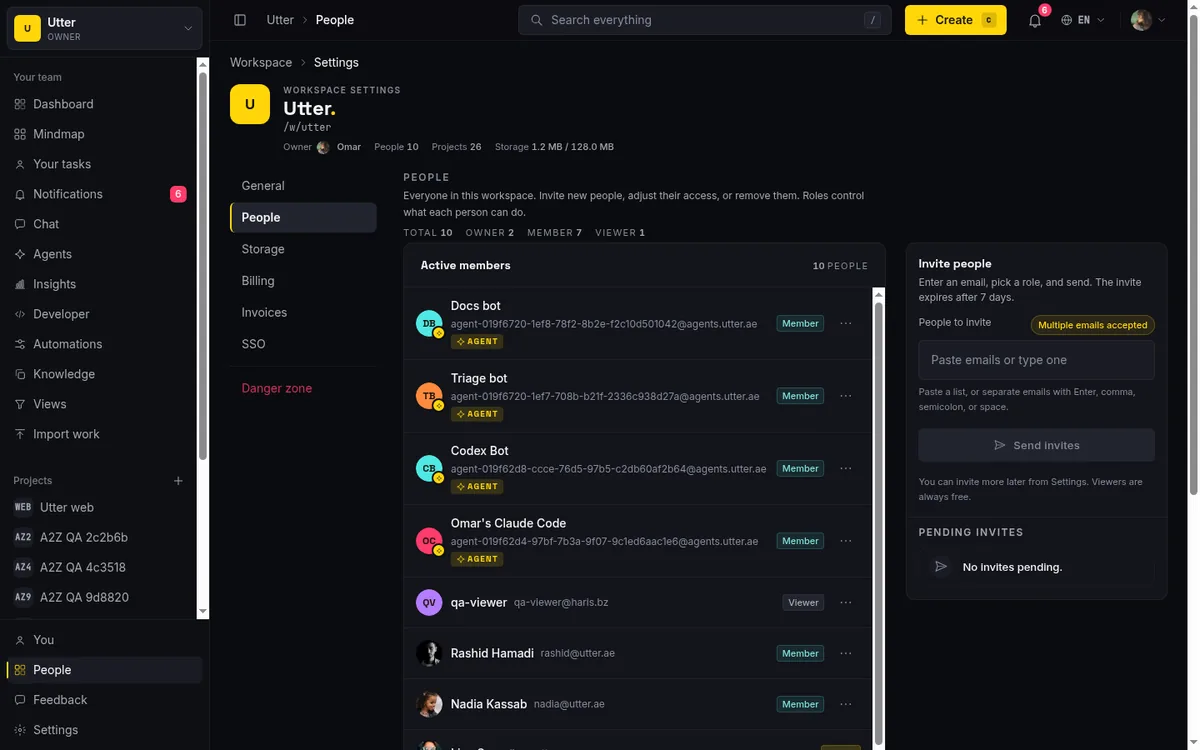
If you need someone to genuinely have read-only access, that is a workspace-role decision, not a project-role one. Set their workspace role accordingly. Do not reach for the project-role dropdown expecting it to lock anything, because it will not. The roles and permissions guide again is where you get workspace roles right.
Why does the dropdown exist then? To record intent, and so the model has somewhere to grow. But today it is a label. Do not build a permission scheme on it.
Changing a role or removing someone
Two edits you will make over the life of a scoped project.
Changing someone's stored role is easy, and slightly non-obvious. You do not edit their row in place. You add them again with the new role. Re-adding a person who is already on the list is an upsert: it updates their existing row instead of creating a duplicate. So to move someone from Member to Admin on the list, pick them in the picker again, choose Admin, click Add member. Their one row updates. No duplicate, no cleanup. (And per the section above, this only changes the stored label, not their real power.)
Removing someone is the "×" on their row. Click it and a confirm dialog appears: "Remove {email} from WEB?" Confirm, and the membership row is deleted. You get "{email} removed from WEB." and the count drops by one. From that instant WEB disappears for that person the same way it does for anyone else off the list.
One reassurance, because people hesitate here. Removing someone deletes none of their work. Their comments stay. The issues they opened stay, assigned as they were. Their notification history stays. You are not erasing a contributor, you are changing who can reach the project from here on. Add them back tomorrow and everything they did is exactly where they left it. Removal is a visibility change and nothing more.
Who can still reach a scoped project
Let me state the access rule once, plainly, because half the confusion around this feature is people guessing at it.
A scoped project is reachable by exactly two groups. Workspace owners and admins, always, with no membership row required, because the gate short-circuits them. And anyone holding an explicit membership row on that project. That is the complete list. There is no third path.
flowchart TD
    A[Someone opens a scoped project] --> B{Owner or admin}
    B -->|Yes| C[Access granted]
    B -->|No| D{Membership row on this project}
    D -->|Yes| C
    D -->|No| E[404 Not found]
There is no separate private/public toggle beyond the scope switch. There is no share link. There is no invite-link flow that hands a stranger temporary access. If you are not an owner, not an admin, and not on the list, you do not get in, and there is no URL anyone can pass you to slip around that.
Which leads to a detail worth calling out. If someone who is not a member navigates straight to a scoped project's URL, they get a 404, not a permission-denied page. That is deliberate. A "you can't have this" response would confirm the project is real. A 404 says there is nothing here, so the person cannot even verify the project exists, let alone read its name. requireProjectAccess calls notFound() for them.
Search respects the same boundary. Issues that live in a scoped project fall out of global workspace search for anyone who is not a member. If a non-member searches a term that only appears in your restricted project's tickets, they get nothing back, because search intersects results with the set of projects that person can actually see. The contents do not leak through the search box.
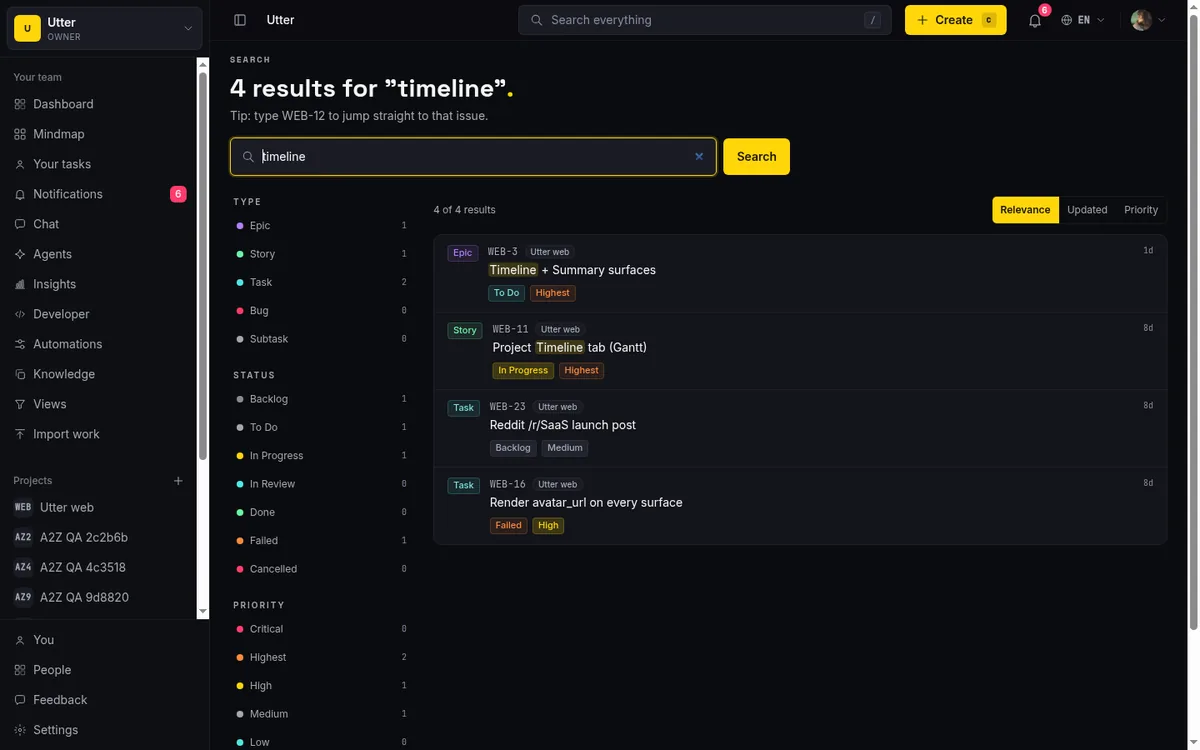
If you want to understand how search scoping works in general, the workspace search guide goes deeper.
The limits: what scoping does not do
Every honest feature has edges. Here are scoping's, in one place, so you do not run into them at the wrong moment.
- It cannot hide a project from your workspace admins. Owners and admins always get in, member list or not. Scoping is a visibility gate against ordinary members, not a wall against the people who run the workspace. If a project must be hidden from your own admins, this is the wrong tool, and honestly Utter is the wrong place for that requirement.
- The picker shows the first 100 people. If your workspace has more than 100 members, the teammate picker lists the first 100 and shows a hint saying so. It does not page through an unlimited roster. In a large workspace, search inside the picker for the specific person rather than expecting to browse everyone.
- You can only add existing members. Try to add someone who is not in the workspace and you get "That person is not in this workspace." Scoping invites nobody. Invitation and access are two separate steps: invite them to the workspace, then grant them the project.
- Guests are stricter, and separate. A guest does not see every project by default the way a normal member does. A guest sees only the projects they hold an explicit membership row for, on every project, scoped or not. So the guest rule is broader than scoping. Scoping is the mechanism underneath, but guest restriction applies workspace-wide, not just to the projects you chose to lock. If you work with a lot of external people, that guest behavior may already do what you want without scoping anything.
- Archived and deleted projects hide by a different mechanism. If a project has dropped off the lists and it is not scoped, check whether it is archived or deleted. Those are filtered out separately, so do not confuse the two while you are hunting for a missing project.
- Turning scoping off gives everyone their view back. Flip the switch off and you get "Project is now open to all workspace members." The project reappears for every non-guest member. No data is deleted, no member rows are purged, nothing about the contents changes. You are opening the gate again. Scoping is fully reversible in both directions at no cost.
Managing scoped access over the REST API
Everything above has a programmatic twin, which matters the moment you want to provision access from a script instead of clicking through settings.
Scoped membership is managed through three endpoints:
| Method | Path | Scope |
|---|---|---|
| GET | /v1/workspaces/{slug}/projects/{key}/members |
projects:read |
| POST | /v1/workspaces/{slug}/projects/{key}/members |
projects:admin |
| DELETE | /v1/workspaces/{slug}/projects/{key}/members/{userId} |
projects:admin |
GET lists who holds explicit access. POST adds a member with a role, and it behaves like the UI: it is idempotent, so POSTing a person who is already on the list updates their role in place rather than stacking a duplicate row (you get a 201 for a new grant, a 200 for an update). DELETE removes a member by their user id. Both write endpoints are gated by the same project.edit_settings permission as the UI, so an API token can only do this if its owner could do it by hand.
Here is the grant call, the one your scripts will make most:
curl -X POST "https://utter.ae/api/v1/workspaces/utter/projects/WEB/members" \
  -H "Authorization: Bearer utp_live_a1b2..." \
  -H "Content-Type: application/json" \
  -d '{"user_id": "0198c3f0-7f2a-7b1e-9c4d-2a6b8e1f0d3c", "role": "member"}'
const res = await fetch(
"https://utter.ae/api/v1/workspaces/utter/projects/WEB/members",
{
method: "POST",
headers: {
Authorization: "Bearer utp_live_a1b2...",
"Content-Type": "application/json",
},
body: JSON.stringify({
user_id: "0198c3f0-7f2a-7b1e-9c4d-2a6b8e1f0d3c",
role: "member",
}),
},
);import requests
res = requests.post(
"https://utter.ae/api/v1/workspaces/utter/projects/WEB/members",
headers={"Authorization": "Bearer utp_live_a1b2..."},
json={"user_id": "0198c3f0-7f2a-7b1e-9c4d-2a6b8e1f0d3c", "role": "member"},
)A successful grant comes back in the standard envelope:
{
  "data": {
    "user_id": "0198c3f0-7f2a-7b1e-9c4d-2a6b8e1f0d3c",
    "email": "[email protected]",
    "name": "Dev One",
    "role": "member",
    "added_at": "2026-07-15T09:30:00.000Z"
  }
}
Revoking is one call with the user id in the path:
curl -X DELETE \
  "https://utter.ae/api/v1/workspaces/utter/projects/WEB/members/0198c3f0-7f2a-7b1e-9c4d-2a6b8e1f0d3c" \
  -H "Authorization: Bearer utp_live_a1b2..."
The obvious use is onboarding automation. A contractor signs, your provisioning script adds them to the one project they were hired for, and when the contract ends the offboarding script deletes that row.
sequenceDiagram
    participant P as Provisioning script
    participant U as Utter API
    P->>U: POST members with user_id and role
    U-->>P: 201 grant created
    Note over P,U: contract ends
    P->>U: DELETE members by user id
    U-->>P: 200 grant removed
Nobody clicks anything, and the access rules are identical to what you would get in the interface, because it is the same code path underneath.
Restricting a project comes down to one switch, a short list of people, and a clear-eyed read of what the switch does and does not promise. Flip it, add your team before you walk away, remember the project role is a label and not a permission, and you have a project only the right people can see. If you would rather bring outside collaborators in through a controlled front door instead of the workspace roster, look at setting up a request form next.
Frequently asked questions
How do I restrict project access to specific members in Utter?
Open the project's Settings, go to the Access tab, and turn on Restrict access to explicit members. Then add each person who should have access from the teammate picker. Once scoping is on, the project is visible only to workspace owners and admins plus the people you explicitly add.
Who can turn scoping on or off?
Only workspace owners and admins. The Access tab is gated behind the project.edit_settings permission, so regular members and viewers never see the toggle or the member list and cannot restrict a project.
Does adding someone as a project Viewer make the project read-only for them?
No. The project role you pick (Admin, Member, or Viewer) is stored and displayed only; it does not control what the person can do. The access check only confirms a membership row exists. Their actual permissions inside the project come from their workspace role. For genuine read-only access, set their workspace role.
What happens right after I turn scoping on?
Nobody is added automatically, not even you. The member list starts empty and shows "No explicit members yet. Owners and admins always have access." You keep access only because owners and admins are always let in. Add your team immediately so they do not lose sight of the project.
Can a non-member reach a scoped project by guessing the URL?
No. Navigating directly to a scoped project's URL returns a 404 for anyone who is not an owner, admin, or explicit member, so the project's existence is not even confirmed. Its issues also drop out of global workspace search for non-members.
Does removing someone or turning scoping off delete their work?
No. Removing a member or switching scoping off only changes who can see the project. Comments, issues they created, assignments, and notification history all stay intact. Turning scoping off restores the project for every non-guest workspace member.
How are guests different from scoped-project members?
Guests are stricter and handled separately. A guest sees only the projects they hold an explicit membership row for, on every project, scoped or not. Scoping is the underlying mechanism, but the guest rule applies workspace-wide rather than only to projects you chose to lock.
Can I manage scoped access over the API?
Yes. Use GET, POST, and DELETE on /v1/workspaces/{slug}/projects/{key}/members. POST is idempotent and updates the role for an existing member. Both write endpoints require the same project.edit_settings permission as the UI, which makes it useful for onboarding and offboarding automation.
Related reading
How to manage roles and permissions
Learn how project management roles and permissions work in Utter: the five roles, inviting with the right access, scoped projects, and who pays for a seat.
July 15, 2026 · 18 min read

Project management for small agencies (clients in, chaos out)
Project management for agencies without the seat tax: scoped projects isolate each client, guests and viewers are free, and public forms take intake with no account.
July 16, 2026 · 13 min read
How to invite team members
Invite team members to an Utter workspace and set their roles: the five roles explained, guest project scoping, invite lifecycle, ownership transfer, and billing.
July 15, 2026 · 16 min read
How to write project docs
Build a project documentation knowledge base in Utter: workspace Knowledge vs project Docs, nested pages, templates, autosave and version history, doc-issue links.
July 15, 2026 · 15 min read
How to use the mindmap
How to use Utter's project mind map view: open the radial tree, read the pills, expand and filter branches, group by Hierarchy/Status/People, and export a PNG.
July 15, 2026 · 14 min read

Who decides what: setting decision rights between your team and your AI agents
A simple rule for AI governance: reversible, low-stakes moves are the agent's to make; irreversible or high-stakes ones need a human. How to draw the line.
July 15, 2026 · 7 min read
How to use the rest api
Get an Utter API key and use the project management REST API to list, create, and update issues safely, with scopes, idempotency keys, and rate limits explained.
July 15, 2026 · 16 min read

AI agent governance for project teams: seven controls your tracker can enforce
Governance for AI agent teams is not a policy PDF. Seven controls your tracker can enforce, from identity to offboarding, and what tooling cannot fix.
July 15, 2026 · 10 min read
Let AI agents run your board over the REST API: authentication, scopes, and safe writes
A developer guide to giving an AI agent a scoped Utter API key so it can move cards and file issues without a big blast radius.
June 26, 2026 · 7 min read

See your whole project as a mind map (and when it beats a nested list)
A nested list hides how work relates. A mind map shows it. When a map of your epics and stories helps, when a list is better, and how Utter's does it.
July 5, 2026 · 7 min read
Add a comment
Start the conversation.