
How to manage roles and permissions
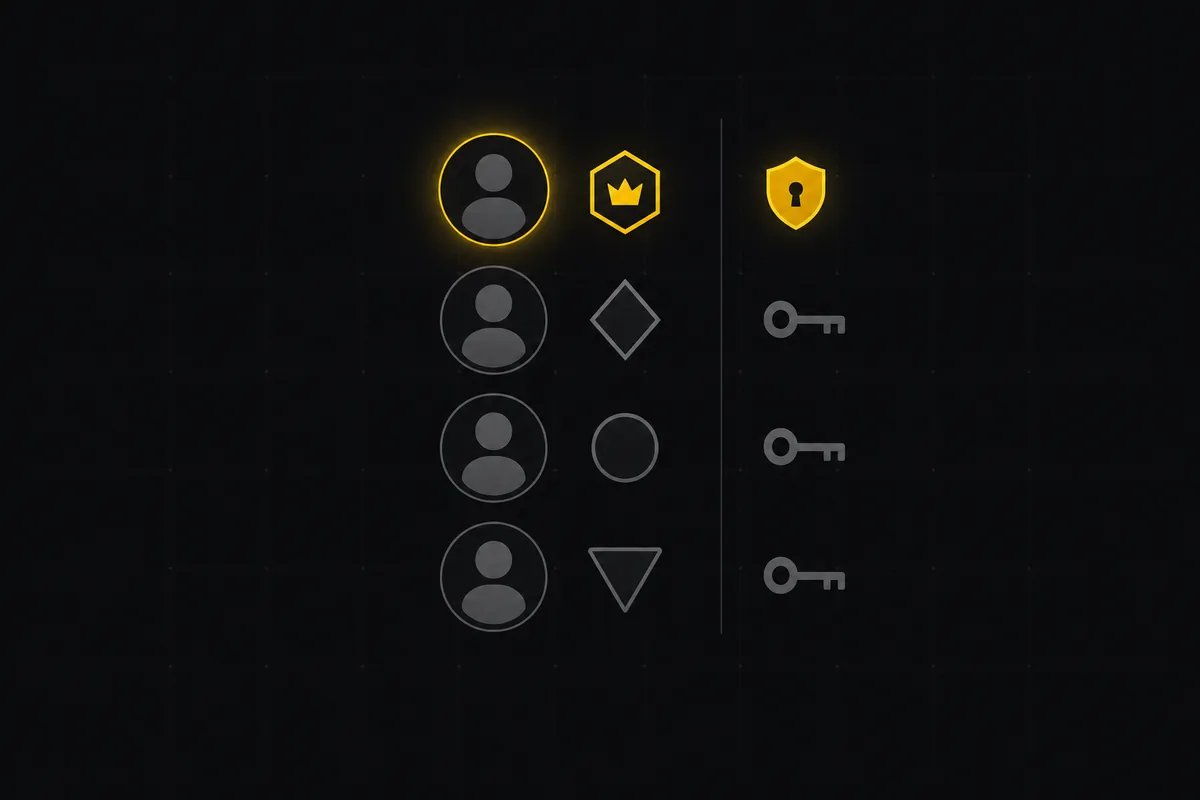
You added a contractor to your workspace last week. They needed one project, the redesign you're doing for a client. Today you notice they can open every project in the workspace, including the internal roadmap you meant to keep private. Nothing broke. No bug. You picked the wrong role when you invited them, and in Utter that one choice at invite time decides what a person can and cannot touch.
That is a project management roles and permissions problem, and it is worth getting right before you send a single invite. This guide covers all five roles Utter gives you, how to invite people with the correct access from the start, how to change a role or hand off ownership later, and how scoped projects keep external collaborators out of the work you don't want them in. The People page is where all of this lives, so that is where we start.
Why project management roles and permissions matter before you invite anyone
Access is easier to set correctly than to walk back. Once a contractor has been reading your internal project for a week, "un-seeing" it is not a thing. The private roadmap they browsed, the pricing chatter in the comments, the half-finished ideas in the backlog, all of it is already in their head. The moment that actually protects your work is the invite, not the cleanup afterward.
Utter handles this with roles. Every person in a workspace holds exactly one workspace role, and that role answers a single question: what is this person allowed to do here. Can they delete a project? Edit someone else's issue? Only read, never touch? Or are they an outsider who should see one project and nothing else?
The role decides, workspace-wide. The whole model is built so the tight choice is the easy one.
There are five roles: owner, admin, member, viewer, and guest. A lot of tools stop at four and treat the external-collaborator case as an afterthought. Utter makes guest a real role with its own rules, which is what you want when a client, a freelancer, or an agency needs into one project and nowhere else.
You manage every bit of this from one screen. In the workspace nav it is labelled People, and it is home base: who is in the workspace, what each person can do, who is still sitting on an unaccepted invite, and which external folks are scoped to which projects. Let's open it.
The People page: where you see and manage everyone
The People page lives at /w/[workspace]/members. One honest note first: the nav label and the page title both say People, but the URL still says /members. That is on purpose. The route was kept as /members so old links and bookmarks never break, while the visible name moved to People because it reads better. Type the URL by hand, use /members. Click around, look for People.
At the top of the page is a summary strip. It shows Total and then a count for each role: Owner, Admin, Member, Viewer, Guest. This is the fastest read on your workspace's shape. One glance tells you that you have, say, one owner, two admins, eight members, three viewers, and one guest, which is often enough to catch a mistake on its own. If you expected zero guests and see one, you know where to look.
Below the strip is the Active members list. Each row shows the person's avatar (their image, or their initials if they haven't set one), their name, their email, and a colored role badge so you can tell an owner from a viewer at a glance. Your own row carries a small You badge so you never confuse yourself with a teammate who shares a name. Rows that belong to AI agents carry an Agent badge, because an agent in Utter is a real workspace member, just a non-human one.
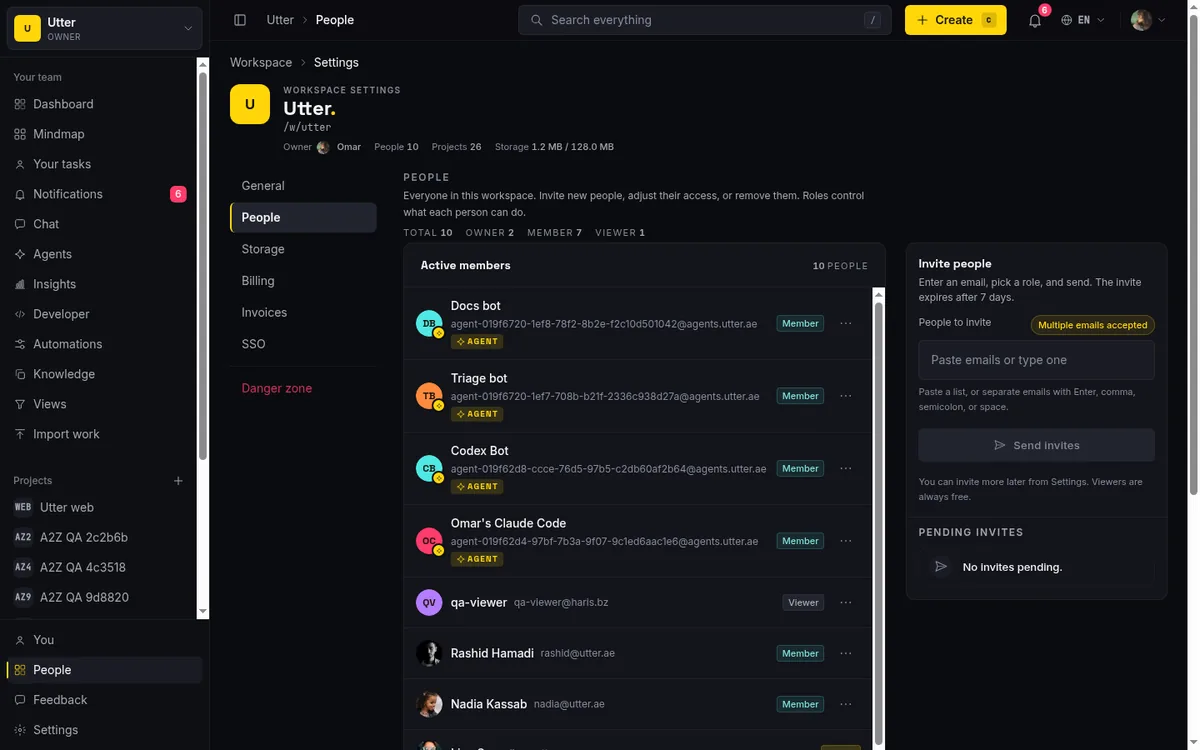
On the right side of the page you'll find the Invite people card and, depending on your workspace, a Pending invites panel and a Scoped project access card. We'll get to each. For now the thing to absorb is that this single page is where you both see the current state and change it. You don't hunt through project settings to manage who's who at the workspace level. It's all here.
The five roles, and what each one can actually do
Under the hood, every permission decision in Utter runs through a single role-permission matrix. One table, roles down one side, actions across the top, a yes or no in each cell. That is the whole authorization model, and because there is only one table, behavior is consistent everywhere. The board, the issue detail, comments, docs, team chat, forms, and the AI features all ask the same table the same question. Here is what each role means in practice.
Owner. There is exactly one owner per workspace, and it's you if you created it. The owner has full control. Three things belong to the owner alone: deleting the workspace, changing the workspace slug (the /your-workspace part of the URL), and transferring ownership to someone else. No admin can do those, no matter how trusted. The owner role is not something you hand out. It's something you hold, or deliberately pass on.
Admin. Admins run the workspace day to day. An admin can:
- edit workspace settings
- invite and remove members
- change other people's roles (with one hard limit, covered below)
- create and archive projects, and edit project settings
- edit or delete any comment, not just their own
- manage forms and moderate team chat, which means deleting any message and managing channels
An admin is your co-pilot. The one thing an admin cannot do is become the owner or touch the owner's row. More on that under ownership transfer.
Member. This is the default working role, and it's the one most of your teammates should have. A member can:
- create issues and edit their own issues
- write, edit, and delete their own comments
- upload attachments
- manage labels and write docs
- use AI chat and send messages in team chat
- connect their own coding agent
What a member cannot do is edit work that isn't theirs. They can't rewrite a teammate's issue or delete a comment they didn't write. That boundary is what keeps a busy workspace from turning into a place where anyone overwrites anyone.
Viewer. A viewer is read-only, and it's stricter than people expect. Viewers cannot comment, cannot upload, cannot edit anything, and cannot spend the workspace's AI credits. They look, they don't change. One exception is worth knowing: viewers can read team chat. They can follow the conversation in your channels, they just can't post. So "viewers see nothing" is wrong. They see plenty. They can't alter any of it, and they can't run up an AI bill. Viewer is the right role for a stakeholder who wants visibility without a seat at the keyboard.
Guest. A guest is an external collaborator, and the defining trait is scope. A guest does not see your workspace. A guest sees only the specific projects you explicitly add them to, and nothing else. Within those projects a guest can create and edit their own issues, comment, and attach files, which is enough for real work together.
But a guest cannot edit other people's issues, cannot manage labels or docs or forms, cannot use AI chat, and cannot touch any workspace, project, or member administration. Guest is the role for the client, the freelancer, the agency partner. It is the answer to the contractor problem in the opening.
The same five rows, condensed:
| Role | Billed seat | Can change work | Sees by default |
|---|---|---|---|
| Owner | Yes | Everything, plus delete workspace, change slug, transfer ownership | Every project |
| Admin | Yes | Workspace and project admin, any comment | Every project |
| Member | Yes | Their own issues and comments | All open projects |
| Viewer | No | Nothing, read-only | All open projects |
| Guest | No | Their own issues and comments, in granted projects only | Nothing |
So: five roles, not four. Owner and admin run things, member does the work, viewer watches, guest is the outsider you let into one room. Hold that model and most invite decisions get obvious.
How to invite members to a workspace with the right role
Inviting is done from the Invite people card on the People page. Only owners and admins see this card. Members, viewers, and guests can't invite. The card's own line sums up the flow: "Enter an email, pick a role, and send. The invite expires after 7 days."
You can invite one person or a batch. Paste emails separated by commas, spaces, semicolons, or newlines, up to 50 addresses in a single submit. For each invitee you pick a role from a Select: Admin, Member, Viewer, or Guest. Notice what's missing. There is no Owner option. Owner is never invitable, by design, because a workspace can only ever have one owner and the only way to move it is a deliberate transfer.
The invite form doesn't make you remember what each role means. Every option carries a plain-language description right there in the form:
| Option | What the form says |
|---|---|
| Admin | "Can invite members, manage projects, and change roles (except owner)." |
| Member | "Can create and edit issues and leave comments." |
| Viewer | "Read-only - cannot comment, upload, or edit anything." |
| Guest | "External collaborator - only sees the projects you add them to." |
Pick the role, hit Send, and the invite goes out as a magic-link email. Utter is passwordless, so there's no password step for the invitee to fumble. They accept by signing in with the same email you invited, and on sign-in they join the workspace with the role you chose.
A few honest limits so nothing surprises you:
- Invites expire after 7 days and are single-use.
- Invites are rate-limited to 100 per hour per workspace, and a single submit is capped at 50 addresses, so you can't paste a thousand emails and blast them at once.
- If you invite someone who already has a pending invite, the new one revokes and replaces the old.
- Pending invites show up in the Pending invites panel, where you can Resend one (a fresh token, a new 7-day clock, a new email) or Revoke one (the link stops working immediately).
- Expired invites drop off the list on their own.
The whole life of an invite fits in one picture:
stateDiagram-v2
    [*] --> Pending: Send invite
    Pending --> Accepted: Recipient signs in
    Pending --> Expired: 7 days pass
    Pending --> Revoked: Revoke, or a new invite replaces it
    Pending --> Pending: Resend starts a new 7 day clock
    Accepted --> [*]
For a fuller walkthrough of the invite flow, including what the recipient sees, read how to invite team members.
Inviting a guest and scoping them to specific projects
Here's where the contractor problem gets solved properly. When you choose Guest as the role, the invite form changes: a Projects for guests picker appears. It's a searchable multi-select, so in a workspace with a lot of projects you can type to filter instead of scrolling. This is the whole point of the guest role, deciding exactly which projects the outsider lands in.
Say you're bringing in an external designer to help on the WEB project and only WEB. You invite their email, set the role to Guest, and in Projects for guests you select WEB. That's it. When they accept, they see the WEB project, its board with your Backlog / To Do / In Progress / In Review / Done columns, its issues like "Timeline + Summary tab," and nothing else. Your internal roadmap, your other client work, your finance project, none of it exists as far as they can tell.
The form is explicit about the default: "Guests start with no project access. After they accept, add them to specific projects from the scoped-access section below." A guest begins with zero visibility and you grant projects deliberately, one at a time. This is the inverse of the leak in the opening. A member sees every non-scoped project by default. A guest sees nothing by default. That difference is exactly why the contractor should have been a guest, not a member.
flowchart TD
    A[Who sees which projects] --> B[Owner or admin]
    A --> C[Member or viewer]
    A --> D[Guest]
    B --> E[Every project, always]
    C --> F[All open projects plus scoped projects they are added to]
    D --> G[Only projects granted explicitly]
One technical honesty worth knowing. When you add a guest to a project, the project membership stores a project-level role of admin, member, or viewer, because the underlying project-members table has no "guest" value. That project-level label does not raise the guest's ceiling.
Their real permissions are still governed by the workspace guest row in the matrix. So even if a guest is stored as a project "admin," they still can't do the workspace-guest-forbidden things like managing labels or using AI chat. The workspace role is the ceiling. The project role is just how the membership is recorded.
If you want the deeper mechanics of locking projects down, how to restrict project access covers scoped projects end to end.
How to change someone's role or transfer ownership
People's roles change. A contributor becomes a lead. A stakeholder wants edit access. A co-founder should really be an admin. You handle all of it from the per-row kebab menu, the ⋮ at the end of each member row on the People page.
Open the menu on someone's row and you'll see the role-change actions as Change to {role}, for example "Change to Admin" or "Change to Viewer." Pick one and the change is immediate. A toast confirms with "Role updated to {role}."
Under the hood this calls the changeMemberRole action, which enforces the rules so you can't create an inconsistent state. The big one: you cannot demote an owner through this menu. The owner row won't offer you a "Change to admin," because the only way ownership moves is a real transfer.
That transfer is its own action. As the owner, the row menu on another member shows Make owner. Choosing it opens a confirm dialog that spells out the swap: "Transfer ownership to {email}? They become the workspace owner and you become an admin. Only an owner can transfer ownership back." Confirm, and the change is atomic. The target becomes owner and you are demoted to admin in the same move, so at every instant there is exactly one owner. You never end up with two owners or zero. A toast confirms "Ownership transferred to {email}."
sequenceDiagram
    actor O as Current owner
    participant U as Utter
    actor T as New owner
    O->>U: Make owner, then confirm
    U->>T: Promoted to owner
    U->>O: Demoted to admin
    Note over U: One atomic change, never two owners or zero
Admins can change roles too, within limits. An admin can promote a member to admin, drop an admin to viewer, and so on. What an admin cannot do is promote anyone to owner or touch the owner's row at all. The role Select an admin uses doesn't even include owner as an option, and the server rejects any attempt to modify the owner. So "an admin quietly makes themselves owner" is not a thing that can happen. Ownership only moves when the current owner chooses to move it.
One more item lives in that kebab menu: Mark as agent and Unmark agent. This flags a member as an AI agent, or removes the flag, and it's a per-workspace setting. It matters for billing, which we'll come back to at the end, because agent members are free.
Removing a member or leaving the workspace yourself
Sometimes the change you want isn't a new role, it's out. The row kebab has a Remove action for owners and admins. It's styled as a danger action and it opens a confirm dialog, because it's not something to fire off by accident: "Remove {email}? They lose access to this workspace and all of its projects. Their issues and comments stay."
Read that last sentence carefully, because it's the part people get wrong. Removing someone does not delete their work:
- Their issues stay.
- Their comments stay.
- The history of what they did in your workspace stays intact and attributed.
What removal does is cut their access. They can no longer open the workspace or any of its projects.
There's one more thing removal does, and it's the thoughtful part. In the same transaction that removes the person, Utter auto-unassigns their open issues. So the ticket they were working on doesn't sit forever assigned to someone who's gone. It goes back to unassigned and you can hand it to someone still here.
But this only touches open issues. Issues that are resolved, done, failed, or cancelled keep their original assignee, because that's history, and rewriting who finished a task months ago would be a lie. Open work gets freed up. Finished work keeps its record.
If you're not the owner and you want to leave on your own, there's a Leave workspace button for you. It confirms with "Leave this workspace?" and does what it says. Owners are the exception. An owner cannot leave, because a workspace can't be ownerless. If you're the owner and you try, you'll see "Owners cannot leave. Transfer ownership first, then leave." So the sequence for an owner heading out is: Make owner on whoever's taking over, then leave as an admin.
Scoped project access: locking a project to explicit members
Guests are scoped to specific projects by nature. But sometimes you want to lock down a project even for your own team, so only named members can see it. That's a scoped project, and it's a two-part setup. You flip the project to scoped in the project's own settings, then you manage its member list from the People page.
The scoping toggle lives in the project's settings, not on the People page. Open the project you want to protect, go to its settings, and turn on Restrict access to explicit members. That sets the project to scoped. From that moment, the project is visible only to workspace owners and admins (who always keep access to everything) plus the specific people you list. Everyone else in the workspace stops seeing it, as if it isn't there.
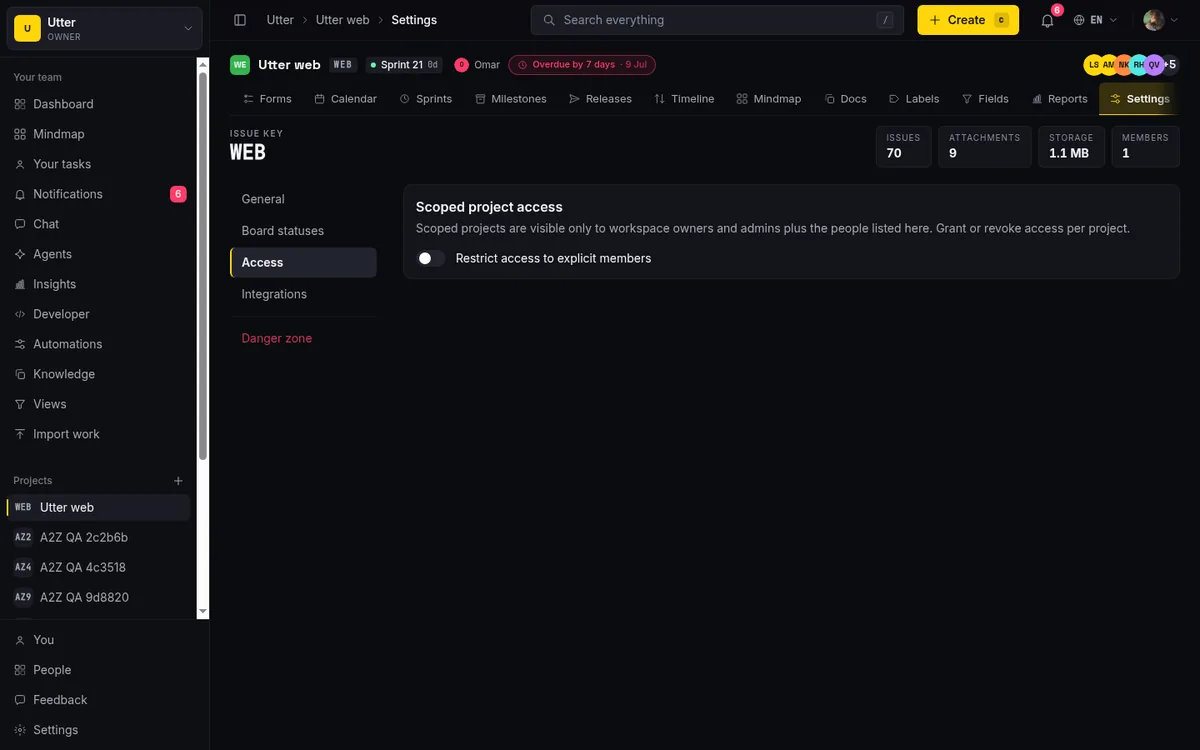
Once at least one scoped project exists, a new card shows up on the People page for owners and admins: Scoped project access. Its description lays out the rule: "Scoped projects are visible only to workspace owners and admins plus the people listed here. Grant or revoke access per project." This card is where you build the access list. You pick the scoped project, click Add member, choose a teammate from the "Select a teammate…" picker, give them a project-level Role of Admin, Member, or Viewer, and add them. To pull someone off, you remove them from the same card.
The card only appears when the workspace actually has a scoped project. No scoped projects, no card. That keeps the People page clean for workspaces that never need this.
It helps to hold the visibility rules in one place, because they interact:
- Members and viewers see all non-scoped (open) projects by default, plus any scoped project they've been explicitly added to.
- Guests see only their explicit projects, scoped or not. Nothing is visible to a guest by default.
- Owners and admins see everything, including scoped projects, and can't be locked out.
So a scoped project is the tool for internal secrets: the acquisition project, the exec planning, the thing only three people should know exists. Guest scoping is the tool for external people. They solve different problems with the same underlying idea: access is explicit, not assumed.
Managing roles from the API
Everything above is the People page. If you onboard people from scripts, the same operations exist on the REST API. Listing who is in the workspace takes one call with a key that has the members:read scope:
curl -s https://utter.ae/api/v1/workspaces/your-workspace/members \
  -H "Authorization: Bearer utp_live_..."
Each row in the response carries user_id, email, name, role, and joined_at, so you can diff it against your HR list in a cron job.
Sending an invite needs the members:write scope, and the key carries its creator's ceiling: the call only succeeds if the key belongs to an owner or admin, the same rule as the Invite people card. The body is the same choice you make in the form, an email and a role (admin, member, viewer, or guest):
curl -s -X POST https://utter.ae/api/v1/workspaces/your-workspace/invites \
  -H "Authorization: Bearer utp_live_..." \
  -H "Content-Type: application/json" \
  -d '{"email": "[email protected]", "role": "guest"}'
const res = await fetch(
"https://utter.ae/api/v1/workspaces/your-workspace/invites",
{
method: "POST",
headers: {
Authorization: `Bearer ${process.env.UTTER_API_KEY}`,
"Content-Type": "application/json",
},
body: JSON.stringify({ email: "[email protected]", role: "guest" }),
},
);
const { data } = await res.json(); // 201; data.expires_at is the 7-day deadlineimport os
import requests
res = requests.post(
"https://utter.ae/api/v1/workspaces/your-workspace/invites",
headers={"Authorization": f"Bearer {os.environ['UTTER_API_KEY']}"},
json={"email": "[email protected]", "role": "guest"},
)
res.raise_for_status() # 201; the invite still expires after 7 daysRole changes go through PATCH /v1/workspaces/{slug}/members/{userId}, and the accepted values are admin, member, and viewer:
curl -s -X PATCH https://utter.ae/api/v1/workspaces/your-workspace/members/USER_ID \
  -H "Authorization: Bearer utp_live_..." \
  -H "Content-Type: application/json" \
  -d '{"role": "viewer"}'
There is no owner value in that body, on purpose. Ownership moves only through the in-app transfer, API key or not.
Who pays for a seat, and common role mistakes to avoid
Roles have a billing side, and it's simpler than you might fear. Only three roles cost an editor seat: owner, admin, and member. Those are the roles that can create and change things, so those are the ones Utter counts toward your per-seat subscription. Viewers are free. Agent members are free. Neither is ever counted toward the Stripe seat quantity, and when you change roles or remove people the seat count best-effort re-syncs so you're not paying for someone who left.
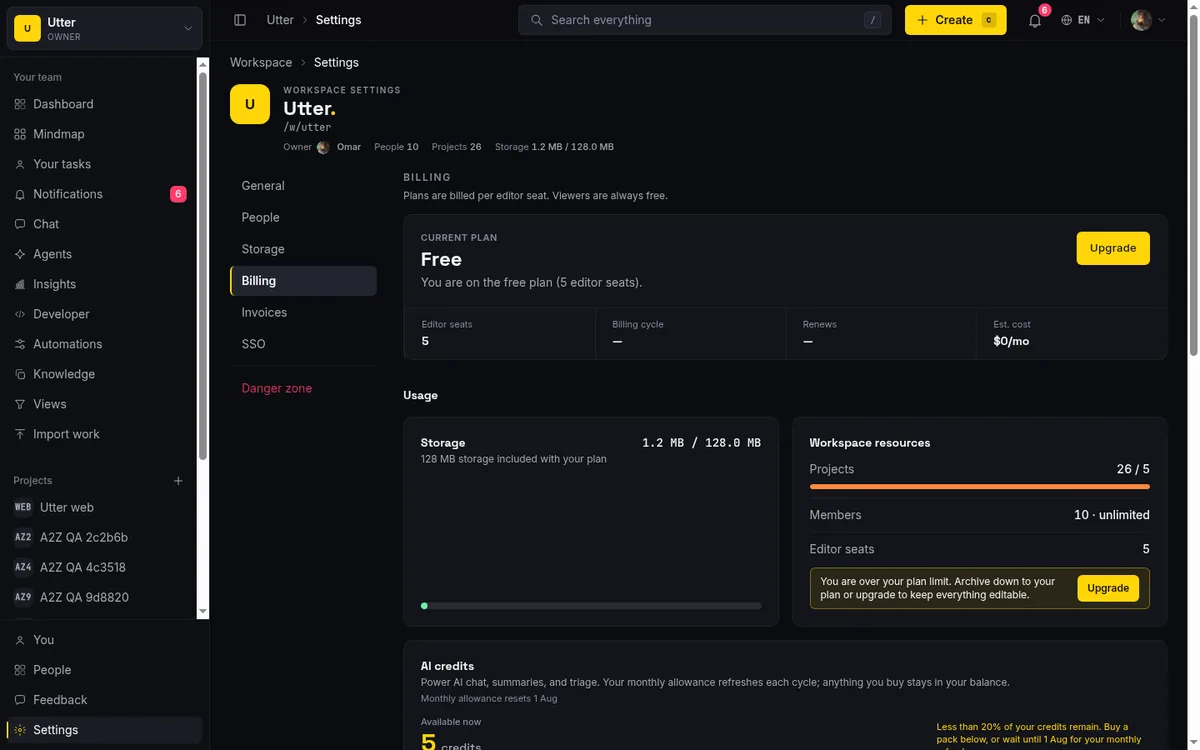
That has a real, practical upshot. A stakeholder who only needs to watch progress should be a viewer, not a member, because a viewer costs you nothing and still sees the boards, the issues, and the team chat. Padding your workspace with viewers is free. Padding it with members is not.
A few mistakes come up again and again, so name them and skip the pain:
- Inviting a contractor as a member instead of a guest. This is the opening scenario. A member sees every non-scoped project by default. A guest sees only what you grant. External people should almost always be guests.
- Expecting a removed member's work to vanish. It doesn't. Removal cuts access and auto-unassigns their open issues, but their issues and comments stay, attributed. If you actually need the content gone, that's a separate deletion, not a side effect of removing the person.
- Assuming viewers see nothing. Viewers are read-only, but they can read team chat. If your channels hold things a viewer shouldn't read, a viewer role isn't the wall you think it is.
- Assuming an admin can grab ownership. They can't. Only the owner can transfer ownership, and doing so demotes them to admin in the same move. Trusted admins are still not owners.
If your open questions are about the money side, do AI agents count as seats covers agent billing specifically, and how to manage billing and plans covers seats, plans, and the per-seat quantity end to end.
Set roles at invite time, use guests for outsiders, scope the projects that need scoping, and the leak in the opening never happens. Open your workspace's People page and check the summary strip right now. If the counts don't match who should have what, you just found your first fix.
Frequently asked questions
How do roles and permissions work in Utter?
Every person in a workspace holds exactly one of five roles (owner, admin, member, viewer, or guest), and that role decides what they can do everywhere in the workspace. All permission checks run through a single role-permission matrix, so behavior is consistent across the board, issues, comments, docs, chat, and forms. You set the role when you invite someone and can change it later from the People page.
What are the five workspace roles in Utter?
Owner (exactly one per workspace, full control including delete and ownership transfer), admin (runs the workspace but can't take ownership), member (the default working role, can create and edit their own work), viewer (read-only, can read team chat but not post), and guest (an external collaborator who only sees the projects you explicitly add them to).
What's the difference between a guest and a viewer?
A viewer is an internal read-only role: they see all your non-scoped projects but can't edit anything or spend AI credits. A guest is an external collaborator scoped to specific projects only: they see nothing by default, but inside the projects you grant them they can create and edit their own issues, comment, and attach files.
How do I change someone's role or transfer ownership?
Open the kebab (⋮) menu on their row on the People page and choose "Change to {role}" for a role change, which applies immediately. To hand over ownership, use "Make owner" from your own owner account; it makes them owner and demotes you to admin atomically, so there's always exactly one owner.
Does removing a member delete their issues and comments?
No. Removal cuts their access to the workspace and all its projects, but their issues and comments stay, attributed to them. In the same transaction Utter auto-unassigns their open issues so nothing stays stuck on someone who left; resolved, done, failed, and cancelled issues keep their original assignee.
Which roles cost a paid seat?
Only owner, admin, and member are billed as editor seats. Viewers are free and agent members are free, and neither counts toward your Stripe per-seat quantity. A stakeholder who only needs to watch progress should be a viewer to keep the workspace cost down.
How do I keep a contractor out of my other projects?
Invite them as a guest, not a member. In the invite form, choosing Guest reveals a "Projects for guests" picker where you select exactly which projects they land in. Guests start with no project access and see only what you grant, so your internal roadmap and other client work stay invisible to them.
How do I make a project private to just a few of my own team?
Open that project's settings and turn on "Restrict access to explicit members" to make it scoped. Then manage who can see it from the "Scoped project access" card on the People page, adding teammates with a project-level Admin, Member, or Viewer role. Owners and admins always retain access.
Related reading
How to invite team members
Invite team members to an Utter workspace and set their roles: the five roles explained, guest project scoping, invite lifecycle, ownership transfer, and billing.
July 15, 2026 · 16 min read
How to restrict project access
Restrict project access to specific members in Utter: flip the scoped toggle, add the right people, and understand what the project role does not do.
July 15, 2026 · 14 min read
How to use the rest api
Get an Utter API key and use the project management REST API to list, create, and update issues safely, with scopes, idempotency keys, and rate limits explained.
July 15, 2026 · 16 min read

Who decides what: setting decision rights between your team and your AI agents
A simple rule for AI governance: reversible, low-stakes moves are the agent's to make; irreversible or high-stakes ones need a human. How to draw the line.
July 15, 2026 · 7 min read

How to use team chat
A practical guide to team chat in a project management tool: channels, DMs, threads, @mentions, file attachments, and the honest limits, all next to your issues.
July 15, 2026 · 16 min read
How to write project docs
Build a project documentation knowledge base in Utter: workspace Knowledge vs project Docs, nested pages, templates, autosave and version history, doc-issue links.
July 15, 2026 · 15 min read
How to use webhooks
Set up outbound webhooks in Utter: create one, verify the HMAC signature (sha256-of-secret gotcha), handle at-most-once delivery, and pipe board events to Slack.
July 15, 2026 · 16 min read
How to set up sso and scim
Set up project management SSO, SAML, and SCIM in Utter from one settings tab: copy the right URLs into Okta or Azure AD, provision users, know the limits.
July 15, 2026 · 16 min read
How to use the ai assistant
How to run your board with Utter's AI assistant: ask grounded questions, create and triage issues from a sentence, and approve every change before it lands.
July 15, 2026 · 14 min read

How to search your workspace
Search issues across projects in Utter from one top-bar field: the / shortcut, live typeahead, WEB-12 key-jump, the full results page with Type/Status/Priority filters, and the real limits.
July 15, 2026 · 14 min read
أضف تعليقًا
ابدأ النقاش.