
How to manage billing and plans

Someone on your team just added their fifth teammate, and now you want to know who actually costs money before the invoice lands. That is the real question behind any project management tool pricing and seats decision. It is almost never the sticker price that surprises people. It is the counting: which roles bill, which ride along free, where the cancel button hides, and what happens to your AI credits when the month flips over.
This is the full walkthrough of managing your plan, seats, and billing in Utter. By the end you will read your billing page in a glance, know exactly how editor seats get counted, upgrade or downgrade in the right place (they are not the same place), spot a capacity wall before you hit it, and handle AI credits and storage add-ons without guessing. I will also be straight about the limits, because the fastest way to burn an afternoon is hunting for a button that does not exist.
What you'll learn
- Read your plan, seat count, billing cycle, and estimated cost off the billing hero without hunting.
- Understand how editor seats are counted (owner, admin, member) and why viewers and agents are free.
- Upgrade through Stripe Checkout, but downgrade or cancel through the Stripe portal. They live in different places.
- Read the Usage section: storage caps, project caps, and how AI credits work (monthly grant versus purchased, non-rolling).
- Buy AI credit packs, set auto top-up, and stack storage add-ons, each on its own tab.
Where plan, seats, and billing actually live
Everything about your plan sits on one page: the Billing tab of your workspace settings. The path is /w/[ws]/settings?tab=billing, so for a workspace called utter that is /w/utter/settings?tab=billing.
Two things worth knowing so you do not go in circles. There is an older /w/[ws]/settings/billing URL floating around, but it is only a redirect that preserves the return parameters Stripe hands back after checkout. It is not the real page, so do not bookmark it as one. And there is no /w/utter/billing route at all. If you typed that and got nothing, that is why.
Access is gated. Only an owner or admin (anyone with the workspace.edit_settings permission) can act on this page: upgrade, open the portal, buy credits. Members and viewers see the exact same billing page, just read-only, with none of the buttons. So when a teammate says they cannot find the upgrade button, the answer is almost always their role, not a bug.
One expectation to set now so the later sections make sense: "billing" in Utter is really three settings tabs, plus two hosted Stripe surfaces for anything that touches your card.
| Where | URL or button | What lives there |
|---|---|---|
| Billing tab | /w/[ws]/settings?tab=billing |
Plan, seats, usage, AI credits, auto top-up |
| Storage tab | /w/[ws]/settings?tab=storage |
Stackable storage add-ons |
| Invoices tab | /w/[ws]/settings?tab=invoices |
Invoices and receipts, PDF downloads |
| Stripe Checkout | Upgrade / Change plan button | Paying for a new or higher plan |
| Stripe portal | Manage billing button | Downgrade, cancel, update card |
The same map as a picture, because this is the part people get lost in:
flowchart LR
    A[Upgrade or change plan] --> C[Stripe Checkout]
    B[Downgrade or cancel] --> P[Stripe portal]
    D[Update payment method] --> P
    E[Buy AI credits] --> T1[Billing tab]
    F[Storage add ons] --> T2[Storage tab]
    G[Receipts and PDFs] --> T3[Invoices tab]
Read the billing hero: your plan, status, and cost at a glance
The top of the Billing tab is a hero card, built so you can answer "what am I paying and when" in about three seconds.
Start top left: the plan name. Free, Pro, or Business. Next to it sits a status badge, and that badge matters more than people expect:
activeis the normal, paid, all-fine state.trialingmeans you are inside the 14-day Pro trial (more on that at the end).past duemeans a payment failed and Stripe is retrying, so update your card before it escalates.unpaidandcanceledmean the subscription has lapsed or been ended.incompleteshows up when a checkout started but the first payment never cleared.
If you ever see anything other than active or trialing and you did not expect it, that badge is your cue to open the portal and check your payment method. The states connect like this:
stateDiagram-v2
    [*] --> trialing: new workspace
    trialing --> active: paid plan starts
    [*] --> incomplete: first payment fails
    incomplete --> active: payment clears
    active --> past_due: renewal fails
    past_due --> active: card fixed
    past_due --> unpaid: retries run out
    active --> canceled: canceled in portal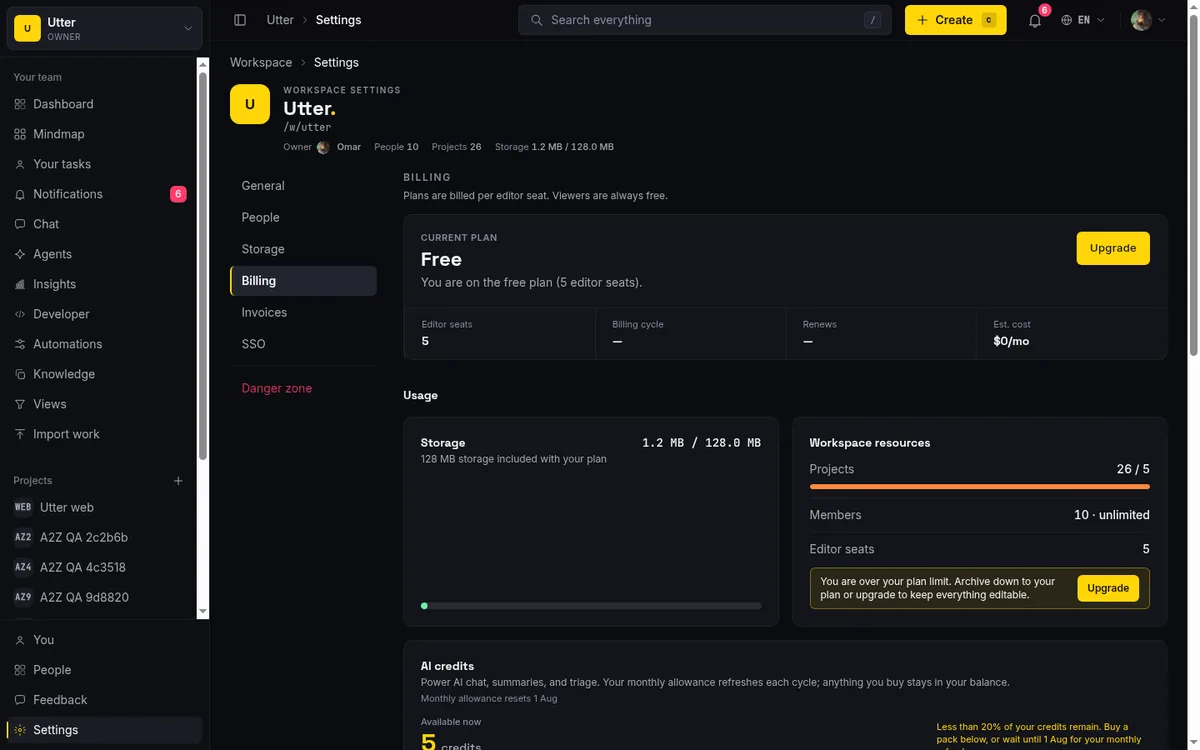
Below the plan name is a four-stat strip. Left to right: Editor seats (how many roles are billable right now), Billing cycle (Monthly or Annual), a Renews or Cancels date (it reads Renews on an active plan, Cancels if you have scheduled a cancellation), and Est. cost.
That last one needs a warning. Est. cost is display-only. It is computed as your seat count times the advertised per-seat price, shown as something like "{total}/mo for {n} editors". Helpful estimate, not your invoice. The real, authoritative numbers are the prices configured in Stripe, and those are what actually get charged. So when you are reconciling what you paid, trust the invoice on the Invoices tab, not the Est. cost figure. They will usually match. When they do not (a mid-cycle proration, a promo, a currency detail), Stripe wins.
How editor seats are counted (and who is free)
This is the heart of the whole pricing and seats question, so let me be precise.
An editor seat is any member with the role owner, admin, or member. Those three roles can create and change work, so those are the ones you pay for. Viewers do not count. Agent members do not count. The page says it plainly: "Billed for {n} editor seats. Viewers are not charged." A viewer is read-only, described in the role picker as "Read-only - cannot comment, upload, or edit anything." They can look. They cannot touch. They cost you nothing.
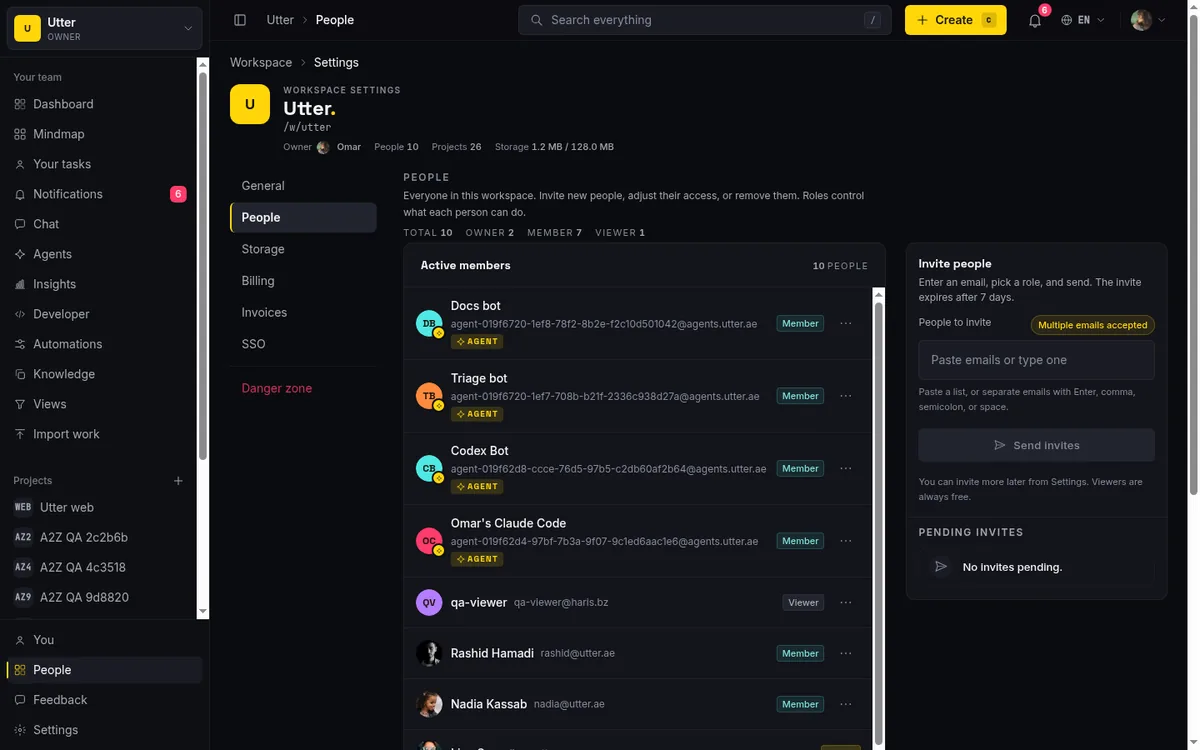
You do not manage the seat count by hand. It syncs on its own. Add a member, remove one, or change someone's role, and Utter updates the quantity on your Stripe subscription item (via syncWorkspaceSeats); Stripe then prorates the difference for the current cycle. One floor to remember: a subscription always bills at least 1 seat, so you cannot drop to zero and keep a paid plan.
sequenceDiagram
    participant A as Admin
    participant U as Utter
    participant S as Stripe
    A->>U: Promote a viewer to member
    U->>S: Sync seat quantity on the subscription
    S-->>U: Prorate the difference this cycle
    U-->>A: Seat count ticks up on the hero
A concrete example from the WEB demo project. Say a stakeholder was added as a viewer, just watching the "Timeline + Summary tab" ticket move across the board from Backlog to In Review. They cost nothing. The moment you promote that viewer to member so they can pick up work, your editor-seat count ticks up by one and your next invoice reflects it, prorated. Demote them back to viewer and the seat drops off again.
That is the entire mechanic. It means you can pull in clients or read-only observers without touching your bill, and pay only for the people doing the work.
If you are wondering whether AI agents change this math, they do not, and it is worth reading do AI agents count as seats for the full reasoning. For the mechanics of bringing people in and setting their role, see how to invite team members.
Compare the three plans and pick a cycle: project management tool pricing and seats
Further down the billing page is the plan grid, three cards side by side, and this is the clearest view of Utter's project management tool pricing and seats model.
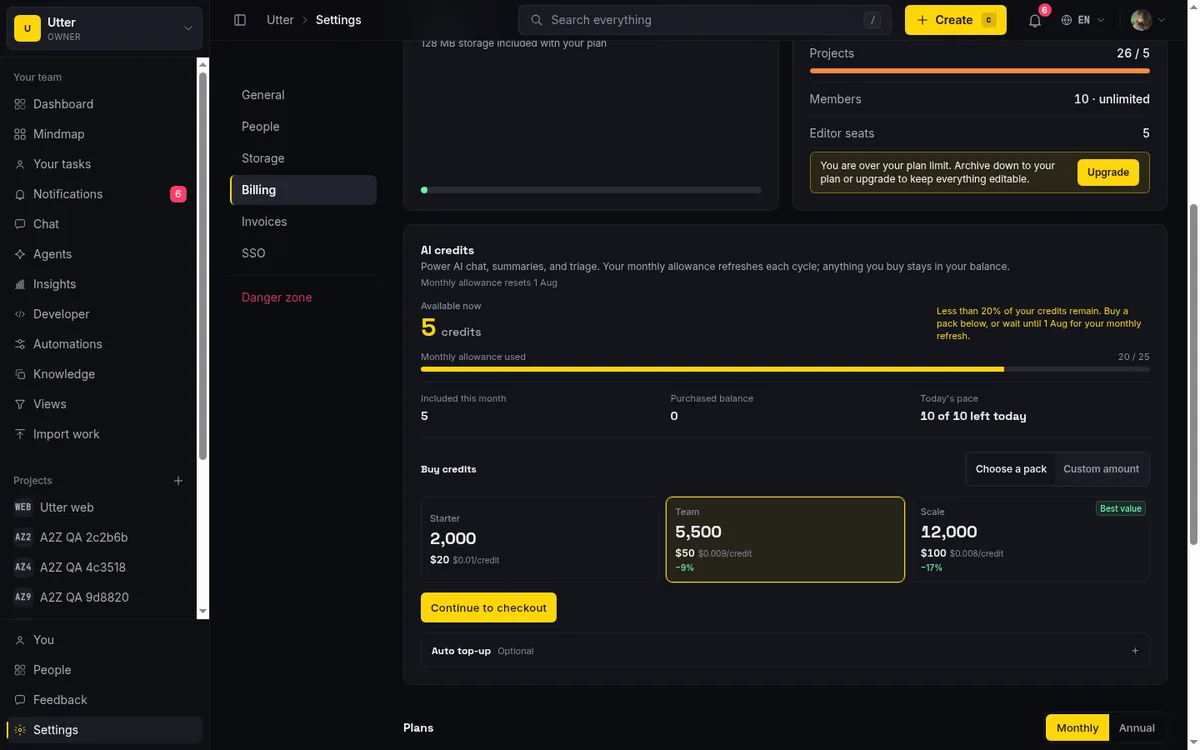
Free is $0, "For getting started." Pro is "For growing teams" and badged "Most popular" unless you are already on it. Business is "For scale." The capacity numbers, side by side:
| Free | Pro | Business | |
|---|---|---|---|
| Price per seat | $0 | $3/mo or $30/yr | $6/mo or $60/yr |
| Active projects | 5 | Unlimited | Unlimited |
| Storage | 128 MB | 1 GB | 100 GB |
| AI credits per month | 25 | 5,000 | 20,000 |
Above the cards is a Monthly / Annual toggle. Flip it to Annual and you get the note "Two months free on annual." That is not marketing fuzz. The annual price is exactly ten times the monthly, so you pay for ten months and get twelve.
Now the part most pricing pages get wrong, and I want to be blunt about it. Free is feature-complete. Sprints, timeline, reporting, integrations, and AI all work on every plan, Free included. The tiers do not differ by which features are unlocked. They differ by capacity: how many active projects you can run, how much storage you get, how big your monthly AI grant is, and the per-seat price. So do not upgrade because you assume sprints or the timeline sit behind a paywall. They do not. Upgrade when you hit a capacity wall.
One correction on the Free plan's own copy: the feature bullet reads "5 projects, unlimited issues." The Free active-project cap is five. So Free gets you five active projects with unlimited issues in each, plus Pro's full feature set at reduced capacity. If you have seen a stray "2" quoted somewhere, ignore it; the number that is enforced and displayed is five.
Weighing Utter against other tools on price? The per-seat comparison is laid out in Jira alternatives and price per seat and on the Utter vs Jira page.
Upgrade or change your plan through Stripe Checkout
The action button in the plan grid changes its label depending on where you stand. On a higher tier than your current one it reads "Upgrade." On a lower tier it reads "Change plan." On your current tier it reads "Current plan" and does nothing. The Free card, when you are on a paid plan, just reads "Free." Only owners and admins see these as live buttons.
Click Upgrade (or Change plan) and Utter hands you off to hosted Stripe Checkout. The button flips to "Redirecting..." while it builds the session, then you land on Stripe's own secure page. You enter or confirm your card there, Stripe takes the payment, and you come back to Utter with the new plan already reflected. Utter never sees your card number. That is the whole point of hosted Checkout.
One fallback to know. If this particular deployment does not have billing configured (billingEnabled() is false), the plan grid is replaced by a single line, "Billing is not configured for this deployment.", and no checkout will run. If you see that, billing is simply not turned on for your instance, and there is nothing to click.
Here is the handoff that trips people up constantly. This button upgrades and it changes plans. It does not downgrade you to a cheaper plan, and it does not cancel. Those live somewhere else entirely.
Downgrade, cancel, and update payment through the billing portal
Let me say the honest limit plainly, because pretending otherwise wastes your time: the in-app Utter UI does not let you downgrade or cancel your plan. There is no cancel button hiding on the billing tab. Do not look for one.
Those actions live only in the hosted Stripe billing portal. You reach it from the button labeled "Manage billing" (or "Open billing portal"), which carries the helper text "Change, downgrade, or cancel." Click it and Stripe opens its customer portal in your name. Inside, you can switch plans, downgrade to a cheaper tier, cancel outright, update or replace your payment method, and browse your invoices. Everything that reduces or ends what you pay happens in Stripe, on purpose, because Stripe is the system of record for the subscription.
There is a safety detail worth understanding before you downgrade. Utter will not silently delete your data to fit the smaller plan. If a downgrade puts you over the new plan's limits, you get honest over-limit copy instead. For storage it reads: "You are over your plan limit. Archive down to your plan or upgrade to keep everything editable." You get a matching warning for the project cap if you are running more active projects than the lower plan allows.
Nothing is destroyed. Your stuff sits there, and you choose whether to archive down to fit or upgrade back to keep it all editable. So downgrading is safe to try. It just might leave you with a decision to make afterward.
Read your usage: storage and workspace resources
Below the plan grid is the Usage section, and this is the part I wish more people checked before they got blocked instead of after. It shows you the walls before you hit them.
The Storage card shows used versus cap, with a meter and a plan-cap label like "1 GB storage included with your plan." The caps are Free 128 MB, Pro 1 GB, Business 100 GB. One technical note that matters for accuracy: the cap is resolved live from your current plan, not read off some stored number, so it is correct even right after a plan change. If you are near the ceiling the card nudges you toward an upgrade before uploads start failing.
Next to it is the Workspace resources card. It lists Projects (used versus cap, Free capped at 5, paid unlimited), Members ("Unlimited members" on every plan), and Editor seats, each with its own meter. When you approach or cross a limit, you get a near-limit or over-limit prompt right there. This is the single best habit for avoiding surprises: glance at this card when your team is growing. If the Projects meter reads four of five on Free, you know a plan decision is coming before the sixth project gets blocked, not at the moment you try to create it.
If you would rather watch these numbers from a script or a dashboard, the same data is one request away on the public API. GET /api/v1/workspaces/{slug}/usage needs an API key with the workspaces:read scope and returns plan, storage, and credit state in a single payload:
curl https://utter.ae/api/v1/workspaces/utter/usage \
  -H "Authorization: Bearer utp_live_a1b2..."
const res = await fetch("https://utter.ae/api/v1/workspaces/utter/usage", {
headers: { Authorization: "Bearer utp_live_a1b2..." },
});
const { data } = await res.json();
console.log(data.storage.used_pct, data.ai_credits.remaining);import requests
res = requests.get(
"https://utter.ae/api/v1/workspaces/utter/usage",
headers={"Authorization": "Bearer utp_live_a1b2..."},
)
data = res.json()["data"]
print(data["storage"]["used_pct"], data["ai_credits"]["remaining"])The response mirrors what the billing page shows, caps resolved live from the current plan, add-ons stacked in:
{
  "data": {
    "plan": {
      "plan": "pro",
      "status": "active",
      "trialing": false,
      "cycle": "monthly",
      "current_period_end": "2026-08-01T00:00:00.000Z"
    },
    "storage": {
      "used_bytes": 412876800,
      "cap_bytes": 1073741824,
      "base_cap_bytes": 1073741824,
      "addon_bytes": 0,
      "remaining_bytes": 660865024,
      "used_pct": 38
    },
    "ai_credits": {
      "monthly_grant": 5000,
      "used": 1240,
      "remaining": 3760,
      "topup_balance": 2000,
      "daily_limit": 1400,
      "daily_used": 85,
      "daily_remaining": 1315
    }
  }
}
Understand AI credits: grant, purchased, and buying more
AI in Utter runs on credits, and the credits card is its own little dashboard. Read it right and month-end holds no surprises.
At the top is "Available now," your total spendable balance this second. Then a "Monthly allowance used" progress bar showing how much of this cycle's grant you have burned, with the reset date ("Monthly allowance resets {date}"). Below that: "Included this month" (your plan's grant), "Purchased balance" (credits you bought that sit on top of the grant), and "Today's pace," a daily safety cap shown as "{left} of {limit} left today" so a runaway loop cannot drain a month of credits in one afternoon.
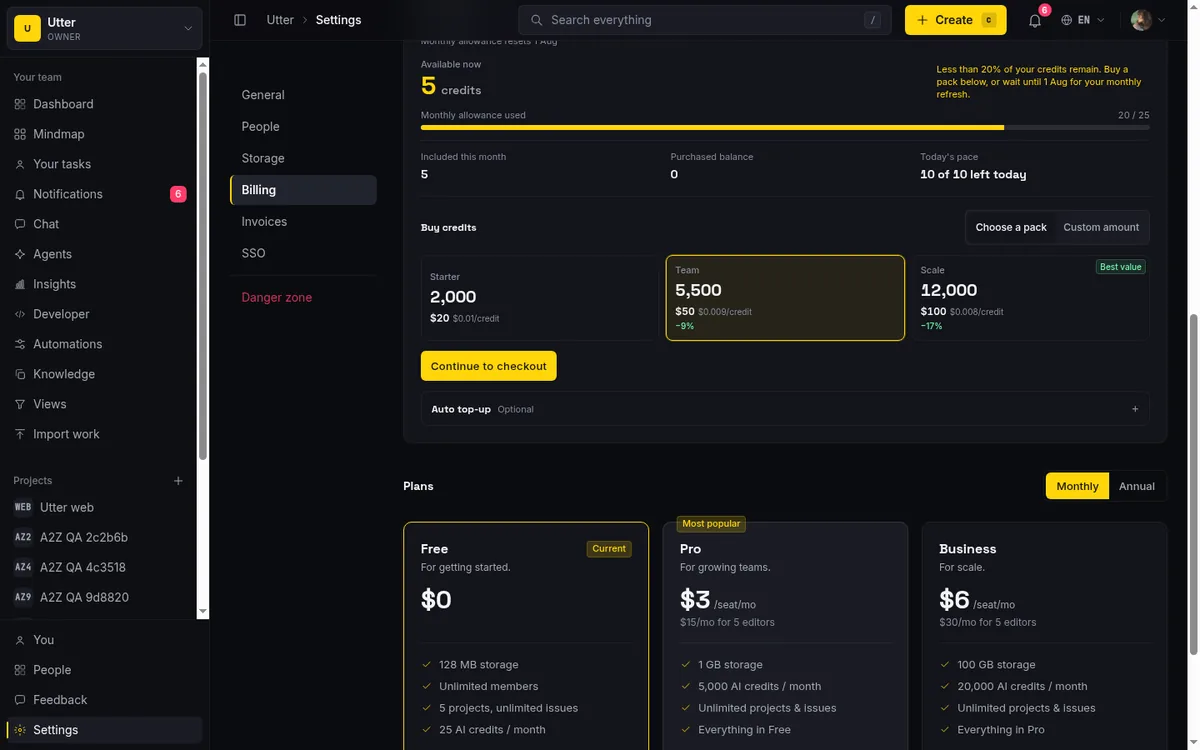
The monthly grant depends on your plan: Free 25 credits a month, Pro 5,000, Business 20,000. Here is the rule that catches people. The monthly grant does not roll over. It is non-rolling and resets on the 1st of the month, UTC. Whatever grant credits you did not spend are gone at reset. Purchased and top-up credits are different: those persist across the reset. So the mental model is "use your grant first, it expires; your purchased balance is money in the bank."
And to be clear, AI is credits-gated, not plan-gated. Every plan, Free included, can use AI until its monthly grant runs out. Free is not locked out of AI. It just has a smaller monthly allowance (25) before you would need to buy more.
Buying more is straightforward, and it is owner/admin only. Three named packs plus a custom option:
- Starter: 2,000 credits for $20.
- Team: 5,500 credits for $50 (save 9% versus the starter rate).
- Scale: 12,000 credits for $100 (save 17%, badged "Best value").
- Custom amount: anywhere from 500 to 50,000 credits at $0.01 per credit (list price).
Pick a pack, check out through Stripe, and the credits land on your Purchased balance after payment.
If you use AI steadily and never want to run dry, set up Auto top-up. You tell it to "Automatically buy more credits when I'm running low," choose the threshold ("Top up when balance falls below") and the pack to buy ("Pack to purchase"), then Save auto top-up. Two conditions to know. It requires a saved payment method (from a prior subscription or a completed credit checkout), otherwise it errors with "Add a payment method first." And it has a 1-hour cooldown between automatic charges, so a busy day cannot trigger a rapid string of purchases.
Add storage and find your invoices (separate tabs)
Two things people expect on the billing tab that actually sit one tab over each.
Storage add-ons live at /w/[ws]/settings?tab=storage. They are monthly and stackable:
- +10 GB for $4 per month
- +50 GB for $15 per month
- +100 GB for $28 per month
Buy as many as you need; the bytes stack on top of your plan's base cap rather than replacing it. So a Pro workspace (1 GB base) with a +50 GB and a +10 GB add-on has 61 GB total. This is the lever to pull when you are close to your storage ceiling but do not need everything else a higher plan brings.
Your billing history lives on a third tab, /w/[ws]/settings?tab=invoices: Invoices & receipts. It lists everything you have been charged for (subscription invoices, storage add-ons, and credit purchases), and each row has a PDF or Receipt download link. Like the rest of billing, this is owner/admin only. This is where you go for the real numbers at tax time or when you are reconciling a card statement, not the Est. cost figure on the hero.
The trial, workspace limits, and mistakes to avoid
A few gotchas that reliably bite people, gathered in one place.
The trial. A new workspace starts on a 14-day Pro reverse trial, and while trialing it carries a larger 100-credit AI grant. The catch is that the trial is granted once per user, on the very first workspace you create (tracked on your user record). Every workspace you create after that starts on Free, not on a fresh trial.
And deleting the trial workspace does not reset it: the "once" is tied to you, not to the workspace. So do not plan to farm trials by making and deleting workspaces. It will not work.
Workspace limits. A single user can own at most three unpaid workspaces (Free or no subscription). Workspaces you are merely a member of, and any paid workspaces, do not count toward that three. This is enforced when you try to create a workspace, not on the billing page, so if you cannot create a fourth free workspace, this cap is why.
And the mistakes I see most:
- Hunting for a cancel button inside Utter. It is not there. Cancellation and downgrade are in the Stripe portal, behind "Manage billing."
- Assuming your monthly AI grant rolls over. It does not. Grant credits reset on the 1st (UTC); only purchased and top-up credits carry forward.
- Thinking viewers cost money. They do not. Only owner, admin, and member roles are billed. Viewers and agents are free.
- Quoting the Est. cost figure as your invoice. It is display-only (seats times advertised price). The Invoices tab and Stripe hold the real charges.
Get those four straight and the billing page stops holding any surprises.
Try it now
Open your workspace Billing tab, check the status badge and the seat count, and you will know exactly what your next invoice says before Stripe sends it.
Frequently asked questions
Does Utter charge per seat, and who counts as a paid seat?
Yes, Utter charges per editor seat. An editor seat is any member with the owner, admin, or member role. Pro is $3 per seat per month and Business is $6 per seat per month (or $30 and $60 per year). Your seat count auto-syncs to Stripe whenever you add, remove, or re-role a member.
Are viewers and AI agents free, or do they count toward billing?
Both are free and never counted. Viewers are read-only (they cannot comment, upload, or edit) and agent members are not billable either. The billing page states it directly: "Billed for {n} editor seats. Viewers are not charged."
How do I upgrade from Free to Pro or Business?
On the Billing tab (/w/[ws]/settings?tab=billing), pick the plan card and click the button, which reads "Upgrade" for a higher tier or "Change plan" for a different one. It opens hosted Stripe Checkout, you pay on Stripe, and you return to Utter on the new plan. Only owners and admins see the live button.
Why can't I cancel or downgrade my plan inside Utter?
By design, cancellation and downgrade happen only in the hosted Stripe billing portal, reached via "Manage billing" ("Change, downgrade, or cancel"). The in-app UI handles upgrades and plan changes but routes ending or reducing a subscription through Stripe, the system of record. If you downgrade over your new limits, Utter shows over-limit copy and keeps your data rather than deleting it.
What's the difference between the AI credit monthly grant and purchased credits?
The monthly grant (Free 25, Pro 5,000, Business 20,000) is included with your plan, is non-rolling, and resets on the 1st of the month (UTC), so unused grant credits are lost at reset. Purchased and auto-top-up credits sit in your Purchased balance and persist across resets. Spend the grant first; the purchased balance is yours to keep.
How much storage does each plan include, and can I buy more?
Base caps are Free 128 MB, Pro 1 GB, Business 100 GB, resolved live from your current plan. You can buy monthly storage add-ons on the Storage tab (?tab=storage): +10 GB for $4, +50 GB for $15, +100 GB for $28. They stack on top of your base cap and you can buy any number.
What happens to my data if I downgrade and I'm over the new plan's limits?
Nothing is deleted. You will see honest over-limit copy, for storage: "You are over your plan limit. Archive down to your plan or upgrade to keep everything editable," plus a matching project-cap warning if you have more active projects than the lower plan allows. You then choose to archive down to fit or upgrade back to keep everything editable.
How does the 14-day Pro trial work, and can I get it again on a new workspace?
A new workspace starts on a 14-day Pro reverse trial with a larger 100-credit AI grant. The trial is granted once per user, on your first created workspace, and later workspaces start on Free. Deleting the trial workspace does not reset it, so you cannot get a fresh trial by creating a new workspace.
Related reading

Free project management software: what the free tiers actually give you
What the free tiers of Trello, Asana, ClickUp, Notion, and Jira actually give you (as of July 2026), which cap stops a small team first, and how Utter Free compares.
July 16, 2026 · 11 min read

Project management for solo founders (you plus a few agents is the team)
Project management for solo founders means capturing everything and letting a few AI agents do real work, at $0, with agents as free members not paid seats.
July 16, 2026 · 11 min read

Asana alternatives that cost less and speak agent
Asana alternatives for growing teams: how Asana's tiered seats round your bill up, and how Utter's $3 per-editor pricing with free viewers and agents changes the math. As of July 2026.
July 16, 2026 · 12 min read

How to use the ai assistant
How to run your board with Utter's AI assistant: ask grounded questions, create and triage issues from a sentence, and approve every change before it lands.
July 15, 2026 · 14 min read

How to manage roles and permissions
Learn how project management roles and permissions work in Utter: the five roles, inviting with the right access, scoped projects, and who pays for a seat.
July 15, 2026 · 18 min read

How to track api usage and audit logs
Track API key usage and read the audit log in Utter: Usage tab charts, the Audit lifecycle log, per-key rate limits, and what each surface will not tell you.
July 15, 2026 · 15 min read

What you can run in Utter without extra tools
A straight, capability-forward tour of the jobs Utter covers in its core, from a light help desk to integrations, estimation, and roadmaps, and when to pair a dedicated tool.
July 16, 2026 · 8 min read

Project reports and insights
Read Utter's project reports and dashboards: Summary KPIs, sprint burndown, cycle time, throughput, workload, and workspace Insights, with the honest limits on each.
July 15, 2026 · 16 min read

Do AI agents count as seats? The real cost of running agents on your tracker
Two costs get blurred together: paying a seat per bot, and the tokens the model burns. Here is how to separate them and estimate what agents actually cost.
July 15, 2026 · 6 min read
How to use the rest api
Get an Utter API key and use the project management REST API to list, create, and update issues safely, with scopes, idempotency keys, and rate limits explained.
July 15, 2026 · 16 min read
Add a comment
Start the conversation.