
How to invite team members
You just spun up a workspace. Now three teammates, a contractor, and maybe an AI agent all need in, and the level of access you hand each one is not a small decision. Give too little and someone can't do their job. Give too much and a freelancer you brought on for a single project can archive a project or, if you really slip, delete the workspace out from under you. Getting invite team members roles and permissions right the first time saves you the awkward walk-back later, plus the "wait, who gave them access to that?" conversation.
The good news: Utter makes this a five-minute job once you know where the controls live and what each role actually does. This walks through the whole thing. Inviting one person or fifty at once, picking the right role for each, scoping a guest to a single project, tracking and killing invites, and later changing someone's role or handing over the keys entirely.
What roles and permissions actually control
Access in Utter is a spectrum, not an on/off switch. A workspace has five roles, and each one draws a different line around what a person can see and change: owner, admin, member, viewer, and guest. Say that last one plainly up front. There are five roles, not four. Guest is a first-class role for external collaborators, and it behaves differently from everything else.
Here is the mental model. Owner sits at the top with full control. Admin runs the workspace day to day but can't touch a handful of owner-only levers. Member is your default working role: create issues, edit them, comment. Viewer is read-only. Guest is an outsider you've let into specific projects and nothing beyond them.
Every one of those distinctions is enforced by a single permissions matrix in the codebase (src/lib/permissions/index.ts). That detail is worth caring about even if you never read a line of code, because it means the buttons you see and the actions the server allows never drift apart. If the UI hides a control from you, the server would have blocked the action too. There's no gap where a hidden button still "works" if you poke at it with a request.
And when it comes to managing people, only owners and admins get the management controls at all. Members, viewers, and guests can't invite, remove, or re-role anyone.
All of this lives in one place: the People page.
Find the People page
Go to Settings, then People. The URL is /w/<slug>/members, but every label you'll actually see calls it People: the sidebar link, the breadcrumb, the Settings tab, the page title. The /members path is kept only so old bookmarks stay valid, so don't be thrown when the address bar and the heading disagree. Treat it as the People page.
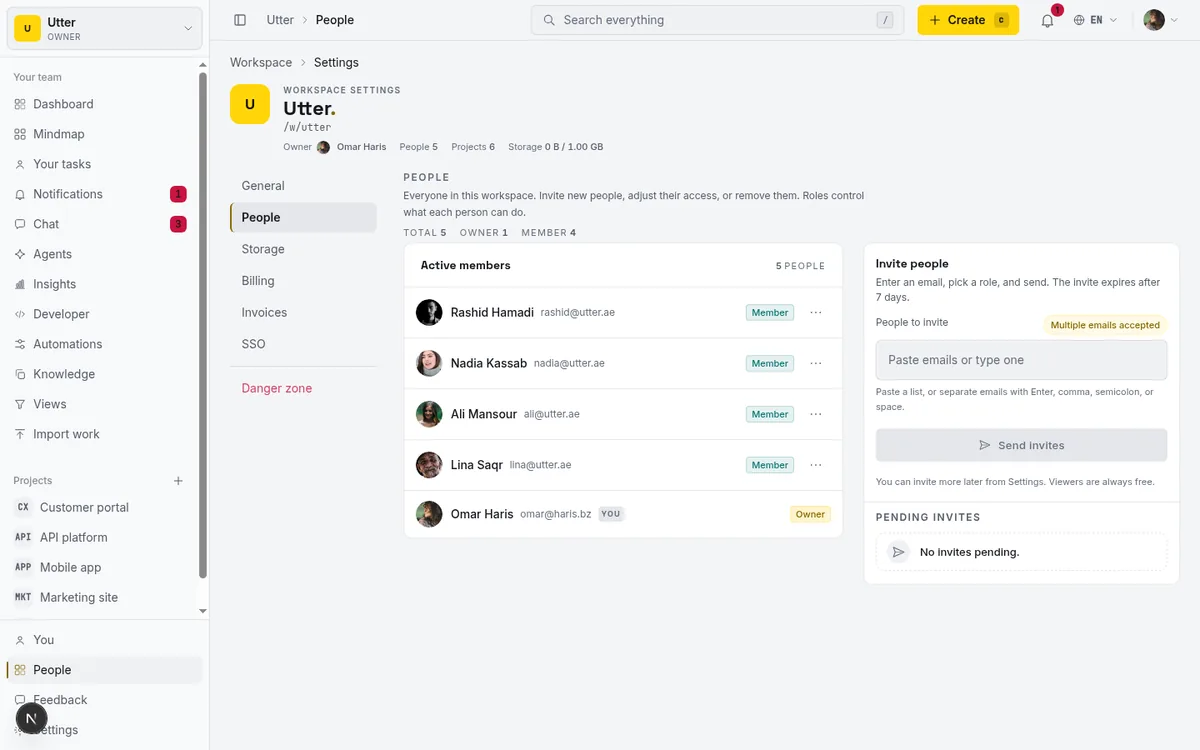
The top of the page gives you a role-count summary: Total, then a count for each of Owner, Admin, Member, Viewer, and Guest. It's a quick sanity check. If you expected four people and see six, someone got added you forgot about, and now you know to go look.
Below that is the Active members list. Each row shows an avatar (or initials if the person hasn't uploaded a photo, never a blank gap), their display name, and their email. Your own row carries a "You" badge so you don't fat-finger removing yourself. Anyone flagged as an AI agent shows an "Agent" badge. Each person's role sits in a colored badge, and at the end of the row is a kebab menu, the three-dot button, that holds the management actions.
Off to the side is the invitations area, where pending invites live once you've sent some. The members list paginates at 50 per page and pending invites at 25, so a large team stays readable instead of turning into an endless scroll.
One thing to notice: if you're a member, viewer, or guest, you won't see the invite button or the row menus at all. The management controls only render for owners and admins. That's the can() check hiding exactly what requireCan() would block on the server anyway.
Invite team members by email and set their roles
This is the core of it. Inviting team members, and the roles and permissions each one gets, is decided right here, before the invite ever leaves your workspace.
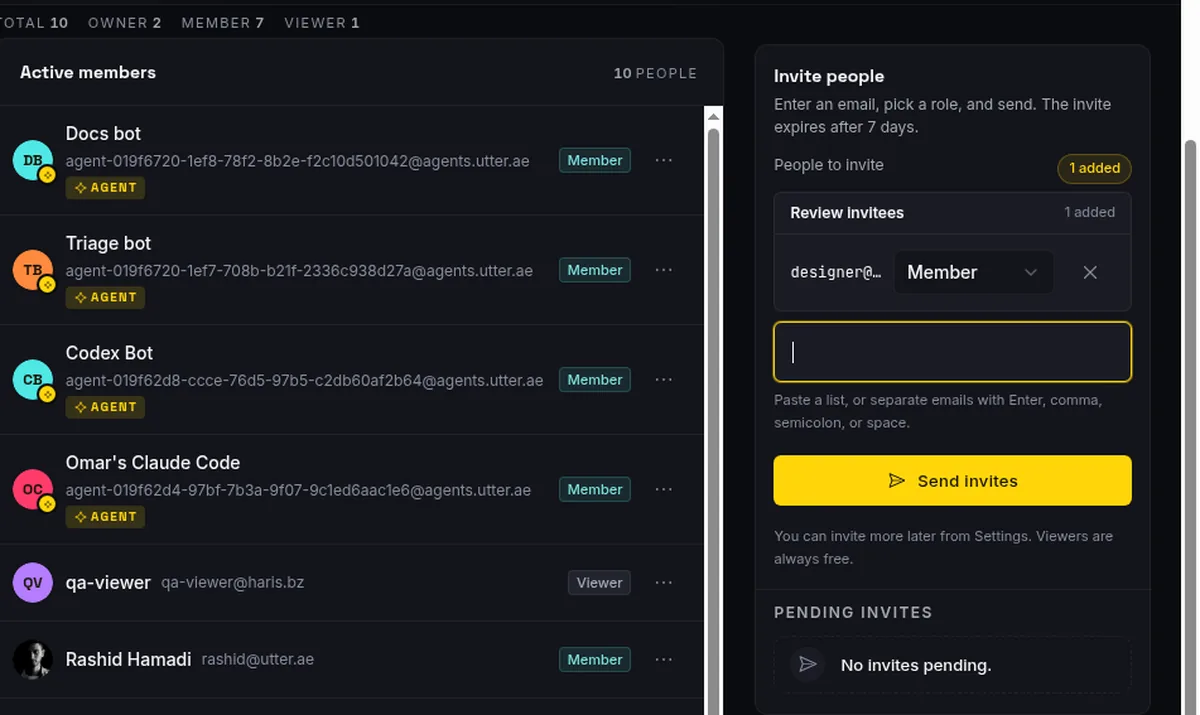
Click Invite people. You get an email field with the placeholder "Paste emails or type one." Do exactly that:
- Type a single address and press Enter, comma, or semicolon to commit it.
- Or paste a whole block at once. Utter splits pasted text on Enter, comma, semicolon, or a space, so you can drop in a list copied from a spreadsheet or an email thread and it sorts them into separate entries.
- Fat-fingered one? Backspace on an empty field removes the last email you added.
Each email you commit becomes its own row in the Review invitees list, and each row carries its own role dropdown. This is the part people miss coming from other tools: you're not stamping one role across a batch. You set the role per person. Your new engineering lead goes in as Admin, three developers as Member, and the freelance designer as Guest, all in the same submit.
The role choices at invite time are Admin, Member, Viewer, and Guest. Owner is not in the list, and it never will be. You can't invite someone straight to owner. Ownership changes hands only through an explicit transfer, which is further down.
A single submit sends up to 50 invites, that's the batch cap. Behind the scenes Utter chunks the sends 10 at a time so a big batch doesn't choke, but to you it's one click on Send invites. The button reads "Sending..." while it works.
What does good look like here? Default most people to Member. That's the role that lets someone actually do the work without handing them the workspace. Reserve Admin for the one or two people who genuinely help you run the place, invite others, and manage projects. Give Viewer to stakeholders who want to watch progress but never touch a ticket. And give any external contractor Guest, then scope them to just their project (next section). Getting the default right matters more than any single exception you'll make later.
Which of the five roles to pick (and which are free)
Here's each role in plain terms, straight from Utter's own descriptions.
Owner is full control. Delete the workspace, transfer ownership, and everything below. There is exactly one owner per workspace, and the role is set only by an ownership transfer, never by invite. It's the "can burn it all down" role, so it stays a single pair of hands.
Admin can invite members, manage projects, and change roles, with everything owner-related fenced off. An admin can't promote someone to owner, can't demote the owner, can't delete the workspace, and can't transfer ownership. Powerful, but deliberately short of the nuclear buttons. This is the right role for a co-lead or an ops person you trust to run things.
Member can create and edit issues and leave comments. This is the everyday working role. If someone is doing the actual project work, they're a Member.
Viewer is read-only. They can't comment, upload, or edit anything. Good for a client who wants visibility, an exec checking status, or a new hire in their first read-only week before they start touching tickets.
Guest is an external collaborator who only sees the projects you add them to. A freelancer, an agency contact, a contractor. They come in through a narrow door and see nothing past it.
Side by side:
| Role | What they can do | Billed as a seat? |
|---|---|---|
| Owner | Everything, including delete workspace and transfer ownership | Yes |
| Admin | Invite people, manage projects, change roles | Yes |
| Member | Create and edit issues, comment | Yes |
| Viewer | Read-only, no comments or edits | No, free |
| Guest | Only the projects explicitly granted | No, free |
If you're unsure, this decision path covers most people:
flowchart TD
    A[New person joining] --> B{Will they edit issues}
    B -->|No| C{Internal or external}
    C -->|Internal| V[Viewer]
    C -->|External| G[Guest scoped to projects]
    B -->|Yes| D{Will they run the workspace}
    D -->|No| M[Member]
    D -->|Yes| E[Admin]
Now the billing honesty, because this is where teams quietly overspend out of caution. Viewers are free. Guests are free too. And connected AI agents aren't billed as seats either. Only owner, admin, and member count as editor seats, the ones that show up on your invoice.
So if you're tempted to make a read-only stakeholder a Member "just in case," don't. Viewer costs nothing and is the correct role for someone who only reads. Same logic for agents. If you're wondering how automated teammates factor into the bill, the short answer is they don't count as seats, and there's a full breakdown in do AI agents count as seats.
Give guests access to only the right projects
Guests are the role most likely to trip you up, because a guest with no project assigned lands in an empty workspace and wonders where everything went. That's by design. Guests start with no project access at all. You have to hand them a project.
The moment you set any invitee's role to Guest, a new control appears in the invite form: a "Projects for guests" multi-select. It's a searchable picker (a popover with a Command search box inside), and it carries the helper text "Guests can only see the projects you pick here." Choose the projects there and your guest arrives with exactly that access on day one.
Concrete example. You've hired a freelance designer to work on the marketing site, which lives in the WEB project. Invite them as Guest, open Projects for guests, and select WEB. When they accept, they see the WEB board (Backlog, To Do, In Progress, In Review, Done), they can open the "Timeline + Summary tab" ticket sitting in To Do, and they see nothing from any other project in the workspace. Your finance project, your internal roadmap, none of it exists as far as they can tell.
If you forget to pre-pick, the guest accepts into a workspace with nothing in it. You can fix that afterward, but only from the Scoped project access section (covered near the end), not from the invite form. So pick the projects at invite time whenever you can.
One detail under the hood worth knowing: a guest's row on a project uses a nominal project role of "member," but their workspace-level Guest role is what actually governs their scoped permissions. You don't manage both. Set them up as a Guest, give them the project, and the scoping takes care of itself.
Track, resend, and revoke pending invites
Once you hit Send invites, each one becomes a pending invite with its own life cycle, and you run that from the Pending invites panel.
Each pending invite shows its role badge, so you can see at a glance you invited someone as Admin and not Member, and an expiry line: "expires " while it's live, or "expired " once it's lapsed. Expired invites also get an "Expired" badge and drop out of the active pending count, so the number you see reflects invites that can still be accepted.
Every invite is single-use, email-bound, and expires after exactly 7 days. That combination matters, so pull it apart:
- Single-use means once someone accepts, the link is spent.
- Email-bound means the recipient has to sign in with the exact email you sent it to. Try to accept while signed into a different account and it fails with a wrong-account error.
- 7 days means it's not forever. Sit on it for a week and a half and the link is dead.
This is the bit people misread: an Utter invite is not a shareable join link you drop in a group chat. It's addressed to one person. Forward it to a colleague and that colleague still can't get in.
The whole life cycle looks like this:
stateDiagram-v2
    [*] --> Pending: Send invites
    Pending --> Accepted: Signs in with the invited email
    Pending --> Expired: 7 days pass
    Pending --> Revoked: You revoke it
    Expired --> Pending: Resend mints a fresh token
    Accepted --> [*]: Joins with the chosen role
    Revoked --> [*]: Can be invited again later
That's what the row kebab is for. Resend revokes the old token, mints a fresh one with a new 7-day clock, and re-emails the person. Reach for it when an invite expired or got buried in a spam folder. Revoke kills the link immediately, for when you invited the wrong address or the plan changed under you. After a revoke, that person can still be invited again later from scratch. Revoking blocks nothing permanently.
One limit to keep in the back of your mind: invites are rate-limited to 100 per hour per workspace. You won't hit that inviting a team over coffee, but if you're migrating a large org and scripting invites, pace them.
Script invites over the REST API
Speaking of scripting: everything above has an API twin. If you're onboarding people from an HR system or a migration script, POST /v1/workspaces/{slug}/invites sends an invite email, one address and one role per call. The API key needs the members:write scope and its creator has to be an owner or admin, the same permission gate as the invite button.
curl -X POST "https://utter.ae/api/v1/workspaces/utter/invites" \
  -H "Authorization: Bearer utp_live_a1b2..." \
  -H "Content-Type: application/json" \
  -d '{ "email": "[email protected]", "role": "member" }'
const res = await fetch("https://utter.ae/api/v1/workspaces/utter/invites", {
method: "POST",
headers: {
Authorization: "Bearer utp_live_a1b2...",
"Content-Type": "application/json",
},
body: JSON.stringify({ email: "[email protected]", role: "member" }),
});
const invite = await res.json();import requests
res = requests.post(
"https://utter.ae/api/v1/workspaces/utter/invites",
headers={"Authorization": "Bearer utp_live_a1b2..."},
json={"email": "[email protected]", "role": "member"},
)
invite = res.json()role accepts admin, member, viewer, or guest. Owner is not accepted here either, same as the UI. The response gives you the pending invite:
{
  "data": {
    "id": "0198a1b2-...",
    "email": "[email protected]",
    "role": "member",
    "invited_by_user_id": "0197f3c4-...",
    "expires_at": "2026-07-22T09:00:00.000Z",
    "created_at": "2026-07-15T09:00:00.000Z"
  }
}
Three behaviors worth knowing before you loop over a spreadsheet. If the email is already a workspace member, you get a 409 conflict instead of a duplicate invite. If the email already has a live pending invite, the old one is revoked and replaced by the new one, so there's never more than one live invite per address. And the API body takes only email and role, so the guest project pre-pick is a UI-only convenience at invite time; for API-invited guests, grant projects from Scoped project access after they accept.
GET /v1/workspaces/{slug}/invites lists the pending ones (scope members:read), which is how a script checks who hasn't accepted yet. For key setup, scopes, and retry discipline, see how to use the REST API.
Change a role, transfer ownership, or remove someone
People's needs change. Someone gets promoted, a contractor's engagement ends, a member should really be running things. All of it happens from the member row's kebab menu.
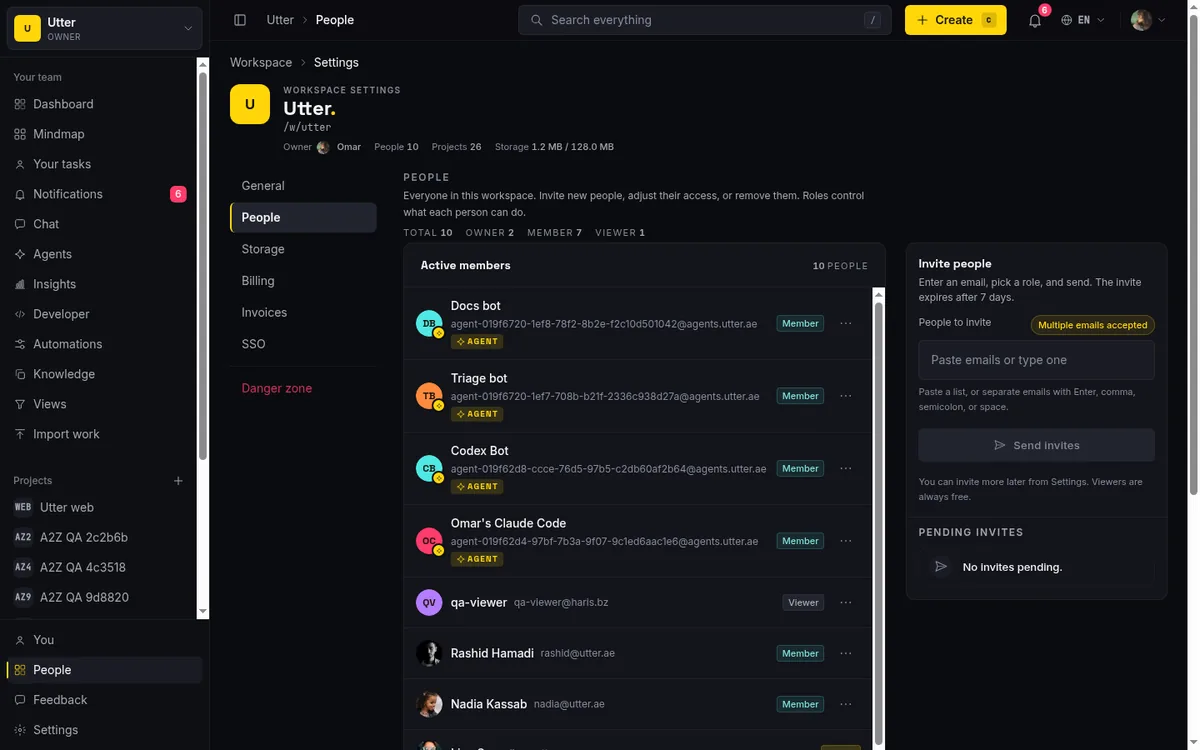
The menu offers a handful of actions, each gated by what you're allowed to do.
Change to Admin / Member / Viewer / Guest re-roles the person in place. It's gated on the change-role permission, so owners and admins see it. You can't change the owner's role this way, because the owner's role only moves through a transfer.
Make owner is owner-only and it's the big one. It atomically demotes you, the current owner, to admin and promotes the target to owner in the same move, so the workspace always has exactly one owner and never zero or two. Utter makes you confirm with a blunt prompt: "They become the workspace owner and you become an admin. Only an owner can transfer ownership back." Read that twice before you click. After this you're an admin, and getting the crown back means the new owner has to hand it to you.
Remove shows up as a danger action and is gated on the remove permission. You can't remove the owner, and you can't remove yourself. To leave yourself, there's a separate Leave workspace button (visible to everyone except the owner, who has to transfer ownership before they can go).
When you remove someone, Utter is careful with their work: only their open issues get unassigned. Their comments and their issue history stay exactly where they are. Nothing they wrote disappears. The confirmation spells it out: "They lose access to this workspace and all of its projects. Their issues and comments stay." So removing a departed contractor doesn't gut your project history. It just frees up their open tickets for reassignment.
Mark as agent / Unmark agent flags a member as an AI agent, or unflags them. Owners and admins can do it, and the owner can never be an agent. This is the toggle that puts the Agent badge on a row and keeps that member out of your seat count. If you're bringing an AI teammate into the workspace, the setup flow is covered in how to connect an AI agent, and the harder question of what an agent should and shouldn't be allowed to decide on its own is worth reading in decision rights between your team and AI agents.
Manage scoped project access after the fact
Sometimes you need to widen a guest's access later, or lock a sensitive project down to a named few. That's the Scoped project access card.
Two honesty notes about this card, because it's conditional. First, it's owner and admin only. Second, and this one catches people, it only appears when the workspace actually has scoped projects (a project with scoped = 1). A fresh workspace, or a demo where nothing has been locked down, won't show the card at all. So if you go hunting for it and it isn't there, that's not a bug. You just don't have any scoped projects yet.
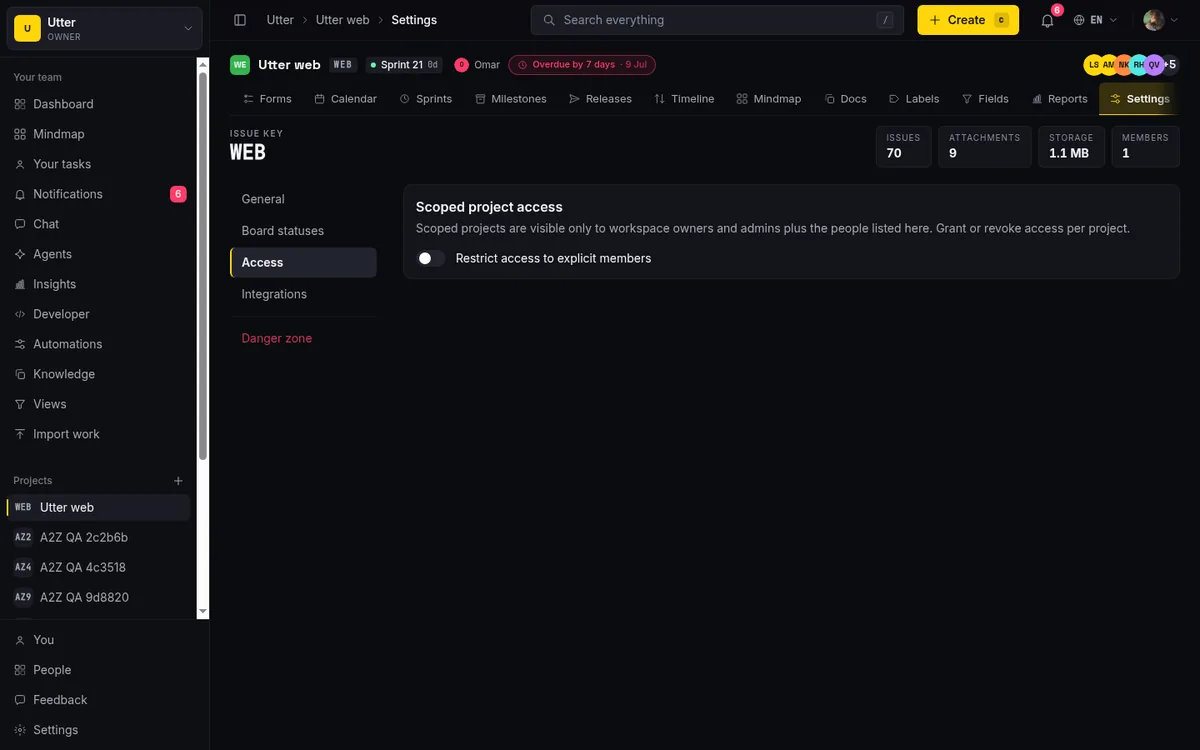
When it is there, the card lets you grant or revoke explicit per-project membership for existing workspace members, each with a project-level role (Admin, Member, or Viewer). The card describes itself: "Scoped projects are visible only to workspace owners and admins plus the people listed here. Grant or revoke access per project." This is exactly where you go to add a guest to a second project after they've accepted, or to make a sensitive project (compensation planning, say) visible to only three named people instead of the whole workspace.
Common mistakes and the limits worth knowing
A few things to keep straight so you're working with the tool instead of against it.
- Only owners and admins can manage people. Members, viewers, and guests can't invite, remove, or re-role anyone. If a teammate says they can't find the invite button, check their role before you assume something broke.
- Admins are powerful but not all-powerful. An admin can change roles but can't promote anyone to owner, can't demote the owner, can't delete the workspace, and can't transfer ownership. Those four are owner-only, on purpose. If one of them needs doing and you're an admin, the owner has to be the one to do it.
- Invites are not permanent links. They expire in 7 days, they're single-use, and they're bound to the exact email you sent them to. Don't treat one as a reusable join code, and don't forward it. If it lapsed, use Resend.
- Bulk has limits. A single submit tops out at 50 people, and the workspace is capped at 100 invites per hour. Generous for a normal team, worth pacing for a big migration.
- Guests see nothing until you give them a project. Pre-pick projects at invite time, or add them afterward from Scoped project access. A guest with no project is a guest staring at an empty screen.
- The Scoped project access card only shows when scoped projects exist. Don't count on it always being on the page.
- Removing someone preserves their work. Their open issues get unassigned; their comments and history stay. It's a clean handoff, not a purge.
If you've come from a heavier tool, this whole page is deliberately lighter. Jira splits the same job across global permissions, project roles, permission schemes, and a security level or two, and untangling which one is blocking a person can eat an afternoon. Utter collapses it into five roles, one matrix, and one page, which is most of the point. If you're weighing the two, Utter vs Jira lays out where the simpler model helps and where it doesn't.
Head to Settings, then People, and set your team up the way you actually want it.
Frequently asked questions
How do I invite team members and set their roles in a workspace?
Go to Settings, then People, and click Invite people. Type or paste emails, and each one gets its own role dropdown (Admin, Member, Viewer, or Guest) in the Review invitees list. Set a role per person, then click Send invites. Only owners and admins can do this.
What are the different roles in an Utter workspace?
There are five: owner, admin, member, viewer, and guest. Owner has full control (including deleting the workspace and transferring ownership) and there's exactly one per workspace. Admin can invite people, manage projects, and change roles but can't touch owner-level actions. Member creates and edits issues and comments, viewer is read-only, and guest is an external collaborator scoped to only the projects you add them to.
Can any team member invite people, or only admins?
Only owners and admins can invite people, remove members, or change roles. Members, viewers, and guests have no people-management controls at all. If someone can't see the invite button, it's because their role doesn't include it.
Are viewers and guests free, or do they count as paid seats?
Both are free. Only owners, admins, and members count as billable editor seats. Viewers, guests, and connected AI agents are not charged as seats, so use Viewer for anyone who only needs to read and Guest for external collaborators.
How do I give a contractor access to just one project?
Invite them as Guest. When you set the role to Guest, a "Projects for guests" picker appears; select the one project (say, WEB) and they'll see only that project after accepting. To add a guest to more projects later, use the Scoped project access card on the People page.
Do workspace invites expire, and can I reuse the link?
Invites expire after exactly 7 days and are single-use. They're also bound to the exact email you sent them to, so they can't be forwarded or reused as a generic join link. If an invite lapses, use Resend to issue a fresh one with a new 7-day window.
How do I transfer ownership of a workspace to someone else?
Open the target member's row menu and choose Make owner. This is owner-only. It atomically makes them the owner and demotes you to admin, keeping exactly one owner. Only the new owner can transfer it back, so confirm before you do it.
What happens to someone's issues and comments when I remove them?
Removing a member unassigns only their open issues. Their comments and issue history stay in place, and their done, failed, or cancelled issues keep their assignment. Removal frees up active work without deleting anything the person wrote.
Related reading
How to manage roles and permissions
Learn how project management roles and permissions work in Utter: the five roles, inviting with the right access, scoped projects, and who pays for a seat.
July 15, 2026 · 18 min read
How to use the rest api
Get an Utter API key and use the project management REST API to list, create, and update issues safely, with scopes, idempotency keys, and rate limits explained.
July 15, 2026 · 16 min read

How to use team chat
A practical guide to team chat in a project management tool: channels, DMs, threads, @mentions, file attachments, and the honest limits, all next to your issues.
July 15, 2026 · 16 min read
How to restrict project access
Restrict project access to specific members in Utter: flip the scoped toggle, add the right people, and understand what the project role does not do.
July 15, 2026 · 14 min read
How to use webhooks
Set up outbound webhooks in Utter: create one, verify the HMAC signature (sha256-of-secret gotcha), handle at-most-once delivery, and pipe board events to Slack.
July 15, 2026 · 16 min read
Onboard an AI agent like a new hire: identity, access, and a first task
You already know how to bring on a new hire. Do the same for an AI agent: give it an identity, scoped access, one small task, a review, and an offboarding path.
July 15, 2026 · 8 min read

How to use AI agents in Utter: connect them, assign work, and follow their sessions
A start-to-finish walkthrough: connect an agent, scope its key, assign it issues, and watch its sessions, without giving up control of the board.
July 15, 2026 · 11 min read

How to create your first workspace
Getting started with a project management tool: sign in with a magic link (no password), create your first workspace and slug, and set a permanent project key.
July 15, 2026 · 15 min read

Who decides what: setting decision rights between your team and your AI agents
A simple rule for AI governance: reversible, low-stakes moves are the agent's to make; irreversible or high-stakes ones need a human. How to draw the line.
July 15, 2026 · 7 min read
What you can run in Utter without extra tools
A straight, capability-forward tour of the jobs Utter covers in its core, from a light help desk to integrations, estimation, and roadmaps, and when to pair a dedicated tool.
July 16, 2026 · 8 min read
أضف تعليقًا
ابدأ النقاش.