
How to save and share views
You built the perfect filter. Type is Bug, priority High, assignee set to you, status In Review. It took a minute of clicking to get there, and it showed you exactly the four tickets you needed for standup. Then you closed the tab. Three hours later you needed that same slice again, and it lived nowhere except a URL you had already lost. So you rebuilt it. Then again the next morning. Then again the morning after that.
Saved views project management is the fix for exactly this loop. A saved view is a named, reusable filter combination. You set it up once, give it a name like "My bugs In Review", and from then on it is one click in the Views menu instead of a rebuild from scratch. In Utter it lives per project, on every work surface a project has. It is one of those small features that quietly removes a chore you do dozens of times a week without noticing.
This guide covers the per-project saved views feature. There is also a separate, workspace-wide thing that filters issues across several projects at once, and I will flag it clearly at the end so you know which one you actually want. Everything below is about a single project. We will use the demo project WEB, whose board runs Backlog, To Do, In Progress, In Review, and Done.
Why saved views matter in project management
The pain is repetition of low-value work. Every standup, every triage session, every "let me just check what's assigned to me" moment, you reach for the same handful of filters. My open bugs. Everything In Review. High-priority tasks with no owner. The filter itself is not hard to build. Building it for the fortieth time is just tax.
A saved view removes that tax. Under the hood it is nothing exotic: a stored set of filter facets with a name attached. But the effect on how a team works is real. When "the bugs we ship this week" is a one-click view that everyone on the project can see, standup stops being a live filtering exercise and starts being a conversation about the actual work. That is the whole point of saved views in project management. The filter stops being something you perform and becomes something the project remembers.
Two things to set up front. A view can be shared with the whole project or kept personal to just you, and choosing well matters (more on that below). And Utter has a completely separate cross-project feature that also happens to be called Views. Keep them apart in your head. The saved views in this article are scoped to a single project's board and lists. The cross-project one lives elsewhere and behaves differently.
Where the Views menu lives, and the surfaces it runs on
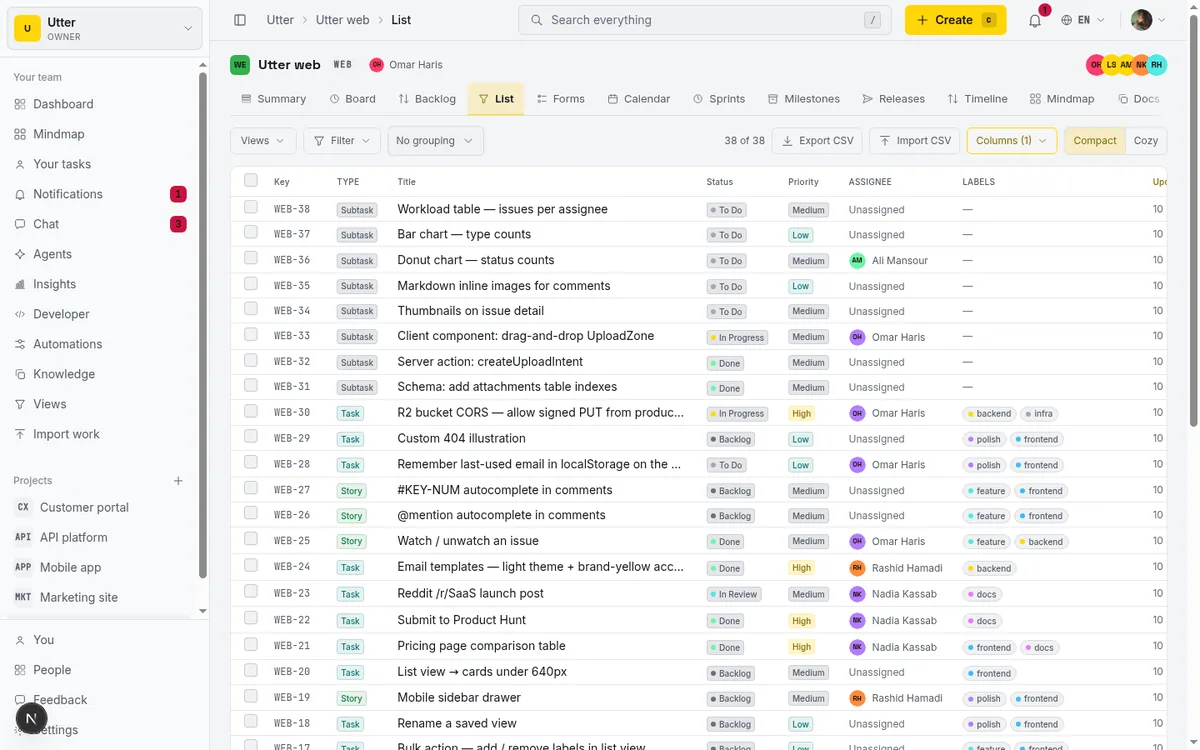
The Views menu opens from a trigger button in the filter toolbar, sitting right next to the Filter control. Look for the button labeled "Views". Click it and a popover drops down with your saved views and the controls to save a new one.
Here is the detail that makes it feel alive. That trigger button is not always labeled "Views". When your current filter exactly matches one of your saved views, the button shows that view's name instead and turns gold. That is the active-view state, a glanceable signal that says "you are looking at a saved slice right now, not some ad-hoc filter." The moment you change any facet and the filter no longer matches, the button reverts to plain "Views" and the gold goes away.
The same Views menu runs on five surfaces:
- Board
- List
- Backlog
- Calendar
- Timeline
It is not five separate features that happen to look alike. It is one saved-views system, loaded per page from the same underlying store, showing you the same views everywhere. A view you create on the List is the same view you find in the menu on the Board. This matters more than it sounds, and I will come back to it when we get to switching between views.
The screenshot above shows the List toolbar with a filter applied, so you can see exactly where the Views button sits relative to Filter. That is the anchor point. Find that toolbar and you have found saved views everywhere in the project.
How to save a filter as a view
The order of operations is the part people get backwards, so let me be blunt about it. You filter first, then you save. Not the other way around. The Views menu does not build a filter for you. It captures the one you already have.
So the flow, start to finish:
- Start on WEB's List (or Board, your call) and build the filter you want to keep. Say you want your own high-priority bugs that are in review: open Filter, set Type to Bug, set Priority to High, set Assignee to Assigned to me, set Status to In Review.
- Confirm the live filtered result on screen is the slice you want. Exactly those tickets and nothing else. That result is what you are about to name.
- Open the Views menu and click "Save current filter".
- Type a name into the "View name" field. Names go up to 80 characters, which is plenty.
- Click "Save" and you get a
Saved "{name}"toast confirming it landed.
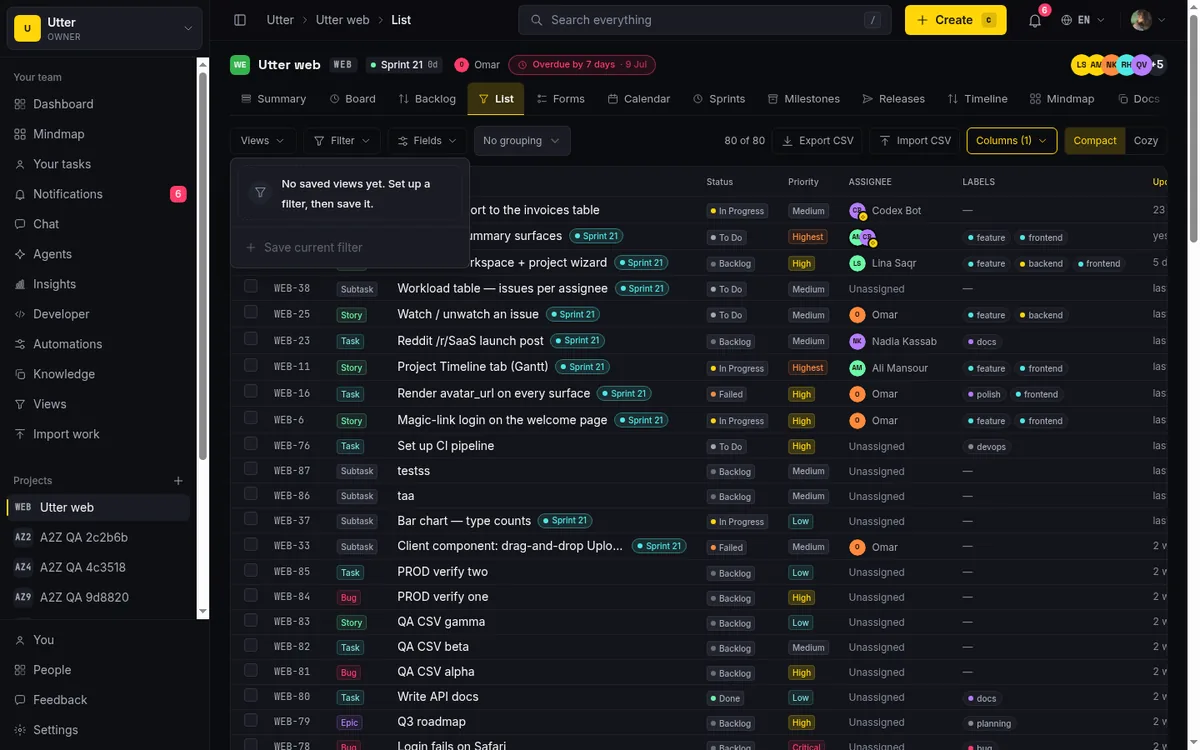
One guardrail to know about. "Save current filter" is disabled until at least one facet is actually active. Hover it with no filter set and the tooltip reads "Set a filter first" instead of the usual "Save the current filter". This is deliberate. There is no such thing as a saved view of nothing, so the button refuses to save an empty filter. If it looks greyed out, that is why. Go set a filter and come back.
Spend three seconds on the name. "View 1" tells nobody anything, including future you. A good name says what the slice is: "My bugs In Review", "Unassigned high-priority", "This week's Done". When a teammate opens the Views menu on a shared project, the name is the only thing they have to go on, so make it carry its weight. Specific beats clever here.
Shared vs personal: who else sees your view
When you save a view, the form has a checkbox: "Shared with the project (uncheck for personal)". It is checked by default. That default is a decision, not an accident. Utter assumes most views are worth sharing, so shared is the path of least resistance and personal is the opt-in.
| Shared view | Personal view | |
|---|---|---|
| Who sees it | Everyone on the project | Only you |
| Badge in the menu | None (it is the default) | "Personal" badge |
| Checkbox state | Checked (the default) | Unchecked |
Leave it checked and the view is shared. Everyone on the project sees it in their own Views menu. Uncheck it and the view becomes personal, visible to nobody but you. Personal views get a small "Personal" badge in the menu with the tooltip "Personal view, only you can see it", so you can always tell your private scratch filters apart from the team ones. Shared views carry no badge.
The server backs this up cleanly. You see every shared view on the project, plus your own personal ones. Other people's personal views are filtered out before they ever reach you. So a personal view really is private. Nobody is quietly browsing your working filters.
When should you pick which? Shared for team rituals, personal for your own scratch work. The filters your standup depends on, the triage slice your whole project references, the "shippable this sprint" cut everyone checks: those should be shared, so there is one canonical version and not five slightly different copies floating around. The filter you built to answer a question just for yourself this afternoon, or your idiosyncratic "stuff I keep forgetting about" cut, keep that personal. It keeps the shared list clean and focused on the views the team actually agreed matter.
Applying and switching between saved views
Applying a view is a single click. Open the Views menu, click a row, done. Utter loads that view's stored filter into whatever surface you are on and drops the facets into the URL query params. The result on screen updates immediately.
The active view is easy to spot. The row you applied shows a gold checkmark, and the trigger button up in the toolbar swaps its label to the view's name and goes gold. Both signals point at the same fact: this is the saved view you are currently looking at.
Here is the behavior worth internalizing, because it trips people up the first time. The active-view highlight is exact-match only. The view lights up as active only while your current filter equals its stored facets, exactly.
stateDiagram-v2
    AdHoc: Plain Views button
    Active: View name in gold
    AdHoc --> Active: filter exactly matches a saved view
    Active --> AdHoc: any facet changes
Apply "My bugs In Review", then add a Label to the filter, and the match breaks. The checkmark disappears, the trigger reverts to plain "Views", and you are back in ad-hoc territory. Nothing is broken. You have just filtered past the saved view. If you want to keep the tweaked version, save it as a new view. If you want the original back, click its row again.
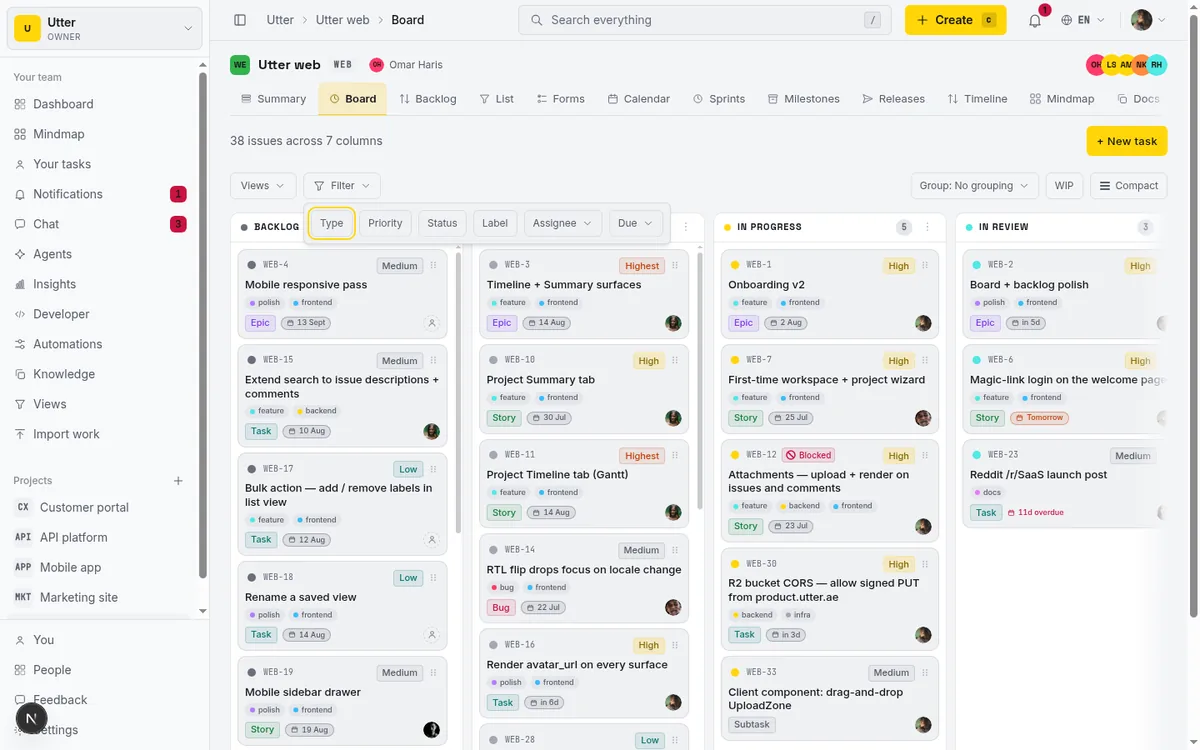
And remember the cross-surface thing from earlier. Because a view is stored per project, not per surface, a view you saved on the List applies just as well on the Board. Save "Unassigned high-priority" while looking at the List, flip to the Board, open Views, click that row, and the columns filter down to the same set. One view, every surface. You are not maintaining separate board-views and list-views. You maintain one set of project filters that show up wherever you happen to be working. If you want to go deeper on building the filters themselves before you save them, the companion piece on how to filter and sort issues covers every facet in the toolbar.
Sharing a filtered view by URL
Applying a view writes its facets into the URL. That has a useful side effect: the filtered result is now bookmarkable and shareable as a plain link. Whatever you are looking at, the address in your bar reproduces it. The "my high-priority bugs in review" filter from earlier looks like this:
https://utter.ae/w/utter/p/web/list?types=bug&priority=high&status=in_review&assignee=meSo there are two ways to hand a filtered slice to a teammate, and they are not the same thing. The first is the URL. Copy the address, paste it into chat or a ticket comment, and whoever clicks it lands on that exact filtered result. This is good for one-off moments: "here are the three bugs blocking the Timeline + Summary tab work, take a look." No setup, no naming, just a link.
The second is making a view shared. That does something different. It adds the view permanently to everyone's Views menu on the project. The URL shares this filtered result, right now. A shared view adds a reusable, named entry that lives in the menu going forward.
flowchart TD
    A[Need to hand someone a filtered slice] --> B{One off or recurring}
    B -->|One off| C[Copy the URL]
    B -->|Recurring, whole team| D[Save a shared view]
    B -->|Recurring, just you| E[Save a personal view]
Pick the URL when the slice is a passing thing you want someone to see once. Pick a shared view when the slice is a recurring reference the team will want again and again. One caveat on the URL route: a teammate clicking your link still lands subject to their own access and view visibility. The link carries the filter. It does not grant them anything they could not already see in the project.
Renaming, re-scoping, and deleting views
Views are not carved in stone. On rows you own, two small buttons appear: a pencil to edit, and an X to delete.
The pencil opens the same little form you used to create the view. From there you can rename it, and you can flip it between personal and shared with the same "Shared with the project" checkbox. So if you saved something personal and later decide the team should have it, edit it, tick the box, and click "Save". You get a "View updated." toast. Renaming works the same way: change the text in the name field, save, done. This is also how you fix a lazy name after the fact. "View 3" becomes "QA sign-off queue" in about five seconds.
The X deletes. Click it and a confirmation dialog appears titled Delete the saved view "{name}"? with the body copy: "This removes the view for everyone it is shared with. It does not change any tasks." The confirm button reads "Delete view", and once you click it you get a "View deleted." toast.
Read that body copy carefully, because it is telling you two true things. Deleting a shared view removes it for everyone, not just you. And deleting a view touches zero tickets. It only removes the saved filter, never the work it was filtering. There is no undo here, so delete shared views with a little care.
Now the permission rule, which keeps shared views from turning into a mess:
- The edit and delete buttons only appear if you are the view's creator, or a project owner or admin.
- A regular member cannot rename or delete a shared view someone else created. They will not even see the buttons.
- This is checked in the UI and re-checked on the server when the rename or delete actually runs, so it is a real permission, not a cosmetic hide.
The upshot: your project's shared views stay stable. The person who made a view, or a project lead, controls it, and nobody can quietly delete the standup filter the whole team relies on.
What a saved view does and does not store
This is the honest-limits section, and it is the one that saves you from a nasty surprise later. Be clear on exactly what a view captures, because it is less than the toolbar might lead you to expect.
A saved view stores exactly five facets:
- Type (epic, story, task, bug, subtask)
- Priority
- Status
- Labels
- Assignee (stored as any, me, unassigned, or a specific user)
That is the complete list. Five facets. Nothing else. The stored filter for "my high-priority bugs in review" is literally this:
{
  "types": ["bug"],
  "priorities": ["high"],
  "statuses": ["in_review"],
  "labels": [],
  "assigneeId": "me"
}
Now the part that surprises people. The filter toolbar supports more than those five. It also lets you filter by Milestone, Sprint, Release, Due date, and custom-field predicates. None of those get saved into a view. If you build a filter that says "Sprint 12, due this week, custom field Team = Platform" and then save it, the sprint, the due date, and the custom field are silently dropped. The saved view keeps only the Type, Priority, Status, Label, and Assignee parts.
| Saved into a view | Supported in the toolbar but not saved |
|---|---|
| Type | Milestone |
| Priority | Sprint |
| Status | Release |
| Labels | Due date |
| Assignee | Custom-field predicates |
So do not build a sprint-scoped or milestone-scoped filter and expect a saved view to remember it. It will not. This is a real boundary in how the feature stores its data, not something you can work around by clicking harder.
A view also does not store your surface, your sorting, your grouping, or your visible columns. It is filter facets and nothing more. Apply the same view on the List and on the Board and you get the same filter set, but the List will still show whatever columns and sort you had configured there, and the Board will still group by whatever it groups by. The view does not carry that presentation. It carries the "what issues" part, not the "how they are laid out" part.
Two more limits, so your expectations are honest. There is no default view, no pinning, no manual reordering. The Views menu lists your views ordered by most recently updated, and that ordering is not something you control. You cannot mark one as the default that loads automatically. And, once more because it matters: deleting a shared view removes it for everyone it was shared with. No per-person copies, no undo.
None of this makes saved views less useful. It just means you should reach for them for what they are good at, filter-by-those-five-facets slices you use repeatedly, and not expect them to be a full snapshot of your entire working setup.
Per-project views vs workspace-wide views
Here is the separate feature I promised to explain. Alongside the per-project saved views this whole article has described, Utter has a workspace-level feature, also called Views, that lives at a different place: /w/[workspace]/views. These are cross-project views. They filter issues across several projects at once, with their own scope (private or shared) and their own sort options.
Keep the two firmly apart, because the naming overlap is genuinely confusing:
| Per-project saved views | Workspace views | |
|---|---|---|
| Scope | One project's board and lists | Issues across several projects |
| Where | The Views menu in the filter toolbar | /w/[workspace]/views |
| Good for | One team's rituals on one board | The zoomed-out portfolio picture |
The saved views described above are per project. They filter one project's board and lists. They cannot span projects. If you go into a single project's Views menu looking for cross-project behavior, you will not find it, and you will think something is broken when nothing is.
So when do you reach for each? Use a per-project saved view for one project's rituals: the standup filter on WEB, the triage slice on WEB, "my bugs In Review" on WEB. Use a workspace view when you want a portfolio-wide slice: everything assigned to you across every project, or all the high-priority bugs in the whole workspace regardless of which project they belong to. Same word, two tools, two jobs.
One more thing worth knowing if you automate. Saved views are exposed over Utter's public v1 API, both the per-project saved-views routes and the workspace views routes. Creating the same shared view from a script takes one request (the key needs the saved_views:write scope; the path uses the project key, so WEB, not the slug):
curl -X POST "https://utter.ae/api/v1/workspaces/utter/projects/WEB/saved-views" \
  -H "Authorization: Bearer $UTTER_API_KEY" \
  -H "Content-Type: application/json" \
  -d '{
    "name": "My bugs In Review",
    "filter": {
      "types": ["bug"],
      "priorities": ["high"],
      "statuses": ["in_review"],
      "labels": [],
      "assigneeId": "me"
    },
    "is_shared": true
  }'
const res = await fetch(
"https://utter.ae/api/v1/workspaces/utter/projects/WEB/saved-views",
{
method: "POST",
headers: {
Authorization: `Bearer ${process.env.UTTER_API_KEY}`,
"Content-Type": "application/json",
},
body: JSON.stringify({
name: "My bugs In Review",
filter: {
types: ["bug"],
priorities: ["high"],
statuses: ["in_review"],
labels: [],
assigneeId: "me",
},
is_shared: true,
}),
},
);
const { data: view } = await res.json();import os
import requests
res = requests.post(
"https://utter.ae/api/v1/workspaces/utter/projects/WEB/saved-views",
headers={"Authorization": f"Bearer {os.environ['UTTER_API_KEY']}"},
json={
"name": "My bugs In Review",
"filter": {
"types": ["bug"],
"priorities": ["high"],
"statuses": ["in_review"],
"labels": [],
"assigneeId": "me",
},
"is_shared": True,
},
)
view = res.json()["data"]All three return a 201 with the created view:
{
  "data": {
    "id": "0197a2b4-6c1e-7f30-9d42-8e5b1c7a9f10",
    "name": "My bugs In Review",
    "filter": {
      "types": ["bug"],
      "priorities": ["high"],
      "statuses": ["in_review"],
      "labels": [],
      "assigneeId": "me"
    },
    "is_shared": true,
    "created_by": "0195f0aa-1234-7abc-8def-0123456789ab",
    "created_at": "2026-07-15T09:12:00.000Z",
    "updated_at": "2026-07-15T09:12:00.000Z"
  }
}
Listing goes through GET on the same path with the saved_views:read scope, and a single view can be renamed or deleted with PATCH and DELETE on /saved-views/{id}. The list endpoint applies the same visibility rule as the UI: shared views plus your own personal ones, never someone else's private filters. API keys are minted on the workspace's Developer page.
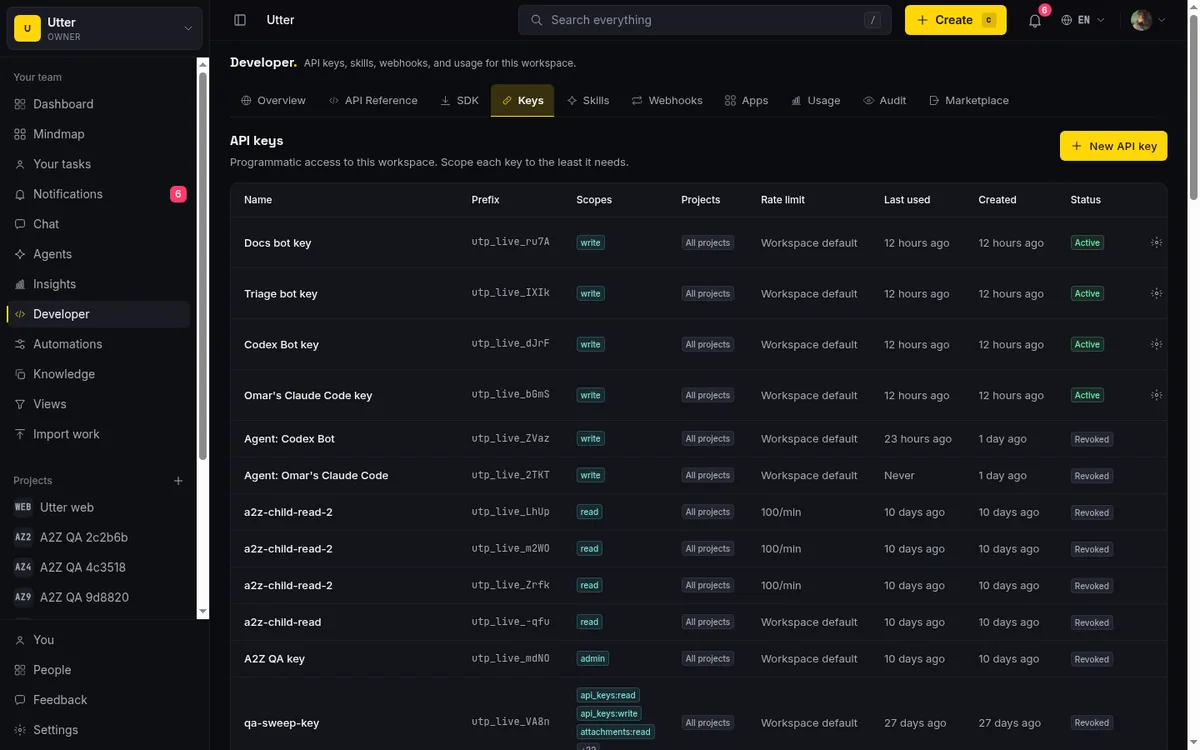
That covers saving, sharing, switching, editing, deleting, and the real limits. If you want to build sharper filters before you save them, or organize the work those filters run against, the pieces on labels, running a kanban board, and prioritizing your backlog pair naturally with this one. Open the Views menu on your busiest project and save the one filter you rebuild the most. You will feel the difference by tomorrow's standup.
Frequently asked questions
How do I save a filter as a reusable view in Utter?
Set a filter first (any combination of Type, Priority, Status, Label, or Assignee), then open the Views menu in the filter toolbar and click "Save current filter". Type a name in the "View name" field (up to 80 characters) and click Save. The "Save current filter" button stays disabled until at least one facet is active, so if it looks greyed out, set a filter and try again.
What's the difference between a personal and a shared saved view?
A shared view appears in the Views menu for everyone on the project. A personal view is visible only to you and carries a small "Personal" badge. New views default to shared (the "Shared with the project" checkbox is pre-checked); unchecking it makes the view personal. Use shared for team rituals like standup filters, personal for your own scratch filters.
Can other people see my saved views?
They see your shared views. They do not see your personal ones. The visibility rule filters other members' personal views out on the server, so a view you mark personal stays private to you.
Do saved views work on the board and the list, or just one?
Both, plus more. The same Views menu runs on five surfaces: Board, List, Backlog, Calendar, and Timeline. Views are stored per project rather than per surface, so a view you save on the List applies on the Board too, and vice versa.
Does a saved view remember my sprint, milestone, or due-date filter?
No. A saved view stores only five facets: Type, Priority, Status, Labels, and Assignee. Milestone, Sprint, Release, Due date, and custom-field filters are supported in the toolbar but are not saved into a view, so you have to reapply them each time.
Who can rename or delete a saved view?
Only the view's creator, or a project owner or admin. Regular members do not see the edit or delete buttons on views they did not create, and the permission is re-checked on the server, not just hidden in the UI. This keeps shared views stable so nobody can accidentally remove a filter the team relies on.
How do I share a filtered list with a teammate?
Two ways. For a one-off, apply the filter and copy the URL (applying a view writes the facets into the URL), then paste it into chat or a ticket; your teammate lands on the same filtered result, subject to their own access. For something recurring, save the view as shared so it shows up in everyone's Views menu going forward.
What happens to everyone else when I delete a shared view?
It is removed for everyone it was shared with. The confirmation dialog spells this out: "This removes the view for everyone it is shared with. It does not change any tasks." So no tickets are affected, only the saved filter disappears, and it disappears for the whole project, not just you. There is no undo, so delete shared views with care.
Related reading

How to filter and sort issues
Filter issues by assignee, label, and status in Utter's list view, then sort, group, save a view, and share the exact filtered list as a URL.
July 15, 2026 · 16 min read
How to use the mindmap
How to use Utter's project mind map view: open the radial tree, read the pills, expand and filter branches, group by Hierarchy/Status/People, and export a PNG.
July 15, 2026 · 14 min read
How to search your workspace
Search issues across projects in Utter from one top-bar field: the / shortcut, live typeahead, WEB-12 key-jump, the full results page with Type/Status/Priority filters, and the real limits.
July 15, 2026 · 14 min read
See your whole project as a mind map (and when it beats a nested list)
A nested list hides how work relates. A mind map shows it. When a map of your epics and stories helps, when a list is better, and how Utter's does it.
July 5, 2026 · 7 min read
Keyboard shortcuts in utter
Every keyboard shortcut in Utter: the ? overlay, command palette, quick create, g-chords, and a/s/p/l/m field pickers, where each fires, and how to learn them.
July 15, 2026 · 15 min read
How to bulk edit issues
How to bulk-edit issues from Utter's List view: multi-select, bulk status/priority, unassign, archive, and human-in-the-loop AI triage, plus the real limits.
July 15, 2026 · 14 min read
How to use a kanban board: a complete guide with a real example
Learn how to use a kanban board in Utter: read cards, drag tasks between columns, add and reorder custom columns, set WIP limits, filter, and save views.
July 15, 2026 · 20 min read
Project reports and insights
Read Utter's project reports and dashboards: Summary KPIs, sprint burndown, cycle time, throughput, workload, and workspace Insights, with the honest limits on each.
July 15, 2026 · 16 min read

How to track and vote on feedback
A hands-on tour of Utter's product feedback board and roadmap: post ideas, vote, and read the Tracking board and Changelog as a live public roadmap.
July 15, 2026 · 17 min read
ClickUp alternatives for teams who want calm, not more features
ClickUp alternatives for teams who want a calm tracker they will actually adopt. Honest July 2026 pricing and AI-cost tables, where ClickUp still wins, and Utter's free agent members.
July 16, 2026 · 15 min read
أضف تعليقًا
ابدأ النقاش.