
How to search your workspace

You have the same ticket open in three tabs, one per project, and no idea which board your teammate actually meant. That is the problem this tutorial fixes. In Utter you search issues across projects from a single field in the top bar, in about two keystrokes, and land on the exact ticket without guessing which board it lives on.
This walks every path into that search: the / shortcut, the live typeahead, the key-jump, the full results page with its filters, and the honest limits you should know before you lean on it. The demo project throughout is WEB, columns Backlog / To Do / In Progress / In Review / Done, with tickets like "Timeline + Summary tab". Everything below is what actually happens in the product. Where something does not work the way you might hope, I say so.
Why one search box beats hopping between boards
Here is the real situation. An issue can live in any project you can reach. Maybe it is in WEB. Maybe it is in a project called PLATFORM that a teammate spun up last week. Maybe it is in a scoped project you were added to and half forgot about. Per-project search means you already have to know which board to open, and if you knew that, you would not be searching.
The top-bar field, labelled "Search everything," queries every project you have access to at once. That is the whole point, and it is what "search issues across projects" means in practice: one query, all your boards, ranked together. You do not pick a project first. You type, and Utter looks everywhere you are allowed to look.
That access boundary is enforced, not cosmetic. Results are tenant-isolated by role:
- Owners and admins see every non-archived project in the workspace.
- Members and viewers see the non-scoped projects plus any scoped ones they belong to.
- Guests see only the specific projects they were explicitly added to.
You never see a ticket from a project you cannot open, and a teammate searching the same term may get a different set of rows because their access differs from yours. This is not a toggle. It is the shape of the search.
Contrast that with the per-project views (board, backlog, list). Those are scoped to one project on purpose, and they are where you go when you already know the project and want to filter within it. Search is the opposite tool. It is workspace-wide, for when the project itself is the thing you are trying to find.
Press / and start typing: the fastest way in
The fastest way in is the forward-slash key. Press / anywhere in the workspace and the top-bar field takes focus, ready to type. No mouse, no hunting for the box. When the field is empty it shows a small / hint on the right, and the placeholder reads "Search everything," so you know both what it does and how to reach it.
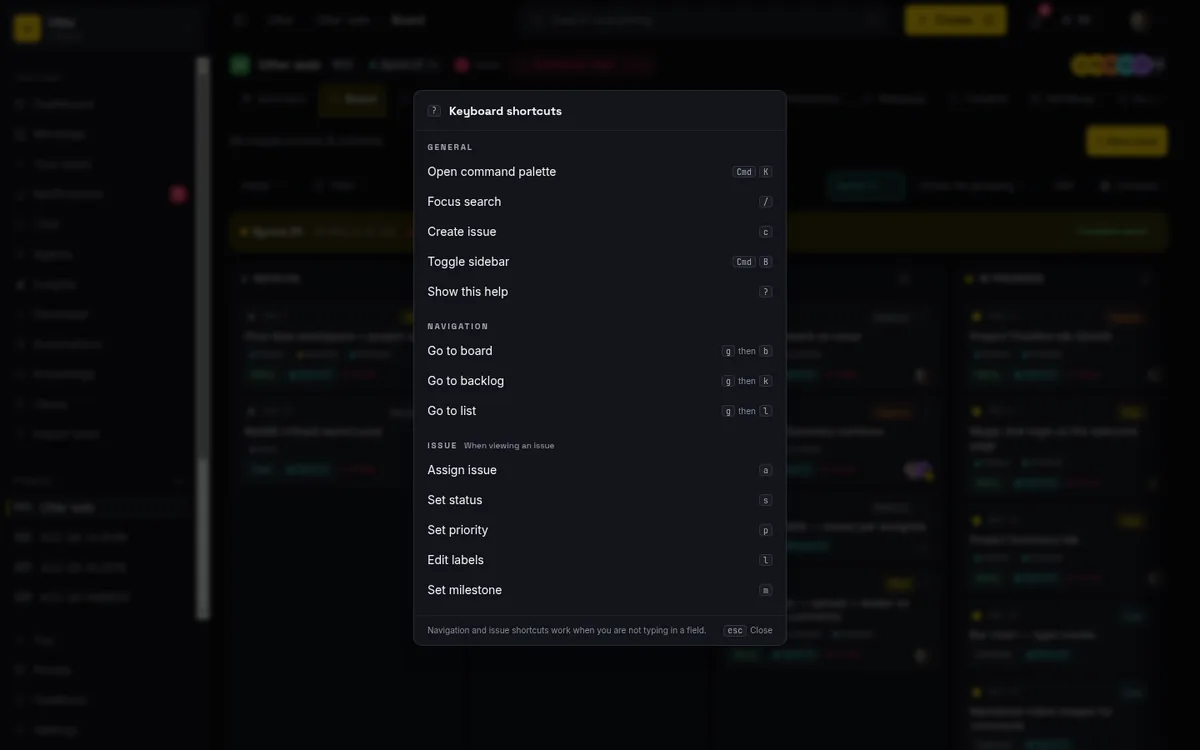
One sane guard: / only grabs focus when you are not already typing into something. If your cursor sits in an input, a textarea, or a contenteditable area (a comment box, the markdown editor, an issue title you are renaming), the slash types a slash like any normal character. That is deliberate. You would be furious if / stole focus mid-sentence while you were writing a comment. So it does not.
Once the field has focus, typing fires a live typeahead. It is debounced by roughly 150 milliseconds, so it waits for a tiny pause in your typing before it queries instead of firing on every keystroke. Under the hood each pause sends the same request your browser would show in its network tab:
GET /api/search?workspace=utter&q=timelineThe response comes back as three groups, already scoped to the projects you can reach. Trimmed to the fields that matter:
{
  "ok": true,
  "hits": [
    {
      "issueKey": "WEB-12",
      "title": "Timeline + Summary tab",
      "type": "task",
      "status": "in_progress",
      "priority": "high",
      "projectName": "Web",
      "href": "/w/utter/p/web/WEB-12"
    }
  ],
  "docs": [
    {
      "title": "Onboarding flow",
      "projectSlug": null,
      "href": "/w/utter/knowledge?doc=..."
    }
  ],
  "feedback": []
}
The whole round trip looks like this:
sequenceDiagram
  participant Y as You
  participant B as Browser
  participant S as Utter server
  participant T as Typesense
  Y->>B: press / and type
  B->>B: debounce about 150 ms
  B->>S: GET /api/search
  S->>S: resolve projects you can reach
  S->>T: query with project filter
  T-->>S: ranked hits
  S-->>B: issues, pages, feedback
Concrete example. You are staring at the WEB board. Press /, type timeline. Within a beat the dropdown fills, and the "Timeline + Summary tab" ticket is right there, even though you never opened its project.
One caveat worth internalizing: the full live typeahead only renders at desktop width (the lg breakpoint and up). On a phone or a narrow tablet the top bar collapses to a compact search icon, and tapping it routes you straight to the full results page instead of showing an inline dropdown. So on mobile there is no live typeahead. You go to the page and type there. Not a bug, just a space constraint.
Reading the typeahead: issues, Pages, and Feedback
The dropdown is grouped, and the grouping means something. Read it top to bottom.
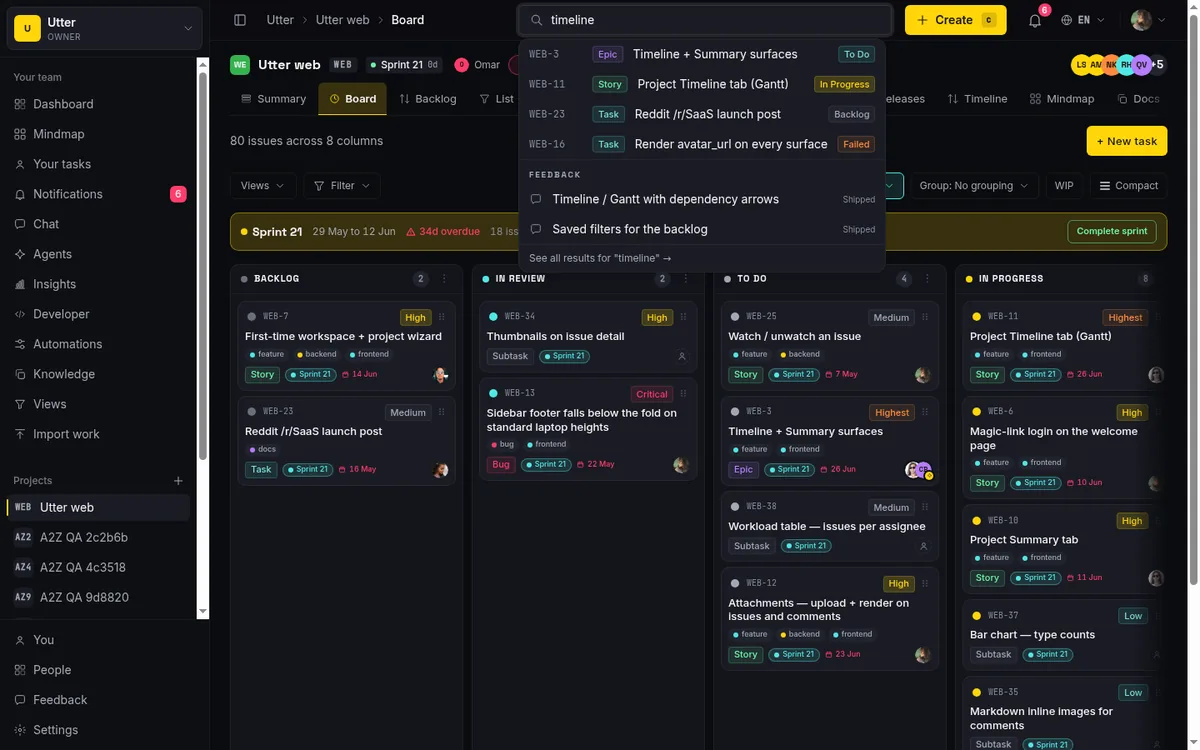
Issue hits come first, because that is what you are almost always after. Each issue row shows the issue key in a monospace font (so WEB-12 lines up cleanly and reads as an identifier, not prose), a small type badge (epic, story, task, bug, subtask), the issue title, and a status badge. That is enough to tell two similarly-titled tickets apart at a glance without opening either.
Below the issues you get a Pages group. Those are hits from your knowledge base and docs. Each Pages row carries a doc icon and a tag showing either its project or "Knowledge" if it lives at the workspace level. This is how a search for "onboarding" surfaces both the onboarding epic and the internal doc that explains the onboarding flow, in one dropdown, clearly separated so you know which is which.
Last comes a Feedback group, and here is a thing to be honest about. Feedback surfaces the global community feedback board, not your workspace issues. It is a different corpus. It shows up in the typeahead as a convenience, each result carrying its status, but it is not part of your project data and it does not appear as a facet on the full results page. If you are hunting for one of your team's tickets, the Feedback group is not it. Skim past it.
You can drive the whole dropdown from the keyboard, which is the point of a /-first design:
ArrowDownandArrowUpmove the highlight through the rows, and they wrap: arrow up from the top row and you land on the last one.Enteropens whatever row is highlighted.Escapecloses the dropdown and leaves your text in the field.- Hovering a row with the mouse also highlights it, so keyboard and mouse stay in sync and you never see two things looking selected at once.
At the very bottom sits a footer: See all results for "" with an arrow. That is your escape hatch to the full page when the dropdown's top slice is not enough. More on that page shortly.
Jump straight to an issue by typing its key (WEB-12)
This is the trick that pays for itself daily. Type a bare issue key, like WEB-12, and hit Enter to go straight to that ticket.
The key format is a letter followed by one to five alphanumerics, then a dash, then a number: WEB-12, PLATFORM-7, API2-341. It is case-insensitive, so web-12 works exactly the same as WEB-12. On Enter the routing is simple:
flowchart LR
  A[Type the key, press Enter] --> B{Exact match already loaded in the typeahead?}
  B -->|Yes| C[Straight to the issue]
  B -->|No| D[Results page resolves the key]
  D --> C
Either way you end up on the ticket.
Now the correction, because this trips people up. It is WEB-12, not #WEB-12. Do not type the hash. The #KEY-NUM form (with the leading #) is a different feature entirely: it is the reference-chip syntax you use inside comments and markdown descriptions to link one issue to another. In a comment, #WEB-12 becomes a clickable chip. In the search box, #WEB-12 is just noise. Type the plain key.
Where this shines: a teammate drops "can you look at WEB-12?" in a Slack message. Copy the key, press /, paste, Enter. You are on the ticket before you have finished reading the rest of their message. No opening the project, no scrolling the board, no wondering which of your projects has a ticket 12.
The full results page: search across every project at once
When the dropdown's slice is not enough, you want the full page. Three ways there: click the "See all results for" footer, press Enter with no row highlighted, or navigate directly to /w/<slug>/search. The page has its own large search box (autofocused, so you can type the moment it loads) and a "Search" submit button; submitting reloads the same page with your query as ?q=.
One path correction, so you do not go looking for something that does not exist: search is a workspace-level page. It lives at /w/<slug>/search, for example /w/utter/search?q=timeline. There is no project-scoped search page. A URL like /w/utter/p/web/search is not a thing. Search is always across the whole workspace by design, which is the entire reason it can pull tickets from every board in one shot.
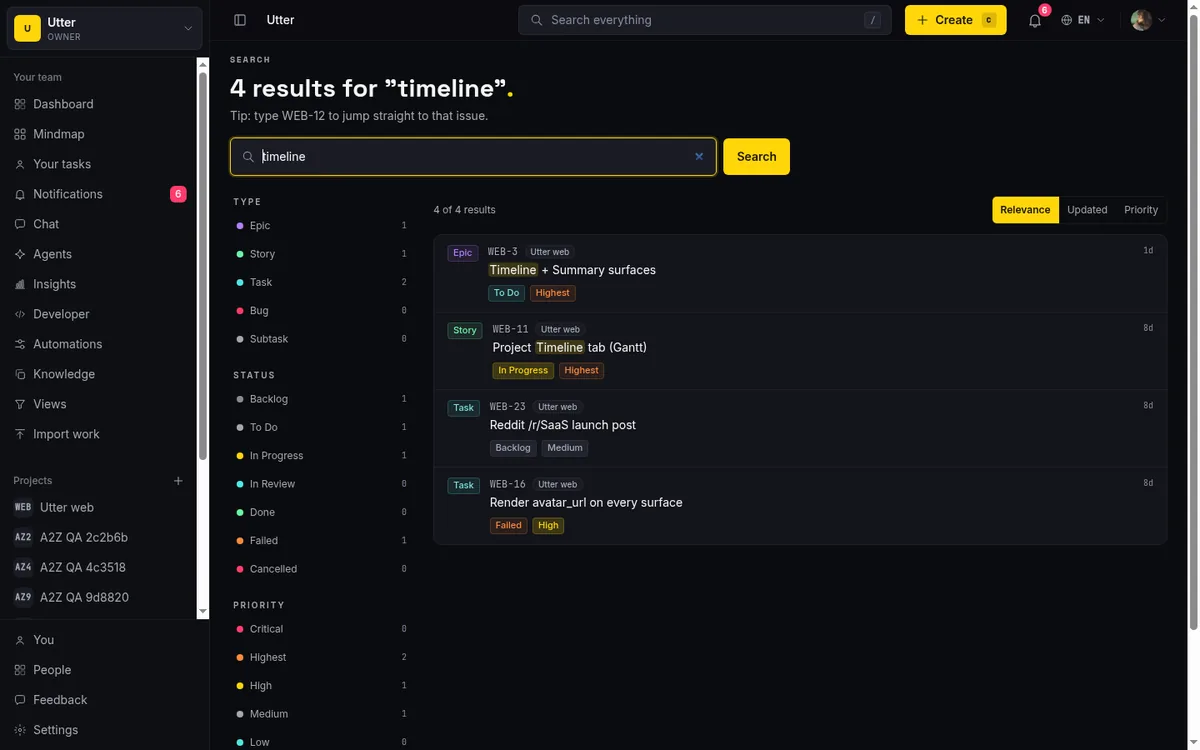
What you get on the page is the good stuff: typo-tolerant results powered by Typesense, ranked by field weight.
| Field | Weight |
|---|---|
| Title | 4 |
| Issue key | 4 |
| Labels | 3 |
| Description | 2 |
So a word in a ticket's title outranks the same word buried in its description, which is usually what you want. Each result row shows a type badge, the issue key, a project name chip (this is the cross-project payoff: you see at a glance that one match is in WEB and the next is in PLATFORM), the matched terms highlighted in yellow so you can tell why the row came back, status and priority badges, and a relative timestamp like "3 days ago."
Run q=timeline and you will see rows from multiple projects sitting together, each with its own project chip, the word "timeline" lit up in yellow wherever it matched. That mixed list, one query pulling tickets from every board you can reach, is the thing per-project search can never give you.
Narrow it down with Type, Status, and Priority filters
A broad query returns a lot. The full page gives you a left facet sidebar to cut it down, and it works entirely through the URL, so any filtered view is a shareable link.
There are three facet groups, each mapped to a URL param:
| Facet group | Values | URL param |
|---|---|---|
| Type | Epic, Story, Task, Bug, Subtask | type |
| Status | Backlog, To do, In progress, In review, Done, Failed, Cancelled | status |
| Priority | Critical, Highest, High, Medium, Low, Lowest | priority |
Every row shows a live count of how many results match it, so before you even click you can read "14 tasks, 3 bugs" and decide where to aim. Ticking a row toggles its URL param and re-runs the view; multiple values in one group join with commas. Each group has its own "Clear," and there is a "Clear all filters" to reset everything. The URLs read exactly the way you would guess:
GET /w/utter/search?q=board
GET /w/utter/search?q=board&type=bug
GET /w/utter/search?q=board&type=bug&status=in_progress&sort=updated
Above the results is a three-way sort: Relevance (the default), Updated, and Priority. Relevance leans on Typesense's ranking, Updated surfaces what changed most recently, and Priority floats the critical stuff up. Flip between them depending on whether you are asking "what best matches my words" or "what is on fire."
Worked example. Search q=board, which returns many issues across several projects. The summary line reads something like "18 of 42 results" once you start filtering, and it updates as you go. Tick Type = Bug and the list contracts to just the bugs, the counts on the other facets adjust, and the summary recalculates. Add Status = In progress and you are now looking at exactly the in-flight board bugs across every project, in one view, as a URL you can paste to a teammate.
For going deeper on filtering and ordering, and for saving a filtered view so you do not rebuild it every time, these two are the right next reads: how to filter and sort issues and how to save and share views.
Typo tolerance and partial matching that actually helps
Typesense is doing real work here, and it changes how you search. You do not have to remember the exact wording of a ticket.
- Type
wizrdand it findswizard. Typo tolerance allows up to two character errors, so genuine fumbles resolve to the right word instead of returning nothing. - Type
authand it matchesauthentication, because prefix matching means the start of a word is enough. - Type
agicand it findsmagic, because there is also infix matching on titles, so a fragment buried in the middle of a word still hits.
Day to day this is the difference between finding "Timeline + Summary tab" by typing "summ" and giving up because you misremembered it as "overview."
Be precise about what gets searched, though, because this is where expectations go wrong.
| Indexed | Not indexed |
|---|---|
| Issue title | Comments |
| Issue key | Attachment contents |
| Labels | |
| Description (markdown stripped, roughly the first 4000 characters) |
That covers the substance of nearly every ticket. But if the only place a word appears is halfway down a comment thread, or inside an uploaded PDF, search will not find the ticket by that word. Do not expect it to. If you need to find a ticket by something a teammate said in a comment, search will not get you there.
Recent searches and the jump-to shortcuts
Open the full search page with no query and you land on a helpful empty state rather than a blank void. The header reads "Find anything," with a "Search this workspace" prompt beneath it.
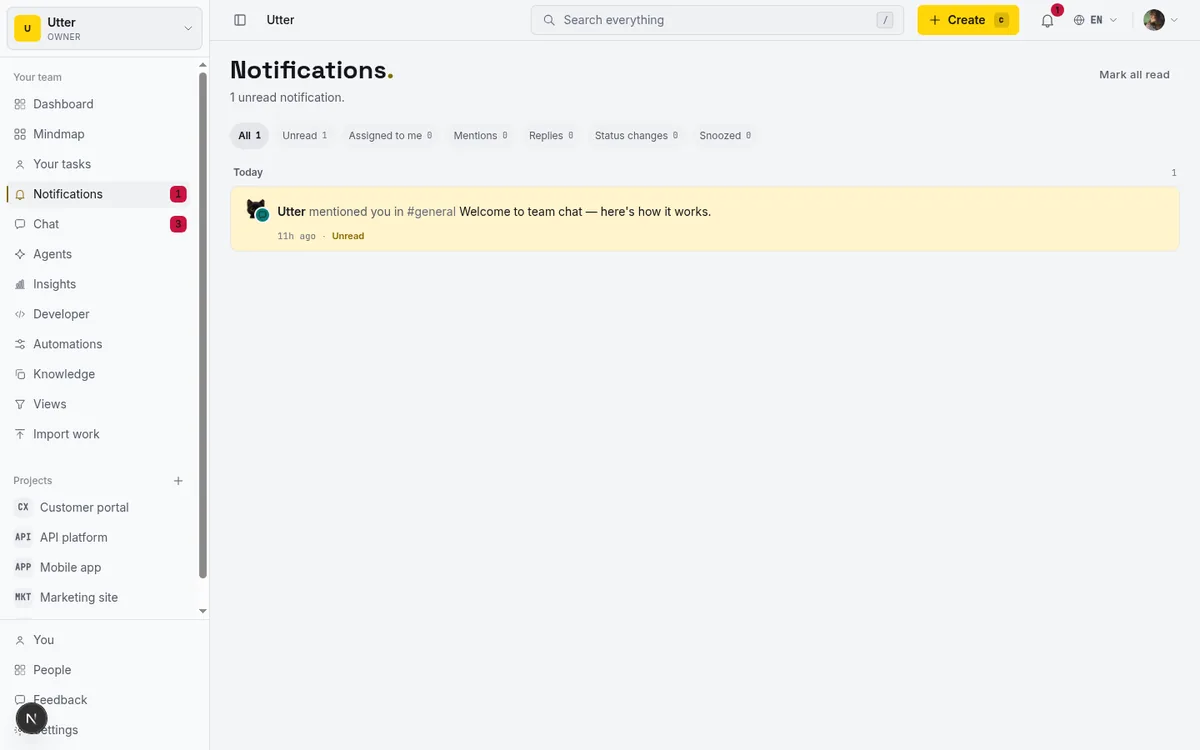
If you have searched before, your recent terms appear as chips. Click one to re-run it instantly. Each chip has a small X to remove just that term, and the empty state offers a "Clear" to wipe the whole list. Recent searches are shared between the top-bar dropdown and the full page: they draw from one per-workspace list, kept most-recent-first, de-duplicated, capped at 8. So the search you ran from the top bar this morning is right there as a chip when you open the full page this afternoon.
There is also a "Jump to" quick list for the things you reach for constantly without needing to search at all: Your tasks (everything assigned to you), Mentions (where teammates tagged you), Inbox (all your notifications), and Projects (browse every project). These are one-click navigations, not searches, and they are handy landing spots when you opened search out of habit but actually wanted your own work.
Now the honest limits on recent searches, because they are real. The list is client-only: it lives in your browser's localStorage, with no backend behind it. That means no cross-device sync (your recents on your laptop are not your recents on your phone), and if you clear your browser storage they are gone. One more subtlety: the full page only records a term as recent when the query actually returned results. A search that came back empty does not get saved, which keeps your history free of dead-end terms but also means "I definitely searched that" is not always "it is in my recents."
Limits worth knowing before you trust the results
Trust the results more if you know where they stop. Here is the unvarnished list.
Search is Typesense-only. There is no MariaDB fallback anymore; the old FULLTEXT/LIKE path was removed (in migration 0040) because it scanned for tens of seconds on large workspaces. The upside is speed. The tradeoff is that if the search index is unreachable or unconfigured, search returns empty rather than limping along on a slow fallback. So do not assume results always come back. When the index is down, every path is empty.
There are two distinct notices for two distinct failure modes, and telling them apart helps when something looks off:
flowchart TD
  A[Search runs] --> B{Typesense configured?}
  B -->|No| C[Search is being set up]
  B -->|Yes| D{Doc query fails at runtime?}
  D -->|Yes| E[Page results temporarily unavailable, issue results still accurate]
  D -->|No| F[Full results]
The first notice means the box is not wired yet. The second one is reassuring in a specific way: your issue results are fine, it is only the Pages section that hiccuped.
Results are capped, not exhaustive:
- The full page returns up to 50 issue hits and up to 25 doc hits.
- The typeahead returns up to 50 issue hits, 25 docs, and up to 8 feedback items.
- The facet counts in the sidebar come from a tenant-scoped pass capped at 50, so on very large result sets those counts are approximate rather than exact totals. If a count reads "50" it may well mean "at least 50."
On a big workspace that means you are seeing the top matches, not every match. Narrow your query rather than trusting the tail.
Archived and deleted things stay hidden. Issues and docs in archived projects, and anything soft-deleted, never appear in search, and that holds even for owners and admins. Search is a view of live work, not an archive browser. If you archived a project to get it out of the way, its tickets are out of search's way too.
And do not conflate this with the command palette. Cmd/Ctrl+K opens a separate component for navigation and quick actions (jump to a page, run a command). It happens to reuse the same search API under the hood, but it is not the /-focused search bar this tutorial is about. Two different tools, two different keys.
If you are documenting a project so search can find the right pages later, how to write project docs is worth a look, and if you are still setting up the tickets themselves, start with how to create an issue.
Open your workspace, press /, and search for a ticket you know lives somewhere you would otherwise have to go hunting for.
Frequently asked questions
How do I search for an issue across all my projects at once in Utter?
Use the "Search everything" field in the top bar, or the full page at /w/<slug>/search. It queries every project you have access to in one go, so you never pick a board first. Press /, type your term, and results come back ranked across all your projects.
What is the keyboard shortcut to open search in Utter?
Press / anywhere in the workspace to focus the top-bar search field, as long as you are not already typing in an input, textarea, or comment box. When the field is empty it shows a / hint on the right.
How do I jump straight to a specific issue by its key like WEB-12?
Type the bare key (for example WEB-12) into the search field and press Enter. If the exact match has already loaded in the typeahead you go straight to the issue; otherwise you land on the results page, which resolves the key. It is case-insensitive.
Should I type #WEB-12 or WEB-12 to jump to an issue?
Type WEB-12, without the hash. The #WEB-12 form is the comment and markdown reference-chip syntax, a separate feature for linking issues inside text. In the search box the hash does nothing useful.
Does Utter search find typos and partial words?
Yes. Typesense allows up to two typos (so wizrd finds wizard), matches prefixes (auth finds authentication), and does infix matching on titles (agic finds magic). You do not need the exact wording.
Can I filter search results by type, status, or priority?
Yes, on the full results page. The left sidebar has facet groups for Type, Status, and Priority, each with live counts, toggled through the URL. You can clear a single group or clear all filters, and sort by Relevance, Updated, or Priority.
Does Utter search look inside comments and attachments?
No. Search matches the issue title, issue key, labels, and description (markdown stripped, roughly the first 4000 characters). Comments and file contents are not indexed, so you cannot find a ticket by a word that only appears in a comment.
What happens to search results if the search index is down?
Search is Typesense-only with no database fallback, so if the index is unreachable every path returns empty. You will see "Search is being set up" when it is not configured, or "Page results are temporarily unavailable. Issue results above are still accurate." if only the doc query fails.
Where are my recent searches stored, and do they sync across devices?
They live in your browser's localStorage, per workspace, capped at 8 and de-duplicated. That means no backend and no cross-device sync: clear your browser storage and they are gone. The full page only saves a term as recent when the query actually returned results.
Related reading

Keyboard shortcuts in utter
Every keyboard shortcut in Utter: the ? overlay, command palette, quick create, g-chords, and a/s/p/l/m field pickers, where each fires, and how to learn them.
July 15, 2026 · 15 min read

How to use team chat
A practical guide to team chat in a project management tool: channels, DMs, threads, @mentions, file attachments, and the honest limits, all next to your issues.
July 15, 2026 · 16 min read
How to use the ai assistant
How to run your board with Utter's AI assistant: ask grounded questions, create and triage issues from a sentence, and approve every change before it lands.
July 15, 2026 · 14 min read
How to use a kanban board: a complete guide with a real example
Learn how to use a kanban board in Utter: read cards, drag tasks between columns, add and reorder custom columns, set WIP limits, filter, and save views.
July 15, 2026 · 20 min read

How to filter and sort issues
Filter issues by assignee, label, and status in Utter's list view, then sort, group, save a view, and share the exact filtered list as a URL.
July 15, 2026 · 16 min read
How to use the rest api
Get an Utter API key and use the project management REST API to list, create, and update issues safely, with scopes, idempotency keys, and rate limits explained.
July 15, 2026 · 16 min read
How to use the mindmap
How to use Utter's project mind map view: open the radial tree, read the pills, expand and filter branches, group by Hierarchy/Status/People, and export a PNG.
July 15, 2026 · 14 min read
How to bulk edit issues
How to bulk-edit issues from Utter's List view: multi-select, bulk status/priority, unassign, archive, and human-in-the-loop AI triage, plus the real limits.
July 15, 2026 · 14 min read

How to track and vote on feedback
A hands-on tour of Utter's product feedback board and roadmap: post ideas, vote, and read the Tracking board and Changelog as a live public roadmap.
July 15, 2026 · 17 min read
How to manage roles and permissions
Learn how project management roles and permissions work in Utter: the five roles, inviting with the right access, scoped projects, and who pays for a seat.
July 15, 2026 · 18 min read
أضف تعليقًا
ابدأ النقاش.