
How to use labels
Labels are the first thing you reach for when a project stops fitting on one screen. WEB has forty open issues right now. Some are billing work. Some belong to the Q3 push. Some are things one loud customer keeps asking about. Status tells you where each issue sits in the flow (Backlog, To Do, In Progress, In Review, Done), but status can't answer "show me only the billing stuff" or "everything Acme cares about."
That's what labels are for, and this guide is about how to use labels to organize issues so you can slice the same pile of work a dozen ways without moving a single card.
The short version: you create labels on a project's Labels page, you apply them to issues, then you filter the board, backlog, list, and timeline by them. By the end you'll do all three, plus the parts people get wrong, like how the filter actually combines multiple labels and what happens when you delete one.
What labels are, and when to reach for them
A label is a small colored tag that belongs to a project. You attach it to issues. That's the whole idea. "Billing", "Q3", "Design", a customer name: each is a label, each has one color, and any issue can carry several at once.
It helps to hold labels apart from the other things Utter has, because from a distance they look similar and solve different problems.
| Feature | What it is for | Per issue |
|---|---|---|
| Status | Where the work sits in the flow | Exactly one |
| Label | What the work is about | Several at once |
| Custom field | A structured value: dropdown, number, date | One value per field |
| Sprint | A time-boxed batch of work | Its own pages and rules |
| Release | Issues that shipped together | Its own pages and rules |
Statuses are where a piece of work sits in your flow. An issue is in Backlog, or In Progress, or Done. Every issue has exactly one status, and moving it between statuses is how work advances across the board.
Labels are the opposite shape. They don't say where work is, they say what it's about, and they cut across status. A "Billing" issue can be in Backlog, In Review, or Done, and it stays "Billing" the whole time. That cross-cutting quality is the point. You can take the same set of issues and group it by theme one minute (all the Design work), by timing the next (everything tagged Q3), by customer after that.
Labels are also not custom fields, milestones, sprints, or releases. Those are separate features with their own pages and rules. Labels are looser and lighter than any of those, which is exactly why they fit the fuzzy, human groupings that don't deserve a whole system: "the stuff we keep meaning to clean up", "things Acme flagged", "Q3."
One fact to hold onto from the start, because it surprises people later: labels belong to a single project. The labels you create in WEB are WEB's labels. They do not appear in your SEC project or any other. There is no shared, workspace-wide label library. If two projects both want a "Billing" label, each creates its own. Know this now so nothing downstream feels like a bug.
How to create a label in Utter
Labels live on their own page, reached from the project's tab strip. Open your project, look along the row of tabs, and click Labels. The URL pattern, with the WEB project in the utter workspace as the concrete example:
/w/<ws>/p/<project>/labels
/w/utter/p/web/labels
Get one thing right up front: labels are not under project Settings. Settings has its own sub-tabs (General, Statuses, Access, Integrations, Danger), and none of them is where labels live. Go hunting in Settings and you'll come up empty. Labels are their own top-level tab.
The page opens as a settings-style panel titled "Labels", with a subtitle that sums up the feature: "Tag tasks however your team works. Group them by sprint, theme, area of focus, or customer, then filter by label across the board, backlog, and list." That's the promise on the tin.
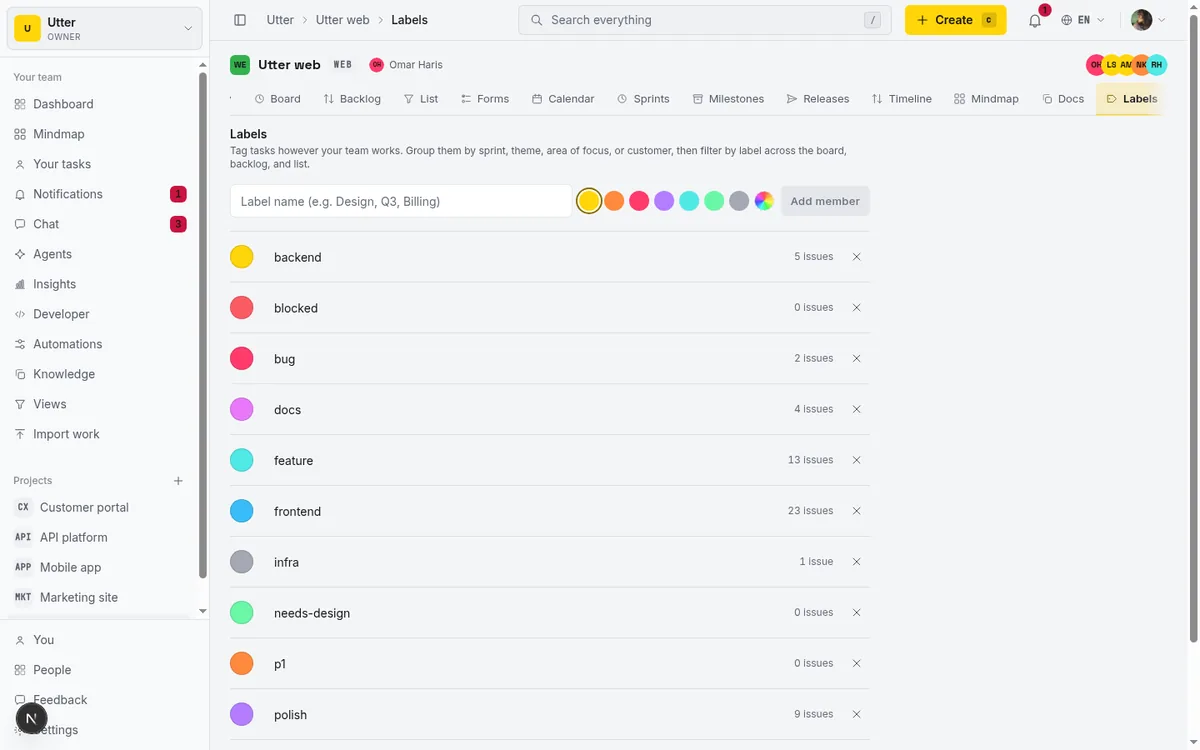
Creating a label is a single row at the top of the page. Type a name into the input, prompted with "Label name (e.g. Design, Q3, Billing)". Pick a color from the swatches beside it. Click Add. While it saves, the button reads "Adding…". When it lands, a toast confirms with 'Added "Billing".' and the input clears so you can type the next one straight away.
Names max out at 64 characters, which is plenty. Keep them short anyway. "Billing" beats "Billing and payments related work" every time, because you'll read these on crowded board cards.
Names are unique within the project. Try to add one that already exists and you get "Label already exists." with nothing created. So if you go to add "Q3" and it refuses, someone beat you to it. Scroll down and it's already in the list.
For a real WEB setup, three labels get you a long way: "Billing" for anything touching payments and invoices, "Q3" for the current push, and "Design" for visual and UX work. Add those three, watch each toast confirm, and you have a working vocabulary.
Choosing label colors that actually scan
Color is not decoration here. It's how you spot a label at a glance on a busy board, so it's worth a minute of thought instead of grabbing whatever's first.
You get seven brand presets:
- Gold (
#FFD60A), the brand color, high visibility. - Orange (
#FF8A3D), warm and easy to read. - Pink (
#FF3B6B), the loudest of the set. - Purple (
#B47CFF), distinct without shouting. - Cyan (
#4FE8E5), cool and legible. - Green (
#6AF7A8), the natural "good/done/go" color. - Grey (
#A4A8B2), quiet, for labels you want present but not shouting.
Next to the presets is a dashed swatch. Click it and your browser's native color picker opens, so you're not stuck with seven choices. Pick any hex you like. Utter stores it uppercased as #RRGGBB. It does have to be a real six-digit hex; feed it something malformed and you'll see "Color must be a valid #RRGGBB hex." The presets are a starting point, not a ceiling.
A few opinions from having lived with this. Color by category, not by mood. Decide that all your area labels are cool colors and your timing labels are warm, or whatever rule you like, but have a rule, so the color itself carries meaning.
Keep the palette small. If every label is a different loud color, none stands out and the board turns into confetti. And reserve one loud color, pink is the obvious pick, for the one thing you always want your eye to catch. If "Blocked" or "Acme" is pink and nothing else is, you'll find it instantly in a wall of cards.
To recolor a label you already made, click the round color swatch at the very start of its row. That opens the same picker (seven presets plus the custom swatch), and your choice saves immediately, no separate save button. So if "Billing" ended up grey and you'd rather it were gold, one click on the swatch, pick gold, done.
Applying labels to an issue
Creating labels is setup. Applying them is the daily move, and there are three real places to do it.
The main one is the issue detail page. Open any issue in WEB and you'll find the LabelsStrip. If the issue has no labels yet, you'll see a dashed "+ Add label" pill. Click it and a searchable command popover opens listing the project's labels, each row showing its color dot, its name, and a check mark once it's applied. Start typing to filter down to the one you want. Click "Billing" and it's on the issue.
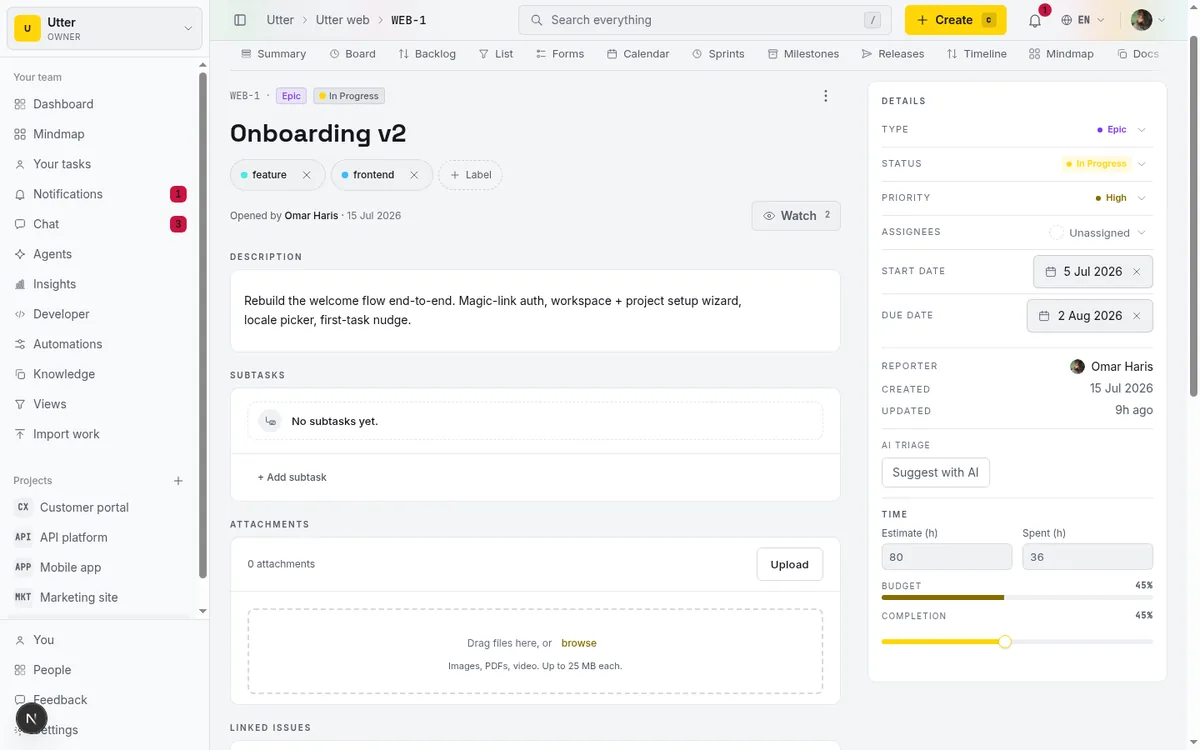
Once applied, each label shows as a chip in the strip, and every chip has a small × to take it back off ("Remove Billing"). These changes save optimistically, so the chip appears the instant you click, and if the save fails it reverts. Every change lands in the issue's activity timeline as a label_changed entry, so there's a record of who tagged what and when.
There's a keyboard shortcut too. With an issue open, press l and the Labels picker opens right up, no reaching for the mouse. If you're tagging a batch of issues one after another, that shortcut is the fast path.
The second place is at creation time. The New Issue dialog shows the project's labels as toggleable chips. Click the ones that apply while you're filling out the issue and they're attached the moment it's created. This is the habit worth building, because an issue tagged at birth never becomes an untagged straggler you clean up later. (For more on the dialog itself, see how to create an issue.)
The third place is the List view. Each row has a Labels cell, and clicking it opens the same picker inline. You never leave the list. This is ideal for triage passes where you go down a backlog tagging things quickly, one row after another, without opening each issue.
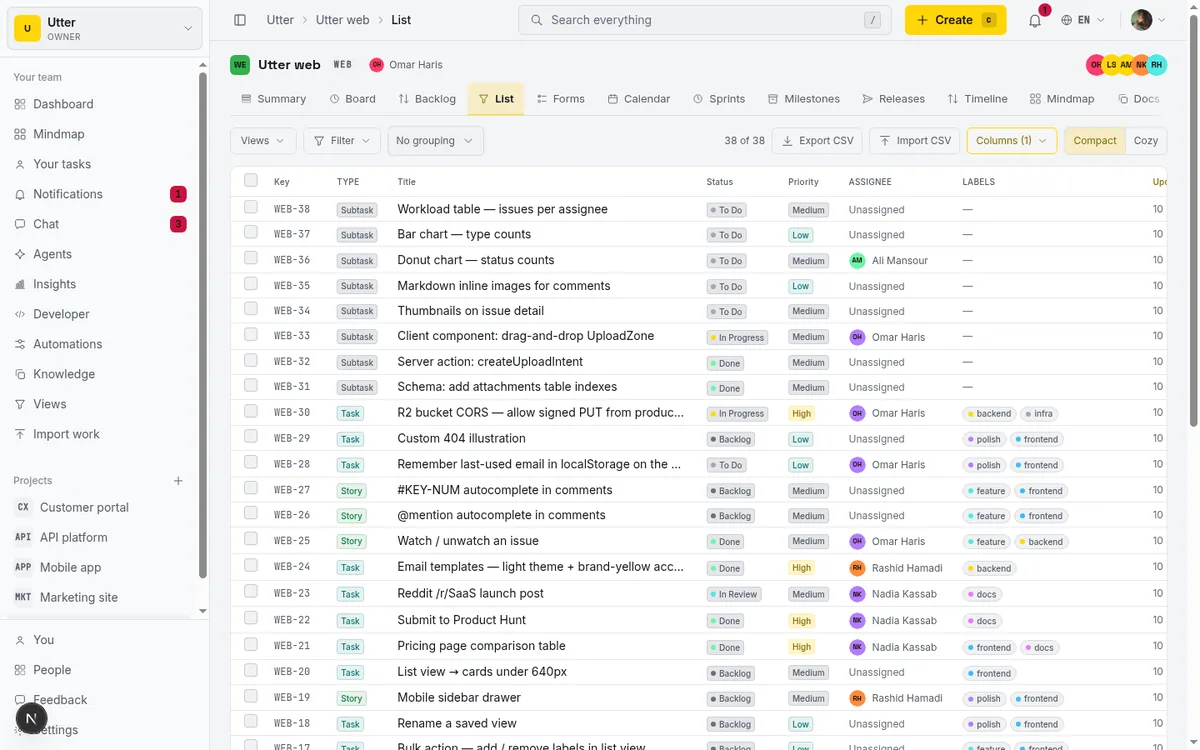
Three entry points, one behavior. However you get to the picker, it's the same set of the project's labels and the same optimistic save.
How to filter issues by label
This is the payoff, the reason you tagged anything at all. Once issues carry labels you can filter by them, and the filter works the same way across all four issue views: board, backlog, list, and timeline.
Look for the "Label" facet, a button that opens a popover of checkboxes, one per label. Tick the labels you want and the view narrows to matching issues. The button shows the active count, so a glance tells you a filter is on. On the list, filter WEB down to "Billing" and you're looking at only the billing work, nothing else in the way.
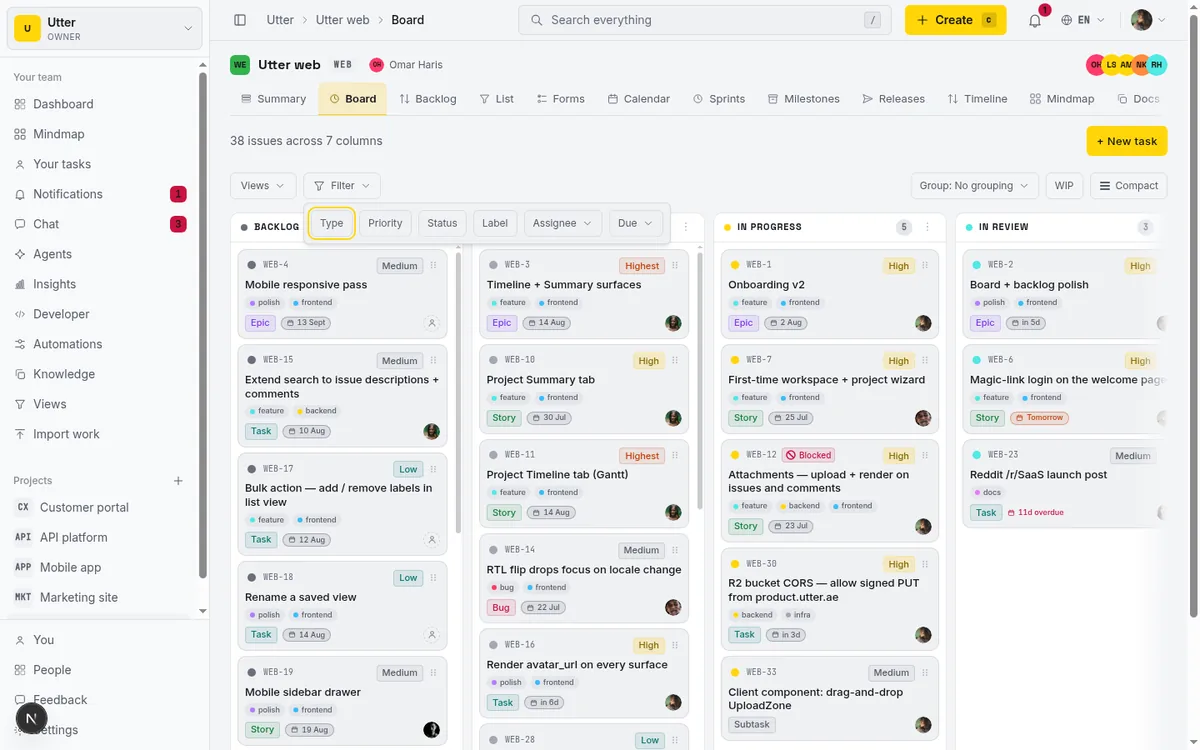
The filter lives in the URL, in a shared labels parameter, and that's what makes it travel:
/w/<ws>/p/<project>/list?labels=<id>,<id>It round-trips across board, backlog, list, and timeline, so a filter you set on the board is understood by the list, and it persists into saved views. On board cards you'll see up to three label chips, then a "+N" if there are more. The list shows a full Labels column so you can read the tags straight down the page.
One nice touch: back on the Labels page, each label's usage count ("6 issues") is itself a link. Click it and you land on the list already filtered to that label. So the Labels page doubles as a jump-off point. See that "Billing" is on six issues, click the number, and you're looking at exactly those six.
For the deeper mechanics of combining label filters with other facets, sorting, and the rest, how to filter and sort issues covers the full filter surface.
Any-of, not all-of: the one filter rule to remember
Here's the part that trips people up, so I'll be blunt. Label filtering is OR, not AND. Any-of, not all-of.
Select "Billing" and "Q3" together and you get every issue that carries either one. Not the issues that carry both. An issue tagged only "Billing" shows up. An issue tagged only "Q3" shows up. An issue tagged both shows up too, but it isn't singled out. There is no "has all of these labels" filter. None. If you were expecting the intersection, there's no switch for it, because it doesn't exist.
flowchart TD
  F{Filter set to Billing and Q3} --> A[Tagged Billing only]
  F --> B[Tagged Q3 only]
  F --> C[Tagged both]
  F --> D[Tagged Design only]
  A --> S[Shown]
  B --> S
  C --> S
  D --> H[Hidden]
In practice this means adding labels to the filter widens the net, it doesn't narrow it. Each label you check pulls in more issues, not fewer. That's great when you genuinely want a broad slice ("show me everything Billing or Q3, the whole scope of this week's work"). It's the wrong tool when you want a precise intersection ("only the billing work that's also Q3").
So how do you get intersections? Two honest workarounds. Narrow with a different facet: filter to "Billing", then use status, assignee, or another facet to cut it down. Or, better, make a more specific single label. If "billing work in the Q3 push" is a real recurring category for your team, give it its own label ("Q3-billing") and filter on that one thing. A well-chosen single label beats fighting a filter that won't do what you want.
Sharing and saving a filtered view
Because the filter lives in the labels URL parameter, sharing a filtered view is as dumb and reliable as copying the address bar. Filter the WEB list to "Billing", copy the URL, paste it into chat or a doc, and whoever clicks it lands on the exact same filtered list. No "go to the list, then click the facet, then check Billing" instructions. The link is the state.
The format is straightforward, and swapping list for board lands the same filter on a filtered kanban board instead, cards and all:
/w/utter/p/web/list?labels=<labelId>
/w/utter/p/web/board?labels=<labelId>
That's the same link the Labels page usage counts and the label chips generate, so you'll see it turn up naturally as you click around.
For a filter you reach for constantly, don't keep pasting URLs, save it. Saved views persist a label filter, so "Billing backlog" becomes a single click from then on instead of a facet you re-set every morning. Set the filter once, save the view, and it's there waiting. This is the difference between labels being a nice idea and labels being part of how the team actually works. The useful slices get saved and reused, not rebuilt from scratch each time.
Renaming, recoloring, and deleting labels safely
Labels drift. A name that made sense in month one feels wrong by month three. Editing is easy and mostly safe, with one sharp edge worth knowing about.
Renaming happens inline on the Labels page. Click into a label's name field, change the text, and it saves when you click away (on blur). A toast confirms with 'Saved "Payments".' Empty names aren't saved, so you can't accidentally blank one out. And the uniqueness rule still applies: rename a label to a name another label already uses and you get "Another label already uses that name." with no change made.
Recoloring is the swatch popover from earlier: click the round swatch at the start of the row, pick a color, it saves right away.
Then there's deletion, and this is the part to read carefully. Click a label's delete button and a confirmation dialog opens, titled 'Delete label "Billing"?'. The body tells you the stakes honestly. If the label is in use it reads "It is used on 6 issue(s). Deleting removes it from all of them. If you need to keep this grouping, rename or recolor the label instead." If it's unused it says "This label is not used on any issues yet." The confirm button reads "Delete label", and on success you get 'Deleted "Billing".'
Now the honest part. Deletion is a hard delete. It removes the label and every one of its issue-links, and the issues that carried it simply lose the tag. There is no merge (you can't fold "Billing" into "Payments" and move all the issues over), and there is no archive (you can't retire a label and bring it back later). It's gone, and the issues quietly become untagged.
flowchart TD
  Q{What needs to change} -->|the name| R[Rename inline, every issue keeps the tag]
  Q -->|the color| C[Click the swatch, pick again]
  Q -->|you want Payments instead of Billing| K[Rename, do not delete]
  Q -->|the label was a mistake or is dead| D[Delete, removed from all issues]
The dialog itself gives the right advice, which I'll repeat because it's good: if you want to keep the grouping, rename or recolor the label instead of deleting it. Deleting "Billing" to replace it with "Payments" loses all your work. Renaming "Billing" to "Payments" keeps every issue tagged. Reach for delete only when a label is genuinely a mistake or truly dead, not as a way to reorganize.
Who can manage labels, and other real limits
Not everyone can touch labels, and that's deliberate.
Creating, renaming, recoloring, and deleting labels all require the label.manage permission, which belongs to owners, admins, and members. If you're one of those three roles, the Labels page is fully yours. Viewers get a read-only version: they see the list of labels (swatch plus name, each linking to its filtered list) but no create row, no delete buttons, no editing. They can still filter by labels and follow the links, they just can't change the set. Guests don't even see the Labels tab. It's hidden from them along with Settings, Fields, and Forms.
While we're being clear about limits, here's the full honest list:
- Project-scoped, not global. A label belongs to one project. WEB's labels aren't SEC's. No shared library across the workspace.
- Unique names per project. No two labels in the same project can share a name.
- OR-only filtering. Multiple selected labels match any-of, never all-of. No intersection filter.
- One color per label. A single
#RRGGBBhex, from the seven presets or any custom value. - 64-character name cap. Enforced on input and on the server.
- Hard delete only. No merge, no archive.
And to keep expectations straight, labels are not the other Utter features they resemble. They're not custom fields (structured typed values), not milestones or sprints or releases (those group and schedule work in their own pages), and not statuses (board columns, where each issue sits in the flow). Want a required dropdown value? That's a custom field. Want a time-boxed batch? That's a sprint. Labels are the light, free-form tags, and using the right feature for the job saves a lot of frustration.
Two things worth a passing mention without overselling them: automations can add a label as a rule action, so you can auto-tag issues that match a condition, and the New Issue dialog can pre-select labels. Both are real, both are handy, and both sit beyond the core create-apply-filter loop this guide covers.
A workflow that makes labels earn their keep
Labels are only as good as the discipline around them, so here's a routine that keeps them useful instead of turning them into clutter.
- Start with a small shared vocabulary. Sit the WEB team down for five minutes and agree on the labels that matter: a couple of area labels ("Billing", "Design"), a timing label for the current push ("Q3"), and customer names used sparingly, only for the accounts that genuinely drive work. Small and shared is the goal. A dozen labels everyone understands beats fifty nobody trusts.
- Apply at creation. Make tagging part of filing an issue, using the toggleable chips in the New Issue dialog, so nothing enters the backlog untagged. This is the single habit that makes the rest work, because a filter is only as complete as your tagging. An untagged billing issue is invisible to your "Billing" filter, and you won't know it's missing.
- Filter when it counts. During a support push where Acme is loud, filter the board to the "Acme" label and work only their cards, then drop the filter when the fire's out. During Q3 planning, filter to "Q3" and see the whole scope in one view. The filter is a lens you pick up and put down, not a permanent state.
- Save the views you keep returning to. If you filter to "Billing" every Monday, save it so it's one click forever after.
- Guard against sprawl. The failure mode isn't too few labels, it's too many near-duplicates ("billing", "Billing", "payments", "invoices", "billing-stuff") that fragment the same work across four tags nobody fully trusts. When you catch a duplicate, rename rather than add. When a label goes dead, delete it (carefully, remembering it's a hard delete). Fewer, cleaner labels are worth far more than a big messy pile.
Labels pair naturally with triage. As you review incoming work, tagging is half the job, and if you lean on AI issue triage that assigns and prioritizes, labels give you the categories to slice the results by afterward.
Open your project's Labels page and create your first three: Billing, Q3, and one that fits your team. That's the whole start.
Frequently asked questions
How do I use labels to organize issues in Utter?
Create labels on the project's Labels page (/w/<ws>/p/<project>/labels), apply them to issues from the issue detail strip, the New Issue dialog, or the List view, then filter the board, backlog, list, or timeline by the Label facet. Labels cut across status, so you can slice the same issues by theme, timing, or customer.
Are labels shared across all projects in a workspace?
No. Labels are project-scoped. A label you create in WEB exists only in WEB, not in any other project. There is no shared, workspace-wide label library, so if two projects both want a "Billing" label, each creates its own.
If I filter by two labels, does it show issues with both?
No. Label filtering is OR (any-of), not AND. Selecting "Billing" and "Q3" returns every issue carrying either label, not just the ones with both. There is no "has all of these labels" intersection filter. To narrow, add a different facet like status, or make a single more specific label.
What happens when I delete a label?
Deletion is a hard delete. It removes the label and all its issue links, and the issues that carried it simply lose the tag. There is no merge and no archive. The confirm dialog tells you how many issues use the label and suggests renaming or recoloring instead if you want to keep the grouping.
Who can create and manage labels?
Creating, renaming, recoloring, and deleting labels require the label.manage permission, which owners, admins, and members have. Viewers see a read-only list and can still filter by labels but can't change them. Guests don't see the Labels tab at all.
Can I choose a custom color for a label?
Yes. There are seven brand presets (gold, orange, pink, purple, cyan, green, grey), but a dashed swatch opens your browser's native color picker so you can pick any six-digit hex. Utter stores it uppercased as #RRGGBB; a malformed value is rejected with "Color must be a valid #RRGGBB hex."
How do I share a filtered view with a teammate?
The label filter lives in the URL as ?labels=<id>, so just copy the address bar and paste it. Whoever clicks the link lands on the exact same filtered list, board, backlog, or timeline. For a filter you use constantly, save it as a saved view instead.
Is there a keyboard shortcut for labels?
Yes. With an issue open, press l to open its Labels picker directly. It's the fast path when you're tagging several issues in a row without reaching for the mouse.
Related reading

How to filter and sort issues
Filter issues by assignee, label, and status in Utter's list view, then sort, group, save a view, and share the exact filtered list as a URL.
July 15, 2026 · 16 min read
Custom fields in issue tracking
Add custom fields in an issue tracker: create project-scoped fields, pick the right kind, make them required, and show them as List columns and filters in Utter.
July 15, 2026 · 18 min read
How to use a kanban board: a complete guide with a real example
Learn how to use a kanban board in Utter: read cards, drag tasks between columns, add and reorder custom columns, set WIP limits, filter, and save views.
July 15, 2026 · 20 min read
How to create an issue
Learn how to create an issue in Utter three ways, pick the right type, fill the dialog, roll up to an epic, and make subtasks. With the real limits named.
July 15, 2026 · 16 min read
Project calendar view
Open Utter's Calendar tab to see project due dates on a month or week grid, drag deadlines to reschedule, edit status inline, and filter by assignee.
July 15, 2026 · 13 min read
How to prioritize your backlog
Prioritize a backlog in Utter: drag to rank, why rank differs from priority, inline-edit rows, move issues into sprints, and work a long list with keyset paging.
July 15, 2026 · 16 min read
Project reports and insights
Read Utter's project reports and dashboards: Summary KPIs, sprint burndown, cycle time, throughput, workload, and workspace Insights, with the honest limits on each.
July 15, 2026 · 16 min read
How to use the rest api
Get an Utter API key and use the project management REST API to list, create, and update issues safely, with scopes, idempotency keys, and rate limits explained.
July 15, 2026 · 16 min read
How to plan releases and milestones
Plan software releases and milestones in Utter: create releases and milestones, attach issues, read the progress meter, draft AI release notes, and set permissions.
July 15, 2026 · 14 min read

Keyboard shortcuts in utter
Every keyboard shortcut in Utter: the ? overlay, command palette, quick create, g-chords, and a/s/p/l/m field pickers, where each fires, and how to learn them.
July 15, 2026 · 15 min read
أضف تعليقًا
ابدأ النقاش.