
How to use team chat
You ping someone in Slack about WEB-142, then re-explain the whole ticket because the conversation and the work live in two different apps. Which project? What status? Who owns it? You paste a link. They open it in a new tab, read it, come back, and by then the thread has scrolled past the point of the question. Do that for every handoff in a week and you can feel the tax it charges.
Team chat in a project management tool exists to kill that tax. Utter ships a chat that lives inside the same workspace as your board and your issues, so the conversation and the work are one click apart. This guide walks through opening chat, creating channels, sending and formatting messages, mentioning people, attaching files, using threads and direct messages, catching up after time away, and moderating a channel. It also names the honest limits up front, because knowing what chat does not do is what keeps your team from getting surprised later.
What you'll learn
- How to open team chat from the workspace sidebar, and why it drops you into #general
- How to create public and private channels, and which one to reach for
- How to send formatted messages, @mention teammates, attach files, and react without leaving the workspace
- How to use threads and direct messages to keep side conversations out of the main flow
- How to post to a channel from a script through the v1 API
- Exactly what chat does and does NOT do (issue auto-linking, typing indicators, reactions), so you set expectations correctly
Why team chat in a project management tool beats a separate app
Here is the real problem. Your context lives in the tracker. The ticket holds the status, the assignee, the comments, the attachments, the whole history. But the fast back-and-forth ("can you look at this before standup?") happens in a separate chat app.
So every time a conversation touches a ticket, someone copy-pastes the ticket details into chat. And every decision made in chat lives nowhere the ticket can see it. Two months later you are trying to reconstruct why a thing was built a certain way, and the answer is in a Slack thread that scrolled off into the void.
Team chat built into the project management tool changes the geometry. In Utter, chat is workspace-level. Channels and direct messages span the whole workspace rather than a single project, and the chat panel sits one click from the WEB board and the WEB issues. You are looking at the board, a question comes up, you open chat, you ask, you go back. No tab-switch, no re-login, no re-explaining which workspace you meant.
Set the scope honestly, because this shapes how you should use it. Chat is a place to talk. It is not a second issue tracker. Decisions, requirements, and status still belong on the ticket. Chat is where you coordinate quickly, then record the outcome where the work lives. When a discussion produces actual work, that work goes on a ticket. The chat is the meeting; the ticket is the minutes.
Open chat and find your way around the two-pane layout
Chat lives in the workspace sidebar. Look for the "Chat" nav item, described as "Talk with your team in channels and direct messages." It carries an unread badge, capped at 99+, that lights only when you have unread messages in channels you have not muted. Mute a channel and it stays quiet and does not push the badge. That is the entire point of muting, and it holds together.
Click it and you land on the chat page. You will almost never hit a blank screen, because the page auto-redirects to a sensible default:
flowchart LR
    A[Open Chat] --> B{general exists?}
    B -- yes --> C[Land in general]
    B -- no --> D{Any joined channel?}
    D -- yes --> E[Most recently active one]
    D -- no --> F[First visible channel]
What good looks like here is simple. You land somewhere real without hunting for a starting point.
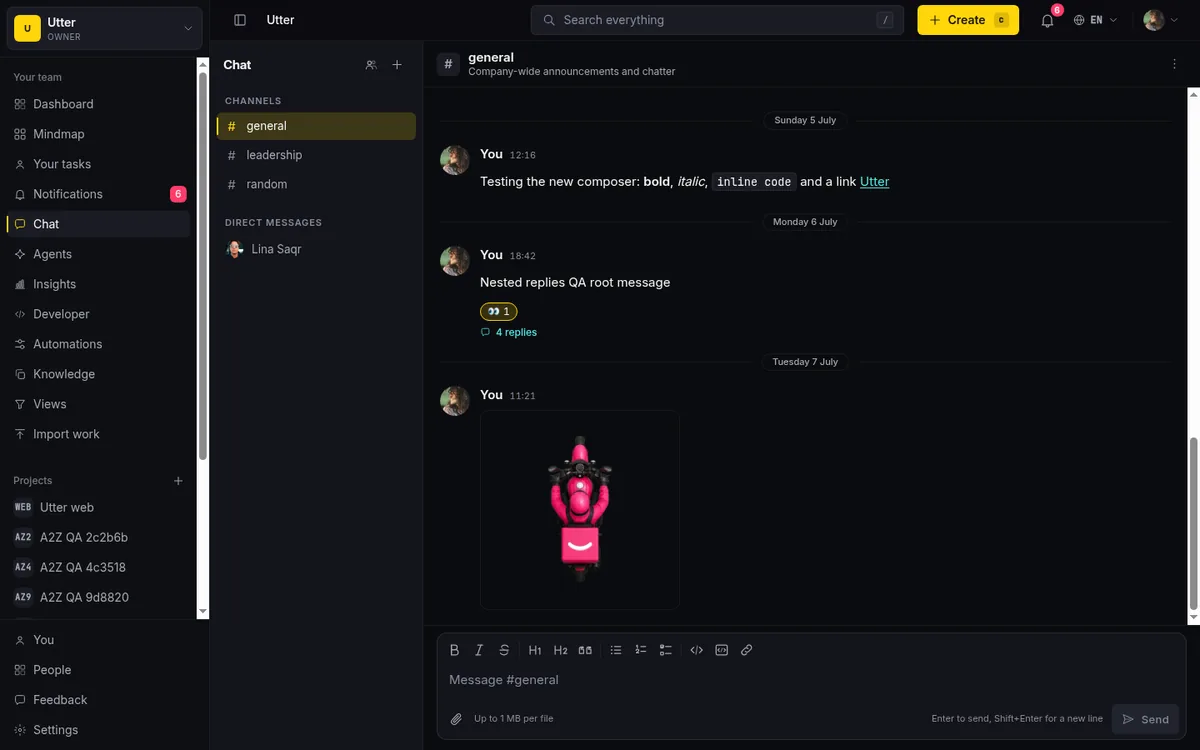
Now read the layout. The left rail has two sections. Under the "Channels" heading you get your public and private channels. Under the "Direct messages" heading you get your DMs. Each item shows an unread dot when it has messages you have not read, and the channel you are currently viewing gets a yellow bar so you always know where you are. The right side is the message pane: the conversation on top, the composer at the bottom.
One thing you do not have to do: create #general. Every workspace is auto-provisioned with a #general channel and a "Welcome to team chat" message posted by a system identity named "Utter." So the first time anyone on your team opens chat, a channel and a message are already waiting. You are joining a room, not building one from scratch.
Create a channel, and choose public vs private on purpose
When #general is not enough, make a channel. Use the + button, labeled "New channel." This is available to owner, admin, and member roles. Viewers cannot create channels, which fits their read-only posture.
The "Create a channel" dialog has three fields worth understanding:
- Name. For example
web-releasefor coordinating a release of the WEB project. - Topic. An optional one-liner answering "What's this channel about?" It helps people who browse in later understand what they are looking at.
- Visibility. This is the one to slow down on.
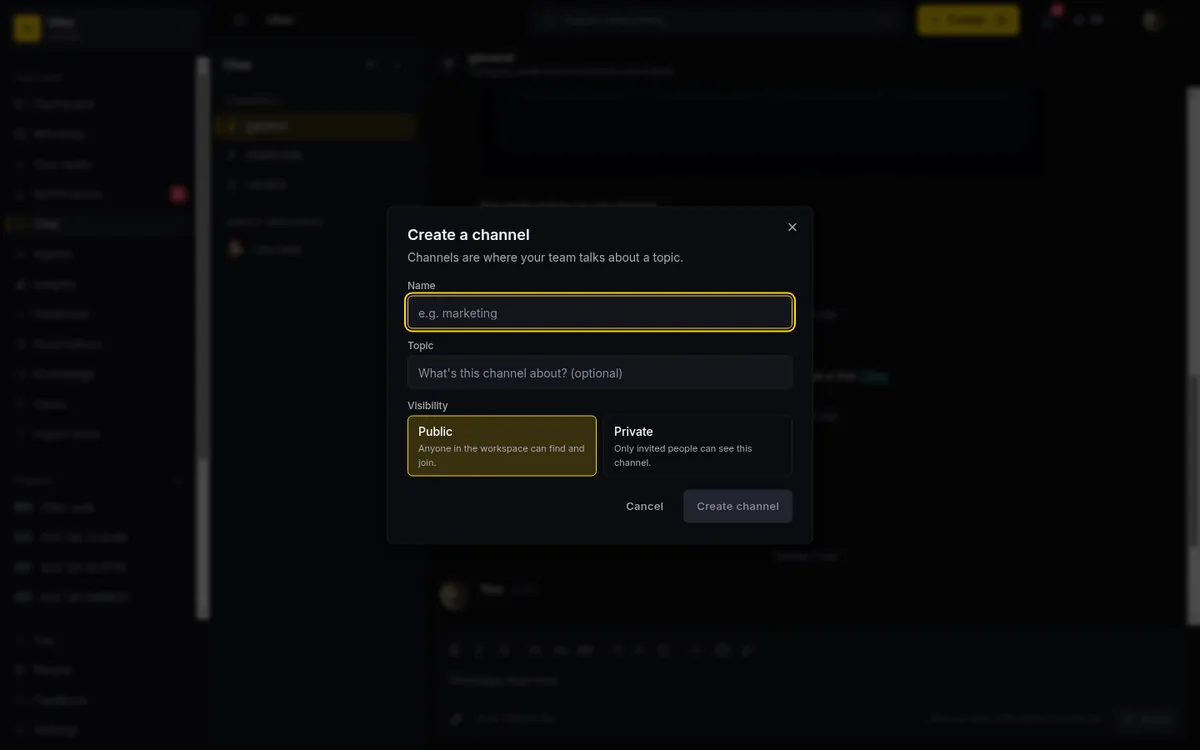
The visibility choice is not cosmetic. Public means "Anyone in the workspace can find and join." In practice, any workspace member can browse that channel and read it even without joining. Private means "Only invited people can see this channel," so it is visible only to the people explicitly added. That difference is the whole decision.
Here is a rule of thumb that holds up. Default to public for anything work-related. If the WEB team is coordinating a release, a public #web-release channel lets a curious teammate from another project find it, read the context, and understand what shipped, all without pinging anyone. Context that is findable is context that does not get re-explained. Reserve private channels for the genuinely sensitive: a personnel matter, an early security discussion, a conversation that should not be broadly readable. When in doubt, public.
Two convenient behaviors round this out. If you post to a public channel you have not actually joined, posting auto-joins you. And if you decide a channel is not for you, you can leave it later; there is a confirm dialog, so you will not leave by accident.
Send a message, format it, and @mention the right person
The composer is a rich editor, not a plain text box. A formatting toolbar covers bold, lists, code, and links, so a message explaining a tricky deploy step reads clearly instead of arriving as a wall of text. Two keyboard shortcuts carry most of the weight, and the composer shows you the hint: Enter to send, Shift+Enter for a new line. Learn those two and you will stop accidentally firing off half-finished thoughts.
Mentions are how you pull the right person in. Type @ and a handle, and it renders as a styled chip in the sent message and fires an in-app notification to that member, respecting their per-channel mute, so a muted channel will not ping them. In a public channel, any workspace member is mentionable. In a private channel or a DM, only the members of that conversation are. So @mentioning a teammate about the "Timeline + Summary tab" ticket in a public channel reaches them, and the notification surfaces the ping even if they are not looking at chat right then.
Now the honest limit, stated plainly so nobody trips over it. Typing #WEB-12 in a chat message does NOT become a clickable issue link. In issue comments and doc comments, #KEY-NUM auto-links to the ticket. Chat does not do that. It renders as plain text: you will see #WEB-12 as literal characters, not a chip you can click. The composer even offers a # autocomplete, but the message that gets posted is plain text. So when you want your teammate to be able to jump to the ticket, paste the full issue URL instead. This is the single most common expectation mismatch with chat. Say it out loud on your team once and you save everyone the confusion.
Two more facts. There is no typing indicator, so do not sit there waiting to see "someone is typing." And a message body can run up to 8000 characters, which is plenty for a detailed question but not the place to paste an entire document.
Attach files, paste images, and react to messages
You can attach up to 10 files to a single message. Each upload goes through a presigned upload with a live 0-100% progress bar, so you watch it move instead of guessing whether it hung. Pasting an image straight into the composer attaches it too, which is the fastest way to share a screenshot of a broken layout.
Sizes are bounded by your plan. The composer shows the cap inline as "Up to {size} per file" (on Free that is 1 MB per file). There is a hard ceiling of 25 MB per file, and everything is further bounded by your workspace storage quota, so a giant attachment counts against the same storage the rest of the workspace draws on.
The numbers in one place:
| Limit | Value |
|---|---|
| Message length (composer) | 8,000 characters |
| Files per message | 10 |
| Per-file size | Plan cap (Free: 1 MB), hard ceiling 25 MB |
| Flood guard | 30 messages per 10 seconds per user |
| Reactions | Fixed set of 8 branded icons |
| Unread badge | Caps at 99+ |
Reactions are a fixed set of eight branded icons: Like, Love, Haha, Celebrate, Clap, Watching, Fire, Done. You toggle your own reaction on or off, and counts aggregate across everyone who reacted. Be clear-eyed about this: it is a fixed set, not an arbitrary emoji picker. You will not find a search box of 3,000 emoji. That is a deliberate constraint, and honestly it is fine. The practical win is that you can react Done on a message instead of typing "ok" and adding another line to the channel. Reactions are the low-noise acknowledgment, and using them well is most of what keeps a busy channel readable.
Keep side conversations tidy with threads and direct messages
Channels turn into soup when three conversations happen at once. Threads fix that. On any message, "Reply in thread" opens a right-hand Thread panel with the original message on top and replies nested underneath. You can reply to a reply, so a genuine back-and-forth stays contained. The panel has a "Reply..." placeholder and an "Also send to channel" option, which posts your thread reply back into the main channel when you want to surface a conclusion instead of burying it. Thread participants and anyone you @mention in the thread get notified, so a threaded conversation still reaches the right people.
Why bother? Because a thread stops a channel from turning into a pile of overlapping half-conversations. If the WEB team is debugging one issue and someone else asks about the release date in the same channel, the release question goes in its own thread and the debugging stays legible.
Each message also has an actions row:
- Copy link gives you a deep link to that specific message ("Link copied") so you can point someone straight at it.
- Edit lets you fix your own message, which then shows an "(edited)" marker so nobody is confused about what changed.
- Delete removes your own message; owners and admins can delete anyone's, and a deleted message shows "This message was deleted." rather than vanishing without a trace.
Then there are direct messages. The "New message" button starts a DM with any workspace member, searchable by name or email. A nice detail: reopening a DM with the same person reuses the existing conversation instead of spawning a duplicate, so you keep one thread per person instead of a graveyard of near-identical chats.
Start a direct message with a teammate
Let's walk the DM flow on its own, because it is the fastest path to a private one-to-one. Click "New message" and you get the "Start a direct message with a workspace member" dialog, with a searchable people list. Find the person, hit "Start conversation," and the DM appears under the "Direct messages" heading in the left rail, right where you would expect it.
When should you DM versus post in a channel? The decision is simpler than it feels in the moment:
flowchart TD
    A[You need to say something] --> B{For one person only or sensitive?}
    B -- yes --> C[Direct message]
    B -- no --> D{Continuing an existing topic?}
    D -- yes --> E[Reply in that thread]
    D -- no --> F[Post in the channel]
DM for anything genuinely 1:1 or sensitive: a quick "are you free at 3?", a bit of feedback meant for one person, a heads-up that does not need broadcasting. Post in a channel for anything the team benefits from seeing, which is more often than you think. A question you DM to one person is a question the rest of the team cannot learn from. That same question in #web-release becomes searchable context for whoever wanders in next week.
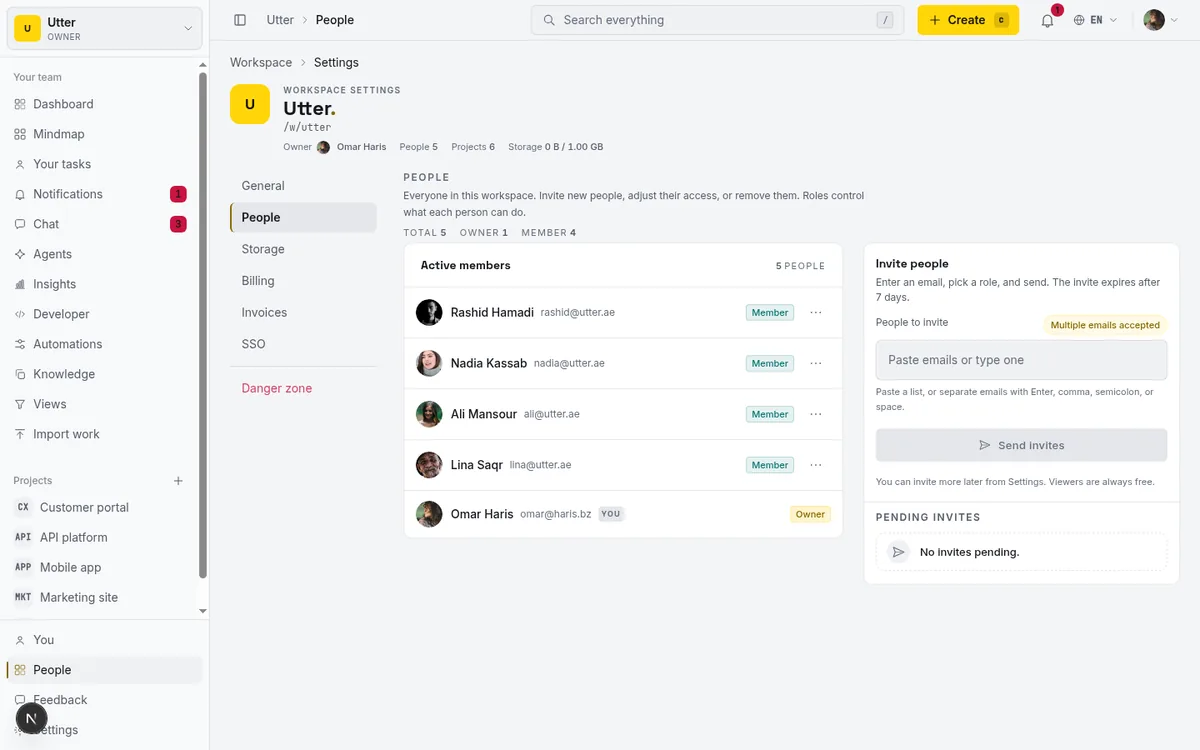
One constraint to remember: you can only DM people who are already in the workspace. If you are onboarding a new hire and want to message them, they need to be invited first, so do that before you go looking for them in the DM search.
Reading, catching up, and staying in real time
Coming back after being away is where a lot of chat tools fall apart. Utter marks unread messages with a "New" divider, so when you open a busy channel you scroll straight to where you left off instead of re-reading everything. To go further back, "Load older messages" walks backward through history with keyset pagination until you reach "You've reached the beginning." No infinite phantom scroll, no missing gaps.
Delivery is real time. Messages arrive over a per-workspace Server-Sent-Events stream, so a message someone posts shows up for everyone watching without a refresh. If your connection drops, the client shows a "Reconnecting..." indicator, and on reconnect it replays anything you missed using a since cursor. The database is the source of truth, so a blip in the stream does not lose a message; you get it on reconnect.
sequenceDiagram
    participant B as Browser
    participant S as Utter server
    participant D as Database
    B->>S: Open SSE stream
    S-->>B: Live message events
    Note over B,S: Connection drops
    B->>S: Reconnect with since cursor
    S->>D: Fetch messages after cursor
    D-->>S: Missed messages
    S-->>B: Replay, then back to live
Now the honest scale note, because it shapes what you should expect. This real-time delivery runs in-process on a single container. The DB is the source of truth and the stream is best-effort with reconnect replay, but it is not yet a multi-instance Redis fan-out. For a team, this is invisible and works fine. Worth knowing the ceiling exists rather than assuming infinite horizontal scale.
There is also a mid-session nuance worth internalizing. A brand-new public channel pushes live to everyone the moment it is created, so people see it appear. But being added to a private channel or a new DM shows up on your next reconnect, not the same instant. So if you add a teammate to a private channel and they do not see it right away, that is expected; it lands when their client reconnects.
Finally, muting. Mute a channel and it stops contributing to your unread badge and drops you from its message notifications. This is the tool for the channel you want to stay a member of but not be pinged by. Unmute when you need it back. Muting well is underrated. It is how you keep the unread badge meaningful instead of training yourself to ignore it.
Moderating a channel and read-only access
If you moderate a channel (owner or admin, or you are the channel's own creator), you get management controls. You can rename it, edit its topic, "Add people" ("Add workspace members to this channel"), remove members, and archive it. Archiving matters: an archived channel becomes hidden and read-only, which is the graceful way to retire a channel that has served its purpose without deleting its history.
Roles decide what everyone else can do, so state it plainly:
| Action | Viewer | Guest | Member | Admin | Owner |
|---|---|---|---|---|---|
| Read channels | yes | yes | yes | yes | yes |
| Send, edit own, delete own | no | yes | yes | yes | yes |
| Create channels | no | no | yes | yes | yes |
| Delete anyone's message | no | no | no | yes | yes |
Viewers get read-only access to chat, and the interface tells them so: "You have read-only access to chat." So a viewer can follow along, an admin can moderate, and a member sits comfortably in between.
There is a light flood guard, worth mentioning so it does not surprise anyone: 30 messages in 10 seconds per user per workspace. Cross it and you see "You're sending messages too quickly." It is generous enough that normal conversation never touches it, and it only trips on something like a paste-loop or a runaway script.
Post to a channel from a script (v1 API)
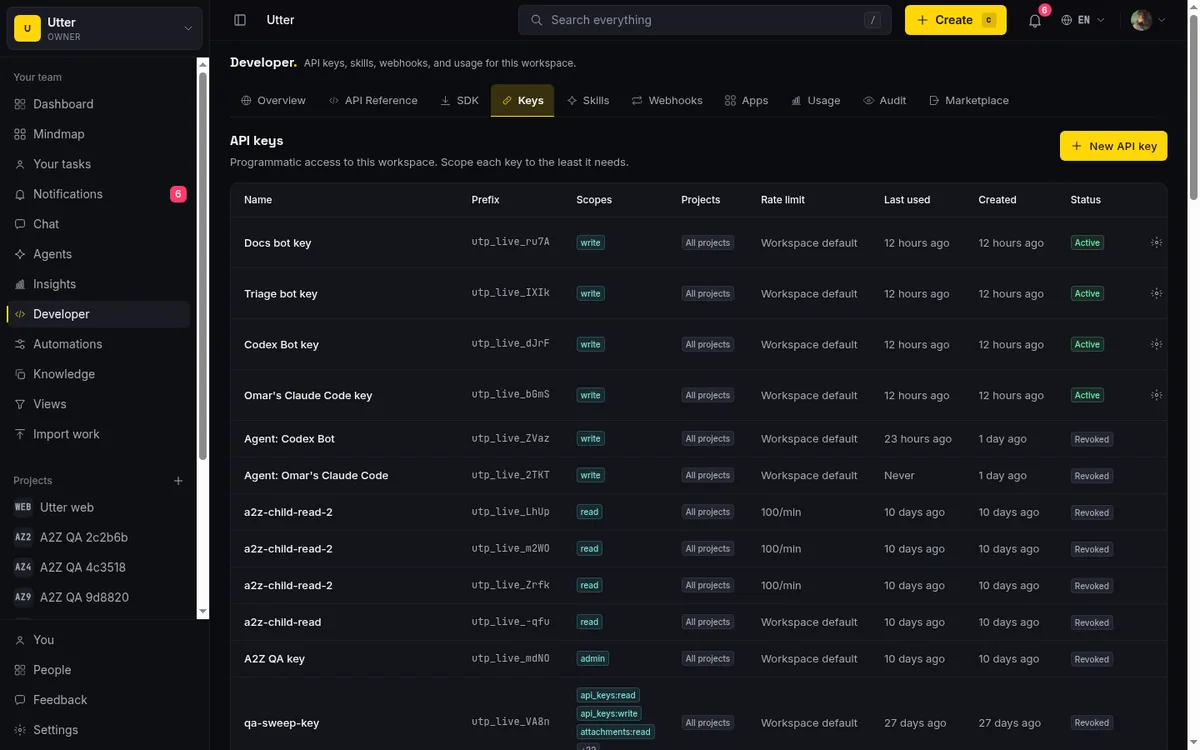
The same channels are drivable through the v1 public API, so a bot can post release notes into #web-release or a CI job can announce a deploy. You need an API key with the chat:write scope (reads take chat:read), sent as a Bearer token.
Creating a channel takes a name, a kind (public or private), and an optional topic. DM channels cannot be created over the API; those stay UI-only.
curl -X POST "https://utter.ae/api/v1/workspaces/utter/chat/channels" \
  -H "Authorization: Bearer utp_live_a1b2..." \
  -H "Content-Type: application/json" \
  -d '{"name": "web-release", "kind": "public", "topic": "Coordinating the WEB 1.4 release"}'
Sending a message is one POST to the channel's messages collection. In curl:
curl -X POST "https://utter.ae/api/v1/workspaces/utter/chat/channels/$CHANNEL_ID/messages" \
  -H "Authorization: Bearer utp_live_a1b2..." \
  -H "Content-Type: application/json" \
  -d '{"body_md": "Deploy finished. Build 1.4.0 is live."}'
const res = await fetch(
`https://utter.ae/api/v1/workspaces/utter/chat/channels/${channelId}/messages`,
{
method: "POST",
headers: {
Authorization: "Bearer utp_live_a1b2...",
"Content-Type": "application/json",
},
body: JSON.stringify({ body_md: "Deploy finished. Build 1.4.0 is live." }),
},
);
const message = await res.json();import requests
r = requests.post(
f"https://utter.ae/api/v1/workspaces/utter/chat/channels/{channel_id}/messages",
headers={"Authorization": "Bearer utp_live_a1b2..."},
json={"body_md": "Deploy finished. Build 1.4.0 is live."},
)
message = r.json()The created message comes back with its thread fields, so a bot can keep a conversation contained:
{
  "data": {
    "id": "0197a2c4-...",
    "channel_id": "0197a2b0-...",
    "author_id": "0197a1f3-...",
    "body_md": "Deploy finished. Build 1.4.0 is live.",
    "parent_id": null,
    "root_id": null,
    "reply_count": 0,
    "last_reply_at": null,
    "edited_at": null,
    "created_at": "2026-07-16T09:30:00.000Z",
    "reactions": []
  }
}
Pass a parent_id in the POST body to reply inside a thread instead of the main channel. One API-only allowance: body_md can run to 64,000 characters over the API, well past the 8,000-character composer cap, so a bot pasting a log excerpt has room. The API path goes through the same permission matrix, the same notifications, and the same realtime stream as the UI, so a bot's message pings mentioned people exactly like a human's would.
Habits that keep chat useful (and mistakes to avoid)
A few opinions, earned from watching chat go well and go badly.
- Keep decisions on the issue, not buried in a channel. Because chat does not auto-link
#KEY-NUM, a decision made in a channel is genuinely hard to find later. Nobody is going to scroll a month of #web-release to reconstruct why you shipped a thing. When a chat conversation reaches a decision, paste the issue URL and record the outcome as a comment on the ticket itself. The ticket is the memory. - Default your channels public. Findable context is the entire value of chat living next to your issues. A private channel is a locked drawer; use it only when you actually need the lock.
- Use threads for anything longer than two replies. The moment a topic has legs, put it in a thread so the channel stays legible for everyone else.
- React instead of adding reply noise. A Done reaction says "got it" without a new line. Ten "ok" messages make a channel unreadable; ten reactions do not.
- Mute the channels you do not need instead of leaving them. Leaving loses you the context; muting keeps you a member who can catch up later without being pinged now.
And keep the honest limits in one place so your team is never surprised. There is no typing indicator. Reactions are a fixed set of eight, not any emoji. Issue references like #WEB-12 render as plain text in chat, so paste the full URL when you want a jump. Real-time delivery runs on a single container today, reliable for a team but not a multi-instance fan-out.
That is the whole feature. Open the Chat item in your workspace sidebar and start a channel for the work you are coordinating this week.
Frequently asked questions
Where is team chat in Utter and how do I open it?
Team chat is in the workspace sidebar as the "Chat" nav item ("Talk with your team in channels and direct messages"). Clicking it opens the chat page and auto-redirects you to a default channel: #general if it exists, otherwise the joined channel with the most recent activity, otherwise the first visible channel. The nav item shows an unread badge (capped at 99+) when you have unread messages in channels you have not muted.
What is the difference between a public and a private channel?
A public channel is "Anyone in the workspace can find and join," meaning any workspace member can browse and read it even without joining. A private channel is "Only invited people can see this channel," visible only to the people explicitly added. Default to public for work-related channels so context stays findable, and reserve private for sensitive conversations.
Does typing #WEB-12 in a chat message link to the issue?
No. In chat, #WEB-12 renders as plain text, not a clickable link. Auto-linking of #KEY-NUM works in issue comments and doc comments, but not in chat messages. If you want your teammate to jump to the ticket, paste the full issue URL. Note that @mentions do work and do notify.
Can I @mention someone in chat and will they get notified?
Yes. Typing @handle renders a styled chip and fires an in-app notification to that member, respecting their per-channel mute setting. In public channels any workspace member is mentionable; in private channels and DMs, only the members of that conversation are.
How do I start a direct message with a teammate?
Click the "New message" button, which opens "Start a direct message with a workspace member" with a searchable people list (by name or email). Pick the person and hit "Start conversation," and the DM appears under "Direct messages" in the left rail. Reopening a DM with the same person reuses the existing conversation, and you can only DM people already in the workspace.
What file types and sizes can I attach to a chat message?
You can attach up to 10 files per message via presigned upload with a live 0-100% progress bar, and you can paste an image straight into the composer. Per-file size is capped by your plan (Free is 1 MB per file, shown as "Up to {size} per file"), with a hard ceiling of 25 MB, and everything is further bounded by your workspace storage quota.
Can viewers use team chat, or is it read-only for them?
Viewers have read-only access. They can open and read chat ("You have read-only access to chat.") but cannot send, edit, or delete messages. Sending and editing/deleting your own messages is available to owner, admin, member, and guest roles; creating channels is owner, admin, or member; and deleting anyone's message is owner and admin only.
Is there a typing indicator, and can I react with any emoji?
No typing indicator exists. Reactions are a fixed set of eight branded icons (Like, Love, Haha, Celebrate, Clap, Watching, Fire, Done), which you toggle on or off, with counts aggregated across everyone. It is not an arbitrary emoji picker.
Related reading

Keep team chat next to your issues, not in another app
The case for project management with built-in chat: why splitting discussion from the tracker loses the thread, and how linking chat to issues fixes it.
July 9, 2026 · 6 min read
How to search your workspace
Search issues across projects in Utter from one top-bar field: the / shortcut, live typeahead, WEB-12 key-jump, the full results page with Type/Status/Priority filters, and the real limits.
July 15, 2026 · 14 min read
How to use the ai assistant
How to run your board with Utter's AI assistant: ask grounded questions, create and triage issues from a sentence, and approve every change before it lands.
July 15, 2026 · 14 min read
How to use a kanban board: a complete guide with a real example
Learn how to use a kanban board in Utter: read cards, drag tasks between columns, add and reorder custom columns, set WIP limits, filter, and save views.
July 15, 2026 · 20 min read
Chat with your AI agents, then put them in a workflow
Utter lets you DM an AI agent or @mention it in a channel, watch it work, and connect agents and people on a canvas so a ticket routes itself through triage, build, and review.
July 17, 2026 · 7 min read
How to manage roles and permissions
Learn how project management roles and permissions work in Utter: the five roles, inviting with the right access, scoped projects, and who pays for a seat.
July 15, 2026 · 18 min read
Notifications and watching issues
Set up Utter notifications and watch issues: the four events that notify you, who gets pinged, inbox triage, snooze and archive, and email vs in-app.
July 15, 2026 · 16 min read
How to track and vote on feedback
A hands-on tour of Utter's product feedback board and roadmap: post ideas, vote, and read the Tracking board and Changelog as a live public roadmap.
July 15, 2026 · 17 min read
How to use webhooks
Set up outbound webhooks in Utter: create one, verify the HMAC signature (sha256-of-secret gotcha), handle at-most-once delivery, and pipe board events to Slack.
July 15, 2026 · 16 min read
How to manage your notification preferences
Manage project management notifications in Utter: read the Email vs In-app matrix, cut noise without going dark, watch issues, and control the weekly digest.
July 15, 2026 · 14 min read
أضف تعليقًا
ابدأ النقاش.