
Project calendar view
You set a due date on a story, feel briefly organized, and then that date disappears into the ticket. It sits there. Nobody looks at it until the day it goes red and someone asks why it slipped.
A list of dates doesn't help much, because a list isn't how anyone actually thinks about time. You think in weeks. You think in "what's due before the demo." That is what the project management calendar view due dates workflow is for: it takes every dated issue in a project and plots it on a month or week grid you can read in one glance.
By the end of this you'll open the Calendar tab, read issues laid out by their start and due dates, drag a deadline to a new day, edit an issue's status or assignee without leaving the grid, filter down to one person's week, and know exactly where the calendar stops and the timeline begins. Real buttons, real limits, no guessing.
Why a calendar view for due dates beats a list
Here is the real problem. Due dates in most tools live in two bad places. Either a column in a list you sort once and never look at again, or a tiny label on a card you have to open to read.
Neither answers the question you actually have, which is "what is landing this week, and is it too much?" You can't feel a workload from a sorted column. You can feel it from a grid where Thursday has six things stacked on it and Friday has nothing.
Utter's Calendar tab plots issues by their dates on a month or week grid, and that spatial layout is the entire point. It lives at /w/[ws]/p/[project]/calendar. Once you're looking at deadlines as positions in a month instead of rows in a table, planning changes. You spot the pileup before it happens. You drag the overloaded Thursday's work onto the following Monday. You catch the empty weeks that are quietly hiding slipped scope.
Set one expectation now, because it matters. The calendar plots issues by their dates only. An issue with no start and no due date does not appear on the grid. That isn't a bug, it's the design, and there's a dedicated place for the undated work waiting to be planned: the Unscheduled rail. So the calendar is not "every issue in the project." It's "every issue that has a date," which is exactly the set you want when you're thinking about deadlines.
Open the calendar and read the month grid
The Calendar tab sits in the project's tab strip, right alongside Board, Backlog, and List. Click Calendar and, on desktop, you land on the month view by default.
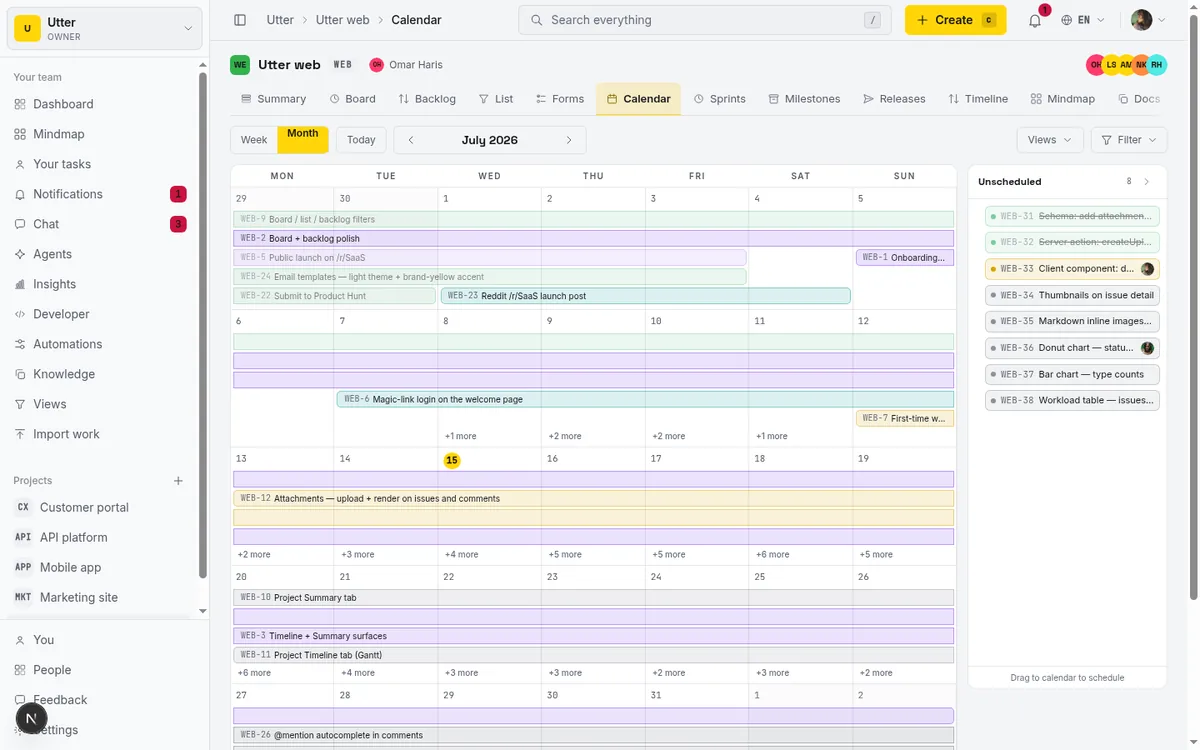
Read it left to right. The weekday header runs Mon through Sun. Below it, each day is a cell, and dated issues sit inside their cells. Today's date wears a gold pill so you never lose your place. The top of the view holds the controls: a segmented Week / Month toggle, a Today button, prev and next arrows, and the month-and-year label in the center (for example, "July 2026"). On the right is the Unscheduled rail, which we'll get to.
Issues render in two shapes, and the difference is worth understanding, because it's how you read duration at a glance.
- A single-day chip is an issue that has only a due date, or only a start date. It sits on that one anchor day. When a chip's anchor has to be computed, the due date takes precedence over the start.
- A multi-day span bar is an issue with a start date and a due date on different days. It draws as a bar stretching from the start day across to the due day.
The placement rule in one picture:
flowchart TD
    A[Issue in the project] --> B{Has a start or due date?}
    B -- no --> R[Unscheduled rail]
    B -- yes --> C{Start and due on different days?}
    C -- yes --> S[Multi day span bar]
    C -- no --> D[Single day chip, anchored on the due date, else the start]
So in the WEB project, a task like "Timeline + Summary tab" that starts Monday and is due Thursday shows up as a bar spanning those four days. You see its whole window, not just its deadline. A quick bugfix due Friday with no start date is a chip sitting on Friday. The shape tells you whether something is a moment or a stretch.
Color carries meaning too. Epics are colored by their type. Everything else is colored by its status category, so you can tell at a glance what's in progress versus what's still waiting. Closed issues (done, cancelled, failed) render dimmed with a strikethrough on the title, so a finished deadline doesn't fight for attention with work that's still live.
Switch between week and month, and move through time
The Week / Month control is the segmented toggle at the top. The selected view highlights in brand gold, so you always know which one you're in. Month is the default on desktop. Click Week to switch.
Week view is taller and shows a single week across the full width, which means each day has room for more events before it overflows. The center label changes to an abbreviated range, like "Jun 30 - Jul 6, 2026", so you know exactly which seven days you're looking at, even across a month boundary.
| Week view | Month view | |
|---|---|---|
| Layout | one week, full width | four or five weeks in a grid |
| Event lanes per day | up to 12 | up to 5, then "+N more" |
| Center label | "Jun 30 - Jul 6, 2026" | "July 2026" |
| Reach for it when | you're inside a heavy sprint | you're doing release-level planning |
Moving through time works the same in both views. The prev and next chevrons carry real aria labels ("Previous month" / "Next month" in month view, "Previous week" / "Next week" in week view), so keyboard and screen-reader users navigate cleanly. The Today button jumps you back to the current month or week whenever you've wandered off into planning next quarter.
One more thing worth knowing: on a narrow screen (under 768px), the grid is replaced by a date-grouped agenda list, and the view auto-switches to Week. A month grid on a phone is unreadable, so the calendar doesn't try to draw one.
Reschedule a due date by dragging
This is the action that makes the calendar worth opening. Grab a chip or a span bar and drag it to another day. That reschedules its due date. The change is optimistic, so the chip moves under your cursor and lands immediately; behind the scenes it persists through updateIssue.
For a multi-day bar, dragging preserves the duration. Move a Monday-to-Thursday bar so it now ends on Friday, and its start shifts to Tuesday automatically. The window keeps its length; only its position moves. Drop a chip or bar on the exact day it already ends on and nothing happens. That's a no-op, so you can't accidentally "reschedule" something to where it already is.
Now the honest part, because rescheduling is a permissioned action. You can move an issue only if you're its reporter, its assignee, or you hold issue.edit_any. If you're none of those, the chip is read-only: clicking it navigates to the issue instead of editing, and a drag attempt shows the toast "You can't reschedule this item." That is deliberate. You shouldn't be able to silently move someone else's deadline just because you can see it.
Two more ways to move an item, because dragging with a mouse isn't the only path.
- Keyboard: focus an event chip, press Space or Enter to pick it up, use the arrow keys to move between days, then Space or Enter again to drop it. That's the dnd-kit keyboard sensor, and it means the whole reschedule flow works without a mouse.
- Touch: press and hold for 250ms to pick an event up. The delay is intentional, so a normal swipe still scrolls the calendar instead of grabbing a chip by accident.
Dragging isn't the only writer of these dates, either. The grid plots whatever is on the issue, so a script or an agent can move the same deadline through the public API by patching start_at and due_at (a plain YYYY-MM-DD date works):
curl -X PATCH "https://utter.ae/api/v1/workspaces/utter/projects/WEB/issues/WEB-12" \
  -H "Authorization: Bearer utp_live_a1b2..." \
  -H "Content-Type: application/json" \
  -d '{"start_at": "2026-07-20", "due_at": "2026-07-23"}'
await fetch("https://utter.ae/api/v1/workspaces/utter/projects/WEB/issues/WEB-12", {
method: "PATCH",
headers: {
Authorization: "Bearer utp_live_a1b2...",
"Content-Type": "application/json",
},
body: JSON.stringify({ start_at: "2026-07-20", due_at: "2026-07-23" }),
});Either way, the issue lands on its new cells the next time the calendar loads.
Schedule undated work from the Unscheduled rail
On the right side of the grid is the Unscheduled rail. It lists issues that have no start and no due date, the work that exists but isn't planned yet. It shows a live count so you know how much undated work is hanging around, and a hint that reads "Drag to calendar to schedule."
To schedule one, drag it out of the rail and drop it onto a day. That gives it a due date, and it becomes a chip on the grid like any other dated issue. This is the natural move after a backlog grooming session. You've just estimated a batch of tickets, and now you drag each one onto the week you intend to tackle it. The undated pile shrinks in real time as you place things.
You can collapse the rail with its chevron (aria label "Collapse") when you want more room for the grid. And when every issue in the project is scheduled, the rail hides itself entirely and the grid expands to full width. There's nothing to schedule, so it gets out of the way.
A couple of honest limits here. The rail renders up to 50 items (it loads up to 200 server-side). If there is more undated work than that, you'll see a "+N more undated, view all in list" link that takes you to the List view, rather than an endless scroll of draggable rows. The calendar is for scheduling a manageable set, not for triaging a thousand-item backlog by hand.
And if the project has no issues at all, you won't see a rail or a grid. You'll get an empty state that reads "No work to schedule yet." with an Open the board button, pointing you at where to create the first ticket.
Edit status, priority, or assignee without leaving the calendar
Click a chip, a span bar, or a rail item and an inline-edit popover opens. Its header shows the issue key and title, and below that are three rows: Status, Priority, and Assignee. Change any of them right there. The updates are optimistic, so they apply instantly, and Status uses the project's custom board statuses when the project defines them, so the options match your actual board columns (Backlog, To Do, In Progress, In Review, Done) rather than a generic set.
The concrete use is standup. Someone says "Timeline + Summary tab is done and I'm handing the follow-up to Sara." You click the chip, bump the status from In Review to Done, reassign it to Sara, and move on. Two clicks, no context switch, no opening the issue.
Be clear about the boundary, though. This popover edits only those three fields. It does not edit the due date, the title, or the labels, and it is not a full issue editor.
If you need to do more, click the issue title in the popover (or press Enter or Space on a focused chip) and you land on the full issue detail page. Escape closes the popover if you opened it by mistake. So the calendar gives you the fast path for the three things you change most often during planning and standup, and a clean door to the full editor for everything else.
Drill into a busy day and jump to an issue
Some days get crowded. A month cell shows up to 5 stacked lanes before it runs out of room; a week cell, being taller, shows up to 12. Past that, the cell shows a "+N more" link so the grid stays readable instead of exploding.
To see everything on a packed day, click the day number itself or the "+N more" link. That opens the day-detail popover, titled "Items on {date}", listing every issue scheduled that day with its key, title, and assignee avatar. Each row links into its issue. This is how you handle the Thursday where five things are due at once: open the day, read the full list, see who owns what, and decide whether it's genuinely deliverable or whether something needs to slide.
From that popover (or from any focused chip), click an event's title or press Enter or Space to open the full issue detail page. The calendar is the map. The issue page is the destination, and you're never more than a click from getting there.
Filter the calendar and save a view
The calendar shares the board's Filter control, sitting on the control row. It gives you facets for Type, Priority, Status, Label, and Assignee. And because it's the same control the board uses, the Views you save and apply (shared or personal) carry across between the two.
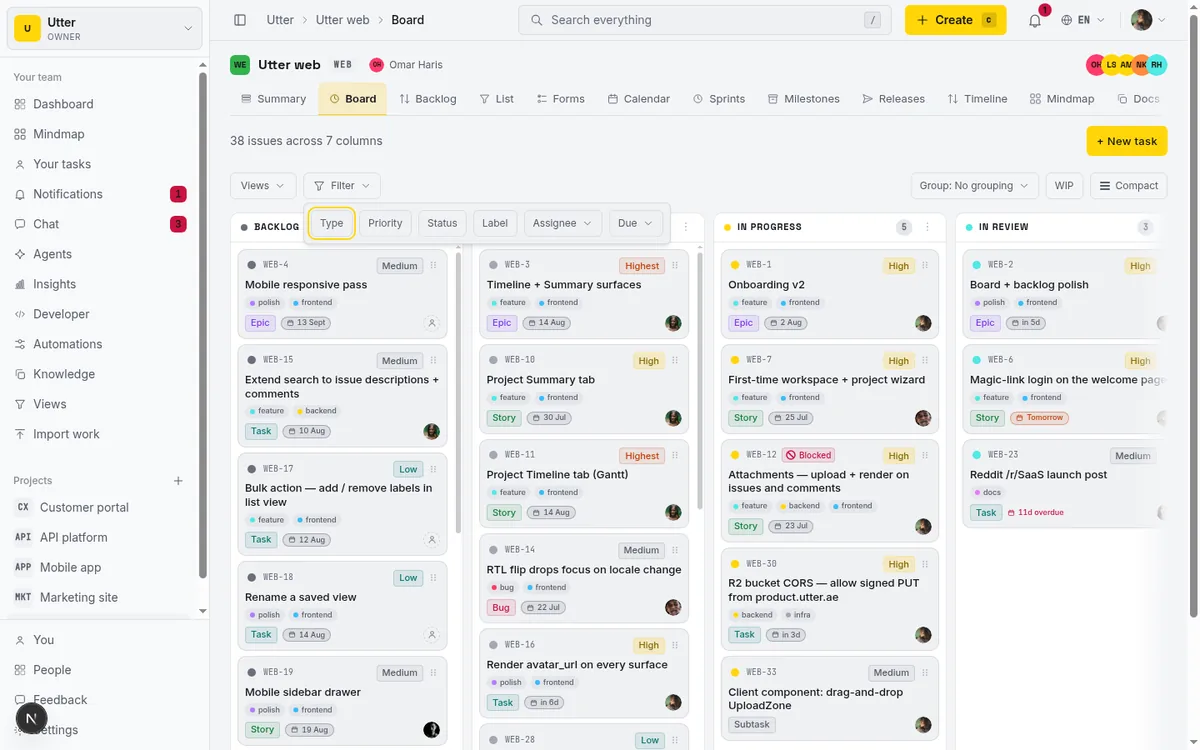
In practice this is where the calendar earns its keep as a planning tool. Filter by Assignee to one person and you're looking at just their week, which is the fastest way to check whether a teammate is buried before you hand them more. Filter by Priority to high and the month collapses to only what's actually urgent, cutting through every minor task with a date on it.
Save that as a view (say, "This month's high-priority") and it's one click to get back to it later, on the calendar or the board. Because the Views are shared, a filter your lead sets up is a filter the whole team can apply.
Calendar vs timeline: pick the right tab
This is the part most tutorials skip, and it's the part that saves you from picking the wrong tool. The calendar and the Timeline (Gantt) tab look related but do different jobs, and knowing the line keeps you from hunting for a feature that lives elsewhere.
flowchart LR
    Q{What are you doing?} -- moving deadlines, week to week planning --> C[Calendar tab]
    Q -- dependencies, bar resizing, quarter zoom --> T[Timeline tab]
The calendar's only drag action is moving an item to a different day. That's it. It does not draw dependencies between issues, it does not let you resize a bar by dragging its edges, and it does not offer zoom levels like Weeks / Months / Quarters. Those are Timeline features.
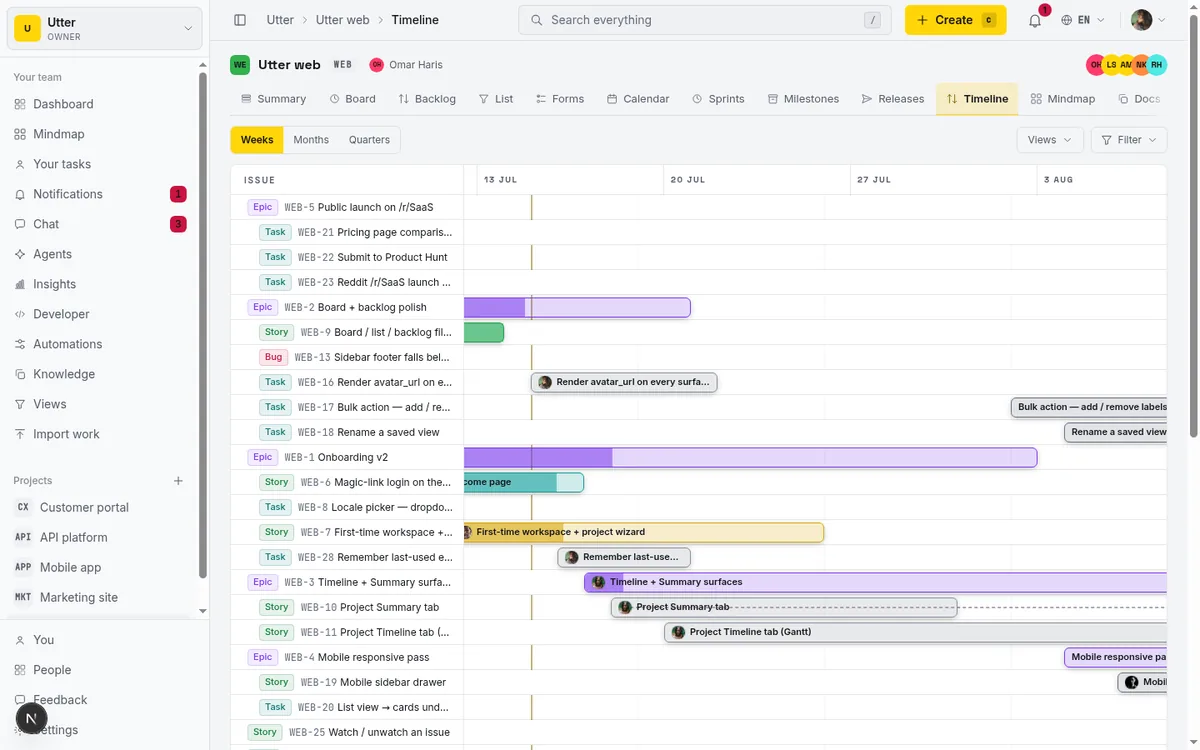
If you're trying to model "this can't start until that finishes," or stretch a task's duration by pulling its edge, or zoom out to a quarter-level roadmap, that's the Gantt view, and there's a full walkthrough of it in building a Gantt chart with dependencies.
Two more facts worth carrying with you. First, the date math is all in UTC. A due date stored at midnight UTC lands on the same calendar cell for every viewer, no matter their timezone. That's a feature for distributed teams, because everyone sees the same grid, but it means the calendar is not local-time-aware, so don't read a cell as "midnight in my city."
Second, the calendar uses windowed lazy-loading. The initial load covers the previous, current, and next month; navigate somewhere new and it fetches that range on demand, showing a brief "Loading…" while it does. The payoff is that even a large project shows every dated issue in whatever window you're viewing, without trying to load the entire project's history at once.
So the mental model is simple. Calendar answers "when are things due and can I move them?" Timeline answers "how do these pieces depend on each other over a longer horizon?" Use the calendar for deadlines and week-to-week planning; use the Gantt for dependencies and roadmaps. And the calendar sits inside a wider workflow, so it pairs naturally with running a kanban board, prioritizing your backlog, and running sprints without the ceremony.
Open a project's Calendar tab, drag one slipping deadline to where it actually belongs, and you'll see why looking at due dates on a grid beats reading them in a list.
Frequently asked questions
Where is the calendar view in Utter and how do I open it?
It's a tab on every project, at /w/[ws]/p/[project]/calendar. Open your project and click Calendar in the tab strip next to Board, Backlog, and List. Desktop opens on the month view by default.
How do I reschedule a task's due date on the calendar?
Drag its chip or span bar to another day. The change applies immediately and saves through updateIssue. A multi-day bar keeps its length, so its start date shifts along with the due date. You can also do it by keyboard: focus the event, press Space or Enter to pick it up, arrow to the new day, and press Space or Enter to drop.
Why don't all my issues show up on the calendar?
Because the calendar plots issues by their dates only. An issue with no start and no due date never appears on the grid; it waits in the Unscheduled rail on the right. Give it a due date (drag it onto a day) and it lands on the calendar.
What's the difference between the calendar view and the timeline (Gantt) view?
The calendar plots dated issues on a month or week grid and lets you drag them to a new day. The Timeline (Gantt) draws dependencies, lets you resize bars by dragging their edges, and offers zoom levels (Weeks / Months / Quarters). For dependencies or a roadmap horizon, use the Timeline; for deadlines and week-to-week scheduling, use the calendar.
Can I change an issue's status or assignee from the calendar?
Yes. Click a chip, bar, or rail item to open the inline-edit popover, which has Status, Priority, and Assignee rows. Changes are optimistic and Status uses your project's custom board statuses. Note it edits only those three fields; for dates, title, or labels, click the title to open the full issue page.
Why can't I drag one of my tickets to a new day?
Because you can only reschedule an issue if you're its reporter, its assignee, or you have issue.edit_any. For issues you don't own, the chip is read-only: clicking navigates to the issue, and a drag attempt shows "You can't reschedule this item."
Does the calendar show dates in my local timezone?
No. The date math is all in UTC, so a due date stored at midnight UTC lands on the same cell for every viewer regardless of their timezone. It's consistent across a distributed team, but it's not local-time-aware.
What happens on a day with too many issues to fit?
A month cell shows up to 5 lanes and a week cell up to 12 before overflowing to a "+N more" link. Click that link (or the day number) to open the day-detail popover titled "Items on {date}", which lists every issue on that day with key, title, and assignee avatar, each linking into its issue.
Related reading
Gantt chart with dependencies
Learn to plan on Utter's Timeline: read the Gantt, drag bars to reschedule, draw Blocks/Relates/Duplicates dependencies, schedule undated issues, and the real limits.
July 15, 2026 · 14 min read
How to read the project summary
Read the Utter project Summary tab like a pro: what every card shows, how each number is computed, what good looks like, and where the dashboard stops.
July 15, 2026 · 16 min read
Project reports and insights
Read Utter's project reports and dashboards: Summary KPIs, sprint burndown, cycle time, throughput, workload, and workspace Insights, with the honest limits on each.
July 15, 2026 · 16 min read
How to use a kanban board: a complete guide with a real example
Learn how to use a kanban board in Utter: read cards, drag tasks between columns, add and reorder custom columns, set WIP limits, filter, and save views.
July 15, 2026 · 20 min read

How to filter and sort issues
Filter issues by assignee, label, and status in Utter's list view, then sort, group, save a view, and share the exact filtered list as a URL.
July 15, 2026 · 16 min read
How to plan releases and milestones
Plan software releases and milestones in Utter: create releases and milestones, attach issues, read the progress meter, draft AI release notes, and set permissions.
July 15, 2026 · 14 min read
How to use the mindmap
How to use Utter's project mind map view: open the radial tree, read the pills, expand and filter branches, group by Hierarchy/Status/People, and export a PNG.
July 15, 2026 · 14 min read
See your whole project as a mind map (and when it beats a nested list)
A nested list hides how work relates. A mind map shows it. When a map of your epics and stories helps, when a list is better, and how Utter's does it.
July 5, 2026 · 7 min read
How to run a sprint
Learn how to run a sprint in Utter: plan from the backlog, start and complete a sprint, carry over incomplete issues, and read the burndown and velocity.
July 15, 2026 · 13 min read
How to organize work with epics and subtasks
Learn Utter's epics, stories, tasks, subtasks hierarchy: group work under an epic, break issues into subtasks, read the progress bar, and the rules it enforces.
July 15, 2026 · 17 min read
أضف تعليقًا
ابدأ النقاش.