
Switch language and theme
Your Arabic-speaking teammate opens the WEB board for the first time. Columns run left to right, labels are in English, checkmarks sit on the wrong side, and the whole thing quietly reads as built for someone else. Down the hall, someone who works late keeps asking for dark mode because the bright board at 11pm is punishing. Two people, two problems, and both controls live somewhere you have not looked yet.
This guide fixes both. By the end you will know how to run Utter as an Arabic RTL and dark mode project management tool without guessing where anything hides. Utter ships two languages (English and Arabic) and three theme choices (Auto, Light, Dark). That is the full set. No third language, no per-project language, no scheduled theme that flips itself at sunset.
Knowing the edges up front saves you from hunting for a setting that was never built. Everything below is where the real controls are, what they change under the hood, and what "done" looks like on your screen.
The problem: one project management tool, Arabic RTL and dark mode both needed
Most teams reaching for an Arabic RTL and dark mode project management tool are mixed. Some people read Arabic and want the interface mirrored, right to left, with Arabic labels. Some want dark mode because they stare at the board all day. Some want the defaults left alone. Utter handles all three. The catch is that language and theme are two separate features with two separate controls, and treating them as one knob is exactly where people get stuck.
Think of it as two independent axes:
| Control | Where it lives | Options | Stored as |
|---|---|---|---|
| Language and direction | Globe icon in the top bar | English, العربية | up_locale cookie, one year |
| Theme | Account menu behind your avatar | Auto, Light, Dark | up_theme cookie, one year |
Pick Arabic and the entire product flips to right-to-left. Pick Auto, Light, or Dark and the colors change, but the direction stays exactly where it was. English in Dark, Arabic in Light, Arabic in Dark, whatever you want. The two settings never touch each other.
So here is the honest scope before you touch anything. Languages: English (the default) and Arabic. No French, no Spanish, no auto-guess from your browser on a first visit. Themes: Auto, Light, Dark, where Auto follows your operating system. No per-workspace theme, nothing on a clock. Accept those two facts and the rest is just knowing which menu to open.
Switch the interface language to Arabic
The language control is a globe icon in the top bar, labelled "Change language" when you hover it. It lives in the workspace chrome (the bar across the top when you are inside a workspace like /w/utter) and also in your personal /me area. It is not buried in settings. From wherever you are, it is one click away.
Click the globe. A small dropdown opens with two entries: English and العربية. The one you are currently on carries a check, so you always know your state before you change it. Click العربية.
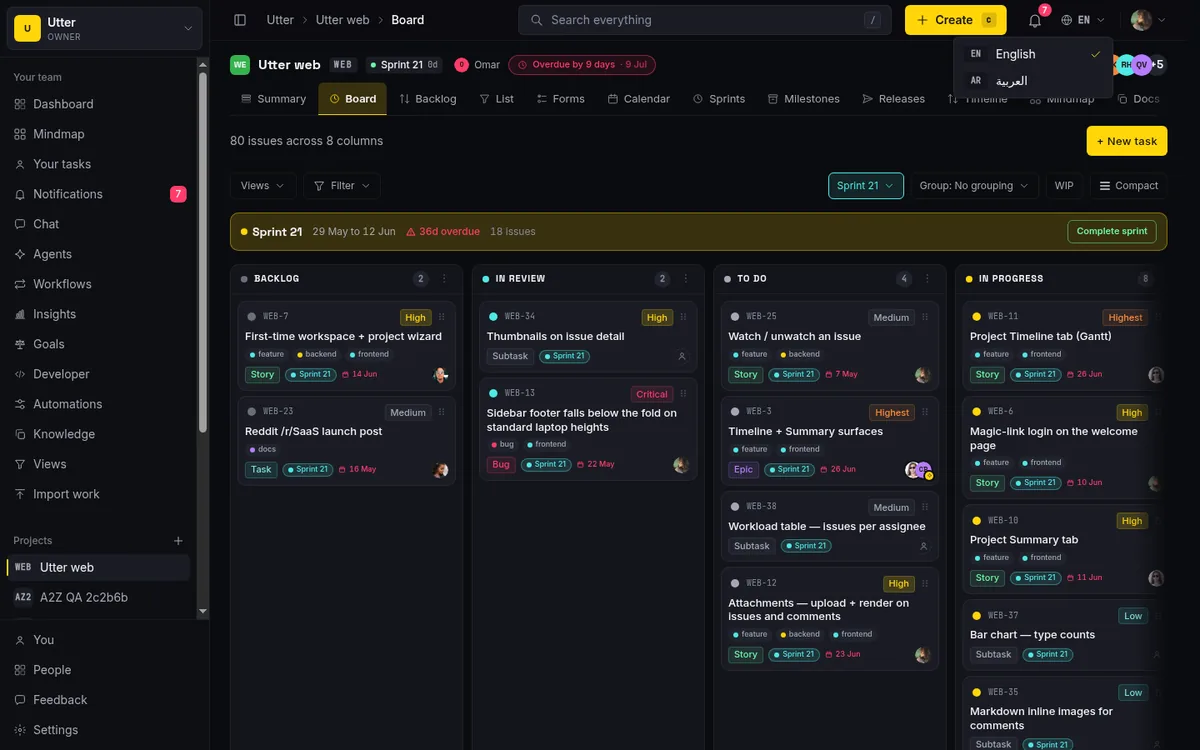
What happens next is worth understanding, because it explains why the change sticks. Clicking العربية fires one plain GET request, and the response does two things: it writes a cookie and sends you straight back to the page you were on.
GET /api/locale?set=ar&next=/w/utter/p/web/board HTTP/1.1

HTTP/1.1 303 See Other
Location: /w/utter/p/web/board
Set-Cookie: up_locale=ar; Path=/; Max-Age=31536000; SameSite=Lax
The cookie is named up_locale and lives for one year. It is deliberately not httpOnly, so the interface itself can read it and render the right language without asking the server on every click. The 303 redirect means no bounce to a home screen and no settings detour. You land on the same board, now in Arabic.
What good looks like: the page reloads and it is already Arabic. The globe's check has moved to العربية. If you were on the WEB board, you are still on the WEB board, mirrored and translated. Going back to English is the identical move, set=en, same cookie, same redirect.
Hold onto one fact here. This cookie is per browser, and it is the strongest signal in the whole language system. An explicit choice at the globe beats any default set at the workspace or profile level. That matters more than it sounds, and it is the single most misread part of how language works in Utter. I will come back to it.
What Arabic actually does: full RTL, not a swapped dictionary
Picking Arabic does not just translate words. It flips the entire layout. This is the line between software that was localized properly and software that changed a dictionary and shipped.
The mechanism is clean. The root layout reads your locale and sets <html lang dir> using dirFor(locale), so for Arabic the document direction becomes rtl at the very top. That one attribute cascades down through everything.
The hard part in a modern app is overlays. Dropdowns, dialogs, popovers, and tooltips render in portals, detached from the normal DOM flow, so they do not inherit direction for free. Utter feeds dir=rtl into every one of them through a DirectionProvider wired into the Radix primitives. The result you can see: menus open on the correct side, checkmarks land where an Arabic reader expects them, and nothing spills off the wrong edge of the screen.
Text right-aligns. The sidebar moves across and mirrors. The build even swaps the typeface. Under html[dir=rtl] the interface renders in IBM Plex Sans Arabic, a face drawn for the script, instead of a Latin font stumbling through Arabic glyphs.
Make it concrete on the WEB board. In English your columns run left to right: Backlog, To Do, In Progress, In Review, Done. Switch to Arabic and that same sequence mirrors, reading right to left, each header in Arabic. A ticket that read "Timeline + Summary tab" and sat left-aligned in English now sits right-aligned in its card. Same board, same data, same tickets. Only the presentation turned around.
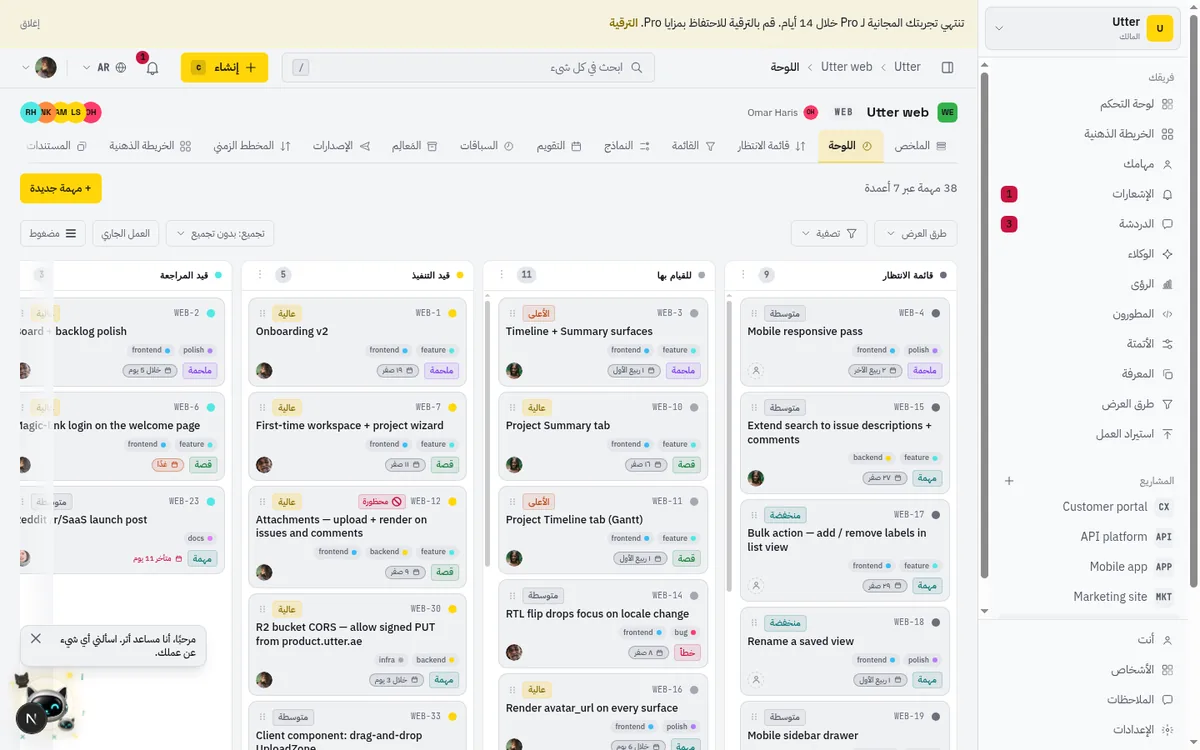
This is the payoff if you came here searching for a right-to-left interface. It is not a compatibility mode or a half effort that covers the menus and forgets the popovers. The whole product commits to the direction you chose.
Arabic dates use the Hijri (Umm al-Qura) calendar
Once you are in Arabic, glance at a due date. It will not match the Gregorian date you saw in English. That is on purpose, and it surprises people, so let me be plain about it.
Dates in Utter run through fmtDate, which reads the locale's Intl tag. For Arabic that tag pins the Umm al-Qura Hijri calendar; English uses plain en-GB. Under the hood it is the standard Intl API with two different locale tags:
// One real day, two calendar systems
new Intl.DateTimeFormat("en-GB").format(due);
// -> "16/07/2026" (Gregorian)

new Intl.DateTimeFormat("ar-SA-u-ca-islamic-umalqura").format(due);
// -> the same day as a Hijri date
So a ticket due on one real day shows a Hijri date in Arabic and a Gregorian date in English, and the two strings look nothing alike because they are two calendar systems describing the same moment.
This is not a bug, and it is not something to "fix" by forcing Gregorian on everyone. Arabic-speaking users in the region expect Hijri dates, and pinning Umm al-Qura specifically (rather than some generic Islamic calendar) gives a stable, standard result across the app. Just know it is coming, so the numbers differing between languages does not throw you. If your team works across both languages, agree internally on which calendar you quote out loud, because the app will faithfully show each person their own.
Set a default language for the workspace and for yourself
The globe switch is per browser and per person. But you also want new people to land in the right language before they touch anything. That is the job of the two default levers, and they are not the same as the switch.
The first lever is workspace-wide. Open Workspace Settings, the General section. There is a Default language row offering English and العربية, and its subtitle spells out the scope: "Used for new members who have not chosen a language yet." This one is owner and admin only, which is correct, since it sets the starting language for everyone who joins. If your team is mostly Arabic-speaking, set this to العربية and new invitees start in Arabic instead of hunting for the globe on their first morning.
The second lever is personal. On your Profile page there is your own Default language (English / العربية). This one applies to you, across workspaces where you have not made an explicit per-browser choice.
Now the part people get wrong. Setting the workspace default to Arabic does not force everyone into Arabic. It only seeds people who have not chosen yet. Anyone who already clicked the globe has an up_locale cookie, and that cookie wins. The full resolution order looks like this:
flowchart LR
    A[Page load] --> B{up_locale cookie?}
    B -- yes --> C[Use the cookie]
    B -- no --> D{Profile default?}
    D -- yes --> E[Use profile default]
    D -- no --> F{Workspace default?}
    F -- yes --> G[Use workspace default]
    F -- no --> H[English]
So the workspace default is a starting point for newcomers, not a lever you pull to convert existing members. If you want the whole team in Arabic, set the workspace default and ask people who joined earlier to pick العربية from the globe once. That single click is all it takes on their end.
Getting new people into the workspace in the first place is its own task. See how to invite team members, and pair the invite with the workspace default so people arrive in the right language.
Change the theme: Auto, Light, or Dark
Theme lives somewhere completely different from language, which is half the reason people cannot find it. It is in the account menu, the one behind your avatar in the top bar.
Open the avatar menu. You will see a Theme section with a three-segment control: Auto, Light, Dark. Right beside it is Density (compact / comfortable). The same menu also holds Profile, Settings, and Sign out. This Theme control is the main place to change your color scheme inside the product.
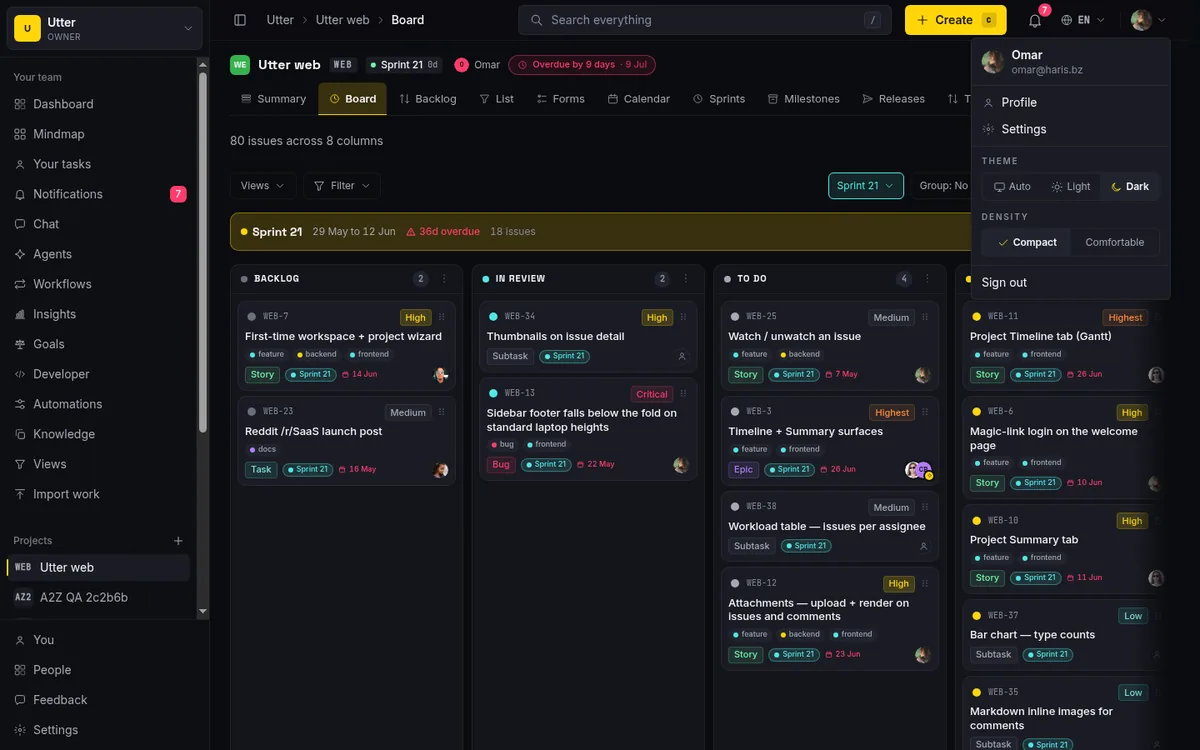
Walk it on the WEB board so you can watch the contrast. This is the board in the default dark palette:
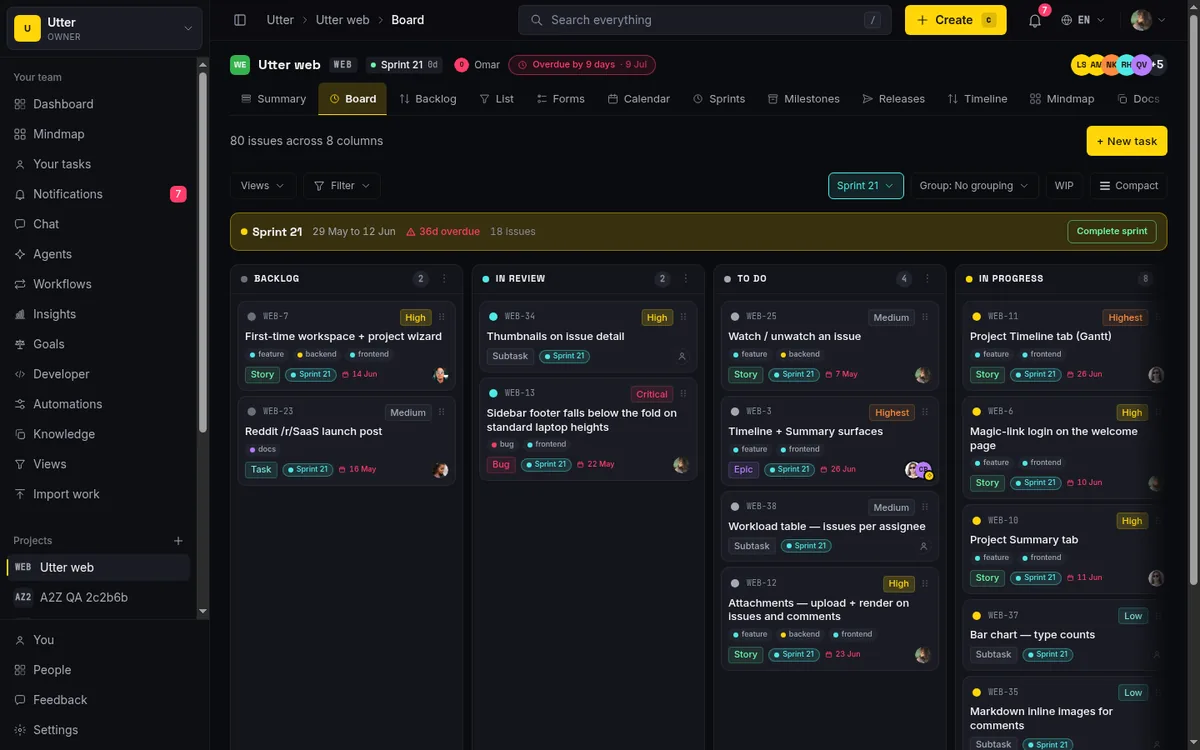
With the board in front of you, open the avatar menu and click Light. The board redraws light: brighter surfaces, dark text, same columns, same cards, same tickets. Click Dark and it returns to the dark palette. Click Auto and it defers to your operating system, which the next section covers.
One note on Density, since it sits right there. Compact versus comfortable changes row spacing, not color. It is a separate feature that happens to share the appearance area. Do not conflate the two. Changing Density leaves your theme untouched, and changing your theme leaves Density untouched.
There is a second place to change theme, but only outside the app. The marketing header (the public pages, not the workspace) has one compact icon button that cycles Auto, then Light, then Dark, with a monitor, sun, and moon glyph marking each state. That button is theme only. The marketing header has no language switcher, so do not go looking for a globe out there.
If you are still learning the board these themes are decorating, how to use a Kanban board covers the columns and card flow underneath.
How Auto works, and why the screen never flashes
Auto is the default, and it is the setting most people should leave exactly where it is. Here is what it does and why the page never flickers on load.
Your theme choice lives in a cookie called up_theme, values auto, light, or dark, defaulting to auto, with a one-year life. The root layout reads that cookie server-side and uses it to seed the theme class before the page is even sent to your browser. That is the first half of the no-flash story.
The second half is a small script. ThemePrefScript runs synchronously at the very top of the page body, before the browser paints a single pixel. When your preference is Auto, that script asks the OS which mode you are in via matchMedia, then applies light or dark plus the matching color-scheme to the document immediately. Stripped to its core, the resolution is three lines:
const pref = readCookie("up_theme") ?? "auto";
const dark = pref === "dark" ||
  (pref !== "light" && matchMedia("(prefers-color-scheme: dark)").matches);
document.documentElement.classList.toggle("light", !dark);
Because it happens before first paint, you never get the ugly flash where a page loads white and snaps to dark half a second later. It is right from the first frame. The full decision tree:
flowchart TD
    A[up_theme cookie] --> B{Value?}
    B -- light --> L[Light palette]
    B -- dark --> D[Dark palette]
    B -- auto --> M{OS prefers dark?}
    M -- yes --> D
    M -- no --> L
Auto also stays live. While your preference is Auto, a matchMedia listener watches your operating system. Flip your OS from light to dark at lunchtime and Utter follows in real time, no reload. Pick Light or Dark explicitly and you pin it; the OS no longer gets a vote.
Here is the light board as the contrast shot, so you can see what Light actually looks like against the dark default.
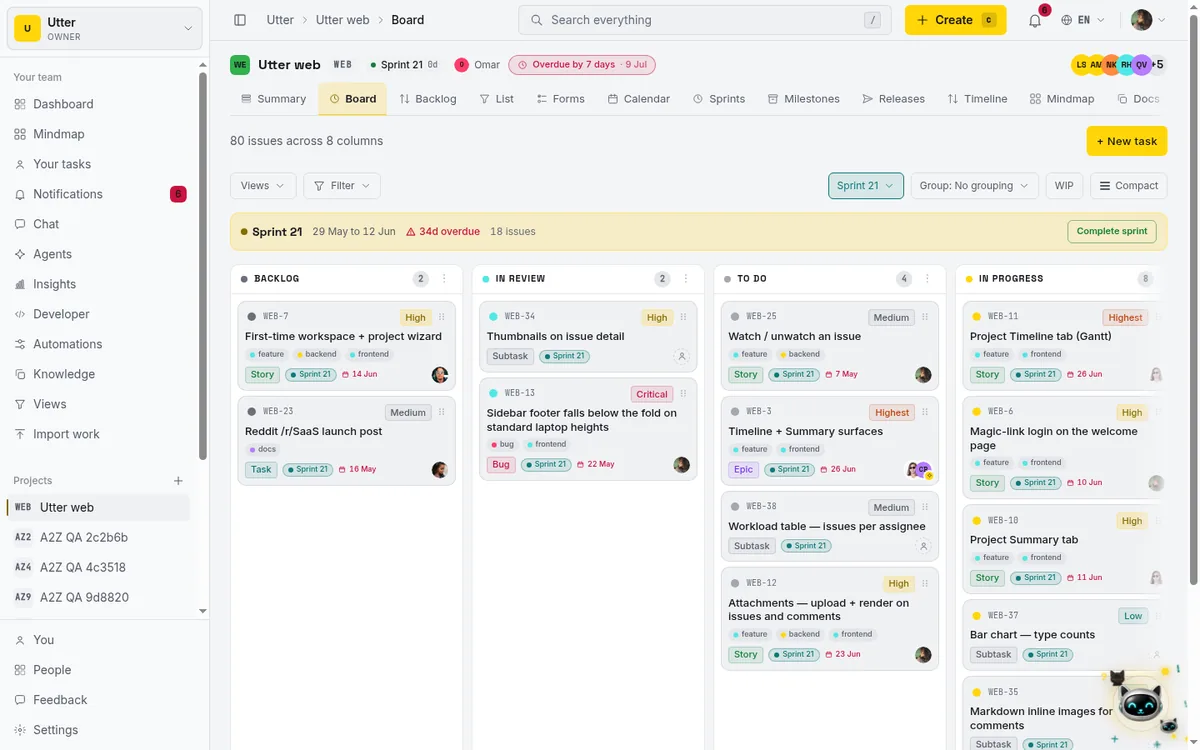
Worth naming the tech plainly: this is hand-rolled over a CSS token bridge, not the next-themes library. An html.light block overrides the --color-* tokens, and the whole interface flips because every color reads from those tokens. You never need to know this to use the feature. But if you came expecting a third-party theme package, that is not what is running underneath.
Limits, gotchas, and what not to expect
Better you know the edges now than trip over them mid-rollout. Straight list:
- Only English and Arabic ship. There is no third language and no browser-locale auto-detection on a first visit. The very first time someone lands with no cookie, they get the resolution chain (user default, then workspace default, then English), not a guess based on their browser.
- No per-project language. A workspace speaks one of two languages per person, not a different one for each project.
- The marketing header carries only the theme cycle button. No language switcher out there. Language changes happen inside a workspace or in
/me, where the globe lives. - Theme is per browser. It is stored in the
up_themecookie, not saved to your account in the database, so it does not follow you to another computer or another browser. Log in on a new machine and it opens at Auto until you set it there too. If that surprises you, it is because language and theme are handled differently by design: language has both a cookie and stored defaults, theme is cookie-only. - No scheduled or time-based theming, no per-workspace theme. Auto following the OS is as close to "automatic" as it gets, and that is deliberate. If your OS already flips to dark at night, Utter comes along free.
- Some brand and raster illustrations do not have light-mode variants yet. Known, deferred. Most of the interface re-themes cleanly through the token bridge, but a handful of images were drawn for dark and will not look perfectly at home in Light. Not every picture flips as neatly as the chrome.
- The theming is hand-rolled over that CSS token bridge, no
next-themes. Said above, repeated here because people assume the opposite.
If you are weighing Utter against other tools on exactly these points, Arabic RTL, dark mode, and how honest the defaults are, the Utter vs Jira comparison lines the differences up side by side, and what is agentic project management covers where the product is heading past the basics.
Frequently asked questions
How do I run Utter as an Arabic RTL and dark mode project management tool?
Language and theme are two separate controls. Click the globe in the top bar and pick العربية for full RTL, then open the account menu behind your avatar and pick Dark under Theme. The two settings are independent, so you can mix any language with any theme.
Does Utter support Arabic and right-to-left (RTL) layout?
Yes, fully. Choosing Arabic sets the document direction to RTL, mirrors the sidebar and controls, right-aligns text, feeds dir=rtl into every dropdown, dialog, popover, and tooltip so they open on the correct side, and renders the interface in IBM Plex Sans Arabic. It is a complete RTL layout, not a partial translation.
Where is the dark mode setting in Utter?
Open the account menu behind your avatar in the top bar. There is a Theme section with an Auto / Light / Dark control; pick Dark. On the public marketing pages there is also a single icon button in the header that cycles Auto, Light, Dark.
If I set the workspace default language to Arabic, does everyone get Arabic?
No. The workspace default only applies to new members who have not chosen a language yet. Anyone who already picked a language from the globe has a cookie that overrides the workspace default. It seeds newcomers; it does not convert existing members.
Why do my Arabic dates look different from the English ones?
Arabic dates render in the Umm al-Qura Hijri calendar (ar-SA-u-ca-islamic-umalqura), while English uses the Gregorian calendar (en-GB). The two strings describe the same day in different calendar systems, so they will not match. This is intentional, not a bug.
Does my theme choice follow me to another computer or browser?
No. Theme lives in the up_theme cookie in your current browser, not in your account in the database. On a new machine or browser it starts at Auto until you set it there. Your language default does follow you (through your profile default); theme does not.
Can I add a third language or have Utter auto-detect my browser language?
No. Only English and Arabic ship, and there is no browser auto-detection on a first visit. A new visitor with no cookie falls back through their user default, then the workspace default, then English.
What is the difference between the workspace default, my profile default, and the globe switch?
The globe switch sets a per-browser cookie and is the strongest signal. Your profile default is your personal fallback. The workspace default is the fallback for new members with no choice yet. Order of resolution: cookie first, then user default, then workspace default, then English.
Related reading
How to search your workspace
Search issues across projects in Utter from one top-bar field: the / shortcut, live typeahead, WEB-12 key-jump, the full results page with Type/Status/Priority filters, and the real limits.
July 15, 2026 · 14 min read
Keyboard shortcuts in utter
Every keyboard shortcut in Utter: the ? overlay, command palette, quick create, g-chords, and a/s/p/l/m field pickers, where each fires, and how to learn them.
July 15, 2026 · 15 min read
How to track and vote on feedback
A hands-on tour of Utter's product feedback board and roadmap: post ideas, vote, and read the Tracking board and Changelog as a live public roadmap.
July 15, 2026 · 17 min read
How to create your first workspace
Getting started with a project management tool: sign in with a magic link (no password), create your first workspace and slug, and set a permanent project key.
July 15, 2026 · 15 min read
How to manage roles and permissions
Learn how project management roles and permissions work in Utter: the five roles, inviting with the right access, scoped projects, and who pays for a seat.
July 15, 2026 · 18 min read
How to use team chat
A practical guide to team chat in a project management tool: channels, DMs, threads, @mentions, file attachments, and the honest limits, all next to your issues.
July 15, 2026 · 16 min read
How to manage your notification preferences
Manage project management notifications in Utter: read the Email vs In-app matrix, cut noise without going dark, watch issues, and control the weekly digest.
July 15, 2026 · 14 min read
How to use the ai assistant
How to run your board with Utter's AI assistant: ask grounded questions, create and triage issues from a sentence, and approve every change before it lands.
July 15, 2026 · 14 min read

Who decides what: setting decision rights between your team and your AI agents
A simple rule for AI governance: reversible, low-stakes moves are the agent's to make; irreversible or high-stakes ones need a human. How to draw the line.
July 15, 2026 · 7 min read

Keep team chat next to your issues, not in another app
The case for project management with built-in chat: why splitting discussion from the tracker loses the thread, and how linking chat to issues fixes it.
July 9, 2026 · 6 min read
أضف تعليقًا
ابدأ النقاش.