
How to install utter as an agent skill
Your coding agent can already write code. What it cannot do, out of the box, is see your board. So when you tell it to "pick up the timeline bug," it either shrugs or invents a ticket that already exists three rows down in your backlog. You end up pasting issue keys into the chat, correcting its guesses, doing the lookup work by hand. The whole point of the agent was to stop doing that.
This guide fixes it in about one command. You will install Utter as a skill in your AI coding agent, which gives it live, authenticated access to your real projects, members, and tickets, so it reads the board instead of guessing at it. If you have ever searched for how to install a project tool as an AI agent skill and hit a wall of half-relevant MCP theory, this is the concrete version, for Utter, that you can actually run.
What you'll learn
- Install Utter as a skill in your AI coding agent with the one-command MCP install for Claude Code, or a downloaded SKILL.md for OpenCode and Codex
- Find the Skills tab in the developer console and read what each of the 8 install targets actually does
- Tell the difference between adding an MCP server and dropping a SKILL.md file into a skills folder, and pick the right one for your client
- Mint an API key first, then substitute the real token into the copied command so the connection actually authenticates
- Verify the agent can see your live projects, members, and the epic/story/task/bug/subtask hierarchy from inside the tool
Why give your AI agent a skill instead of pasting context
Here is the failure mode you are killing. You paste a chunk of your board into the chat. The agent works off that snapshot. Ten minutes later reality has moved: someone reassigned the ticket, a status changed, a new bug got filed. Your pasted context is now a lie the agent is confidently building on. Pasting context is a photograph. What you want is a window.
Installing Utter as a skill gives the agent that window. Live read and write access to real projects over an authenticated connection. Ask it "what's in the WEB backlog" and it queries the actual backlog, not your two-minute-old paste. Ask it to file a bug and the bug lands on the board with the right project key, the right reporter, attributed to the agent's own API key. Nobody relays issue keys by hand anymore.
There are two mechanisms hiding under the phrase "install as a skill," and it pays to know which is which before you start. The first is an MCP server: your agent speaks the Model Context Protocol to a live Utter endpoint, and Utter exposes a set of tools the agent can call. The second is a SKILL.md file: a plain markdown document, customised to your workspace, that you drop into your agent's skills folder so the agent reads it as instructions. Same goal, different plumbing. The Skills tab covers both, which is why "install Utter as a skill in your AI coding agent" is the phrase that spans both.
flowchart LR
    T[Skills tab target] --> M{Which plumbing}
    M -->|MCP server| A[Claude Code]
    M -->|MCP server| B["Cursor, VS Code, Claude Desktop"]
    M -->|SKILL.md file| C[OpenCode]
    M -->|SKILL.md file| D[Codex]
If you want the conceptual background before the mechanics, how to connect an AI agent walks through the connection model, and MCP or REST API for your agent is the honest comparison of when each transport is the right call.
Where the Skills tab lives in the developer console
Everything in this tutorial happens on one screen. Get to it from your workspace: open Knowledge, then the Developer panel. The header reads "Developer" with the subtitle "API keys, skills, webhooks, and usage for this workspace." That subtitle is the map. Keys, skills, webhooks, and usage are the tabs, and Skills is the fifth one, right after Keys, marked with the spark icon.
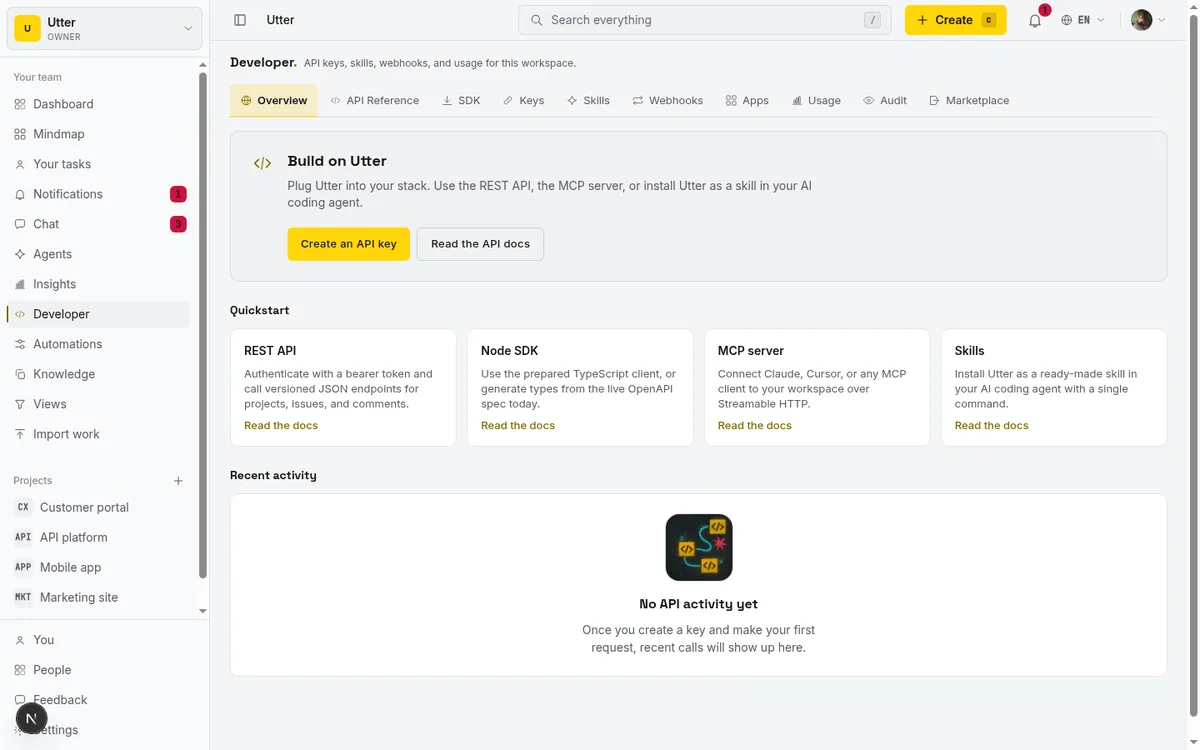
Click Skills and the tab loads at /w/[workspace]/knowledge/developer?tab=skills. The heading is literally "Install Utter as a skill," and the blurb underneath tells you exactly what the tab is for: "Connect Utter to your AI agent. MCP-native clients get a one-line config; SKILL.md clients download a workspace-customised bundle. Snippets point at the live API at utter.ae." Read that blurb once and the rest of the page reads itself. MCP-native clients (Claude Code, Cursor, VS Code, Claude Desktop) get a config. SKILL.md clients (OpenCode, Codex) get a file. Everything points at the live production API.
One thing this tab does not do, which trips people up: it is not where you create keys. It reads your existing keys and pre-fills the newest one's prefix into the snippets. So the real navigation is a two-step. Mint a key on the Keys tab, then come back here to install. Do the key first, because the install command is worthless without it.
Mint an API key before you copy anything
This is the honest sequence, and it matters because the Skills tab is a little sneaky about how ready-to-paste its snippets look. The tab does not create keys. What it does is pre-fill the newest existing key's prefix into the bearer slot of every snippet. A prefix is the short leading fragment of a key, enough to say which key a snippet is talking about, but not the full secret. It will not authenticate anything on its own.
flowchart LR
    K[Mint key on Keys tab] --> C[Copy install snippet]
    C --> S[Swap in the full key]
    S --> R[Run it]
    R --> V[Verify with a probe]
The full plaintext key is shown exactly once, at the moment you create it, on the Keys tab. Once. After that the database stores only a hash, so nobody can ever show you the whole key again. Not the tab, not an admin, not support. This is normal for any serious API, and it is the reason the Skills tab can only ever show you a prefix.
So before you touch a single install command, go to the Keys tab (?tab=keys) and mint a key. Copy the full value the instant it appears and keep it somewhere safe for the next few minutes. One key per agent is the clean pattern: give Claude Code its own key, give a CI bot its own key. Then every action that agent takes on your board is attributed to that key. When you later see "filed by" on a bug, it points at the right actor.
If you land on the Skills tab with no usable key, you get a banner instead of a happy pre-filled command. It reads: "No API key yet. Snippets below use YOUR_API_KEY as a placeholder. Create one to get a ready-to-paste command." It has a Get a key first button that jumps you straight to the Keys tab.
Two permission caveats, to be straight about it. Only owners and admins (anyone with workspace.edit_settings) get the prefix pre-filled at all. Members and viewers always see the plain YOUR_API_KEY placeholder, because they should not be reading account keys. And even for owners, the pre-filled value is still only the prefix. You substitute the real key you saved at creation time. More on that when we hit the command.
The one-command install for install project tool as an AI agent skill in Claude Code
This is the flow the tab is built around, and it really is one line. When the Skills tab loads, Claude Code is selected by default in the segmented target strip (aria-label "Install targets"), and it carries a Recommended tag. The note under it reads: "Recommended. Adds the Utter MCP server to Claude Code in one command."
The command looks like this:
claude mcp add utter-product https://utter.ae/api/mcp/v1 --header "Authorization: Bearer YOUR_API_KEY"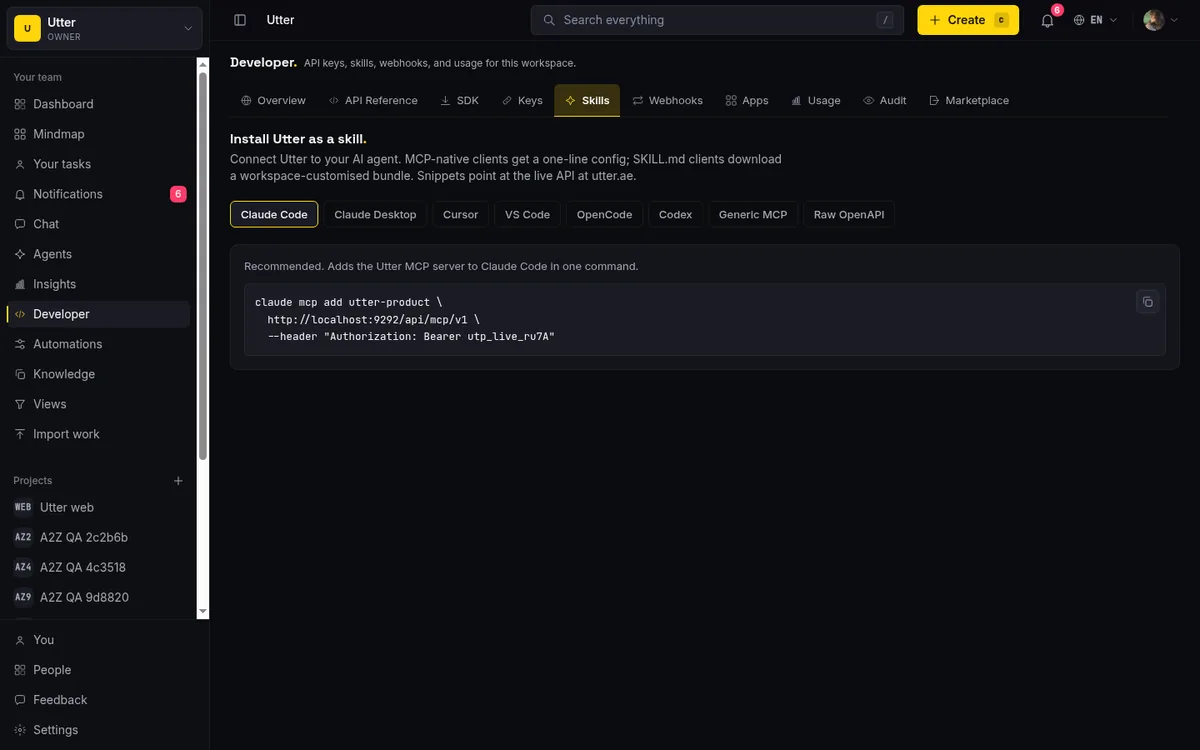
What it does: registers the Utter MCP server with Claude Code, over Streamable HTTP transport, with bearer-token auth, in a single line. Run it in your terminal and Claude Code has Utter's tools available. Next time you ask it about your board, it calls those tools instead of guessing.
Copying is per-block. Each snippet has its own copy button (accessible label "Copy {name} snippet"). Click it and you get a "Copied to clipboard." toast, and the copy icon flips to a checkmark for about a second and a half so you know it took. If the browser blocks clipboard access, you get "Could not copy. Select the text manually." and you do exactly that.
Now the substitution, the step people skip and then wonder why nothing works. Unless you minted your key in the last minute or so on this same session, the Bearer slot in the copied command holds either the placeholder YOUR_API_KEY or your key's prefix. Neither authenticates. Before you run the command, replace that value with the full key you saved from the Keys tab.
(Narrow exception: if you just minted a key seconds ago, a downloaded snippet can carry the real token spliced in via a same-minute stash. Do not count on it. Assume you are substituting by hand and you will never be caught out.)
Be precise about what just happened, because "install as a skill" can mislead here. claude mcp add installs an MCP server in Claude Code. It does not drop a SKILL.md file into a skills folder. That distinction matters for the OpenCode and Codex flows later, which do the opposite. If you want the reasoning behind Utter shipping an MCP server at all, why Utter has an MCP server makes the case.
Connect Cursor, VS Code, or Claude Desktop with a config file
Not every client takes a one-liner. The next three targets hand you a JSON block to paste into a config file, and the tab tells you which file and shows the exact shape.
Claude Desktop. The caption points at ~/Library/Application Support/Claude/claude_desktop_config.json, and the note says "Paste into your Claude Desktop config file." The shape is an mcpServers object:
{
  "mcpServers": {
    "utter-product": {
      "url": "https://utter.ae/api/mcp/v1",
      "headers": { "Authorization": "Bearer YOUR_API_KEY" }
    }
  }
}
Cursor. Caption ~/.cursor/mcp.json, note "Paste into your Cursor MCP config." Same mcpServers shape as Claude Desktop, so if you have done one you have done both.
VS Code. Caption .vscode/mcp.json, a per-workspace file this time. Note "Paste into your workspace MCP config (Continue / Copilot Chat)." The shape is a little different, a servers object with an explicit transport block:
{
  "servers": {
    "utter-product": {
      "transport": { "type": "http", "url": "https://utter.ae/api/mcp/v1" },
      "headers": { "Authorization": "Bearer YOUR_API_KEY" }
    }
  }
}
The substitution rule applies to all three. The Authorization value carries a prefix or the placeholder, and you swap in your real key before saving the file.
Worth knowing if you would rather script this than click through the UI: these blocks are also plain endpoints. GET /api/skill/claude.mcp.json, /api/skill/cursor.mcp.json, and /api/skill/vscode.mcp.json. Each accepts ?workspace=<slug>, an optional ?key=, and ?all=1 to return every variant in one document. They return the identical JSON the tab renders, so you can curl the config straight into place in a setup script:
curl -fsSL "https://utter.ae/api/skill/cursor.mcp.json?workspace=your-slug" \
  -H "Authorization: Bearer $UTTER_API_KEY" \
  -o ~/.cursor/mcp.json
Download a SKILL.md for OpenCode and Codex
Now the other mechanism, the one that produces an actual file. The OpenCode and Codex targets do not add an MCP server. They download a workspace-customised SKILL.md into your agent's skills folder, and the agent reads that file as standing instructions.
The two differ only by destination. OpenCode writes to ~/.claude/skills/utter-product/SKILL.md (note: "Download the workspace-customised SKILL.md into your OpenCode skills folder"). Codex writes to ~/.codex/skills/utter-product/SKILL.md (note: "Download the SKILL.md into your Codex CLI skills folder"). The snippet does the same handful of things in both cases: makes the skills directory, curls the skill URL with your bearer token, writes the response to SKILL.md, then appends an export UTTER_API_KEY=<key> line to your ~/.bashrc so the key is available in your shell for the curl recipes the skill contains.
The OpenCode variant, as the tab hands it to you:
mkdir -p ~/.claude/skills/utter-product
curl -fsSL "https://utter.ae/api/skill/utter-product.skill.md?workspace=your-slug" \
  -H "Authorization: Bearer YOUR_API_KEY" \
  -o ~/.claude/skills/utter-product/SKILL.md
echo "export UTTER_API_KEY=YOUR_API_KEY" >> ~/.bashrc
The skill file itself is fetched from GET /api/skill/utter-product.skill.md?workspace=<slug>, and nothing about that endpoint is curl-specific. If your setup script is JavaScript:
const res = await fetch(
  "https://utter.ae/api/skill/utter-product.skill.md?workspace=your-slug",
  { headers: { Authorization: `Bearer ${process.env.UTTER_API_KEY}` } },
);
const skill = await res.text();
import os
import requests
res = requests.get(
"https://utter.ae/api/skill/utter-product.skill.md",
params={"workspace": "your-slug"},
headers={"Authorization": f"Bearer {os.environ['UTTER_API_KEY']}"},
)
skill = res.textThis is the target that downloads a real skill file, as opposed to claude mcp add, which wired up a server. If your mental model is "a skill is a markdown file the agent reads," these two targets are the literal version of that. The MCP targets are the "skill as a live connection" version.
Two more targets round out the eight, for cases that do not fit a named client. Generic MCP gives you the raw connection details for any MCP-compliant client over Streamable HTTP: the URL, Transport: Streamable HTTP, and Authorization: Bearer with your key. Raw OpenAPI is for when you would rather generate a typed client than talk MCP at all. It hands you the spec download so you can feed it to your codegen tool:
curl https://utter.ae/api/v1/openapi.json > utter-product-openapi.jsonIf that REST-first path is where you are headed, how to use the REST API is the next stop.
What the workspace-customised SKILL.md actually teaches your agent
Open the downloaded SKILL.md and read it. It is not generic boilerplate. It is generated against your workspace, and it front-loads the agent with what it needs to act correctly on your board.
At the top is YAML frontmatter: name: utter-product, a natural-language description written with trigger phrases so the agent knows when the skill is relevant, and an allowed-tools line (Bash(curl:*), Read, Write) that scopes what the skill can do. Below that, the sections teach:
- Authentication and attribution. How to present the bearer token, and the one-key-per-agent convention so actions attribute cleanly.
- The MCP install line, so an agent that read the file can also wire up the live connection.
- The type hierarchy and containment rules. Epic, story, task, bug, subtask, and what can nest inside what. This is the part that stops the agent from filing a subtask with no parent, or an epic under another epic.
- The status lifecycle. The category flow is
backlog -> todo -> in_progress -> in_review -> done, pluscancelled. The agent learns the real states, not invented ones. - The transition, time, and custom-field endpoints, so it can move a ticket, log time, or set a field without you spelling out the URL.
- A worked "start a new project" example it can imitate.
- A live list of the workspace's projects: for each, the key, name, slug, labels, and custom fields.
- A members table: each person's
@handle(derived from the email local-part), name, and role, so@mentionsresolve to real people. - Quick recipes: what's assigned to me, file a bug, add to the backlog, post a comment, search.
- Links to the docs and the public OpenAPI URL.
Make it concrete. For a project keyed WEB, the agent reads that its board columns are Backlog, To Do, In Progress, In Review, Done, and it sees real tickets sitting in them, something like "Timeline + Summary tab." So when you say "move the timeline summary work to in review," it knows the ticket exists, which column it is in, and where "in review" sits in the flow. No guessing, no key relay.
One honest limit: the file lists only live projects and members. Archived and soft-deleted rows are excluded. If your workspace has no projects yet, the SKILL.md tells the agent to create one and re-download, rather than shipping an empty projects section. So generate the skill after you have at least one real project, or regenerate it once you do.
Test the connection and verify the agent can see your board
Do not trust that it worked just because the command ran without an error. Ask the agent something only a genuinely connected client could answer. Two good probes: "what's assigned to me in WEB" or "list the projects in this workspace."
sequenceDiagram
    participant You
    participant Agent as Coding agent
    participant Utter as Utter MCP server
    You->>Agent: what is assigned to me in WEB
    Agent->>Utter: tool call with bearer key
    Utter-->>Agent: live tickets and columns
    Agent-->>You: real keys and real statuses
What good looks like: the agent comes back with real ticket keys and real column names. It says WEB has a Backlog and an In Review column and names actual tickets in them. That is the tell that it is reading the live board. What failure looks like: vague, hedged, made-up answers, or a flat "I can't see any projects."
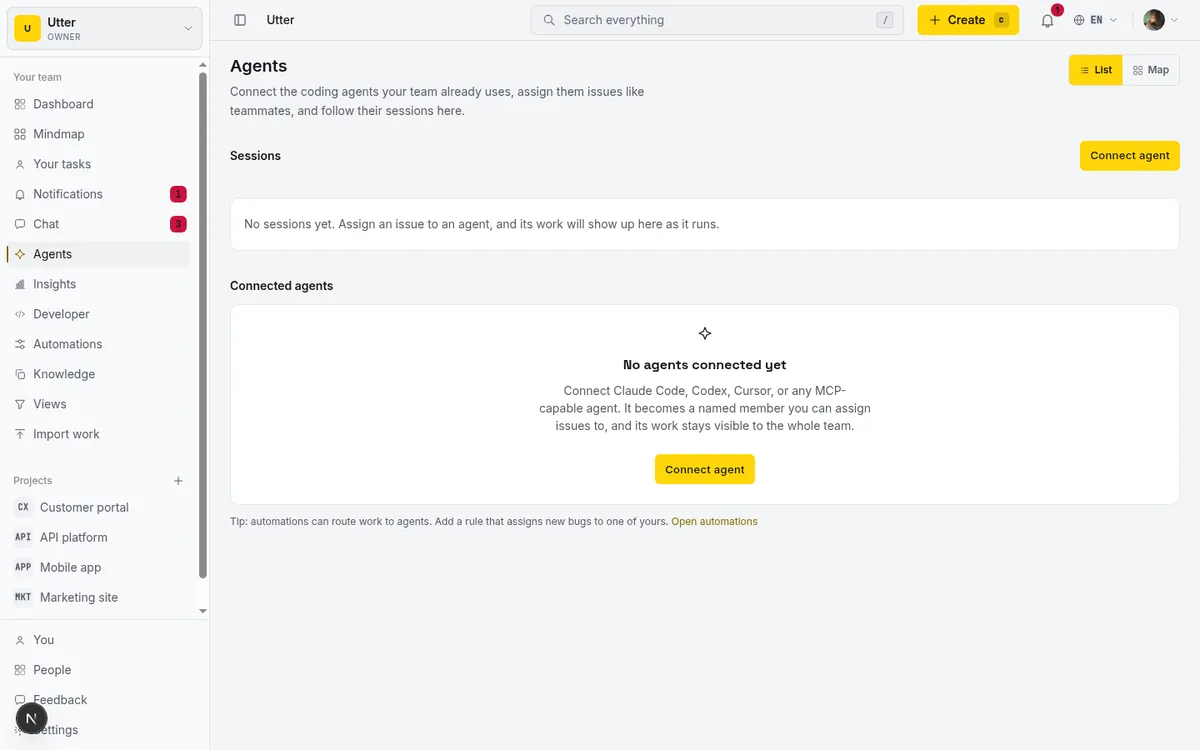
When it fails, the cause is almost always one of two things, in this order of likelihood. First, the placeholder key was never swapped for the real one, so the bearer is YOUR_API_KEY or a bare prefix and the request never authenticates. Go check the actual value in the command or config file. Second, whoever generated the snippet lacked workspace.edit_settings, so only the prefix ever filled in and there was never a full key to begin with. Mint one as an owner or admin.
It helps to understand the auth model underneath, because it explains some behavior that is friendlier than you might expect. The download and config endpoints are dual-auth: a logged-in workspace member (via session cookie) or a valid API key both resolve to the same workspace. A workspace you cannot access returns a 404, not a 403, so the system never confirms or denies whether a given workspace exists to someone who should not know.
A caller with no credentials at all does not get a hostile 401 either. They get a friendly onboarding SKILL.md that walks them through sign up, create a workspace, mint a key, connect. The MCP server itself is stricter. It is bearer-only, so a missing or bad key there is a straight 401.
Limits and mistakes to avoid
This tab is a snippet generator. Being clear-eyed about what it is not will save you a confused ten minutes.
- There is no install button that pushes the skill to your agent. The tab renders copyable text. You run it. There is no marketplace of installable skills on this tab either; the separate Apps and Marketplace tabs are different features.
- The auto-filled bearer is only the key prefix. It reads ready-to-paste, but it will not authenticate until you substitute the full key you saved at creation time. The only exception is a key minted seconds ago on the same session. Assume you are substituting by hand.
claude mcp addinstalls an MCP server, not a skill folder. Only the OpenCode and Codex targets download an actualSKILL.md. "Install as a skill" is the umbrella phrase; know which target does which.- The snippets always point at production,
utter.ae. In the browser the tab uses your current origin and falls back tohttps://utter.ae. It does not target localhost, so do not go hunting for a local URL to swap in. - Trailing slash quirk. The MCP URL in the tab is
/api/mcp/v1with no trailing slash; the generatedSKILL.mdwrites/api/mcp/v1/with one. Both hit the same server. Neither form is more correct. - Custom-field recipes use a
FIELD_IDplaceholder. The real field IDs come from the per-project "Projects in this workspace" section of your generated SKILL.md. Read them there rather than guessing.
Get the ordering right. Mint the key, install, substitute the real token, then verify against your live board, and the agent stops inventing tickets and starts working from what is actually there. If you want to see how far the write side goes, let AI agents run your board over the REST API picks up where this leaves off.
Open the Skills tab in your workspace developer console and install Utter into your agent.
Frequently asked questions
What does "install Utter as a skill" actually mean, an MCP server or a SKILL.md file?
Both, depending on the target you pick. "Install as a skill" is the umbrella phrase. The Claude Code, Claude Desktop, Cursor, VS Code, and Generic MCP targets connect your agent to Utter's live MCP server. The OpenCode and Codex targets download a workspace-customised SKILL.md file into your agent's skills folder. Same goal, two mechanisms.
How do I add the Utter MCP server to Claude Code in one command?
Copy the Claude Code snippet from the Skills tab and run it: claude mcp add utter-product https://utter.ae/api/mcp/v1 --header "Authorization: Bearer YOUR_API_KEY", with your real API key substituted in. That registers the Utter MCP server over Streamable HTTP with bearer auth. Claude Code is the default, Recommended target on the tab.
Which AI coding agents can I connect Utter to?
The tab offers eight install targets: Claude Code, Claude Desktop, Cursor, VS Code (with a note for Continue and Copilot Chat), OpenCode, Codex, Generic MCP for any MCP-compliant client, and Raw OpenAPI for feeding a codegen tool.
Do I need to create an API key before installing, or does the Skills tab make one for me?
Create one first. The Skills tab does not mint keys; it only pre-fills the prefix of your newest existing key into the snippets. Mint the key on the Keys tab (the full value shows exactly once at creation), then return to Skills to copy your install command.
Why does my copied command still say YOUR_API_KEY instead of a real key?
Two possible reasons. Either you have no usable key yet, or you are a member or viewer rather than an owner or admin, in which case you always see the placeholder. Even owners and admins only get the key prefix pre-filled, not a usable token, so you always substitute your real key before running the command (unless you minted it seconds ago on the same session).
What's the difference between the Claude Code one-liner and the OpenCode or Codex SKILL.md download?
The Claude Code one-liner installs an MCP server, which is a live connection. The OpenCode and Codex snippets download an actual SKILL.md file into a skills folder (~/.claude/skills/... or ~/.codex/skills/...) and export your key to your shell. One wires up a server, the other writes a file.
What does the generated SKILL.md tell my agent about my workspace?
YAML frontmatter (name, description with trigger phrases, allowed tools) plus sections on authentication, attribution, the MCP install line, the epic/story/task/bug/subtask hierarchy and containment rules, the backlog-to-done status lifecycle, transition/time/custom-field endpoints, a worked new-project example, a live list of your projects (key, name, slug, labels, custom fields), a members table, quick recipes, docs, and the public OpenAPI URL. It lists only live projects and members.
Does the Skills tab point at localhost or the live utter.ae API?
The live API. Snippets use your current origin in the browser and fall back to https://utter.ae. They never target localhost.
Related reading
How to use AI agents in Utter: connect them, assign work, and follow their sessions
A start-to-finish walkthrough: connect an agent, scope its key, assign it issues, and watch its sessions, without giving up control of the board.
July 15, 2026 · 11 min read
Onboard an AI agent like a new hire: identity, access, and a first task
You already know how to bring on a new hire. Do the same for an AI agent: give it an identity, scoped access, one small task, a review, and an offboarding path.
July 15, 2026 · 8 min read

Why we gave Utter an MCP server, and what it changes
What the Model Context Protocol is in plain terms, why a project tracker is a good fit for it, and how an agent picks up your workspace without any glue code.
July 11, 2026 · 5 min read
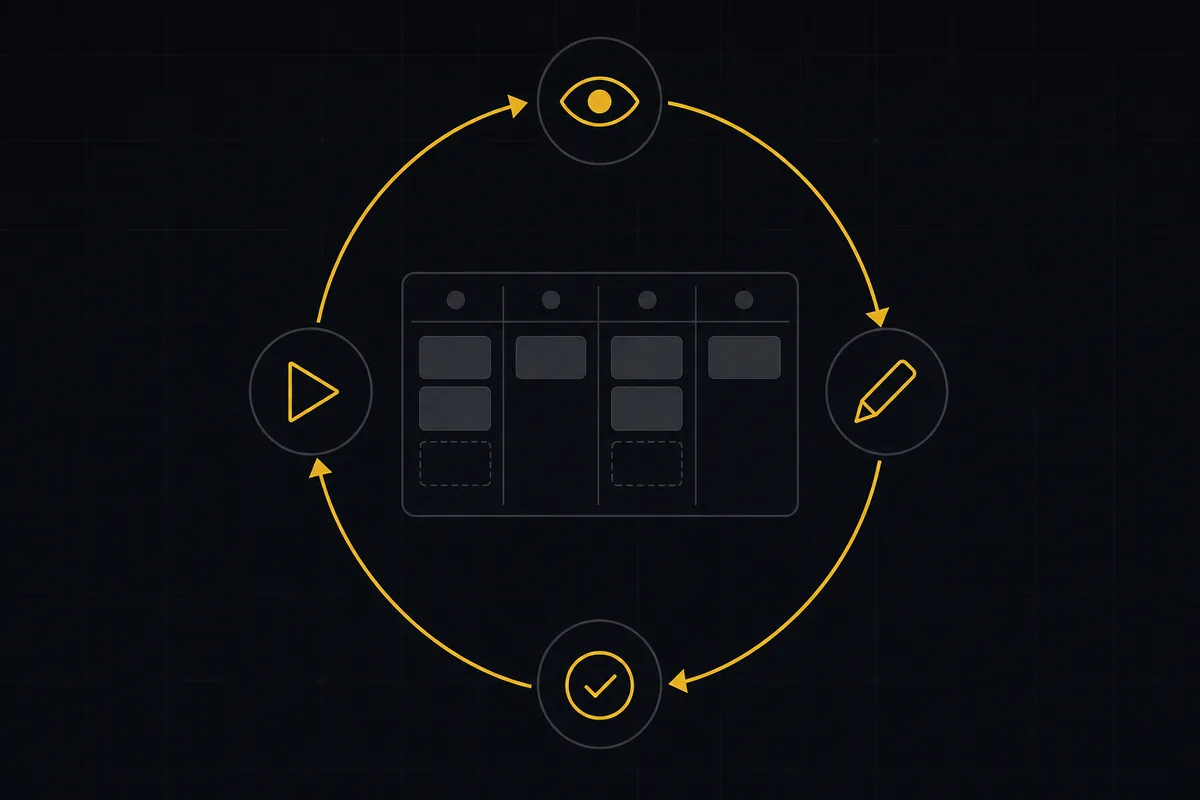
What is agentic project management? A plain-language guide with a working example
A copilot waits for your prompt. An agent acts on an event. Here is the perceive-plan-act-check loop explained, with one real end-to-end run inside Utter.
June 11, 2026 · 11 min read
Chat with your AI agents, then put them in a workflow
Utter lets you DM an AI agent or @mention it in a channel, watch it work, and connect agents and people on a canvas so a ticket routes itself through triage, build, and review.
July 17, 2026 · 7 min read
How to use the rest api
Get an Utter API key and use the project management REST API to list, create, and update issues safely, with scopes, idempotency keys, and rate limits explained.
July 15, 2026 · 16 min read
How to connect an ai agent
Connect an AI agent to a project management tool in Utter: name it, mint a scoped key, wire up MCP, assign a ticket, and watch its sessions, step by step.
July 15, 2026 · 15 min read
What you can run in Utter without extra tools
A straight, capability-forward tour of the jobs Utter covers in its core, from a light help desk to integrations, estimation, and roadmaps, and when to pair a dedicated tool.
July 16, 2026 · 8 min read
Give your AI agent a knowledge base: connect your docs so it answers from your project, not the internet
How to give an AI agent access to your company docs, so it grounds answers in your workspace instead of guessing, using RAG exposed through MCP.
June 5, 2026 · 8 min read
How to delegate work to an agent
Assign a task to an AI agent in Utter using the same assignee picker you use for people, and understand the pending session, claim flow, and real limits.
July 15, 2026 · 16 min read
Add a comment
Start the conversation.