
How to delegate work to an agent
You connected an AI agent to your workspace last week. It has an API key, it can reach your MCP endpoint, it shows up in the member list with an avatar. And it has done nothing, because you never gave it anything to do. There's a bug in your backlog you keep skipping. You want the agent to take it. This is the part where you actually hand over the work.
Here's the good news up front: to assign a task to an AI agent in Utter, you do exactly what you already do for a human teammate. Open the issue, open the assignee picker, pick the agent. Done. The mechanics you learned for delegating to people carry over one for one, because in Utter an agent is a real member, not some separate object with its own strange workflow.
What turns a plain assignment into a delegation is something that happens quietly in the background the instant you pick that agent. This post walks the whole handoff. The picker, the invisible session that gets created, how the agent picks the work up, where you watch it, how to route work automatically, and the limits nobody prints in the marketing copy.
What delegating to an AI agent actually means in Utter
Before you assign anything, it helps to know what you're assigning to.
An agent in Utter is a real workspace member. Underneath, it's a user record flagged is_agent with a workspace_agents profile attached. It has a name, an avatar, a role. It can be an assignee, a reporter, a mention target. Why does that matter? Because there is no special "delegate to AI" mode, no separate delegation screen, no different button. You assign an issue to an agent the same way you assign one to Sara in design. The plumbing you already know is the plumbing.
The one prerequisite: the agent has to be connected first. Connecting means minting its API key and pointing its runtime at Utter's MCP endpoint, which is a different job covered in how to connect an AI agent. If you haven't done that, the agent won't show up in the picker, because there's nothing on the other end to do the work. This post assumes you're past that step and have a connected agent sitting in your workspace.
So if assignment is just an ordinary assignment, where does "delegation" come from? One thing. The moment you assign an issue to an agent, Utter auto-creates a pending session for that agent and that issue.
That pending session is the record of the handoff. It's what turns "I put your name on this ticket" into "you have been delegated this task, and the system is now watching for you to pick it up." Everything else here, the states, the badges, the notifications, the auto-cancel, hangs off that one session.
Let's walk the lifecycle, starting with the assignment.
Assign a task to an AI agent from the assignee picker
Open a real issue. In the demo WEB project, go to the board and grab something concrete. Say the "Timeline + Summary tab" card sitting in the To Do column. Click into it to open the detail view, then open the assignee picker the way you always do.
Here's the part worth slowing down for. The picker is grouped. You'll see a "People" group with your human teammates, and an "Agents" group with your connected agents. Same picker, two groups. Agents render exactly like people, avatar and name, so there's no visual second-class treatment. Pick your agent from the Agents group.
The write that happens here is completely ordinary. You're setting the assignee field on an issue. Nothing about the payload says "this is special." What good looks like is boring in the best way: the agent's name and avatar now show on the card and in the issue header, identical to how a person's would. If you can read the assignee, you did it right.
Two things fire on that write, and it's worth being precise about which:
- The normal
assignednotification goes out, the same one a human assignee gets. - A push event goes to the agent's own runtime stream, so its process can learn it's been given work.
What does NOT fire yet is any agent-session notification. The session that just got created is pending, and pending is deliberately quiet. More on that next, because it's the part people misread most.
What happens the moment you assign: the pending session
The instant that assignment lands, a function called triggerAgentAssigned() runs and creates a pending agent session for that exact (agent, issue) pair. You clicked nothing extra. It's automatic, and it's the thing that makes this delegation rather than a sticky note.
The creation is idempotent, which is a fancy way of saying it won't pile up duplicates. Before it creates a pending session, triggerAgentAssigned checks whether any open session already exists for that agent and that issue. Open means pending, running, needs_input, or review. If one of those is already sitting there, it does nothing. So if you re-assign the same issue to the same agent, or if two write paths happen to fire at once, you still end up with exactly one session. No stacking.
The whole handoff, from your click to the first bell, looks like this:
sequenceDiagram
  participant You
  participant Utter
  participant Agent as Agent runtime
  You->>Utter: Assign issue to agent
  Utter->>Utter: Create pending session
  Utter-->>Agent: Push event on its stream
  Agent->>Utter: POST agent sessions with issue key
  Utter->>Utter: Pending flips to running
  Agent->>Utter: PATCH session as it works
  Utter-->>You: Bell on needs input, review, done
Now the subtle bit. A pending session does not itself fire an in-app notification. Creating it is silent on the bell. The only notification tied to this assignment was the assigned one from the last step. So right after you assign, the state of the world is: the agent has been notified it's assigned, a pending session exists on the record, and yet nothing "has happened" in any visible-activity sense. That's the honest shape of it. The delegation is on the books, waiting.
Invisible because there's no activity, no comment, no session notification. Visible because if you open the Agents hub or the issue's own activity card, the pending session is right there. Which is exactly where you should look next.
Watch the delegation on the Agents hub
Go to the Agents hub at /w/utter/agents. This is your command center for everything agents are doing across the workspace. The section you want is the Sessions list.
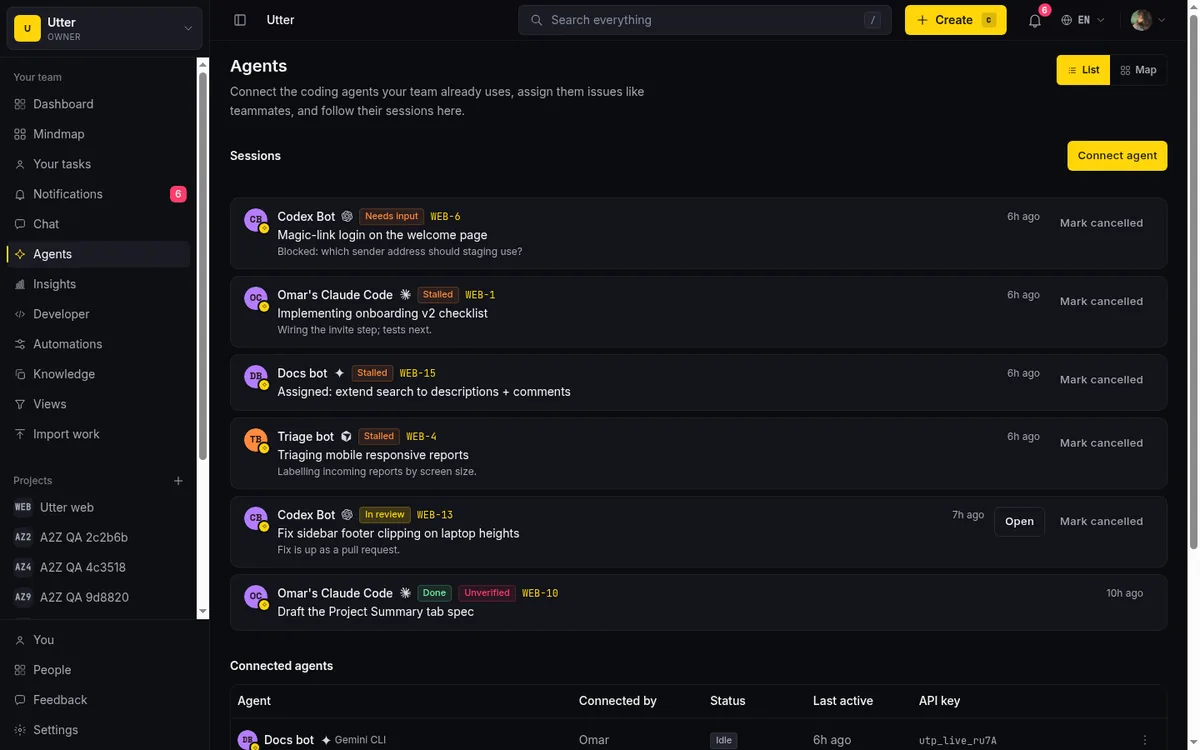
If nothing has ever run, you'll see the empty state: "No sessions yet. Assign an issue to an agent, and its work will show up here as it runs." Once you've made your first delegation, that clears and your pending session appears as a row. The list has a Status column and a Last active column, so you can read where each session sits and when it last moved without opening anything.
The state badges are the vocabulary you'll live in:
| Badge | Who sets it | What it means |
|---|---|---|
| Pending | The system, on assignment | Delegation waiting for the agent to claim it |
| Running | The agent, by claiming | Work is in progress |
| Needs input | The agent | It has a question for a human |
| In review | The agent | Work is ready for you to check |
| Done / Failed | The agent | Terminal, the run ended |
| Cancelled | A manager, or the 7-day sweep | Ended without finishing |
| Stalled | Nobody, derived at read time | 30 minutes with no activity |
This list is where you watch the full arc: assign, pending appears, the agent claims it, pending flips to Running, onward from there. The same list is readable over the API too, if you'd rather script the check:
curl "https://utter.ae/api/v1/workspaces/utter/agent-sessions?state=running&limit=20" \
  -H "Authorization: Bearer utp_live_a1b2..."
Here's a limit to hold in your head, because it trips people up. An unclaimed pending session does not stay labelled "Pending" for days. After 30 minutes with no activity (that's SESSION_STALL_MINUTES), the badge flips to an orange "Stalled." So the realistic sequence on the hub for a delegation nobody picks up is: "Pending" briefly, then "Stalled" for a good long while, and only much later does the 7-day cleanup actually cancel it. If you assign something and come back an hour later to find "Stalled," that's not a bug. That's the system telling you the agent's runtime hasn't reached for the work yet.
How the agent claims the task (there is no accept button)
Here's the mental model most people arrive with, and it's wrong. They picture a queue where the agent, or they, click an "Accept" button to formally take the task. There is no such button. Nowhere in the hub is there a human-facing claim or accept control. Don't go looking for one.
What actually happens: the agent's runtime calls startAgentSession. That's a POST to /api/v1/workspaces/[slug]/agent-sessions, reachable over both plain REST and MCP, and it passes the issue key it's picking up. Over REST, the claim looks like this (the key is the agent's own key, with the agents:write scope):
curl -X POST https://utter.ae/api/v1/workspaces/utter/agent-sessions \
  -H "Authorization: Bearer utp_live_a1b2..." \
  -H "Content-Type: application/json" \
  -d '{
    "title": "Fix flaky login test",
    "issue_key": "WEB-12",
    "note": "Claiming the delegated issue"
  }'
const res = await fetch(
"https://utter.ae/api/v1/workspaces/utter/agent-sessions",
{
method: "POST",
headers: {
Authorization: `Bearer ${process.env.UTTER_API_KEY}`,
"Content-Type": "application/json",
},
body: JSON.stringify({
title: "Fix flaky login test",
issue_key: "WEB-12",
note: "Claiming the delegated issue",
}),
},
);
const { data } = await res.json();
console.log(data.state); // "running"import os
import requests
res = requests.post(
"https://utter.ae/api/v1/workspaces/utter/agent-sessions",
headers={"Authorization": f"Bearer {os.environ['UTTER_API_KEY']}"},
json={
"title": "Fix flaky login test",
"issue_key": "WEB-12",
"note": "Claiming the delegated issue",
},
)
print(res.json()["data"]["state"]) # "running"When that call arrives and a pending row already exists for that agent and that issue, startAgentSession doesn't insert a new row. It finds the existing pending session and flips it to running, updating the title, note, and external URL, and bumping lastActivityAt. That's the claim. One row, upgraded in place, so you get a single continuous timeline from delegation through to work instead of two disconnected records. The response reflects the upgraded session (trimmed to the interesting fields):
{
  "data": {
    "id": "0197f3a2-...",
    "agent_name": "Claude Code",
    "state": "running",
    "title": "Fix flaky login test",
    "issue_key": "WEB-12",
    "started_at": "2026-07-15T09:12:04.000Z",
    "last_activity_at": "2026-07-15T09:41:33.000Z",
    "ended_at": null
  }
}
If the agent starts a session for an issue that has no pending row (say it went and picked up work on its own, or it's doing something not tied to an issue at all), then startAgentSession just inserts a fresh running session directly. Same endpoint, different path depending on whether a delegation was waiting.
The thing to internalize: claiming is the agent's runtime doing its job over the API, not you doing anything in the UI. You assign. Its process, whenever it gets around to it, calls the endpoint and the badge turns Running. Your job between "assign" and "Running" is to wait and watch, not to hunt for a second button that doesn't exist.
Follow the work on the issue's Agent activity card
The hub is the workspace-wide view. But most of the time you're looking at one ticket, and you want to know what the agent is doing on that ticket. That lives on the issue itself, in the Agent activity card.
Open the WEB issue you assigned and find the Agent activity card in the detail view. It mirrors the same session state you'd see on the hub, scoped to this one issue. Before the agent has started, the card shows its empty state: "Assigned to {agent}. No session yet. The agent will report here when it starts." There's also a "How it works day to day" explainer that spells the flow out in plain terms: "Assign an issue to the agent like any teammate. When it picks the work up it starts a session; you'll see running, needs-input, and review states here and on the ticket."
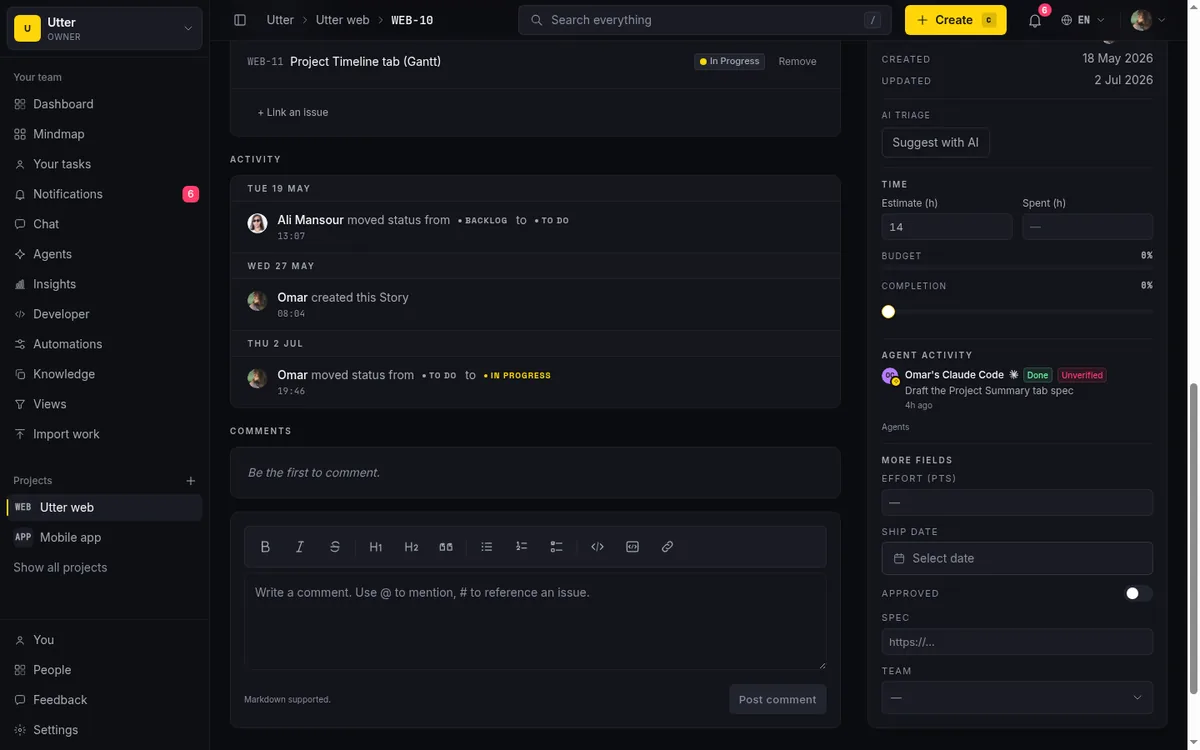
Once the agent is working, this card is where the story unfolds. The agent drives its session forward with PATCH calls (that's updateAgentSession under the hood), and every PATCH doubles as a heartbeat: it bumps lastActivityAt and can move the state along.
curl -X PATCH https://utter.ae/api/v1/workspaces/utter/agent-sessions/<session-id> \
  -H "Authorization: Bearer utp_live_a1b2..." \
  -H "Content-Type: application/json" \
  -d '{"state": "review", "note": "Fix is up as a pull request."}'
The path runs running, then optionally needs_input, then review, then one of done, failed, cancelled. A healthy run reads like a short narrative on the ticket. It started, it hit a question, it's ready for review, it's done.
stateDiagram-v2
  [*] --> pending: assignment
  pending --> running: agent claims
  pending --> cancelled: 7 day sweep
  running --> needs_input: agent asks you
  needs_input --> running: you answer
  running --> review: work ready
  review --> done
  running --> failed
  running --> cancelled: mark cancelled
  done --> [*]
  failed --> [*]
  cancelled --> [*]
(The diagram shows the common paths. "Mark cancelled" actually works from any open state, not only running.)
Some of those transitions are loud. Entering needs_input, review, done, or failed fires an in-app notification, and it goes to the agent's owner plus the issue's reporter, assignee, and watchers. Those use the agent_needs_input and agent_done notification kinds. That's the design intent. You don't have to babysit the card. When the agent needs you or finishes, your bell rings.
One scoping detail matters here: these notifications only fire for issue-anchored sessions, ones tied to a specific issue. A free-form session with no issue attached produces no bell. Since delegation always anchors to an issue, delegated work will notify you; ad-hoc agent runs may not.
One more display quirk to expect. A running session that goes 30 minutes with no heartbeat also shows the "Stalled" badge, same threshold as the pending case. This is display only. It does not cancel the session and it does not mark it failed. It's a hint that the agent's process has gone quiet, nothing more. If the agent picks back up and sends another PATCH, the badge clears itself.
Route work to agents automatically with automations
Assigning one issue by hand is fine for a one-off. The real value shows up when you stop doing it by hand. Automations let you route work to agents on a rule, and there are two actions worth understanding, because they do very different things.
flowchart LR
  R[Rule fires] --> C{Action}
  C -->|assign_to an agent| A[Issue assigned plus pending session]
  C -->|notify_agent| N[Wake event only, nothing changes on the issue]
The first is assign_to. When an automation's assign_to action targets an agent, it fires the exact same triggerAgentAssigned that an interactive assignment does. Same pending session, same everything. So a rule like "when a card enters In Progress, assign it to agent Y" is a genuine delegation. The moment the rule fires, a pending session exists and the agent can claim it. This is how you get standing delegation instead of manual handoffs.
The second is notify_agent, and it's a different tool for a different job. notify_agent wakes a connected agent from a rule by publishing an automation.notify event to that agent's stream. That's all it does. It does not create a session. It does not assign the issue. It changes nothing on the issue. Use it when you want to poke an agent (maybe it watches for these events and decides for itself what to do) without formally handing it the ticket. It re-validates that the agent is still connected at fire time, and if the agent isn't connected anymore, it fails with "agent not connected" instead of silently doing nothing.
To set either up, open the automation rule editor, add an action, and you'll find "Notify agent" with its own "Select agent" picker, or "Assign to" where you can pick an agent as the target. The editor nudges you toward it: "Tip: automations can route work to agents. Add a rule that assigns new bugs to one of yours." Full setup is covered in how to set up automations.
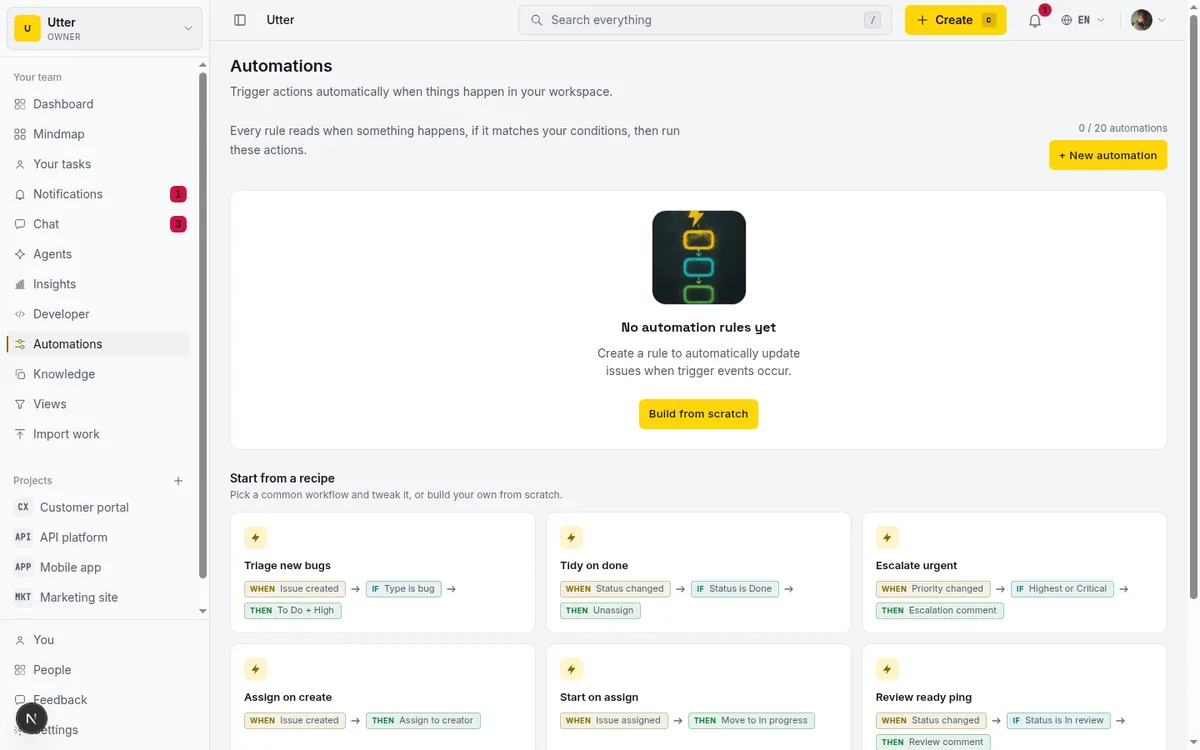
Now the honest gate, because it's a real one. Automations are a paid feature. They're gated both when you create a rule and again at execution time. So on a free or downgraded workspace, neither an assign_to-to-an-agent rule nor notify_agent will fire, no matter how the rule is written. If your automated delegation isn't happening, check the plan before you check the rule.
Worth knowing for completeness: delegation is wired into every assignment write path, not just the interactive picker. Interactive create and update, bulk assignment, the assign_to automation action, and form-routing defaults all call triggerAgentAssigned when the assignee is an agent. However you route an issue to an agent, the pending session gets created.
Ending, cancelling, and the 7-day cleanup
Sessions don't all end cleanly on their own, so there's cleanup. Some of it manual, some automatic.
Manually, an owner or admin (or the agent's own connector) can end an open session straight from the hub with the "Mark cancelled" action. The permission logic is canCancel = open state AND mayManage, which means two conditions: the session has to still be in an open state, and you have to have management rights. A plain member does not get this control. When an owner cancels a session this way, it also emits a push event to the agent's stream, so the agent's runtime knows to stop.
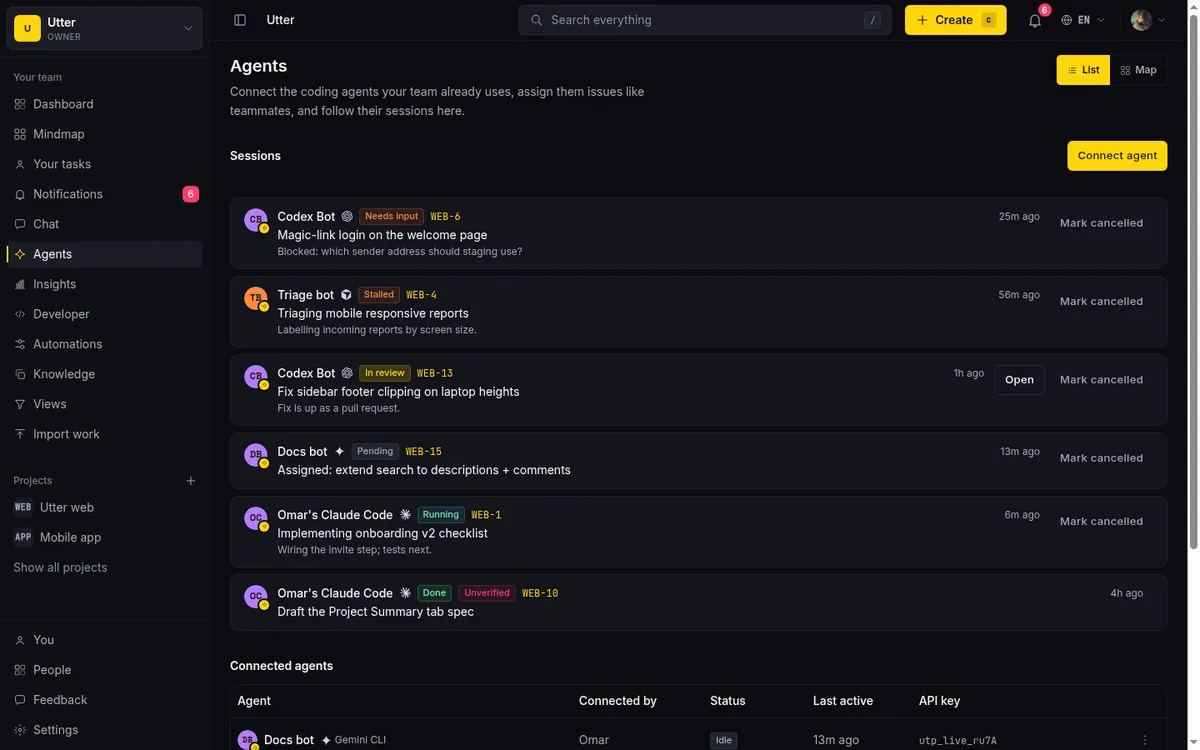
Automatically, there's a worker sweep called expireStalePendingSessions. It runs about 40 seconds after the worker boots, then every 6 hours after that. Its job is narrow: it auto-cancels any pending session older than 7 days (measured from startedAt, the creation time) that was never claimed. It sets the state to cancelled and stamps endedAt. This is what keeps abandoned delegations from sitting on the hub forever.
Two honest qualifiers on that 7-day number. First, it's approximate, not exact. Because the sweep runs on a 6-hour cadence rather than watching each session to the second, a pending session gets cleaned up sometime after 7 days from creation, not precisely at the 168-hour mark. Second, and this is the important one, it only touches sessions still in pending. The moment an agent claims a session and it goes to running, this sweep leaves it alone. A claimed session that stalls is never auto-cancelled by this worker. It'll show the Stalled badge, but it stays open until someone marks it cancelled or the agent moves it to a terminal state.
Common mistakes and limits worth knowing
Let me pull the honest limits into one place, because getting these wrong leads to confused expectations.
Pending is system-only. Agents transition out of pending, never into it. They leave it by claiming (startAgentSession), or the worker cancels it. The set of states an agent can PATCH a session into (PATCHABLE_SESSION_STATES) deliberately excludes pending. So don't build a mental model, or tell a teammate, that an agent can "set itself to pending." It can't. Pending is a thing the system does to represent a waiting delegation.
There is no accept button. Worth repeating because it's the single most common wrong assumption. The claim is the agent's runtime calling an API endpoint, not a human clicking "accept" in the hub. If you're waiting for a button to appear so you can approve the handoff, you'll wait forever.
Pending shows as Stalled after 30 minutes, not for 7 days. The badge on an unclaimed delegation goes Pending, then Stalled (orange) after 30 minutes of no activity, long before the 7-day auto-cancel. Stalled is derived at read time, never stored.
One open session per (agent, issue). Re-assigning an already-in-flight issue to the same agent will not stack a second session, because triggerAgentAssigned skips creation when any open session already exists for that pair. If you expected a fresh session on re-assign, you won't get one. That's on purpose.
Notifications only fire for issue-anchored sessions. Session-state notifications require the session to have an issueId. A free-form session with no issue produces no bell. Delegated work is always anchored, so it notifies; ad-hoc runs may be silent.
Cancelling from the hub is gated. Only owner, admin, or the agent's owner/connector can Mark cancelled. mayManage gates it. A plain member sees the session but can't end it.
A couple of things that aren't limits so much as good practice. Connecting the agent is a separate prerequisite from delegating to it; if the agent isn't in your picker, start at how to connect an AI agent. And delegation goes a lot better when the first job is scoped tightly and the agent's write permissions are set on purpose. A vague ticket handed to an agent produces vague work, same as with a person. Before you lean on delegation, read scope an AI agent's first job and how to set agent field permissions, which is where you decide what the agent is even allowed to touch on an issue.
Ready to hand off your first task? Open a WEB issue, drop your connected agent in the assignee picker, and watch the Agents hub for the session to go from Pending to Running.
Frequently asked questions
How do I assign a task to an AI agent in Utter?
Open the issue, open the assignee picker, and pick the agent from the "Agents" group that sits alongside "People." It's the same picker and the same action you use for a human teammate. The assignment write is ordinary; what makes it delegation is the pending session Utter auto-creates for that agent and issue the moment you assign.
Is there an accept or claim button the agent has to press before it starts?
No. There's no human-facing accept or claim button anywhere in the hub. The agent claims the work by calling startAgentSession over REST or MCP with the issue key, which finds the waiting pending session and flips it to running. That's its runtime doing the work, not you clicking anything.
Why does my delegated task show a Pending badge, then change to Stalled?
Because a pending session that has had no activity for 30 minutes renders as an orange "Stalled" badge, derived at read time. So an unclaimed delegation shows Pending briefly, then Stalled well before the 7-day auto-cancel ever runs. Stalled here means the agent's runtime hasn't reached for the work yet.
What is the difference between the assign_to and notify agent automation actions?
assign_to targeting an agent actually assigns the issue and creates the same pending session as a manual assignment, so it's real delegation. notify_agent only publishes a wake event to the agent's stream; it does not assign the issue, create a session, or change anything on it. Use assign_to to hand over work, notify_agent to poke.
Does assigning an issue to an agent send anyone a notification?
The assignment fires the normal assigned notification, plus a push event to the agent's runtime. The pending session created alongside it does not fire its own in-app notification. Session notifications only go out later, when the agent enters needs_input, review, done, or failed, and only for issue-anchored sessions.
What happens to a delegated task the agent never picks up?
It sits as pending (showing Stalled after 30 minutes) until the expireStalePendingSessions worker auto-cancels it. That sweep runs about 40 seconds after boot and then every 6 hours, and cancels pending sessions older than 7 days from creation. The timing is approximate, and it only touches sessions still in pending, never a claimed one.
Can I assign the same issue to the same agent twice and get two sessions?
No. There's one open session per (agent, issue) pair. triggerAgentAssigned skips creating a new pending session whenever an open session (pending, running, needs_input, or review) already exists for that pair, so re-assigning an in-flight issue won't stack a duplicate.
Who is allowed to cancel an agent's session from the hub?
Only an owner, an admin, or the agent's owner/connector can use "Mark cancelled," and only while the session is still open. A plain member can see the session but can't end it; the mayManage check gates the control.
Related reading
Running a project with AI agents without losing the thread
A practical setup for letting AI agents do real project work, create issues, move the board, draft specs, while your team keeps control of what matters.
July 11, 2026 · 5 min read
How to use AI agents in Utter: connect them, assign work, and follow their sessions
A start-to-finish walkthrough: connect an agent, scope its key, assign it issues, and watch its sessions, without giving up control of the board.
July 15, 2026 · 11 min read
Onboard an AI agent like a new hire: identity, access, and a first task
You already know how to bring on a new hire. Do the same for an AI agent: give it an identity, scoped access, one small task, a review, and an offboarding path.
July 15, 2026 · 8 min read

How to manage a team of AI agents without losing track of what they're doing
Running several AI agents at once? The day-to-day of a fleet: a roster, live sessions, instant delegation, per-field permissions, and verified work.
July 15, 2026 · 16 min read
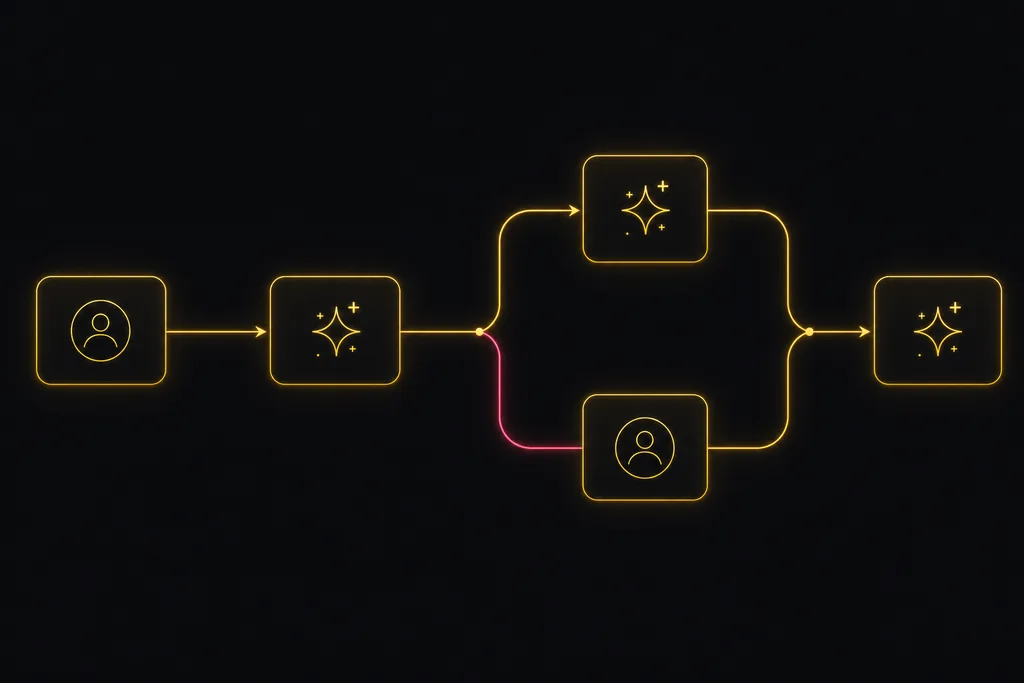
Chat with your AI agents, then put them in a workflow
Utter lets you DM an AI agent or @mention it in a channel, watch it work, and connect agents and people on a canvas so a ticket routes itself through triage, build, and review.
July 17, 2026 · 7 min read
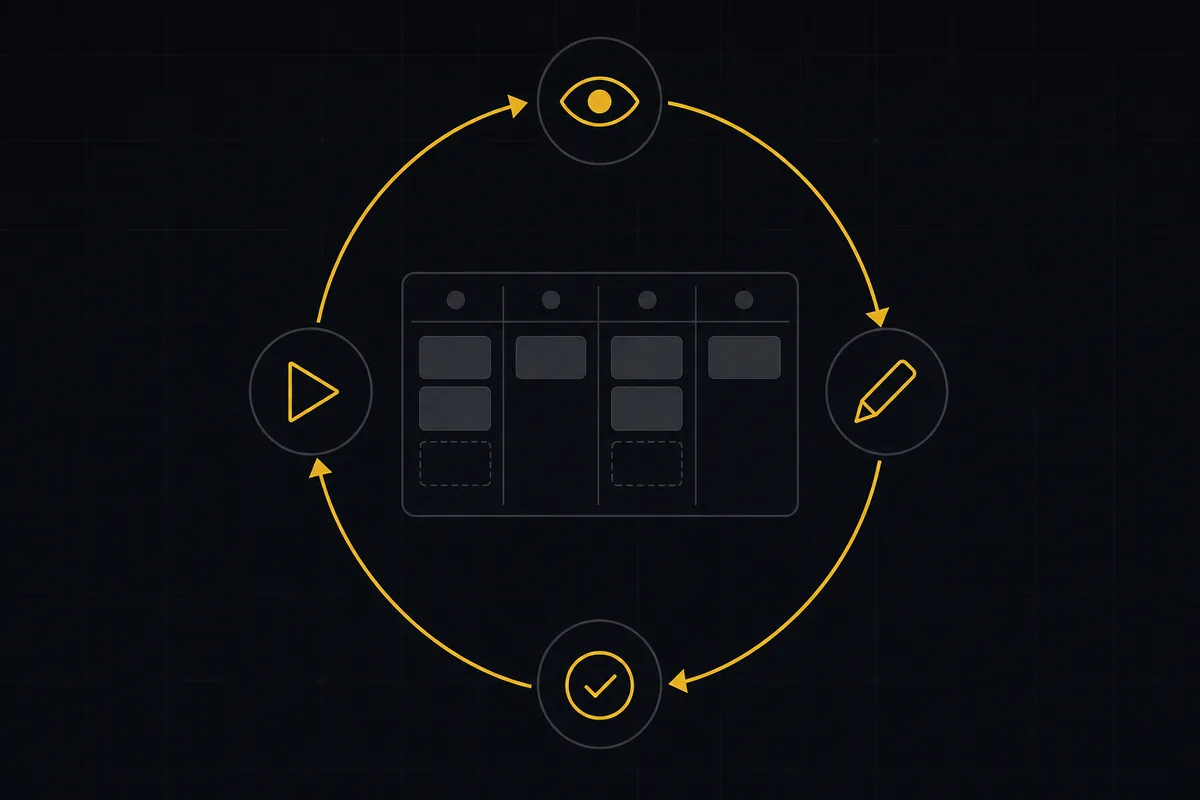
What is agentic project management? A plain-language guide with a working example
A copilot waits for your prompt. An agent acts on an event. Here is the perceive-plan-act-check loop explained, with one real end-to-end run inside Utter.
June 11, 2026 · 11 min read

Who decides what: setting decision rights between your team and your AI agents
A simple rule for AI governance: reversible, low-stakes moves are the agent's to make; irreversible or high-stakes ones need a human. How to draw the line.
July 15, 2026 · 7 min read
AI agent project management: the complete guide
How to run real projects with AI agents on the board: connecting them, assigning work, keeping review, what breaks, and how to pilot it in a week.
July 15, 2026 · 12 min read
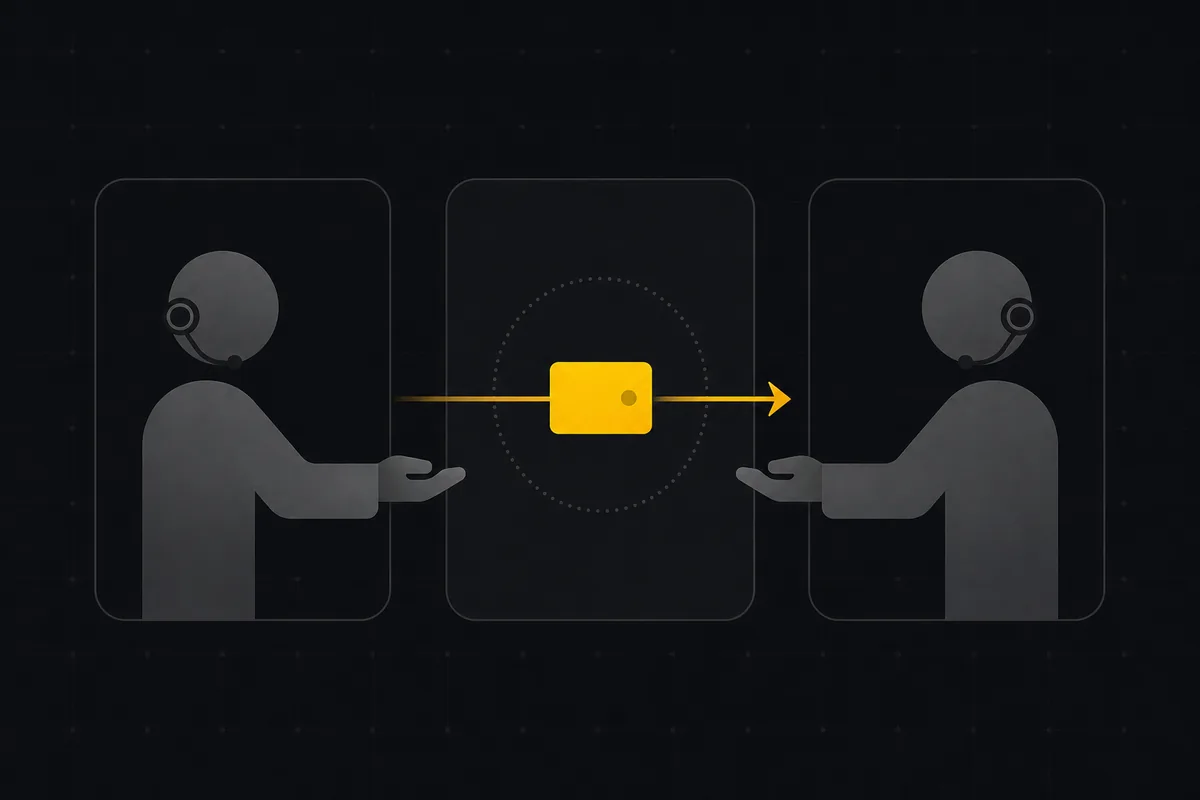
Two agents, one backlog: coordinating a triage agent and a coding agent with issue status as handoffs
A practical multi-agent workflow: custom board columns and status transitions as the handoff bus between a triage agent and a coding agent, with human review in the middle.
July 1, 2026 · 9 min read
How to connect an ai agent
Connect an AI agent to a project management tool in Utter: name it, mint a scoped key, wire up MCP, assign a ticket, and watch its sessions, step by step.
July 15, 2026 · 15 min read
Add a comment
Start the conversation.