
How to add board columns
Your board has seven columns and one of them is quietly doing three jobs. Backlog, To Do, In Progress, In Review, Done, Failed, Cancelled. Somewhere in that lineup a ticket like "Timeline + Summary tab" is parked in In Review while it's actually blocked on a design decision that landed a week ago. It isn't in review. Nothing is reviewing it. It's stuck, and your board is lying to you about it.
The fix is to add a column to a kanban board that matches the state your work is really in. In Utter you do that from the board itself in about ten seconds. This walkthrough covers the whole lifecycle: adding a column, naming it, giving it a category and a colour, then renaming, recolouring, recategorising, reordering, and eventually deleting it without losing the issues inside. I'll be honest about the limits too, because a couple of them will bite you if you don't know they're there.
Why your board needs a column that doesn't exist yet
The default WEB board ships with a sensible five: Backlog, To Do, In Progress, In Review, Done. For a small project that flow is plenty. You pull from Backlog, commit to To Do, do the work, review it, ship. Clean.
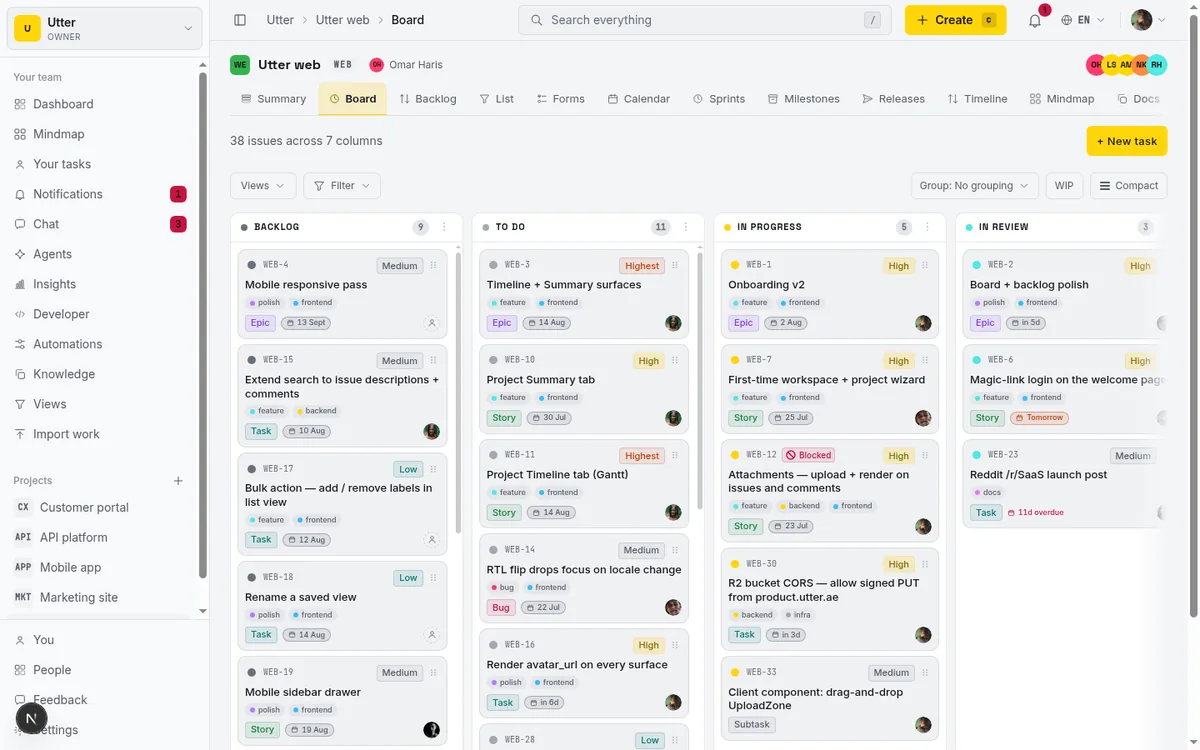
Then reality shows up. A ticket gets blocked waiting on someone else. Another is done from the developer's side but sitting in a QA queue nobody looks at until Friday. If your only "not done yet" columns are In Progress and In Review, both of those tickets get shoved into In Review because there's nowhere better, and now In Review means "in review, or blocked, or waiting for QA, or honestly who knows."
A column that means four things means nothing. You can't glance at the board and read the shape of the work anymore, which is the whole reason you keep a board.
So you carve out the status you actually need. A column in Utter is a named status that maps to a category. The name is what you and your team read: "Blocked", "QA", "Ready to deploy". The category is the semantic backbone underneath, the thing that tells Utter whether an issue in that column counts as open or done in your reports and in the public API. That split is the entire model, and getting it right is the difference between a board that looks organised and one that reports honest numbers.
By the end of this you'll be able to add columns, edit them in place, drag them into order, and delete the ones you don't need, both from the board and from Project settings. If you're new to boards and want the ground-floor tour first, read how to use a kanban board, then come back.
Who can add a column (and who can't)
One thing up front that will save you a confused five minutes: adding and editing columns is permission-gated. The "+ Add status" lane at the right end of the board and the kebab menu on each column header only appear for members who have project.edit_settings, which in Utter's permission matrix means owners and admins.
If you're a viewer or an ordinary member, you'll see the board and you can drag cards around, but the dashed lane won't be there and the column headers won't have a three-dots menu. Nothing is broken. That's the permission model working.
If you need to add a column and the controls aren't showing, the answer isn't to keep hunting, it's to ask an owner or admin to make the change or bump your role. Worth saying plainly, because people burn real time assuming the UI failed to load when they simply don't have the key.
How to add a column to a kanban board
Here's the core move. Open your board (for the demo project that's /w/utter/p/web/board), look at the far right end of the columns, and you'll see a dashed lane labelled "+ Add status". That lane is the entry point. There's no drag-to-create and no settings detour for the basic case. The board is where you add a column to a kanban board most of the time.
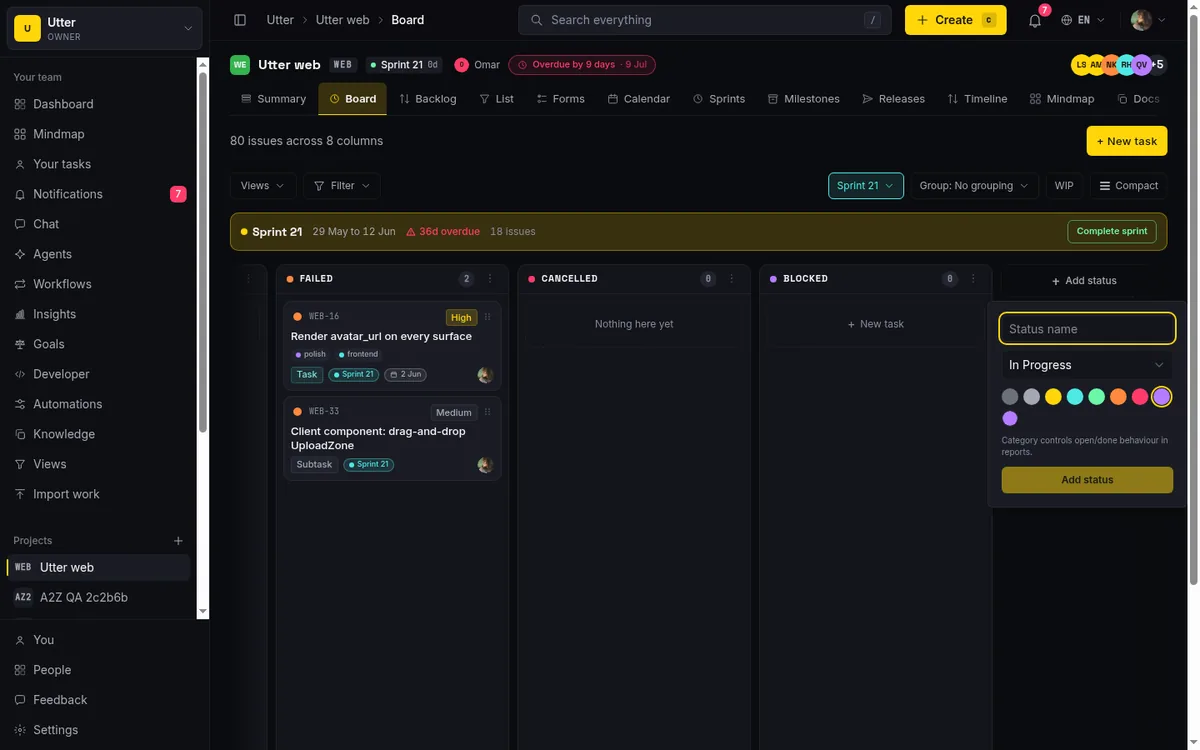
Click it and a popover opens with three things:
- A Status name field. Type the name, say "Blocked" for the column we're building. The field trims whitespace and caps at 80 characters, so you can't paste a paragraph in by accident.
- A Category select. More on this next; it matters more than anything else here.
- A row of colour swatches.
Then click the "Add status" button, or just press Enter while your cursor is still in the name field. Both submit.
The new column appends at the right-most position. Under the hood it gets a LexoRank at the end of the order, which is Utter's way of keeping columns sortable without renumbering everything each time you move one. The button briefly reads "Adding…" while it saves, the board refreshes, and you get a small confirmation: Added "Blocked". Your column is live and empty, ready for cards.
Two defaults to know so nothing surprises you: the Add popover starts with the category set to In Progress and the colour set to #B47CFF, a purple. If Blocked-as-In-Progress and purple happen to suit, you can add the column without touching either. Usually you'll want to change the category, so read on.
Picking the right category (this is the part people get wrong)
The category is the one field in that popover that changes how Utter behaves, and it's the one people skip because the name field feels like the "real" input. It isn't. The name is for humans. The category is for the system.
Category is not free text. It's a fixed set of exactly seven values. You can create as many named columns as you like (up to a limit we'll get to), but every one maps to one of those seven. The category is the bucket. The column name is the label you stick on the bucket. Ten differently labelled buckets can all be the same kind of bucket underneath.
| Category | Terminal | What it means for an issue |
|---|---|---|
| Backlog | No | Counts as open |
| To Do | No | Counts as open |
| In Progress | No | Counts as open |
| In Review | No | Counts as open |
| Done | Yes | resolved_at is stamped |
| Failed | Yes | resolved_at is stamped |
| Cancelled | Yes | resolved_at is stamped |
Why it matters: the category drives open versus done everywhere else in the product. Your reports count open and completed work by category, not by column name. The public API reports an issue's status by category. And moving an issue into a terminal category (Done, Failed, or Cancelled) stamps its resolved_at timestamp, while moving it back out clears that timestamp. So the category is literally what decides whether a ticket counts as resolved.
flowchart LR
  subgraph cols[Named columns]
    B[Blocked]
    Q[QA queue]
    S[Shipped]
  end
  subgraph cats[Category]
    IP[In Progress]
    IR[In Review]
    D[Done]
  end
  B --> IP
  Q --> IR
  S --> D
  IP --> O[Open in reports and API]
  IR --> O
  D --> R[Resolved and stamped]
Here's the worked example. Your Blocked column holds work that is stuck but nowhere near finished. If you leave the category on some terminal value, every blocked ticket counts as resolved in your reports, your burndown lies, and your completion numbers turn into fiction. A blocked ticket is open work, so Blocked maps to In Progress.
Same logic for a QA or "Waiting on review" column: still open, so In Review or In Progress, never Done. The rule of thumb: if a human would say "no, that's not finished," the category has to be a non-terminal one.
Utter nudges you here. Right under the category select, a hint reads "Category controls open/done behaviour in reports." Read it. That sentence is the reason the field exists.
Choosing a colour that reads at a glance
Colour is the easy part, and unlike category it's purely cosmetic. It changes no behaviour. A red column and a green column with the same category behave identically. Colour exists so your eye can find things fast.
The popover gives you eight preset swatches:
| Swatch | Hex |
|---|---|
| Grey | #6B6F7A |
| Light grey | #A4A8B2 |
| Brand gold | #FFD60A |
| Cyan | #4FE8E5 |
| Green | #6AF7A8 |
| Orange | #FF8A3D |
| Pink | #FF3B6B |
| Purple | #B47CFF |
If none fit, there's a "Custom colour" native picker where you can dial in any hex.
The colour is validated on the server as a six-digit hex in the form #RRGGBB. Feed it something that isn't (a CSS var() string, a three-digit shorthand, garbage) and it's rejected with "Enter a 6-digit hex colour." Stick to real hex values and you'll never see that message.
Practical advice from actually using this: spend your loud colours on exception columns. Blocked, Failed, anything that means "a human needs to look at this," give it a warm alarm colour like pink or orange so it jumps off the board. Keep your normal-flow columns in muted greys and cool tones so the board reads calm until something goes wrong. If everything is bright, nothing is. Colour is a spotlight. Point it at the problems.
Rename, recolour, and recategorise an existing column
Columns aren't set in stone. Every column has a kebab on its header, the vertical three-dots button (its accessible label is "Manage {name}", so for ours it's "Manage Blocked"). Click it and you get a popover that's essentially the same fields as the Add popover, plus reorder and delete controls, but now operating on a live column full of issues.
Renaming is inline. Edit the name field and it saves when you blur out of it or press Enter, as long as the name actually changed and isn't empty. So "Blocked" becomes "Blocked / waiting" with one edit and a click away. The updateStatus action handles it and every issue in the column stays put. Renaming never touches the tickets.
Recolouring is instant. Click a different swatch or open Custom colour and the change saves immediately. No confirmation step.
Recategorising is where you slow down, because it does more than the other two. Change the Category select and it saves right away, but it also re-stamps every issue currently in that column so the category stays in sync. Switch a column from In Progress to Done and every ticket in it gets its resolved_at set, because they've all just crossed into a terminal category. Switch it back and those timestamps clear. This is correct behaviour and it's what you want (the point is that category and issues never drift apart), but flipping a busy column's category is not cosmetic. It resolves or reopens everything inside it in one move.
The honest gotcha: there's no Save button in this popover. Nothing to click to commit. The name saves on blur or Enter, the colour and category save the instant you change them. If you're used to tools that make you confirm, unlearn that here. Make the change, it's saved. And if you try to rename a column to a name another column already uses, it's rejected case-insensitively with "A status with that name already exists," so you can't end up with two "Done" columns and a confused board.
Reorder columns: drag the header or use Move left / Move right
Your columns should read left to right like a pipeline, matching the real direction work flows. When they don't, fix the order two ways.
The precise way is in the kebab popover: "Move left" and "Move right" buttons. They call reorderStatus and re-rank the column via LexoRank, and they're disabled at the ends (you can't move the left-most column further left). Good for nudging a column one slot over when you know exactly where it goes.
The fast way is to grab the column header and drag it left or right on the board. The header itself is the drag handle. It's optimistic (the column moves under your cursor immediately) and persists through the same reorderStatus action once you drop, so the two methods are one operation with different ergonomics. Header drag is edit_settings-only, same as everything else here.
One distinction that trips people up: dragging a column header reorders columns. Dragging a card moves that issue between columns. Different gestures on different targets, and Utter keeps them apart deliberately, so grabbing a header will never accidentally fling a ticket somewhere. If you want your new Blocked column to sit between In Progress and In Review because that's where blocked work lives in your flow, drag its header there. The board should tell the story of your process from left to right.
Deleting a column without wrecking your data
This is the destructive one, so I'll be blunt about what it does. In the kebab popover there's a red "Delete status" button. Click it and you get a confirm dialog titled Delete "{name}"? with a warning: "Issues in this column will be soft-deleted. They are recoverable for 30 days."
flowchart TD
  A[Click Delete status] --> B{Issues in the column?}
  B -->|No| C[Column archived]
  B -->|Yes| D[Confirm dialog warns you]
  D --> E[Column and its issues soft deleted together]
  E --> F[Recoverable for 30 days]
  F --> G[After 30 days the recovery door closes]
Read that warning, because deleting a column is not a tidy removal that shuffles issues elsewhere. On confirm, Utter soft-deletes the column and soft-deletes every non-deleted issue in it, in a single transaction. The tickets don't move to Backlog. They don't get reassigned. They're archived along with the column.
The toast tells you exactly how many: "Column deleted. {count} issues archived." If the column was empty you'll see "Column deleted." instead, and if you open the kebab on an empty column the dialog notes "This column has no issues." so you know deleting it is safe.
So the mental model for delete is "archive this column and everything in it," not "remove this column." If you've got live work in a column you want to retire, move those cards out first, then delete the empty column. That's the safe sequence.
Two limits protect you. A board must always keep at least one status, so deleting the last remaining column is refused with "A board needs at least one status." And the soft-delete is recoverable: those archived issues sit in the normal 30-day restore grace period, so if you delete a column by mistake you have a month to get the issues back through the usual restore path. After that window the storage-reclaim sweep frees their attachments and the recovery door closes. Thirty days is generous, but it isn't forever, so if you nuked something important, restore it sooner rather than later.
Managing columns from Project settings instead
Everything above happens on the board, in popovers, one column at a time. Sometimes you want the opposite: every column laid out in a table so you can see and edit the whole set at once. That lives in Project settings under the Board statuses tab, at settings?tab=statuses.
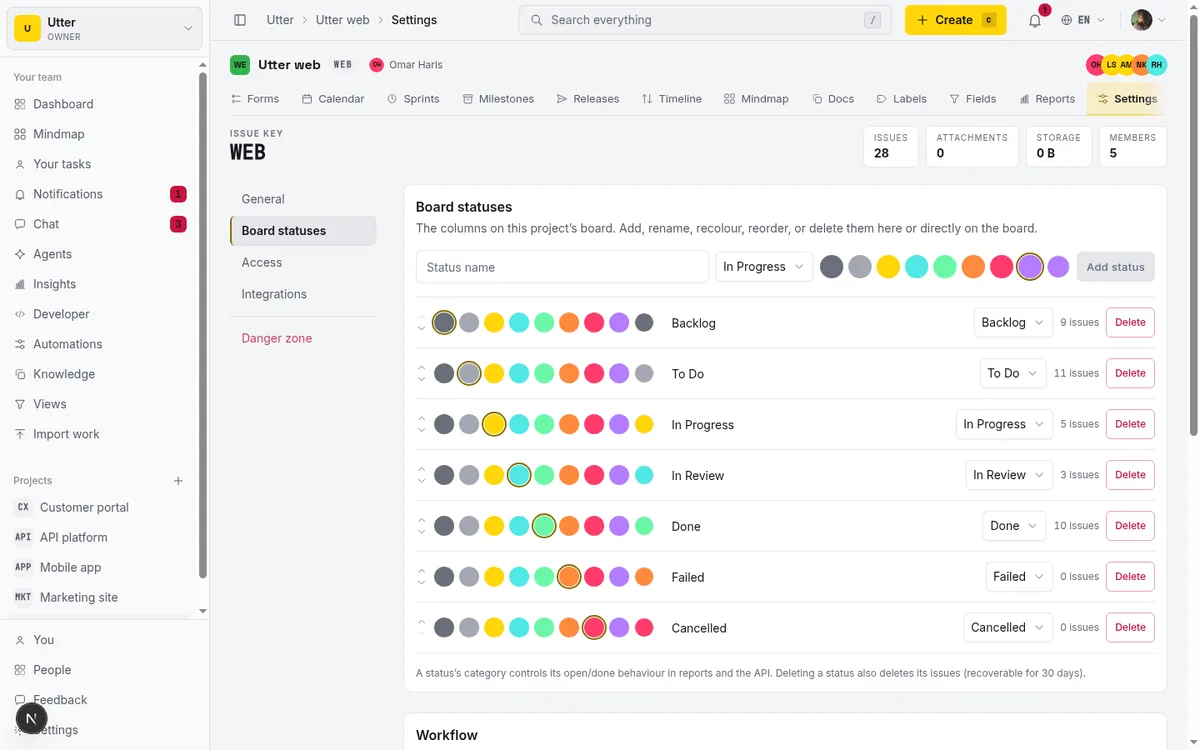
The tab has a create row at the top (name field, category select, colour, and an "Add status" button) that does exactly what the board's dashed lane does. Below it, every column is a row, and each row gives you:
- up/down reorder chevrons (Move up / Move down)
- a colour swatch
- an inline-editable name
- a category select
- a live count of the issues in that column, linking straight to the board filtered to that status
- a Delete button
It's not a separate system. The settings tab and the board call the same server actions, so behaviour is identical down to the confirmations and the auto-save (inline edits here save on blur/Enter, immediate for colour and category, no Save button). Pick the surface that fits the moment. The board when you're adding one column in the flow of work, the settings table when you're reorganising the whole board or auditing which columns are actually carrying issues.
The tab even repeats the honest footnotes: "A status's category controls its open/done behaviour in reports and the API" and a reminder that deleting a status also deletes its issues (recoverable for 30 days). Same rules, stated plainly, in the place where you're most likely to do bulk edits.
One more detail that ties columns back to daily work: on the board, an empty column shows a "+ New task" affordance, and creating an issue that way drops it directly into that column, carrying its status_id. So a new column isn't just somewhere to drag things into later. You can seed it with fresh work on the spot.
Adding a column from the API
Columns are also a public API resource, which matters once scripts or agents manage your boards. Creating one is a single POST with an API key that has the projects:write scope (listing needs projects:read on the same path with GET):
curl -X POST "https://utter.ae/api/v1/workspaces/utter/projects/WEB/statuses" \
  -H "Authorization: Bearer utp_live_a1b2..." \
  -H "Content-Type: application/json" \
  -d '{"name": "Blocked", "color": "#FF8A3D", "category": "in_progress"}'
const res = await fetch(
"https://utter.ae/api/v1/workspaces/utter/projects/WEB/statuses",
{
method: "POST",
headers: {
Authorization: "Bearer utp_live_a1b2...",
"Content-Type": "application/json",
},
body: JSON.stringify({
name: "Blocked",
color: "#FF8A3D",
category: "in_progress",
}),
},
);
const { data } = await res.json();import requests
res = requests.post(
"https://utter.ae/api/v1/workspaces/utter/projects/WEB/statuses",
headers={"Authorization": "Bearer utp_live_a1b2..."},
json={"name": "Blocked", "color": "#FF8A3D", "category": "in_progress"},
)
print(res.json()["data"]["id"])A successful create returns 201 with the new status:
{
  "data": {
    "id": "0198a3f2-7c1e-7d40-b7aa-2f60d1c4e9b3",
    "name": "Blocked",
    "name_ar": null,
    "color": "#FF8A3D",
    "category": "in_progress",
    "rank": "u",
    "allowed_transitions": null,
    "wip_limit": null
  }
}
The API enforces exactly the rules the UI does: category must be one of the seven fixed values (in snake_case, so in_progress not "In Progress"), color must be #RRGGBB, a duplicate name comes back as a 409 conflict, and the thirteenth column is refused with "A board can have at most 12 statuses."
Limits, gotchas, and good habits
Let me put the honest constraints in one place so none of them ambush you:
- 12 statuses per board, maximum. The thirteenth create attempt is rejected with "A board can have at most 12 statuses." Twelve is plenty for any sane workflow, but if you're the kind of team that wants a column for every micro-state, you'll hit the ceiling, and that ceiling is deliberate. More columns is almost never the answer.
- Names are unique per project, case-insensitively, and must be 1 to 80 characters.
- Colours must be six-digit hex (
#RRGGBB);var()strings and shorthands are rejected. - The name field is English-only in this UI. Arabic status names exist in the schema and in the seeded defaults, but the on-board Add and kebab popovers and the settings manager only expose the single name field. There's no separate Arabic-name input, so don't go hunting for a bilingual editor here.
Worth separating clearly: WIP limits and workflow transition rules are real features that live on these same columns, but they aren't part of this popover or the kebab. They're configured in Workflow settings, which is its own surface. If you came here wanting to cap how many cards sit in In Progress, or restrict which columns a ticket can move between, that's a different place. Keeping them out of the add-column flow is intentional, so the column basics stay simple.
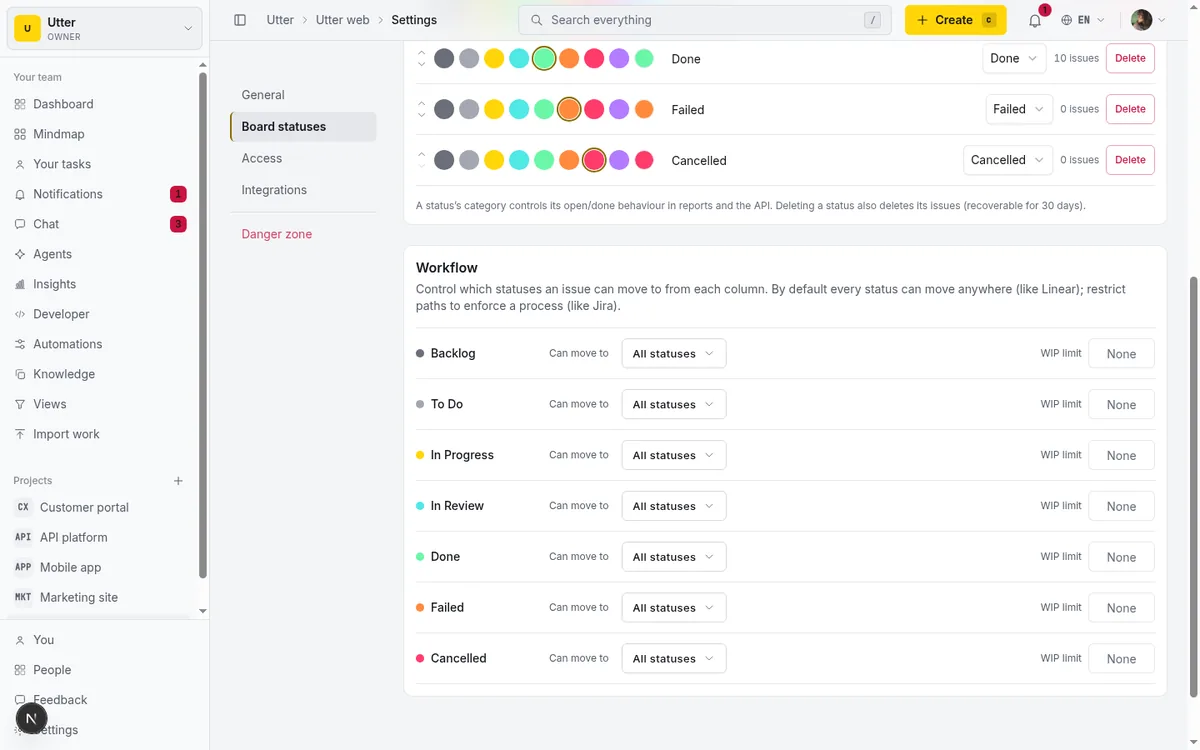
Now the good habits, earned from watching boards rot. Fewer columns beat more; a six-column board you read instantly is worth more than a twelve-column board you have to decode. Map your exception columns to In Progress, not Done, so your reports stay honest about what's finished. And delete the columns you stopped using instead of letting them linger empty, because a dead column is visual noise that makes the live ones harder to scan (just remember delete archives any stragglers, so empty it first).
If you're running AI agents through this board, the columns are how you watch their work flow. See AI issue triage that assigns and prioritizes for how agents drop work into the right column automatically, and human-in-the-loop approval for AI agents for how a review column becomes the gate a human signs off before anything ships. And if you're weighing Utter's status-and-category model against what you already know, Utter vs Jira puts the two side by side.
Open your board, find the dashed lane at the right end, and add the one column your work has been missing.
Frequently asked questions
How do I add a column to a kanban board in Utter?
Open the board and click the dashed "+ Add status" lane at the right end of the columns. In the popover, type a name, pick a category, pick a colour, then click "Add status" or press Enter. The new column appends at the right and the board refreshes.
Why can't I see the option to add a column?
Adding and editing columns needs the project.edit_settings permission, which by Utter's matrix means owners and admins. Viewers and ordinary members see the board and can move cards, but the "+ Add status" lane and the column kebab menus don't appear for them. Ask an owner or admin to make the change or adjust your role.
What's the difference between a column's name and its category?
The name is the label you and your team read ("Blocked", "QA"). The category is one of seven fixed values (Backlog, To Do, In Progress, In Review, Done, Failed, Cancelled) that drives open-versus-done in reports and the public API. Many named columns can map to the same category.
What happens to issues when I delete a column?
Deleting a column soft-deletes the column and every non-deleted issue in it, in one transaction. The issues are archived, not moved to another column, and stay recoverable for 30 days. To retire a live column without losing work, move the cards out first, then delete the empty column.
How many columns can a kanban board have?
At most 12 statuses. The thirteenth create attempt is rejected with "A board can have at most 12 statuses." A board must also keep at least one status, so deleting the last remaining column is refused.
How do I reorder columns on the board?
Two ways. Drag a column header left or right (the header is the drag handle), or use the "Move left" / "Move right" buttons in the column's kebab menu. Both persist through the same reorder action and are only available to members with edit_settings.
Do I need to click Save after renaming or recolouring a column?
No. In the board kebab popover there's no Save button. The name saves on blur or Enter, and colour and category save the instant you change them. The Board statuses settings tab works the same way for inline edits.
Can I set an Arabic name for a status?
Not from this UI. Arabic status names exist in the schema and in the seeded defaults, but the on-board Add and kebab popovers and the settings manager only expose a single English name field. There's no separate Arabic-name input in the column editors.
Related reading
How to use a kanban board: a complete guide with a real example
Learn how to use a kanban board in Utter: read cards, drag tasks between columns, add and reorder custom columns, set WIP limits, filter, and save views.
July 15, 2026 · 20 min read
Custom workflow statuses
Build custom Jira-style board columns in Utter and enforce status transition rules across the board, API, bulk edits, and automations. With the honest limits.
July 15, 2026 · 18 min read

How to create an issue
Learn how to create an issue in Utter three ways, pick the right type, fill the dialog, roll up to an epic, and make subtasks. With the real limits named.
July 15, 2026 · 16 min read

How to filter and sort issues
Filter issues by assignee, label, and status in Utter's list view, then sort, group, save a view, and share the exact filtered list as a URL.
July 15, 2026 · 16 min read

How to track and vote on feedback
A hands-on tour of Utter's product feedback board and roadmap: post ideas, vote, and read the Tracking board and Changelog as a live public roadmap.
July 15, 2026 · 17 min read
A Trello alternative for when a board stops being enough
Trello alternative comparison: what breaks when a board stops being enough, an honest Trello vs Utter pricing and feature comparison as of July 2026, and how to keep the board while adding sprints, a ranked backlog, and reports.
July 16, 2026 · 12 min read
Custom fields in issue tracking
Add custom fields in an issue tracker: create project-scoped fields, pick the right kind, make them required, and show them as List columns and filters in Utter.
July 15, 2026 · 18 min read
How to bulk edit issues
How to bulk-edit issues from Utter's List view: multi-select, bulk status/priority, unassign, archive, and human-in-the-loop AI triage, plus the real limits.
July 15, 2026 · 14 min read
Two agents, one backlog: coordinating a triage agent and a coding agent with issue status as handoffs
A practical multi-agent workflow: custom board columns and status transitions as the handoff bus between a triage agent and a coding agent, with human review in the middle.
July 1, 2026 · 9 min read
Project reports and insights
Read Utter's project reports and dashboards: Summary KPIs, sprint burndown, cycle time, throughput, workload, and workspace Insights, with the honest limits on each.
July 15, 2026 · 16 min read
أضف تعليقًا
ابدأ النقاش.