
Custom workflow statuses
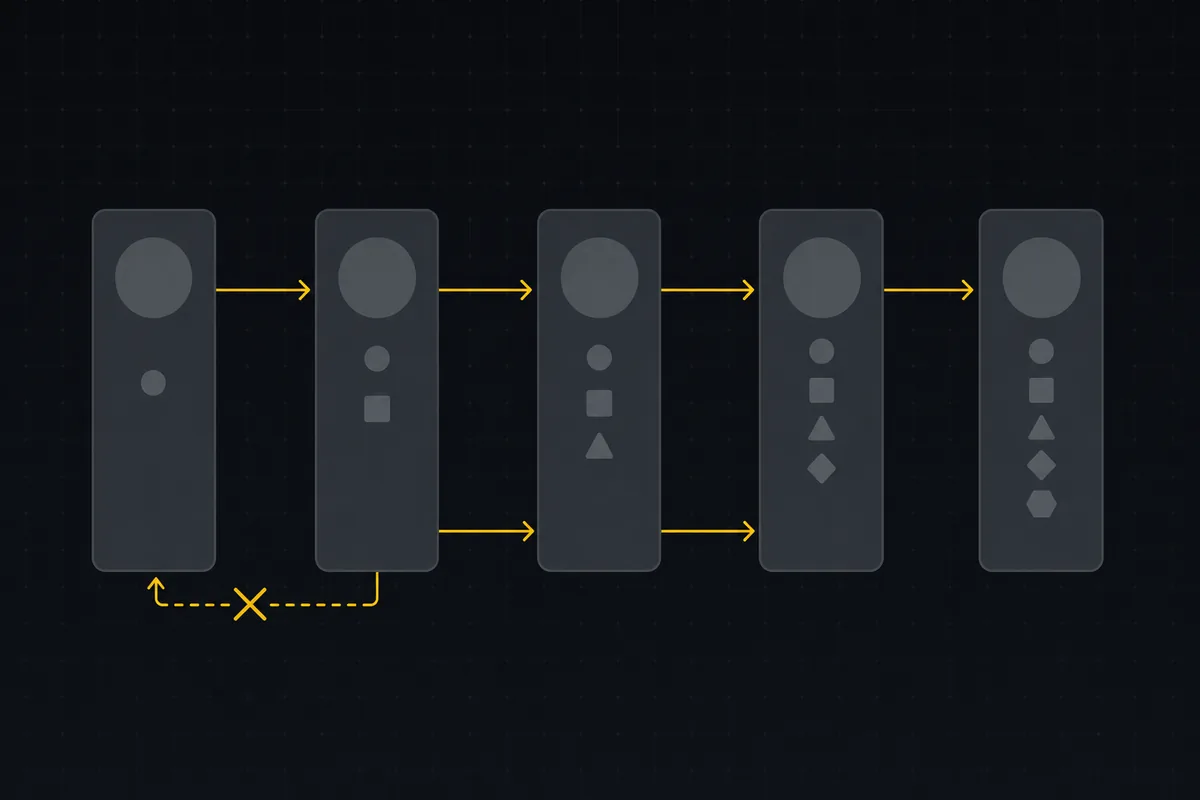
Your board has one In Progress column and everyone drags cards wherever they feel like. Someone bounces a ticket from review straight back to the backlog. Someone else marks a task done that nobody reviewed. By the end of the sprint your cycle-time chart is fiction, because the board never modeled how your team actually works.
That is what custom workflow statuses in the Jira style are for. Instead of a fixed set of columns and free-for-all drag, you define the exact columns your process needs, then set rules for which column a ticket can move to next. Utter gives you both halves: custom board columns you can add, rename, recolour, reorder, and delete, and per-status transition rules that enforce the path. You pick the philosophy. Leave transitions open and it behaves like Linear, where anything moves anywhere. Lock them down and you get the Jira-style version, where a reviewed ticket can only go forward to Done or back to In Progress, never sideways into the backlog.
The running example here is the WEB demo project. Fresh out of the box it seeds seven columns: Backlog, To Do, In Progress, In Review, Done, plus the two terminal ones, Failed and Cancelled. We are going to add a Code review column, wire up transition rules so nothing skips review, and see exactly where those rules bite. If you have used a Kanban board before, the columns will feel familiar. The rules are the new part.
Why the default columns stop working
A board with one In Progress column is fine when there are three of you. Everyone sees everything, and "in progress" genuinely means one thing.
Then you grow. Now In Progress covers a ticket someone is actively coding, a ticket parked waiting on a design answer, and a ticket that is technically finished but sitting in a branch nobody has looked at. Different states, one column. The board stops telling you the truth. Worse, people start dragging cards along paths that make no sense. A ticket in In Review gets yanked back to Backlog because someone wanted it out of their face, and now your resolved-date data says that ticket took three weeks when really it just bounced.
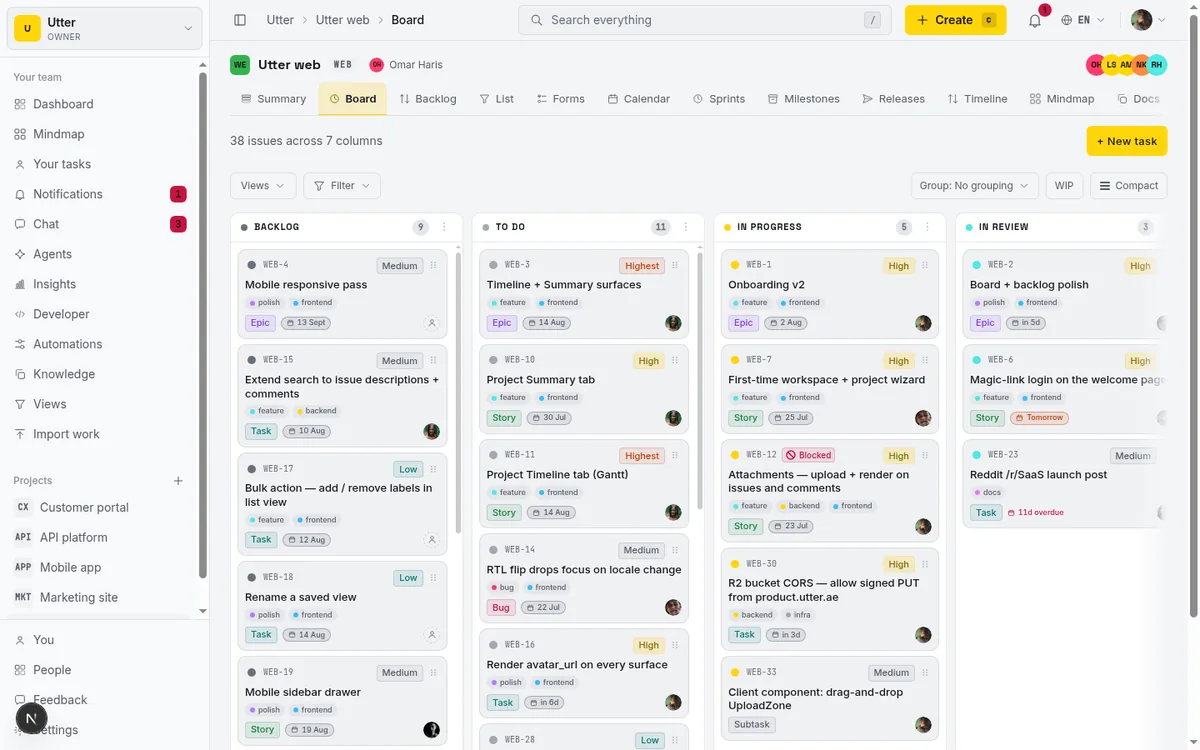
Two schools of thought exist here. Linear says: don't fight it, let people move cards anywhere, trust the team. Jira says: model the process as a state machine and enforce the legal moves. Utter lets you choose per project, and even per column. The default is the Linear way, every status can move anywhere. Turn on transition rules and you get custom workflow statuses in the Jira style, where the board refuses illegal moves at every write path, not just visually on the board.
Before you touch a button, though, there is one mental model to get straight. It is the thing that keeps all of this safe.
Statuses vs status categories: the split that keeps it safe
Everything rests on this. Utter keeps two separate ideas apart: the status category and the status itself.
The category is a fixed enum with exactly seven values: backlog, todo, in_progress, in_review, done, failed, cancelled. You cannot invent new ones. That is deliberate. The category is the semantic backbone that reports, the open/done flag, resolved dates, and the public API all read from. When a report says "12 issues open, 4 resolved this week," it is counting categories, not column names. If categories were freely editable, none of that could stay reliable from one project to the next.
The status is the named, coloured, ordered column you actually see on the board. Statuses live in a per-project table, and each one maps to exactly one of the seven categories. Every issue carries a status_id pointing at its specific column, plus the category that column belongs to.
Why bother with two layers? Because it lets you have columns that mean different things to a human but the same thing to the machine. Add a Code review column and a QA column that both map to the in_review category. On the board they are two distinct stops with two distinct colours. In your reports, both correctly count as "open, being reviewed."
flowchart LR
    CR[Code review column] --> IR[in_review category]
    QA[QA column] --> IR
    IR --> RP[Reports and resolved dates]
    IR --> API[Public API status]
You get the detail your process needs without lying to your metrics.
So here is the honest limit, up front. You get unlimited freedom in naming and colouring columns, and zero ability to invent new categories. Seven is the ceiling on categories, permanently. Everything you build maps onto those seven. Once that clicks, the rest is mechanical.
Where to manage board statuses
There are two places to manage columns, and they are the same feature writing to the same table. Use whichever is closer to hand.
The first is project Settings, under the Board statuses tab. The direct URL is /w/<workspace>/p/<project>/settings?tab=statuses. This is the full surface: every column laid out in a list with all its controls visible at once. Good for a deliberate setup pass.
The second is the board itself. The trailing "+" at the right end of the columns adds a new one, and each column header has a kebab menu (the three-dots icon) for rename, recolour, recategorise, move, and delete. Good for a quick tweak while you are looking at the actual work.
One gate to know about. Managing statuses needs the project.edit_settings permission. That is owners and admins, and members too depending on your workspace's role matrix. If you are a viewer, or a member without that permission, you still see every column and every workflow rule, just rendered as static badges instead of editable controls. Nothing is hidden from you. You just cannot change it.
Look at the Board statuses card in Settings. It has a create row at the top (a name input, a category select, colour swatches with a custom picker, and an Add status button). Below it sits the list of existing columns. On the WEB project that list is the seven seeded defaults: Backlog, To Do, In Progress, In Review, Done, Failed, Cancelled. Each row shows up and down reorder chevrons, a colour swatch, the name, a category select, a live count of how many issues sit in that column, and a Delete button.
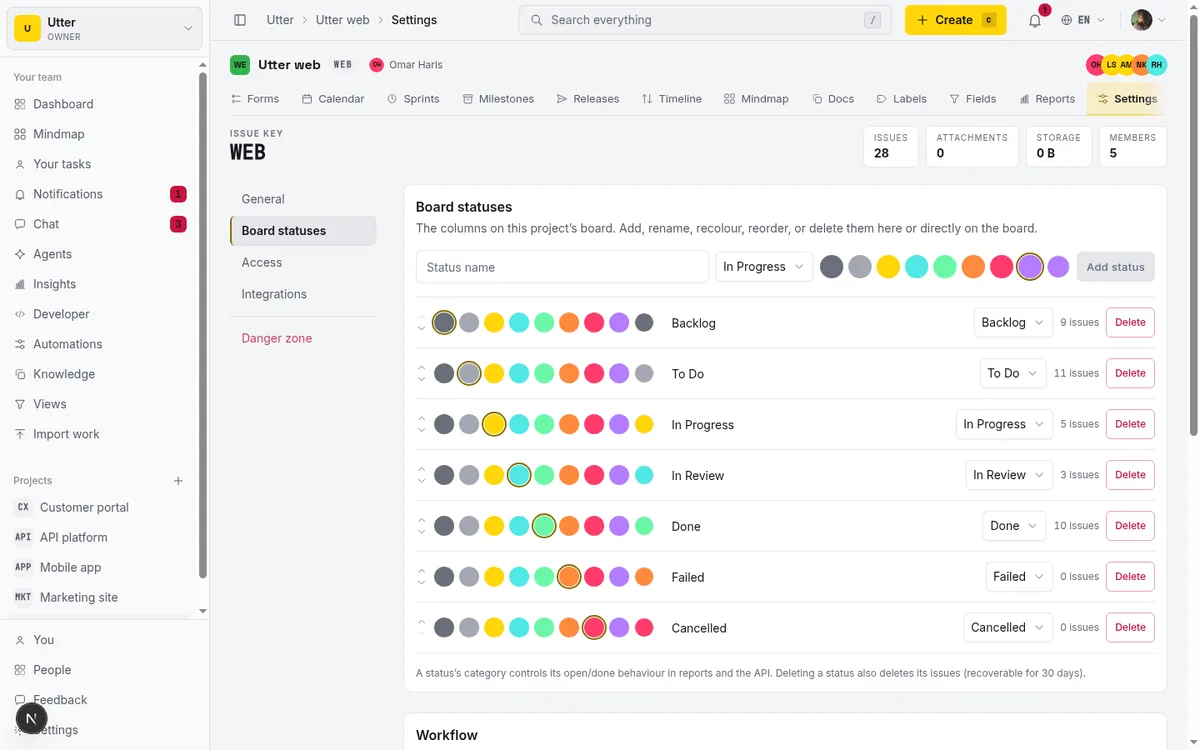
That live issue count matters more than it looks. It is your safety check before you delete or recategorise anything, because it tells you how many tickets a change is about to touch.
Add, rename, and recolour a column
Adding a column is the create row at the top of the Board statuses card. Three things to fill in.
Type a name in the Status name field. Names run up to 80 characters, though shorter reads better on a board column. For our example, type Code review.
Pick a category. The create row defaults to in_progress, but Code review is a review stage, so set it to in_review. This is the choice that actually matters, not the name. The name is for humans; the category is what your reports read. A column called "Code review" miscategorised as in_progress will quietly under-count your review load, and you will not notice until a metric looks wrong.
Pick a colour. There are eight presets: #6B6F7A, #A4A8B2, #FFD60A, #4FE8E5, #6AF7A8, #FF8A3D, #FF3B6B, #B47CFF. Or click the custom picker and enter any 6-digit hex in the form #RRGGBB. Since In Review already exists, pick something adjacent but distinct so the two review stages do not blur into each other on the board. The presets are already tuned to read clearly against the dark board, so any of them is a safe bet.
Click Add status. You get a confirmation ("Added "Code review".") and the new column appears in the list. Two rules to know. Duplicate names are rejected case-insensitively, so you cannot have both "Code review" and "code review." And there is a hard ceiling of 12 live statuses per project. That sounds generous until you remember seven defaults are already spending your budget, so add stages thoughtfully.
Renaming and recolouring existing columns happens inline on their rows. Click into the name to edit it, click the swatch to change the colour. No separate dialog. The change saves and the board reflects it right away.
Reorder columns so the board reads left to right
Column order is not decoration. Your board should mirror how work actually flows, so someone scanning left to right reads a ticket's lifecycle without thinking about it. Backlog on the far left, Done on the far right, everything in between in the order it really happens.
Our new Code review column got appended to the end of the list, which is wrong. Code review happens after coding and before final review, so it belongs between In Progress and In Review.
Three ways to move it, all persisting the same order through LexoRank under the hood:
- In Settings, use the up and down chevrons on the column's row.
- On the board, open the column header kebab and pick Move left or Move right.
- On the board, drag the column header itself. This one only works if you have
project.edit_settings; the header is the drag handle.
Nudge Code review up until it lands between In Progress and In Review. Now the WEB board reads Backlog, To Do, In Progress, Code review, In Review, Done, and a ticket's journey across the board matches its journey through your process.
This is also the moment to notice that the board and Settings really are one feature. Reorder in Settings, the board updates. Drag on the board, Settings updates. One table, two doors.
Changing a status category, and what it does to your issues
Read this section slowly, because changing a category is the one action here that reaches into your data and rewrites it.
Each status maps to exactly one category. When you change that mapping, Utter re-stamps every issue currently in that column. Two things happen to each of those issues:
- Its
status(the category) is set to the new value. - Its resolved timestamp is adjusted: moving into a terminal category (done, failed, or cancelled) stamps
resolvedAtto now, and moving out of a terminal category clears it.
That is what keeps velocity and cycle-time honest. An issue's "resolved" moment tracks the actual moment it entered a done-type column. So recategorising a busy column is not a cosmetic tweak. It flips those tickets' open or done state and rewrites their resolved timestamps in one shot.
Here is a concrete case. Say you have a Ready to ship column mapped to in_review, holding eight tickets that are approved but not yet deployed. You decide Ready to ship should really count as done, so you flip its category from in_review to done. The instant you save, all eight tickets are marked resolved as of now. Your this-week resolved count jumps by eight. Their cycle-time is computed to this moment.
If that is what you meant, good, the data is now correct. If you only wanted to relabel and did not realise eight tickets would flip to resolved, you have a surprise waiting in your reports. So before you change a category on a column that has issues in it, glance at that live count first. It tells you exactly how many tickets are about to be re-stamped.
Restrict transitions with the Workflow card
This is the part people come for, and the actual reason to want custom workflow statuses in the Jira style. Columns alone do not stop the review-to-backlog drag. Transition rules do.
Directly below the Board statuses card is the Workflow card. Its job is to control which statuses a ticket can move to from each column. Every status gets a "Can move to" picker. By default that picker reads All statuses, which means unrestricted, move anywhere, the Linear way. To enforce a process, you restrict it to a specific set of targets.
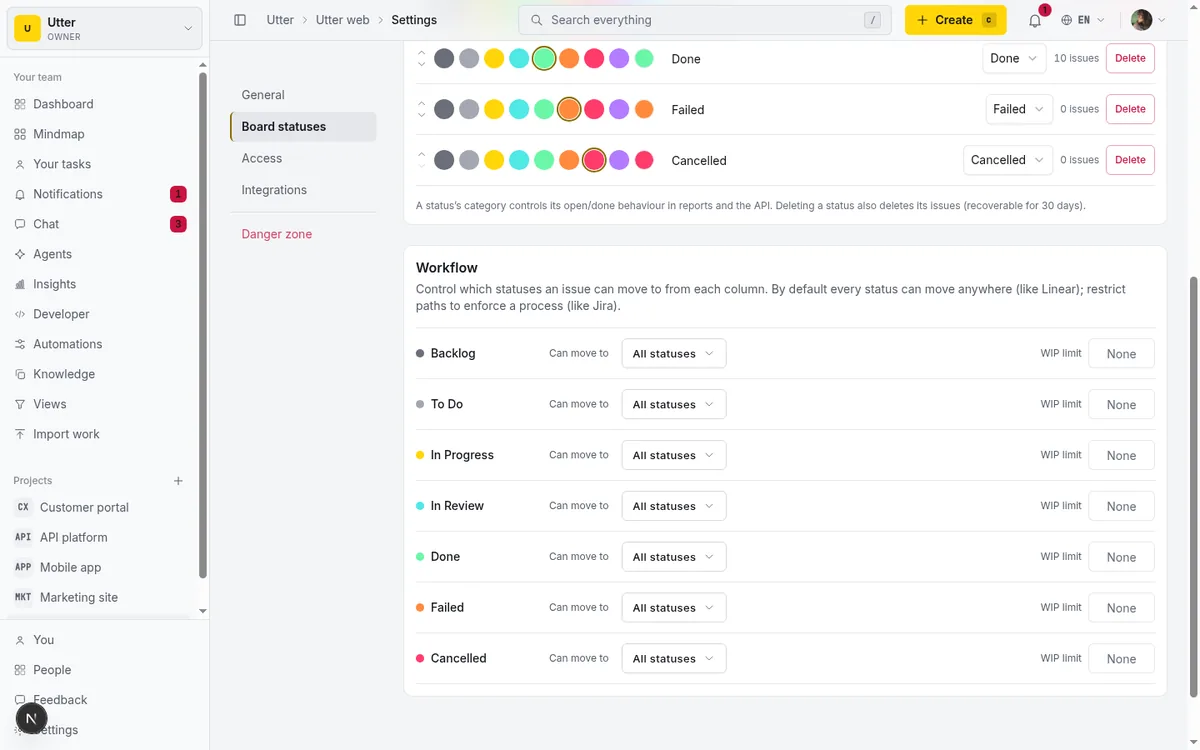
The semantics are worth spelling out exactly, because the edge cases are where people get confused:
- All statuses (the default) means no restriction. Internally this is a null rule.
- A specific subset means a ticket in this column may only move to the statuses you check.
- An explicit empty list shows as "No outgoing moves (terminal)." Nothing leaves this column by a normal status change. Useful for a true dead-end state.
- Self-moves are always allowed. A ticket can stay in its own status no matter what, so nothing ever gets stuck.
- A status never lists itself as a target in its own picker.
- Deleted-status ids get filtered out automatically, so a rule pointing at a column you later removed just quietly drops that target.
Inside the picker there is also an Allow all statuses toggle that resets that status straight back to unrestricted, so you can experiment and back out cleanly. When you save, you get a "Workflow updated." confirmation.
Now the worked example on WEB. We want In Review to be a real gate. A ticket that has been reviewed should go exactly two ways: back to In Progress if it needs more work, or forward to Done if it passed. It should never be draggable straight to Backlog. So open the In Review row's "Can move to" picker, turn off Allow all statuses, and check exactly two targets: In Progress and Done. Save.
stateDiagram-v2
    state "In Progress" as ip
    state "Code review" as cr
    state "In Review" as ir
    state "Done" as d
    ip --> cr
    cr --> ir
    ir --> ip: needs work
    ir --> d: approved
That is the whole thing. From now on, a reviewed ticket like "Timeline + Summary tab" can only be sent back for fixes or approved. Backlog is simply not reachable from In Review anymore. The lazy drag is impossible, and your cycle-time data stops getting corrupted by tickets that visually un-progressed. The picker shows each target with its colour dot, so you are picking columns by the same colours you read on the board.
You do not have to lock down every column. A common pattern is to leave the early columns (Backlog, To Do) wide open and only enforce the back half of the workflow, where the sloppy moves actually hurt your numbers.
Where the rules actually get enforced
A rule that only lives in one dropdown is theatre. The reason to trust Utter's transition rules is that they run server-side at every path that can change a ticket's status. There is no back door.
flowchart TD
    A[Issue page update] --> C{Server transition check}
    B[Board drag] --> C
    K[Bulk status change] --> C
    E[Automation set_status] --> C
    F[v1 REST and transition API] --> C
    C -->|allowed| W[Status written]
    C -->|blocked| X[Rejected, columns named]
Here is every write path and what happens when a move is illegal:
- Single-issue update. Change status on the issue detail page and the server checks the rule before writing. Blocked moves are rejected.
- Board drag-and-drop. The board uses the exact same update action underneath. An illegal drag is rejected, and because the board move is optimistic, the card visibly snaps back to where it started. You watch the revert happen.
- Bulk status change. Select twenty tickets, try to move them all to a status some of them cannot legally reach, and the whole batch is blocked with a message telling you how many of the N are blocked. It does not silently move the legal ones and leave you guessing.
- Automation set_status action. If a rule you wrote would push a ticket somewhere the workflow forbids, the automation skips just that action and logs "workflow blocks" rather than failing the entire rule run. Your other automation steps still fire.
- Public v1 REST and transition API. An illegal transition comes back as a validation error, code
workflow_transition_blocked, with the from and to statuses named.
The status pickers everywhere (issue detail, the status dot on a board card, the quick-edit menu) are smart about this too. They only offer the currently-allowed targets, while still showing the current status so the selected value renders correctly. You are never offered a move that will be rejected; the illegal options simply are not in the list.
The blocked-move message names the columns, so it is never cryptic. It reads: Workflow: "In Review" cannot move to "Backlog". Transitions are configured in project settings. Whoever hits it knows exactly what happened and where to change it if the rule is wrong.
One safety valve worth knowing. Enforcement resolves the effective "from" status the same way the board does: by status_id when the column is live, otherwise by the category's default column. And if the current status genuinely cannot be resolved (a dead or unknown id), the move is allowed. So a ticket can never get trapped in an unresolvable state. Between that and self-moves always being legal, there is no configuration that can wedge a ticket permanently.
Manage statuses and rules over the v1 API
Everything above has an API twin, which matters if an agent or a script is setting up projects for you. Columns live at /v1/workspaces/{slug}/projects/{key}/statuses against the base URL https://utter.ae/api. Reading them needs the projects:read scope; creating, editing, and deleting need projects:write.
Start by listing the columns, because transition rules are written as status ids, not names:
curl "https://utter.ae/api/v1/workspaces/utter/projects/WEB/statuses" \
  -H "Authorization: Bearer utp_live_a1b2..."
Each status in the response carries its workflow fields alongside the basics:
{
  "id": "0197a3e2-...",
  "name": "In Review",
  "name_ar": null,
  "color": "#4FE8E5",
  "category": "in_review",
  "rank": "n",
  "allowed_transitions": null,
  "wip_limit": null
}
allowed_transitions: null is the unrestricted default. To apply the same In Review gate we built in the UI, PATCH the status with the ids of In Progress and Done. The server drops the status's own id and any id that is not a live column in the project, and the list caps at 24 targets. Send null to reset to allow-all, or [] for a terminal column.
curl -X PATCH "https://utter.ae/api/v1/workspaces/utter/projects/WEB/statuses/<in-review-id>" \
  -H "Authorization: Bearer utp_live_a1b2..." \
  -H "Content-Type: application/json" \
  -d '{ "allowed_transitions": ["<in-progress-id>", "<done-id>"] }'
await fetch(
"https://utter.ae/api/v1/workspaces/utter/projects/WEB/statuses/" + inReviewId,
{
method: "PATCH",
headers: {
Authorization: "Bearer utp_live_a1b2...",
"Content-Type": "application/json",
},
body: JSON.stringify({
allowed_transitions: [inProgressId, doneId],
}),
}
);import requests
requests.patch(
f"https://utter.ae/api/v1/workspaces/utter/projects/WEB/statuses/{in_review_id}",
headers={"Authorization": "Bearer utp_live_a1b2..."},
json={"allowed_transitions": [in_progress_id, done_id]},
)The same PATCH body also takes name, name_ar, color, category, and wip_limit, and creating a column is a POST to the collection with { name, color, category }. The category-change warning from earlier applies with full force here: a PATCH that changes category re-stamps every issue in that column, exactly like the UI.
When a script then tries an illegal move, the dedicated transition endpoint (POST .../issues/WEB-12/transition) and the plain issue PATCH both answer with the same validation envelope:
{
  "error": {
    "code": "validation",
    "message": "Workflow blocks this transition: \"In Review\" cannot move to \"Backlog\".",
    "details": {
      "code": "workflow_transition_blocked",
      "from": "In Review",
      "to": "Backlog"
    }
  }
}
That details.code is the stable thing to branch on in agent code; the message is for humans. If you are new to the key setup and auth model, how to use the REST API covers minting a scoped key and confirming it works.
WIP limits: what the field really does, and does not
Time for an honest section, because this is the one place the UI can mislead you.
The Workflow card has a WIP limit field on each status: an integer from 1 to 999, or blank for None. You can set it, it saves, it is stored on the column and exposed through the v1 API (wip_limit in the payloads above). All true.
Here is what is also true: it is not enforced. Setting a WIP limit here does not stop anyone from piling a fourteenth ticket into a column you capped at ten. No write path checks it. It is stored data, nothing more, at least for now.
It is also not what drives the board's WIP badge. The board has its own separate WIP display: an "n / limit" badge on the column header and a red over-limit border. But that badge reads a hardcoded per-category default, not the number you typed. Those defaults are in_progress = 4, in_review = 3, and everything else uncapped. And the badge only shows up at all when you turn on the client-only WIP view with ?wip=1 on the board URL. It is off by default.
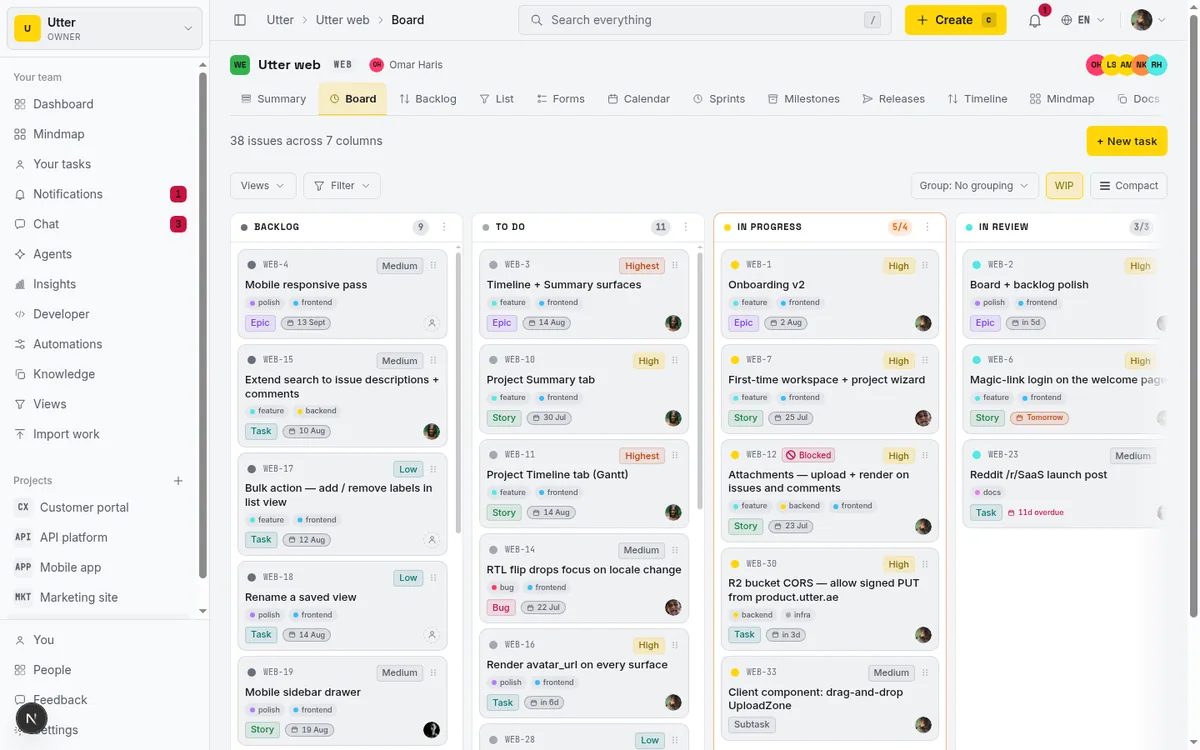
Even with the badge showing, it is advisory. Going over the limit just recolours the header red. It never blocks a drop, never blocks a write, never stops anyone from adding one more card. A nudge, not a gate.
So set the WIP limit field if you want the number recorded and available over the API, but do not expect it to cap anyone. If you need a hard WIP cap that genuinely refuses work, Utter does not have one today. Plan your process around a visible nudge, not a wall.
Deleting a status, and the limits to keep in mind
Deleting a column is destructive, and not in the way you might assume. It does not tuck the tickets somewhere safe. In one transaction it soft-deletes the column and soft-deletes every non-deleted issue sitting in it.
Soft-deleted means recoverable. Those issues go through the normal restore path and stay recoverable for 30 days, same as any other soft-deleted issue. But they are gone from the board immediately, and they are not relocated to another column. If you want to keep the tickets and only drop the column, move the tickets out first, then delete the empty column.
Utter warns you. When the column has issues, the confirm dialog says: "Issues in this column will be soft-deleted. They are recoverable for 30 days." After deletion you see a message like "Column deleted. N issues archived." And one column you can never delete: the last one. A board needs at least one status, so the final column refuses to go ("A board needs at least one status.").
To close, here are the honest boundaries of the whole feature, so you go in with clear expectations:
- 12 live statuses max per project. Budget them.
- 7 fixed categories. You name and colour freely; you cannot invent a category.
- Transition rules are a simple per-FROM allowlist. Each column controls its own outgoing moves, capped at 24 targets per status. There is no per-role, per-type, or per-transition condition system, no validators, none of Jira's full workflow-engine machinery.
- Names cap at 80 characters; colours are 6-digit hex. Arabic names are supported (each status has an optional Arabic name that renders in the active locale and falls back to the English name).
- Delete is destructive to a column's issues, recoverable for 30 days.
That is the real shape of it. Columns you can bend to your process, transition rules that genuinely enforce the path everywhere it counts, and a short list of limits that are better known now than discovered mid-sprint. If you have been running one overloaded In Progress column and wondering why your metrics never add up, this is the fix: model the columns your team actually uses, then lock the moves that were corrupting the data.
Set up your first workflow on a real project and give it a sprint. You will see it in your cycle-time chart the following week.
Frequently asked questions
What is the difference between a status and a status category in Utter?
A category is one of seven fixed values (backlog, todo, in_progress, in_review, done, failed, cancelled) that reports, the open/done flag, resolved dates, and the public API all read from. A status is a named, coloured column you create on the board, and each status maps to exactly one category. You can make several columns that share a category (for example a Code review and a QA column both mapping to in_review), so the board shows the detail your team needs while reports still know both mean "open, being reviewed."
How do I create custom board columns like Jira in Utter?
Go to project Settings, Board statuses tab (?tab=statuses), or use the trailing "+" on the board. Type a name (up to 80 characters), pick one of the seven categories, pick a colour from the eight presets or a custom hex, and click Add status. You can also rename, recolour, reorder, and delete columns from either surface. Managing them needs the project.edit_settings permission.
How many custom statuses can a project have?
Up to 12 live statuses per project. New projects start with seven seeded defaults (Backlog, To Do, In Progress, In Review, Done, Failed, Cancelled), so you have room for a handful of custom stages on top. A project must always keep at least one status; the last remaining column cannot be deleted.
How do I stop people from dragging a ticket from In Review back to Backlog?
Open the Workflow card in the Board statuses tab, find the In Review row, and set its "Can move to" picker to only In Progress and Done (turn off "Allow all statuses" first). From then on any attempt to move a ticket from In Review to Backlog is rejected, including a board drag, which visibly snaps back. The error reads: Workflow: "In Review" cannot move to "Backlog". Transitions are configured in project settings.
Does changing a status's category affect my reports or resolved dates?
Yes, and this is the one change that rewrites data. Changing a status's category re-stamps every issue in that column: it sets each issue's category to the new value and adjusts its resolved timestamp (stamped to now when moving into done, failed, or cancelled, cleared when moving out of a terminal category). Check the column's live issue count before recategorising, because every ticket in it is affected at once.
What happens to the tickets in a column when I delete that status?
They are soft-deleted along with the column, in one transaction, not moved to another column. Soft-deleted issues are recoverable for 30 days through the normal restore path. If you want to keep the tickets, move them out before deleting the column. A confirm dialog warns you when the column has issues.
Do WIP limits actually stop someone from adding too many tickets to a column?
No. The WIP limit field in the Workflow card is stored and exposed via the API, but it is not enforced on any write path, and it is not what the board's WIP badge shows. The board's badge uses a hardcoded per-category default (in_progress = 4, in_review = 3, others uncapped) and only appears when you enable the client-only WIP view (?wip=1). Even then it is advisory: going over just recolours the header red, it never blocks a drop or a write.
Are transition rules enforced on the API and board drag-and-drop, or only in the issue dropdown?
Everywhere. Enforcement is server-side at every write path: single-issue update, board drag-and-drop (same update action, so illegal drags revert), bulk status change (blocks the batch and reports how many of N are blocked), the automation set_status action (skips that action and logs "workflow blocks"), and the public v1 REST and transition API (returns workflow_transition_blocked with from and to). The pickers also only offer currently-allowed targets, so you are never shown a move that would be rejected.
Related reading
How to use a kanban board: a complete guide with a real example
Learn how to use a kanban board in Utter: read cards, drag tasks between columns, add and reorder custom columns, set WIP limits, filter, and save views.
July 15, 2026 · 20 min read
How to add board columns
Add, rename, reorder, and delete kanban board columns in Utter: statuses, categories, colours, permissions, and the delete gotchas, with the limits named.
July 15, 2026 · 15 min read
Monday.com alternatives built for software teams, not marketing ops
Monday.com alternatives for software teams: real pricing (3-seat minimum vs $3/$6 per builder seat), category-backed statuses, sprints with carryover, and agents as free members not billed integrations.
July 16, 2026 · 12 min read
Two agents, one backlog: coordinating a triage agent and a coding agent with issue status as handoffs
A practical multi-agent workflow: custom board columns and status transitions as the handoff bus between a triage agent and a coding agent, with human review in the middle.
July 1, 2026 · 9 min read
A Notion alternative for project management (keep the docs, gain a real tracker)
A Notion alternative for project management that keeps your docs and adds a real tracker: category-backed statuses, native sprints with carryover, computed burndown, agents over MCP.
July 16, 2026 · 14 min read
Project reports and insights
Read Utter's project reports and dashboards: Summary KPIs, sprint burndown, cycle time, throughput, workload, and workspace Insights, with the honest limits on each.
July 15, 2026 · 16 min read
How to read the project summary
Read the Utter project Summary tab like a pro: what every card shows, how each number is computed, what good looks like, and where the dashboard stops.
July 15, 2026 · 16 min read
How to migrate from Jira, Trello, or Asana without losing your data
An honest migration guide: what imports cleanly, what needs a decision, and the order to move your projects so nothing gets lost on the way over.
July 12, 2026 · 8 min read
A Trello alternative for when a board stops being enough
Trello alternative comparison: what breaks when a board stops being enough, an honest Trello vs Utter pricing and feature comparison as of July 2026, and how to keep the board while adding sprints, a ranked backlog, and reports.
July 16, 2026 · 12 min read

How to filter and sort issues
Filter issues by assignee, label, and status in Utter's list view, then sort, group, save a view, and share the exact filtered list as a URL.
July 15, 2026 · 16 min read
Add a comment
Start the conversation.