
How to migrate from Jira, Trello, or Asana without losing your data
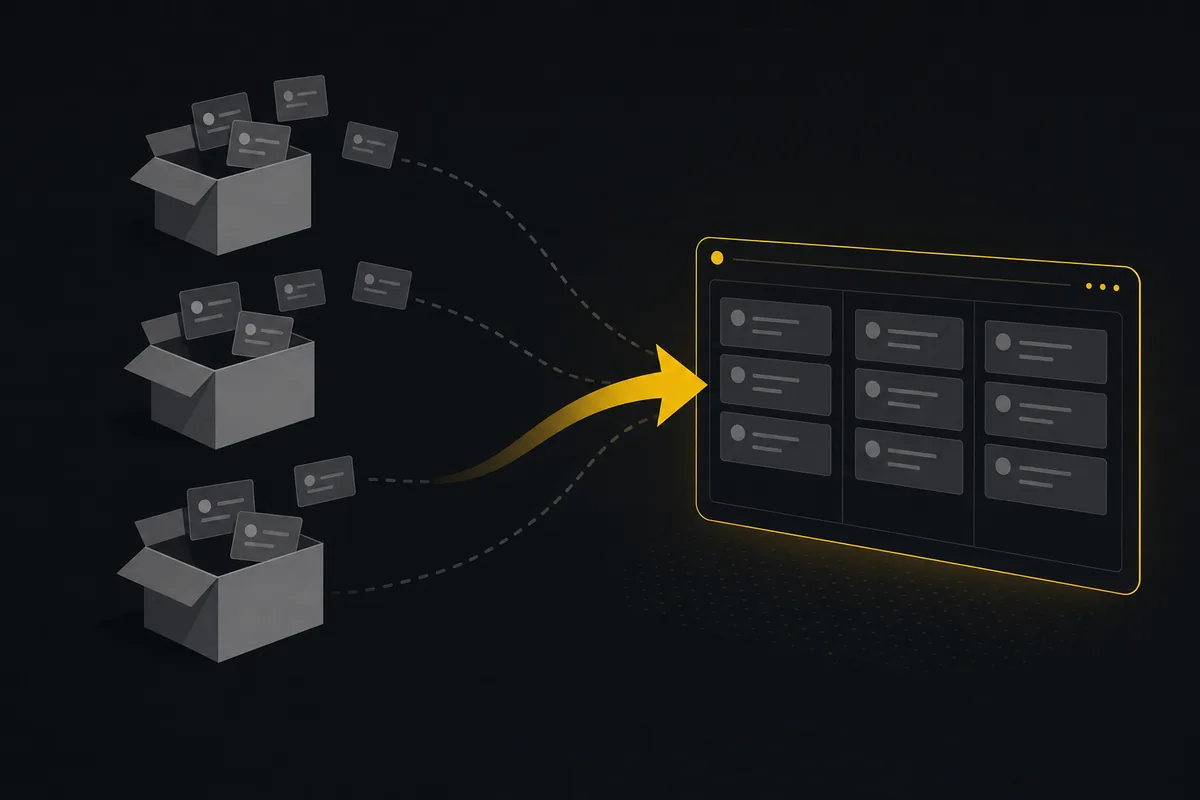
Moving a team off Jira, Trello, or Asana is not the scary part. The scary part is the week after, when someone asks where a ticket went and you do not have an answer. So before you export anything, it helps to know exactly what carries over, what does not, and what you have to decide by hand.
This is a how-to, not a sales pitch for a magic button. We built Utter's import and I will tell you where it is genuinely good and where it will leave gaps you have to fill. Nobody ships a one-click migration that preserves everything. Anyone who says they do is counting on you not to check.
What actually moves
Utter imports issues two ways: a CSV upload, or a direct connection to your current tool. The service importers cover Trello, Jira, ClickUp, Monday, Asana, and Linear. You paste a read-only API token plus the locator for the board or project (a Trello board id, a Jira project key and site domain, an Asana project id, and so on), and Utter pulls the items in and turns each one into an issue.
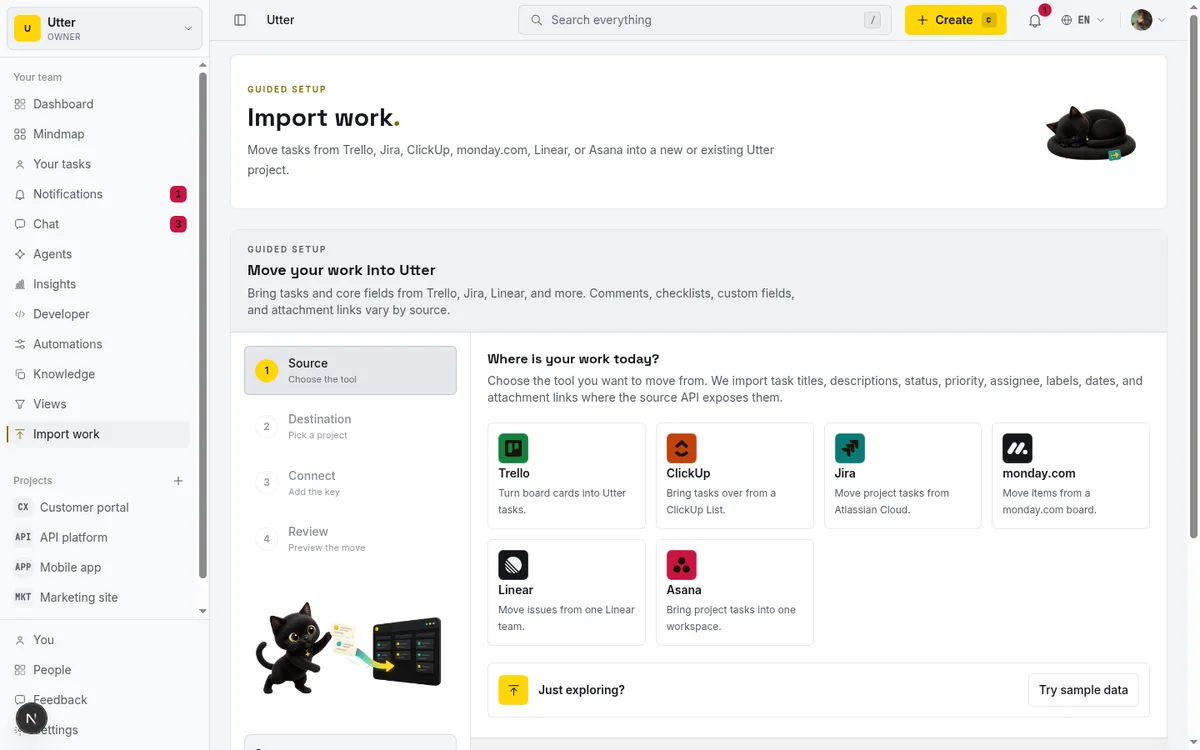
Both paths land in the same place, so the mapping is identical whether you upload a spreadsheet or connect the source directly.
flowchart LR
    A[CSV upload] --> N[One normaliser]
    B[Service connector] --> N
    N --> M[Status, type, priority mapping]
    M --> P[Issues in your Utter project]
Here is what comes across cleanly:
- Titles and descriptions. The card or ticket name becomes the issue title. The body becomes the description. Jira's rich description format and ClickUp's markdown are flattened to plain markdown text.
- Status. Utter reads your column or state name and maps it to a category. "To Do", "Doing", and "Done" from Trello, or Linear's backlog/started/completed states, land in the right place. If a name is unfamiliar it falls back to backlog rather than dropping the row.
- Type. Jira issue types map to Utter's epic / story / task / bug. A "feature" becomes a story, a "defect" becomes a bug. Anything unrecognised becomes a task.
- Priority. "Urgent", "blocker", "minor", and the usual synonyms map onto Utter's priority scale.
- Labels and tags. Every label on an item is created in the target project if it does not already exist, then attached. You do not pre-create them.
- Assignees, if the person is already in the workspace. More on this below, because it is the one that trips people up.
- Comments and due dates, where the source exposes them.
The importer is deliberately forgiving about vocabulary. Trello, Jira, and a hand-edited CSV all use different words for the same thing, and the normaliser tolerates that so a row is never silently lost over a label it did not recognise.
What needs a decision from you
Some things cannot be moved automatically, and pretending otherwise would just move the problem to next week.
Attachments come across as links, not files. Utter does not re-download every file from Trello or Jira and re-host it. Instead, the original attachment URLs are added to the issue description as a short list of links. Those links keep working as long as the old account is alive and the file is still readable there.
If you plan to fully shut down the old tool, download the attachments you care about first, or keep the source account open in read-only mode for a grace period. This is the single most common thing people forget.
Subtasks flatten into tasks. A CSV row, and most connector payloads, is flat. There is no reliable parent for a subtask in that stream, so Utter imports each subtask as a normal task rather than guessing at a parent and getting it wrong. You keep the work item, you just rebuild the parent/child link by hand for the few that matter. In practice most teams find this affects a small number of issues.
Workflows and transition rules do not transfer. Utter has its own status and workflow model, including custom board columns, per-column WIP limits, and Jira-style allowed-transition rules. None of that structure rides along with the issues, because every tool encodes it differently. Set up your columns and any transition rules in Utter first, then import into them.
Custom fields do not map one to one. Utter supports custom fields, but there is no automatic schema match from your old tool's fields to new ones. Decide which custom fields you actually need, create them in Utter, and if a field's value is important, fold it into the description or a label before you import.
History and exact timestamps. You are importing the current state of your work, not a full audit trail. Created and closed timestamps from the source are not reconstructed. If regulatory history matters, keep the old system archived rather than deleting it.
The order that avoids surprises
Migrations go wrong when people import first and think later. Do it in this order instead.
flowchart TD
    A[Test batch on one project] --> B[Set up statuses]
    B --> C[Invite the people]
    C --> D[Run the import]
    D --> E[Read the per row summary]
    E --> F[Verify against the source]
    F --> G[Cut over and freeze the old tool]
1. Export or connect a test batch. Start with one project, not the whole company. Either export a CSV from your current tool or generate a read-only token for the connector. Run it against a fresh Utter project so a mistake costs you a delete, not a cleanup.
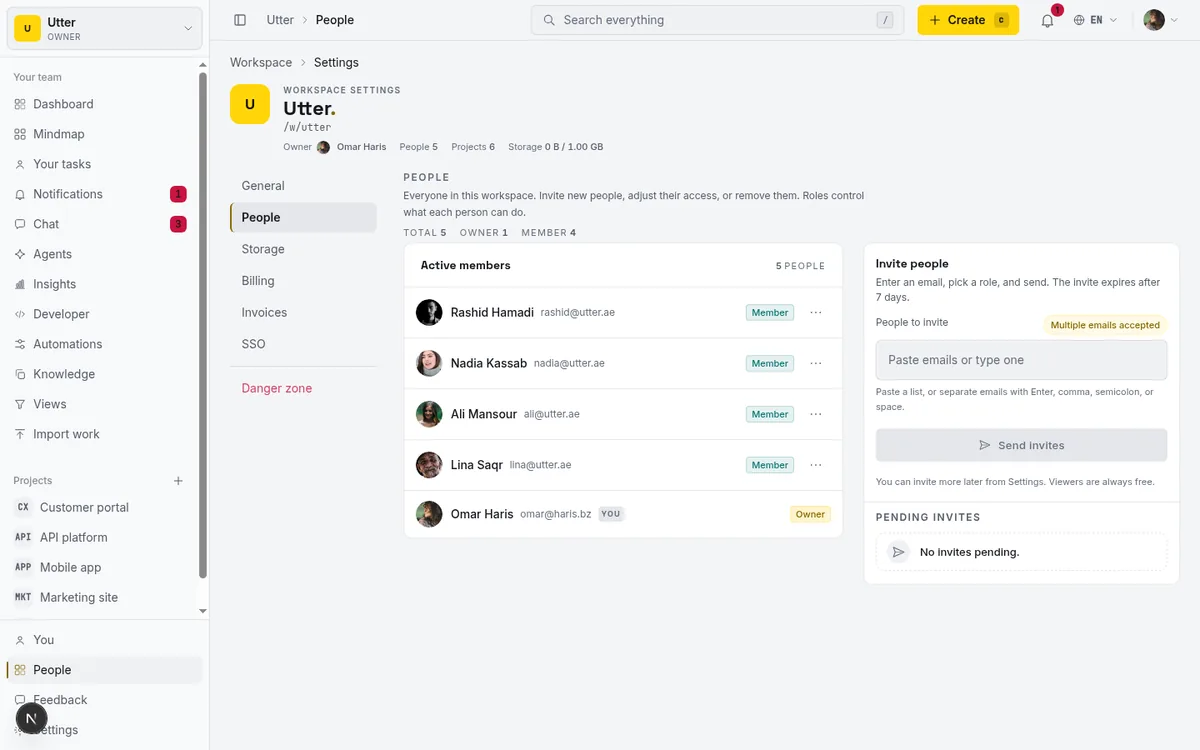
2. Set up statuses before you import. Create the board columns you want and map each to the right category. Add WIP limits or transition rules now if you use them. Importing into the columns you actually want beats importing into defaults and dragging hundreds of cards later.
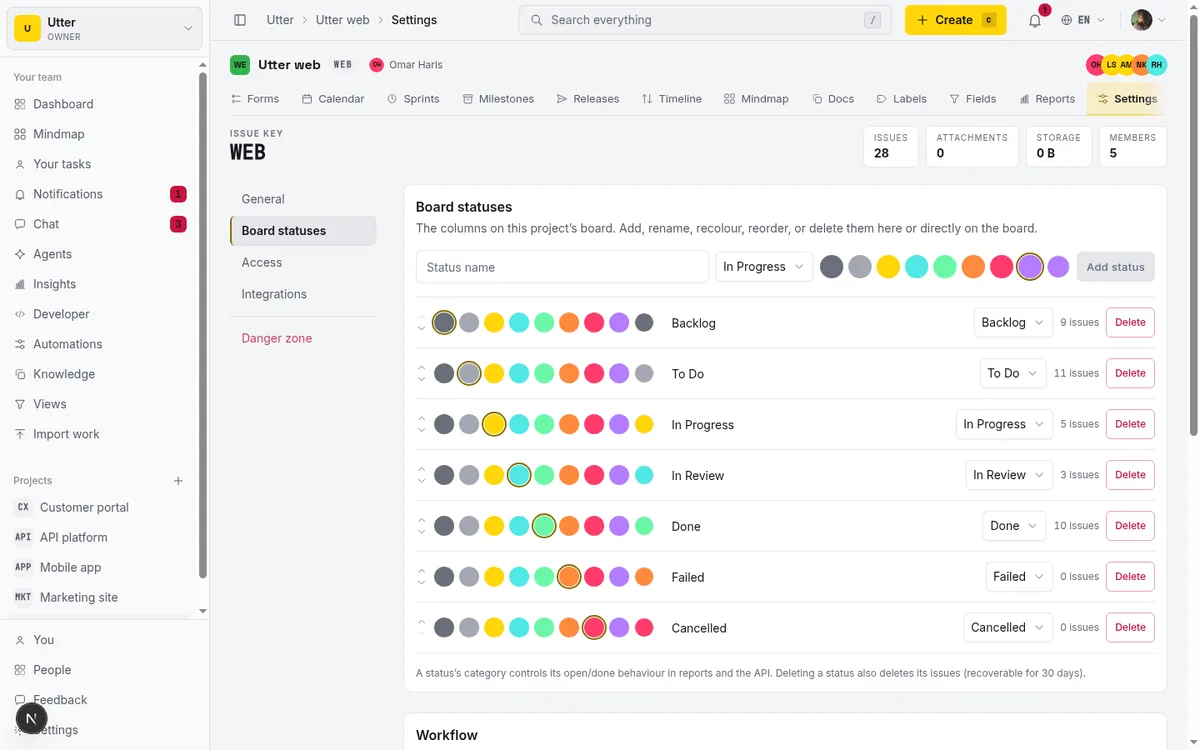
3. Invite the people first. Assignees only resolve if the person's email already belongs to the workspace. Utter matches the assignee email on each row against your members and, if it finds no match, leaves the issue unassigned rather than inventing a user. Invite your team before the import and assignments come across; import into an empty workspace and everything lands unassigned. Viewers are free, so there is no cost to inviting the whole team early.
4. Run the real import and read the summary. Every import returns a per-row result: created, or skipped with a reason. Read it. A skipped row usually means a missing title or an assignee who is not a member yet, both of which are quick to fix and re-run. The CSV path handles up to 1,000 rows at a time; a larger migration runs in the background with a higher ceiling so a big project is not truncated.
5. Verify before you cut over. Open the board and the list view. Spot-check a handful of issues against the source: right status, right labels, right assignee, description intact, attachment links resolving. Do this while the old tool is still live. Cutting over is a one-way door, and five minutes of checking is cheaper than a rollback.
6. Cut over, then freeze the source. Once the batch looks right, repeat per project, point the team at Utter, and set the old tool to read-only for a grace period instead of deleting it. That grace period is your safety net for attachment links and anything you missed.
When to skip the importer entirely
If your migration is really a rebuild, or you are moving from a homegrown tracker with no clean export, the public REST API is often the better tool. The bulk-create endpoint takes up to 50 issues per request and returns a per-item result, so a partial failure tells you exactly which items did not land instead of failing the whole batch. Point a script at your old database, shape the issues the way you want, and post them in.
You need an API key with the issues:write scope, created from the workspace's Developer page.
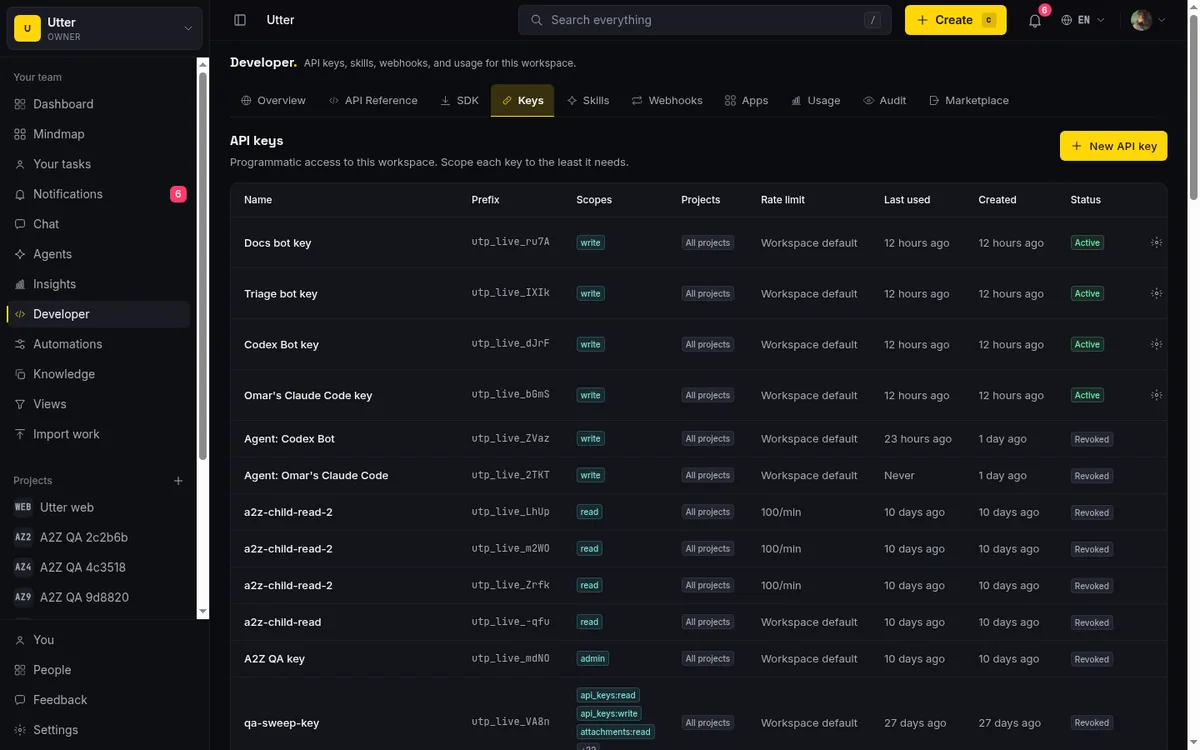
The request is one POST with an items array:
curl -X POST "https://utter.ae/api/v1/workspaces/acme/projects/WEB/issues/bulk" \
  -H "Authorization: Bearer utp_live_YOUR_KEY" \
  -H "Content-Type: application/json" \
  -d '{
    "items": [
      { "type": "bug", "title": "Login times out on slow connections", "priority": "high", "labels": ["auth"] },
      { "type": "task", "title": "Migrate billing exports", "assignee": "[email protected]" }
    ]
  }'
const res = await fetch(
"https://utter.ae/api/v1/workspaces/acme/projects/WEB/issues/bulk",
{
method: "POST",
headers: {
Authorization: `Bearer ${process.env.UTTER_API_KEY}`,
"Content-Type": "application/json",
},
body: JSON.stringify({
items: oldRows.map((row) => ({
type: "task",
title: row.name,
description_md: row.body,
assignee: row.ownerEmail,
})),
}),
},
);
const { data } = await res.json();import requests
res = requests.post(
"https://utter.ae/api/v1/workspaces/acme/projects/WEB/issues/bulk",
headers={"Authorization": f"Bearer {API_KEY}"},
json={"items": [
{"type": "task", "title": row["name"], "description_md": row["body"]}
for row in old_rows
]},
)
for item in res.json()["data"]:
if not item["ok"]:
print(item["index"], item["error"]["message"])The response carries one entry per item, in order. A batch where everything landed returns 201; if any item failed you get 207 and the failed entries carry the reason:
{
  "data": [
    { "index": 0, "ok": true, "data": { "key": "WEB-141", "title": "Login times out on slow connections" } },
    { "index": 1, "ok": false, "error": { "code": "validation", "message": "Title is required." } }
  ]
}
Chunk your source into batches of 50, keep the per-item results, and re-run only the failures. For anyone driving the move with an AI agent or the MCP server, the same API is what the agent uses.
The honest summary
| Moves cleanly | Becomes something else | You set up first |
|---|---|---|
| Titles and descriptions | Attachments become links | Board columns and workflows |
| Status, type, priority | Subtasks flatten to tasks | Custom fields |
| Labels and comments | History is not reconstructed | Workspace members |
| Assignees (if invited) |
Issues, statuses, labels, priorities, comments, and assignees move well. Attachments become links, subtasks flatten, and workflows plus custom fields are a setup step you do first, not something the import does for you. None of that is a reason to stay on a tool you have outgrown. It is just the actual shape of the work, and knowing it up front is the difference between a calm Tuesday and a bad one.
If you want to try it, spin up a project and run the sample import to watch the whole pipeline work end to end before you touch real data. Every new workspace gets a 14-day Pro trial with no card, and viewers are always free, so you can bring the team over and check the result before you commit. The pricing is per builder, not per person who looks.
Frequently asked questions
How do I migrate from Jira, Trello, or Asana to Utter?
Import your issues either by CSV upload or by connecting the source directly with a read-only API token; the service importers cover Trello, Jira, ClickUp, Monday, Asana, and Linear. Start with a test batch of one project into a fresh Utter project, so a mistake costs you a delete, not a cleanup.
What data carries over in the import?
Titles and descriptions (flattened to plain markdown), statuses mapped to the right category, issue types mapped to epic, story, task, or bug, priorities, labels (created automatically if missing), and comments and due dates where the source exposes them. Assignees resolve only if that person's email already belongs to the workspace, so invite your team before you import; viewers are free, so inviting everyone early costs nothing.
Do attachments and subtasks migrate?
Attachments come across as links to the original files, not re-hosted copies, so download the files you care about first or keep the old account in read-only mode for a grace period. Subtasks flatten into normal tasks, because the import stream has no reliable parent link, and you rebuild the parent/child link by hand for the few that matter.
What should I set up in Utter before importing?
Create your board columns, WIP limits, and any transition rules first, because workflow structure does not ride along with the issues and importing into the columns you want beats dragging hundreds of cards later. Then invite the people, and after the run read the per-row summary the import returns, since a skipped row usually means a missing title or a not-yet-member assignee, both quick to fix and re-run.
Related reading
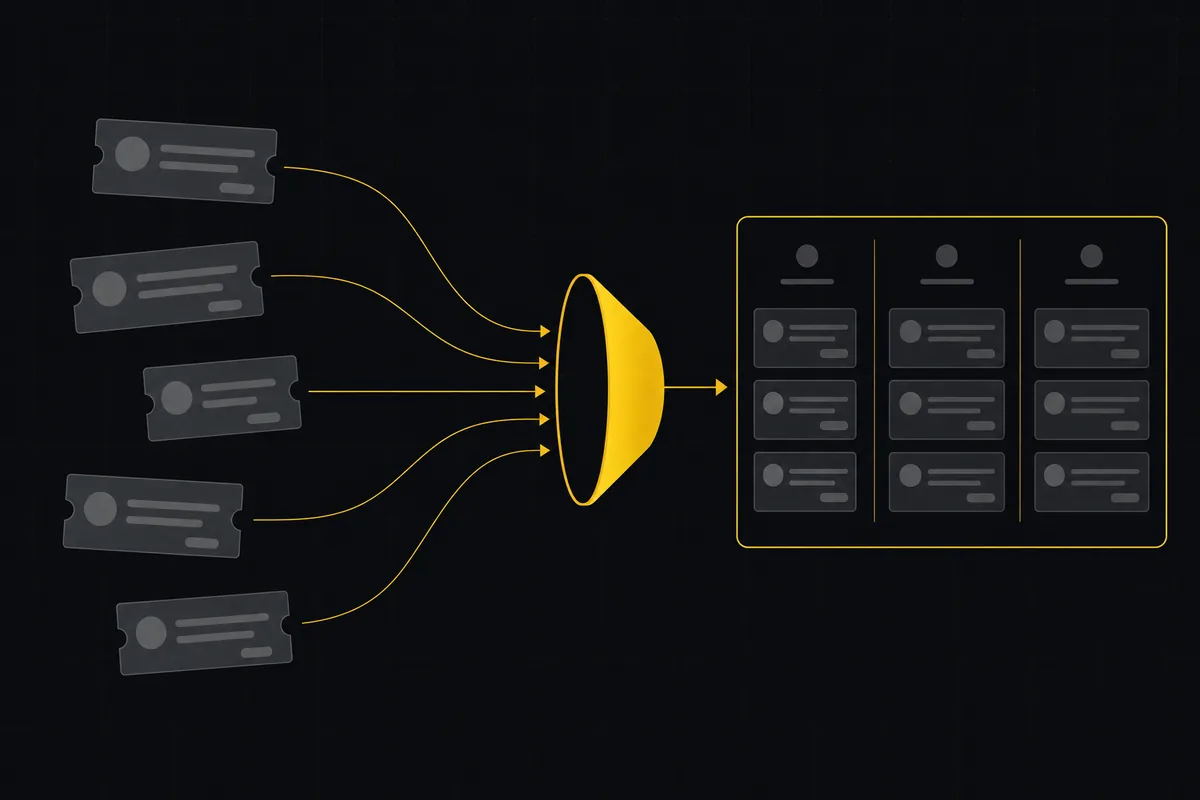
How to import your project
Import a project from Jira, Trello, or a CSV into Utter: the connector wizard, CSV column mapping, which fields survive, row caps, and the gotchas to plan around.
July 15, 2026 · 16 min read
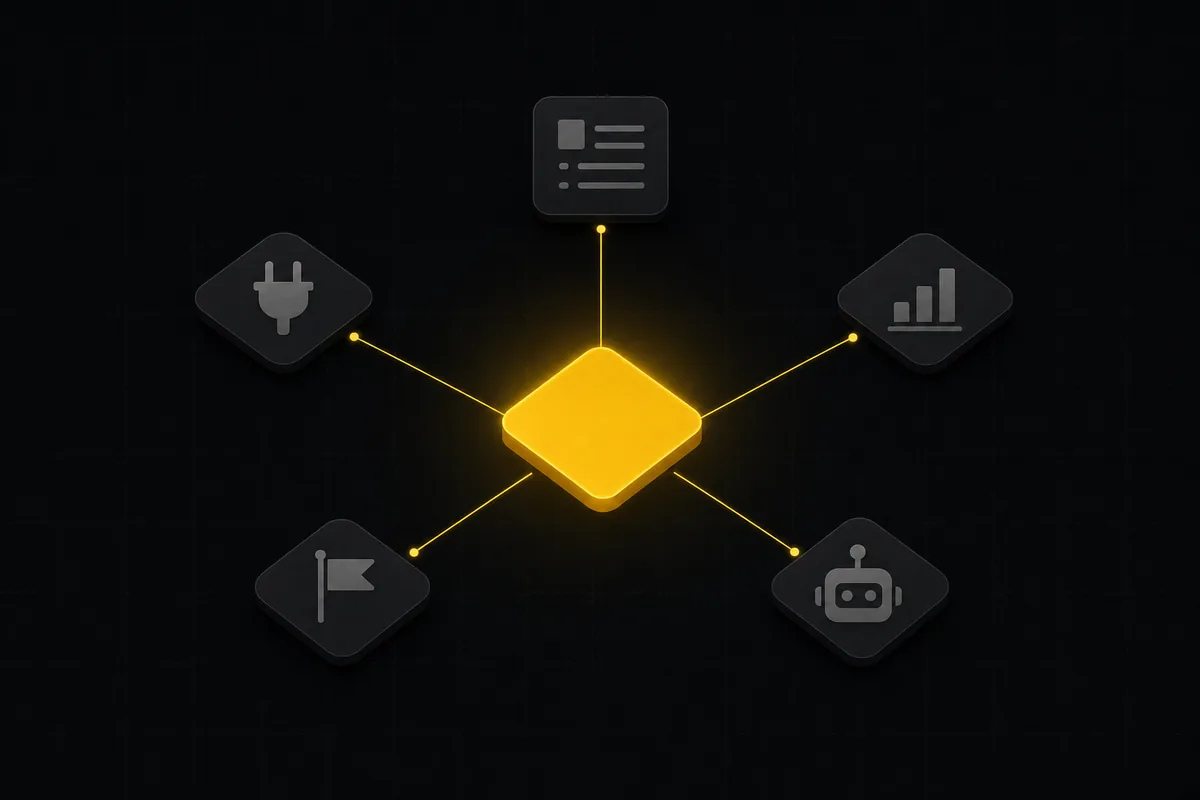
What you can run in Utter without extra tools
A straight, capability-forward tour of the jobs Utter covers in its core, from a light help desk to integrations, estimation, and roadmaps, and when to pair a dedicated tool.
July 16, 2026 · 8 min read
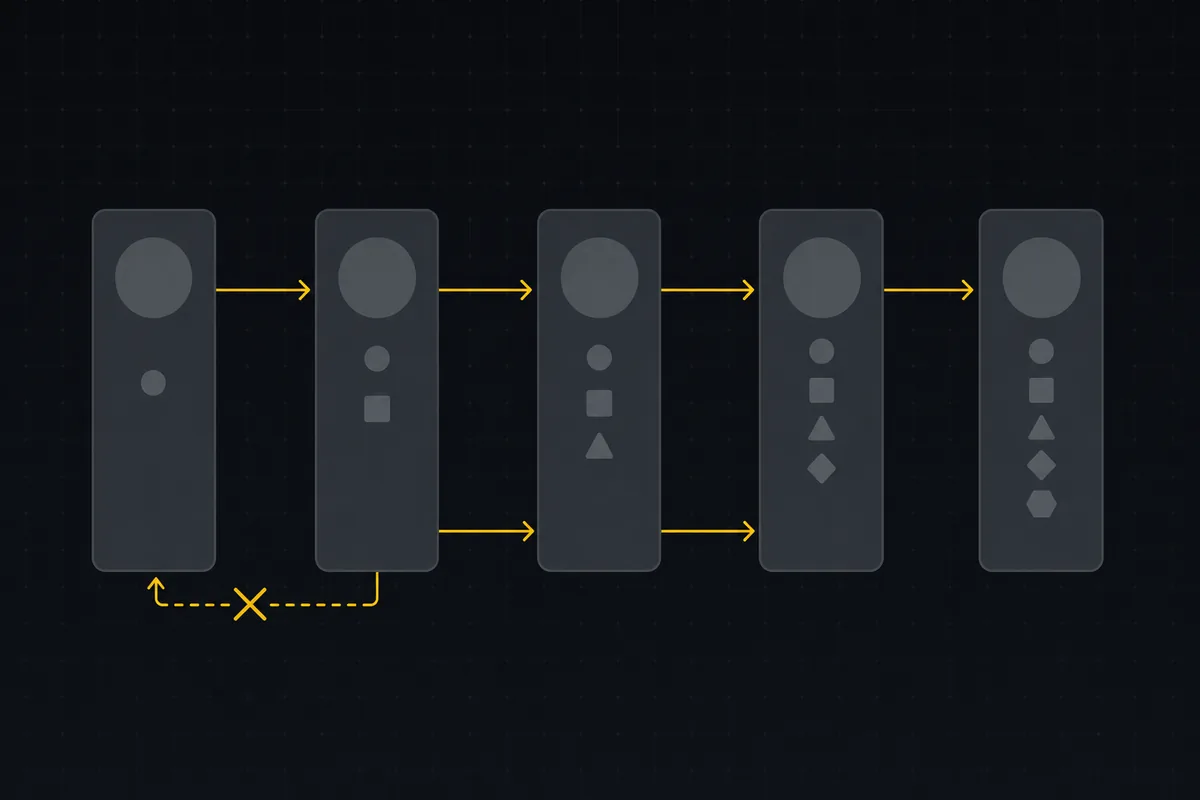
Custom workflow statuses
Build custom Jira-style board columns in Utter and enforce status transition rules across the board, API, bulk edits, and automations. With the honest limits.
July 15, 2026 · 18 min read
Auto-triage new issues with AI: a setup that actually assigns, labels, and prioritizes
How to set up AI issue triage automation that classifies severity, labels, and routes new bugs and requests, with an honest line on what to let AI decide.
May 27, 2026 · 8 min read
Running a project with AI agents without losing the thread
A practical setup for letting AI agents do real project work, create issues, move the board, draft specs, while your team keeps control of what matters.
July 11, 2026 · 5 min read
Utter integrations: the marketplace, OAuth apps, and the API-first model
Utter integrations explained: the 12-card marketplace, signed webhooks, scoped API keys, a first-party MCP server, and OAuth apps, plus what is missing and why.
July 16, 2026 · 13 min read
How to use a kanban board: a complete guide with a real example
Learn how to use a kanban board in Utter: read cards, drag tasks between columns, add and reorder custom columns, set WIP limits, filter, and save views.
July 15, 2026 · 20 min read
Chat with your AI agents, then put them in a workflow
Utter lets you DM an AI agent or @mention it in a channel, watch it work, and connect agents and people on a canvas so a ticket routes itself through triage, build, and review.
July 17, 2026 · 7 min read
A Trello alternative for when a board stops being enough
Trello alternative comparison: what breaks when a board stops being enough, an honest Trello vs Utter pricing and feature comparison as of July 2026, and how to keep the board while adding sprints, a ranked backlog, and reports.
July 16, 2026 · 12 min read
How to set up automations
Set up project management automation rules in Utter: the when/if/then model, six triggers, conditions, nine actions, run history, plan caps, and real limits.
July 15, 2026 · 18 min read
Add a comment
Start the conversation.