
How to import your project
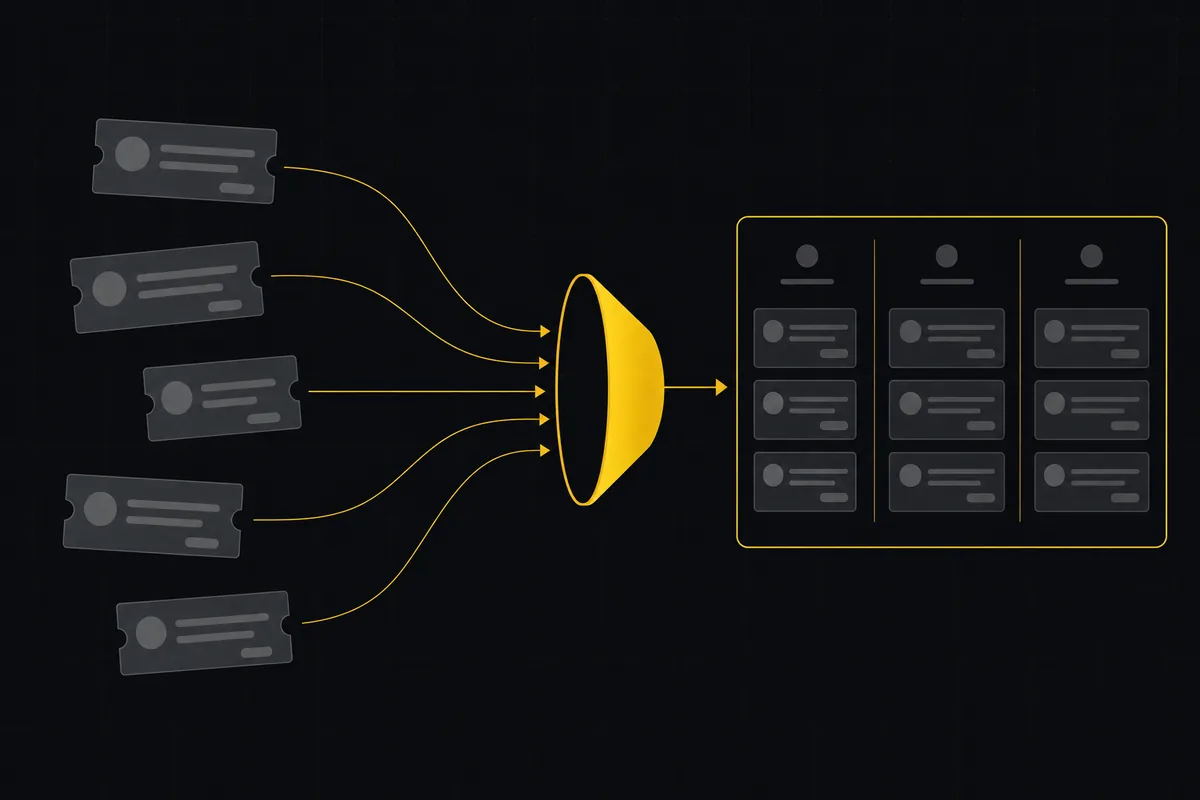
You have a Jira project full of tickets, a Trello board someone set up two years ago, or a CSV a colleague exported and emailed you. The work exists. It just lives in the wrong place. And the last thing you want is to open two tabs and retype every ticket, one status and assignee at a time, until your eyes glaze over.
Utter has a real import for exactly this. You can import a project from Jira, Trello, or a CSV (plus ClickUp, monday.com, Linear, and Asana) through a guided wizard that pulls one board or project into an Utter project, matches assignees by email, and drops you on a working board when it finishes. This tutorial walks the whole thing: the connector wizard, the CSV column mapper, which fields actually survive the trip, and the handful of gotchas that bite you on a big migration if you don't see them coming.
Get the shape right first. It saves you a few wrong turns.
What "import a project from Jira, Trello, or CSV" actually means in Utter
This is a one-way move, not a sync. You hand Utter a temporary API token, it reads your source once, creates the issues, then throws the token away. No live mirror. No two-way updates. No background connection humming after the run finishes. If someone changes a Jira ticket tomorrow, that change does not flow into Utter. You imported a snapshot. That is the whole deal, and honestly it is the right deal for a migration. You want a clean cut, not a tangle of half-synced systems.
There are six live connectors: Jira, Trello, ClickUp, monday.com, Linear, and Asana. Alongside those you get a CSV import (paste text or upload a file) and a "Sample data" helper that spins up 5 example tasks so you can try the flow without wiring up a real token. That is the full list. If you were hoping to pull from GitHub Issues, Notion, Basecamp, or Azure DevOps, they are not here. Don't plan a migration around them.
One thing trips people up: each connector pulls exactly one container, not your whole account.
| Source | One import pulls |
|---|---|
| Jira | One project, by its key |
| Trello | One board |
| ClickUp | One List |
| monday.com | One board |
| Asana | One project |
| Linear | One team |
So if your Jira instance has eight projects and you want all of them in Utter, that is eight separate imports. It is not a full-account migration in a single click, and knowing that up front changes how you plan the day.
Who can do this? Anyone with the issue.create permission, which means owners, admins, and members. Viewers are locked out. The import page does not just hide a button for them. The whole route 404s. So if a teammate says "I can't find the import page," check their role before you check anything else.
Where to start the import: the workspace page vs a single project
There are two doors into import, and they behave a little differently.
flowchart TD
    A{What are you importing} -->|A new body of work from a connector| B[Workspace Import work page]
    A -->|A CSV into an existing project| C[Project List toolbar, Import CSV]
    B --> D[Source]
    D --> E[Destination]
    E --> F[Connect]
    F --> G[Review and start]
    C --> H[From CSV tab]
    H --> I[Map columns]
    I --> J[Preflight and import]
The first door is the workspace-level "Import work" page at /w/[workspace]/import. You will find it in the sidebar, and it runs the full four-step wizard including a Destination step where you pick or create the project the work lands in. Use this one when you are bringing in a brand-new body of work: a whole Jira project that does not have an Utter home yet.
The second door is per-project. Open any project's List view and there is an "Import CSV" link in the toolbar, which takes you to /w/[workspace]/p/[project]/import. Here the destination is already decided (it is this project), so the wizard skips the Destination step. This is also the only place the CSV importer lives. The "From CSV" tab is here, not on the workspace page.
So the rule of thumb is simple. Importing a CSV into an existing project? Go through the project's List toolbar. Bringing in a fresh project from a connector? Start at the workspace page.
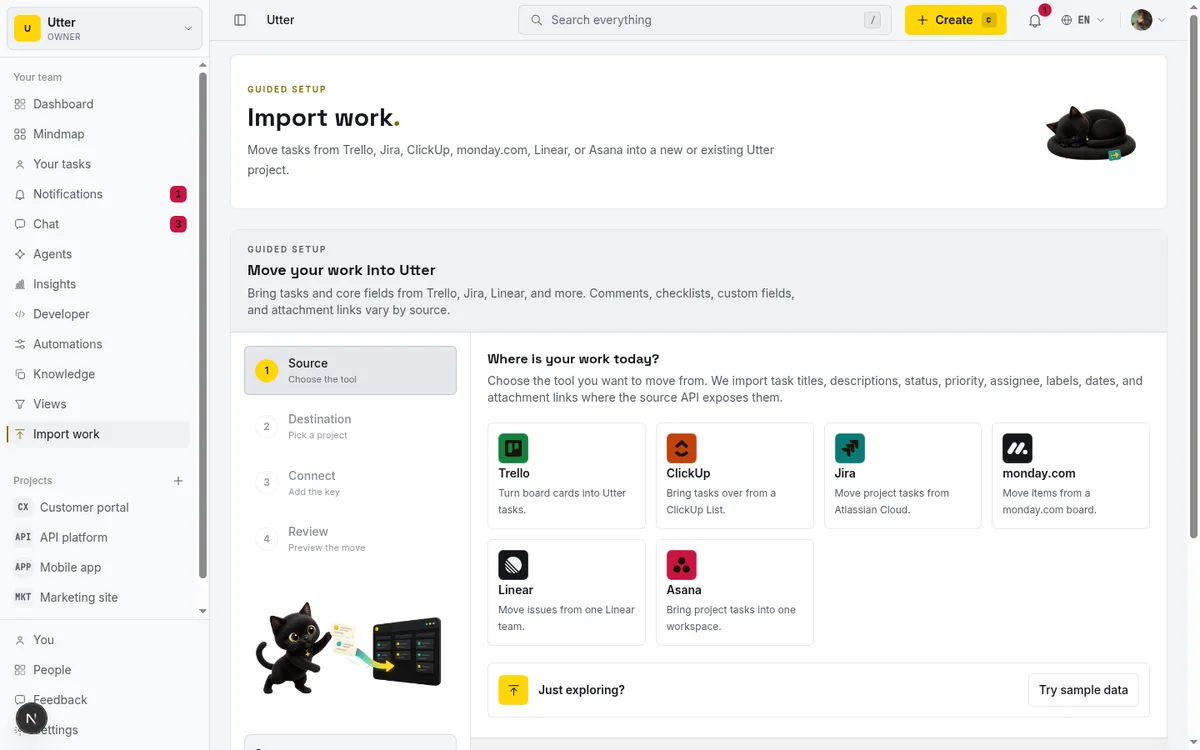
If you are just kicking the tyres and don't have a token handy, look for the "Just exploring? / Try sample data" helper row. It creates 5 example tasks with no credentials, which is a nice way to see what an imported project looks like before you commit real data. Note that Sample data is not one of the main source cards in the grid. It is offered separately as that helper row.
Step through the wizard: Source, Destination, Connect, Review
The service-import wizard is a four-step rail down the left side: Source, Destination, Connect, Review. It is the spine of the whole flow, and once you have done it once it feels obvious.
Source is where you pick the tool card. Six logos, the real ones, so you are clicking the Jira mark or the Trello board icon, not reading a text list. Pick the tool you are migrating from and hit Next.
Destination is where the tasks will land. You get a toggle between "Existing project" and "Create a new project." Choose an existing one from the picker if the project already lives in Utter. Or pick "Create a new project," type a name, and Utter builds the project first and then imports into it.
Concretely: say you are pulling a Jira project and you want it to become the demo project WEB. If WEB already exists, select it under Existing project. If it doesn't, choose Create a new project, type "WEB," and Utter builds the project (with its standard board columns Backlog, To Do, In Progress, In Review, Done) before the first issue drops in. On the per-project import page this step is skipped entirely, since the destination is already fixed.
Connect is the credentials step, which gets its own section below because it is the fiddly one. Review is the final check before anything gets created. You move between steps with Next and Back, and the rail shows you where you are. Nothing is written to your workspace until you are through Review and you press Start import, so you can poke around and back out freely.
Connect the tool: access key and the per-source locator fields
This is the step people get stuck on. Slow down here.
Every connector needs an Access key, which is the API token you generate in the source tool. Paste it into the Access key field. Then each source needs a couple of locator fields so Utter knows exactly which container to read:
| Source | Locator fields |
|---|---|
| Jira | Site domain, Project key, Account email |
| Trello | Board ID, Trello key |
| ClickUp | List ID |
| monday.com | Board ID |
| Asana | Project ID |
| Linear | Team ID |
If you are not sure where to generate the token or find those IDs, there is an inline "How to get your access key" help note on each source that tells you where to look. Read it. The token-creation path is different for every tool, and the note saves you a support search.
Two hard rules on Jira specifically. First, it is Jira Cloud only. Your site has to be a *.atlassian.net domain. Jira Server and Jira Data Center are explicitly rejected, so if your company self-hosts Jira, this connector will not reach it. Second, Jira auth is your account email plus an API token, which is why the Jira card asks for Account email where the others don't.
Now the reassuring part. The token is temporary. Utter uses it for the single import run and discards it. It is not stored, it is not reused, and there is no standing integration holding your credentials. That is why there is no live sync: the connection genuinely ends when the import does. If you want to be extra careful on a sensitive source, revoke the token in the source tool after the import finishes. Nothing in Utter will break, because nothing in Utter is still holding it.
Review and start: the ready-to-move check before anything is created
The Review step is your last look before Utter creates a single issue. It lays out three summary cards, Source, Destination, and Access, so you can confirm at a glance: yes, I am pulling from Jira project WEB, landing it in the WEB project, using this token.
At the top you will see one of two banners. "Ready to move" means every required field is present and the Start import button is live. "Missing details" means something is incomplete (a blank locator field, no destination chosen), and Start import stays disabled until you go back and fill it in. That disabled-button behaviour is deliberate. It stops you from firing off an import that was always going to fail halfway.
What good looks like here: the Source card names the right tool and container, the Destination card shows the exact project you meant (WEB, not some other project you clicked by accident), and the banner reads Ready to move. When all three line up, press Start import. This is the point of no return in the sense that issues start getting created, so give the summary a real read rather than a reflexive click.
What carries over, and what quietly gets left behind
Read this section twice. The gap between what you expect and what actually arrives is where migrations go sideways.
Here is what a service import brings across, per source: the task title, description, status, priority, assignee (matched by email to a workspace member), labels or tags, and due date. ClickUp additionally brings a time estimate. Trello brings attachment links. Anything the source API exposes as a core field has a good chance of making it. Anything it buries in a custom structure does not.
Utter normalises the values on the way in so nothing gets rejected for being unfamiliar:
- Types map to Utter's epic, story, task, and bug. Jira "feature" and "improvement" both become story, "defect" becomes bug.
- Statuses map to backlog, todo, in_progress, in_review, done, or cancelled. Anything unrecognised falls back to backlog, so a stray custom status does not drop the row. It just lands in Backlog for you to sort.
- Priorities map across a lowest-to-critical scale. Unrecognised priorities become medium.
Now the honest part. What does not come across. The import UI says it plainly: "Comments, checklists, custom fields, and attachment links vary by source." In practice, for the service connectors:
- Custom fields do not import. That sprint field, that story-point field, that "Client" dropdown you built in Jira, none of it.
- Checklists and sprints do not import.
- Subtask hierarchy is flattened. A subtask comes in as a plain task with no parent link, because a flat imported row has no resolvable parent to attach to. You keep the work. You lose the tree.
- Comments do not import from service connectors. The whole discussion history stays in the source tool.
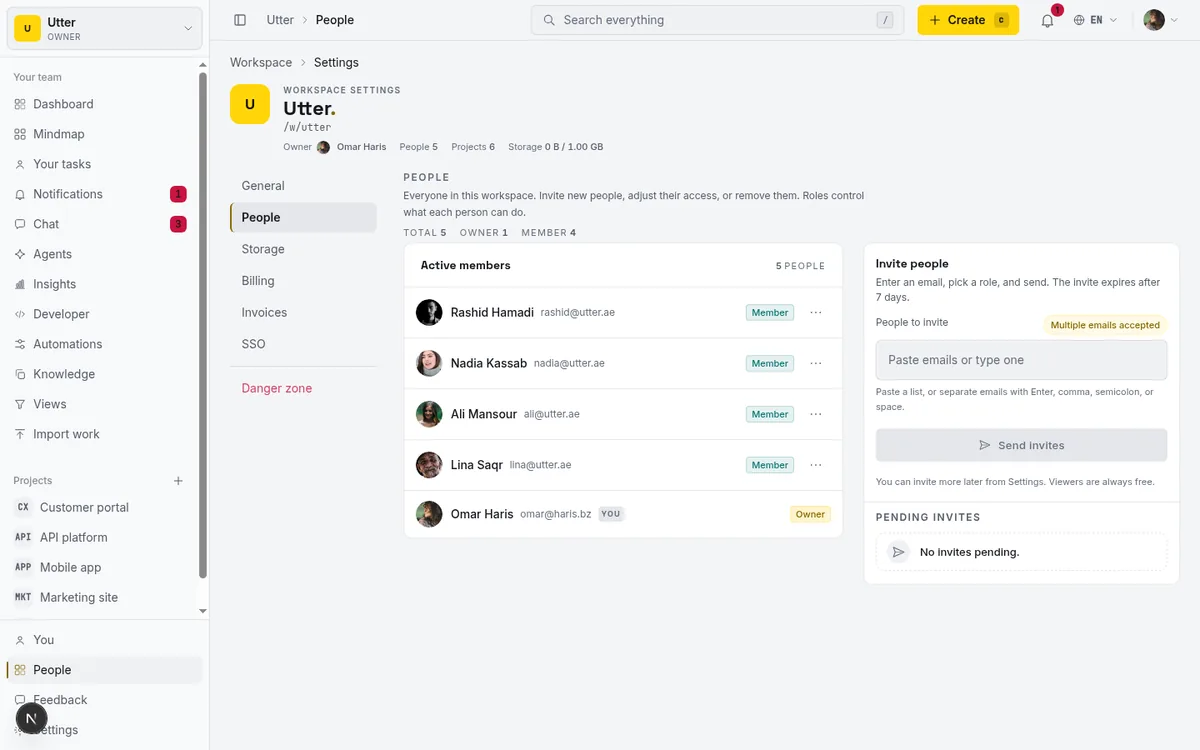
Two more that catch people. Non-member assignees get dropped. An assignee only sticks if that person's email matches someone already a member of your Utter workspace. If the email does not match a member, the issue is created unassigned, and no invite goes out. Utter will not create or invite users for you. So if half your imported tickets come in unassigned, it is almost always because those people are not in the workspace yet. Invite your team first, then import, and the assignees land.
And attachments are links, not files. Trello, the only service connector that brings attachments at all, appends the attachment URLs. It does not copy or re-host the actual files into Utter storage. The pointer comes over. The bytes stay where they were.
None of this is a reason not to import. It is a reason to import with clear eyes. You are moving the live work (titles, statuses, assignees, priorities, due dates), not the entire archaeological record.
How do I map my CSV columns to Utter fields?
The CSV path is the flexible one, and it is the answer whenever a connector does not fit or your data already lives in a spreadsheet. It lives on a project's import page under the "From CSV" tab. Open the project, hit Import CSV from the List toolbar, and switch to that tab.
You have two ways in: paste your CSV text straight into the box, or upload a .csv file. Either works. A clean file looks like this:
Title,Type,Status,Priority,Assignee email,Labels,Due date
Fix login redirect,bug,in_progress,high,[email protected],auth;backend,2026-08-01
Dark mode for settings,story,todo,medium,,design;ui,
Rotate the API keys,task,backlog,low,[email protected],,
Once your data is in, Utter reads the header row and takes a first guess at what each column is. It auto-detects the common names, so a Jira or Trello export usually maps itself:
| Utter field | Headers it recognises |
|---|---|
| Title | title, summary, name |
| Type | type, issue type |
| Status | status, state |
| Priority | priority |
| Assignee email | assignee, assignee email, assigned to, owner |
| Labels | labels, label, tags |
| Description | description, body, details |
| Comments | comments, comment, comment body, discussion |
| Attachment URLs | attachment(s), attachment URL(s), files, file URLs |
| Due date | due, due date |
| Estimate (minutes) | estimate, estimate minutes, estimated time |
It is a guess, not gospel, so you always get to correct it. There are 11 fields you can map a column to (the table above), and only Title is required: every row needs one. Each column gets a dropdown, and you set what it maps to. Got a column you don't want? Set it to Ignore and it is left out. There is a "First row is a header" toggle. Leave it on if your first row is column names (the usual case), flip it off if your CSV jumps straight into data.
As you map, a live preflight updates at the top: Ready rows (these will import) and Will skip (these won't, usually a missing Title). Below that is a 20-row preview so you can eyeball the actual result, not just the column names. This is where you catch the "oh, my status column is actually called State and half my rows say Doing, which is not a real status" problems, before you import instead of after. Fix the mapping, watch the Ready count climb, then import.
A few touches worth knowing. Comments in a CSV become real Utter comments. Put multiple comments in one cell separated by ||| or by a --- line, and Utter splits them into distinct comments on the created issue:
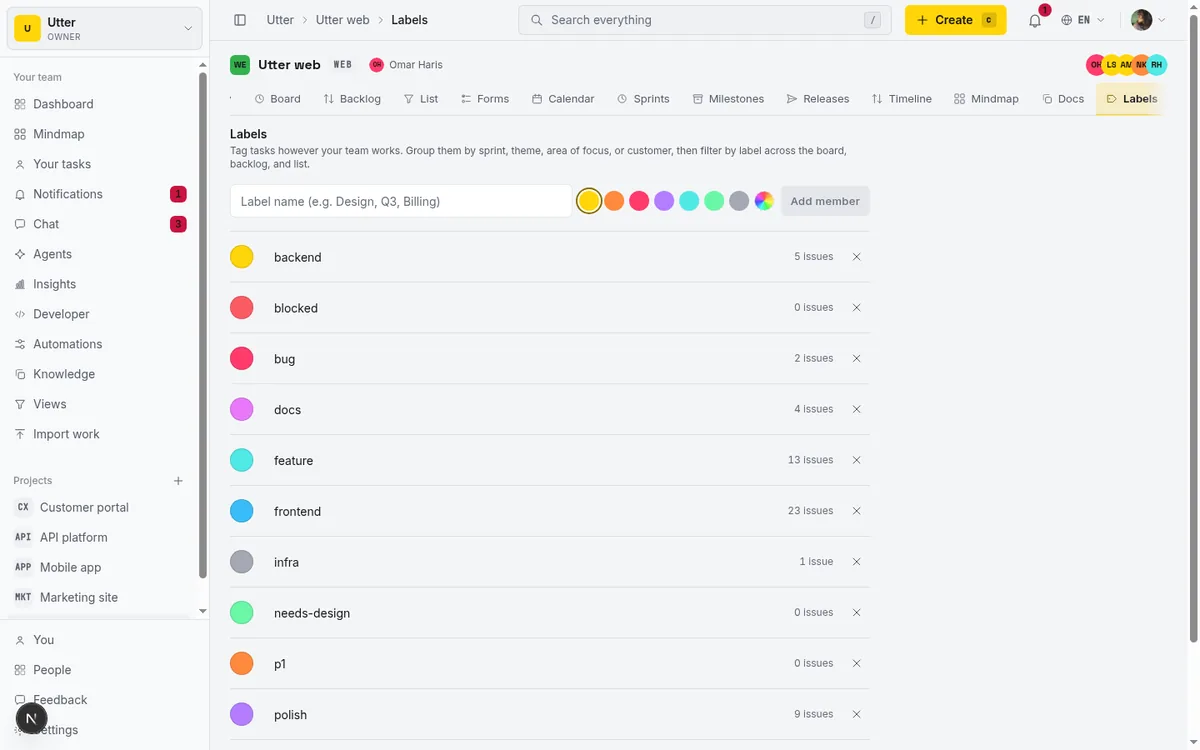
"First pass done, needs review ||| QA found a Safari bug ||| Shipped in 2.3"Attachment URLs don't vanish. They get appended to the issue description as an "Imported attachments" markdown link list, so the pointers stay attached to the work. Labels split on commas or semicolons, and any label your rows reference that does not exist yet gets auto-created in the project (default neutral grey, recolour it later from the Labels page). So you don't have to pre-build your label set. The import seeds it.
When you are happy with the preflight, press the Import button (it shows the count, like "Import 42 issues") and it runs.
Track the run and land on your board
What happens after you hit Start depends on which path you took, and the two behave differently on purpose.
Service imports show up in a "Recent imports" list on the workspace import page. Each run gives you the source, the destination project, when it started ("Started 2 minutes ago"), and a live progress readout ("14 of 60 tasks added..."). There is a status pill that moves through Preparing, Importing, Ready, or Failed, and a "View imported issues" link once there is something to see.
stateDiagram-v2
    [*] --> Preparing
    Preparing --> Importing
    Importing --> Ready: all rows created
    Importing --> Failed: run interrupted
    Ready --> [*]
    Failed --> [*]: no auto retry
The list auto-refreshes every 2.5 seconds while a job is active, so you can watch it climb without hammering reload. When a background import finishes, you also get an email and an in-app notification, so you don't have to babysit the tab. Go do something else and come back when it pings you.
CSV imports work differently. They show an inline completion summary right there on the page: Created, Skipped, and Total rows, the list of created issue keys (WEB-118, WEB-119, and so on), and the reasons any rows were skipped. From that screen you get "Go to board," "Go to list," and "Import more," so you can jump straight to your freshly populated board. One thing to note: CSV imports do not appear in the Recent imports list. That list is only for service and tool imports. So if you ran a CSV import and don't see it in Recent imports later, that is expected, not a bug. The inline summary was your record.
Either way, the finish line is the same. A real Utter board with your work on it, cards sitting in Backlog and To Do and In Progress, ready to drag around.
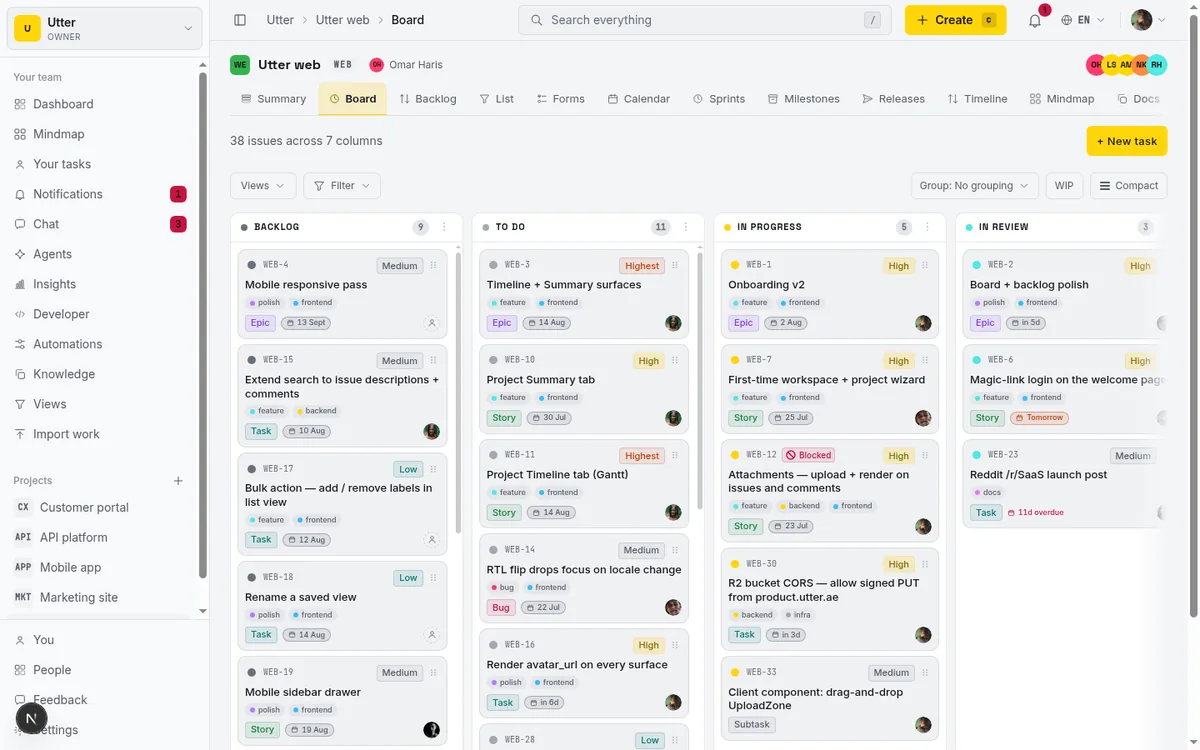
If you are new to what happens next, how to use a kanban board covers moving cards and working the columns, and how to create an issue covers adding the odd ticket the import did not cover.
Limits and mistakes to plan around
Before you point a 5,000-row export at this and walk away, know where the ceilings are.
CSV is capped at 1,000 rows per import, with a 10 MB file-size limit. Feed it a bigger file and only the first 1,000 rows import. The rest are silently left behind. So if you have a 4,000-row backlog, that is four CSVs. Split it before you upload. Don't lose 3,000 rows to a cap you didn't know about.
Service imports scale differently. When there is no background queue configured (dev environments), they run inline up to 500 rows. Otherwise they run in the background up to a plan ceiling:
| Plan | Service import ceiling |
|---|---|
| Free | 1,000 rows |
| Pro | 10,000 rows |
| Business | 50,000 rows (the absolute hard ceiling) |
A whole-account Jira migration running into the tens of thousands of issues needs a Business plan, and remember, it is still one container per import.
An interrupted background import is not auto-restarted. If a run gets cut off partway (a deploy, a crash), Utter marks it Failed and deliberately does not retry it. That is a safety choice. An automatic retry risks creating every issue twice. So if you see Failed, don't panic and don't wait for it to recover on its own. Review what did land, then start a fresh import for whatever is missing.
A couple more to file away. There is no field-mapping UI for service imports. The mapping is fixed per connector, which is exactly why the CSV path exists when you need control. Scoped projects need more than the issue.create role. You also need to be a project member with create rights, or the import will not let you target that project. And the whole import route 404s for anyone without permission, which is expected behaviour, not a broken link.
The practical playbook, learned the hard way on real migrations:
- Import a small batch first. Ten rows, not a thousand. Confirm the statuses and assignees land where you expect, then run the full thing.
- Clean your CSV header names to match what Utter auto-detects (Title, Status, Assignee email) so the mapping is right on the first pass.
- Invite your teammates into the workspace before you import, so their emails match and the assignees actually stick instead of everything coming in unassigned.
For a wider view of moving off another tool (the strategy, not just the buttons), migrate from Jira, Trello, or Asana to Utter goes broader, and if you are still weighing the switch itself, Utter vs Jira lays out the differences.
Ready to move your first project? Open your workspace, click Import work, and start with a ten-row test.
Frequently asked questions
How do I import a project from Jira, Trello, or a CSV into Utter?
Open the workspace "Import work" page (/w/[workspace]/import) and run the four-step wizard: pick the tool, choose or create a destination project, paste the tool's access key plus its locator fields, then review and press Start import. For a CSV, go through a project's List toolbar ("Import CSV") and use the "From CSV" tab instead.
Which tools can Utter import from?
Six live connectors: Jira (Cloud only), Trello, ClickUp, monday.com, Linear, and Asana. On top of those you can import a CSV by paste or file upload, plus a "Sample data" helper that creates 5 example tasks with no token. GitHub, Notion, Basecamp, and Azure DevOps are not supported.
Does importing keep a live sync with my old tool?
No. This is a one-way snapshot. Utter uses a temporary token for the single run and discards it, so there is no two-way mirror and no ongoing connection. Later changes in the source tool do not flow into Utter.
Why did some of my imported issues come in unassigned?
Assignees only stick when the person's email matches an existing member of your Utter workspace. Non-member emails are dropped and the issue is created unassigned. Utter does not invite or create users during import, so invite your team first, then import.
What does not carry over during a service import?
Custom fields, checklists, sprints, and comment history do not import from service connectors, and subtask hierarchy is flattened to plain tasks. Attachments come in as links only (Trello), not copied files. Titles, descriptions, statuses, priorities, assignees, labels, and due dates do carry over.
How do I map my CSV columns to Utter fields?
On the project import page's "From CSV" tab, Utter auto-detects common header names and gives each column a dropdown you can remap to one of 11 fields (Title is required). A live preflight shows Ready rows versus Will skip, plus a 20-row preview, so you can fix the mapping before importing.
How many rows can I import at once?
CSV imports are capped at 1,000 rows per file (10 MB limit); larger files import only the first 1,000 rows. Service imports run inline up to 500 rows in dev, or in the background up to a plan ceiling: Free 1,000, Pro 10,000, Business 50,000, which is the hard ceiling.
Why isn't my CSV import showing in the Recent imports list?
That is expected. The Recent imports list only tracks service and tool imports. CSV imports show their own inline completion summary (Created, Skipped, Total, and the created issue keys) instead of appearing in that list.
Related reading
How to migrate from Jira, Trello, or Asana without losing your data
An honest migration guide: what imports cleanly, what needs a decision, and the order to move your projects so nothing gets lost on the way over.
July 12, 2026 · 8 min read
What you can run in Utter without extra tools
A straight, capability-forward tour of the jobs Utter covers in its core, from a light help desk to integrations, estimation, and roadmaps, and when to pair a dedicated tool.
July 16, 2026 · 8 min read
How to use the rest api
Get an Utter API key and use the project management REST API to list, create, and update issues safely, with scopes, idempotency keys, and rate limits explained.
July 15, 2026 · 16 min read
Utter integrations: the marketplace, OAuth apps, and the API-first model
Utter integrations explained: the 12-card marketplace, signed webhooks, scoped API keys, a first-party MCP server, and OAuth apps, plus what is missing and why.
July 16, 2026 · 13 min read
How to search your workspace
Search issues across projects in Utter from one top-bar field: the / shortcut, live typeahead, WEB-12 key-jump, the full results page with Type/Status/Priority filters, and the real limits.
July 15, 2026 · 14 min read
How to use AI agents in Utter: connect them, assign work, and follow their sessions
A start-to-finish walkthrough: connect an agent, scope its key, assign it issues, and watch its sessions, without giving up control of the board.
July 15, 2026 · 11 min read
How to use a kanban board: a complete guide with a real example
Learn how to use a kanban board in Utter: read cards, drag tasks between columns, add and reorder custom columns, set WIP limits, filter, and save views.
July 15, 2026 · 20 min read
How to manage roles and permissions
Learn how project management roles and permissions work in Utter: the five roles, inviting with the right access, scoped projects, and who pays for a seat.
July 15, 2026 · 18 min read

How to create your first workspace
Getting started with a project management tool: sign in with a magic link (no password), create your first workspace and slug, and set a permanent project key.
July 15, 2026 · 15 min read
How to set up automations
Set up project management automation rules in Utter: the when/if/then model, six triggers, conditions, nine actions, run history, plan caps, and real limits.
July 15, 2026 · 18 min read
Add a comment
Start the conversation.