
How to set agent field permissions
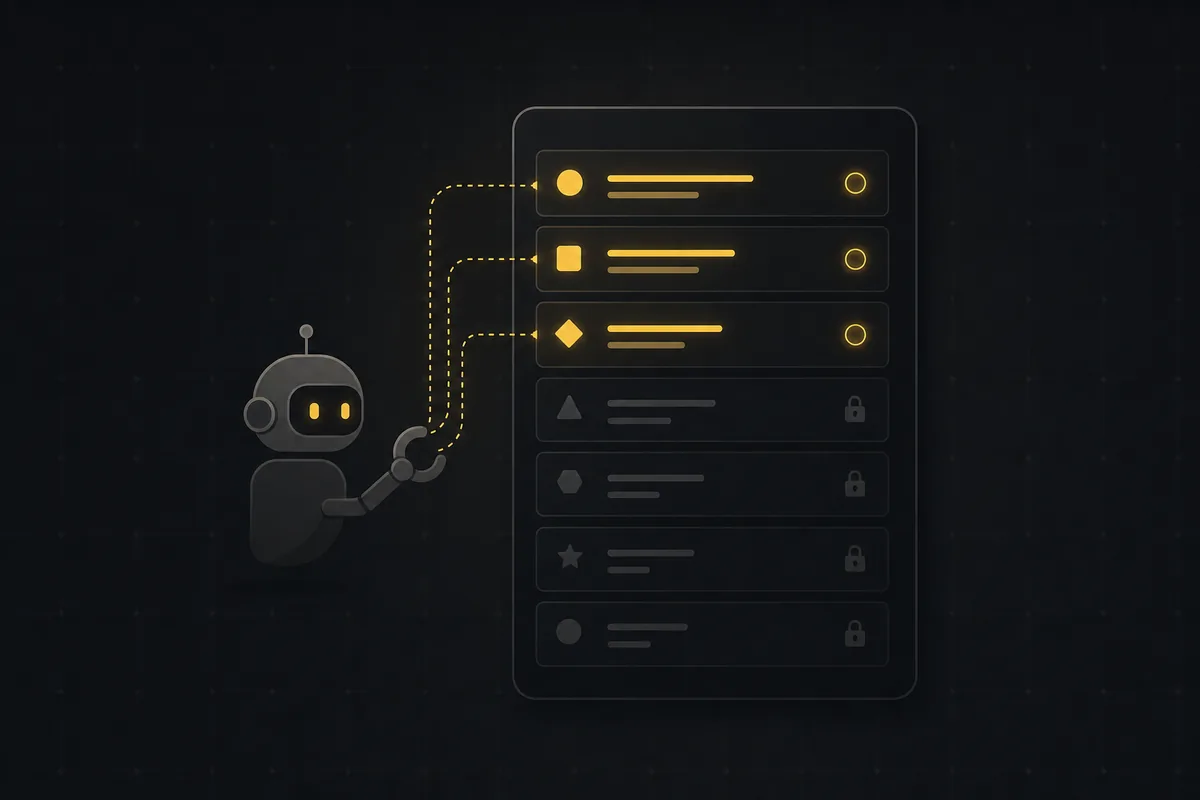
Your triage agent just moved a ticket to Done and closed it, when all you wanted was for it to sort the backlog. It had the keys to every field, so it used them. That is the gap this walks you through closing.
If you want to restrict what an AI agent can edit in Utter, the tool for the job is a field-level allowlist: a per-agent list of exactly which issue fields that agent's API key is allowed to write. Set it once, and any write to a field outside the list bounces with a clear error. The agent keeps doing its job. It just can't wander into fields you never meant it to touch.
Why you'd want to restrict what an AI agent can edit
Here is the default that surprises people. When you connect an agent to a workspace, its API key can write every issue field, the same as any human member. Status, Priority, Description, Assignees, the estimate, the due date, all of it. That is deliberate. An agent is a member with a key, and members can edit issues. But it means a bot you connected to do one narrow thing has the reach to do far more.
Take a triage agent working the Backlog column in the WEB demo project. Its job is small: read new tickets, set a Priority, put the right Labels on, maybe route an Assignee. That is the whole assignment. Yet nothing stops it flipping the "Timeline + Summary tab" ticket straight to Done, or rewriting a description it misread, or reassigning work across the team. One confident wrong call and you are undoing changes across a board.
The field policy fixes this by scoping the agent to its actual job. You decide the agent may write Status, Priority, Labels, and Assignees, and every other field becomes read-only for that key. The policy only ever applies to agent actors, never to humans or their keys, so turning it on for one bot changes nothing for your teammates.
The default stays permissive on purpose: a fresh agent has no policy (the field policy is null, meaning every field is open), which matches how a human behaves. You opt into restriction. You don't have to. But for anything running unattended, you should.
Where agent permissions live in the Agents hub
Everything for this lives in the Agents hub, which sits at the workspace level, not inside a project. Open it and you get two things stacked together. Up top is the live sessions list: the agents doing work right now. Below that is the connected-agents directory, a table with columns for Agent, Owner, Status, Last active, and Key.
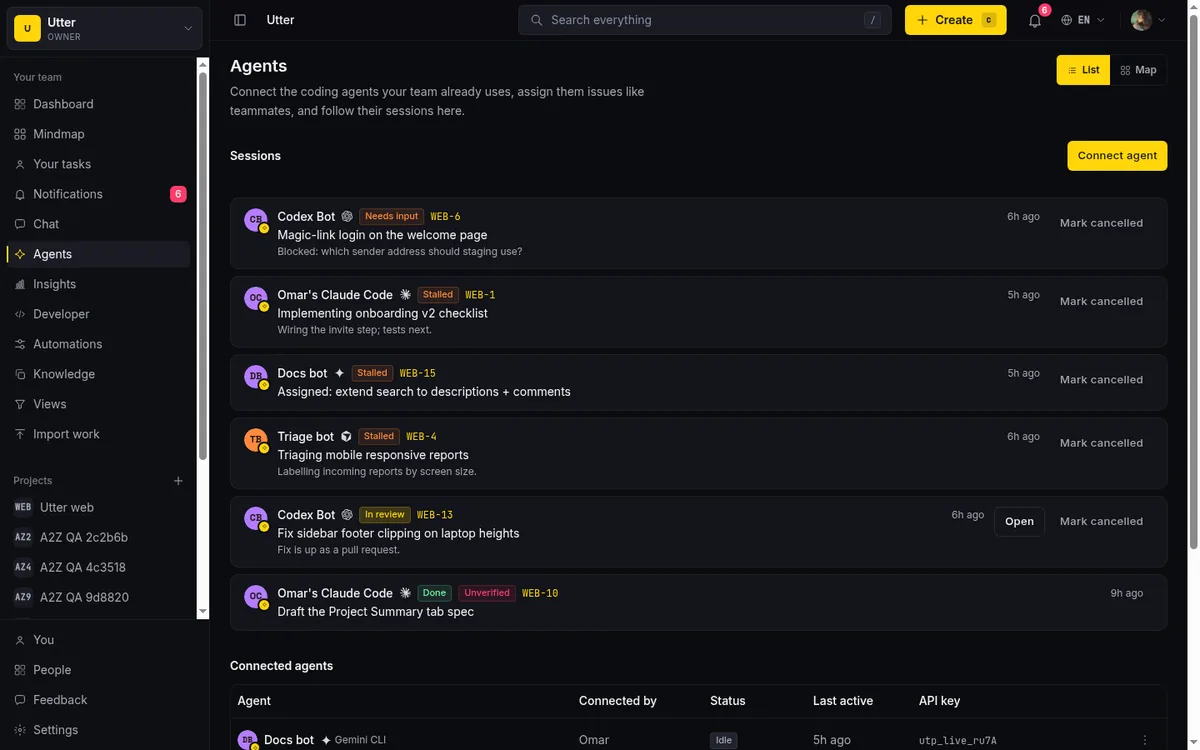
The Key column matters later, so keep an eye on it. Each agent row has a kebab menu, the three-dots button at the end of the row. Open it and you get Rename, Permissions, and Disconnect. Permissions is the one we want.
One thing to know before you go looking for that menu: not everyone sees it. The kebab, and the ability to change a field policy, is limited to workspace owners and admins, plus the agent's own owner. That is the same gate as renaming or disconnecting an agent (internally, agent.manage_any). A regular member can see the agents and what they are doing, but cannot open the menu or touch the policy. So if you are testing this and the three dots are missing, check your role first.
Open the permissions dialog and pick an allowlist
From the agent's kebab menu, choose Permissions. That opens a dialog titled "What can this agent edit?" This is the whole control surface, and it is simpler than it looks.
At the top is a single checkbox: "All fields (no restrictions)". When that is on, the agent has no policy and can write everything, the default state. Below it sits a two-column grid of 14 field checkboxes:
- Title
- Description
- Status
- Priority
- Assignees
- Labels
- Milestone
- Sprint
- Release
- Estimate
- Time spent
- Completion %
- Start date
- Due date
The dialog spells out the intent with a helper line: "Choose which issue fields {name} may change through its API key. A write to any other field is rejected with a clear error, so a triage agent stays a triage agent." That last phrase is the mental model. You are drawing a box around the agent's job.
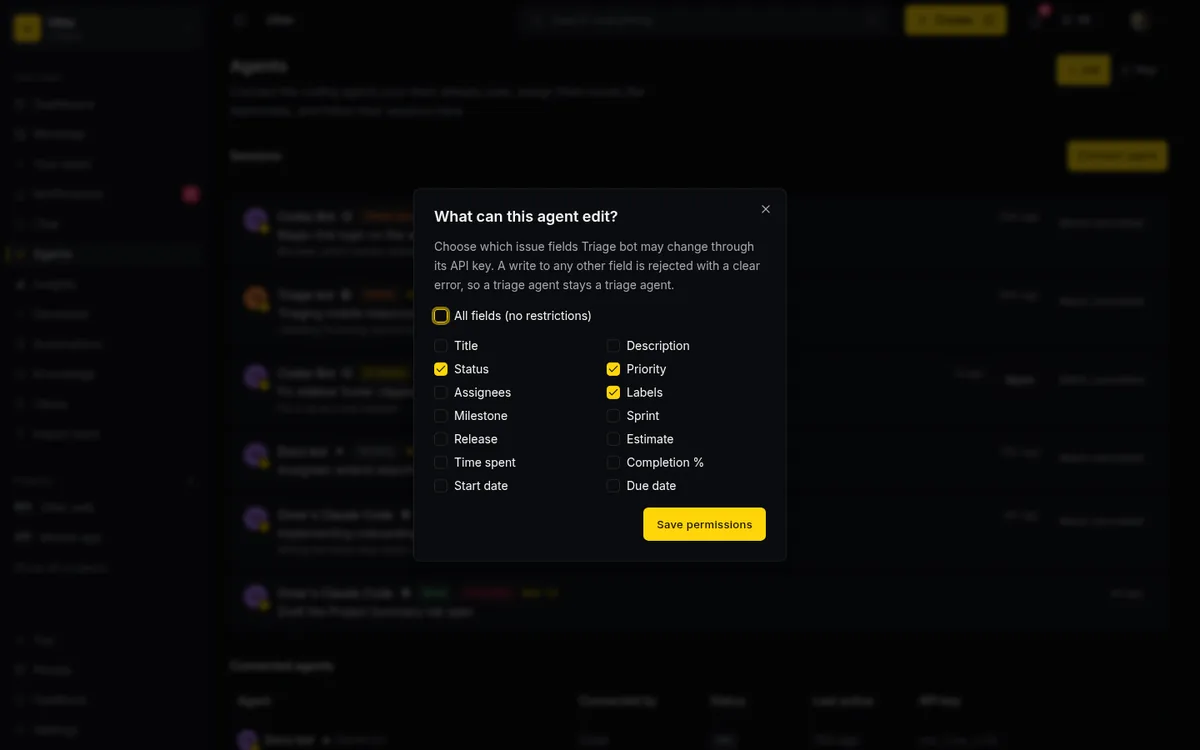
Let's do the triage agent for real. Uncheck "All fields (no restrictions)" first. The moment you do, the grid goes live with nothing ticked, which means, right now, the agent can write nothing. Then tick the four fields the triage agent actually needs: Status, Priority, Labels, Assignees. Leave the other ten empty. Click "Save permissions". A toast confirms it: "Agent permissions updated."
That is it. From here, that agent can move a ticket between columns, set its priority, manage its labels, and route it to a person. Ask it to rewrite the description or push a due date, and the write is refused. Its job did not change. Its blast radius did.
The three states: all fields, a subset, and no writes
This is the part that trips people up, so slow down here. There are three states, not two, and the difference between two of them is easy to miss.
| State | "All fields" checkbox | Grid | What the agent can write |
|---|---|---|---|
| All fields (null) | Checked | Ignored | Every one of the 14 fields. The default for a newly connected agent, and exactly how a human member behaves. |
| A subset | Unchecked | Some boxes ticked | Only the ticked fields. Everything else is refused. The triage example: four on, ten off. |
| Empty allowlist | Unchecked | Nothing ticked | No issue field at all. Every field write is rejected. |
Here is the trap. Unchecking "All fields" is not the same as removing the policy. Removing the policy means re-checking "All fields" so the agent goes back to null. Unchecking "All fields" and leaving the grid empty gives you an empty allowlist, which is the most restrictive setting there is. Two very different outcomes from what feels like the same click. If you meant to loosen an agent and accidentally left the grid blank, you have locked it out of every field instead.
When would you want the empty state on purpose? When you want an agent that observes and reports but never mutates issues. A bot that reads the board, posts a summary comment somewhere, or drives a dashboard, but is not trusted (or not meant) to change a single field. Comments and reads are governed by API-key scopes, not this policy, so a no-writes agent can still be a useful read-only participant. The empty allowlist is how you make "look but don't touch" explicit.
How to tell which agents are restricted
You do not want to open every agent's dialog to find out who is locked down. You don't have to. The directory table gives you the answer at a glance.
Any agent that has a policy set (anything other than null, so a subset or an empty allowlist) shows a purple "Restricted" badge next to its key prefix in the Key column. No badge means no policy, which means the agent can write every field.
This is your roster audit in one pass. Scan the Key column down the directory. Every purple Restricted badge is an agent you have scoped. Every agent without one is running with full field access, same as a person. If you see a bot that clearly should be narrow (a triage agent, an importer, a nightly cleanup job) sitting there with no badge, that is your cue to open its Permissions and draw the box.
What a blocked write actually looks like
The policy is not a UI suggestion. It is enforced on the server, at a single choke point every write funnels through, so there is no back door.
Say an agent is restricted to Title and Description, and it tries to close a ticket anyway. The write is an ordinary issue PATCH against the public API:
curl -X PATCH "https://utter.ae/api/v1/workspaces/utter/projects/WEB/issues/WEB-12" \
  -H "Authorization: Bearer utp_live_a1b2..." \
  -H "Content-Type: application/json" \
  -d '{"status": "done"}'
const res = await fetch(
"https://utter.ae/api/v1/workspaces/utter/projects/WEB/issues/WEB-12",
{
method: "PATCH",
headers: {
Authorization: "Bearer utp_live_a1b2...",
"Content-Type": "application/json",
},
body: JSON.stringify({ status: "done" }),
},
);import requests
res = requests.patch(
"https://utter.ae/api/v1/workspaces/utter/projects/WEB/issues/WEB-12",
headers={"Authorization": "Bearer utp_live_a1b2..."},
json={"status": "done"},
)Whichever way it arrives, the API answers HTTP 403 with a message that names the exact field and lists what is allowed:
{
  "error": {
    "code": "forbidden",
    "message": "This agent's field policy does not allow writing 'status'. Allowed fields: title, description. An owner or admin can change this on the Agents page."
  }
}
That message is doing real work. It tells the agent (and whoever is reading its logs) precisely which field was blocked, exactly what it may touch instead, and who can change the rule. No guessing.
The reason this holds is that enforcement is uniform across every write path. It does not matter how the agent tries to change the field:
- The REST issue PATCH endpoint.
- The dedicated status-transition endpoint (moving a ticket between columns).
- MCP
update_issue, which re-enters the same PATCH pipeline in-process rather than taking a separate route. - The separate time-tracking PATCH endpoint (estimate, spent, completion).
flowchart LR
  A[REST issue PATCH] --> E[Field policy check]
  B[Transition endpoint] --> E
  C[MCP update_issue] --> E
  D[Time tracking PATCH] --> E
  E -->|field allowed| F[Write applied]
  E -->|field blocked| G[403 names the field]
All four land at the same check. So an agent cannot sneak a status change through the transition endpoint after the plain PATCH refused it, and it cannot launder a write through MCP to dodge the policy. Same gate, every time.
Every change to a policy is also written to the audit log as an agent.field_policy_changed row, so you have a record of who tightened or loosened an agent and when. If you keep an audit trail of what your agents do, this slots right into it: see keeping an audit trail of AI agent changes.
What the policy does not cover
Being honest about the edges matters more than making this sound bigger than it is. Here is what the field policy does not do.
It is per-field, not per-value. You can allow Status or block Status. You cannot say "may set status to In Review but not Done". A field is on or off; the values inside it are not individually gated. If you need an agent that can advance tickets partway but never close them, this policy is not the lever (workflow transition rules are a different mechanism).
It covers issue fields only. Creating and deleting issues, and reaching non-issue resources, are governed by API-key scopes and workspace roles, not by this policy. So a restricted agent is not stopped from creating issues by its field policy; that is a scope question. Don't treat the allowlist as a wall around everything the agent can do. It is specifically about which fields on an existing issue it may write.
Board position is never gated. The rank that controls a card's slot in a column, and internal bookkeeping like the updated timestamp, are not covered. A restricted triage agent can still drag and re-order cards on the board, even if you did not tick anything that sounds like "position". If card order matters to you, know that the field policy is not what controls it.
Some fields collapse onto one token. A few things you might think of as separate are a single toggle. Status covers the status, its underlying status id, and the resolved timestamp, all under one "Status" checkbox. Assignees covers both the primary assignee and the multi-assignee set as one "Assignees" checkbox. You cannot split those apart.
It guards the agent's own key, not privileged humans. This is a leash on the agent, not a boundary against owners and admins. An admin can still edit any field directly, and can change the agent's policy. It is not a security control against people with power in the workspace; it is a scoping control on a machine actor.
One agent at a time. There is no bulk editor. You set the policy per agent, through that agent's row menu. If you have ten agents to lock down, that is ten trips through the dialog.
Verify the agent actually did the work: the Unverified badge
Restricting fields keeps an agent from touching what it shouldn't. It does not tell you whether the agent actually did what it claims. That is a different problem, and Utter has a second signal for it.
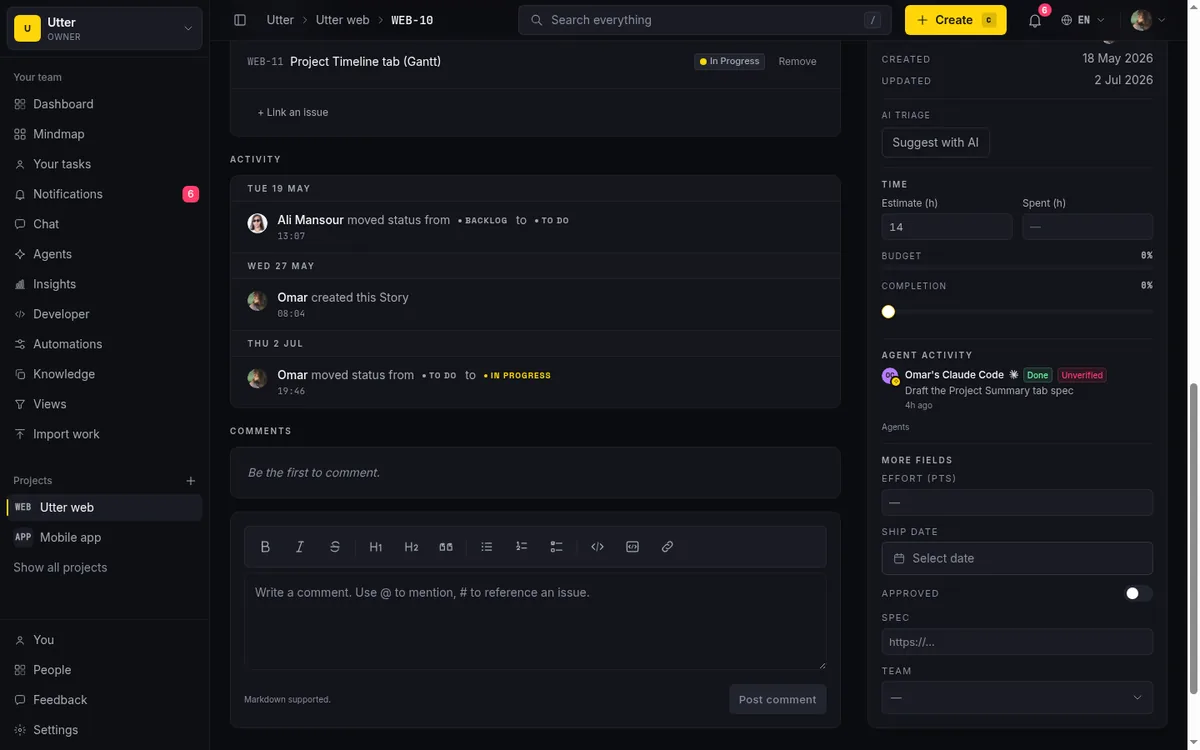
When an agent marks a session as review or done, Utter checks whether the agent left a trace. Specifically: is the session anchored to an issue, and did that agent record at least one attributed activity row or comment on that issue during the session window, or provide an external link? If the answer is no, a pink "Unverified" badge appears next to the session's state badge.
flowchart TD
  A[Session marked review or done] --> B{Anchored to an issue?}
  B -->|no| C[Never flagged]
  B -->|yes| D{External link provided?}
  D -->|yes| C
  D -->|no| E{Attributed activity or comment during the session?}
  E -->|yes| F[No badge]
  E -->|no| G[Pink Unverified badge]
The badge shows in two places: on the session rows in the Agents hub, and on the issue-detail "Agent activity" card at the issue itself. Hover it and the tooltip explains what it means: "This session claims the work is done, but no attributed change (activity or comment) was recorded on the issue during it, and no link was provided."
Read the caveats carefully, because this is a heuristic, not a verdict.
- It proves a change exists, not that the change was correct. It checks for at least one attributed activity row or comment on the issue during the session. It does not, and cannot, judge whether the work was any good.
- It is derived at read time, the same way stalled-session detection is. There is no stored "verified" column, no backfill, and nothing to click to mark a session verified. It is computed when you look.
- It only applies to review or done sessions that are anchored to an issue and have no external link. A PR link or other external URL counts as evidence and hides the badge. Workspace-level sessions with no issue anchor can't be reconciled this way and are never flagged.
- It is additive. It shows beside the state badge, never instead of it.
So the Unverified badge answers a narrow, useful question: did this agent leave any footprint on the issue it says it finished? An empty session that flipped a ticket to Done with no comment, no activity, no link, lights up pink. That is your prompt to go look. It is not a substitute for a human reading the actual change, which is why it pairs naturally with human-in-the-loop approval for AI agents.
A sensible starting policy for common agent roles
Rather than start every agent at full access and hope, start narrow and widen when the agent earns it. Here are allowlists that match common jobs, as a starting point you can adjust.
| Agent role | Allowlist | Why |
|---|---|---|
| Triage agent | Status, Priority, Labels, Assignees | Sorts and routes incoming work. No business rewriting descriptions or setting dates. |
| Time-logging agent | Estimate, Time spent, Completion % | Records effort and progress, nothing else. |
| Docs or writer agent | Title, Description | Cleans up wording and titles. Should not move tickets between columns. |
| Planning agent | Sprint, Release, Milestone, Start date, Due date | Schedules work into cycles, but leaves day-to-day status and assignment to the triage flow. |
None of these is the only right answer. The point is the shape: give each agent the smallest set of fields its role actually needs, watch it work, and add a field the day you find it genuinely blocked. It is far easier to grant one more checkbox than to unwind the mess an over-permissioned agent made across a board. If you are still setting up your first bot, start with connecting an AI agent, then come back and scope it. And if you are working out where the line between your team and your agents should sit in general, decision rights between your team and AI agents is the companion read.
Open your Agents hub, find the agent doing the most unattended work, and give it a field policy before it gives you a reason to.
Frequently asked questions
How do I restrict what an AI agent can edit in Utter?
Open the Agents hub, click the agent row's three-dots menu, choose Permissions, uncheck "All fields (no restrictions)", tick only the issue fields the agent should write, and click Save permissions. Any write to a field outside that list is rejected with a 403.
What is the difference between unchecking "All fields" and removing the policy?
Re-checking "All fields (no restrictions)" removes the policy (null), so the agent can write every field again. Unchecking it and leaving the grid empty is a real, distinct state: an empty allowlist where the agent can write no field at all. They are opposite outcomes, so be deliberate.
Which issue fields can I put on the allowlist?
Fourteen: Title, Description, Status, Priority, Assignees, Labels, Milestone, Sprint, Release, Estimate, Time spent, Completion %, Start date, and Due date. Status bundles the status, status id, and resolved timestamp; Assignees bundles the primary and multi-assignee set.
Does the field policy stop an agent from creating or deleting issues?
No. The policy only governs which fields on an existing issue an agent may write. Creating and deleting issues, and reaching non-issue resources, are controlled by the agent's API-key scopes and workspace role, not by this allowlist.
Can I allow an agent to set a status to some values but not others?
No. The policy is per-field, not per-value: Status is either writable or not. To let an agent advance a ticket partway but never close it, you need workflow transition rules, which are a separate mechanism.
How can I see which agents are restricted without opening each one?
The connected-agents directory shows a purple "Restricted" badge next to the key prefix of any agent that has a policy set. No badge means no policy, so that agent can write every field, the same as a human member.
What does the pink "Unverified" badge on a session mean?
It appears on a review or done session that is anchored to an issue but has no attributed activity row, comment, or external link from that agent during the session window. It proves whether the agent left a footprint, not whether the work was correct, and it is computed at read time with nothing to click to clear it.
Who can change an agent's field policy?
Only workspace owners and admins, plus the agent's own owner, see the row menu and can edit the policy. It is the same permission gate as renaming or disconnecting an agent, and every change is written to the audit log as an agent.field_policy_changed row.
Related reading

Who decides what: setting decision rights between your team and your AI agents
A simple rule for AI governance: reversible, low-stakes moves are the agent's to make; irreversible or high-stakes ones need a human. How to draw the line.
July 15, 2026 · 7 min read
Onboard an AI agent like a new hire: identity, access, and a first task
You already know how to bring on a new hire. Do the same for an AI agent: give it an identity, scoped access, one small task, a review, and an offboarding path.
July 15, 2026 · 8 min read

AI agent governance for project teams: seven controls your tracker can enforce
Governance for AI agent teams is not a policy PDF. Seven controls your tracker can enforce, from identity to offboarding, and what tooling cannot fix.
July 15, 2026 · 10 min read
Let AI agents run your board over the REST API: authentication, scopes, and safe writes
A developer guide to giving an AI agent a scoped Utter API key so it can move cards and file issues without a big blast radius.
June 26, 2026 · 7 min read

How to manage a team of AI agents without losing track of what they're doing
Running several AI agents at once? The day-to-day of a fleet: a roster, live sessions, instant delegation, per-field permissions, and verified work.
July 15, 2026 · 16 min read

How to use AI agents in Utter: connect them, assign work, and follow their sessions
A start-to-finish walkthrough: connect an agent, scope its key, assign it issues, and watch its sessions, without giving up control of the board.
July 15, 2026 · 11 min read

Keep an audit trail of everything your AI agents change
Once agents can write to your tracker, a shared bot account makes every change anonymous. Here is how per-agent identity keeps the trail readable.
July 15, 2026 · 8 min read

How to give an AI agent human-in-the-loop approval before it changes your issues
Build an approval gate for AI agents in Utter: let the agent triage into a Needs review column, a human moves it forward, and transition rules stop skips.
May 20, 2026 · 9 min read
Chat with your AI agents, then put them in a workflow
Utter lets you DM an AI agent or @mention it in a channel, watch it work, and connect agents and people on a canvas so a ticket routes itself through triage, build, and review.
July 17, 2026 · 7 min read
Two agents, one backlog: coordinating a triage agent and a coding agent with issue status as handoffs
A practical multi-agent workflow: custom board columns and status transitions as the handoff bus between a triage agent and a coding agent, with human review in the middle.
July 1, 2026 · 9 min read
أضف تعليقًا
ابدأ النقاش.