
How to use the ai assistant
You know what needs to happen on the WEB board. Move that ticket to In Review, hand it to someone, drop it into the current sprint. The decision took two seconds. What eats your afternoon is the wiring: open the ticket, click the status, hunt for the assignee menu, scroll to the sprint field. Ten clicks you keep deferring, times fifteen tickets, and by Friday the board is a day stale and lying to your standup.
That is the gap an AI assistant project management chat is meant to close. Not by guessing what you want, and not by silently rewriting your board while you look away, but by turning "move WEB-2 to In Review and give it to me" into a proposed change you glance at and approve. Utter ships exactly that: a workspace assistant that reads your board in plain English, answers grounded questions about your real data, and stages board changes behind a human approval gate. This guide walks the whole thing, including the parts it deliberately refuses to do.
Where the AI assistant lives and what it actually does
Bottom-right corner of every workspace page, there is a small floating button. It is a robot-cat, and for screen readers it announces itself as "Ask AI." That button is your way in from anywhere: the board, the backlog, an issue detail, project settings. The first time you land on a workspace page it pops a one-time tooltip, "Hi, I'm your Utter assistant. Ask me anything about your work," which you Dismiss and never see again.
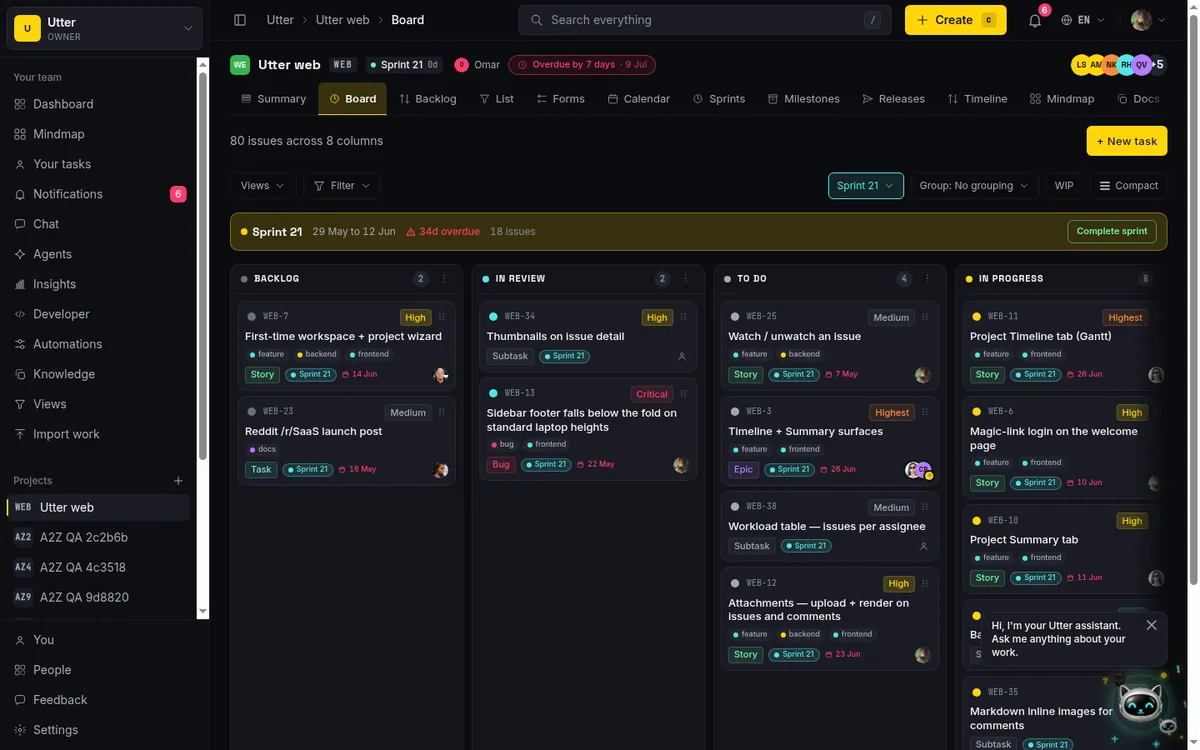
The one surface where the launcher does not show up is team chat (/w/*/chat). That page is already a conversation, and stacking a second one on top of it would just be noise.
Here is the honest framing, and it matters more than any feature list. This is a workspace assistant, not a general chatbot. It will not write your marketing email or explain quantum computing to you. Everything it says about your workspace comes from tools it calls behind the scenes:
| Tool | What it reads |
|---|---|
search_issues |
tickets by title or key |
list_projects |
the projects you can see |
project_summary |
open and done counts per board column |
get_issue_details |
one ticket in full |
list_my_open_tasks |
your open assigned work |
list_workspace_members |
people and roles, agents flagged |
list_project_sprints |
active and planned sprints |
The system prompt is blunt about it. Call a tool before answering, and never invent a key, a count, or a status. So when it tells you "WEB has 12 open and 30 done," that number came from a real query against your board, not a plausible guess. That grounding is the entire reason you would trust it near your tickets.
Two things it does not do, said up front so you are not let down later. It does not read your docs, wiki, or attached files, and it does not browse the web. Its world is issues, projects, members, and sprints. That is a hard edge, and we will come back to it.
Opening the drawer and reading the welcome screen
Click the launcher. A panel slides in from the right, titled "AI assistant," and it opens on a welcome screen worth reading slowly the first time, because it is a map of the whole feature.
Up top you get a greeting, "How can I help?", under a subtitle: "Ask about your work, or tell me to create and triage issues." That one sentence is the two-sided nature of the tool. Read (ask about your work) and write (create and triage), with the write side always gated.
Below that sits a "Can help with" row of chips: Search tasks, Summaries, Create tasks, People, Sprints, Approvals. Those six are the honest scope. If a chip is not in that row, the capability is not in the product. Then three groups of clickable example prompts, Explore, Create & update, and Plan, so you do not have to invent your opening question. Click one and it drops straight into the composer.
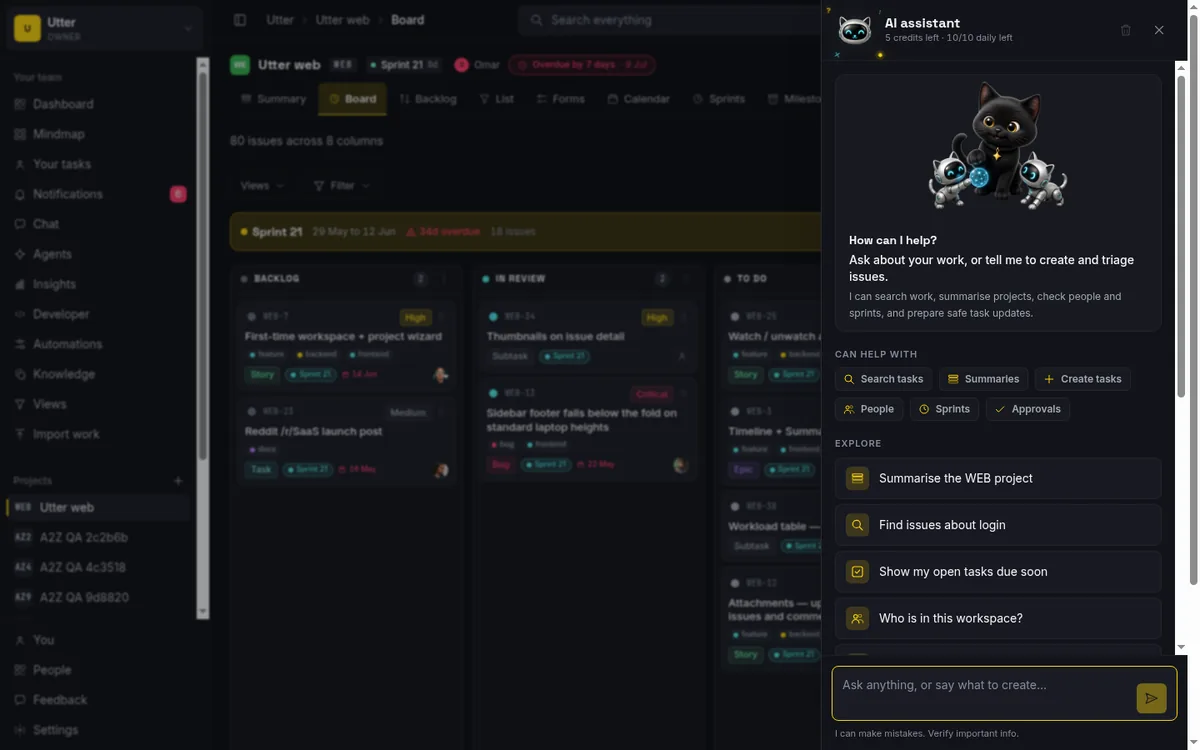
Check the header the moment the drawer opens. Your AI credit balance is right there, reading something like "18 credits left," sometimes with "top-up" and "daily left" figures beside it. Credits are how this is metered. Noticing that number now saves you a surprise mid-task. There is a whole section on it below.
The composer at the bottom takes plain English. Enter sends. Shift+Enter drops a newline if you want a multi-line prompt. Escape closes the drawer. Those are the only three shortcuts, and they are all you need.
Asking about your board: summaries, people, and overdue work
Start with the read-only half, because that is where you earn enough trust to let it touch anything. Every prompt here answers from a live tool call, so the answers are exactly as current as your board is. A few openers and what each one returns:
- "Summarise the WEB project." Open and done counts broken out by board column, so Backlog, To Do, In Progress, In Review, and Done each report their own numbers. That is
project_summaryrunning, not the model skimming a list and estimating. - "Who is in this workspace?" Members with their roles, with any AI agents flagged as "agent" so you can tell a teammate from a bot at a glance.
- "Show my open tasks due soon." What is assigned to you with a deadline closing in.
- "What's overdue across my projects?" The cross-project cut.
- "List active and planned WEB sprints." The sprint picture, before you sit down to plan.
You can watch it work. "Thinking…" dots first, then per-step tool chips that read "Working on it," "Work checked," "Ready for approval," or "Needs attention," depending on what the step actually did. A completed chip can carry a "View task" deep link, so if the answer mentioned WEB-2 you jump straight to the ticket. Then the answer streams in token by token, with a footer disclaimer parked under it: "I can make mistakes. Verify important info."
Hold the boundary in your head while you poke at it. It knows issues, projects, members, sprints. It does not know what is inside a doc or an attachment. If your real question is "what did the spec say about login," this is the wrong tool, and it will tell you so rather than make something up. For the wider case of running a board this way, what agentic project management actually means is a good companion read. If your Monday ritual is a status write-up, let AI write your weekly project update goes deep on the summary side.
The approval gate: how it changes your board without changing it behind your back
This is the part to internalize, because it is the safety model behind everything the assistant writes.
When you ask for a change, the assistant does not make it. It stages it. What renders in the chat is a yellow approval card: a labelled field summary of exactly what is about to happen, and an "Approve" button. Nothing touches your board until you press that button. Press it and the label flips to "Approving…" while the real action runs. Leave it, and nothing ever happened.
sequenceDiagram
    participant You
    participant Assistant
    participant Board
    You->>Assistant: Move this ticket to In Review
    Assistant->>Board: read the ticket and its columns
    Board-->>Assistant: current state
    Assistant-->>You: approval card with status and assignee
    You->>Assistant: Approve
    Assistant->>Board: update runs with your permissions
    Board-->>You: ticket moved
Walk a real example. Type "Move WEB-2 to In Review and assign it to me." The assistant reads WEB-2, confirms In Review is a real column on the WEB board, resolves "me" to your account, and renders a triage card: status In Review, assignee you. Under the hood, the card is a small structured payload, and approving it sends exactly this back to the server, nothing more:
{
  "type": "triage_issue",
  "issueKey": "WEB-2",
  "status": "in_review",
  "assigneeName": "you"
}
You read those two lines on the card. If they are right, Approve, and it runs the same updateIssue your manual UI runs, with your permissions, so it can never do anything you could not do by hand. If they are wrong (say you meant WEB-12), you just do not approve, and you retype.
That is the human-in-the-loop guarantee, stated flat. The AI proposes, you dispose. There is no auto mode, no toggle that lets it write without the card, no background sync editing tickets while you are in a meeting. Every mutation, every time, waits for your click. After a card or two you stop reading them word for word and start scanning them, which is the right speed. Fast, but never blind.
Creating and triaging issues from a sentence
Four kinds of change go through that approval card, and knowing their exact edges keeps you from asking for things it cannot stage.
Create an issue. The AI can create an epic, story, task, or bug. Not a subtask. It sets the project, the type, the title, and an optional priority, and that is the complete list. It does not set an assignee, a due date, or a description at creation. So "Create a bug: checkout fails on mobile" gives you a bug titled "checkout fails on mobile" on the WEB project, and you fill in the rest on the ticket afterward. "Create an epic: mobile app redesign" gives you an epic. If you want a description or an owner on it, that is a second step you do by hand, which is fine, because the create was the annoying part.
Add a comment. "Add a comment to WEB-2: waiting on design review" stages a comment card, and on approval it posts as you.
Triage. This is the status, priority, and assignee lane. Status can be any real column, including a named custom one. If your WEB board has a column called Blocked, you can move a ticket there by name. Assignee takes "me" and "unassigned" as well as a person. So "Move the login bug to In Progress and set priority to high" is a single triage card.
Plan a sprint. Move a ticket into a sprint, or send it back to the backlog.
The habit that matters here is one line long: read the field summary before you approve. The card exists so you can catch a wrong project, a wrong type, or a title the AI tidied in a way you did not mean. Ten seconds of reading beats an undo. For the triage side specifically, AI issue triage that assigns and prioritizes goes further on keeping a backlog groomed this way.
Planning a sprint and handing work to an AI agent
Sprint prompts sit in the Plan group of examples for a reason. "List active and planned WEB sprints" reads the sprint picture. "Draft a sprint plan for WEB" asks the assistant to reason over open work and propose what goes in, and every move it suggests still comes back as an approval card before a single ticket changes sprint. You are planning out loud with something that can actually see the board, but the board stays yours until you say yes.
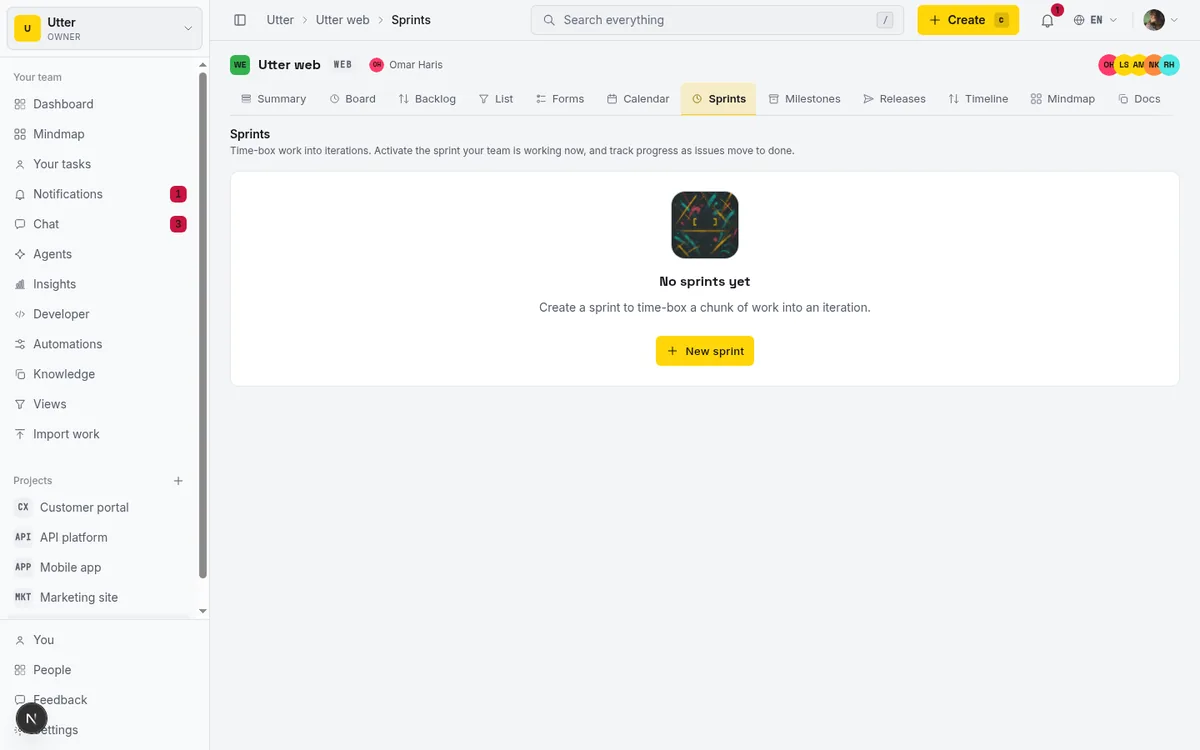
The people side has a twist worth knowing. The assistant recognizes AI agents in your workspace member list, the ones tagged "agent," and when you ask who could take a piece of work, or tell it to delegate a task, it offers those agents as candidates next to the humans. So "Who can pick up the login bug?" might surface an agent set up to work WEB tickets.
Be honest with yourself about what that hand-off is. Assigning a ticket to an AI agent passes the work along. It does not guarantee the agent finishes, any more than assigning a ticket to a person guarantees they do. It is an assignment, full stop, and the agent's own setup decides whether anything happens after. If you are building agents that actually complete work rather than sit in a member list, give your AI agent a knowledge base is the deeper read on making them useful.
Credits, daily limits, and what free vs paid gets you
The assistant is metered by credits, not a flat monthly fee, and framing it that way keeps your expectations straight. The credit balance lives in the drawer header: "credits left," sometimes with a "top-up" figure (credits you bought on top of your grant) and a "daily left" figure (turns remaining before today's sub-limit stops you).
Every workspace gets a recurring grant. Free workspaces get a small monthly grant, enough for a handful of turns, not an all-day pairing session. Paid tiers (Pro, Business) get larger grants. A workspace inside its 14-day reverse trial gets the biggest grant of all, which is the point of a trial: room to actually try the thing.
Two ways you hit a wall, and they are not the same wall:
flowchart TD
    A[Send a prompt] --> B{Monthly credits left}
    B -->|no| C[Buy credits or wait for the refresh]
    B -->|yes| D{Daily turns left}
    D -->|no| E[Resets tomorrow. A credit pack raises the daily ceiling]
    D -->|yes| F[The turn runs and credits are debited]
The monthly-exhausted state reads "You've used all your AI credits this month. Buy more, or wait for next month's refresh," and if you can manage billing it offers "Buy credits" and "View plans." The daily state is its own thing: "You've hit today's AI limit, not your monthly credits. It resets tomorrow. Buying a credit pack raises your daily limit." So you can have monthly credits sitting in the bank and still be done for the day, and buying a pack lifts that daily ceiling.
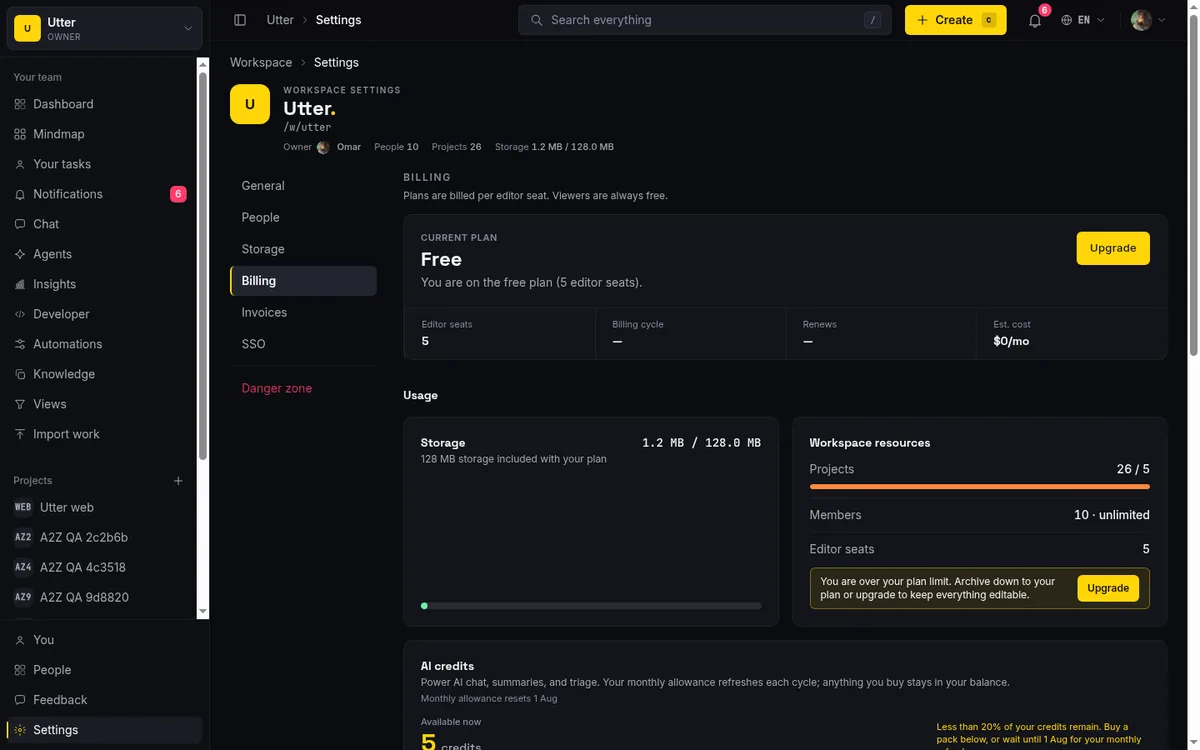
One more variable: model tier. Only active paid workspaces run on the premium model. Free and trial workspaces run on the cheaper one, capable but not identical, so do not expect answer-for-answer parity across every plan.
There are guardrails stacked on top of the credits too:
- You are rate-limited to 10 requests per minute per user.
- The agent loop is capped at 5 tool steps per turn.
That five-step cap is the practical one to remember. A request like "summarize every project, list everyone's overdue tasks, and draft three sprint plans" can run out of steps mid-thought and hand you a half answer. Narrow it. Ask for one project's summary, then the next. You get better answers and burn fewer credits.
Limits, gotchas, and getting good answers
The honest edges, because a tool you understand is a tool you can actually rely on.
No document search. This is the big one. There is no doc, wiki, or attachment retrieval anywhere in the assistant. search_issues runs over issue titles and keys through Typesense, so "find issues about login" works, but "what did the spec say about login" does not, because the spec is a doc and the assistant cannot see docs. If you catch yourself asking about the contents of a file, that is your cue to go open the file.
Four approval actions, and that is the ceiling. Create issue, add comment, triage, plan sprint. There is no AI tool to delete an issue, edit a description, manage labels, change project settings, or bulk-edit twenty tickets in one go. Want any of those, the manual UI is right there. The assistant will not pretend it can do them.
Chat history is ephemeral. The conversation lives in your browser, client-side, and it is never saved. The "Clear chat" trash button in the header wipes it on purpose, and so does a page reload. Close the drawer with the X, the backdrop, or Escape and the conversation is still sitting there when you reopen; reload the page and it is gone. So if the assistant produced something you want to keep, act on it (approve the card, copy the text) before you refresh.
Access is gated. The AI is for owners, admins, and members only. Viewers do not get it, and the permission behind that is ai.chat. If AI is switched off server-side for the workspace (no key configured, or an operator kill-switch), the launcher does not render at all, so a missing button can mean "disabled here," not "broken." And scoped-project rules apply to every lookup: a member only ever sees and acts on projects they already have access to, because every AI query and mutation is tenant- and role-scoped on the server, not just hidden in the UI.
Feedback about Utter goes where feedback should go. Tell the assistant "the board is slow" or "you should add recurring tasks," and it routes that to the Feedback community at /w/<slug>/feedback instead of quietly filing it as a task on your board. Your board stays your board.

A few habits that make the answers better:
- Name the project and the key. "Summarise WEB" beats "summarise my project" when you own five of them. "WEB-2" beats "the login ticket" when the assistant would otherwise have to guess which one.
- Split multi-part asks. Because of the five-step cap, one clear request lands cleaner than a compound one. "Summarise WEB and plan next sprint" is two turns, not one.
- Verify before you trust. The footer says it outright: "I can make mistakes. Verify important info." Grounding makes the counts reliable, but phrasing, judgment calls, and sprint suggestions are still worth a look. The approval card is your last line of defense. Read it.
That is the whole tool, edges and all. It reads your board in plain English, answers from real data instead of guessing, and stages every change behind a gate you control. Open the launcher on your own WEB board, ask it to summarize the project, then ask it to move one ticket and approve. Two turns, and you will feel precisely where the line sits between what it does for you and what stays your call.
Frequently asked questions
How do I use the AI assistant to work my board in Utter?
Open the assistant from the robot-cat 'Ask AI' button in the bottom-right of any workspace page, then type plain English. Ask it to summarise a project or list overdue tasks for read-only answers, or ask it to create, comment, triage, or plan a sprint. Any change renders as an approval card you review and Approve before it touches your board.
Can the AI change my board on its own?
No. Every mutation is approval-gated. The assistant prepares a labelled yellow card showing exactly what will happen, and nothing is written until you click Approve. There is no auto mode and no background sync editing tickets while you are away.
Can the AI assistant read my docs or attached files?
No. It has no document, wiki, or attachment retrieval. Its tools cover issues, projects, members, and sprints only, and search_issues searches issue titles and keys via Typesense, not doc contents. If your question depends on a file, open the file yourself.
What can the AI create or change?
Four actions: create an issue (epic, story, task, or bug, not a subtask), add a comment, triage (status, priority, assignee), and plan a sprint (move a ticket into a sprint or back to the backlog). It cannot delete issues, edit descriptions, manage labels, change project settings, or bulk-edit.
Is the AI assistant free, and how is it metered?
It is metered by AI credits, not a flat fee. Every workspace gets a recurring grant (small on Free, larger on Pro and Business, biggest during the 14-day reverse trial), plus a separate daily sub-limit. You are also rate-limited to 10 requests per minute, and only active paid workspaces get the premium model.
Who in my workspace can use the AI assistant?
Owners, admins, and members, governed by the ai.chat permission. Viewers do not get it. If AI is disabled server-side for the workspace, the launcher does not appear at all, so a missing button can mean disabled rather than broken.
Does the assistant remember my past conversations?
No. Chat history is ephemeral and client-side only, never persisted. The 'Clear chat' button and a simple page reload both discard it, though closing the drawer with X, the backdrop, or Escape keeps it until you reload. Act on anything useful before refreshing.
What happens when I assign a ticket to an AI agent through the assistant?
The assistant recognizes AI agents in your member list and offers them as candidates alongside people. Assigning to an agent hands the work off, but like assigning to a person it is only an assignment. Whether the agent actually completes the work depends on that agent's own setup.
Related reading
Can an AI run your standup?
Mostly yes, and your team will thank you. What an agent can compile from the board, what still needs a human, and how to set up an async AI standup.
July 15, 2026 · 6 min read

How to automate project management with AI, and what to leave manual
The right order to automate project management with AI: reporting first, intake second, execution agents last, and the decisions that should stay human.
July 15, 2026 · 8 min read

What an AI issue tracker actually is, and how to pick one
Most tools that say AI issue tracking mean a summarize button. A five-part checklist for what the label should mean, plus the failure modes to test in a pilot.
July 15, 2026 · 8 min read
What is an AI project manager? What one actually does today
A plain definition of the AI project manager: the three things the term means, a week of real work on a live board, and the parts only a human can hold.
July 15, 2026 · 8 min read
AI agent project management: the complete guide
How to run real projects with AI agents on the board: connecting them, assigning work, keeping review, what breaks, and how to pilot it in a week.
July 15, 2026 · 12 min read
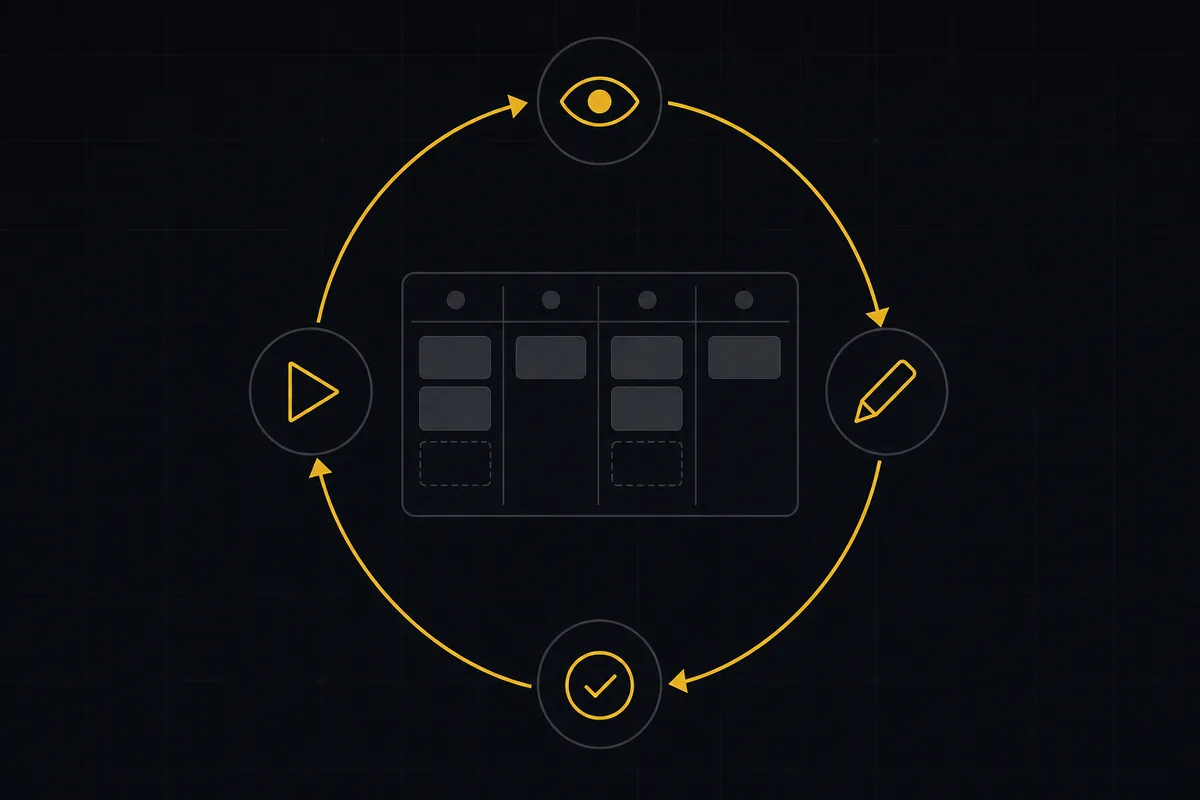
What is agentic project management? A plain-language guide with a working example
A copilot waits for your prompt. An agent acts on an event. Here is the perceive-plan-act-check loop explained, with one real end-to-end run inside Utter.
June 11, 2026 · 11 min read

The best AI project management software in 2026, honestly ranked
Eight AI project management tools ranked with a stated lens: what the AI really does, what it costs on top of the seat price, and who each one fits.
July 15, 2026 · 10 min read

How to search your workspace
Search issues across projects in Utter from one top-bar field: the / shortcut, live typeahead, WEB-12 key-jump, the full results page with Type/Status/Priority filters, and the real limits.
July 15, 2026 · 14 min read
Running a project with AI agents without losing the thread
A practical setup for letting AI agents do real project work, create issues, move the board, draft specs, while your team keeps control of what matters.
July 11, 2026 · 5 min read

How to use team chat
A practical guide to team chat in a project management tool: channels, DMs, threads, @mentions, file attachments, and the honest limits, all next to your issues.
July 15, 2026 · 16 min read
أضف تعليقًا
ابدأ النقاش.