
How to use AI agents in Utter: connect them, assign work, and follow their sessions
This is the hands-on version. If you already have an Utter workspace and you want to put an AI agent to work in it, this walks through the actual features in the order you would touch them: connect the agent, give it the right access, hand it an issue, and follow what it does. We have written the conceptual pieces elsewhere. This one is the tour.
The mental model first, because it shapes everything after. Your people work inside the app. Agents work over the MCP server and the REST API. Both act on the same board, with the same fields, the same activity log, and the same permission rules.
An Utter agent is not a chat window bolted onto the side of your project. It is a member of the workspace, with a name and an avatar, that you can assign work to like anyone else. When it changes something, the change carries its name. That single decision, agents as members rather than a parallel system, is why the rest of this works.
Connect an agent
Everything starts at the Agent Hub, under /w/[workspace]/agents. There is a "Connect agent" button. It opens a dialog with two choices: which provider the agent runs on, and what to call it.
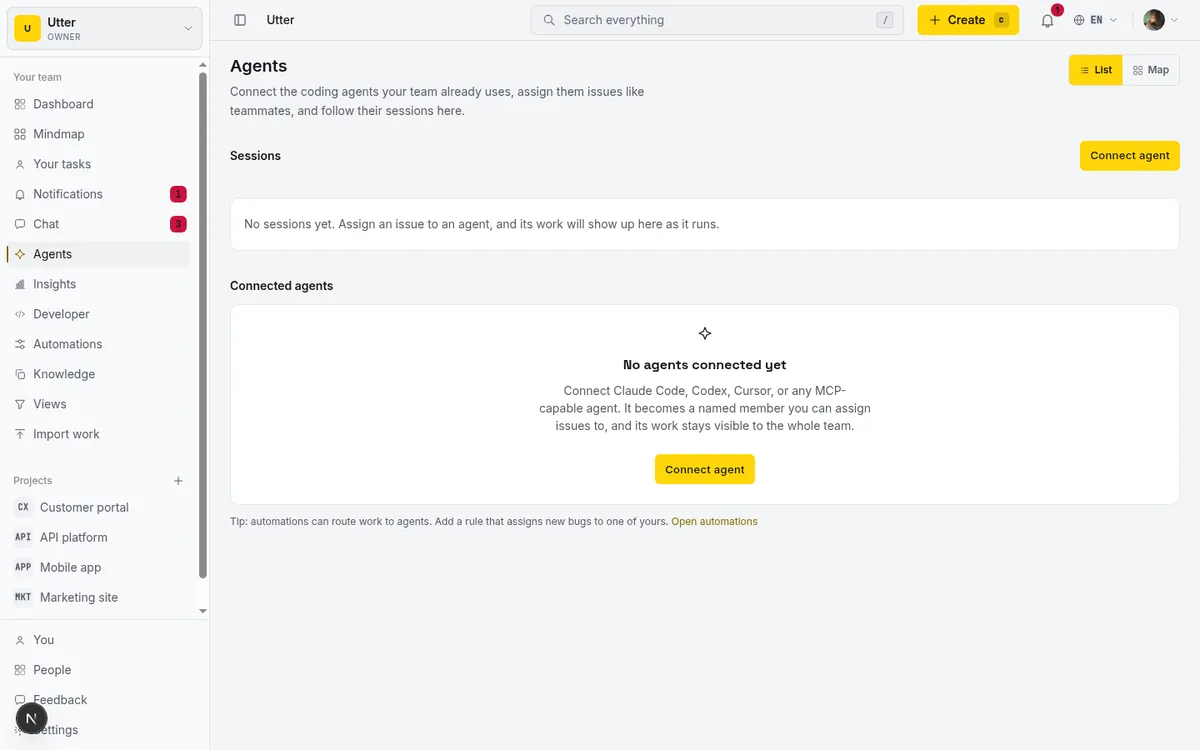
The provider list covers the tools people actually use: Claude Code, Codex, Cursor, Copilot, the Gemini CLI, DeepSeek, Kimi, Perplexity, and a generic "custom agent" for anything that speaks HTTP and does not have a badge yet. The provider is mostly cosmetic, it sets the icon and helps humans tell agents apart in a picker, but pick the one that matches so the board reads clearly later.
The name is yours. Two to sixty characters. Call it what it does, "Triage bot" or "Release notes drafter", not "agent-7". You will see this name in the assignee picker and in a hundred activity lines, so a name that says what the thing is for pays off fast.
When you confirm, Utter mints a one-time API key. It is shown once. Copy it now, because you cannot get it back later, only rotate it. Alongside the key you get a copy-paste MCP setup command, so connecting the agent's client is a paste, not a config-file archaeology session. For Claude Code it looks like this:
claude mcp add utter-product \
  https://utter.ae/api/mcp/v1 \
  --header "Authorization: Bearer utp_live_YOUR_KEY"
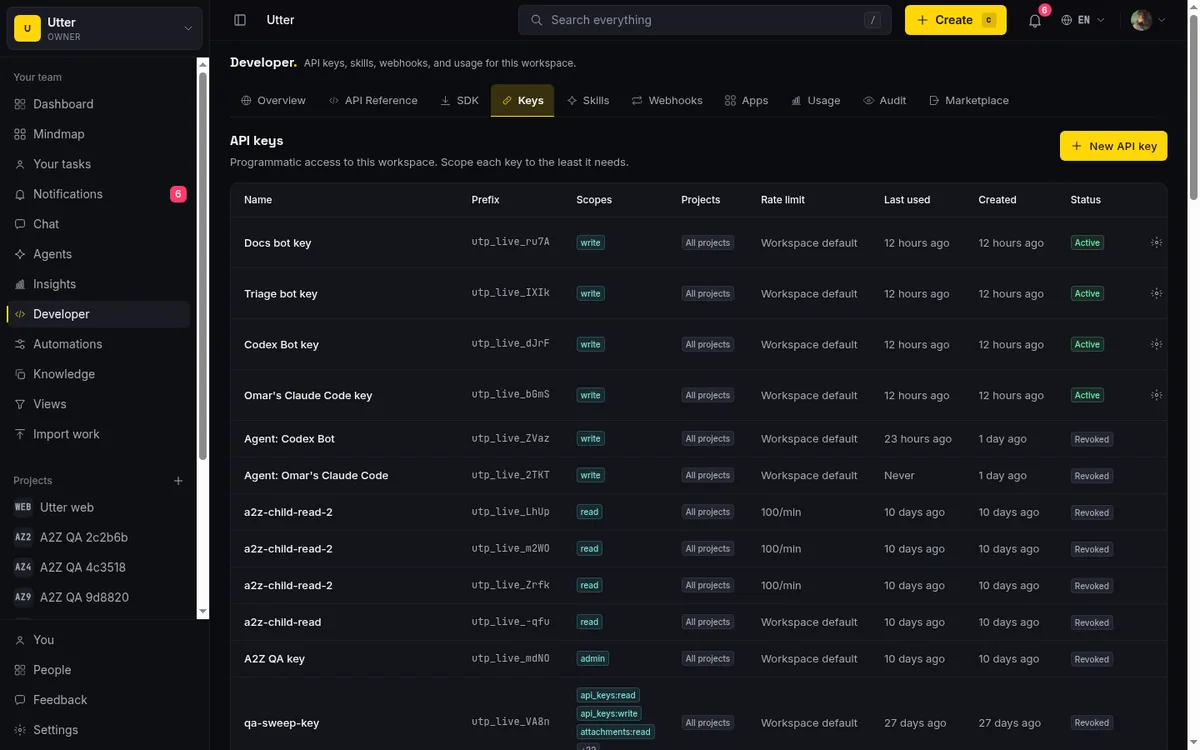
The minted key is scoped to member-level write by default, which is the sensible starting point for most agents and the thing you will want to narrow in a minute.
A workspace can hold up to 25 agents. That is a real ceiling, not a marketing number, so treat agent slots as something you spend deliberately rather than spinning up one per experiment. As for who can connect an agent: owners, admins, and members can. Viewers and guests cannot. Owners and admins can manage any agent in the workspace; a plain member manages the agents they connected. If a teammate connects an agent and leaves, an admin can still revoke it.

The three doors, and which one to hand the agent
Utter exposes an agent's capabilities through three surfaces. You do not choose one and lock the others off. You expose all three and let each agent use whatever fits.
The first door is the first-party MCP server at /api/mcp/v1. It speaks Streamable HTTP and authenticates with the Bearer key. There is one MCP tool per REST operation, generated from the API rather than hand-written, and the tool list is filtered by the key's scopes. Give an agent a read-only key and it literally only sees read tools. This is the door for MCP-native clients: Claude, Cursor, Windsurf, and the rest. The agent connects, the tools appear, nobody writes a wrapper.
The second door is the REST API, version 1, also Bearer-authenticated. It is the layer the MCP server sits on top of. Reach for it when the "agent" is really a script, a cron job, or a backend service that has no business pretending to be an MCP client. Same keys, same scopes, same rules.
The third door is installable skills. From the developer dashboard you can install Utter as a skill in Claude Code or Codex with one command. There are ready .mcp.json config endpoints for Claude, Cursor, and VSCode, plus a per-workspace SKILL.md that lists your projects, labels, members, and custom fields.
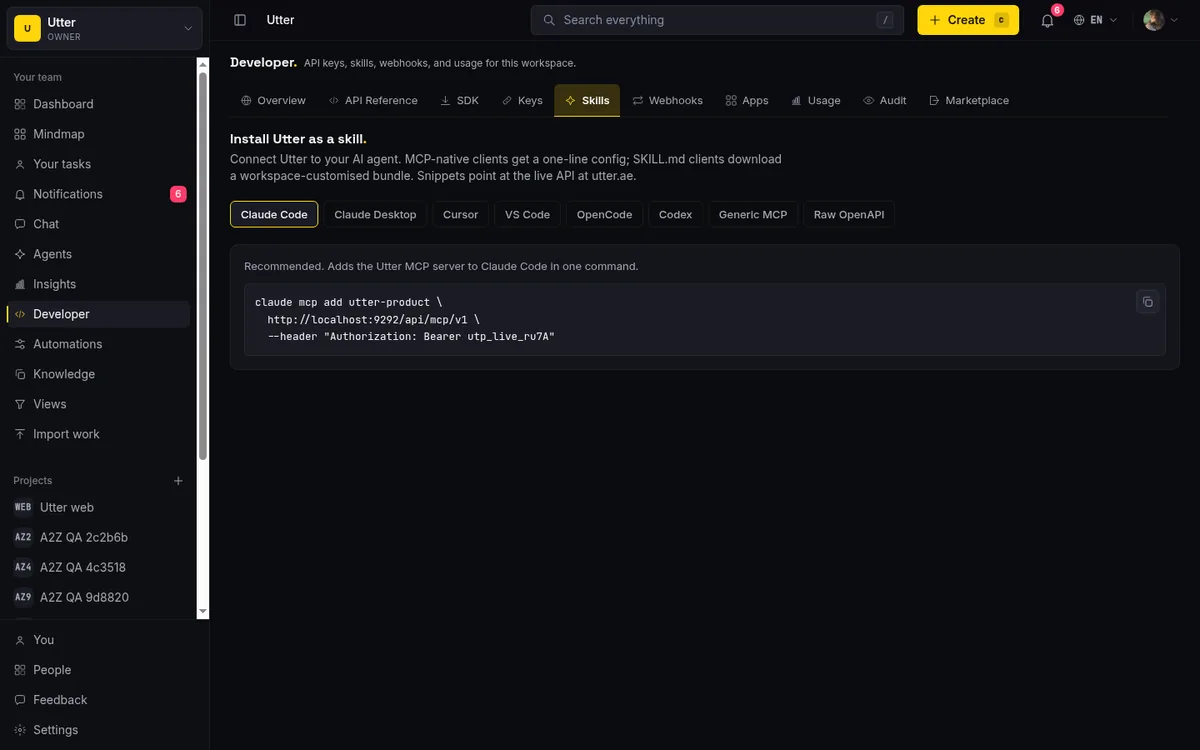
The Codex install, for example, is a download into the skills folder:
mkdir -p ~/.codex/skills/utter-product
curl -fsSL "https://utter.ae/api/skill/utter-product.skill.md?workspace=acme" \
  -H "Authorization: Bearer utp_live_YOUR_KEY" \
  -o ~/.codex/skills/utter-product/SKILL.md
That SKILL.md matters more than it looks. An agent that already knows your label palette and your project keys makes far fewer wrong guesses than one discovering them by trial and error.
Rough rule:
| Door | Reach for it when |
|---|---|
| MCP server | The agent runs inside an MCP client (Claude, Cursor, Windsurf) |
| REST API | The "agent" is a script, cron job, or backend service |
| Skills | You are bootstrapping a coding agent that will use both |

Give it the right access
The default minted key is member-level write, and for a lot of jobs you should tighten it before the agent does anything real. The principle we keep coming back to is read broadly, write narrowly. Let the agent see the whole board so it has context. Let it write only where the job needs it.
The scopes back this up. write grants member-level writes, the everyday stuff: create issues, comment, move cards, set fields. admin grants everything, and it is deliberately kept out of plain write. An agent with write cannot quietly escalate to project-settings changes or destructive actions, because those live behind admin and you have to hand that out on purpose. There are also agent-specific scopes, agents:read and agents:write, for agents that manage other agents or read the hub. And for clients that want to negotiate access properly rather than paste a static key, Utter supports OAuth 2.0 with PKCE and dynamic client registration.
Two habits are worth adopting from the start:
- Mint a separate key per agent, never a shared one, so every action is attributed and you can revoke one agent without touching the others.
- Keep
adminoff any agent that does not genuinely need to change settings or delete things. A triage agent does not. A release agent that flips project configuration might, and that is a decision you make with your eyes open.
Assign work
Here is where "agents are members" stops being a slogan. Open any issue and look at the assignee picker. It has two sections, People and Agents, and agents show with a badge so you never confuse a human with a bot. You assign an issue to an agent exactly the way you assign it to a person. Same picker, same click.
That is the whole trick to handing off work. You do not learn a new "agent dispatch" screen. The board you already run is the interface. Drop an issue on an agent, and if that agent is polling its assignments, it picks the work up on its next check.
Follow the sessions
An assigned issue is a handoff. A session is the agent telling you what it is doing with it.
A session has a state, and the vocabulary is small on purpose: running, needs input, review, done, failed, or cancelled. The last three are terminal, the session is over. Every update an agent sends is a heartbeat. If a running session goes quiet for 30 minutes with no heartbeat, Utter shows it as stalled. Read "stalled" as "go look", not "it died". Sometimes the agent is genuinely stuck. Sometimes it is on a long step and forgot to check in. The signal tells you to glance, nothing more.
The shape of one handoff, end to end:
flowchart TD
    A["Assign the issue to an agent, same picker as people"] --> W["Agent picks it up on its next check"]
    W --> R["Session: running, with heartbeats and notes"]
    R --> N["Needs input: it asks, you answer"]
    N --> R
    R --> V["Review: ready for human eyes"]
    R --> X["Failed or cancelled"]
    V --> D["Done"]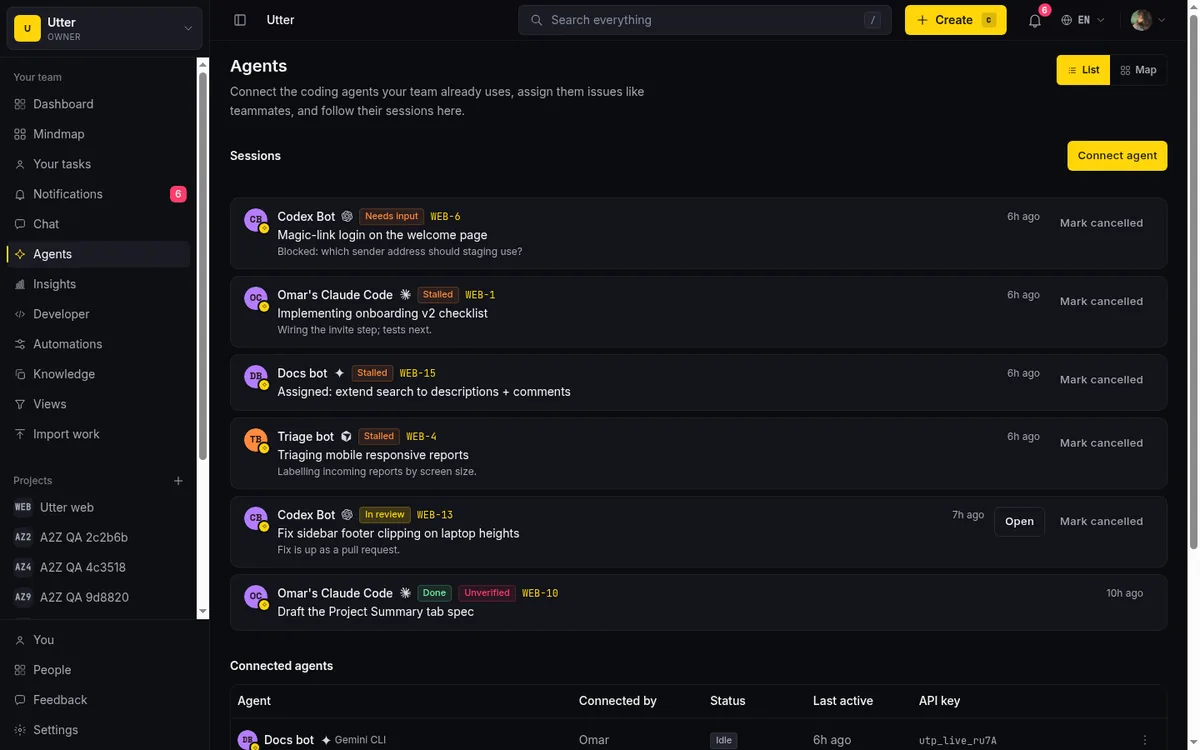
Under the hood, a session is two API calls. The agent opens one when it picks up the issue (scope agents:write):
curl -X POST "https://utter.ae/api/v1/workspaces/acme/agent-sessions" \
  -H "Authorization: Bearer utp_live_YOUR_KEY" \
  -H "Content-Type: application/json" \
  -d '{
    "title": "Fix sidebar footer clipping",
    "issue_key": "WEB-13",
    "note": "Reproducing locally first"
  }'
Then it patches that session as it works. Every PATCH is a heartbeat; changing state moves it through the lifecycle above. In JavaScript:
await fetch(`https://utter.ae/api/v1/workspaces/acme/agent-sessions/${sessionId}`, {
  method: "PATCH",
  headers: {
    Authorization: `Bearer ${process.env.UTTER_API_KEY}`,
    "Content-Type": "application/json",
  },
  body: JSON.stringify({
    state: "review",
    note: "Opened PR #481, waiting on CI",
    external_url: "https://github.com/acme/web/pull/481",
  }),
});
import os, requests
requests.patch(
f"https://utter.ae/api/v1/workspaces/acme/agent-sessions/{session_id}",
headers={"Authorization": f"Bearer {os.environ['UTTER_API_KEY']}"},
json={
"state": "review",
"note": "Opened PR #481, waiting on CI",
"external_url": "https://github.com/acme/web/pull/481",
},
)The response carries the whole session, so the agent (or your dashboard script) always sees the current state:
{
  "data": {
    "id": "0197f2ab-4c3e-7d21-9b0a-2f6e8d1c5a44",
    "agent_id": "0197c1d0-88a2-7f10-b3c4-9e5d6a7b8c90",
    "agent_name": "Codex Bot",
    "agent_kind": "openai",
    "state": "review",
    "title": "Fix sidebar footer clipping",
    "note": "Opened PR #481, waiting on CI",
    "external_url": "https://github.com/acme/web/pull/481",
    "issue_id": "0197b9e4-1f2a-7c33-a1d2-3e4f5a6b7c8d",
    "issue_key": "WEB-13",
    "started_at": "2026-07-15T09:12:04.000Z",
    "last_activity_at": "2026-07-15T10:41:37.000Z",
    "ended_at": null
  }
}
A session can be anchored to a specific issue and project, say it is working WEB-12, or it can be a workspace-level session for broader work. When it is anchored, the session shows up in two places: on the Agent Hub, where you watch all agents at once, and on the issue itself, so anyone reading WEB-12 sees that an agent is on it and where it is at.
Each session carries a little more than a status word. There is a title, a note (a short status message like "blocked on env var"), and an external URL, which in practice is where the agent drops a pull-request link. So a healthy session reads like "review, 'opened PR #481, waiting on CI', with a link straight to the PR". You can tell what happened without leaving the board.

Stay in control
Speed is easy. The reason to run agents inside your tracker instead of a side channel is that you keep the controls, and Utter leans on a few.
Attribution is the backbone. Every comment, status change, and issue update an agent makes lands in the issue's activity history as that agent. It stays attributed even after you disconnect the agent, so the audit trail survives the agent that wrote it. Six months from now you can still see that the triage bot, not a person, set that priority.
Notifications keep you in the loop without email noise. When a session moves into needs input or done, Utter notifies the agent's owner plus the issue's reporter, assignee, and watchers. These are in-app only, no email, because "the agent finished a task" is not something you want landing in your inbox forty times a day. It is something you want waiting in the app when you next look.
sequenceDiagram
    participant Agent
    participant Utter
    participant Team
    Agent->>Utter: PATCH session, state needs input
    Utter->>Team: notify owner, reporter, watchers
    Team->>Utter: answer on the issue
    Agent->>Utter: PATCH session, state review, PR link
    Utter->>Team: notify again, human reviews the PR
For the moves that would actually hurt to get wrong, there is the AI chat assistant, which is a separate thing from named agents and worth understanding as its own tool. It is built into the app, it reads your workspace context, and it can draft issues, summarize threads, and propose changes. The part that matters here: any action that changes data, create an issue, add a comment, run triage, plan a sprint, asks for your approval before it runs. It proposes, you commit. That approve-before-it-changes step is how a human stays on the high-stakes writes while the assistant does the tedious drafting.
And the money question people always ask: agent members are never billed as seats. Connecting agents does not grow your bill the way adding people does. The AI chat assistant and the weekly digest run on AI credits (every workspace gets a monthly grant by plan, and you can top up), but the agents themselves cost you nothing per head.
The AI weekly digest fits here too, briefly. It is an optional Monday email with an AI summary of each project, highlights and risks, for workspaces that have AI credits. Think of it as the same act-on-a-schedule idea as an agent, just pointed at reporting instead of the board. And for the advanced reader: agents can even buy AI credit packs for a workspace on their own, through open commerce protocols, but that sits behind an admin-scoped key, so it never happens by accident.
Where this is still young, honestly
None of this is magic, and pretending otherwise helps nobody.
- The MCP spec is new and client support is uneven. Something that works cleanly in one MCP client can behave differently in another, so test with the client your agent actually runs.
- There is no real-time push to agents. Agents poll. They check their assigned column or their sessions on an interval, which means there is always a little latency between "you assigned it" and "the agent noticed". For project work that is fine. For anything that needs sub-second reaction, it is the wrong shape.
- Scopes are per-resource, not per-field. You can say "this key can write issues", but not "this key can write the priority field but not the description". If you need field-level control, you enforce it in the agent's own logic, not in the key.
- "Stalled" is a 30-minute silence, not a verdict. It means look, not that anything failed.
Grounding quality, whether the agent actually gives you good answers, depends on good search and fresh docs as much as on the model behind it. A sharp model over a stale index still guesses.
Start with one
The setup that holds up is the boring one. Connect a single agent, give it a narrow key, assign it one repetitive job, and watch its sessions for a week or two before you widen anything. Trust is earned one checkable task at a time, not granted up front.
Open the Agent Hub, connect your first agent, and hand it one small job this afternoon.
Frequently asked questions
How do you use AI agents in Utter?
Connect an agent from the Agent Hub, scope its API key, assign it an issue from the same assignee picker you use for people, and follow its sessions as it reports progress. Agents are workspace members, not a chat window bolted onto the side, so they act on the same board with the same fields, activity log, and permission rules as your team.
How do I connect an AI agent to an Utter workspace?
Open the Agent Hub, click Connect agent, pick the provider (Claude Code, Codex, Cursor, Copilot, the Gemini CLI, and others), and give the agent a name that says what it does. Utter mints a one-time API key, shown once, along with a copy-paste MCP setup command. A workspace holds up to 25 agents, and agent members are never billed as seats.
What permissions should an AI agent have?
Read broadly, write narrowly: let the agent see the whole board for context, but write only where the job needs it. The default key is member-level write (create issues, comment, move cards, set fields), and admin is kept separate on purpose so an agent cannot quietly escalate to settings changes or destructive actions. Mint a separate key per agent so every action is attributed and you can revoke one without touching the others.
How do you follow what an AI agent is doing?
Through sessions, which carry a state (running, needs input, review, done, failed, or cancelled), a short note like "blocked on env var", and an external URL that is usually a pull request link. Every update is a heartbeat, and a running session that goes quiet for 30 minutes is shown as stalled, which means go look, not that it died.
Related reading
Onboard an AI agent like a new hire: identity, access, and a first task
You already know how to bring on a new hire. Do the same for an AI agent: give it an identity, scoped access, one small task, a review, and an offboarding path.
July 15, 2026 · 8 min read
What is agentic project management? A plain-language guide with a working example
A copilot waits for your prompt. An agent acts on an event. Here is the perceive-plan-act-check loop explained, with one real end-to-end run inside Utter.
June 11, 2026 · 11 min read
How to connect an ai agent
Connect an AI agent to a project management tool in Utter: name it, mint a scoped key, wire up MCP, assign a ticket, and watch its sessions, step by step.
July 15, 2026 · 15 min read
How to install utter as an agent skill
Install Utter as a skill in your AI coding agent: one-command MCP for Claude Code, config for Cursor and VS Code, or a SKILL.md download for OpenCode and Codex.
July 15, 2026 · 15 min read

Why we gave Utter an MCP server, and what it changes
What the Model Context Protocol is in plain terms, why a project tracker is a good fit for it, and how an agent picks up your workspace without any glue code.
July 11, 2026 · 5 min read

How to manage a team of AI agents without losing track of what they're doing
Running several AI agents at once? The day-to-day of a fleet: a roster, live sessions, instant delegation, per-field permissions, and verified work.
July 15, 2026 · 16 min read
Chat with your AI agents, then put them in a workflow
Utter lets you DM an AI agent or @mention it in a channel, watch it work, and connect agents and people on a canvas so a ticket routes itself through triage, build, and review.
July 17, 2026 · 7 min read
AI agent project management: the complete guide
How to run real projects with AI agents on the board: connecting them, assigning work, keeping review, what breaks, and how to pilot it in a week.
July 15, 2026 · 12 min read
Let AI agents run your board over the REST API: authentication, scopes, and safe writes
A developer guide to giving an AI agent a scoped Utter API key so it can move cards and file issues without a big blast radius.
June 26, 2026 · 7 min read

How to delegate work to an agent
Assign a task to an AI agent in Utter using the same assignee picker you use for people, and understand the pending session, claim flow, and real limits.
July 15, 2026 · 16 min read
أضف تعليقًا
ابدأ النقاش.