
How to prioritize your backlog
You know the moment. You open a project's backlog to figure out what the team should build next, and 200 rows stare back at you in no particular order. Everything looks vaguely important. Nothing tells you where the top is. So the standup turns into a debate, the loudest ticket wins, and the thing that actually mattered stays buried at row 34.
This guide is about how to prioritize a backlog in Utter and, harder than that, keep it ranked so the top row is always the honest answer to "what do we build next." Not the ticket someone tagged critical three weeks ago and forgot. Not the one with the most comments. The one that genuinely matters most right now.
We'll work in the demo WEB project the whole way through, the one with columns Backlog, To Do, In Progress, In Review, and Done, and real-sounding tickets like "Timeline + Summary tab." By the end you'll be able to drag rows into order and understand why that order sticks, edit a ticket's fields without opening it, pull work into a sprint, and stay sane on a 900-row list. Let's start with what the list actually is, because the mental model does most of the work.
What a ranked backlog actually is
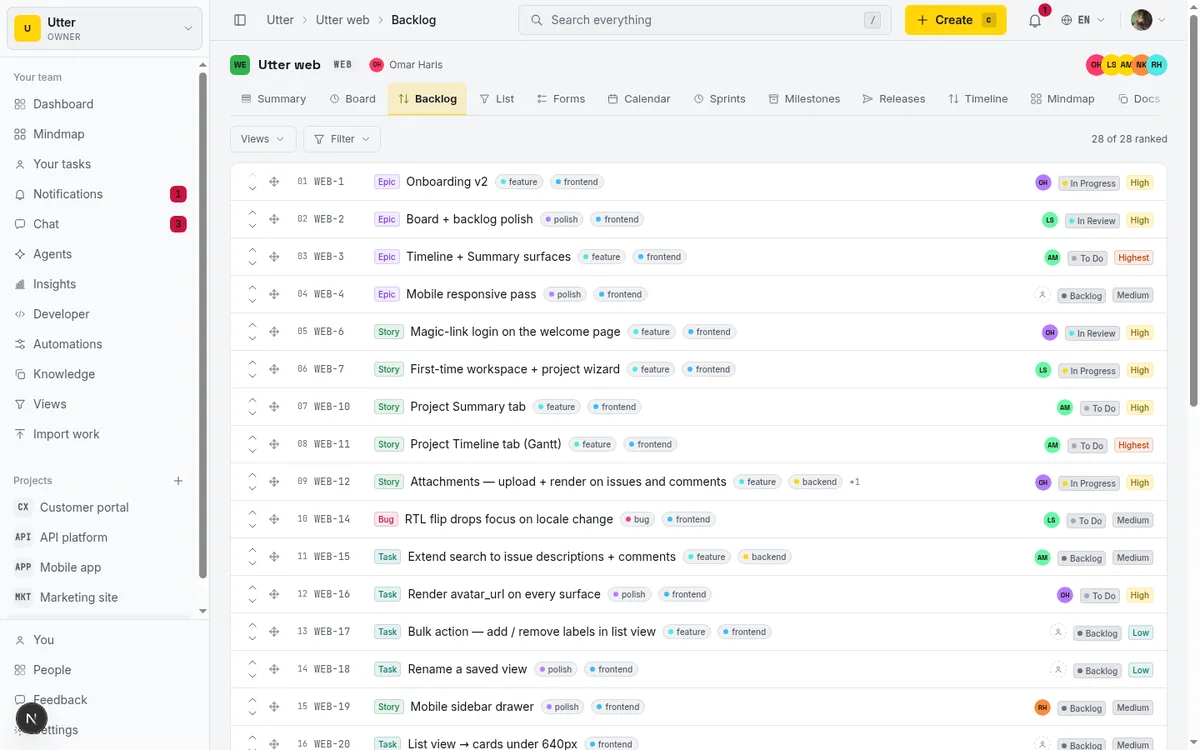
The backlog view is one project's open work, stacked top to bottom in the order you decided. That's the whole idea. It shows open issues only: the backlog, todo, in_progress, and in_review status categories. Done and cancelled issues never appear here, because a backlog is about what's left, not what's finished.
The rows are ranked by hand. Row 01 sits at the top, row 02 below it, on down the list. Each row carries:
- the position ordinal (01, 02, 03), zero-padded so a 40-row list lines up cleanly instead of jittering between one and two digits
- the issue key (like
WEB-12) and a type badge (epic, story, task, bug) - the title
- up to two label chips, with a "+N" when there are more
Here is the model that makes everything else click. Position is a decision. Row 01 is what the team does next, stated out loud, in a shared place. If "Timeline + Summary tab" is sitting at the top of WEB, you are telling everyone this is the next thing anyone should pull. That is a stronger, more accountable statement than a priority tag, and it is the reason the backlog is worth keeping in order instead of treating it as a junk drawer.
One more thing to hold onto. This ordering is per project. WEB has its own rank. Another project has its own. There is no global cross-project queue, and that is deliberate, because "what's next" is a question you answer inside one team's body of work, not across the whole company at once.
Rank vs priority: the distinction that trips everyone up
Read this part slowly, because almost everyone gets it wrong the first time and then loses an afternoon to the confusion.
Rank and priority are two different fields. They do not affect each other.
Rank is the position in the list. It is stored as a LexoRank string (more on that below), and it is the actual queue your team pulls from. Priority is a separate label: critical, highest, high, medium, low, lowest. You set it on an issue to say how urgent or important the work is. That's all it does. It's a signal for a human reading the ticket.
| Rank | Priority | |
|---|---|---|
| What it is | The row's position in the list | A label: critical, highest, high, medium, low, lowest |
| What changes it | Dragging a row, or the up and down arrows | The Set priority popover on the row |
| The question it answers | "What are we actually doing next?" | "How bad is this if we ignore it?" |
| Effect on the other | None | None |
Setting an issue to critical does not move it up the backlog. It will not jump to row 01. It will not budge one slot. Tag "Fix broken checkout" as critical expecting it to float to the top, and you'll come back an hour later baffled about why it's still parked at row 34. It's parked because you never moved it. The tag changed; the line didn't.
Why keep them separate? Because they answer different questions, and pretending they are the same question is how backlogs rot. A medium-priority ticket can absolutely be next up if it unblocks three other things. A critical ticket might sit below it because you can't even start until a dependency lands. Real prioritization is a judgment call that weighs priority against dependencies, effort, and timing, and then writes that call down as a position in the list.
So use both, on purpose. Set priority so anyone opening a ticket understands the stakes. Then rank the list so the order reflects your real plan. If you want a critical ticket to be next, drag it to the top yourself. The tag is the label on the box. The rank is where the box sits in line.
How to prioritize a backlog by dragging rows
Dragging is the main move, and it's the fastest way to get a messy backlog into shape.
Every row has a move handle on the left, the little grip icon. Grab it, drag the row up or down, drop it between two other rows. Drop "Timeline + Summary tab" between rows 03 and 04 and it becomes the new row 04; everything below it shifts down by one. The change is optimistic, meaning the list reorders in the browser instantly, before the server confirms, so it feels like the rows move under your hand rather than after a round trip.
flowchart LR
  A[You drop the row] --> B[List reorders instantly]
  B --> C[Server mints one new rank]
  C -->|accepted| D[Order sticks]
  C -->|rejected| E[Row snaps back with a toast]
Under the hood, the drop persists through reorderBacklogIssue, which recomputes the rank for that one row and no other. The browser sends the moved issue plus the ids of its two new neighbors, either of which can be null when the row lands at the very top or bottom:
{
  "workspaceSlug": "utter",
  "projectSlug": "web",
  "issueId": "<id of the row you dragged>",
  "beforeId": "<id of the row now above it>",
  "afterId": "<id of the row now below it>"
}
The server calls rankBetween(above, below) to mint a new LexoRank string that sorts cleanly between those two neighbors. Every other row keeps its existing rank untouched. There is no full re-sequence, no renumbering of 200 rows on the server every time you nudge one. That is the whole point of LexoRank: single-row moves stay cheap no matter how long the list gets.
The rank itself is a base-62 string, a kind of lexicographic coordinate. A few real outputs show the shape:
rankBetween("", "")     // "U"    first row in an empty list
rankBetween("U", "V")   // "UU"   squeezes between two tight neighbors
rankBetween("AU", "AV") // "AUU"  grows one character only where the gap is tight
rankBetween("", "U")    // "F"    a new top row, sorts before everything
This is also why the ordinal (01, 02) is not something you can type. It is not a stored number sitting on the issue. It is computed on the fly from where the row lands in the sorted order. You never see or edit the rank string directly. You move rows; the string sorts itself out.
What does good look like after a dragging pass? The top of the list should read like a plan you'd defend. Hand rows 01 through 08 to a teammate, walk away, and they should be able to work straight down and be doing the right things in the right order. If the top of your list is noise, you haven't prioritized yet. You've sorted by accident.
Reordering without a mouse
Dragging wins for big rearrangements. For a precise one-slot move, the arrows are better.
Every row has an up chevron and a down chevron. Click up and the row swaps places with the one above it. Click down and it drops one slot. The buttons are labeled "Move WEB-12 up" and "Move WEB-12 down," which is exactly what a screen reader announces, so this path is properly accessible and not just a mouse shortcut in disguise. The up arrow is disabled on the first row and the down arrow on the last, because there's nowhere further to go.
Reach for the arrows when a ticket is one or two slots off. Nudging "Timeline + Summary tab" up two positions to sit just under the current top item is a two-click job with the arrows and a fiddly, overshoot-prone drag with the mouse. Use the right tool for the distance.
Like dragging, arrow moves are optimistic. The row shifts right away. If the server rejects the change, the move reverts and a toast tells you it didn't stick. So if you ever see a row snap back, that's the system being honest with you, not a glitch you imagined.
While we're on the keyboard: press c anywhere in the app to open the new-issue dialog. It's the global create shortcut, so you can capture a ticket the second it occurs to you without hunting for a button. Issues created this way start in the backlog status, so they land in this list ready to be ranked instead of hiding somewhere you have to go find them.
Editing priority, status, and assignee inline
A planning pass isn't only about order. As you work down the list deciding what's next, you'll also want to set priorities, flip statuses, and hand things to people. You can do all of it from the row itself, without opening a single issue.
Each row exposes three inline popovers:
- Set priority lets you pick critical, highest, high, medium, low, or lowest right there. Remember what we covered: this changes the field, not the position.
- Set status uses your project's custom board statuses when you've defined them, each shown with its colored dot and name, so "In Review" reads the same here as it does on the board. If a project hasn't customized its columns, this falls back to the built-in status categories.
- Set assignee opens a list of workspace members with their avatars, plus an Unassigned option. If a member never set a display name, their email shows instead, so you're never squinting at a blank row wondering who owns it.
This matters because real prioritization is messy in a good way. You decide "Timeline + Summary tab" is next, bump it to medium, move it to To Do, and drop it on someone's plate, all inside one thought. Forcing you to open the full issue for each of those would break your flow four times per ticket. Inline editing keeps you in the list, in the rhythm of triage, where the thinking is actually happening.
Two honest reminders. First, none of these three edits reorder the list. Change priority, status, or assignee and the row stays exactly where it is. Only dragging and the arrows move things. Second, this is permission-gated. Owners, admins, and members can reorder and inline-edit. Viewers can look but not touch, so if the controls seem to be missing, check the role before you file a bug.
Moving issues into a sprint
If your project runs sprints, the backlog is also where you plan them.
When a project has planned or active sprints, they render as their own sections above the "Backlog" heading, each one a drop zone. The unsorted pool sits at the bottom under a heading marked "Backlog (no sprint)." To pull work into a sprint you have two options. Drag a row up from the backlog into a sprint section and drop it. Or use the per-row sprint chip, the "+ Sprint" / "Move to sprint" control, which opens a picker so you can assign the sprint without dragging a row across the whole length of the list.
As you drag toward a sprint section you'll see prompts like "Release to add to this sprint" and, dragging back down, "Release to move back to the backlog." That's the system telling you what the drop will do before you let go.
Now the detail that catches people. Dragging an issue across sections is assignment only. It changes which sprint the issue belongs to and carries no ranking. There is no manual rank order inside a sprint section. Only the Backlog section supports drag-to-rank. So when you move "Timeline + Summary tab" into a sprint, you've assigned it there (via assignIssuesToSprint), but you have not ranked it against the other sprint issues, because sprint sections don't rank. Two separate operations wearing similar clothing: reordering happens in the backlog, assignment happens between sections.
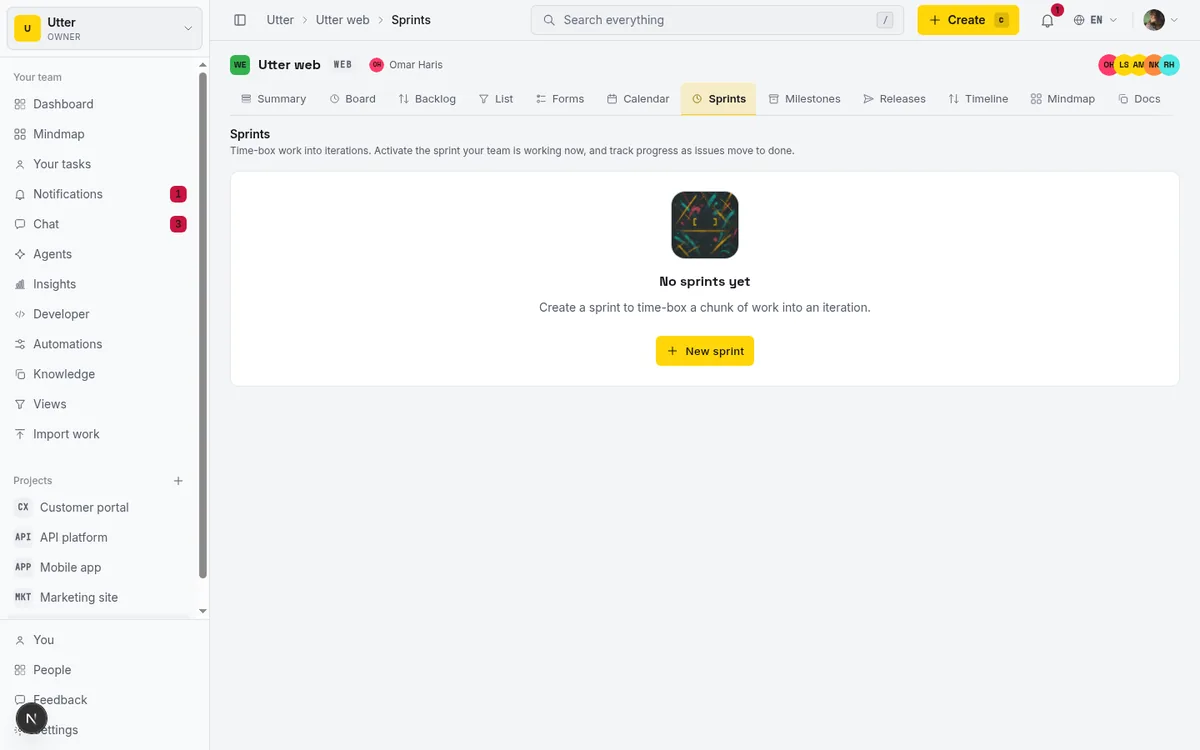
One more note so a missing control doesn't confuse you. The per-row sprint chip only appears when the project actually has planning sprints. No planned or active sprint means no chip. If you don't see it, you don't have a sprint to move things into yet.
Starting and completing a sprint from the backlog
You can run the sprint lifecycle from here too, if you have the role for it.
Each sprint section header carries a Start sprint button and, once the sprint is running, a Complete button. These are visible only to people with the project.edit_settings permission, which in practice means owners and admins. Ordinary members won't see them at all, and that's on purpose: starting and closing a sprint is a planning decision, not something any contributor should trigger by accident while clicking around.
Starting is a single click, and you get a "Sprint started." toast to confirm it took. Completing is a little more involved, because there's almost always unfinished work. Click Complete and a dialog opens titled 'Complete "Sprint 5"?' with your sprint's real name. It asks where the incomplete issues should go: "Move incomplete issues to" another sprint, or "Backlog (remove from sprint)" to send them back to the pool.
flowchart TD
  A[Click Complete] --> B[Dialog asks where incomplete issues go]
  B --> C[Another sprint]
  B --> D[Back to the backlog pool]
  C --> E[Optionally notify assignees and watchers]
  D --> E
  E --> F[Sprint completed toast]
There's a "Notify assignees and watchers of moved issues" checkbox too, so the affected people actually find out their tickets moved instead of discovering it days later. Confirm, and you get a "Sprint completed." toast.
This is the honest close of a sprint. Nothing silently disappears. Whatever didn't get done is explicitly rehomed, and the people who care can be told. If you're a member and these buttons aren't there, that's expected, not broken.
Filtering, saved views, and working a long list
A 30-row backlog is easy to eyeball. A 900-row backlog is where prioritization actually gets hard, and where the list tools earn their keep.
Start with filters. BoardFilters narrows the list by type, priority, status, labels, and assignee. Want to rank only the bugs? Filter to type = bug. Planning one person's week? Filter to their assignee. Filtering never changes anyone's rank; it just shows you a slice so you can think about one dimension at a time instead of the whole blur at once.
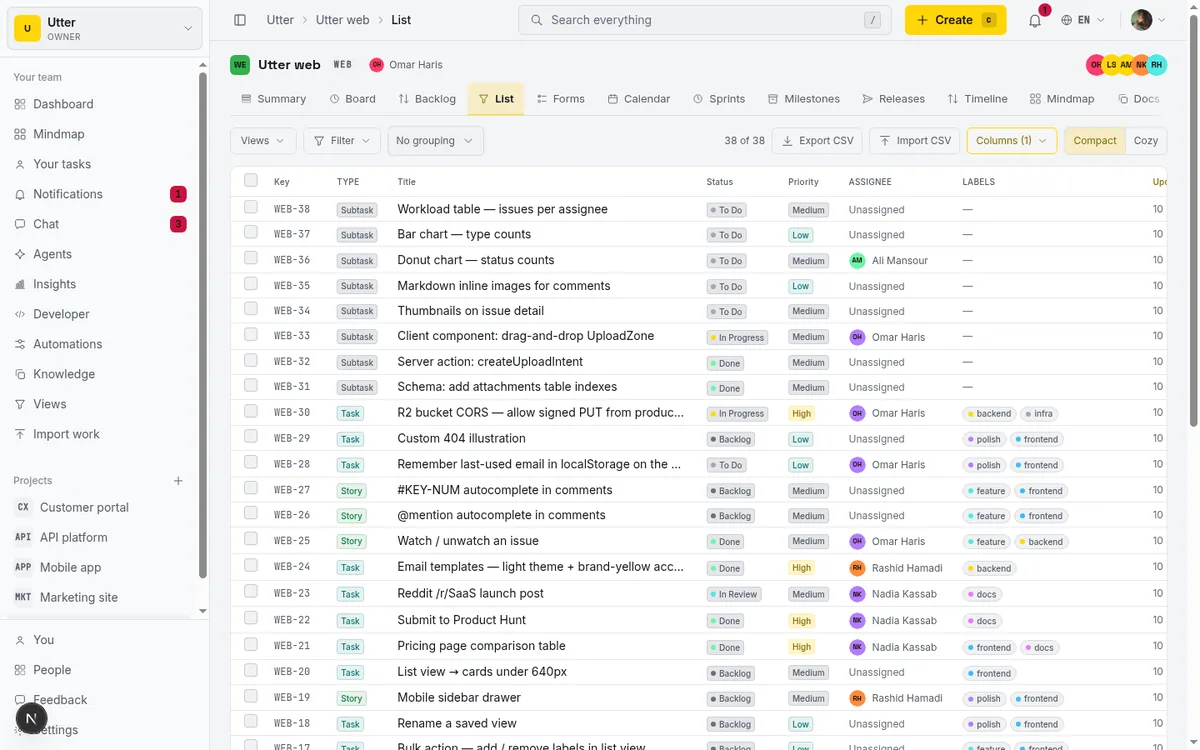
When a filter combination is one you'll reuse, save it as a Saved View. Views can be shared with the team or kept personal, so "Unranked high-priority bugs" or "My open stories" is one click away next planning session instead of a rebuild from scratch every time.
Then there's the length problem itself. Utter doesn't load 900 rows at once, because that would be slow and you don't need it. It loads the ranked list in pages of 100, sorted by rank ascending, with a Load more ({n}) button at the bottom telling you how many more are waiting. Click it and the next 100 rows append, de-duplicated and kept in rank order, so the list never scrambles or shows a row twice. The header keeps a running count in the "{shown} of {total} ranked" format, for example "100 of 240 ranked," so you always know where you are in the pile.
A couple of things to know about that counter. The total is capped for performance. Past 1000 open issues it reads as "1000+" rather than an exact figure, so treat it as "a lot" rather than a precise census. And the paging is keyset: it walks forward through the rank order with a cursor. There's no page-number jumping, no "go to page 7." You load more from where you already are.
Here's the practical upside, and it's the real reason this design is good for prioritizing. You almost never need the whole list loaded. The work that matters is at the top. Load the first 100, rank the top 15 until they're genuinely in the order you'd defend, and you've done the job. The tail can wait. You're planning what's next, not curating row 738.
Reordering from a script or an agent
The drag handle has an API twin. Every issue in the REST API carries its rank string, and the transition endpoint accepts a new one, so a script or an agent can reposition a ticket the same way the UI does: read the two neighbors' ranks from GET /v1/workspaces/utter/projects/WEB/issues, pick a base-62 string that sorts between them, and post it. The key needs the issues:write scope, and a malformed rank is simply ignored rather than saved.
To keep WEB-12 in the backlog but move it between two rows whose ranks are AU and AV:
curl -X POST "https://utter.ae/api/v1/workspaces/utter/projects/WEB/issues/WEB-12/transition" \
  -H "Authorization: Bearer utp_live_a1b2..." \
  -H "Content-Type: application/json" \
  -d '{ "status": "backlog", "rank": "AUU" }'
await fetch(
"https://utter.ae/api/v1/workspaces/utter/projects/WEB/issues/WEB-12/transition",
{
method: "POST",
headers: {
Authorization: "Bearer utp_live_a1b2...",
"Content-Type": "application/json",
},
body: JSON.stringify({ status: "backlog", rank: "AUU" }),
}
);import requests
requests.post(
"https://utter.ae/api/v1/workspaces/utter/projects/WEB/issues/WEB-12/transition",
headers={"Authorization": "Bearer utp_live_a1b2..."},
json={"status": "backlog", "rank": "AUU"},
)The status field is required on this endpoint because it exists for board moves; passing the issue's current status with a new rank makes it a pure reorder. Sprint assignment has an API twin too: PATCH the issue with a sprint_id (or null to detach), which is exactly what the sprint chip does.
Limits and mistakes to avoid
Let me be blunt about the edges, because knowing them upfront saves you a confused afternoon later.
Rank is not priority. The big one. Tagging a ticket critical does not move it. If you want it next, drag it there. Priority is a label; rank is the line.
The ordinal isn't typeable. You can't set a row to "position 5" by typing 5. The 01/02/03 is display-only, computed from the sort. Move the row; the number follows.
Drag-to-rank only works in the Backlog section. Inside a sprint section, dragging reassigns the sprint and carries no order. If you're trying to rank issues within a sprint by dragging and it won't stick, that's why. Rank lives in the backlog.
Sprint sections only show when sprints exist. Planned or active sprints appear as sections; completed ones don't. No planning sprints means no sprint sections and no per-row sprint chip.
Start and Complete need edit-settings. Members don't see those controls. If you expected them and they're gone, it's a permissions thing, not a missing feature.
The count caps at 1000+. Past a thousand open issues the total is approximate. Don't quote it as an exact figure in a status update.
Only open statuses appear. Done and cancelled issues are excluded by design. If a ticket seems to have vanished from the backlog, check whether it got marked done.
Viewers can't reorder or edit. Read-only means read-only here.
Optimistic edits can revert. If a move or inline edit snaps back with a toast, the server rejected it. It genuinely didn't save; it's not a display hiccup.
Now the habits that keep a backlog useful instead of merely tidy. Keep the top 10 to 15 rows genuinely ranked and trustworthy, because that is the part anyone actually reads. Don't burn energy perfectly ordering the tail; row 200 versus row 210 is a distinction without a difference and nobody will ever pull from there before you re-rank anyway.
And revisit the ranking before each planning session, not once a quarter, because a backlog that isn't re-ranked is just an old opinion in a new week. Five minutes of dragging before a sprint kickoff beats an hour of arguing over whose ticket deserves the critical tag.
A well-ranked backlog also feeds everything downstream. Pull the top of it onto a Kanban board to watch the work move, or use it to run sprints without the ceremony so planning stays light. If ranking by hand starts to feel like a chore, see what AI sprint planning actually gets right and how AI issue triage can assign and prioritize the incoming flow before it ever piles up.
Open your busiest project's Backlog tab, load the first page, and spend five minutes dragging the top 15 rows into the order you'd actually defend out loud. That's a prioritized backlog.
Frequently asked questions
How do I prioritize a backlog in Utter?
Open the project's Backlog tab and drag rows into the order you want, grabbing the move handle (grip icon) and dropping each row between two others. Row 01 is what the team does next, so the top of the list is your plan. Dragging persists a new rank instantly and touches only the row you moved.
Does setting an issue to "critical" move it to the top of the backlog?
No. Priority and rank are independent fields. Setting an issue to critical changes its priority label but leaves its position in the list exactly where it was. To make a ticket next up, drag it to the top yourself or use the up arrow.
What is the difference between rank and priority in Utter?
Rank is the issue's manual position in the backlog, stored as a LexoRank string, and it's the actual queue your team pulls from. Priority (critical through lowest) is a separate label that communicates urgency to humans. Changing one never changes the other.
How do I reorder a backlog without using a mouse?
Use the up and down chevron arrows on each row for single-step moves. They're labeled "Move {key} up" and "Move {key} down" for screen readers, and they're disabled on the first and last rows. You can also press c anywhere to create a new issue, which lands in the backlog ready to rank.
Can I move an issue from the backlog into a sprint?
Yes, when the project has a planned or active sprint. Drag the row into the sprint section, or use the per-row "+ Sprint" / "Move to sprint" chip. Moving into a sprint is assignment only and carries no ranking; only the Backlog section supports manual rank order.
Why doesn't the backlog show my Done issues?
The backlog only includes open statuses: backlog, todo, in_progress, and in_review. Done and cancelled issues are excluded on purpose, since the backlog is about remaining work. If a ticket vanished from the list, it was likely marked done or cancelled.
Why does the total count show "1000+" instead of an exact number?
The count is capped for performance. Beyond 1000 open issues, Utter shows "1000+" rather than counting every row, so the total is approximate at large sizes. Below that threshold the "{shown} of {total} ranked" count is exact.
Can viewers reorder or edit issues in the backlog?
No. Reordering and inline edits (priority, status, assignee) are available to owners, admins, and members. Viewers have read-only access and won't see the editing controls. Starting or completing a sprint needs the edit-settings permission, so only owners and admins see those buttons.
Related reading

How to filter and sort issues
Filter issues by assignee, label, and status in Utter's list view, then sort, group, save a view, and share the exact filtered list as a URL.
July 15, 2026 · 16 min read
How to read the project summary
Read the Utter project Summary tab like a pro: what every card shows, how each number is computed, what good looks like, and where the dashboard stops.
July 15, 2026 · 16 min read
How to use a kanban board: a complete guide with a real example
Learn how to use a kanban board in Utter: read cards, drag tasks between columns, add and reorder custom columns, set WIP limits, filter, and save views.
July 15, 2026 · 20 min read
A Notion alternative for project management (keep the docs, gain a real tracker)
A Notion alternative for project management that keeps your docs and adds a real tracker: category-backed statuses, native sprints with carryover, computed burndown, agents over MCP.
July 16, 2026 · 14 min read
Custom workflow statuses
Build custom Jira-style board columns in Utter and enforce status transition rules across the board, API, bulk edits, and automations. With the honest limits.
July 15, 2026 · 18 min read
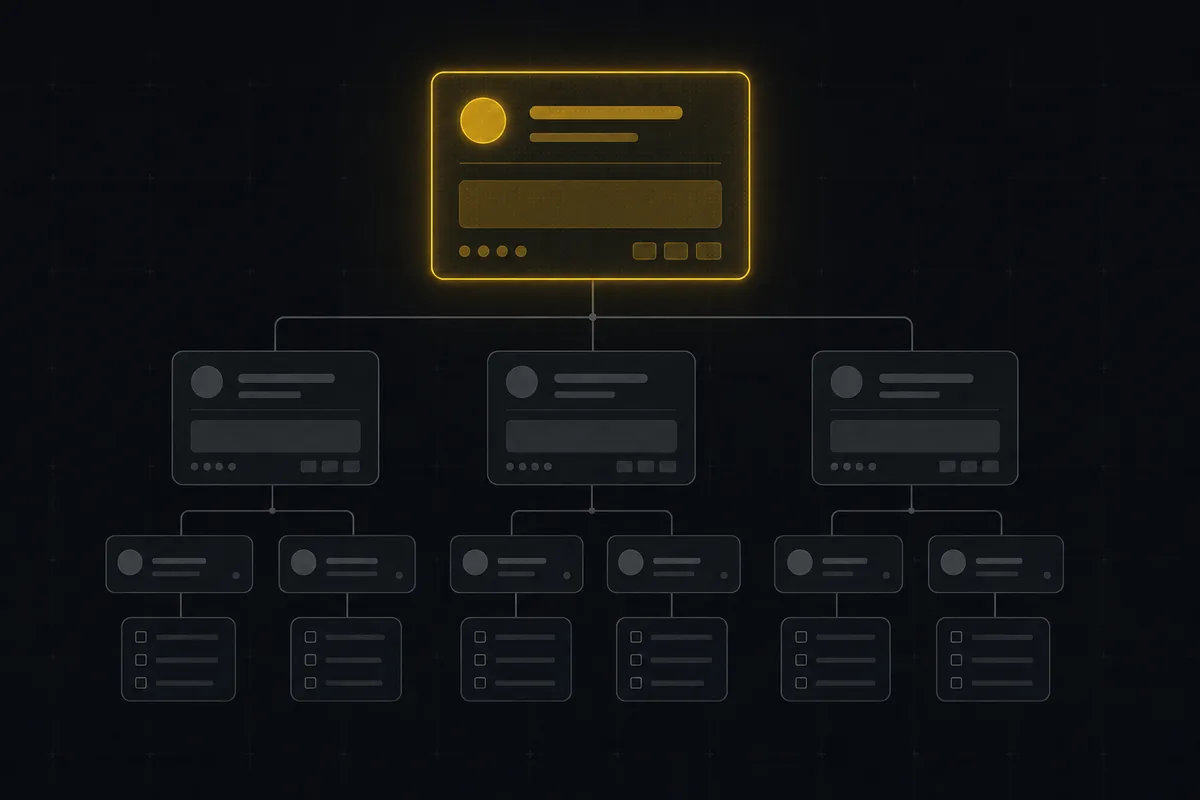
How to organize work with epics and subtasks
Learn Utter's epics, stories, tasks, subtasks hierarchy: group work under an epic, break issues into subtasks, read the progress bar, and the rules it enforces.
July 15, 2026 · 17 min read
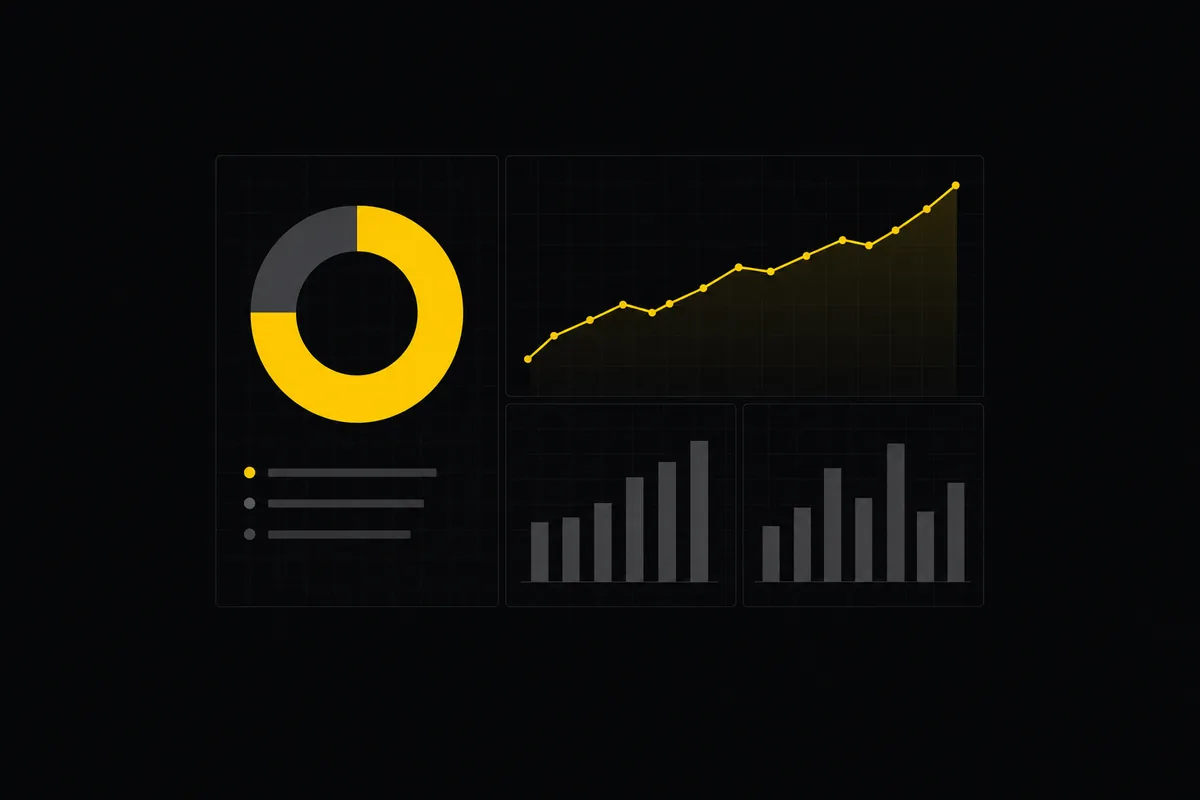
Project reports and insights
Read Utter's project reports and dashboards: Summary KPIs, sprint burndown, cycle time, throughput, workload, and workspace Insights, with the honest limits on each.
July 15, 2026 · 16 min read
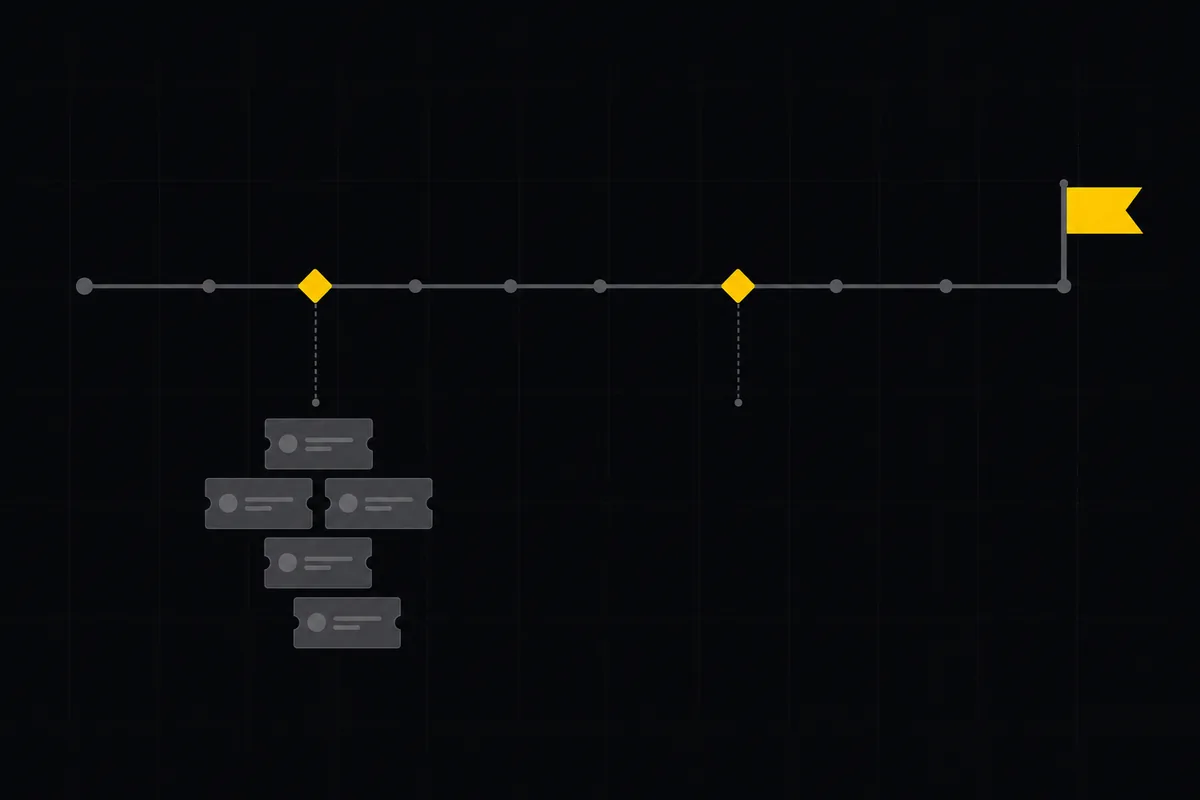
How to plan releases and milestones
Plan software releases and milestones in Utter: create releases and milestones, attach issues, read the progress meter, draft AI release notes, and set permissions.
July 15, 2026 · 14 min read
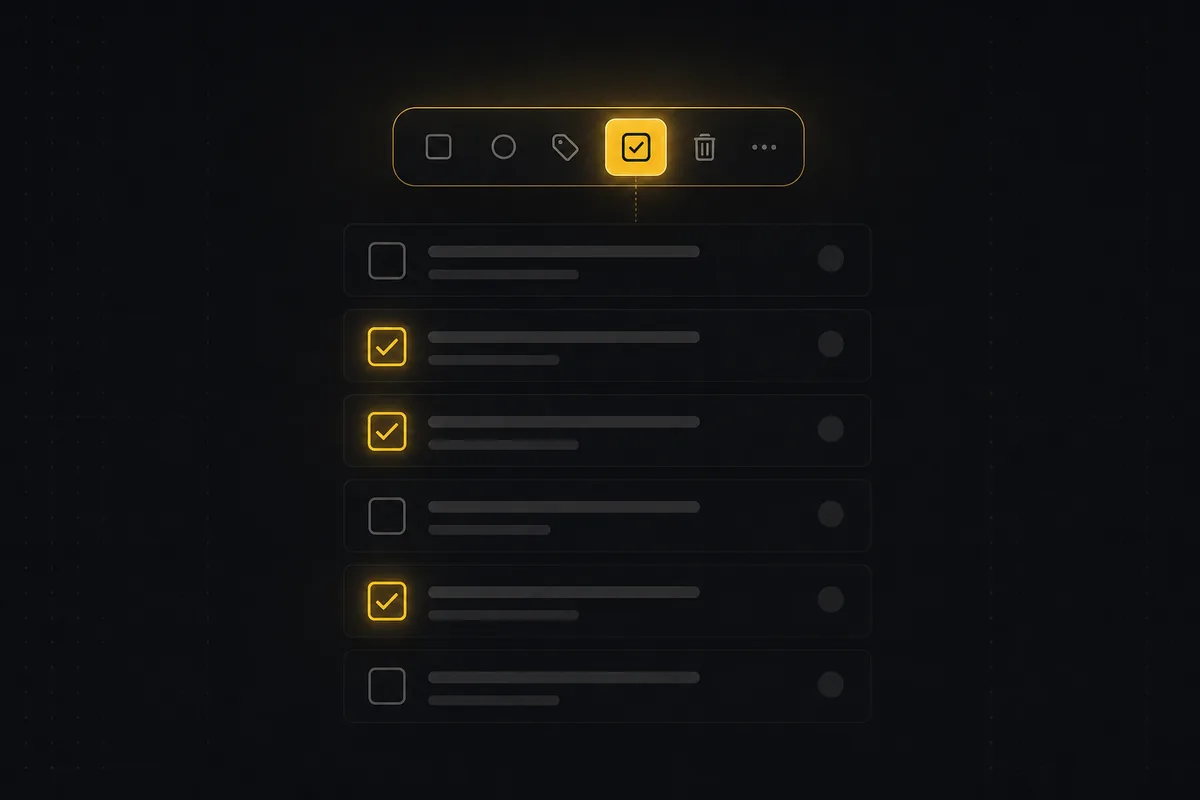
How to bulk edit issues
How to bulk-edit issues from Utter's List view: multi-select, bulk status/priority, unassign, archive, and human-in-the-loop AI triage, plus the real limits.
July 15, 2026 · 14 min read
Monday.com alternatives built for software teams, not marketing ops
Monday.com alternatives for software teams: real pricing (3-seat minimum vs $3/$6 per builder seat), category-backed statuses, sprints with carryover, and agents as free members not billed integrations.
July 16, 2026 · 12 min read
أضف تعليقًا
ابدأ النقاش.