
A lightweight service desk from forms, automations, and a board

Your IT guy gets access requests in Slack DMs, design requests in a group chat, and hardware asks in the hallway. Nothing has a status, nothing gets closed, and the same question gets asked three times. You do not need Jira Service Management for this. You need a form, a few routing rules, and a board with a review gate, which is exactly what this guide assembles, plus an honest list of what a lightweight service desk for small teams cannot do.
Why full ITSM is overkill for a five-person team
The problem is almost never that your team lacks tooling. It is that internal requests have no home. Someone asks for a staging database password in a DM, someone else requests a new landing page banner in the design channel, and a third person mentions their laptop battery in passing. Each request depends on one person remembering it exists. There is no status, no owner, and no history, so the requester asks again in three days and the person handling it starts from zero.
Full ITSM platforms solve a much bigger problem than this. Jira Service Management, to pick the obvious one, gives you SLA clocks counted against working-hours calendars, on-call schedules with escalation policies, asset management, and a customer portal where requesters log in and track their tickets. That is real machinery, and to be fair to Atlassian, the entry price is hard to argue with: the Service Collection Free plan is $0 forever for up to 3 agents, and it includes on-call with escalations, the customer portal, customizable intake forms with queues, and an embedded knowledge base, as of July 2026. If you run a genuine support operation with three or fewer agents, that Free tier is a good deal, full stop.
But an internal desk for a five-person team uses almost none of it. Nobody is paging anyone at 3am over a Figma access request. Nobody needs a CMDB to track four laptops. And once you outgrow 3 agents, the pricing changes character: JSM Standard runs $25 per agent per month at a 5-agent team size, roughly $125 a month, as of July 2026. That buys a branded help center and audit logs, which is great if you run a real support operation and irrelevant if you just want requests to stop living in chat.
That last sentence is the whole 80% case. Requests need to stop living in chat. That is all. What follows is the smallest setup I know of that gets you there.
What Utter honestly can and cannot do as a service desk
Before any how-to, here is the candid version, so nobody spends twenty minutes building something that misses a requirement.
What Utter can do as a desk:
- A public, branded intake form at a shareable URL. Submitters need no account and never see your workspace.
- Routing defaults that stamp every submission with a type, priority, assignee, labels, sprint, and a specific board column.
- Deterministic automations that run on every form-created issue: set priority, assign, label, comment, notify an agent.
- Human-run bulk AI triage from the list view, with suggestions validated against your project's real labels.
- Custom board columns with enforced transition rules, so "nothing closes without review" is a hard rule.
- An opt-in confirmation email to the requester carrying the issue key.
What Utter cannot do, and this list matters more:
- No SLA timers or breach clocks of any kind. No time-to-first-response goals, no working-hours calendars, nothing that measures whether you answered fast enough.
- No asset or configuration management. You cannot link a ticket to a laptop or a license.
- No on-call schedules, alerting, or escalation policies. This is not an incident tool.
- No email-to-ticket address. Intake is the form (or the API), not a support inbox.
- No requester portal. An anonymous submitter gets one confirmation email, if the form enables it and they left an email, and then silence. They cannot log in to check status, and they get no email when the ticket moves or closes. The only way to give a requester visibility is to make them a workspace member, which is free for viewers.
So here is the verdict up front. If you answer to contractual SLAs, run incidents, or serve external customers who expect a ticket portal, use JSM or something like it and skip the rest of this post. JSM does those things well, and the portal and on-call are included even on its Free tier. If your requesters are the nine people already on your team, keep reading.
Step 1: build the branded intake form
The intake surface is a form. Create one in your project's Forms tab and you get a builder with 14 field kinds: short text, long text, select, multi-select, number, date, email, radio, phone, URL, rating, section headers, file upload, and checkbox. Conditional visibility rules let you show a "which system?" dropdown only when someone picks "access request", so one form can stay short for the common case and grow for the complicated one.
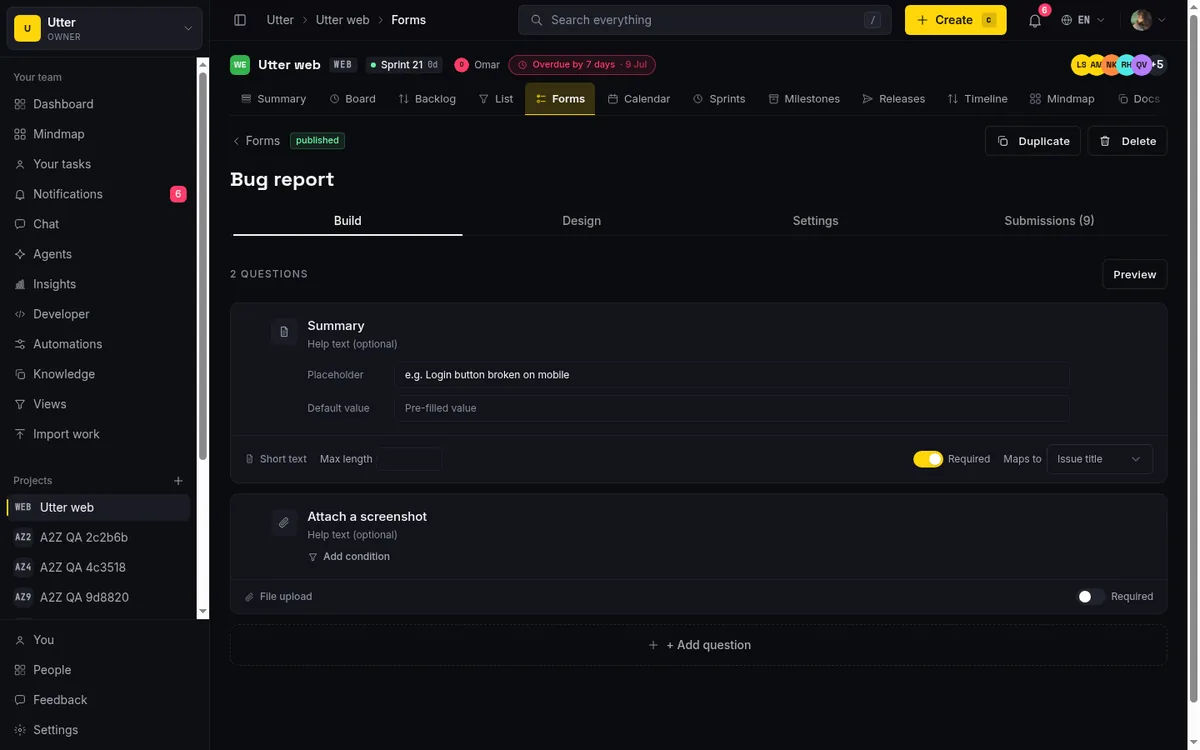
Fields map onto the issue the submission creates. A short text field can become the issue title, a long text field the description, and a select or radio field whose options are priority names writes the priority directly. That mapping is what makes this a desk rather than a survey: the submission arrives as a real, structured ticket, not a row in a spreadsheet someone has to re-enter.
Branding matters more than it sounds. Add your logo, an accent color, and a cover image, and the form reads as "our internal helpdesk page" instead of "a link someone pasted". Then share the public URL. Every form gets a /f/<token> address with a long random token, submitters need no account, and they never see the workspace behind it.
The guardrails are the part people skip and regret. Forms ship with per-IP rate limiting, and depending on the form you may want one response per email, a close date, or a response limit. One cap to know about: on the Free plan, file fields accept at most 1 MB per upload, against 128 MB of total workspace storage. Screenshots from requesters fit comfortably. Screen recordings mostly will not, so tell people to link videos rather than attach them, or plan on Pro where the per-file cap goes away.
The full walkthrough of the builder, mappings, and guardrails is in how to set up a request form.
Step 2: routing defaults so every request lands pre-sorted
A form on its own is a suggestion box. Routing defaults are what turn it into a desk. Every submission gets stamped with a default issue type (task, story, or bug), a priority, an assignee, labels, a sprint if you want one, and, the piece that changes daily life, a default board column. Point the form at an "Incoming" or "Triage" column and requests land there directly, visible on the board the moment they arrive, instead of sinking into the backlog where nobody looks.
The pattern that works in practice is one form per request category. An IT access form routes to the admin with an access label. A design request form routes to the designer with a design label. A hardware form routes to whoever owns the equipment drawer. Each one lands pre-sorted with an owner already attached, so triage is a glance rather than a meeting.
Here is the whole pipeline a submission travels:
flowchart LR
    A[Form submission] --> B[Routing defaults applied]
    B --> C[Issue created in Incoming column]
    C --> D[issue.created automations run]
    D --> E[Owner notified in-app and by email]
    E --> F[Optional confirmation email to requester]
Nothing in that chain requires a human until the issue is already sitting in the right column with the right owner. The detailed version of this step, including how defaults interact with field mappings, is in turn a request form into a triaged issue.
Step 3: automations that work the queue for you
Form-created issues run your workspace's issue.created automations, the same rules that fire for issues created any other way. A rule has conditions (matched with AND or ANY across project, type, priority, status, assignee, label, and title) and actions. Nine actions are available: set status, set priority, assign, unassign, add label, remove label, move to sprint, add a comment with placeholders like the issue key or assignee name, and notify an agent.
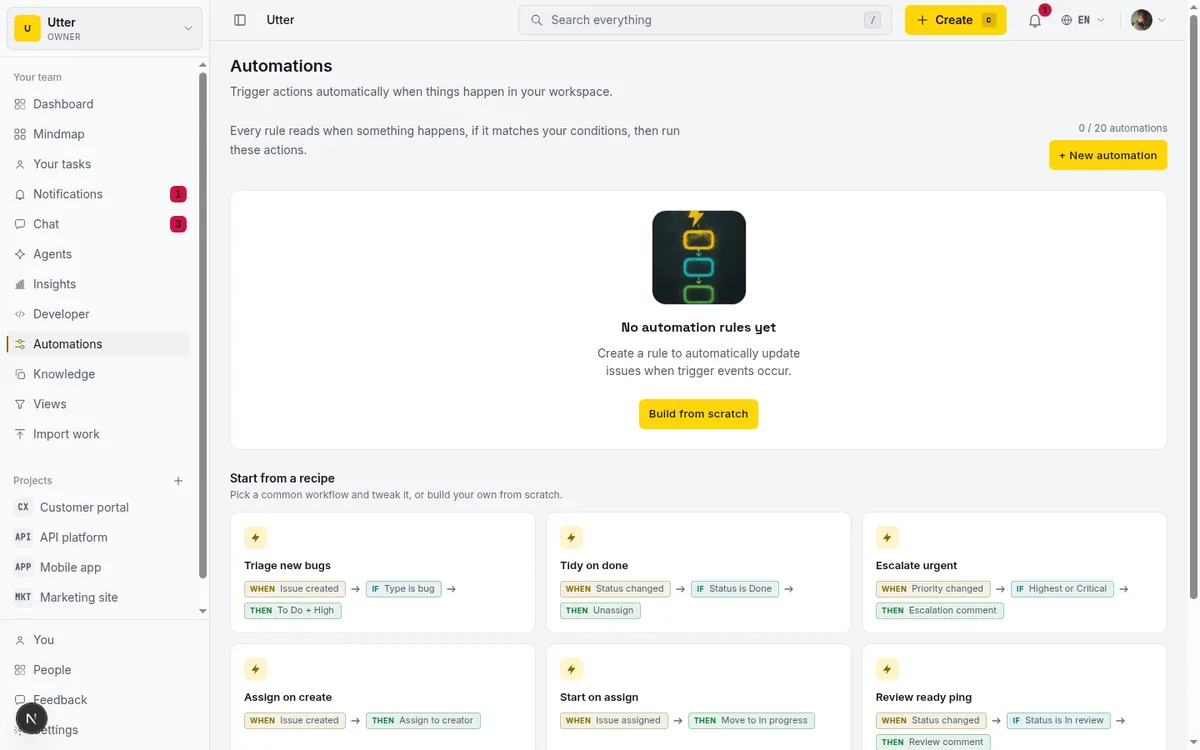
Two rules cover most of what a small desk needs. First: if the title contains "urgent", set priority to high and notify the on-duty person. Second: if the title or a label contains "access", assign to the admin who holds the keys. Both are deterministic. They fire the same way every time, which for a desk is exactly what you want, because "the rule did not feel like firing today" is not a failure mode you can debug.
Now the honest part, and I am putting it inline rather than in a footnote because it changes the price of this whole recipe. Automations are a paid feature. They work during the 14-day Pro trial your first workspace gets, and after that, on the Free plan, your rules simply do not fire. Not throttled, not delayed. Off. The enforcement happens both when you try to enable a rule and again at execution time, so there is no loophole. That means the honest floor for the full recipe in this post is Pro, at $3 per editor seat per month as of July 2026. Pro caps you at 20 active rules, which for an internal desk is roughly 18 more than you need.
You can run steps 1, 2, 5, and the requester loop on Free. The form, the routing defaults, and the board all work at $0. You lose the automatic urgency handling and auto-assignment, which is the difference between a desk that sorts itself and a desk someone sorts each morning. Details and more rule patterns are in how to set up automations.
Step 4: AI triage, without pretending it is hands-free
Let me kill an expectation before anyone builds a workflow on top of it: Utter's autonomous AI triage does not fire on form submissions. It only triggers on interactive issue creation, the dialog a signed-in member uses. Form submissions, CSV imports, and API creates deliberately never trigger it. That is a storm-prevention choice, documented in the code, and I think it is the right one: nobody wants a hundred spam submissions burning AI credits at 2am. But it means any pitch that your inbound requests "get classified by AI with zero clicks" would be false, so I am not making it.
What actually works is a short human ritual. Once a day, open the list view, select the new requests sitting in your Incoming column, and run the bulk AI triage modal. It suggests labels, a priority, and a type for each one, and the suggestions are validated against your project's real label palette and priority enum, so it cannot invent a label you do not have. You review the suggestions and apply the ones that look right.
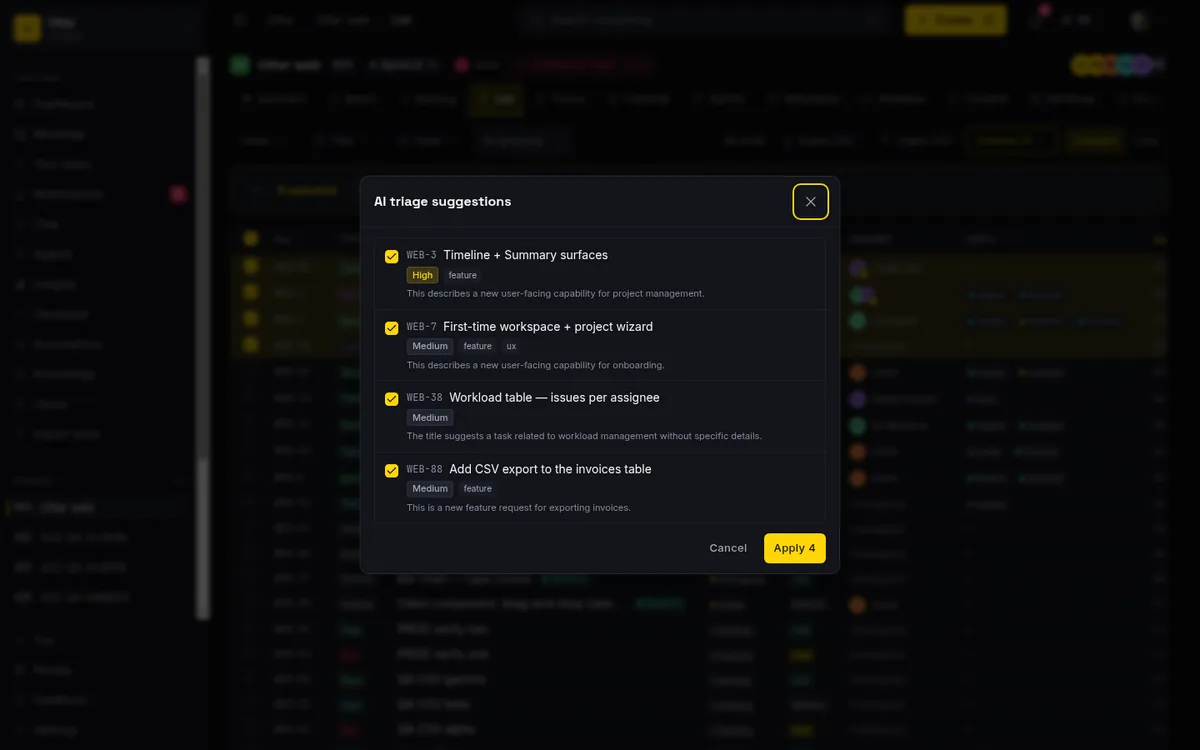
It spends workspace AI credits: 25 a month on Free, 5,000 on Pro, so the Free grant covers a light desk and Pro effectively removes the ceiling. There is also a rate limit of 10 triage calls per minute per user, which you will never hit doing this by hand.
Is a daily two-minute ritual worse than fully automatic classification? Sure. Is it fine for an internal desk handling a dozen requests a week? Completely. The deterministic automations from step 3 catch the patterns you can name in advance, and the bulk triage sweep catches the rest.
Step 5: a board with a real review gate
The board is where the desk becomes visible. Utter gives every project custom named, colored columns on top of 7 fixed status categories (backlog, todo, in progress, in review, done, failed, cancelled). For a desk, rename and extend the defaults into a pipeline that matches how requests actually flow: Incoming, Triage, In progress, Waiting on requester, Review, Done. Each column maps to one of the fixed categories, which keeps reporting and the "is this open?" logic sane underneath your custom names.
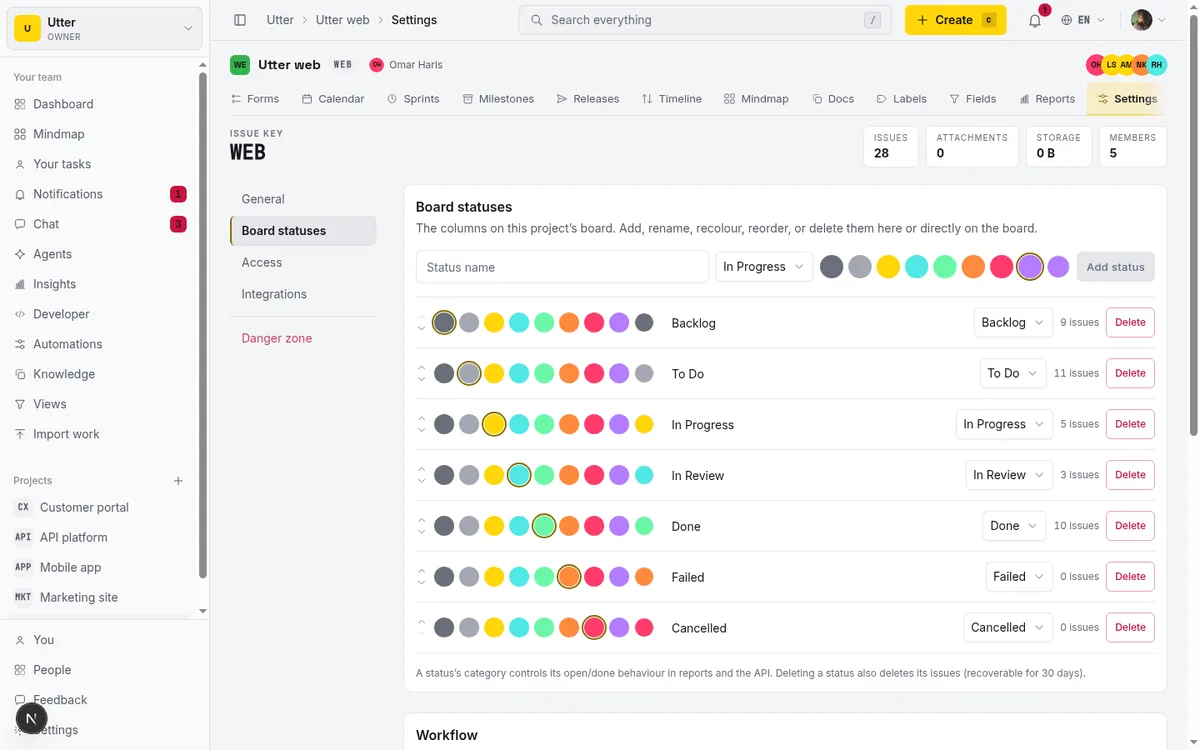
The part with teeth is the transition rules. Allowed-transition rules are enforced on every status write path, not just the board UI: drag a card, edit the issue, hit the API, it does not matter. Set up "In progress can only move to Waiting on requester or Review" and "only Review can move to Done", and now "nothing reaches Done without passing Review" is a hard rule the system enforces, not a convention that erodes the first busy week. For a two-person desk that sounds like overkill until the first time someone closes an access request without actually granting the access.
Per-column WIP limits round it out. Cap In progress at 3 and the desk owner physically cannot end up juggling 15 half-done requests. The board shows the limit and pushes back.
If the board itself is new territory, how to use a kanban board covers the basics, and the same column-plus-gate pattern shows up in bug tracking workflow from report to fix.
Closing the loop with the requester (and the portal gap)
Here is what the requester actually experiences, stated plainly, because this is where a lightweight service desk for small teams differs most from the real thing.
If you enable the confirmation email on the form (it is opt-in) and the submitter left an email address, they get one message: the issue key and your success text. That is the last email an anonymous submitter ever receives. No update when the status changes, no note when the ticket closes, no portal to log into. From the outside, the ticket goes into a well-organized black hole.
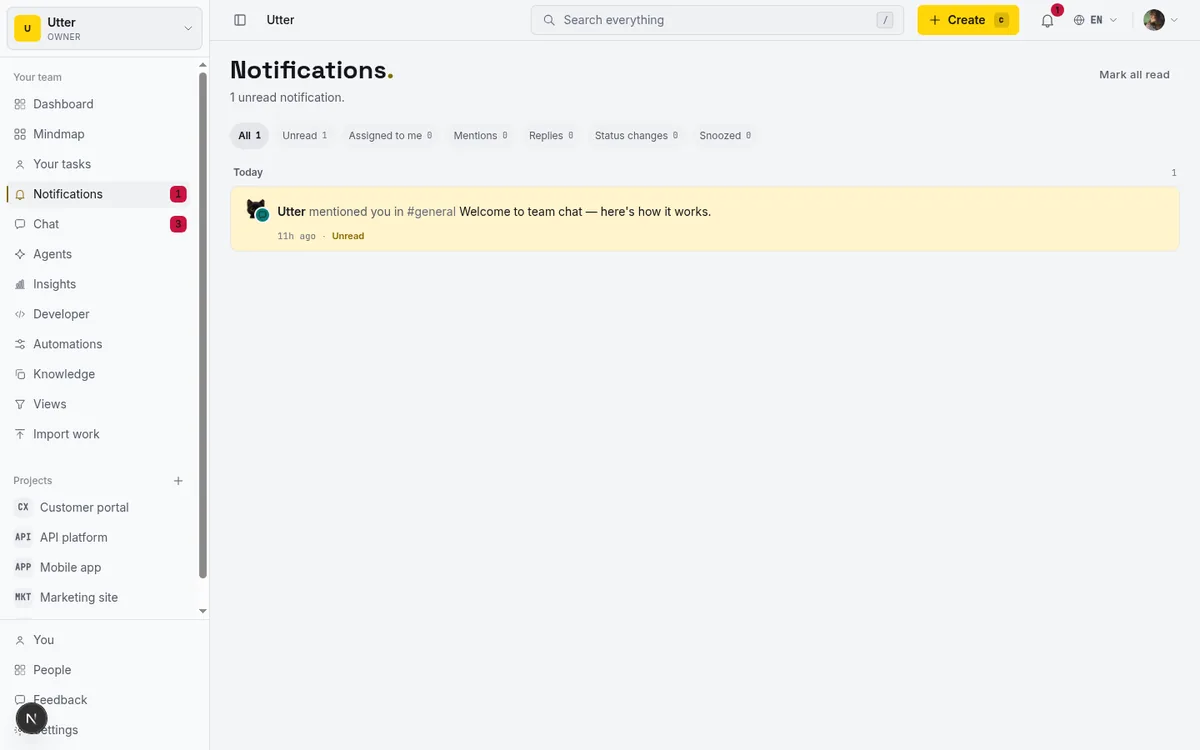
For an internal desk there is a workaround that genuinely works: your requesters are your teammates, and teammates can be workspace members. Viewer seats are free on every plan, so add the whole team as viewers. Then they can open their ticket, watch it move across the board, and receive the normal notifications: assigned, mentioned, comment replies, and status changes, delivered in-app and by email with a per-user preferences matrix so nobody drowns. A requester who can see their ticket sitting in "Waiting on requester" tends to answer the blocking question without being chased. The whole notification surface is documented in notifications and watching issues.
For a truly external audience, contractors, clients, the public, this is the point where I concede the ground. People outside your org expect a portal where they log in, see "In progress", and read updates. JSM ships that, including on its Free tier, and no amount of workaround assembles it from these parts.
Let an agent or a script work the queue
One more layer for teams experimenting with AI agents on the desk. Assigning a form-routed request to an AI agent in Utter is a real delegation: it opens a pending session on the agent hub and pushes a wake-up to the agent, and the notify_agent automation action can do the same from a rule, so "anything labeled access pings the provisioning agent" is one automation away. Per-agent field allowlists limit what an agent is allowed to write, and sessions that produce no attributed activity get flagged as unverified, which is the right amount of paranoia for first-line triage.
Under the hood this is the same REST API a cron script can use. Pulling the incoming access queue is one authenticated GET, and the MCP tools derive from the same API, so a Claude-style agent gets the identical view:
curl -s "https://utter.ae/api/v1/workspaces/acme/projects/DESK/issues?status=todo&label=access" \
  -H "Authorization: Bearer $UTTER_API_KEY"
const res = await fetch(
"https://utter.ae/api/v1/workspaces/acme/projects/DESK/issues?status=todo&label=access",
{ headers: { Authorization: "Bearer " + process.env.UTTER_API_KEY } },
);
const { data } = await res.json();import os, requests
r = requests.get(
"https://utter.ae/api/v1/workspaces/acme/projects/DESK/issues",
params={"status": "todo", "label": "access"},
headers={"Authorization": "Bearer " + os.environ["UTTER_API_KEY"]},
)
data = r.json()["data"]{
"data": [
{
"id": "0197f3a2-4b1c-7e02-9d3a-8c5e2f1a0b64",
"key": "DESK-42",
"type": "task",
"title": "Staging database access for Lena",
"status": "todo",
"status_name": "Incoming",
"priority": "high",
"assignee_id": "0197e1b0-2a9f-7c11-b4d2-6e8a9c3f5d21",
"labels": [{ "id": "0197c9d4-1f3e-7a05-8b2c-4d6e0a9f7c33", "name": "access", "color": "#ffd60a" }]
}
],
"pagination": { "next_cursor": null }
}The status filter takes the category (todo, in_progress, and so on), label accepts a label name or id, and assignee=me resolves to the calling key's own user, which is how an agent asks "what is on my plate". status_name carries your custom column name, so a script can tell Incoming from Triage even though both map to the same category.
What a lightweight service desk for small teams costs, and when to pick JSM
All figures as of July 2026, monthly billing.
| Plan | Price | What you get for a desk |
|---|---|---|
| JSM / Service Collection Free | $0, up to 3 agents | Requester portal, on-call with escalations, alerting, intake forms with queues, knowledge base |
| JSM Standard | $25/agent/month at 5 agents, about $125/month | Everything in Free plus branded help center, unlimited email notifications, audit logs |
| JSM Premium | $57.30/agent/month at 5 agents | Adds the Assets app for asset and configuration management |
| Utter Free | $0 | Form, routing defaults, board with transition gates; automations stop after the 14-day first-workspace trial |
| Utter Pro | $3/editor seat/month, viewers and AI agents free | Adds automations (20 rules), 5,000 AI credits, 1 GB storage, no per-file cap |
And the decision guide, which is more useful than the price list:
| Your situation | Pick |
|---|---|
| Contractual SLAs with response-time targets | JSM. It has named SLAs with time targets, working-hours calendars, and start/pause/stop conditions. Utter has no SLA machinery at all. |
| On-call rotations, incidents, escalation | JSM, even on Free. |
| Anonymous external requesters who expect a portal | JSM. Its Free tier includes the portal. |
| Tracking tickets against laptops and licenses | JSM Premium, which bundles Assets. |
| Internal requests from people already on your team | The recipe in this post, at $15/month for five editors on Pro. |
Notice something in that first table: JSM Free is cheaper than Utter Pro. Three agents at $0 beats five editors at $15. So the pitch here is not price. It is that a small team gets its desk and its project work in one tool, with one board vocabulary, one set of members, and no second system to check, and that the whole setup is four screens of configuration rather than an ITSM rollout. If per-seat pricing is what sent you looking beyond Atlassian in the first place, Jira alternatives priced per seat covers the wider field.
If your requests currently live in chat, create a form, point it at an Incoming column, and send your team the link. Start free, and the first workspace's trial lets you test the automation rules before deciding whether the $3 seat is worth it. For a desk that sorts itself, it usually is.
Frequently asked questions
What is the best lightweight service desk for small teams?
For internal requests from people already on your team, the smallest setup that works is a public intake form, routing defaults that land each submission in a triage column with an owner, a couple of automation rules, and a kanban board with enforced transition rules. In Utter that is four screens of configuration. Teams with contractual SLAs, on-call rotations, or external requesters who expect a portal should use Jira Service Management instead, which covers those even on its Free tier for up to 3 agents.
Can Utter replace Jira Service Management?
For an internal desk, yes: form intake, routing, automations, and a review-gated board cover it. For real ITSM, no. Utter has no SLA timers, no asset or configuration management, no on-call or escalation policies, no email-to-ticket address, and no requester portal. If you answer to response-time contracts or serve external customers, pick JSM.
Do requesters need an account to submit a request?
No. Every form gets a public /f/ URL with a long random token. Submitters fill it in without an account and never see the workspace. An anonymous submitter gets at most one opt-in confirmation email with the issue key, and nothing after that. To let a requester follow their ticket, add them as a workspace member; viewer seats are free on every plan.
Do Utter automations work on the Free plan?
No. Automations are a paid feature, enforced both when you enable a rule and at execution time. They work during the 14-day Pro trial your first workspace gets, then stop on Free. Pro is $3 per editor seat per month as of July 2026 and allows 20 active rules, which is far more than an internal desk needs.
Does AI triage run automatically on form submissions?
No, and that is deliberate. Autonomous AI triage only fires on interactive issue creation by a signed-in member; form submissions, imports, and API creates never trigger it, which prevents a spam burst from burning AI credits. Instead, deterministic issue.created automations handle the patterns you can name, and a human runs the bulk AI triage modal from the list view. Suggestions are validated against the project's real labels and cost AI credits: 25 a month on Free, 5,000 on Pro.
How much does Jira Service Management cost for a small team?
As of July 2026, the Service Collection Free plan is $0 forever for up to 3 agents and includes the requester portal, on-call with escalation policies, intake forms with queues, and a knowledge base. Standard is $25 per agent per month at a 5-agent team size, about $125 a month, adding a branded help center and audit logs. Premium is $57.30 per agent per month at 5 agents and bundles the Assets app.
How do I stop requests from being closed without review?
Use allowed-transition rules on the board columns. Utter enforces them on every status write path, including drags, edits, and the API, so a rule like "only Review can move to Done" cannot be bypassed. Per-column WIP limits add a second guard by capping how many requests can sit in progress at once.
Related reading
What you can run in Utter without extra tools
A straight, capability-forward tour of the jobs Utter covers in its core, from a light help desk to integrations, estimation, and roadmaps, and when to pair a dedicated tool.
July 16, 2026 · 8 min read
Turn a request form into a triaged issue automatically (no human inbox in the middle)
How to wire a public intake form to a tracked, classified issue: routing defaults, an issue.created automation, and an AI triage first pass.
June 16, 2026 · 7 min read
How to set up a request form
Build a public intake form in Utter that creates tickets: map fields to issue title, description and priority, route submissions, publish a no-account link.
July 15, 2026 · 14 min read

Project management for small agencies (clients in, chaos out)
Project management for agencies without the seat tax: scoped projects isolate each client, guests and viewers are free, and public forms take intake with no account.
July 16, 2026 · 13 min read

The best AI project management software in 2026, honestly ranked
Eight AI project management tools ranked with a stated lens: what the AI really does, what it costs on top of the seat price, and who each one fits.
July 15, 2026 · 10 min read
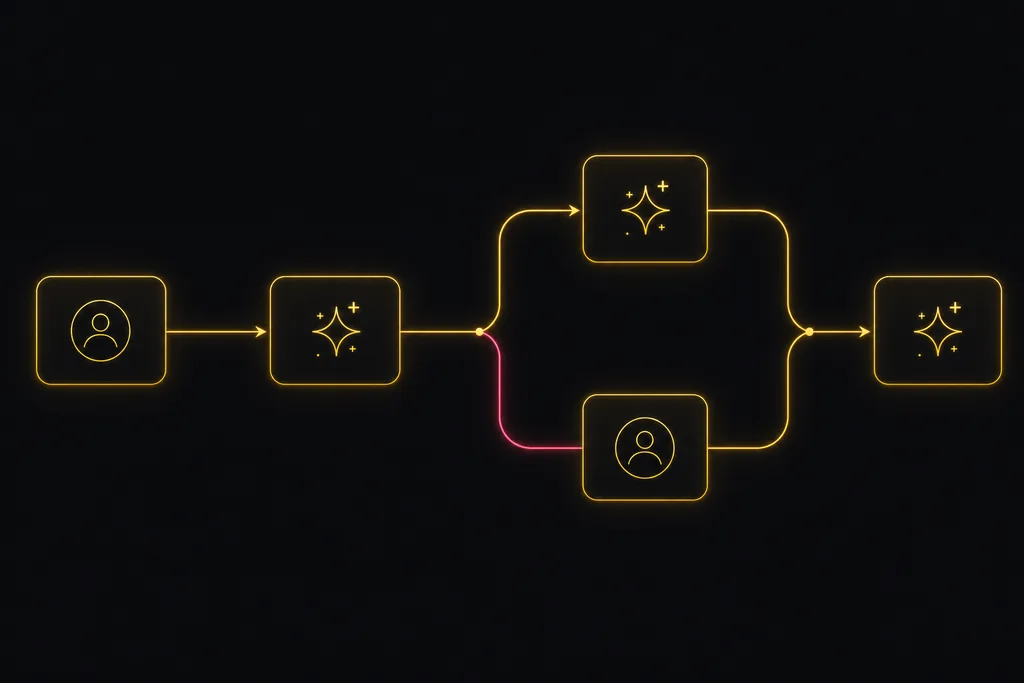
Chat with your AI agents, then put them in a workflow
Utter lets you DM an AI agent or @mention it in a channel, watch it work, and connect agents and people on a canvas so a ticket routes itself through triage, build, and review.
July 17, 2026 · 7 min read

How to use team chat
A practical guide to team chat in a project management tool: channels, DMs, threads, @mentions, file attachments, and the honest limits, all next to your issues.
July 15, 2026 · 16 min read

How to give an AI agent human-in-the-loop approval before it changes your issues
Build an approval gate for AI agents in Utter: let the agent triage into a Needs review column, a human moves it forward, and transition rules stop skips.
May 20, 2026 · 9 min read
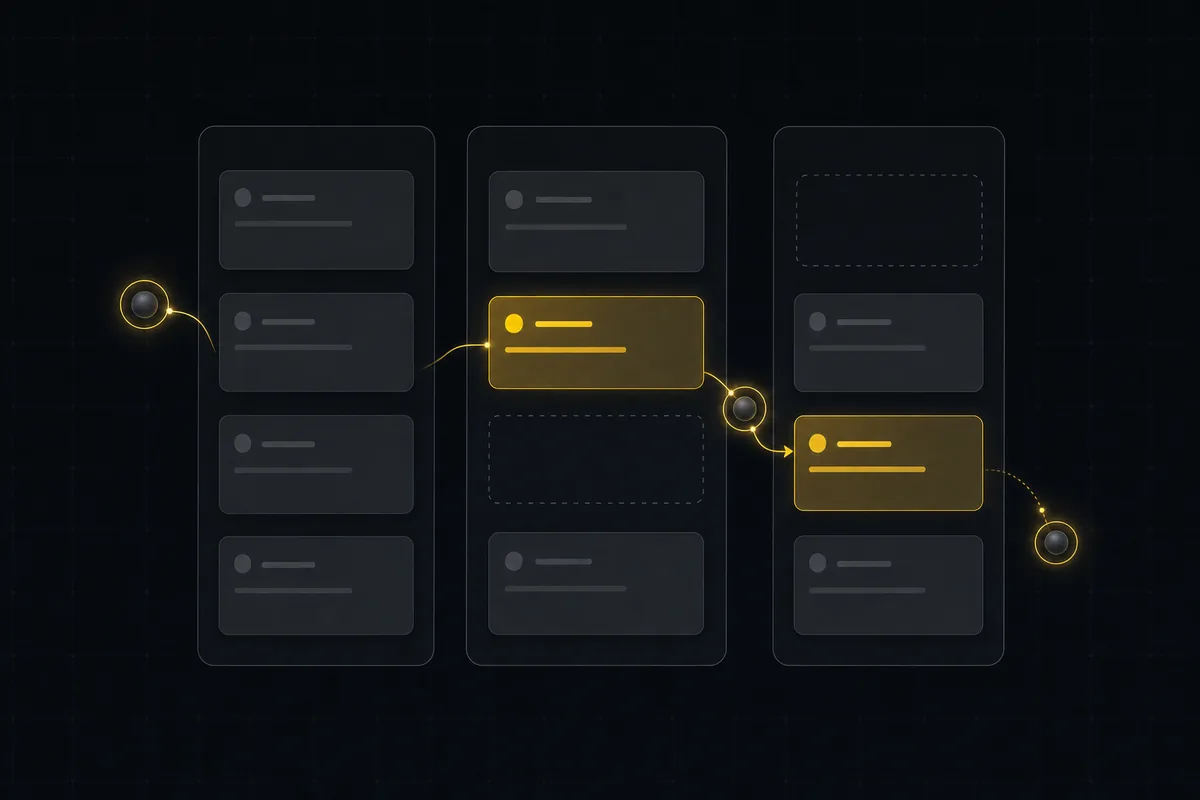
Running a project with AI agents without losing the thread
A practical setup for letting AI agents do real project work, create issues, move the board, draft specs, while your team keeps control of what matters.
July 11, 2026 · 5 min read
ClickUp alternatives for teams who want calm, not more features
ClickUp alternatives for teams who want a calm tracker they will actually adopt. Honest July 2026 pricing and AI-cost tables, where ClickUp still wins, and Utter's free agent members.
July 16, 2026 · 15 min read
Add a comment
Start the conversation.